# Boards

# How to create and configure a Board?

### **<span style="color: rgb(53, 152, 219);">1. Overview</span>**

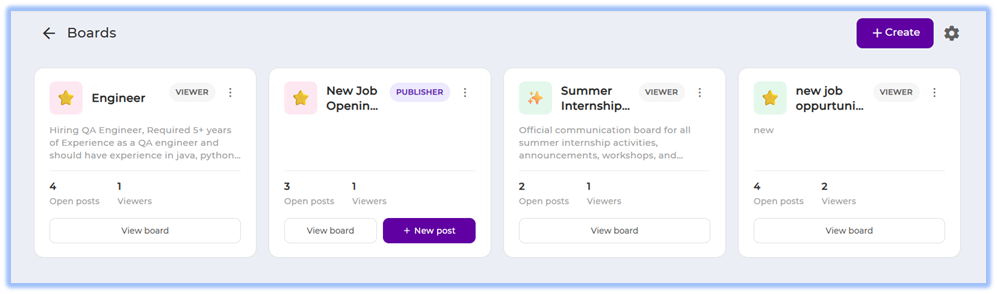
Boards allows admins and publishers to create structured communication spaces within Converse. It supports configurable templates, audience management, publishing workflows, viewer interactions, reporting, and board management for sharing announcements, opportunities, updates, or other structured posts.  
![](https://help.bsharpcorp.com/uploads/images/gallery/2026-05/embedded-image-laqlnx6w.png)

### <span style="color: rgb(53, 152, 219);">**2. When to Use**</span>

- When your organization needs a centralized space to publish announcements or opportunities.
- When different teams or users need separate publishing and viewing access.
- When publishers need structured post formats with predefined fields.
- When viewers need to interact with posts using forms or interest actions.
- When admins need visibility into board engagement and post activity.

### <span style="color: rgb(53, 152, 219);">**3. Concepts**</span>

<div class="" data-is-intersecting="true" data-turn-id-container="request-69897fdd-9fa4-8322-acee-fa8c36dd890d-6" id="bkmrk-board-details-%E2%80%93-basi"><section class="text-token-text-primary w-full focus:outline-none has-data-writing-block:pointer-events-none [&:has([data-writing-block])>*]:pointer-events-auto R6Vx5W_threadScrollVars scroll-mb-[calc(var(--scroll-root-safe-area-inset-bottom,0px)+var(--thread-response-height))] scroll-mt-[calc(var(--header-height)+min(200px,max(70px,20svh)))]" data-scroll-anchor="false" data-testid="conversation-turn-123" data-turn="assistant" data-turn-id="request-69897fdd-9fa4-8322-acee-fa8c36dd890d-6" data-turn-id-container="request-69897fdd-9fa4-8322-acee-fa8c36dd890d-6" dir="auto"><div class="text-base my-auto mx-auto pb-10 [--thread-content-margin:var(--thread-content-margin-xs,calc(var(--spacing)*4))] @w-sm/main:[--thread-content-margin:var(--thread-content-margin-sm,calc(var(--spacing)*6))] @w-lg/main:[--thread-content-margin:var(--thread-content-margin-lg,calc(var(--spacing)*16))] px-(--thread-content-margin)"><div class="[--thread-content-max-width:40rem] @w-lg/main:[--thread-content-max-width:48rem] mx-auto max-w-(--thread-content-max-width) flex-1 group/turn-messages focus-visible:outline-hidden relative flex w-full min-w-0 flex-col agent-turn"><div class="flex max-w-full flex-col gap-4 grow"><div class="min-h-8 text-message relative flex w-full flex-col items-end gap-2 text-start break-words whitespace-normal outline-none keyboard-focused:focus-ring [.text-message+&]:mt-1" data-message-author-role="assistant" data-message-id="ec00f51e-78e3-44e7-b9e0-38a81ee50465" data-message-model-slug="gpt-5-5" data-turn-start-message="true" dir="auto" tabindex="0"><div class="flex w-full flex-col gap-1 empty:hidden"><div class="markdown prose dark:prose-invert wrap-break-word w-full light markdown-new-styling">- **Board Details** – Basic configuration settings for the board such as name, category, icon, and description.
- **Template Builder** – Section used to configure the structure and fields for board posts.
- **Template Fields** – Input fields publishers use while creating posts inside the board.
- **Audience** – Configuration area used to control board access and visibility.
- **Publishers** – Users who can create and publish posts in the board.
- **Viewers** – Users who can access and interact with board posts.
- **Call to Action** – Interactive options available for viewers such as forms or interest actions.
- **Posts** – Content entries created and published inside a board.
- **Board Reports** – Reports showing post activity, engagement, and interest counts.
- **Board Actions** – Options available for managing boards such as edit, reports, and delete.
- **Board Categories** – Classification used to organize boards based on purpose or content type.

</div></div></div></div></div></div></section></div>### **<span style="color: rgb(53, 152, 219);">4. Set Up Guide</span>**

##### <span style="color: rgb(53, 152, 219);">Step 1: Open Boards</span>

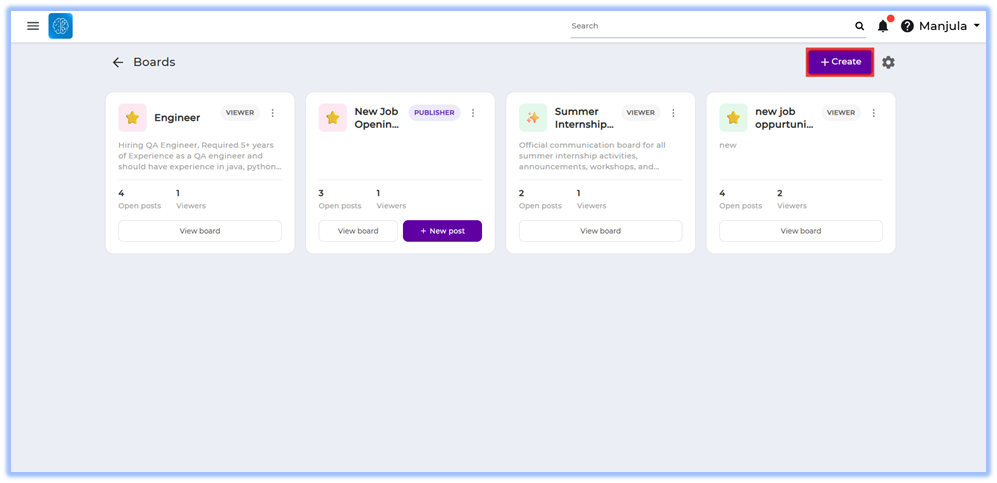
1. Open the Converse platform.
2. Navigate to **Boards** from the main menu.
3. Click **+ Create**.  
    ![](https://help.bsharpcorp.com/uploads/images/gallery/2026-05/embedded-image-2gnfwwev.png)

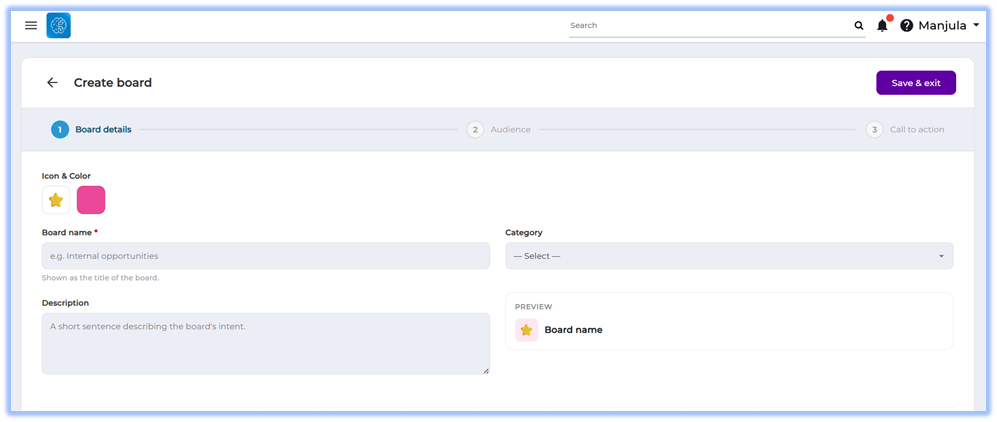
##### <span style="color: rgb(53, 152, 219);">Step 2: Configure Board Details</span>

1. Select the board icon and color.
2. Enter the **Board name**.
3. Select the **Category**.
4. Enter the **Description**.  
    ![](https://help.bsharpcorp.com/uploads/images/gallery/2026-05/embedded-image-0pm3wuui.png)

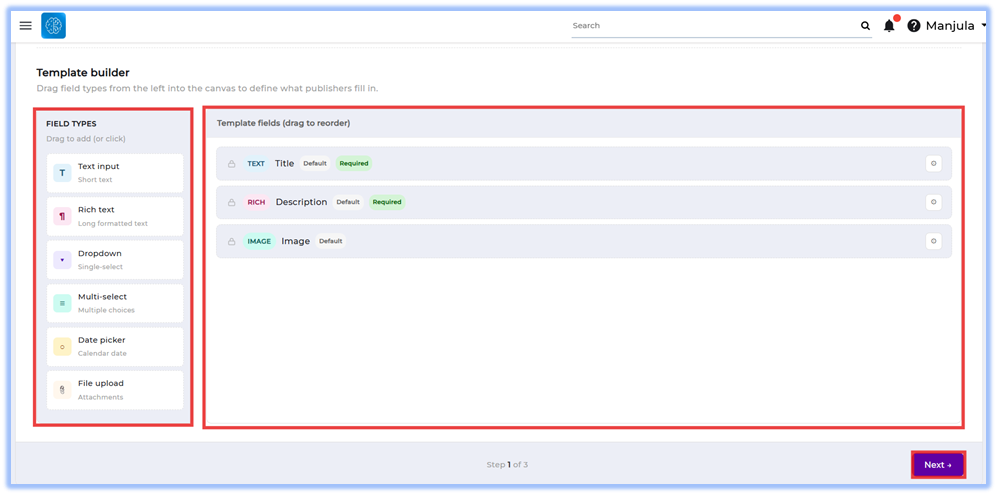
##### <span style="color: rgb(53, 152, 219);">Step 3: Configure the Template Builder</span>

1. Review the default template fields: 
    - Title
    - Description
    - Image
2. Drag additional field types into the template area if required.
3. Configure field settings using the settings icon beside each field.
4. Reorder template fields if required.
5. Click **Next**.

Available field types:

- Text input
- Rich text
- Dropdown
- Multi-select
- Date picker
- File upload  
    ![](https://help.bsharpcorp.com/uploads/images/gallery/2026-05/embedded-image-bngh31mf.png)

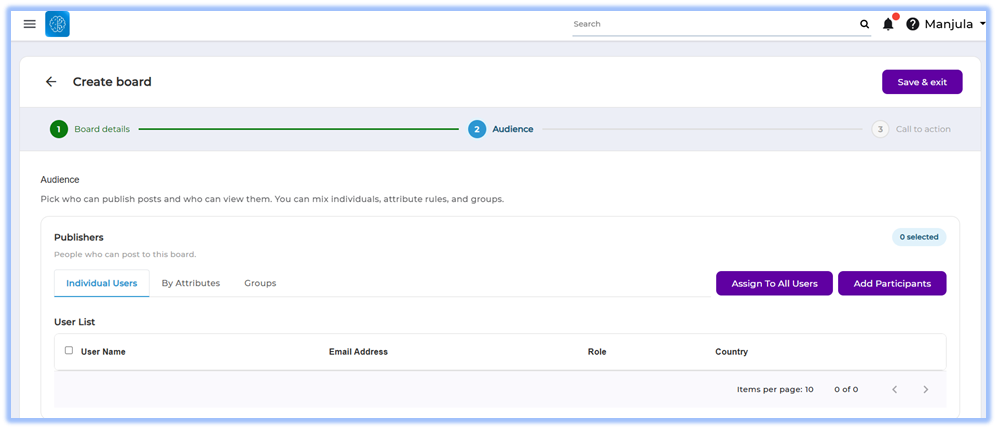
##### <span style="color: rgb(53, 152, 219);">Step 4: Configure Audience</span>

##### <span style="color: rgb(53, 152, 219);">Configure Publishers</span>

1. Select users under: 
    - Individual Users
    - By Attributes
    - Groups
2. Click **Assign To All Users** or **Add Participants** if required.  
    ![](https://help.bsharpcorp.com/uploads/images/gallery/2026-05/embedded-image-c8j9bi88.png)

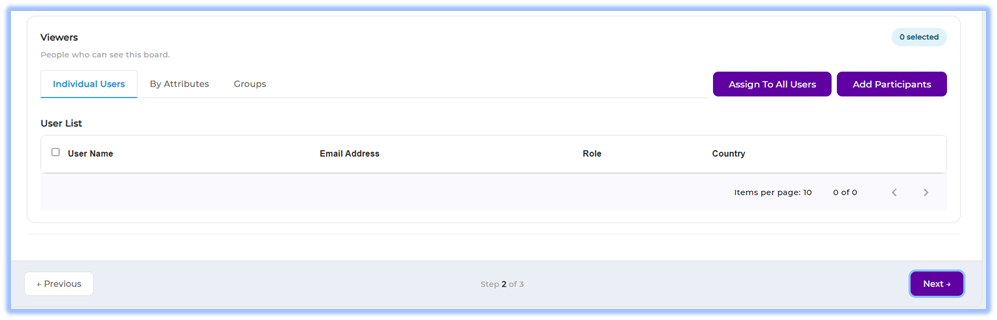
##### <span style="color: rgb(53, 152, 219);">Configure Viewers</span>

1. Select users under: 
    - Individual Users
    - By Attributes
    - Groups
2. Click **Assign To All Users** or **Add Participants** if required.
3. Review the selected viewer count.
4. Click **Next**.  
    ![](https://help.bsharpcorp.com/uploads/images/gallery/2026-05/embedded-image-zj54yz3l.png)

##### <span style="color: rgb(53, 152, 219);">Step 5: Configure Call to Action</span>

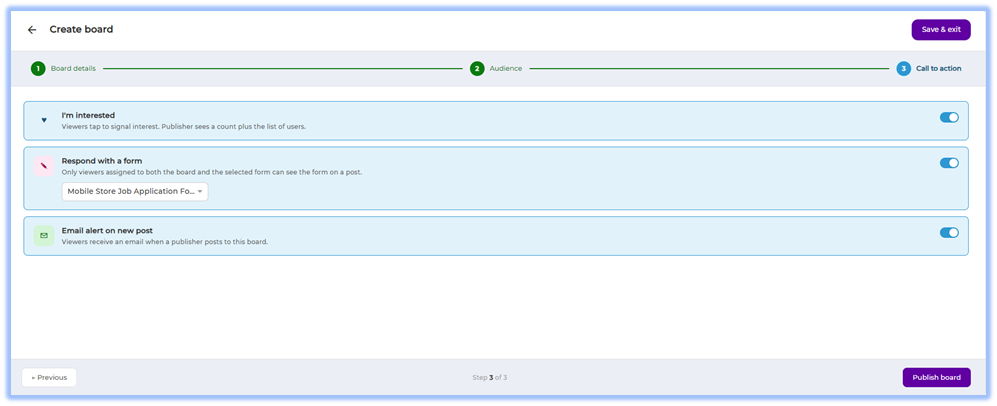
1. Enable or disable **I'm interested** if viewers should express interest in posts.
2. Enable or disable **Respond with a form** if viewers should submit forms.
3. Select the required form from the dropdown if form response is enabled.
4. Enable or disable **Email alert on new post**.
5. Click **Save &amp; exit**.  
    ![](https://help.bsharpcorp.com/uploads/images/gallery/2026-05/embedded-image-kenw89ni.png)

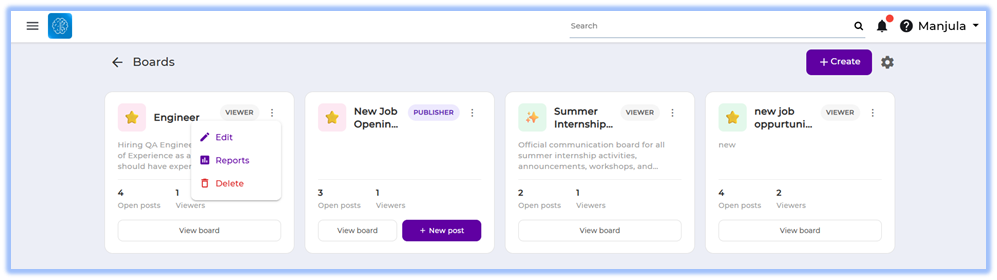
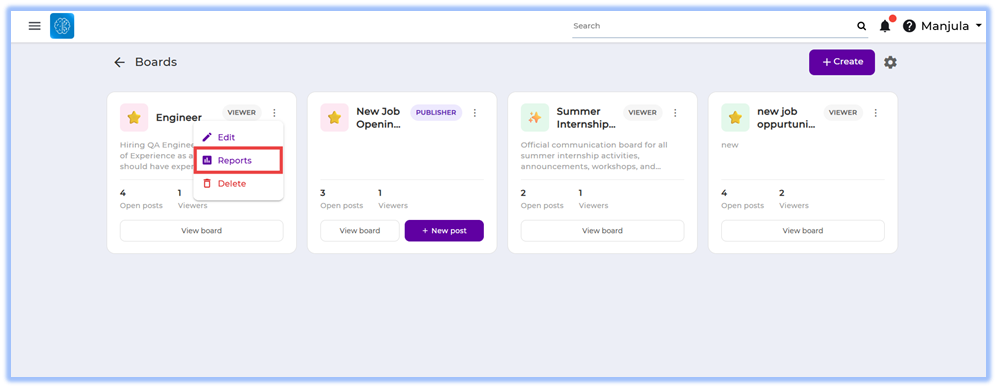
##### <span style="color: rgb(53, 152, 219);">Step 6: Manage Boards</span>

1. Open the required board from the Boards page.
2. Click the three-dot menu.
3. Select: 
    - **Edit**
    - **Reports**
    - **Delete  
        ![](https://help.bsharpcorp.com/uploads/images/gallery/2026-05/embedded-image-qierluql.png)**

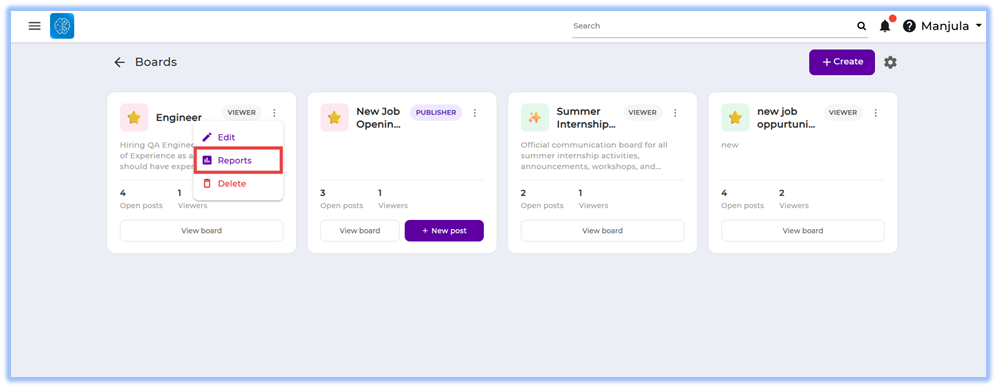
##### <span style="color: rgb(53, 152, 219);">Step 7: View Board Reports</span>

1. Open the required board.
2. Click the three-dot menu.
3. Select **Reports**.  
    ![](https://help.bsharpcorp.com/uploads/images/gallery/2026-05/embedded-image-u9jrlgs7.png)
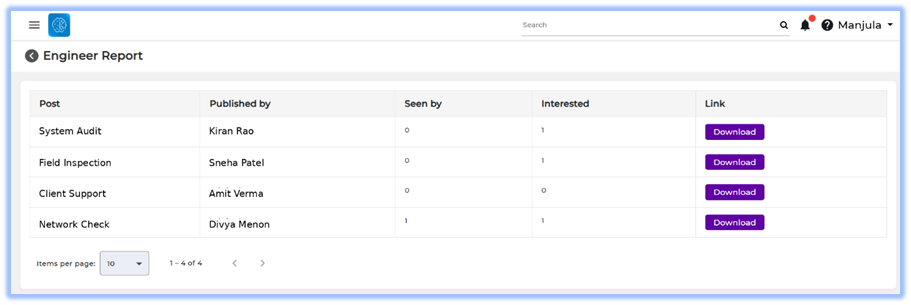
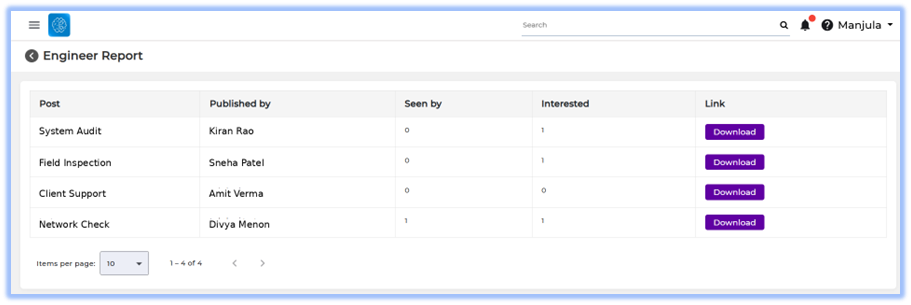
4. Review the report details: 
    - Post
    - Published by
    - Seen by
    - Interested
5. Click **Download** to export the report.  
    ![](https://help.bsharpcorp.com/uploads/images/gallery/2026-05/embedded-image-kbxajwo1.png)

### **<span style="color: rgb(53, 152, 219);">5. User View</span>**

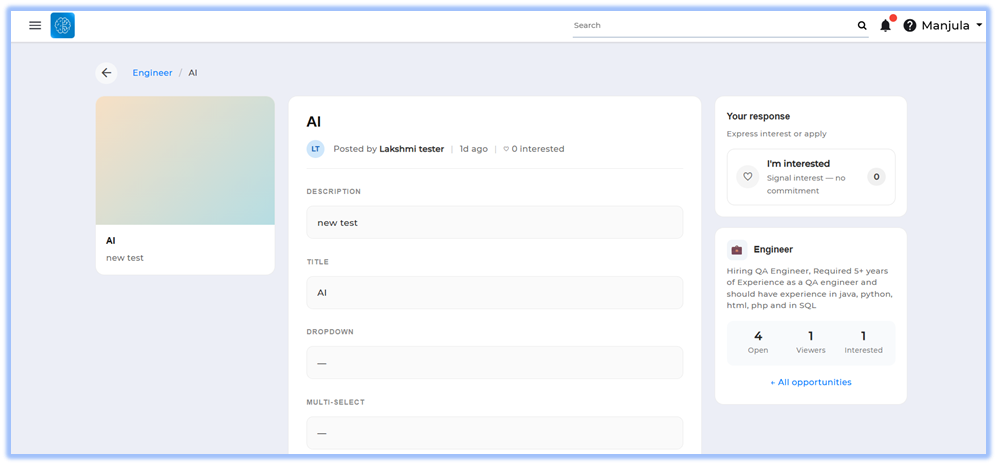
Viewers can access assigned boards from the Boards page. Each board displays the board title, description, number of open posts, and viewer count.

Inside a board, viewers can:

- View published posts
- Open post details
- View uploaded images and formatted content
- Access configured template fields
- Express interest using the **I'm interested** option
- Access linked forms when configured
- View attachments uploaded by publishers

Publishers can additionally:

- Create new posts
- Publish updates inside assigned boards
- View board reports when available
- Manage existing boards based on access  
    ![](https://help.bsharpcorp.com/uploads/images/gallery/2026-05/embedded-image-gdfrqeyp.png)

### <span style="color: rgb(53, 152, 219);">**6. Reporting**</span>

##### <span style="color: rgb(53, 152, 219);">Board Reports</span>

Board reports display:

- Post name
- Published by
- Seen by count
- Interested count  
    ![](https://help.bsharpcorp.com/uploads/images/gallery/2026-05/embedded-image-iai2yzex.png)  
    ![](https://help.bsharpcorp.com/uploads/images/gallery/2026-05/embedded-image-m2guezfv.png)

Reports can be accessed from the board actions menu using the **Reports** option.

Users can download reports using the **Download** button available in the report table.

### <span style="color: rgb(53, 152, 219);">**7. Best Practices**</span>

- Use clear board names to help users identify the purpose of the board.
- Configure only the required template fields to simplify post creation.
- Assign publishers and viewers carefully to maintain controlled access.
- Use categories consistently across boards for easier organization.
- Review call-to-action settings before publishing the board.
- Use structured field labels to maintain consistency across posts.
- Review audience configuration before enabling email alerts.

### **<span style="color: rgb(53, 152, 219);">8. Related Links / FAQs</span>**

**Can multiple publishers be assigned to a board?**

Yes. Multiple users can be assigned as publishers.

**Can viewers submit forms from a board?**

Yes. This depends on whether the **Respond with a form** option is enabled.

**Can attachments be uploaded in posts?**

Yes. Publishers can upload attachments while creating posts.

**Can audience be configured using groups?**

Yes. Audience can be configured using **Individual Users**, **By Attributes**, or **Groups**.

**Can reports be downloaded?**

Yes. Reports can be downloaded using the **Download** option in the Reports page.

**Can boards be edited after creation?**

Yes. Boards can be updated using the **Edit** option from the board actions menu.

### <span style="color: rgb(53, 152, 219);">**9. Version Notes**</span>

**Last Updated:** 27 May 2026<script src='//in.fw-cdn.com/30395390/222989.js' chat='true'></script>