# Classroom Administration
### **1. Overview**
The Classroom module enables administrators to create, manage, and organize instructor-led training programs. Admins can configure course details, upload learning materials, assign trainers, and publish courses for learners.
### **2. When to Use**
Use Classroom Administration when you want to:
- Create instructor-led training courses
- Upload learning materials
- Assign trainers to courses
- Configure course information
- Publish or archive courses
- Manage classroom training
### **3. Concepts**
- **Classroom** – A module used to manage instructor-led training programs.
- **Course** – A training program that contains learning materials, trainers, and sessions.
- **Course Information** – Basic details such as course name, description, skills, and product information.
- **Documents** – Learning materials uploaded to a course, including PDFs, videos, Learnbee, quizzes, and polls.
- **Trainer Assignment** – Process of assigning trainers to conduct classroom sessions.
- **Course Status** – Indicates whether a course is Draft, Active, or Archived.
### **4. Set Up Guide**
##### Access Classroom
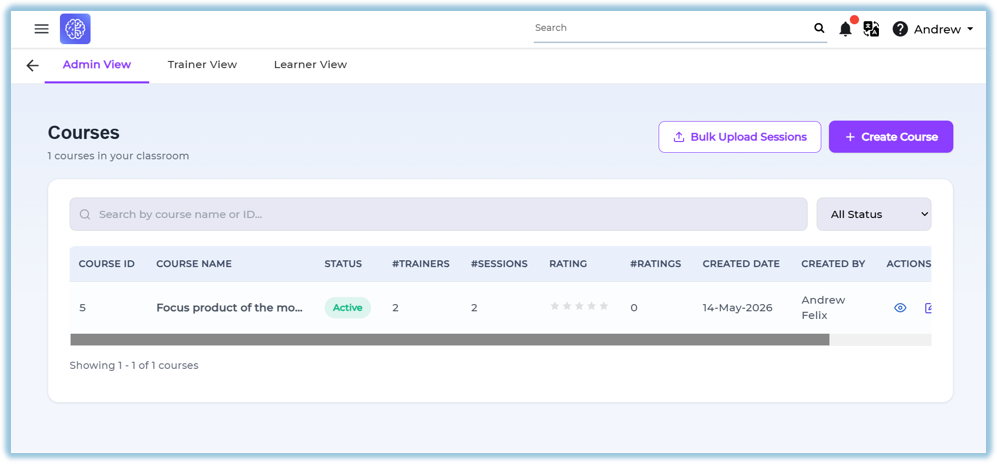
1. Open the **Main Menu**.
2. Click **Classroom**.
3. Select **Admin View**.
##### Create a Course
1. Click **+ Create Course**.
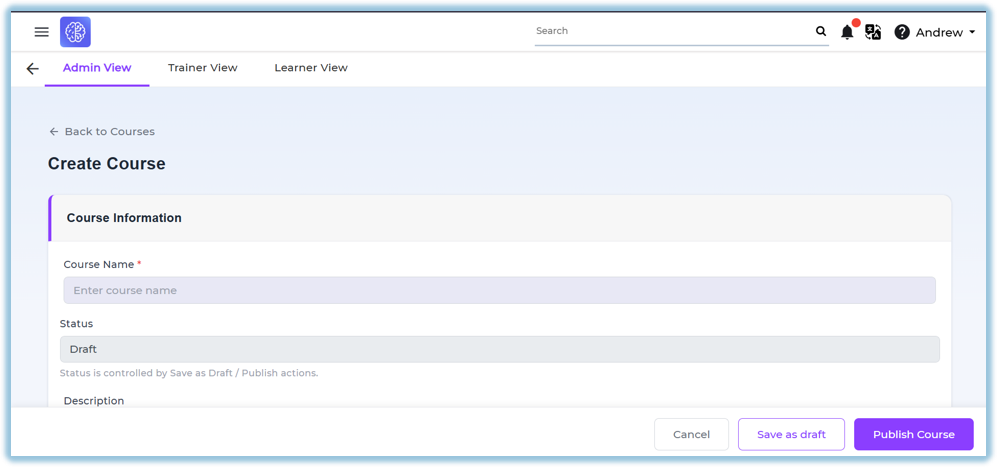
2. Enter the Course Name.
3. Review the system-generated Course ID.
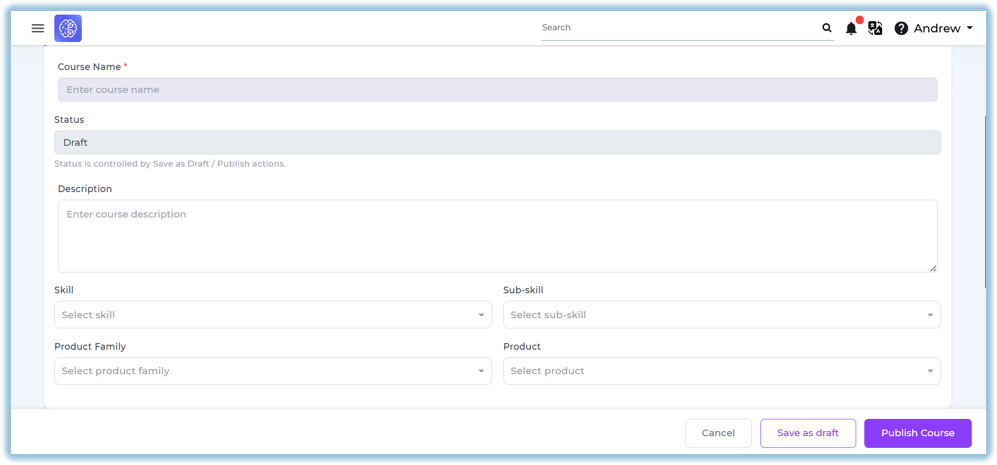
4. Enter the Course Description.
##### Configure Course Information
Enter the required course details:
- Skill
- Sub-skill
- Product Family
- Product
##### Upload Learning Materials
Navigate to **Documents**.
Click **+ Upload Document**.
Supported document types include:
- PDF
- Video
- Learnbee
- Quiz
- Poll
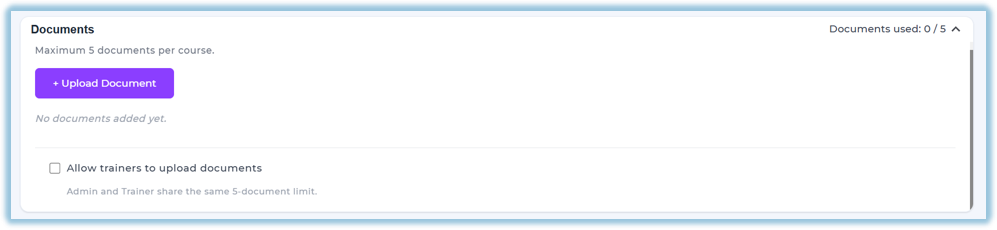
Review uploaded documents before publishing the course.
##### Configure Trainer Access
Choose one of the following options:
- Invite All Trainers
- Invite Specific Trainers
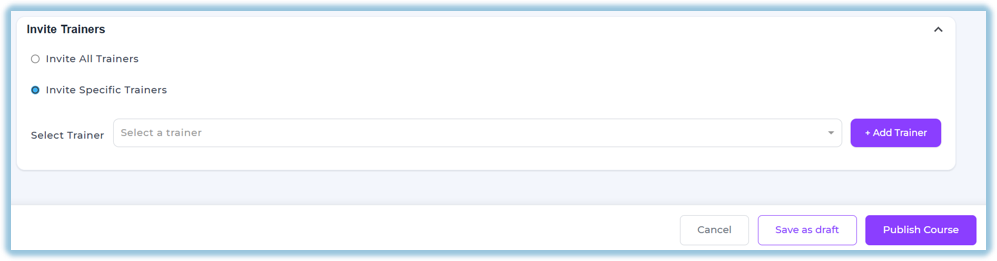
Review the selected trainers before saving the course.
##### Save or Publish
Choose one of the following:
- Save as Draft
- Publish Course
Published courses become available for trainer session creation.
##### Archive or Restore Course
Admins can archive completed or inactive courses.
Archived courses can be restored whenever required.
### **5. User View**
The Admin Dashboard displays:
- Courses
- Course Status
- Assigned Trainers
- Documents
- Session Count
- Ratings
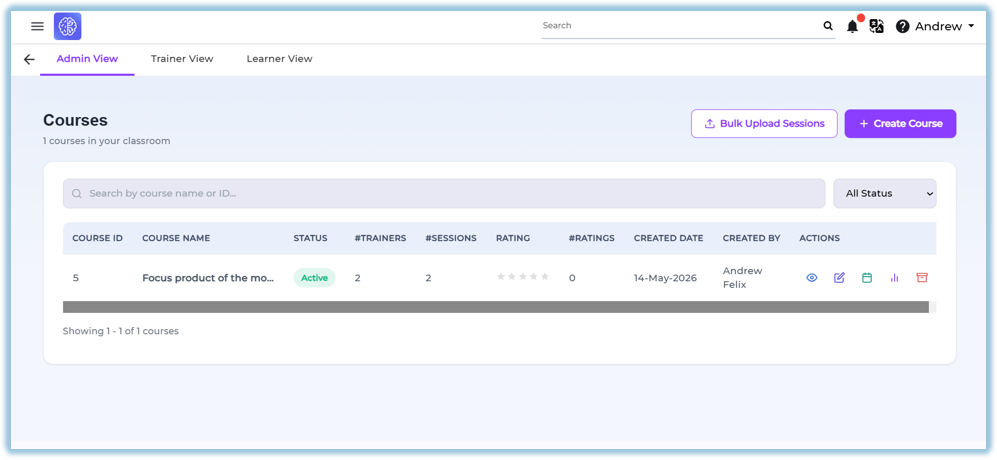
Admins can:
- Edit courses
- Publish courses
- Archive courses
- Manage documents
- Manage trainer assignments
### **6. Reporting**
Admins can monitor:
- Total Courses
- Published Courses
- Draft Courses
- Assigned Trainers
- Course Ratings
- Session Count
Detailed reporting is available through the Classroom Reports section.
### **7. Best Practices**
- Complete all course details before publishing.
- Upload all required learning materials.
- Assign trainers before scheduling sessions.
- Review course information regularly.
- Use Draft status while configuring incomplete courses.
- Archive inactive courses instead of deleting them.
### **8. Troubleshooting & FAQs**
**Q. Where can I access Classroom?**
**A.** Main Menu → Classroom.
**Q. Which document types are supported?**
**A.**
- PDF
- Video
- Learnbee
- Quiz
- Poll
Q. Can multiple trainers be assigned to a course?
**A.** Yes. Admins can invite all trainers or select specific trainers.
Q. Can trainers upload documents?
**A.** Yes. Admins can enable trainer document uploads for the course.
Q. Can a course be saved without publishing?
**A.** Yes. Use **Save as Draft** to save the course before publishing.
Q. Can archived courses be restored?
**A.** Yes. Archived courses can be unarchived whenever required.
### **9. Version Notes**
Last Updated: 06 Aug 2026