# Classroom Sessions
### **1. Overview**
Session Management enables trainers and administrators to schedule, conduct, and manage classroom sessions. It includes session scheduling, learner invitations, attendance management, document sharing, live session controls, and participant tracking.
### **2. When to Use**
Use Session Management when you want to:
- Schedule classroom sessions
- Invite learners to a session
- Configure online, offline, or hybrid sessions
- Manage attendance during live sessions
- Share learning materials with participants
- Track learner participation
- Complete classroom sessions
### **3. Concepts**
- **Session** – A scheduled classroom training conducted under a course.
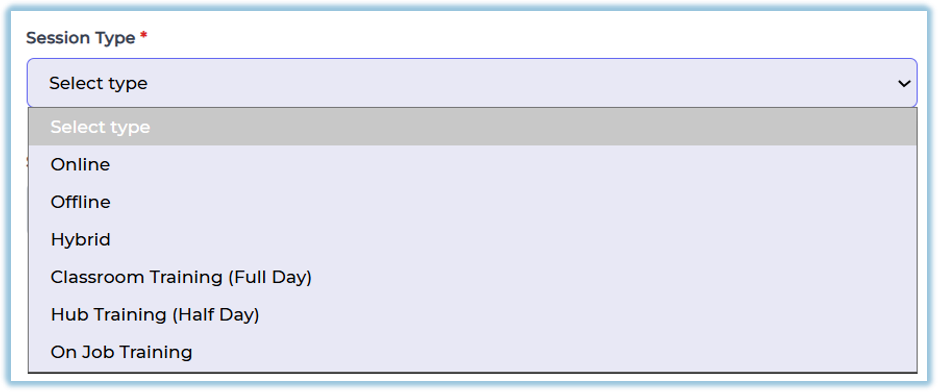
- **Session Type** – Defines whether the session is Online, Offline, or Hybrid.
- **Attendance Code** – A unique code used by learners to mark attendance.
- **Participants** – Learners invited to attend a classroom session.
- **Session Documents** – Learning materials available during the session.
- **Session Status** – Indicates whether a session is Scheduled, Live, Completed, or Missed.
### **4. Set Up Guide**
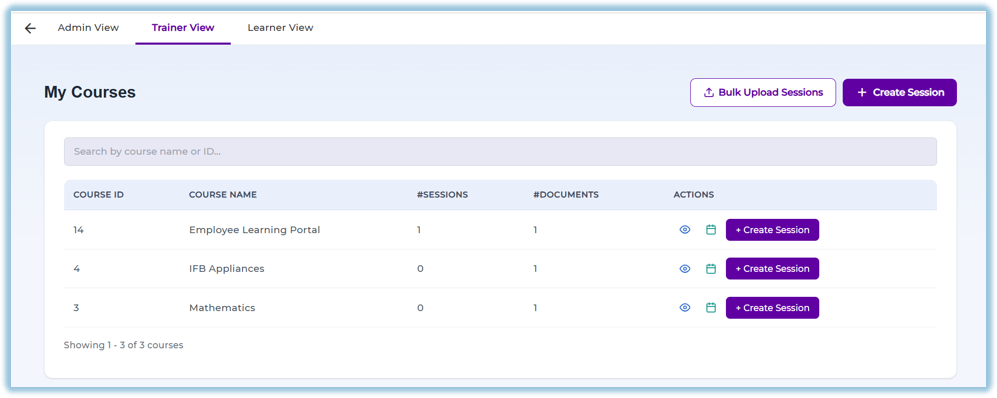
##### Access Trainer View
1. Open **Classroom**.
2. Select **Trainer View**.
3. Open **My Courses**.
4. Select the required course.
##### Create a Session
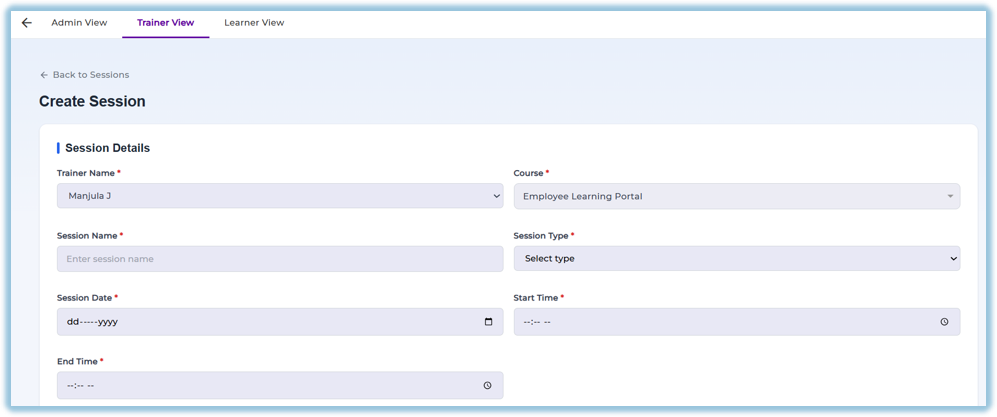
1. Click **Create Session**.
2. Enter the **Session Name**.
3. Verify the **Trainer Name**.
4. Select the **Session Type**.
5. Choose the **Session Date**.
6. Enter the **Start Time** and **End Time**.
##### Configure Session Details
Based on the session type:
- **Online** – Enter the meeting link.
- **Offline** – Enter the venue details.
- **Hybrid** – Configure both meeting link and venue.
##### Upload Session Documents
Session documents can include:
- PDF
- Video
- Learnbee
- Quiz
- Poll

Admin documents are available to every session, and trainers can upload session-specific documents when enabled.
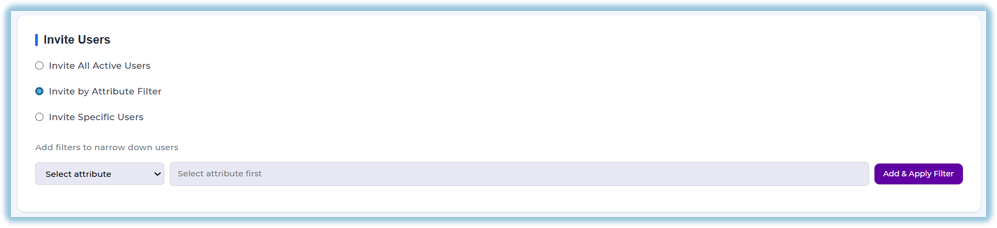
##### Invite Learners
Choose one of the following options:
##### Invite All Active Users
Invite all active users in the organization.
##### Invite by Attribute
Invite learners based on attributes such as:
- Designation
- Product
- Product Family
- Country
- State
- City
- Manager
- Trainer
##### Invite Specific Users
Search and select individual learners.
##### Attendance Management
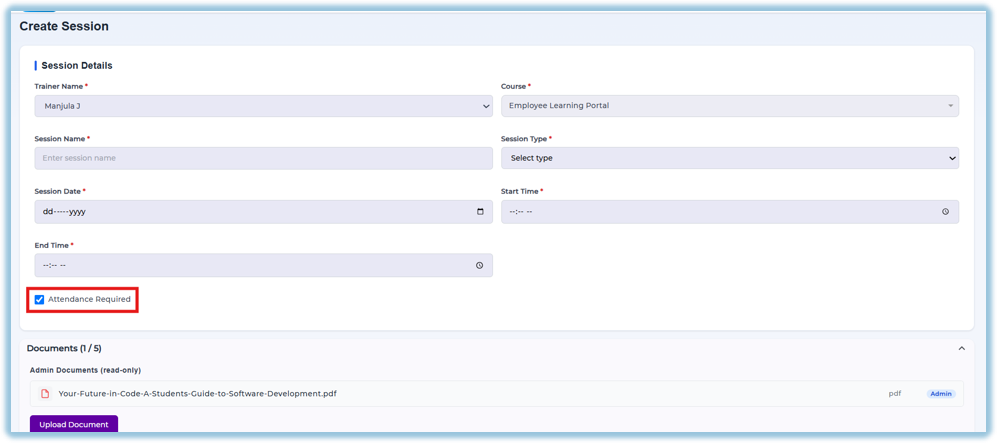
1. Enable **Attendance Required** if attendance is mandatory.
2. Start the session.
3. Share the generated **Attendance Code** with learners.
4. Learners enter the code to mark attendance.
##### Start the Session
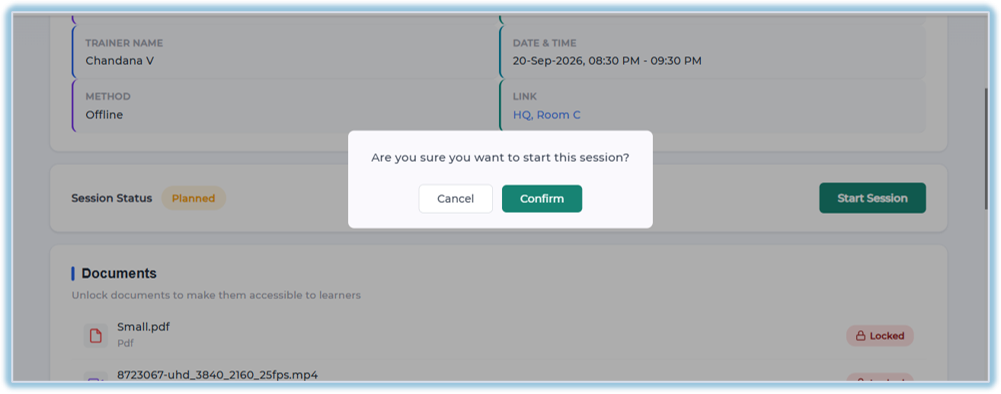
1. Open the scheduled session.
2. Click **Start Session**.
3. Confirm the action.
4. Session status changes to **Live**.
##### Unlock Learning Materials
During the live session:
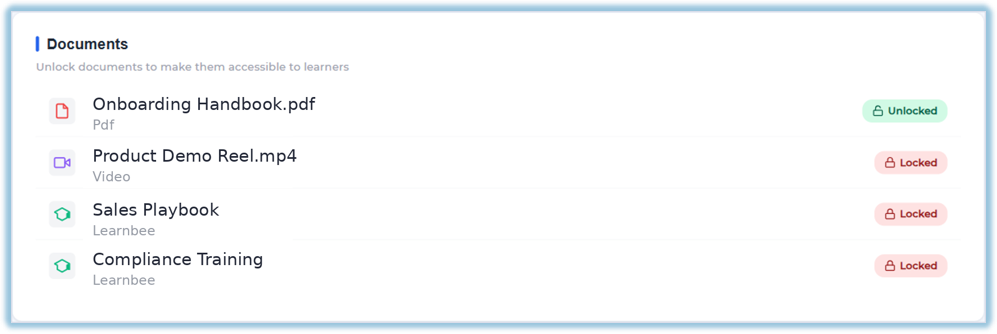
- Unlock documents individually.
- Learners can access only the unlocked materials.
##### Track Participants
Monitor participant status during the session:
- Pending
- Accepted
- Declined
- Attended
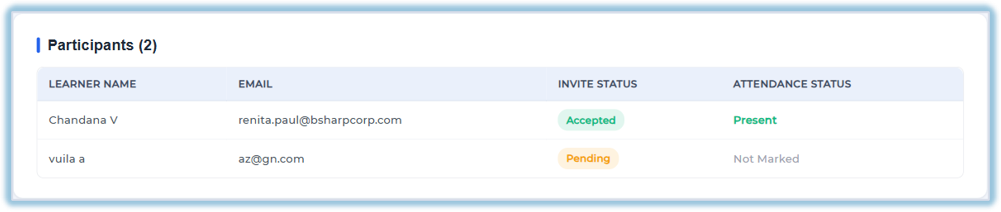
Attendance and invitation status are updated in real time.
##### End the Session
After the training:
1. Review attendance.
2. Confirm participant status.
3. End the session.
The session moves to **Completed** after it ends.
### **5. User View**
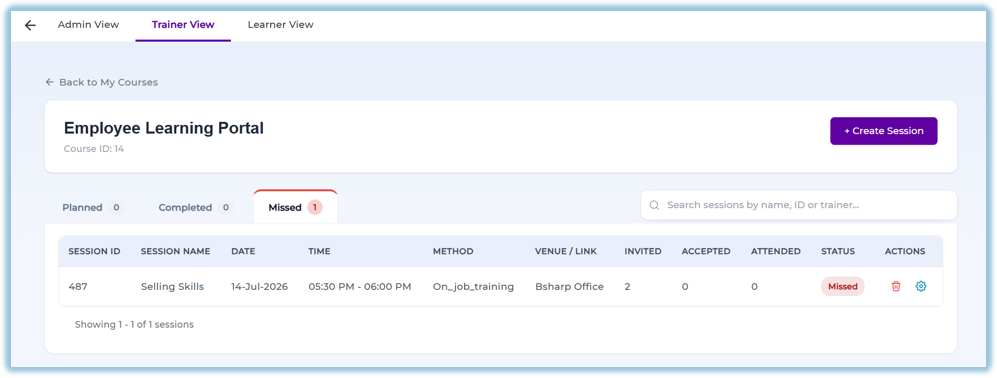
The Trainer Dashboard displays:
- My Courses
- Planned Sessions
- Live Sessions
- Completed Sessions
- Missed Sessions
For each session, trainers can:
- View session details
- Edit session
- Start session
- Unlock documents
- View participant status
- View attendance
- End session
### **6. Reporting**
Session reports include:
- Session Details
- Attendance Status
- Participant Status
- Document Completion
- Quiz Completion
- Poll Completion
- Session Ratings
Reports can be filtered by:
- Course
- Trainer
- Session Status
- Date Range
Detailed reports can be downloaded for analysis.
### **7. Best Practices**
- Schedule sessions before inviting learners.
- Verify meeting links and venue details before publishing.
- Enable attendance only when required.
- Unlock learning materials during the live session.
- Monitor participant status throughout the session.
- End sessions after completion to maintain accurate records.
### **8. Troubleshooting & FAQs**
Q. Which session types are available?
**A.** Online, Offline, and Hybrid.
**Q. Can I invite learners using attributes?**
**A.** Yes. Learners can be invited using attribute-based filters or by selecting individual users.
**Q. When is the attendance code available?**
**A.** The attendance code is generated after the session is started.
**Q. Can learners access documents before the session starts?**
**A.** No. Documents remain locked until the trainer unlocks them during the live session.
**Q. What happens if attendance is required?**
**A.** Learners must enter the attendance code before they can access the meeting link and learning materials.
**Q. Can trainers upload session-specific documents?**
**A.** Yes. Trainers can upload session-specific documents if the course allows trainer document uploads.
### **9. Version Notes**
Last Updated: 06 Aug 2026