# Privacy
### **1. Overview**
The Privacy (Email Notifications) page allows users to decide which email notifications they want to receive from Converse. Users must opt in to receive emails sent by the admin for activities such as badges, certificates, birthdays, learning updates, and more.
### **2. When to Use**
- To control personal email notification preferences
- To opt in or opt out of admin-triggered email notifications
- To receive only relevant system and engagement updates
- To stop unwanted email communication
### **3. Concepts**
- **Email Notifications:** Emails sent by the system or admin for specific activities.
- **Opt-in:** Users must enable notifications to receive emails.
- **Toggle All:** Enables or disables all email notification options at once.
### **4. Set Up Guide (User Action)**
Users can access the **Email Notifications (Privacy)** page in **two ways**:
##### Option 1: Via Menu Bar
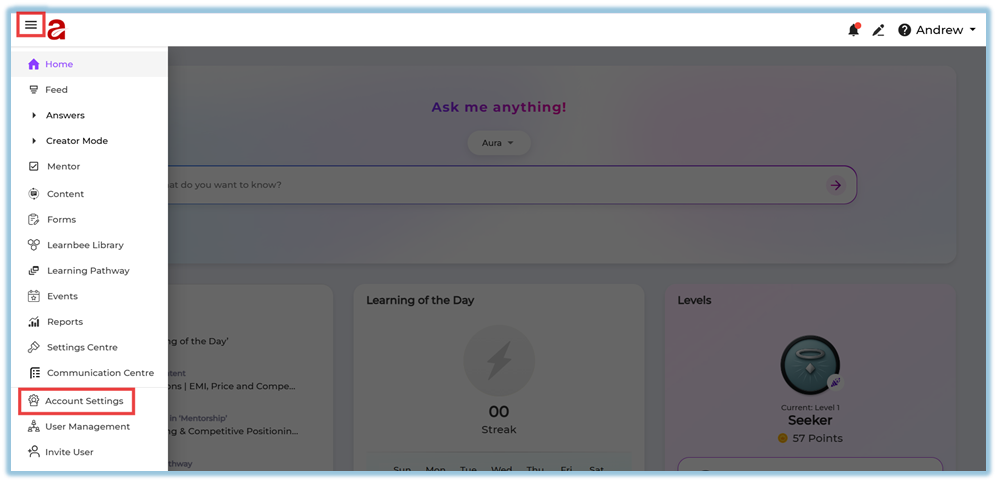
1. Click the **☰ Menu bar**.
2. Select **Account Settings**.
3. Click **Email Notification**.
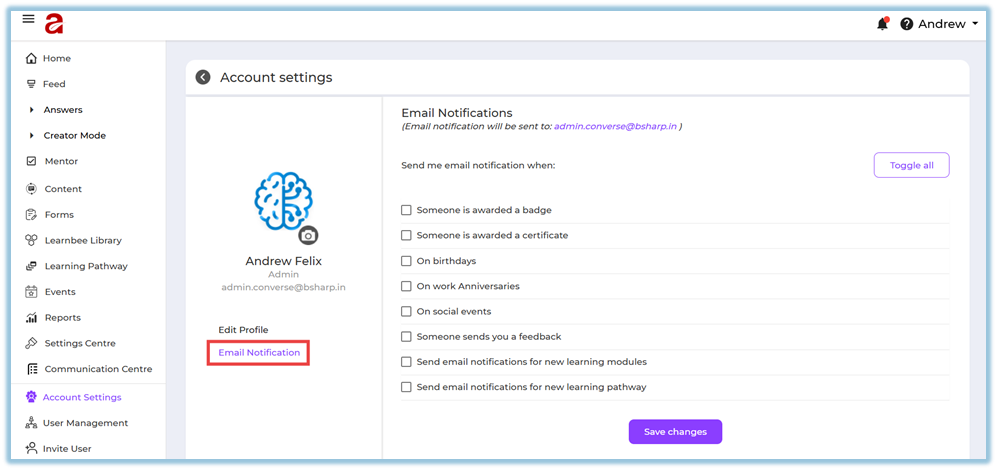
4. Choose the notifications you want to receive.
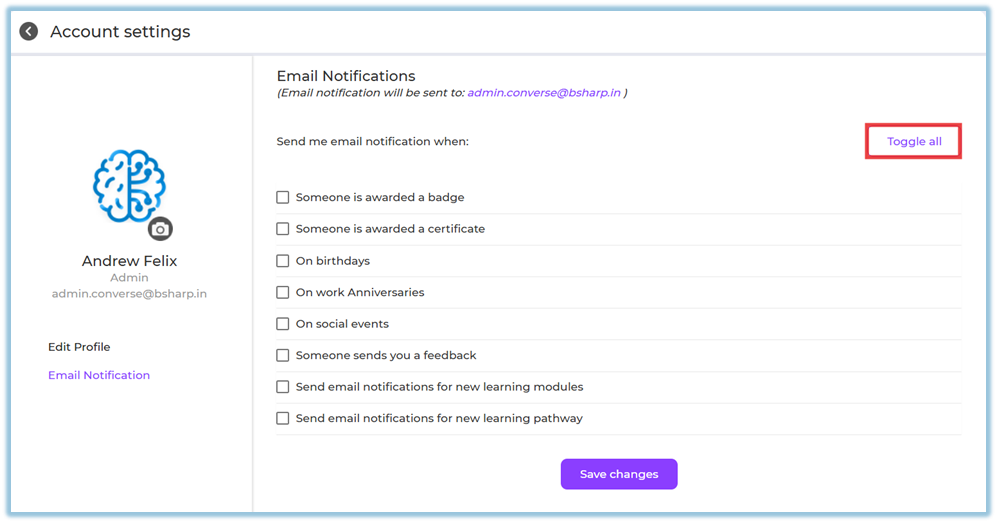
5. (Optional) Click **Toggle all** to enable all notifications.
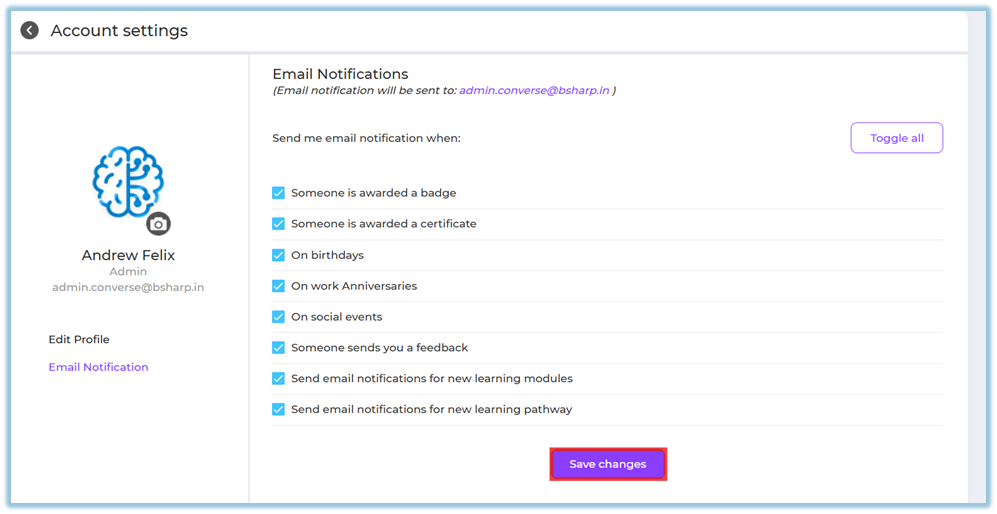
6. Click **Save changes**.
##### Option 2: Via Profile Icon
1. Click the **Profile icon** on the top-right corner.
2. Select **Profile**.
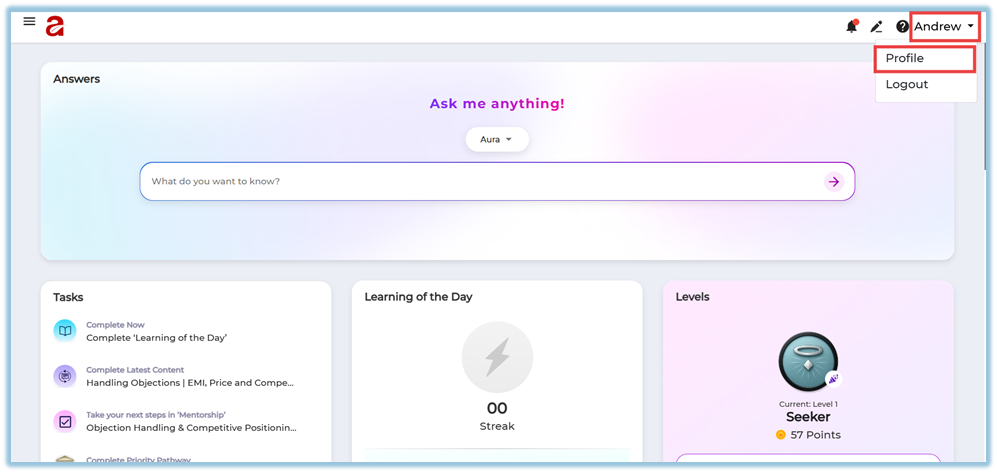
3. You will be redirected to **Account Settings**.
4. Click **Email Notification**.
5. Select the notifications you want to receive.
6. Click **Save changes**.

⚠️ Important:
Users will receive emails only if they are opted in. Admin-sent notifications will not reach users who have not enabled email notifications.
### **5. User View**
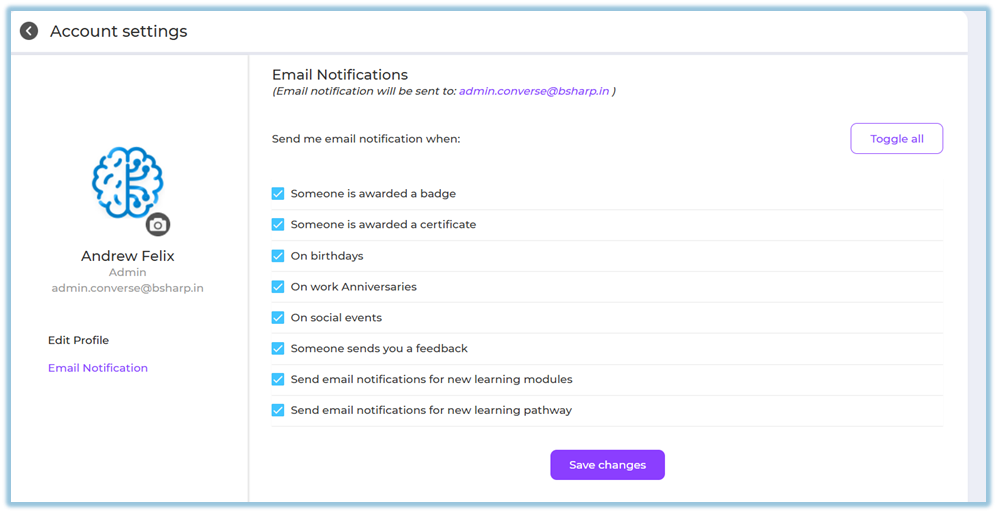
- Users see a list of available email notification options.
- Selected options appear with checkmarks.
- A **Toggle all** option is available for quick selection.
- Changes are applied only after clicking **Save changes**.
### **6. Reporting**
- This feature does not have a reporting section.
- Email delivery depends on user opt-in preferences.
### **7. Best Practices**
- Review notification preferences regularly.
- Enable only required notifications to avoid email overload.
- Use **Toggle all** carefully if you want all updates.
- Always click **Save changes** after updating settings.
### **8. Related Links / FAQs**
**Q: Will I receive emails if I don’t opt in?**
No. Email notifications are sent only to users who have opted in.
**Q: What does Toggle all do?**
It enables all available email notification options at once.
**Q: Can admins force email notifications?**
No. Emails are delivered only if users have enabled notifications.
### **9. Version Notes**
- **Last Updated:** 26 Dec 2025