
How do we set up Content?
1. Overview
Bsharp Converse Content is a smart tool that lets you quickly create structured training modules from documents, images, videos, and quizzes. With its AI tool, Learnbee, you can instantly convert PDFs into interactive content and publish them with the right user targeting, rules, and reminders.
Module Deployment is the complete process of creating and launching a learning module in Converse. It consists of four core steps:
- Module Details → Define all metadata
- Content → Build the training structure and upload learning materials
- Add Users → Select the learners who will receive the module
- Settings & Publish → Configure notifications and launch the module
Organizations need a scalable way to:
- Create structured training content
- Target specific users or teams
- Track completion and compliance
- Maintain consistent, high-quality learning formats
- Deliver training using multiple channels (in-app, email, WhatsApp, Google Chat)
2. When to Use?
Use the module deployment process when you need to:
- Launch a structured training program
- Upload learning materials such as PDF, video, quiz, text
- Enforce completion rules (mandatory pages, minimum view time)
- Roll out training to selected teams or regions
- Run compliance, onboarding, product training, or certification programs
- Track completion and engagement reports
Use this feature if:
- You want a structured module instead of ad-hoc files
- You need to track completion
- You want sequential learning (locks)
- You want to reach specific target groups
- You want automated reminders
- You want reporting at module, page, or quiz level
3. Concepts
Module
A complete learning unit consisting of sections, pages, and content.
Section
Top-level grouping inside a module (e.g., Intro, Core Offering, Summary).
Page
A learning block within a section containing content items.
Content Item (Card)
Individual learning material:
Text, Image, PDF, Video, Quiz, LearnBee content, SCORM.
Skill / Sub-skill
Product Family / Product
Mapping used for product-based learning setups.
Mandatory Page
Learners must complete this to finish the module.
Lock Page
Learners must complete the previous page before unlocking the next.
Minimum View Time
Timer on PDFs/videos that ensures enough viewing is done.
Attribute Group
Automatically assigns modules based on user properties (country, department, etc.).
Assigned Notification
Message sent when a module goes live.
Reminder Alert
Follow-up messages sent only to users who haven’t completed training.
4. How to Set It Up / Configure It
To start setting up Content:
-
Click the menu icon on the top-left.
-
Select Content from the left-side menu.
-
Click + Module on the top-right of the Content page.
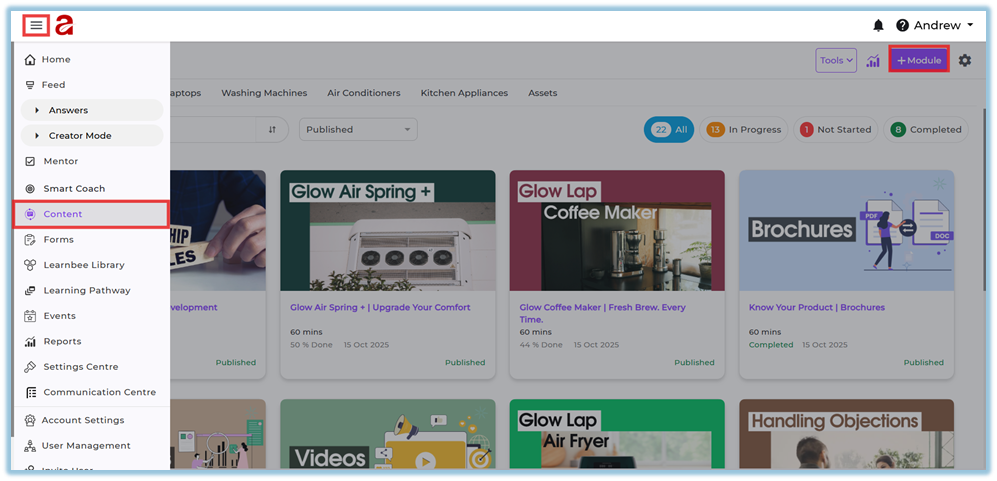
The deployment process is divided into four guided steps.
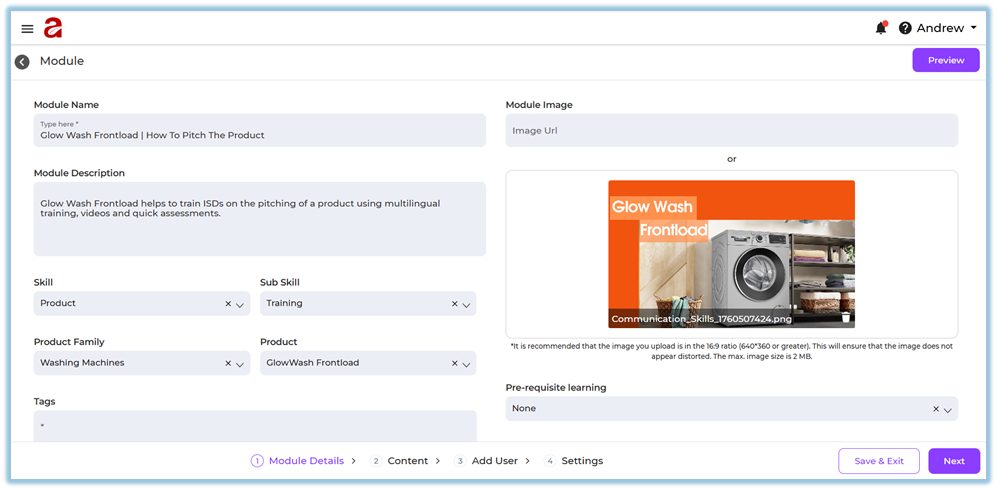
STEP 1 — MODULE DETAILS
(Define metadata and classification)
Setup Steps
- Enter module name and description
- Choose Skill and Sub-skill
- Select Product Family & Product
- Add Tags (optional)
- Choose Module Type (Training, Policy, Certification, etc.)
- Select Importance (High/Medium/Low)
- Select Language
- Enter Duration
- Upload Thumbnail image
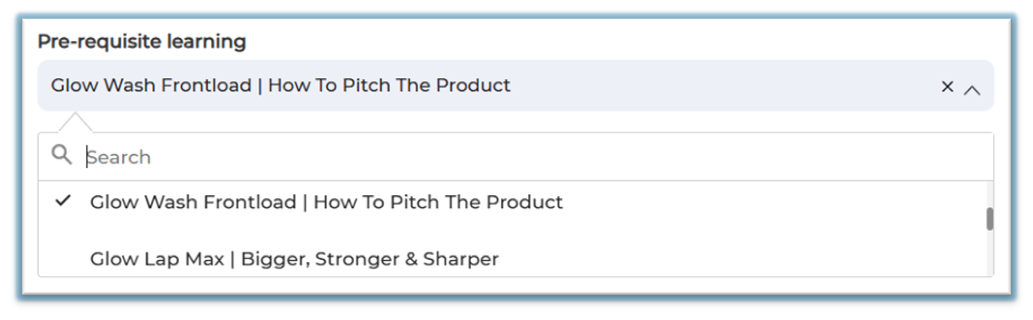
10. Set Pre-requisite Module
A pre-requisite module is a module the learner must complete first before starting the current module.
This ensures the learner follows the correct learning order.
Only one module can be added as a pre-requisite module.
Example:
If there are two modules:
-
Module – Part 1
-
Module – Part 2
Here, Part 1 is the pre-requisite module for Part 2.
When a learner opens Part 2, the system will ask them to complete Part 1 first.
This is because Part 1 contains the basic information needed before moving to Part 2.
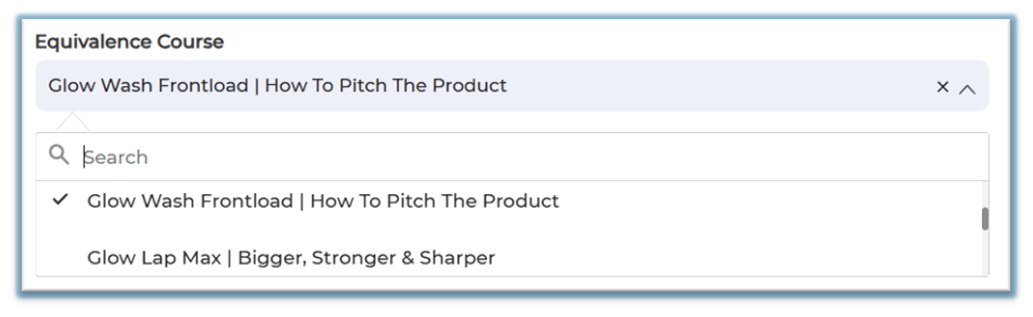
11. Set Equivalence Module
An equivalence course is another module that teaches the same learning content.
If two modules are equivalent, completing either one will count as completing both.
Only one module can be added as a Equivalence module.
Example:
If you have:
- Module A – Glow Air Fryer Overview (PDF)
- Module B – Glow Air Fryer Overview (Video)
You can set Module B as the equivalent of Module A.
This means:
-
- If the learner completes the video, the PDF version also shows as completed.
- And if they complete the PDF, the video version will also be marked completed.
➡ All configuration options referenced here come from admin settings pages.
(Example: Skills, Languages, Product Families, and Module Types)
STEP 2 — CONTENT
(Build the actual training journey)
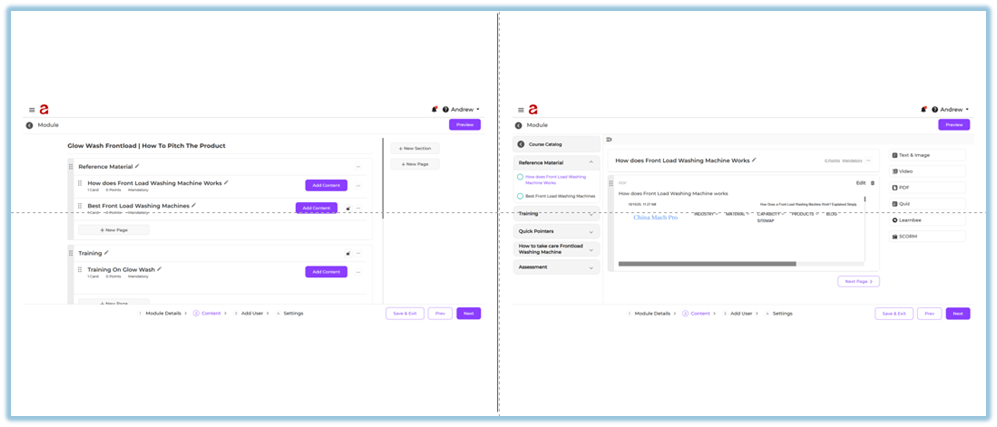
Structure Overview
A module → contains Sections → each contains Pages → each holds Content Items.
Setup Steps
- Create Sections (Intro, Core Concept, Summary)
- Create Pages inside each section
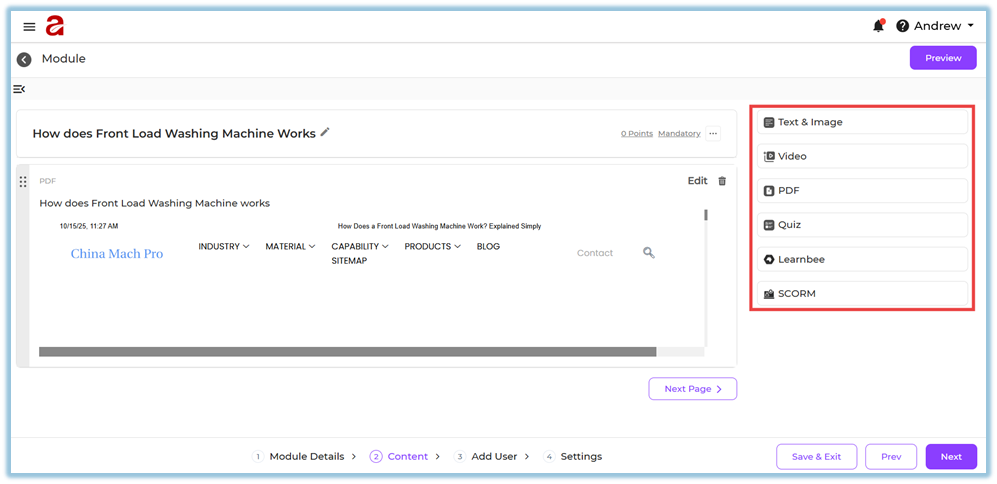
- Add content items:
- Text & Image
- PDF (with download control + minimum view time)
- Video (upload or YouTube link)
- Quiz (single/multi-select, shuffle)
- LearnBee content
- SCORM packages
- Text & Image
- Reorder content by dragging
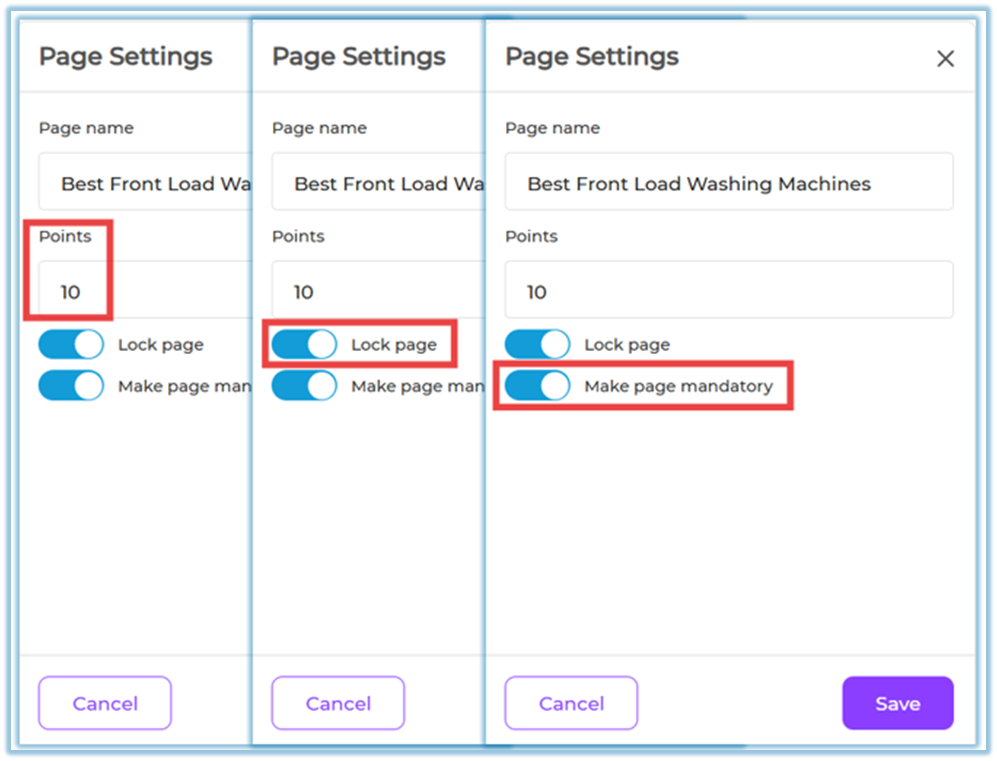
- Configure Page settings:
- Mandatory
- Lock
- Points
STEP 3 — ADD USERS
(Choose who should receive the module)
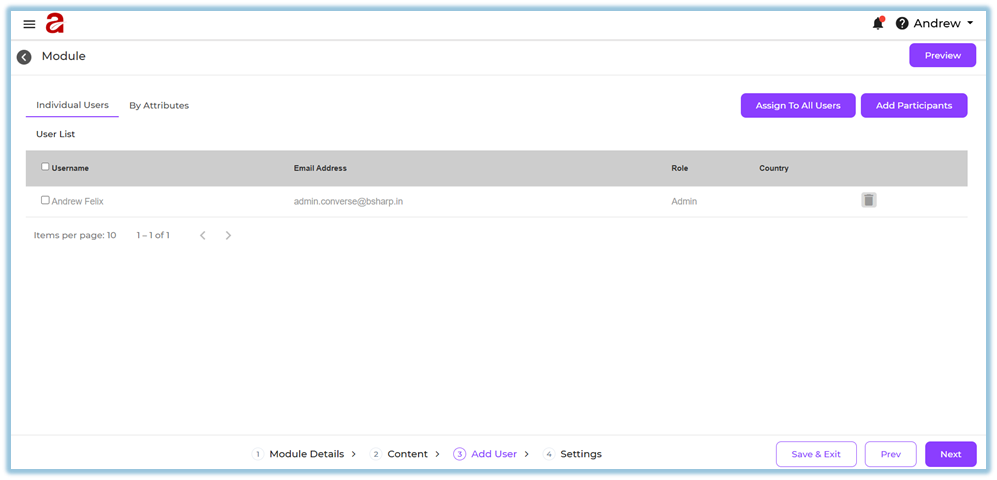
You can assign modules using three methods:
1. Individual Assignment
Pick specific users manually.
2. Assign to All Users
Visible to everyone who has ever logged in.
3. Attribute Assignment (Dynamic)
Create an attribute group such as:
- Country = India
- State = Karnataka
- City = Bangalore
OR - Department = Sales
- Role = Manager
Newly joined users who match attributes are automatically assigned.
Setup Steps
- Go to Add Users
- Select method (Individual / All / Attributes)
- For attributes → create group rules
- Save
- Review user count
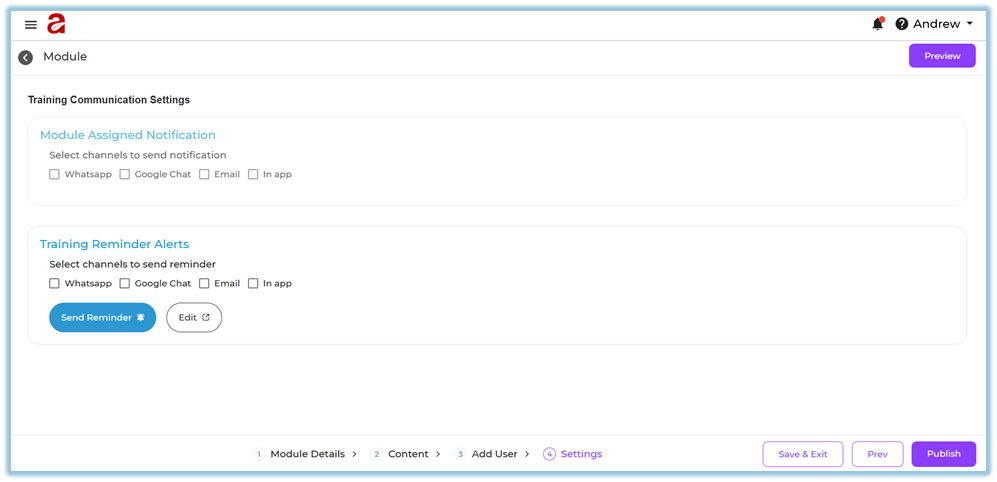
STEP 4 — SETTINGS & PUBLISH
(Configure notifications & launch training)
Setup Steps
- Choose channels for Assigned Notification:
WhatsApp, Google Chat, Email, In-App - Enable Reminder Alerts for incomplete users
- If needed, send Manual Reminder
- Preview module
- Click Publish
System Behavior
- Notification goes out immediately after publish
- Reminders go only to incomplete learners
- Cannot unpublish a module
- Use versioning if changes are required
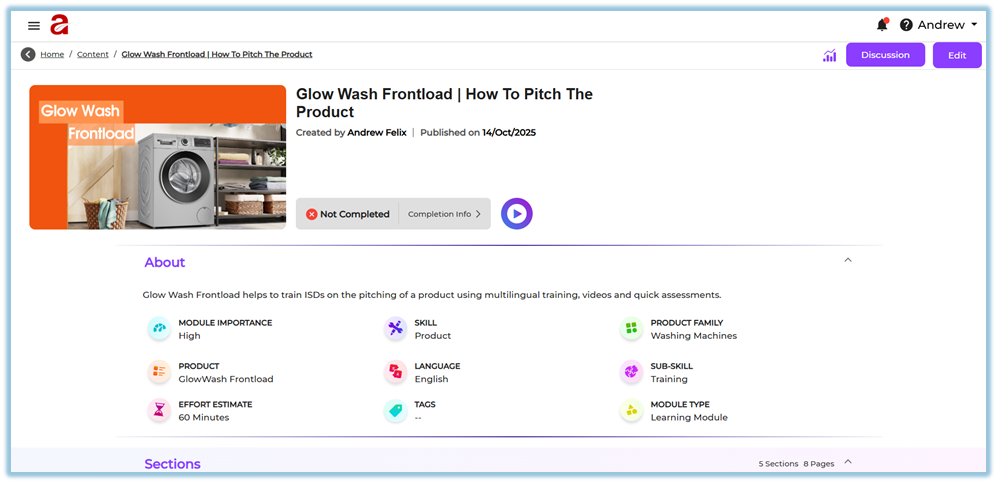
5. User View
Module Details
Learners see:
- Title
- Description
- Duration
- Thumbnail
- Language
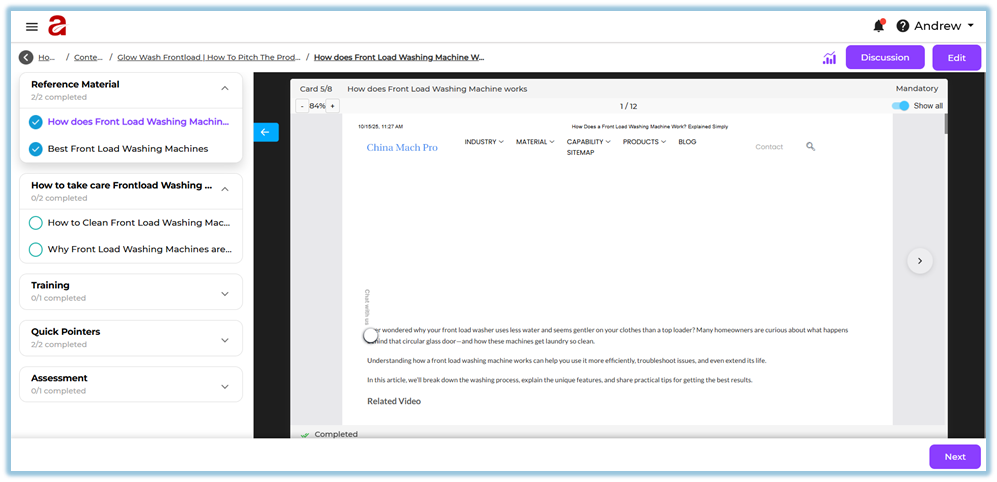
Content Experience
Learners see:
- Section and Page names
- Cards in sequence
- Locked or mandatory indicators
- Minimum view time prompts
Assignment
Learners see the module in their Learning Hub once published.
Notifications
Sent on selected channels with module title and link.
Reminders
Appear only if learners haven’t completed the module.
6. Reporting
Reports show:
Module-level
- Total assigned
- Completed
- Pending
- Not started
- Average time spent
Page-level
- Page completion
- Locked/unlocked status
- Minimum view time completion
Content-level
- Quiz scores
- Document views
- Video completion
Filters
- Skill
- Product
- Region
- Designation
- Attribute-based groups
For deeper analysis, cross-link to Reporting pages inside your helpdesk.
7. Best Practices
Structuring Content
- Use 3–5 sections maximum
- Keep pages short and focused
- Add quizzes after heavy content
Assignment Strategy
- Use attributes for large and growing teams
- Use Individual only for pilots
Engagement Strategy
- Use 2 reminder channels minimum
- Send manual reminders before deadlines
Compliance Strategy
- Use locked pages for linear learning
- Use minimum view time sparingly
- Ensure mandatory pages are clearly marked
8. Troubleshooting / FAQs
Module not visible
Cause: Wrong assignment method
Fix: Check Individual/Attributes/Assign to All
PDF not marking complete
Cause: Minimum view time not finished
Fix: Reduce time or remove timer
Page not unlocking
Cause: Locked + mandatory content incomplete
Fix: Complete previous page fully
Reminders not sending
Cause: Reminder channels disabled
Fix: Enable channels in Settings → Reminder Alerts
Users not receiving WhatsApp notifications
Cause: Integration not configured
Fix: Check WhatsApp integration provider
Cannot publish
Cause: Missing mandatory fields
Fix: Verify Module Details and Content setup
9. Version Notes
Last Updated: 12 Dec 2025
No Comments