# How to use Shorts in content?
### **1. Overview**
The Shorts feature is a video-focused module type within the Content section that allows admins to create and publish short-form video content. It provides a simplified structure with a single section, a single page, and one video per page to support a clean Shorts experience across desktop and mobile devices.
### **2. When to Use**
- When you want to share short-form video learning content within a module.
- When you need a simplified content structure focused only on video playback.
- When you want learners to consume quick video-based learning content in a carousel or vertical swipe format.
- When creating mobile-friendly learning experiences similar to YouTube Shorts or Instagram Reels.
### **3. Concepts**
- **Shorts Module Type** – A dedicated module type for short-form video content.
- **Single Content Structure** – Allows only one section, one page, and one video content item.
- **Video Upload Interface** – Supports uploading videos in multiple formats.
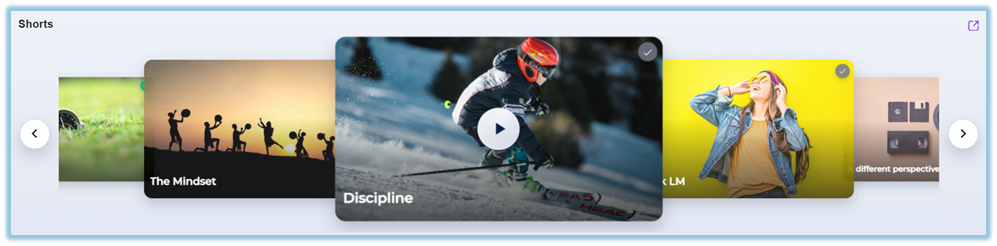
- **Carousel View** – Displays Shorts content in horizontal card format.
- **Play Shorts Page** – Opens Shorts videos in a focused playback view.
- **Vertical Swipe Experience** – Allows users to swipe through Shorts videos on mobile and desktop.
- **Seen Status** – Tracks whether the learner has completed watching the video.
- **Content Views** – Displays total view count using the eye icon.
### **4. Set Up Guide**
##### Step 1: Create a Shorts Module
1. Navigate to the **Module** page.
[https://converse.bsharpcorp.com/content](https://converse.bsharpcorp.com/content)
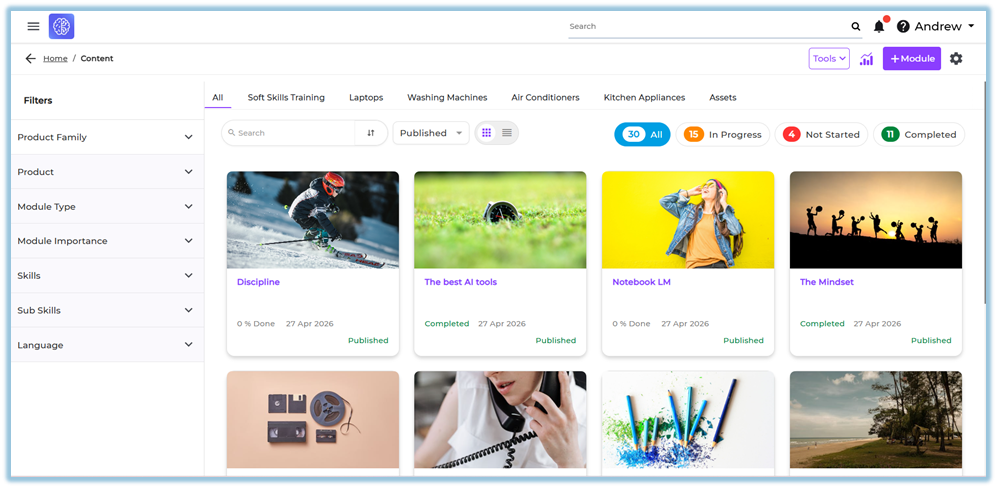
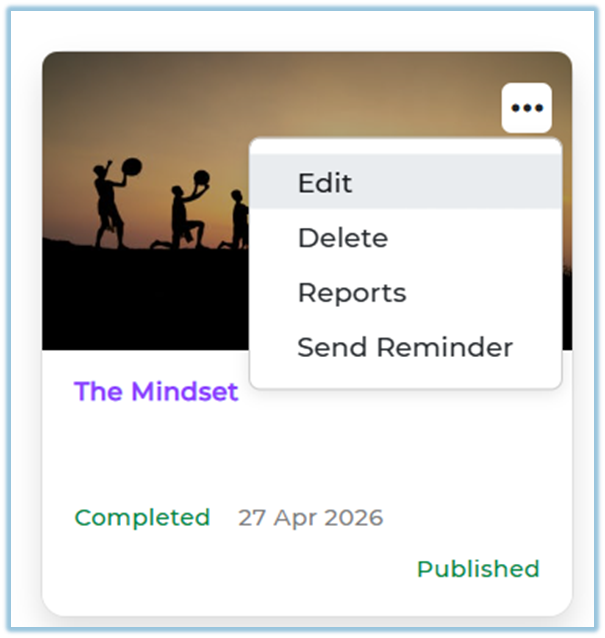
2. Create a new module or open an existing module.
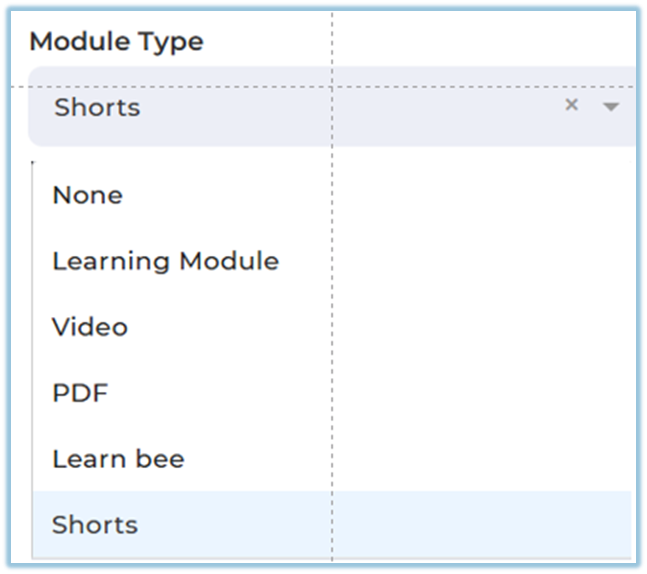
3. Select the module type as **Shorts**.
##### Step 2: Configure Module Structure
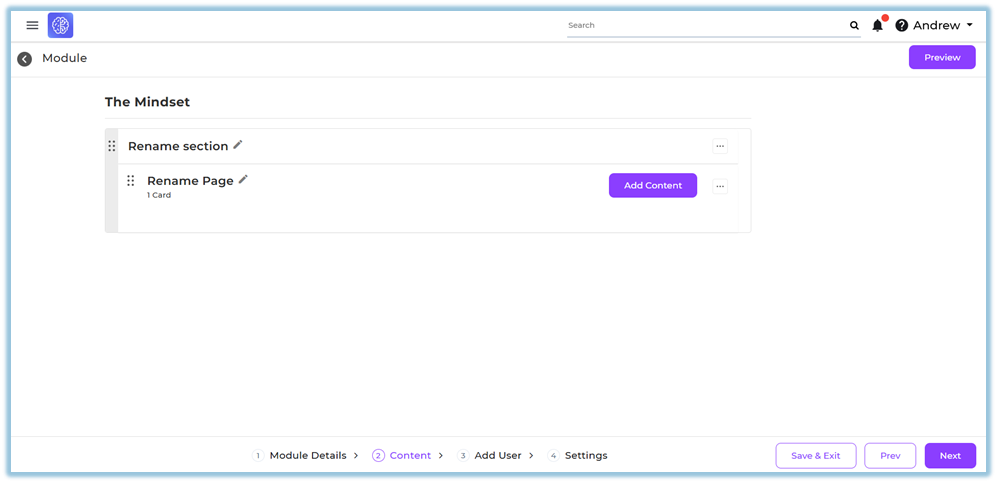
4. Review the default section and single page created automatically.
5. Edit the **Section Title** if required.
6. Edit the **Page Name** if required.
##### Step 3: Add Shorts Content
7. Open the page inside the Shorts module.
8. Use the video upload interface displayed on the page.
9. Upload a video file.
10. Upload videos in supported formats such as:
- MP4
- MOV
- WebM
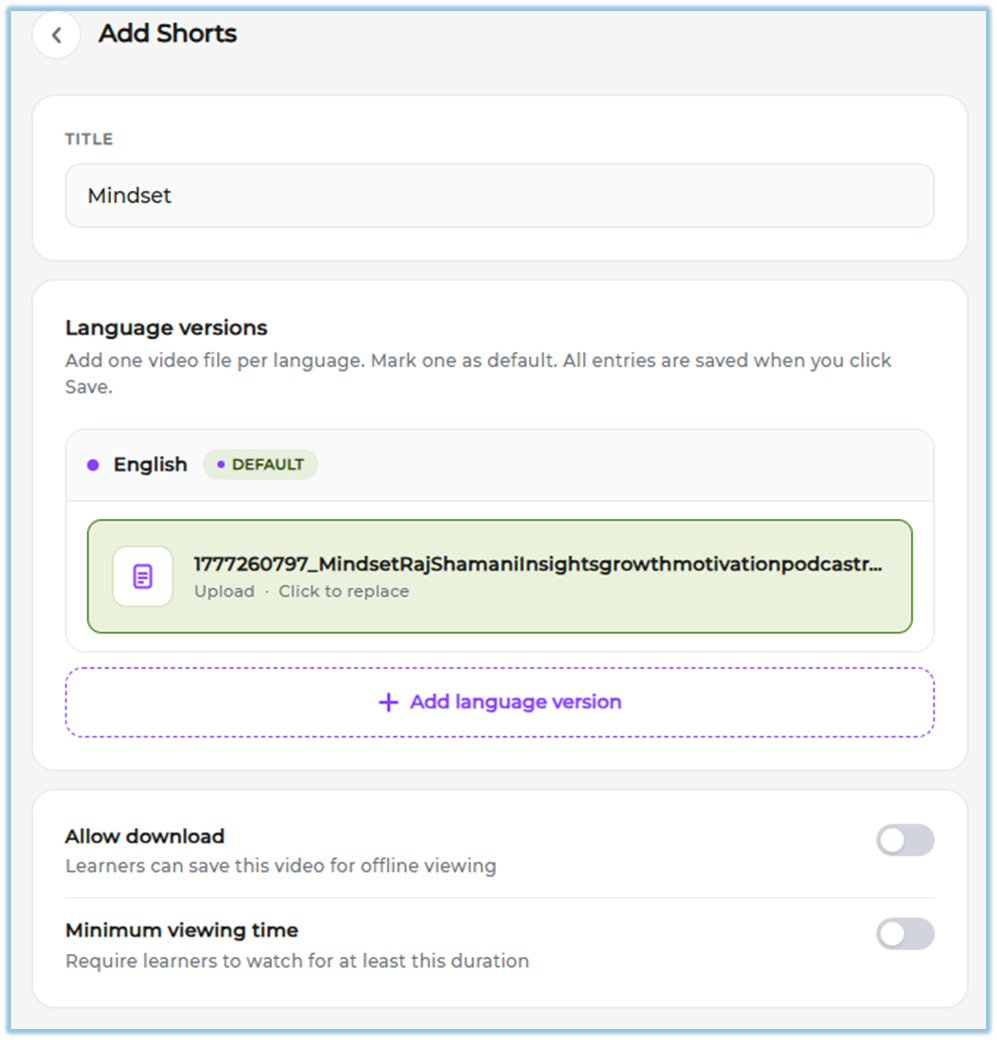
11. Wait for the upload process to complete.
##### Step 4: Configure Module Access
12. Add users to the module.
13. Configure the required module settings.
##### Step 5: Publish the Shorts Module
14. Review the uploaded Shorts content.
15. Click **Publish** to publish the Shorts module.
### **5. User View**
- Shorts content appears in a carousel format with video thumbnails and titles.

- Desktop users can scroll through Shorts using:
- Mouse scroll
- Arrow controls
- Touchpad gestures
- Mobile users can swipe horizontally through Shorts cards.
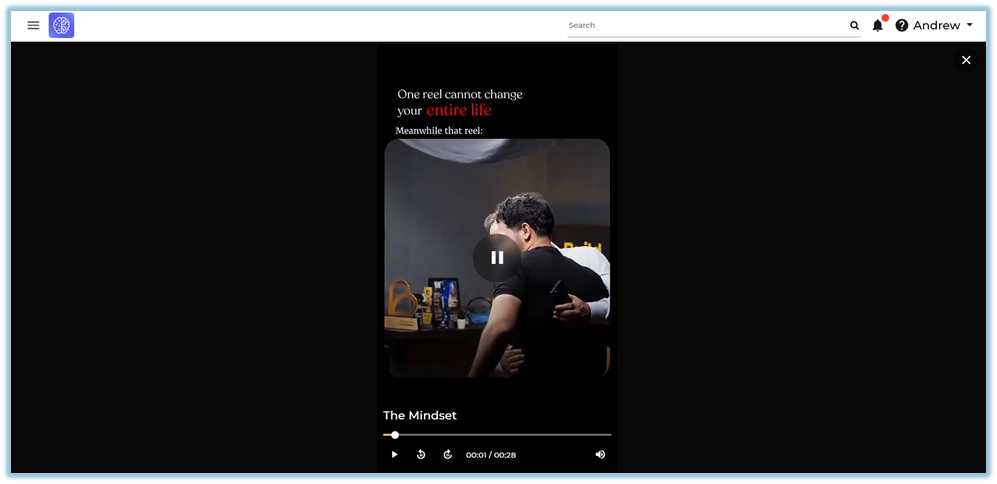
- Clicking a Shorts card opens the **play-shorts** page directly without showing the standard landing page.
- Videos are displayed in a vertical swipe format similar to YouTube Shorts or Instagram Reels.
- Desktop users see video controls on hover.
- Mobile users always see video controls.
- Videos automatically start preview playback when users hover over the active card on desktop.
- If no Shorts videos are available, the message **“No Shorts Available”** is displayed.
- Videos that do not match the container aspect ratio are displayed with black background spacing to maintain original dimensions without distortion.
- Videos are marked as **Seen** after users complete watching them.
### **6. Reporting**
- **Content Views** displays the total number of views across the organization using the eye icon.
- Shorts completion data is stored after users complete watching the video.
- View tracking is recorded when the Shorts video becomes visible on the user’s screen.
### **7. Best Practices**
- Upload videos in supported formats for better compatibility.
- Use clear titles for easier identification in the carousel view.
- Review video aspect ratios before upload to improve viewing consistency.
- Keep Shorts videos concise and focused on a single learning topic.
### **8. Related Links / FAQs**
**Q: How many content items can be added inside a Shorts page?**
A: Only one video content item is allowed per page.
**Q: Can additional sections or pages be added to a Shorts module?**
A: No. Add New Section and Add New Page options are removed.
**Q: What happens when users click a Shorts card?**
A: The content opens directly in the play-shorts page without showing the standard landing page.
**Q: What happens if no Shorts videos are available?**
A: The message “No Shorts Available” is displayed.
### **9. Version Notes**
**Last Updated:** 19 May 2026