# Make content for Training in Learnbee
### **1. Overview**
Learnbee allows admins to create structured training content using slides, documents, quizzes, and AI-generated learning cards. Training content created in Learnbee can be multilingual and is later used inside **Content modules** for learner assignment, tracking, and completion.
### **2. When to Use**
Use Learnbee training content when:
- You want to create structured training instead of sharing raw files
- You need multilingual learning for regional or global users
- You want to include cards, flashcards, voice-overs, and quizzes
- You plan to reuse the same content inside Content modules
### **3. Concepts**
- **Learnbee Library** – Central place to create and manage training topics
- **Topic** – A complete Learnbee training unit
- **Slide** – Individual learning card inside a topic
- **Voice-over** – Audio narration for slide content
- **Multilingual Content** – Same slide available in multiple languages
- **Quiz Slide** – Knowledge check added between or after content
- **Publish** – Makes the topic available for selection in Content
### **4. Set Up Guide**
##### Step 1: Open Learnbee Library
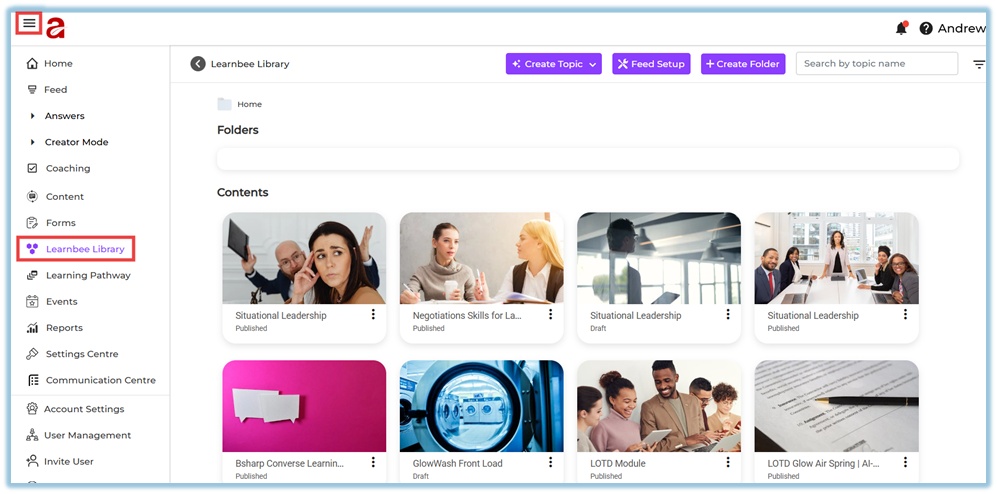
1. Click the **menu bar**.
2. Select **Learnbee Library**.
3. View all existing Learnbee topics.
##### Step 2: Create a New Topic
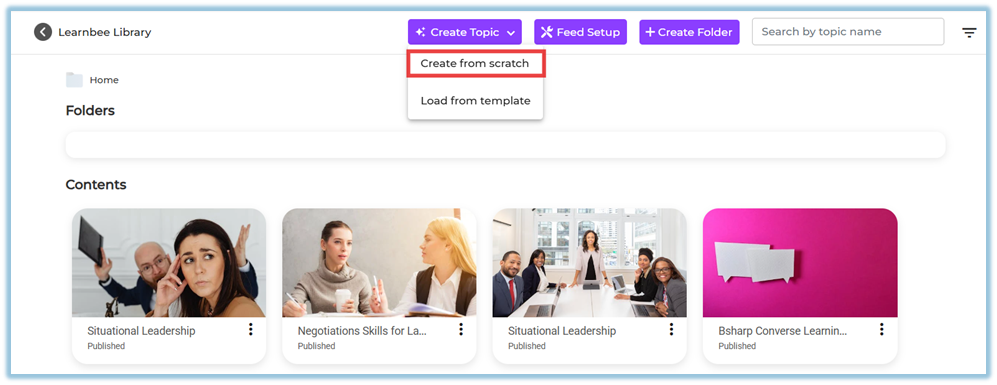
1. Click **Create Topic**.
2. Choose one option:
- **Create from scratch**
- **Load from template** (used only if a template exists in another account)
##### Step 3: Configure Topic Settings
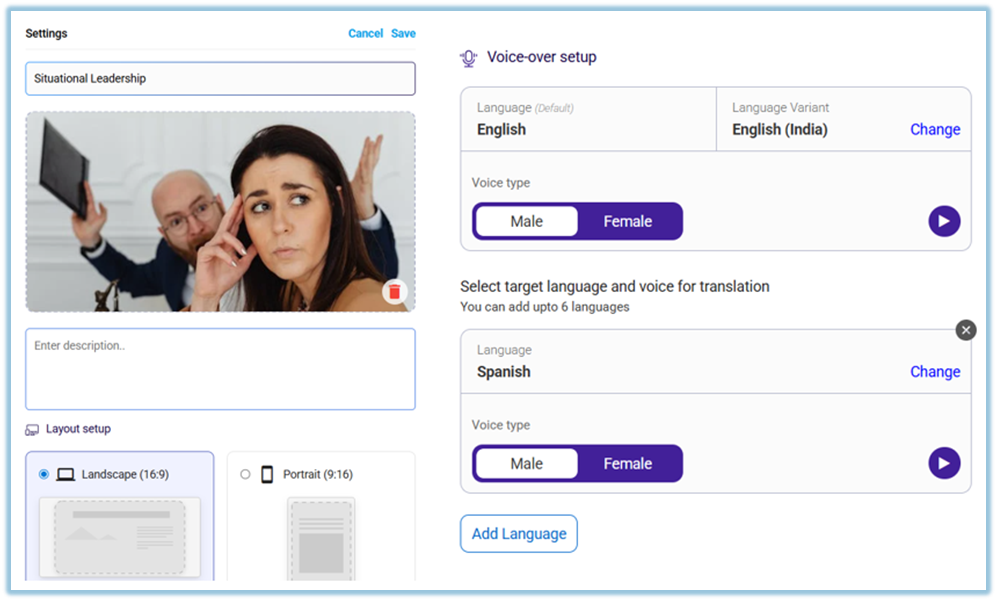
1. Enter the **Topic name**.
2. Add a **Topic image**:
- From library, or
- Upload from system.
3. Add a **description** (optional).
4. Select the **layout**:
- Landscape or Portrait.
5. Configure **Voice-over settings**:
- Select voice type (Male / Female).
- Choose base language.
- Add additional languages (up to **6 per card**).
6. Click **Save**.
##### Step 4: Add Learning Content (Slides)
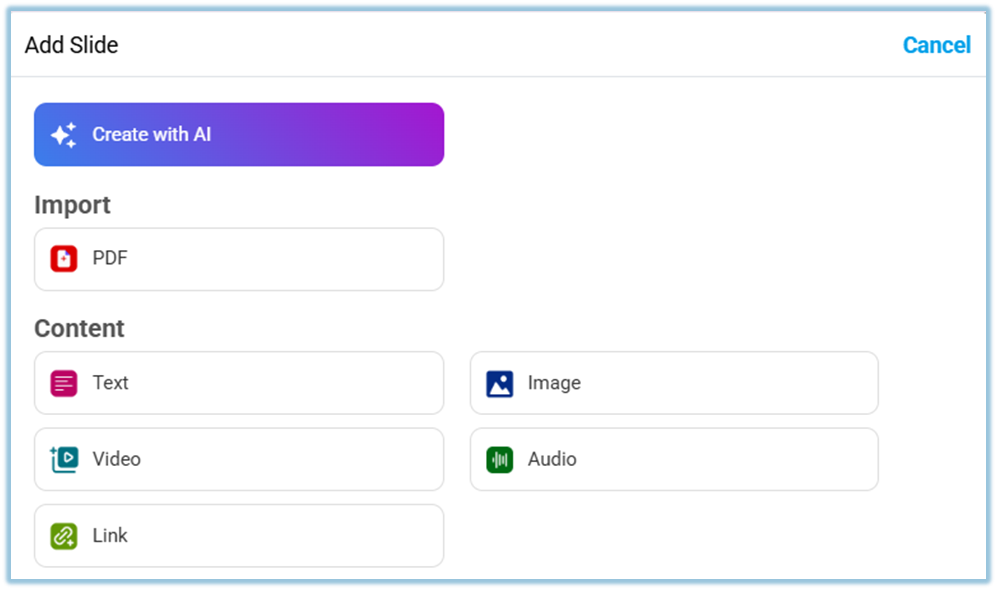
1. Click **Add slide**.
2. Choose how to add content:
- **Create with AI**
- **PDF import** (up to 30 slides)
- **Text**
- **Image**
- **Video**
- **Audio**
- **Link**
****
##### Step 5: Add Multilingual Voice-over Content
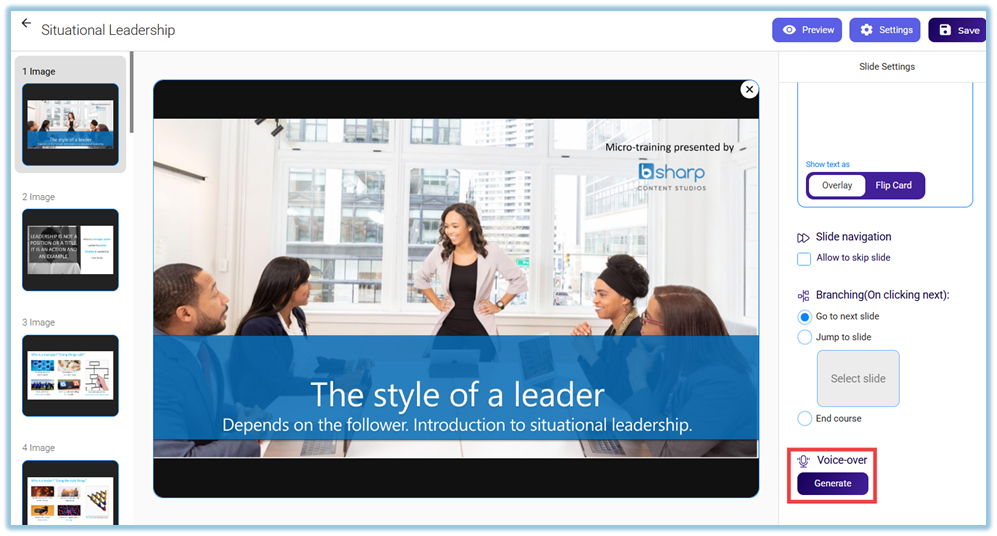
1. Open a slide.
2. Click **Generate Voice-over**.
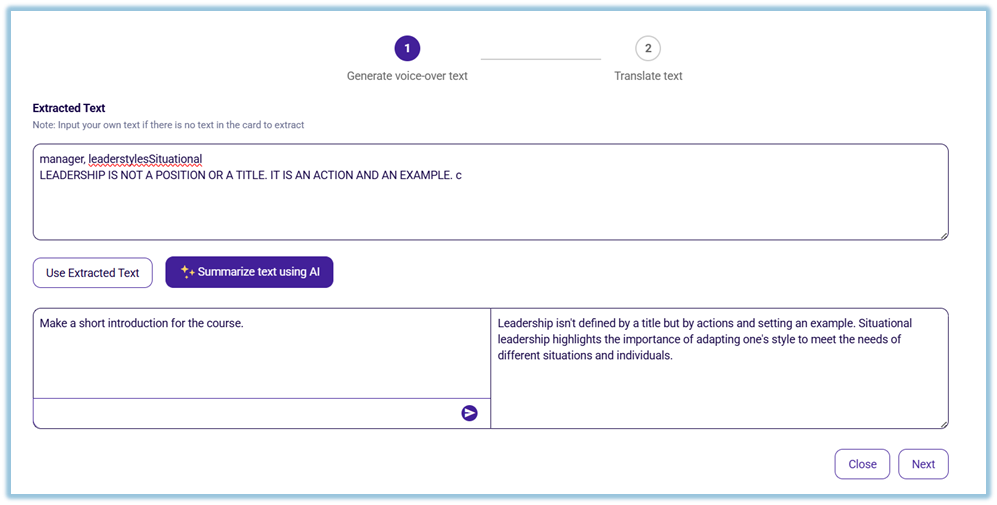
3. Step 1 – Generate voice-over text:
- Use extracted text or summarize using AI.
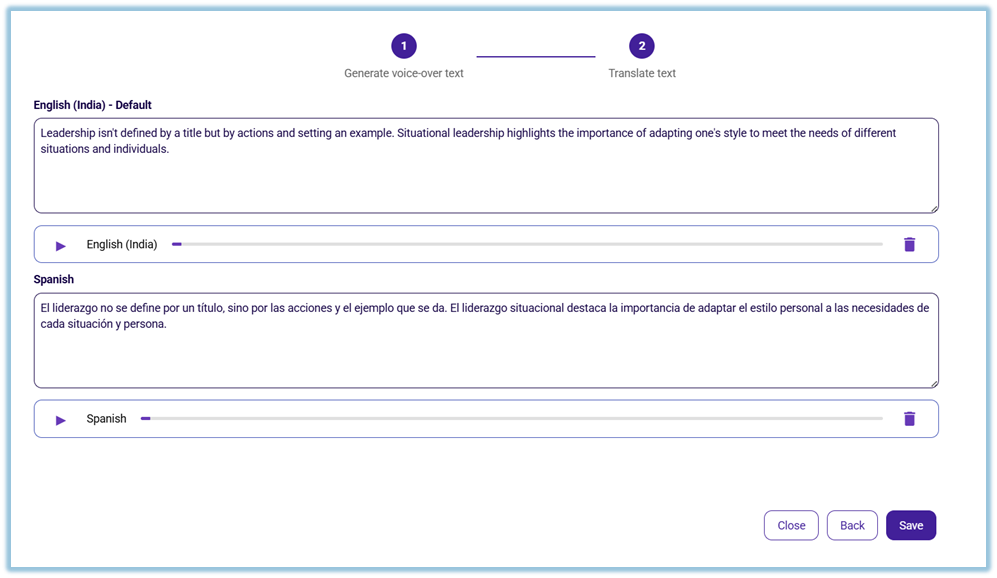
4. Step 2 – Translate text:
- Translate into selected languages.
- Edit translated text if required.
5. Click **Generate Voiceover** for each language.
6. Preview audio and click **Save**.
##### Step 6: Add Quiz Slides
1. Click **Add slide → Quiz**.
2. Choose quiz type:
- Single Choice
- Multiple Choice
- Text Based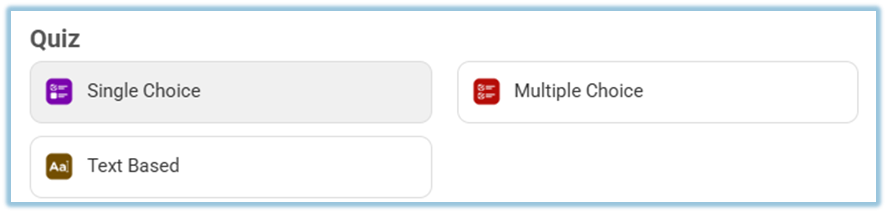
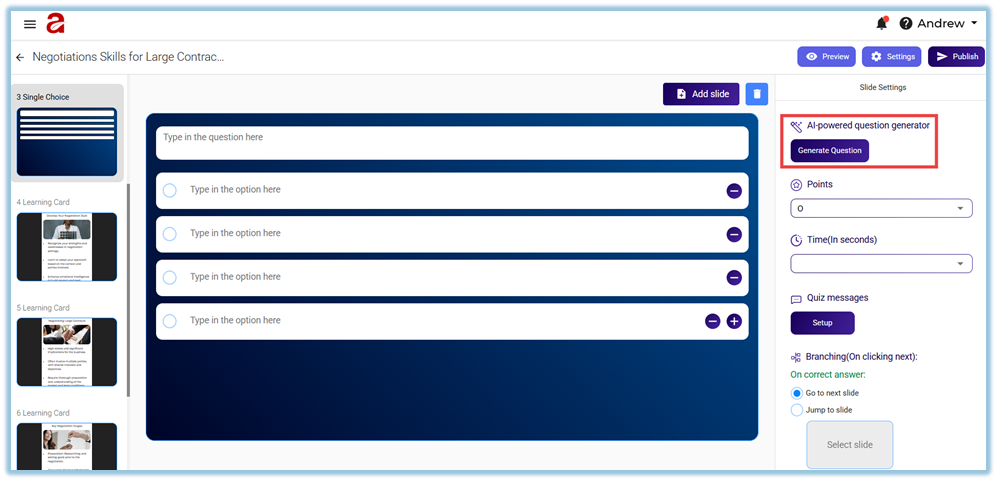
3. Add questions:
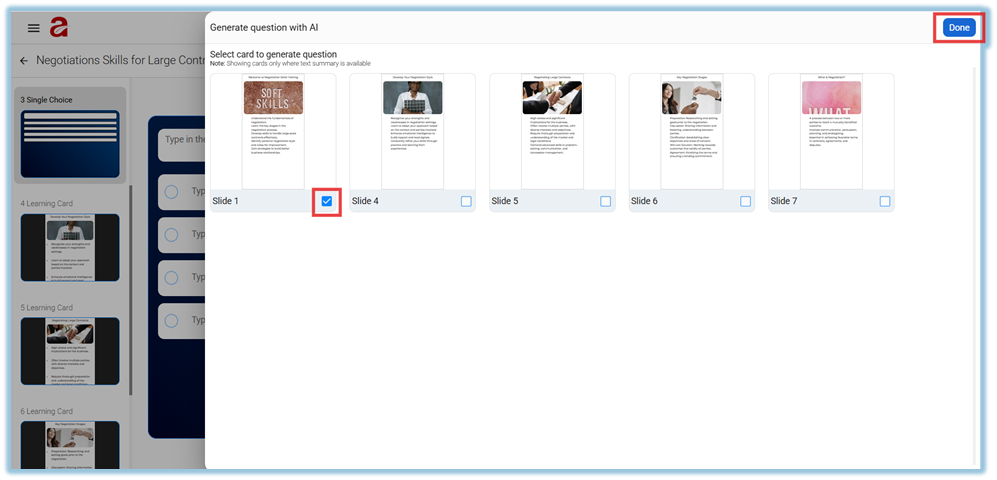
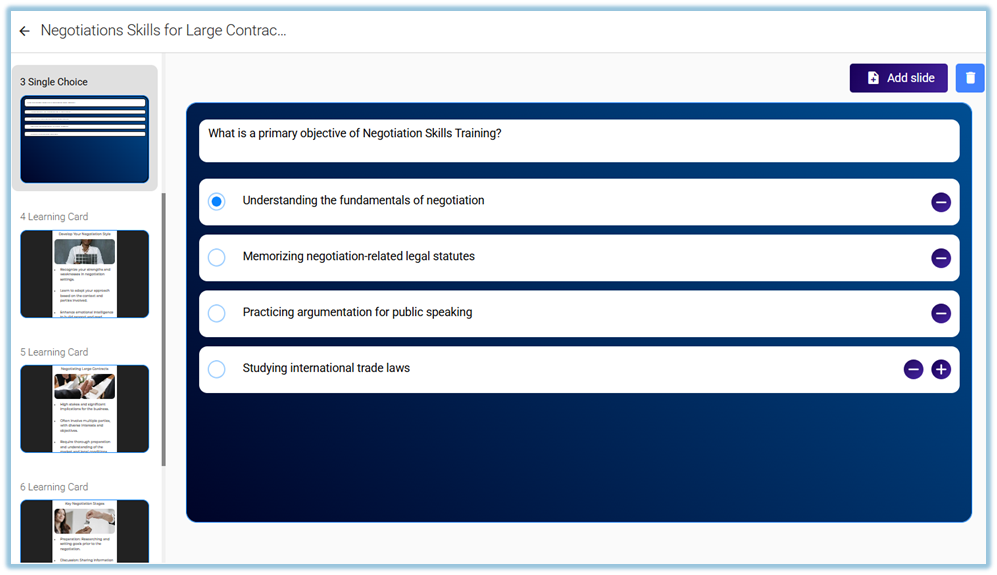
- Manually, or
- Click **Generate Question** (AI-based).
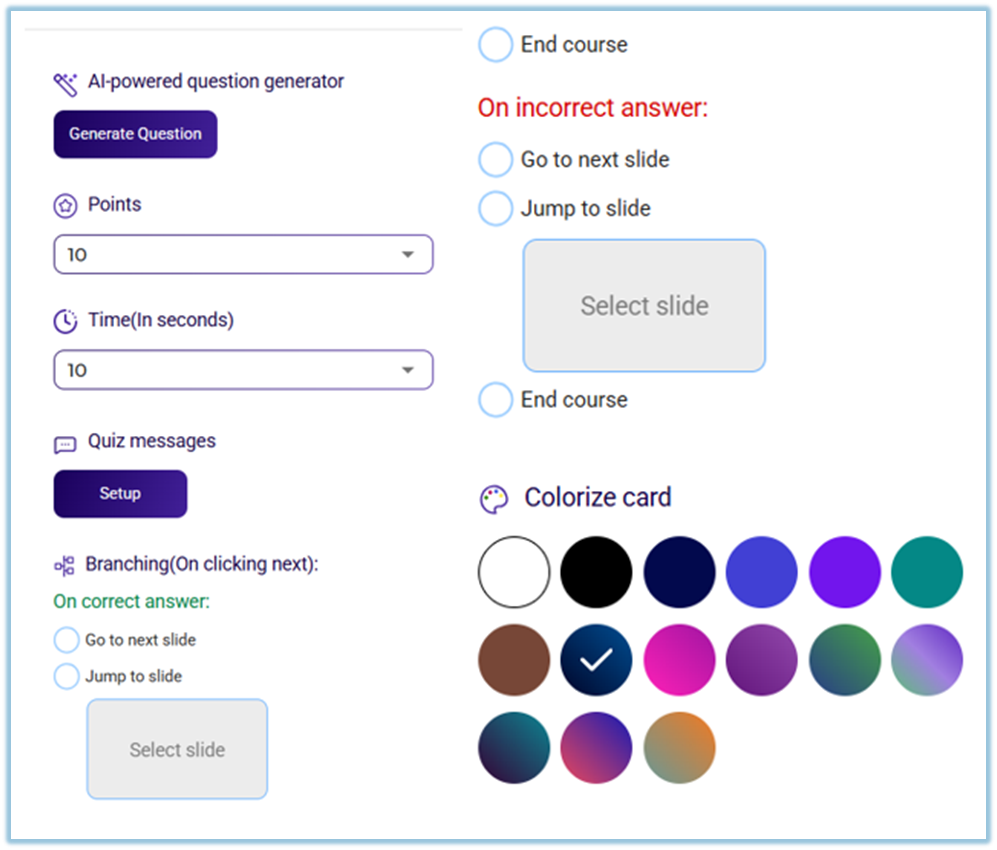
4. Configure quiz settings:
- Points
- Timer
- Feedback
- Shuffle options
5. Save the quiz slide.
##### Step 7: Preview and Publish the Topic
1. Click **Preview** to review content.
2. Verify slides, languages, voice-overs, and quizzes.
3. Click **Publish**.

Once published, the topic becomes available inside **Content → Learnbee content selection**.
### **5. User View**
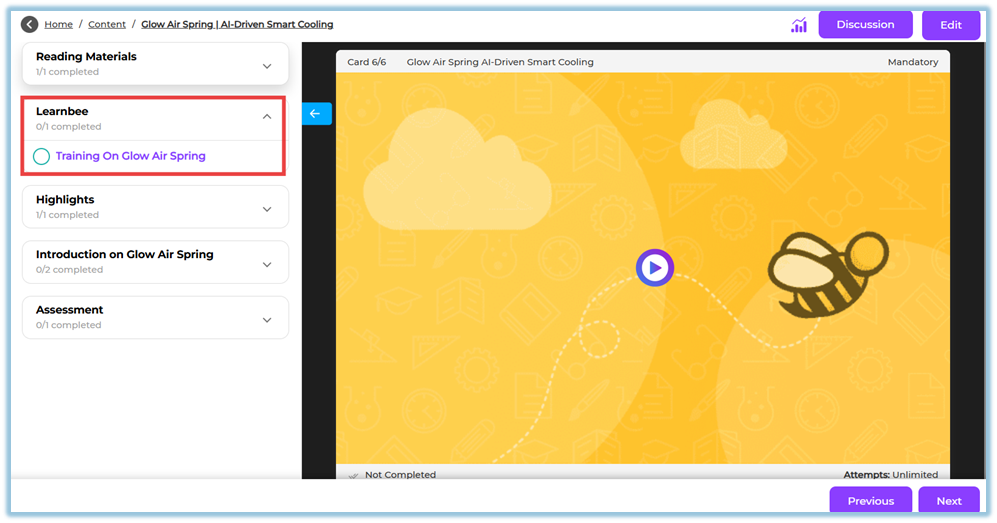
- Learners see the training in their **assigned language**.
- Slides play voice-over automatically.
- Quizzes appear within the learning flow.
- Content follows the order defined by the admin.
### **6. Best Practices**
- Keep one topic focused on one learning objective
- Add quizzes after key learning sections
- Use multilingual voice-over for field and regional teams
- Preview every language before publishing
### **7. Related Links / FAQs**
**Q: Can one slide support multiple languages?**
A: Yes. A single slide can support up to six languages.
**Q: Can Learnbee content be reused?**
A: Yes. Published topics can be reused inside Content modules.
### **8. Version Notes**
Last Updated: 18 Dec 2025