# What content types are supported in Bsharp Converse
### **1. Overview**
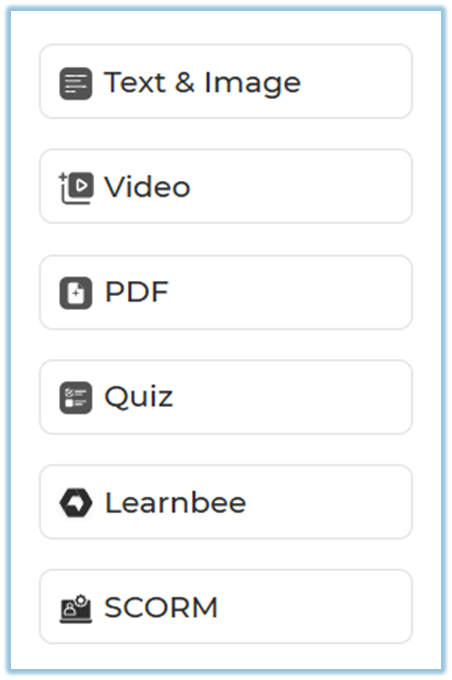
The **Content** feature in Bsharp Converse supports multiple content types that help admins build rich, structured training modules. These content types allow you to combine written material, visuals, videos, documents, assessments, AI-generated learning, and standard e-learning packages into a single learning experience.
### **2. When to Use**
Use different content types when you want to:
- Present information in multiple formats for better understanding
- Convert documents into interactive learning content
- Reinforce learning using quizzes and assessments
- Reuse existing training material such as PDFs or SCORM packages
- Create engaging and structured training journeys
### **3. Concepts**
- **Text and Image Content**
- **Video Content**
- **PDF Content**
- **Quiz Content**
- **Learnbee Content**
- **SCORM Content**
### **4. Set Up Guide**
#### Step 1: Open Content Creation
1. Click the **Menu** icon.
2. Select **Content**.
3. Click **+ Module** to create or edit a module.
4. Navigate to the **Content** step.
[https://help.bsharpcorp.com/books/content/page/how-do-we-set-up-content](https://help.bsharpcorp.com/books/content/page/how-do-we-set-up-content)
#### Step 2: Add Content to a Page
1. Create a **Section** and **Page**.
2. Click **Add Content** inside the page.
3. Choose one of the supported content types listed below.
#### Step 3: Supported Content Types and Their Usage
##### **a) Text and Image**
Use this content type to add written learning material with supporting visuals.
- You can manually add your own text and images.
- You can also **prompt the AI Co-pilot** to generate content from:
- Your uploaded documents
- Web-based knowledge
- This helps save time and build diverse, engaging learning formats quickly.
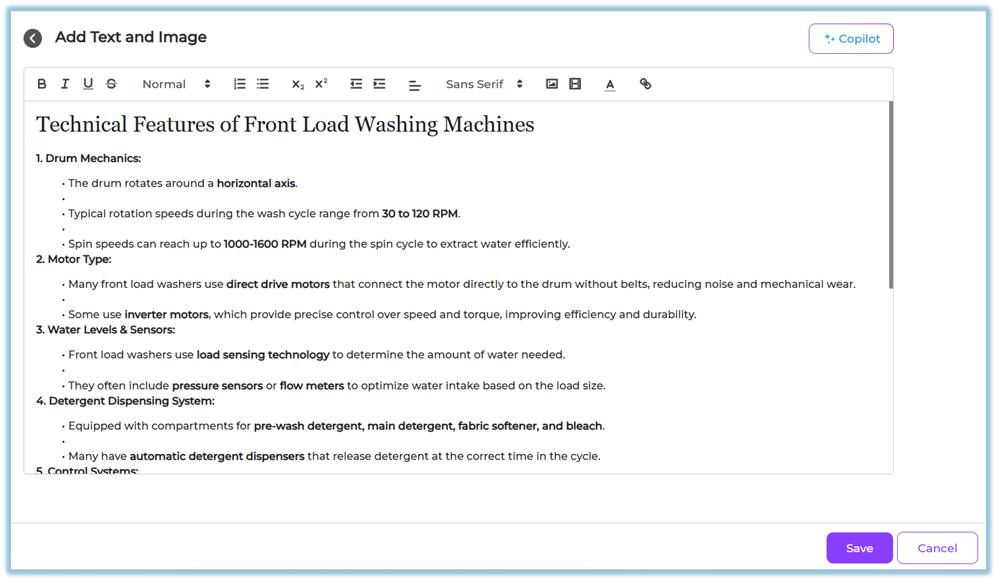
This content type is best suited for explanations, concepts, introductions, and summaries.
##### **b) Video**
Use video content to explain concepts visually.
- Upload your own video files, or
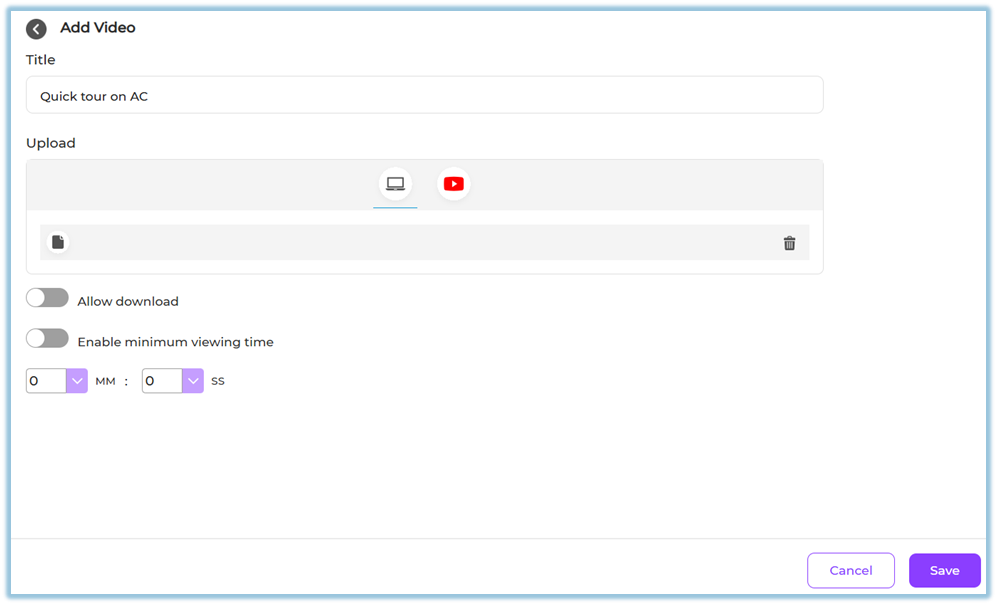
- Add a supported video link
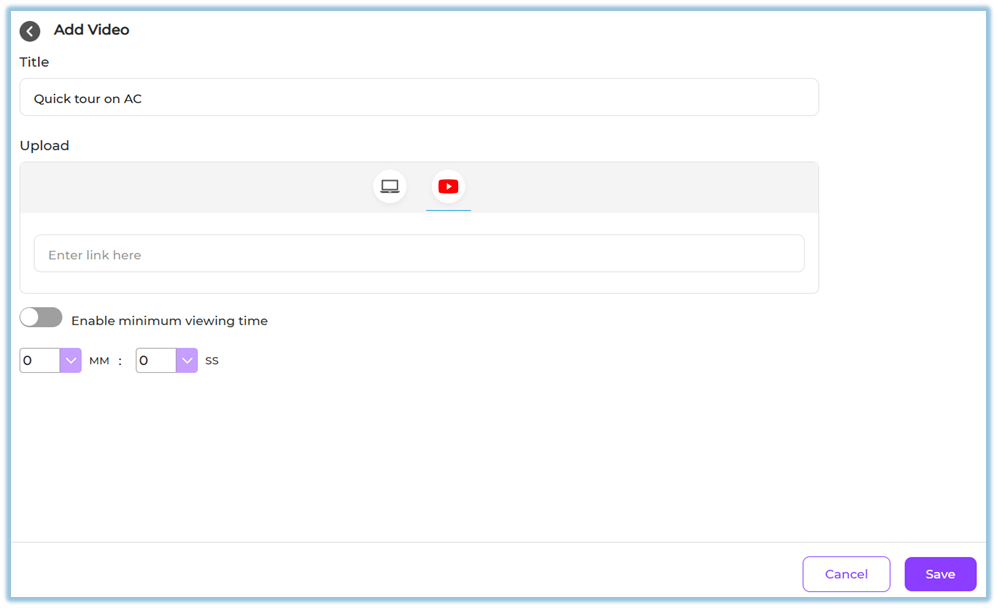
Videos help demonstrate processes, show real-world examples, and improve learner engagement.
##### **c) PDF**
Use PDF content to share documents and reference material.
- Upload a PDF file
- Learners can view the document directly in the module
- Learners can download the PDF if enabled
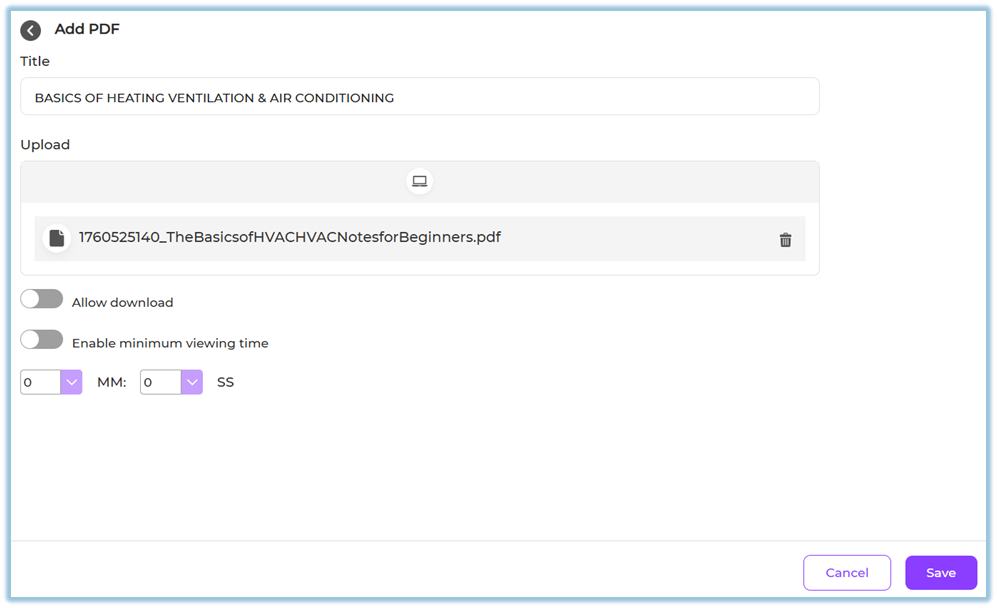
This is useful for manuals, policies, presentations, and detailed reading material.
##### **d) Quiz**
Use quizzes to assess learner understanding.
You can add the following question types:
- Single select questions
- Multi select questions
- Text-based questions
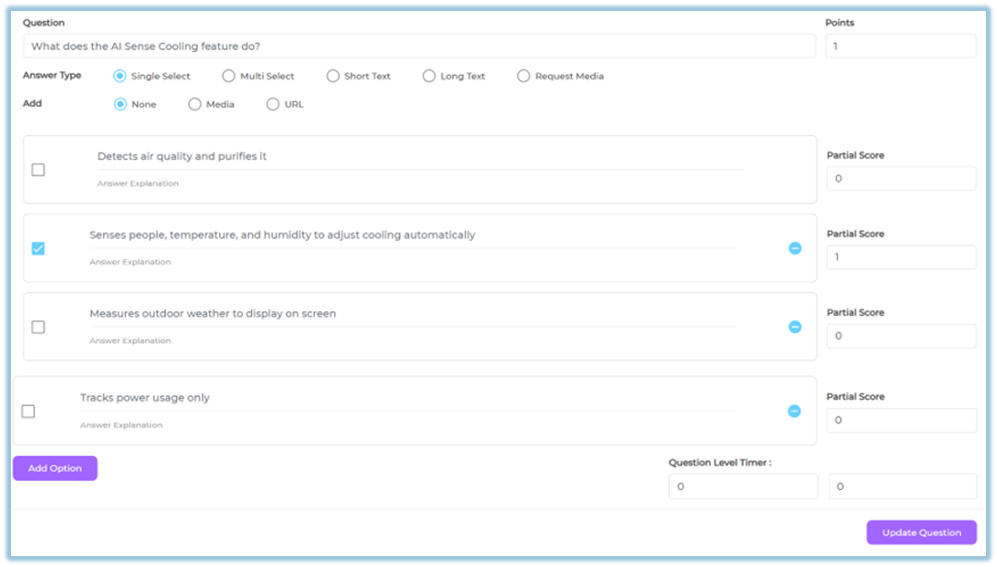
Quiz settings allow you to configure:
- Points
- Attempts
- Feedback options
- Time limits
- Question and answer shuffling
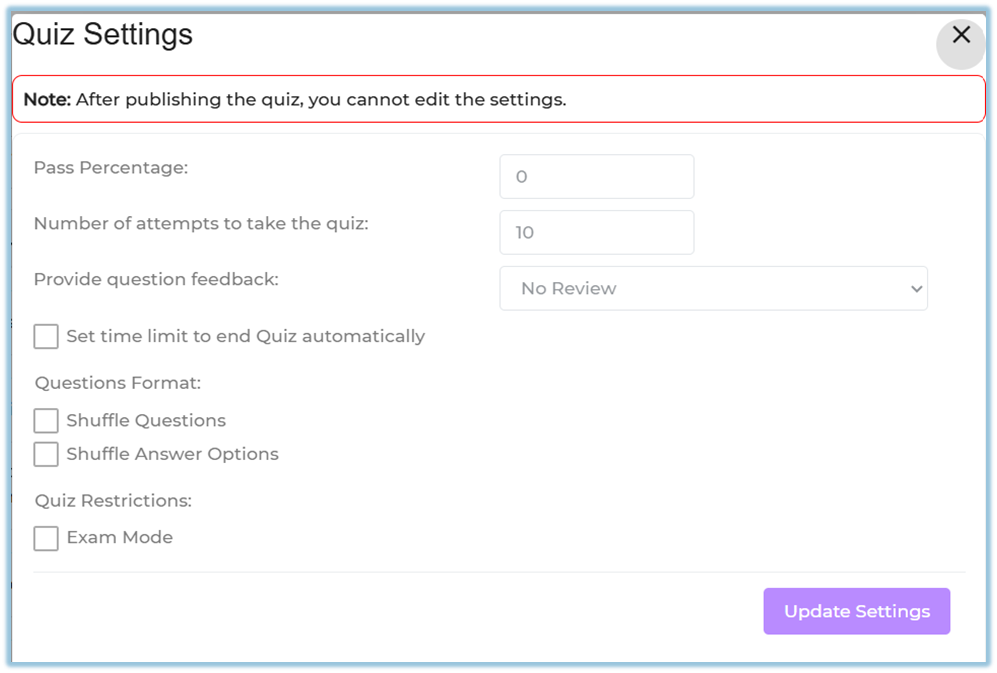
Quizzes help validate learning and reinforce key concepts.
##### **e) Learnbee**
Learnbee is the built-in AI authoring tool in Bsharp Converse.
Using Learnbee, you can:
- Convert training documents into interactive learning content
- Generate learning cards and flipcards
- Auto-generate quizzes
- Add voiceovers
- Translate content into multiple languages
[https://help.bsharpcorp.com/books/content/page/make-content-for-training-in-learnbee](https://help.bsharpcorp.com/books/content/page/make-content-for-training-in-learnbee)
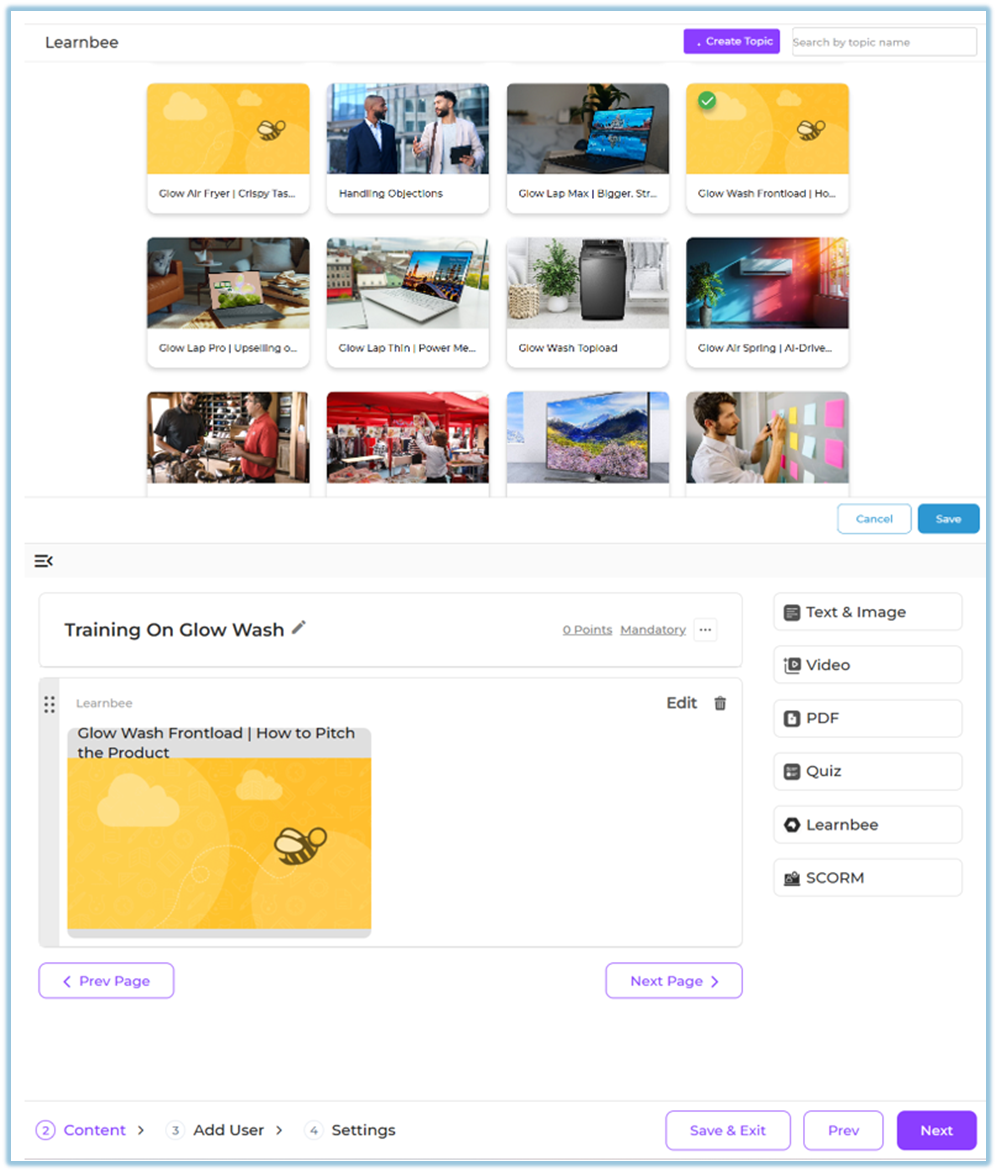
Learnbee content is ideal for fast, scalable, and multilingual content creation.
##### **f) SCORM**
SCORM content allows you to upload standard e-learning packages.
- Upload a SCORM package file
- Use it as a structured learning unit within the module
- Track learner completion through standard SCORM reporting
This is useful when reusing content created in external authoring tools.
### **5. User View**
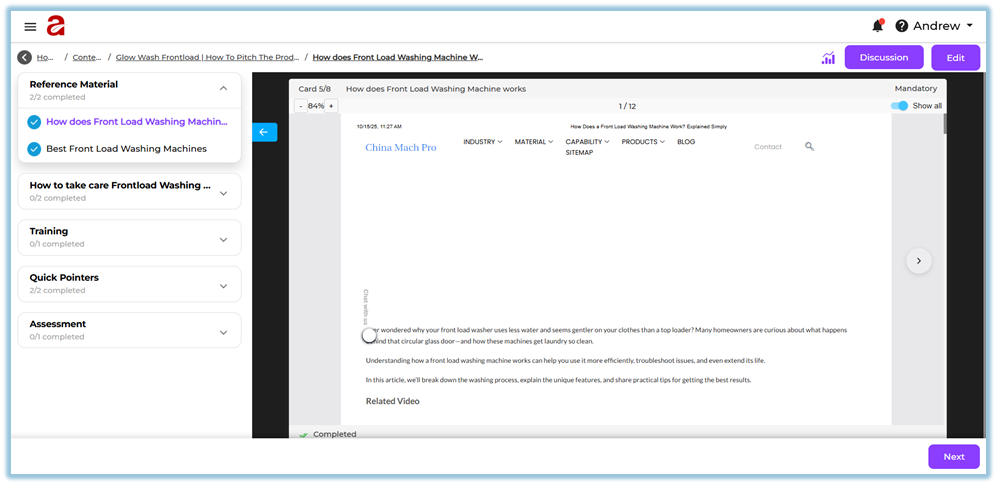
Learners experience content in a structured flow:
- Sections and pages displayed in sequence
- Text, images, videos, and PDFs shown inline
- Quizzes appear as interactive assessments
- Learnbee content opens as interactive cards
- SCORM packages launch as learning activities
### **6. Reporting**
Reporting for content types includes:
- Page and content completion status
- Quiz scores and attempts
- SCORM completion tracking
- Learner progress across sections and pages
Reports are available in the **Reporting** section of Converse.
### **7. Best Practices**
- Combine multiple content types for better engagement
- Use Text & Image for concepts and explanations
- Add quizzes after key learning sections
- Use Learnbee for multilingual and AI-assisted content
- Use SCORM only when standardized tracking is required
### **8. Related Links / FAQs**
**Q: Can I use multiple content types on one page?**
Yes. A single page can contain multiple content items.
**Q: Can AI-generated content be edited?**
Yes. You can review and edit content before saving.
**Q: Is multilingual support available for all content types?**
Multilingual support is available through Learnbee-generated content.
### **9. Version Notes**
**Last Updated:** 12 Dec 2025