# How do I upload an Excel or CSV file as a source?
### **Overview**
Lets you upload an Excel (.xlsx) or CSV (.csv) file as a data source for dashboards. Vantage reads the file's columns and rows and makes the data available to widgets. You can upload multiple files and later join them using relationships.
### **When to Use**
Use this feature when:
- You want to turn spreadsheet data into charts and KPIs
- You have data exported from another system (ERP, HRMS, POS)
- You need a one-time or periodic snapshot instead of a live connection
- You want to prototype a dashboard quickly with real data
### **Concepts**
- **Data Source** – A named data set inside Vantage that widgets query
- **Connector** – The method used to bring data in (Excel/CSV, API, or internal forms)
- **Ingest** – Automatic process that loads your file into Vantage's analytics engine
- **Column Mapping** – Vantage's detected name and type for each column; editable before saving
- **Replace vs Append** – Replace overwrites existing rows; Append adds new rows to them
- **Typed Columns** – Each column's data type (String, DateTime, Int64, etc.) for correct filtering and aggregation
### **Set Up Guide**
From the Home Page, click the **Vantage Dashboard** widget to open Vantage. If you have not added this widget yet, follow the [Custom Widget help doc](https://help.bsharpcorp.com/books/other-features/page/custom-widget) to set it up.
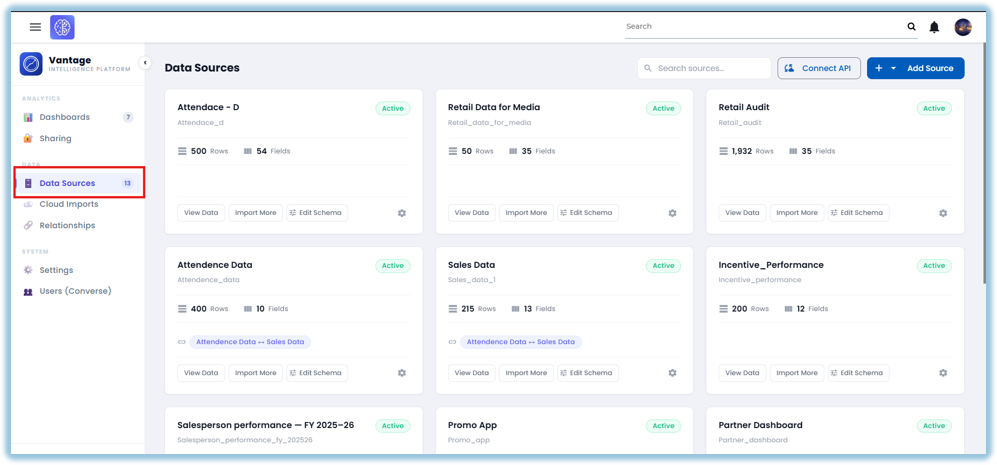
1. Go to **Data Sources
**
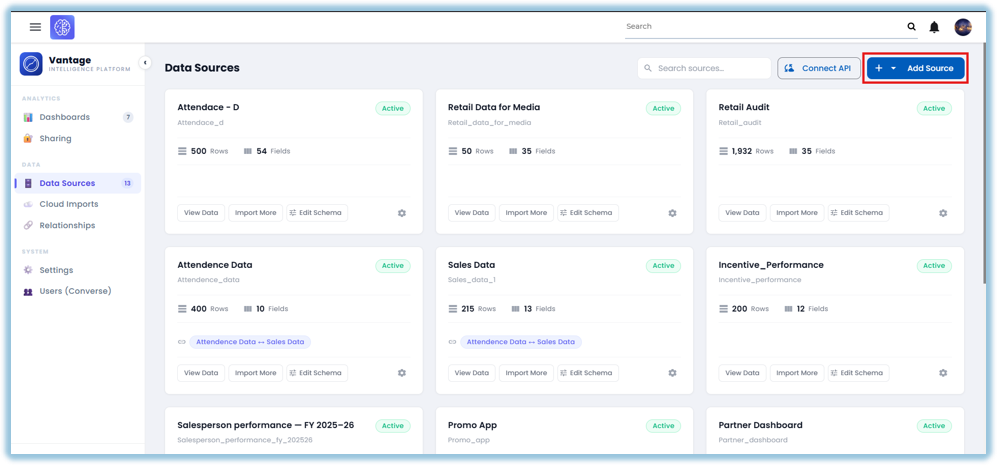
2. Click **+ Add Source** → select **Excel / CSV
**
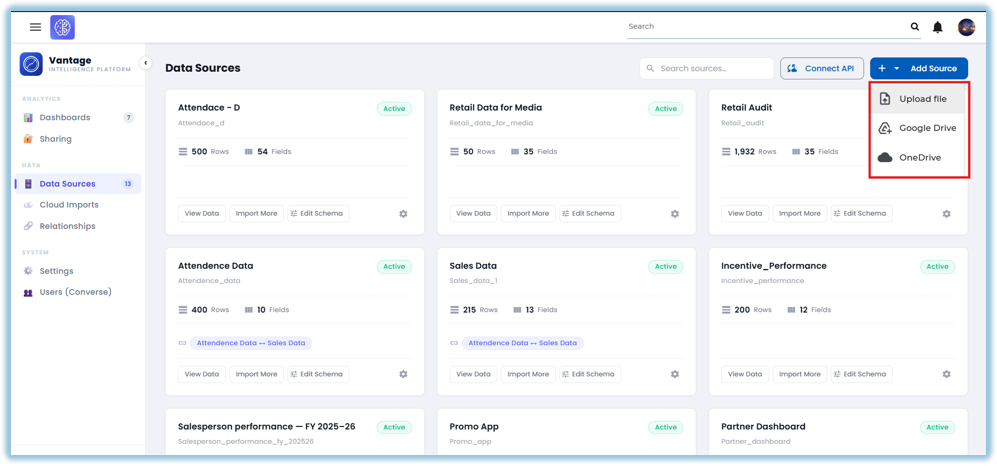
3. Choose your Source
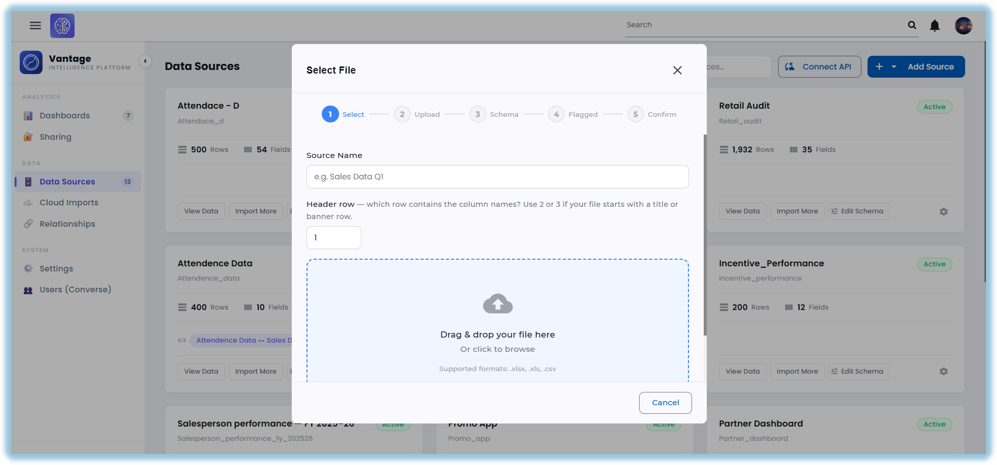
4. Name the data source
5. Choose your .xlsx or .csv file
6. Review the column mapping
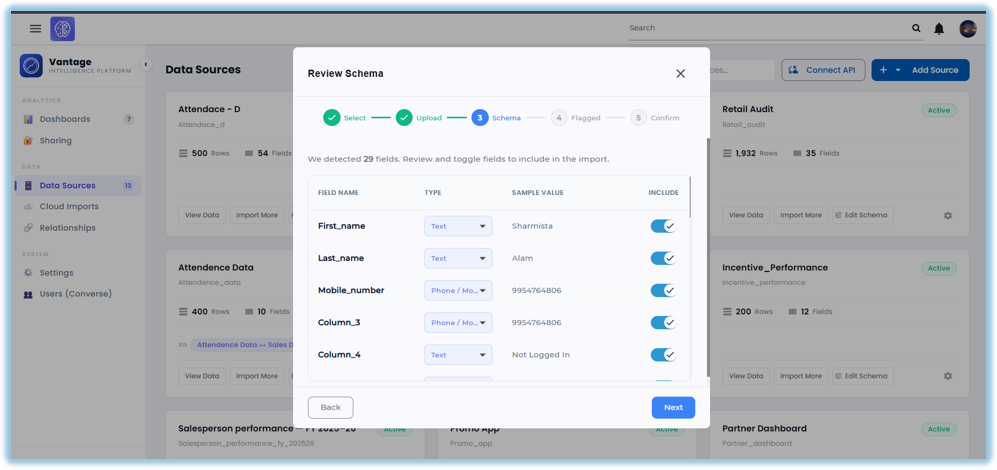
7. Click **Next** and **Review the Data**.
8. Click **Confirm Import
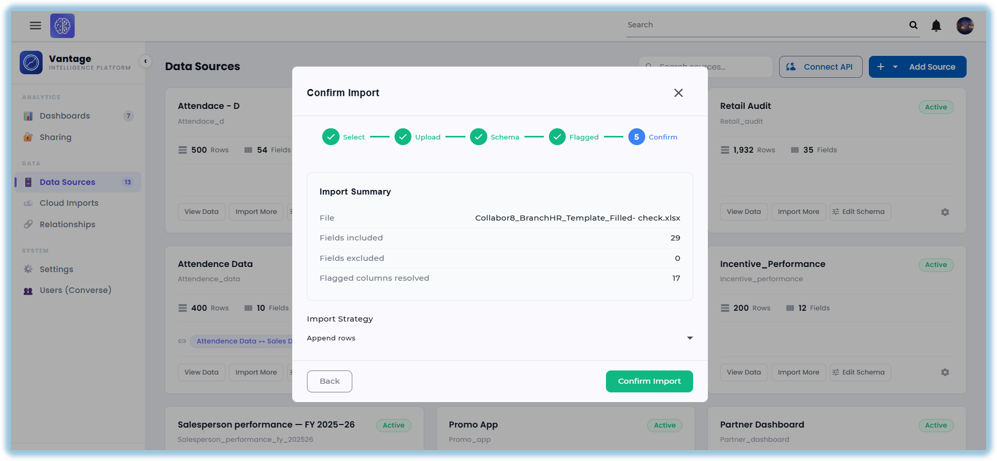**
### **Best Practices**
- Use a header row — Vantage names columns from it
- Remove blank rows and columns before uploading
- Keep dates in a consistent format
- Avoid merged cells in Excel files
- Re-upload and choose Replace to keep data current
- Use one sheet per file — Vantage reads the first sheet
- Keep file sizes manageable
### **Related Links / FAQs**
Related pages in this book:
- [How do I connect a REST API as a data source?](https://help.bsharpcorp.com/books/data-sources/page/how-do-i-connect-a-rest-api-source)
- [How do I connect internal Converse forms as a data source?](https://help.bsharpcorp.com/books/data-sources/page/how-do-i-sync-converse-forms-into-vantage)
- [How do I view and edit data in a source?](https://help.bsharpcorp.com/books/data-sources/page/how-do-i-view-and-edit-data-in-a-source)
- How do I create a relationship between data sources?
##### FAQs
**Can I upload more than one file?**
Yes, each file becomes its own data source.
**What file formats are supported?**
Excel (.xlsx) and CSV (.csv).
**Can I update the data after uploading?**
Yes — re-upload and choose Replace or Append.
**What if my column names change between uploads?**
Vantage may create new columns; keep names consistent.
### **Version Notes**
Last Updated: Oct 2026