# Feed
# Post
### **1. Overview**
The **Feed** in Bsharp Converse is a central space where users can create and interact with posts. It allows admins and managers to share messages, recognize employees using badges or certificates, conduct polls, and engage users through comments and reactions. The Feed supports day-to-day communication and employee engagement activities such as birthdays, achievements, and work anniversaries.
[https://bsharpcorp.com/converse/engagement/](https://bsharpcorp.com/converse/engagement/)
### **2. When to Use This?**
Use Posts when you want to:
- Share congratulatory, motivational, or informational messages with employees
- Recognize employees using badges or certificates
- Collect opinions or feedback through polls
- Increase engagement and visibility on the Feed
### **3. Concepts**
- **Post** – A written message shared on the Feed
- **Copilot** – Helps reframe messages as Formal, Polite, or Cheerful
- **Recipient (@mention)** – Tag one or more users in a post
- **Hashtags (#)** – Categorize posts for easy discovery
- **Values** – Link the post to company values like Ethics or Learning
- **Badge** – Recognition awarded to an employee
- **Certificate** – Appreciation certificate shared via post
- **Poll** – Question with voting options for employees
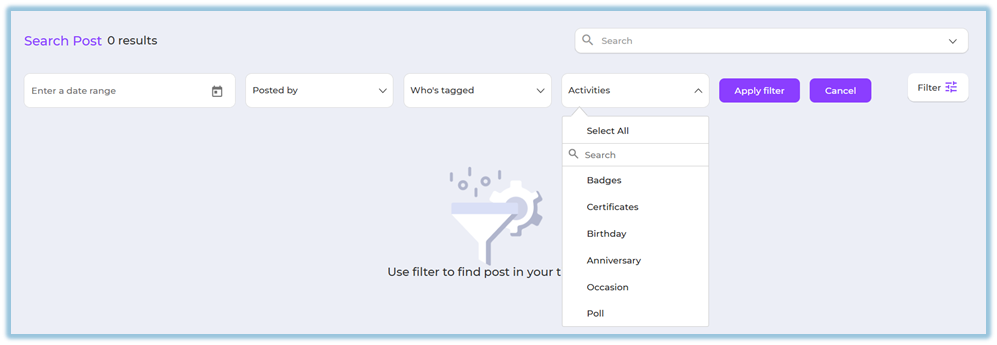
- **Feed Filters** – Search and filter posts by date, activity, or tags
### **4. Setup Guide**
##### **Create a Post**
1. Click the **menu bar**.
2. Select **Feed** from the left navigation panel.
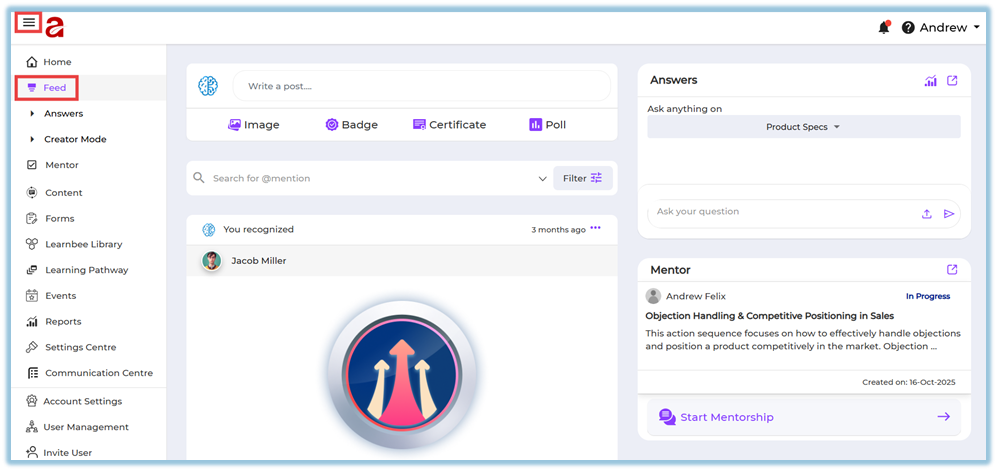
3. Click inside the **Write a post…** text box.
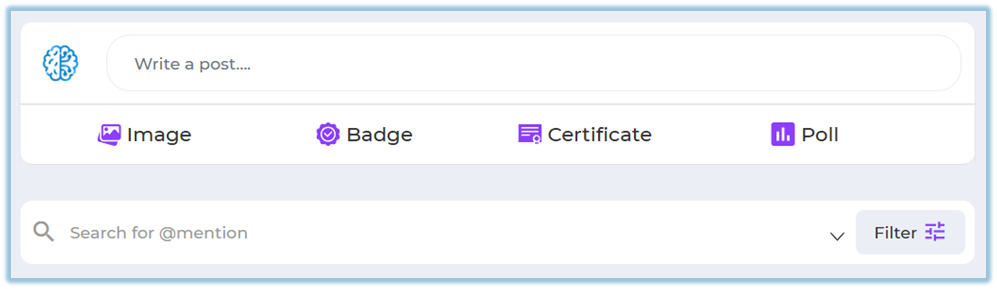
4. Enter your message (for example, a congratulatory or informational message).
**Use Copilot (Optional)**
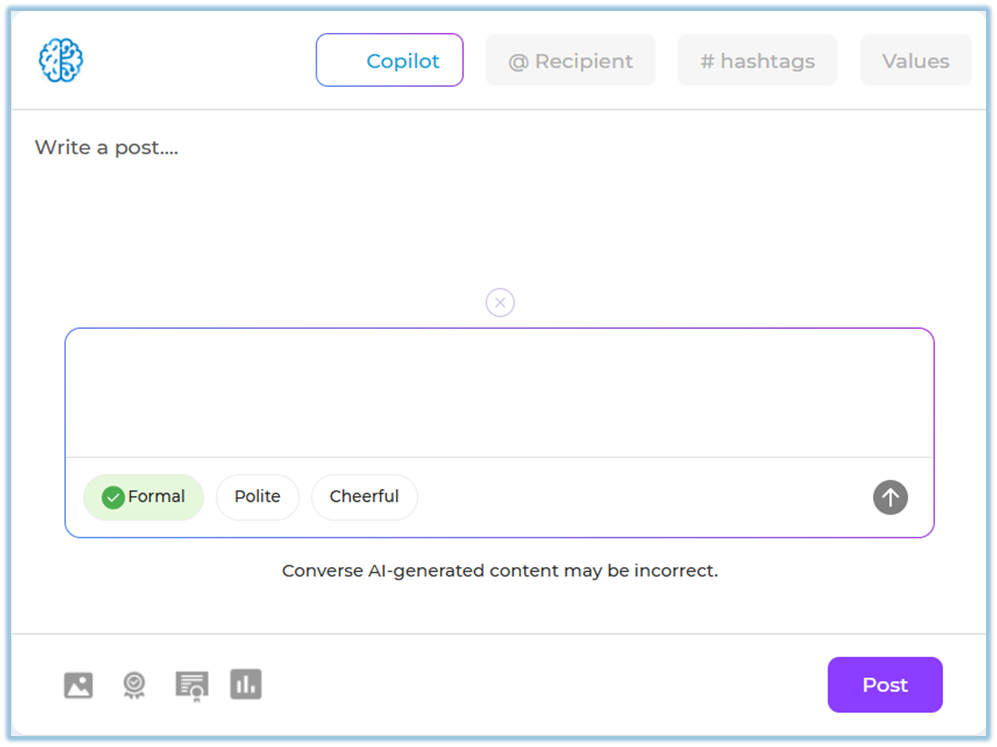
5. Click **Copilot**.
6. Choose how you want the message reframed:
- Formal
- Polite
- Cheerful
**Add Mentions and Metadata (Optional)**
7. Click **@ Recipient** to mention one or more users.
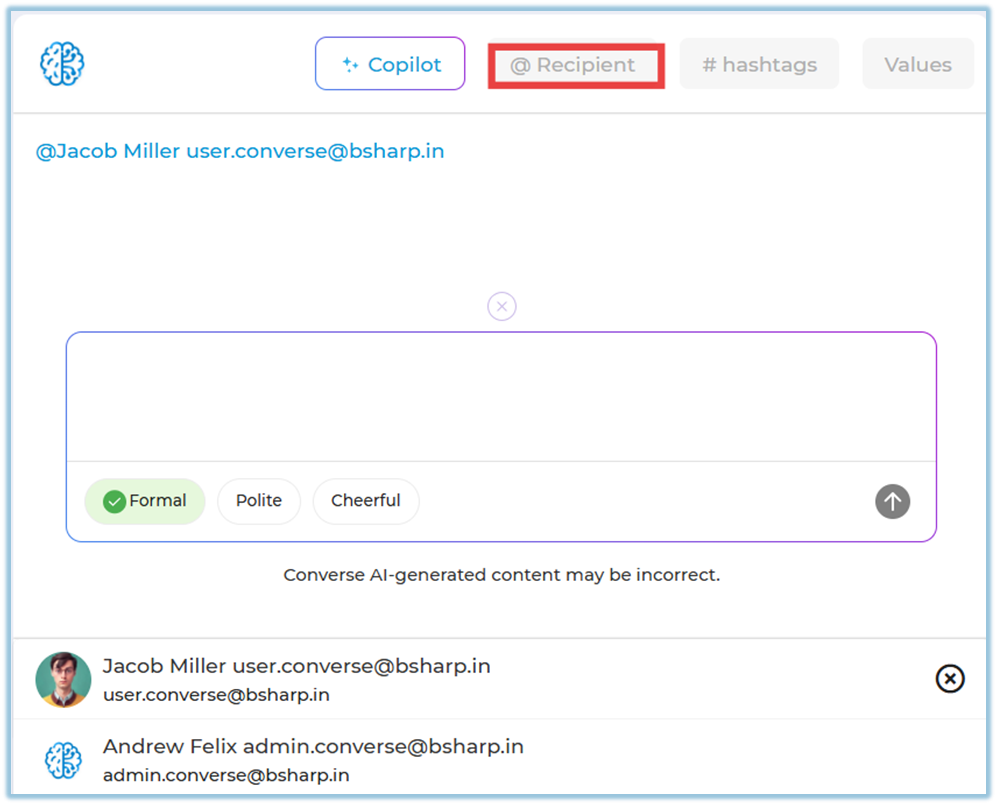
8. Add **\# hashtags** to categorize the post.
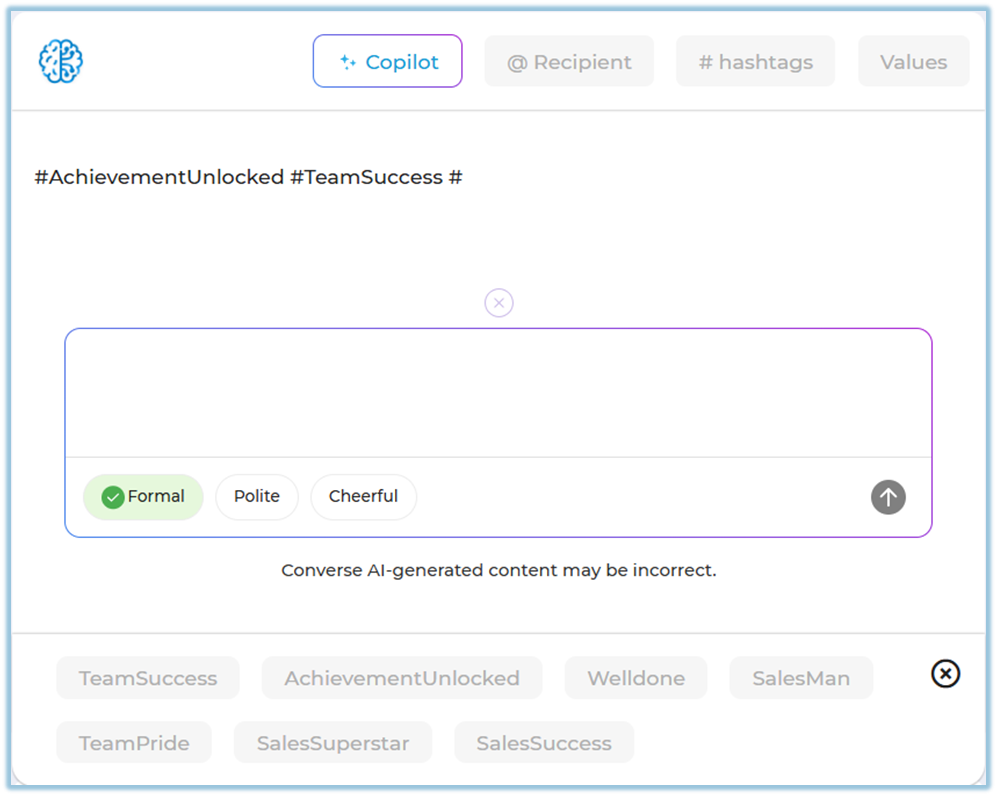
9. Select **Values** (for example, Ethics or Learning).
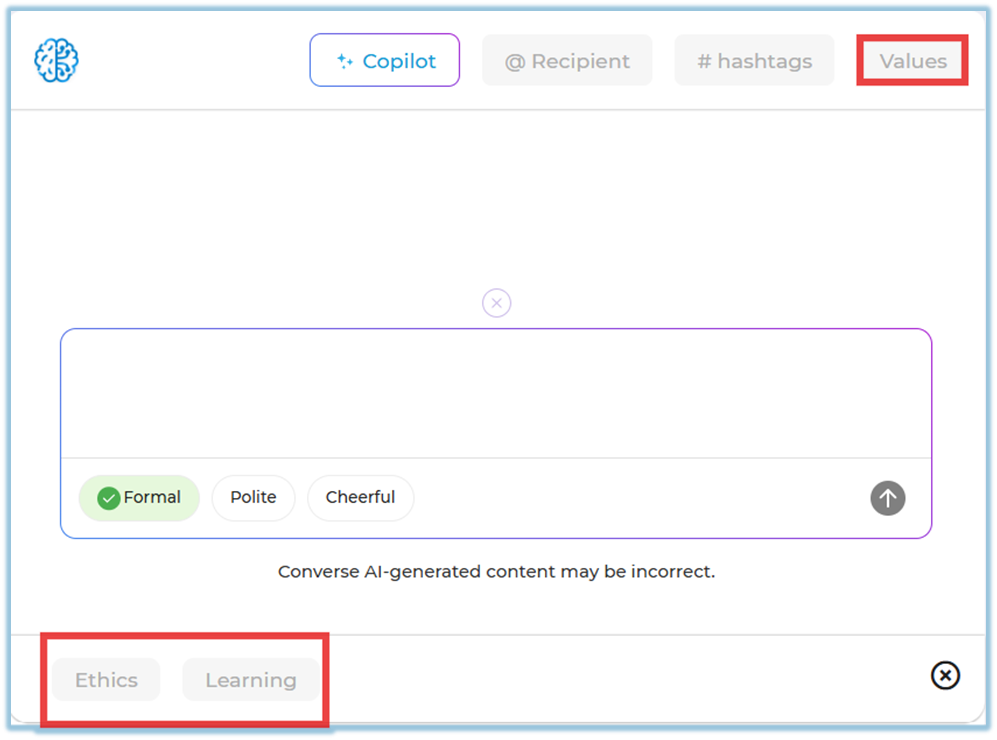
##### **Give a Badge (Two Ways)**
**Way 1: Using the Badge Button**
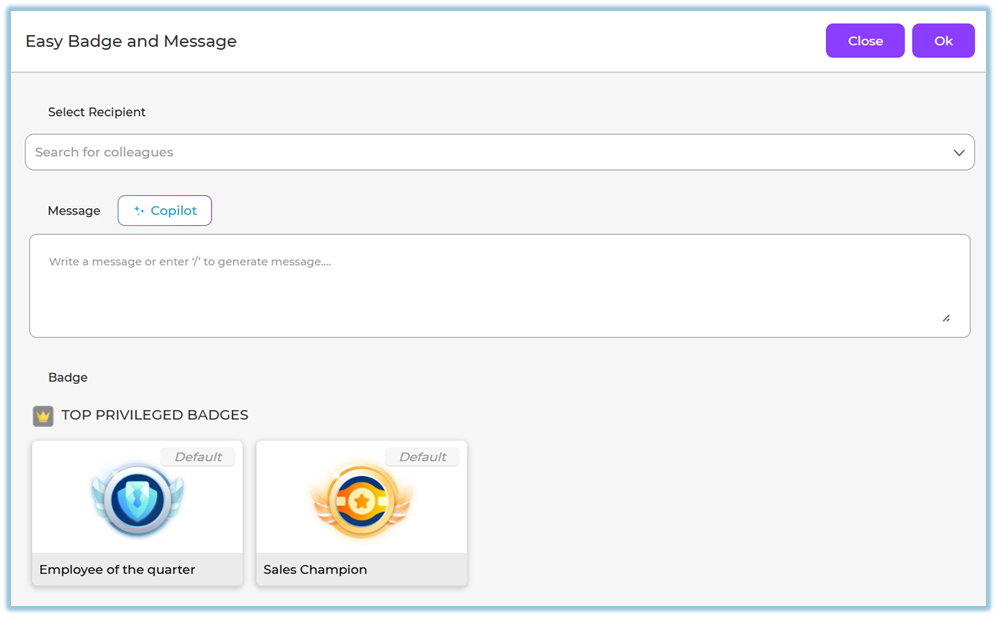
1. Click **Badge** below the post text box.
2. Select the **recipient**.
3. Choose the **badge**.
4. Enter a message (use Copilot if needed).
5. Click **OK**, then click **Post**.
**Way 2: From Write a Post**
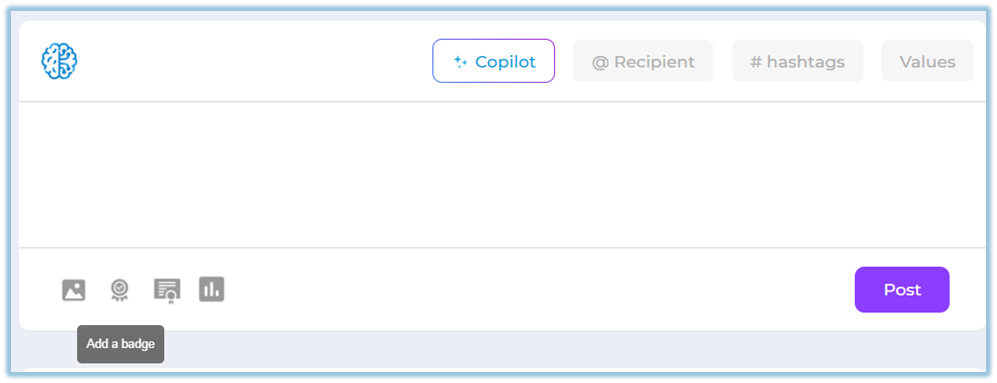
1. Click inside **Write a post…**.
2. Select the **Badge** option.
3. Complete the badge details and post.
##### **Give a Certificate (Two Ways)**
**Way 1: Using the Certificate Button**
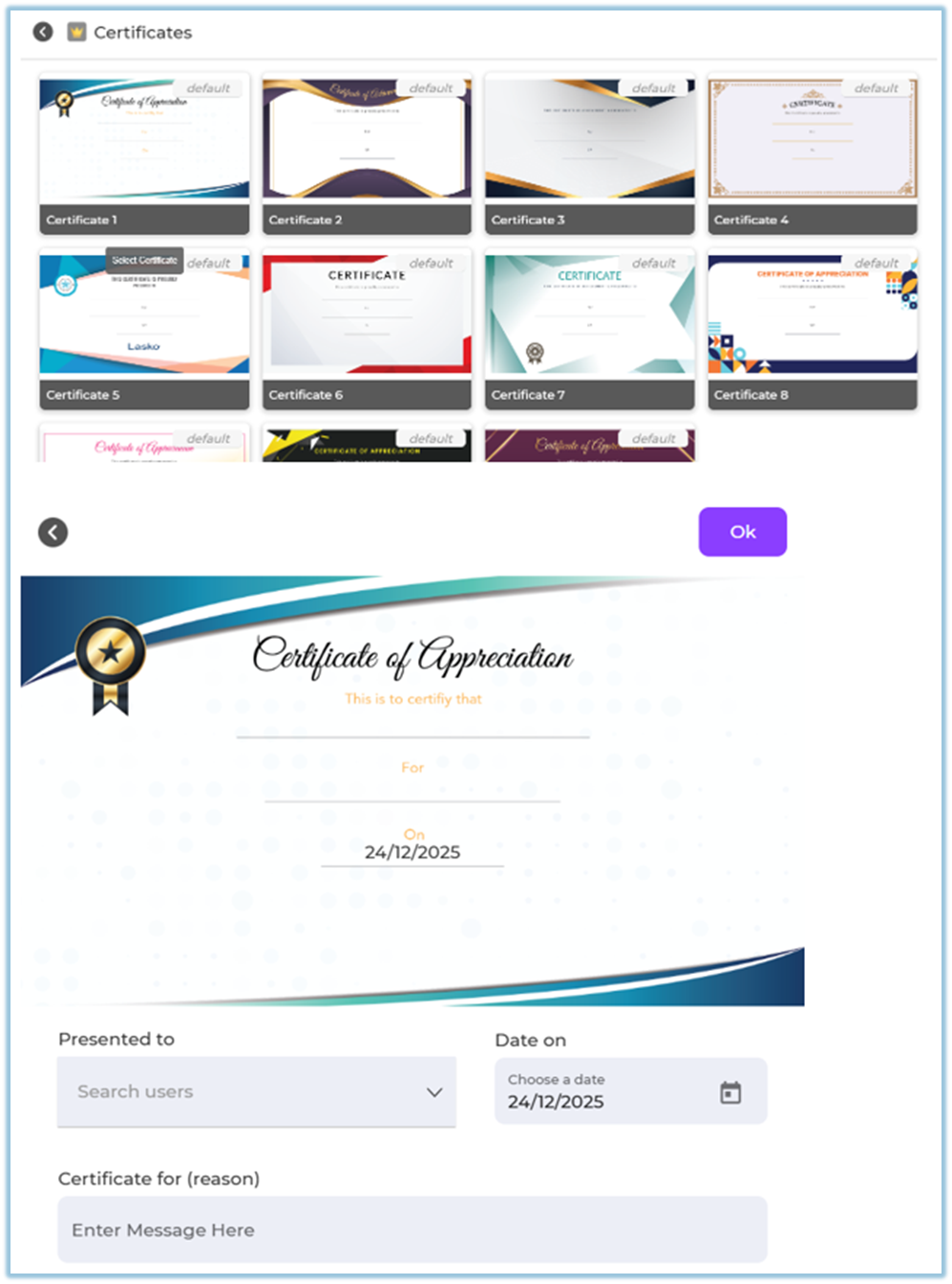
1. Click **Certificate** below the post text box.
2. Select the **recipient**.
3. Choose the **certificate**.
****
4. Enter the reason or message.
5. Click **OK**, then click **Post**.
**Way 2: From Write a Post**
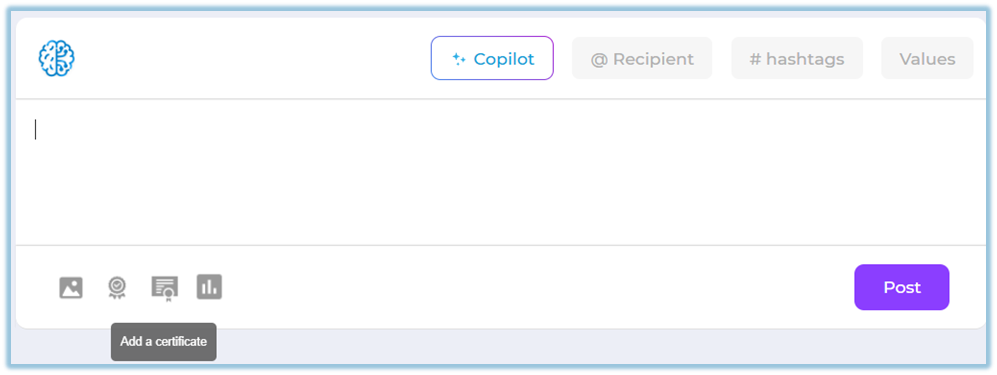
1. Click inside **Write a post…**.
2. Select **Certificate**.
3. Fill in certificate details and post.
##### **Conduct a Poll (Two Ways)**
**Way 1: Using the Poll Button**
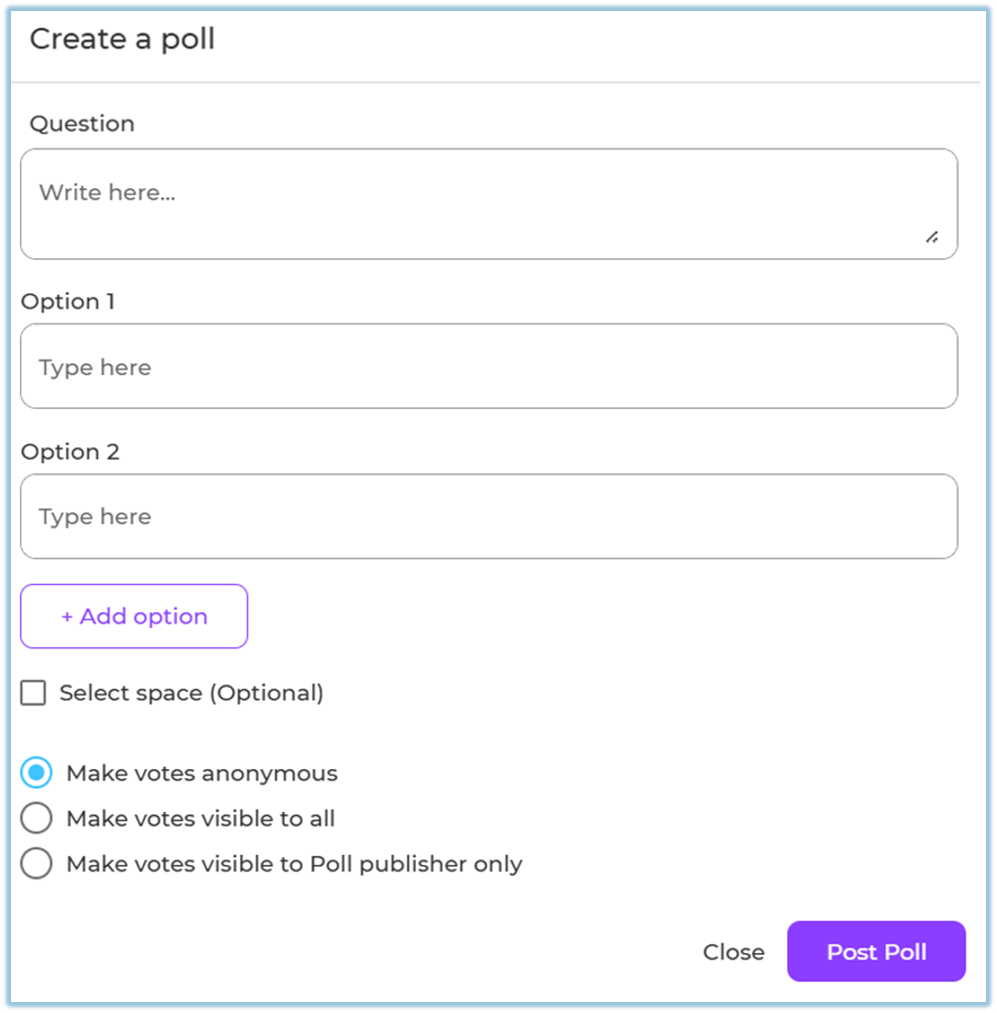
1. Click **Poll** below the post text box.
2. Enter the **poll question**.
3. Add **options** (Option 1, Option 2, etc.).
4. Configure poll settings:
- Allow multiple options (if required)
- Make votes anonymous
- Show votes to everyone or only the publisher
5. Click **Post Poll**.
**Way 2: From Write a Post**
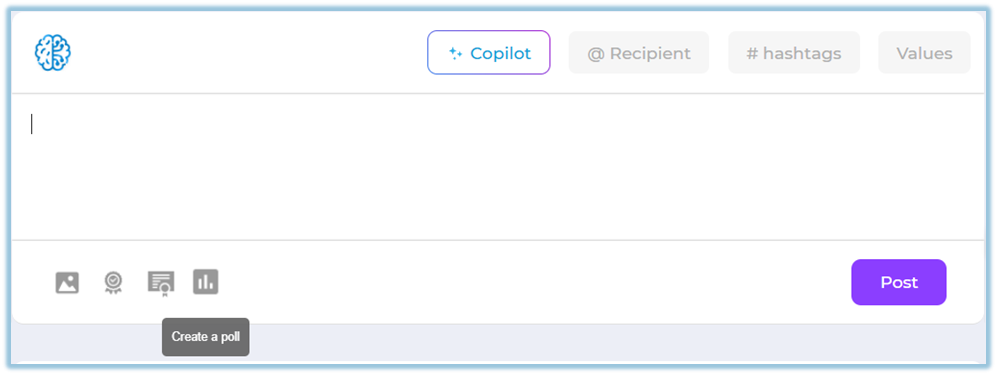
1. Click inside **Write a post…**.
2. Select **Poll**.
3. Configure and publish the poll.
##### **Admin Configuration – Badges**
This configuration is mandatory for badge usage in Feed
**Configure Who Can Give a Badge**
1. Go to **Settings Centre**.
2. Under **Engagement setup**, click **Badges**.
[https://converse.bsharpcorp.com/celebrate/settings\_center](https://converse.bsharpcorp.com/celebrate/settings_center)
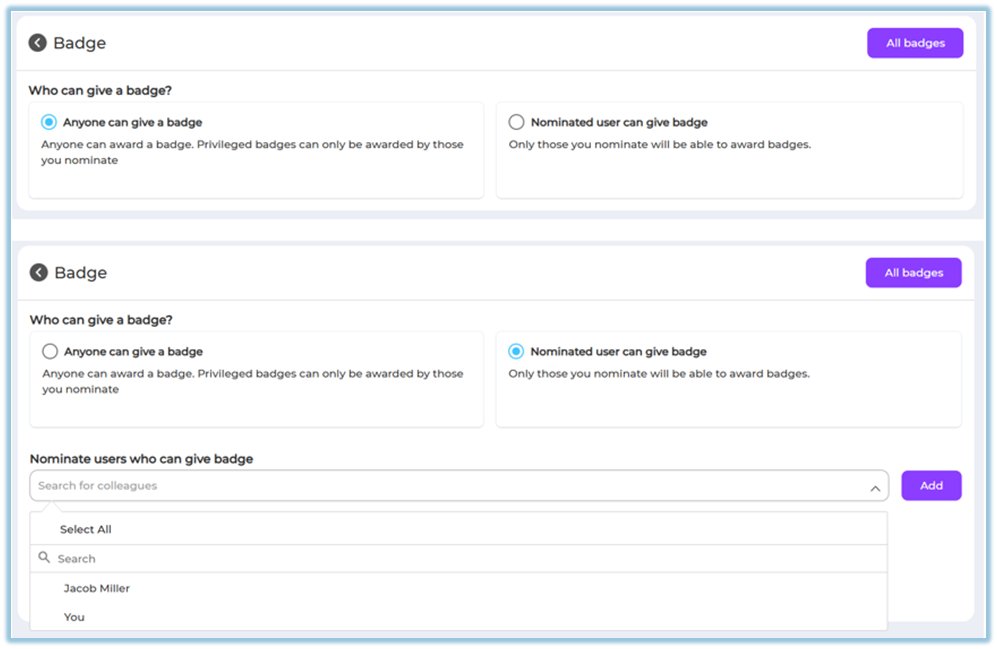
3. Choose one option:
- **Anyone can give a badge**
- **Nominated user can give badge** [https://converse.bsharpcorp.com/celebrate/badges](https://converse.bsharpcorp.com/celebrate/badges)
4. If nominated:
- Search and select users
- Click **Add**
5. Permission update confirmation appears.
**Manage Badges**
1. Click **All badges**.
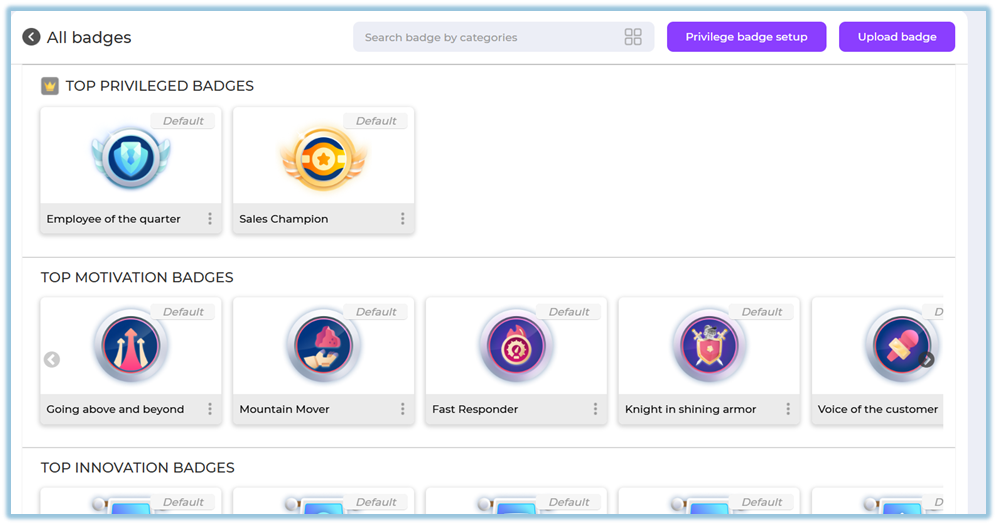
2. View badges by category:
- Privileged
- Motivation
- Innovation
- Appreciation
3. Use **Search badge by categories** if required.
4. Click **Upload badge** to add new badges.
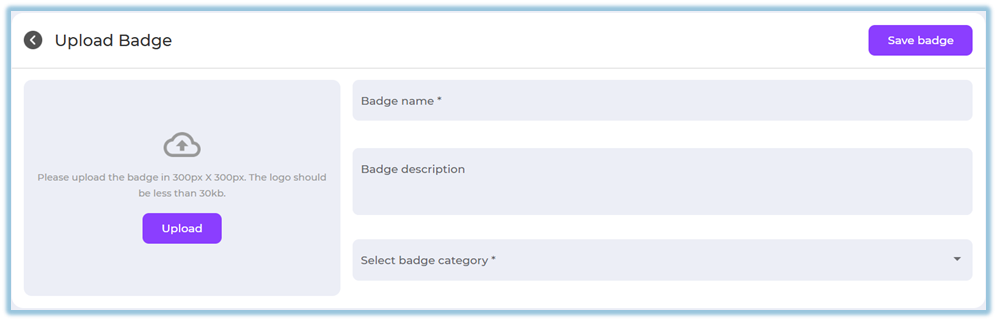
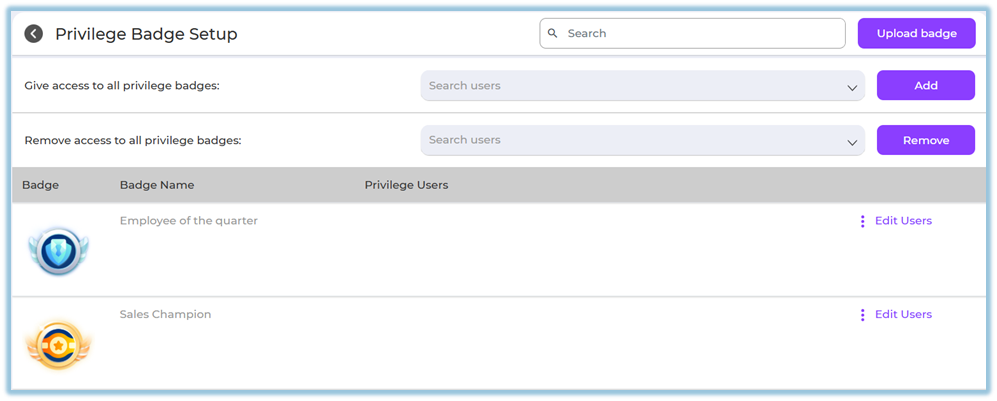
5. Use **Privilege badge setup** to restrict access.
##### **Admin Configuration – Certificates**
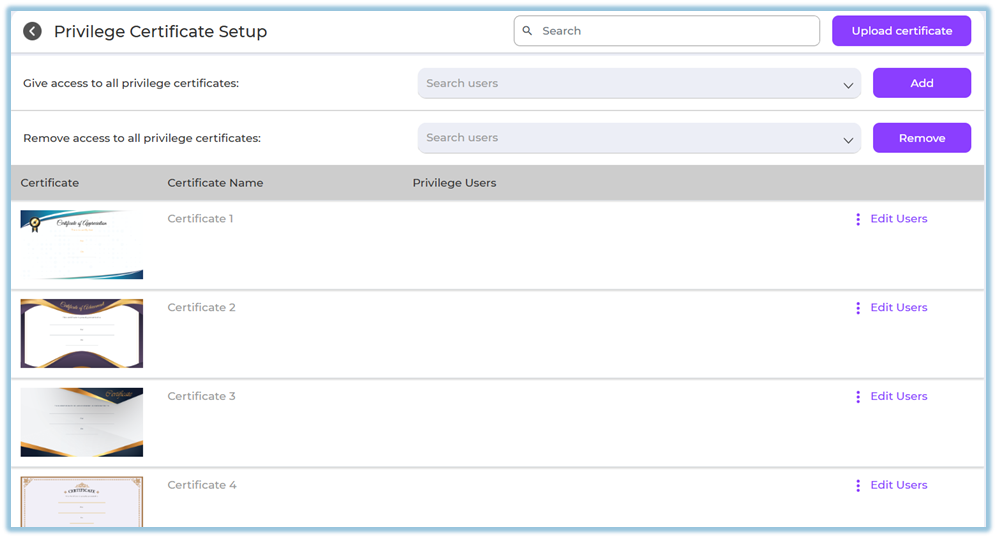
Certificates must be configured before posting **Configure Certificate Access**
1. Go to **Settings Centre**.
2. Under **Engagement setup**, click **Certificates**.
[https://converse.bsharpcorp.com/celebrate/privilege\_certificate\_setup](https://converse.bsharpcorp.com/celebrate/privilege_certificate_setup)
3. Open **Privilege Certificate Setup**.
4. To give access:
- Search users
- Click **Add**
5. To remove access:
- Search users
- Click **Remove
**
**Upload a Certificate**
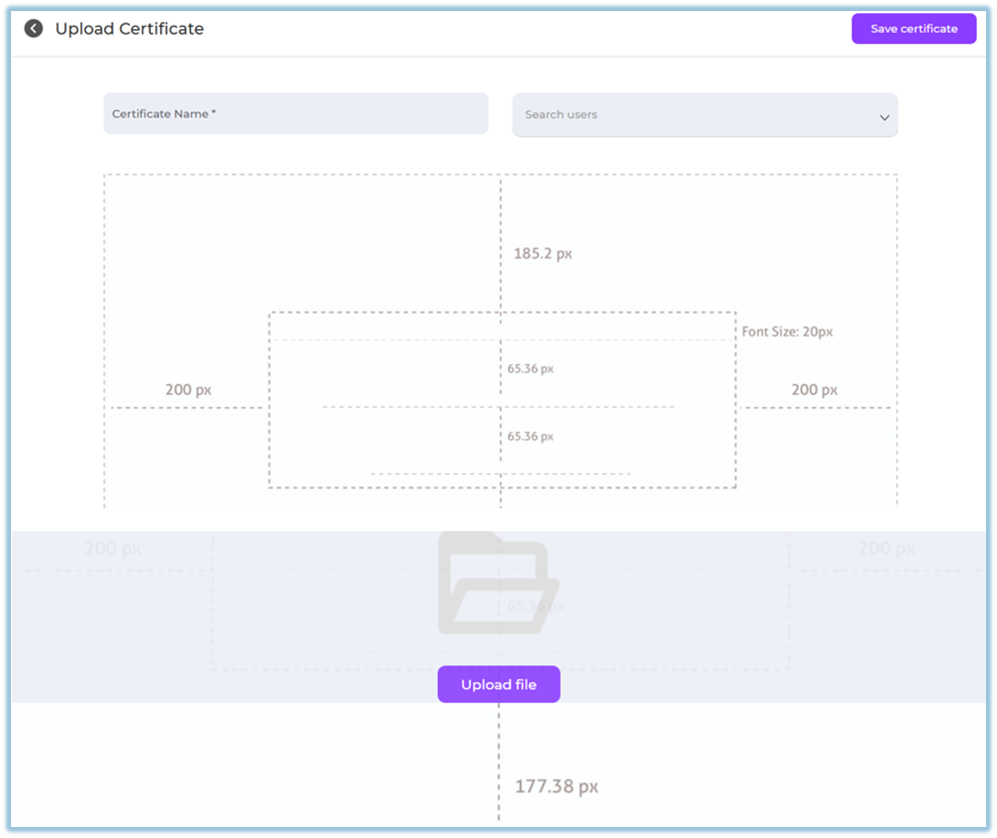
1. Click **Upload certificate**.
2. Enter **Certificate Name**.
3. Upload the certificate image.
4. Map text placeholders (name, date, etc.).
5. Assign privilege users (optional).
6. Click **Save certificate**.
### **5. Reporting**
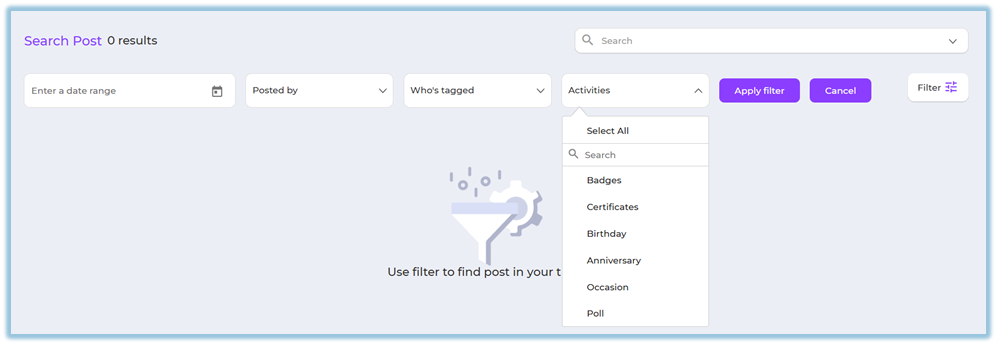
- Use **Search & Filter** to track posts.
- Filters allow admins and users to view posts by:
- **Date range**
- **Posted by** (You / Others)
- **Who’s tagged**
- **Activities**:
- Badge
- Certificate
- Birthday
- Anniversary
- Occasion
- Poll
- **Company values**
- **Hashtags**
- Click **Apply filter** to view matching posts.
### **6. User View**
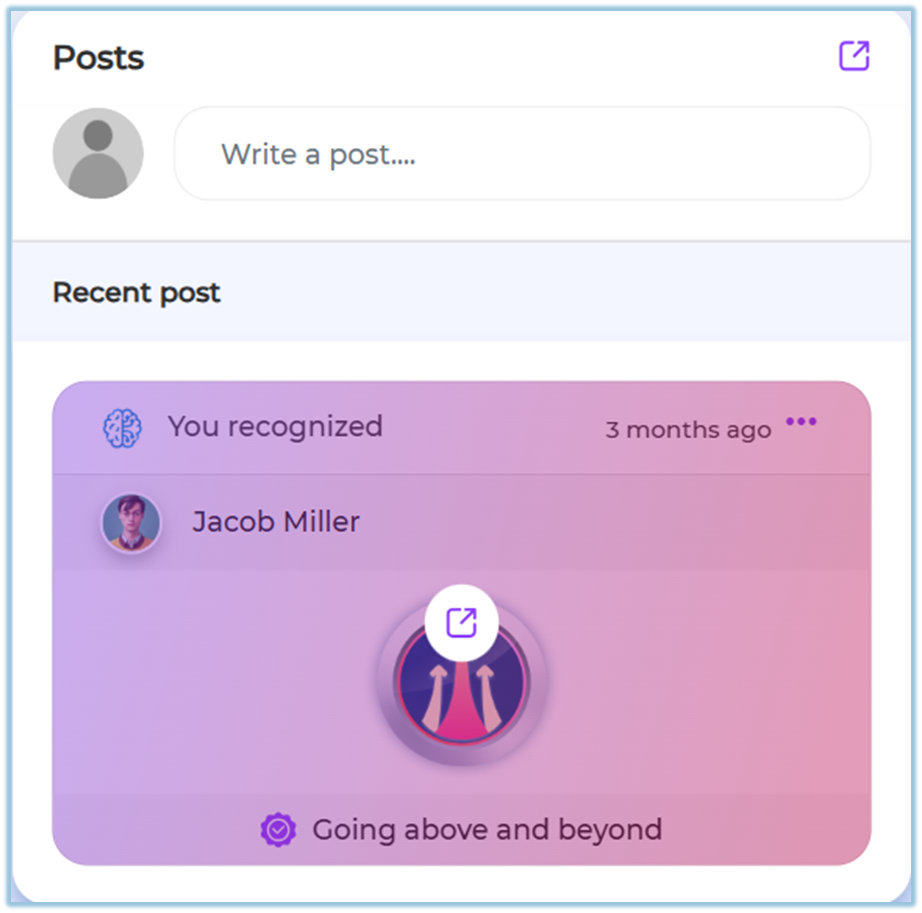
- Posts appear on the **Home page under the Posts section**.
- Users can see:
- Text posts
- Image posts
- Badge recognition posts
- Certificate posts
- Polls with live voting results
- Users can **react**, **comment**, and **vote** on polls.
- Recognitions clearly show the badge or certificate awarded.
### **7. Best Practices**
- Keep post messages short and clear.
- Use **Copilot** to maintain a consistent tone.
- Tag relevant users to improve visibility.
- Use hashtags and values for better organization.
- Use polls sparingly to avoid engagement fatigue.
### **8. Troubleshooting / FAQs**
**Q: Can I edit a post after publishing?**
No.
**Q: Can multiple employees be tagged in one post?**
Yes.
### **9. Related Links**
- [Birthday – Employee Engagement](https://help.bsharpcorp.com/books/feed/page/birthday)
- [Work Anniversary – Employee Engagement](https://help.bsharpcorp.com/books/feed/page/work-anniversary)
### **10. Version Notes**
Last Updated: 23 Dec 2025
# Birthday
### **1. Overview**
The Birthday feature automatically posts birthday wishes on the Feed when an employee’s date of birth is reached, helping teams celebrate and engage employees effortlessly.
### **2. When to Use This?**
- To automatically wish employees on their birthdays
- To improve employee engagement and morale
- To avoid manual birthday posts by admins or managers
- To create a positive and inclusive work culture
### **3. Concepts**
- **Birthday Post**: An automated Feed post triggered based on the employee’s date of birth.
- **Celebration Bot**: Publishes birthday posts automatically using configured messages and images.
- **Backend Setup**: Birthday messages and visuals are configured from Settings Centre.
### **4. Setup Guide** **(**Admin Setup**)**
##### Step 1: Ensure User Details Are Available
While creating or updating a user:
- Date of Birth must be entered.
Without the date of birth, birthday posts will not be triggered.
##### Step 2: Configure Birthday Posts
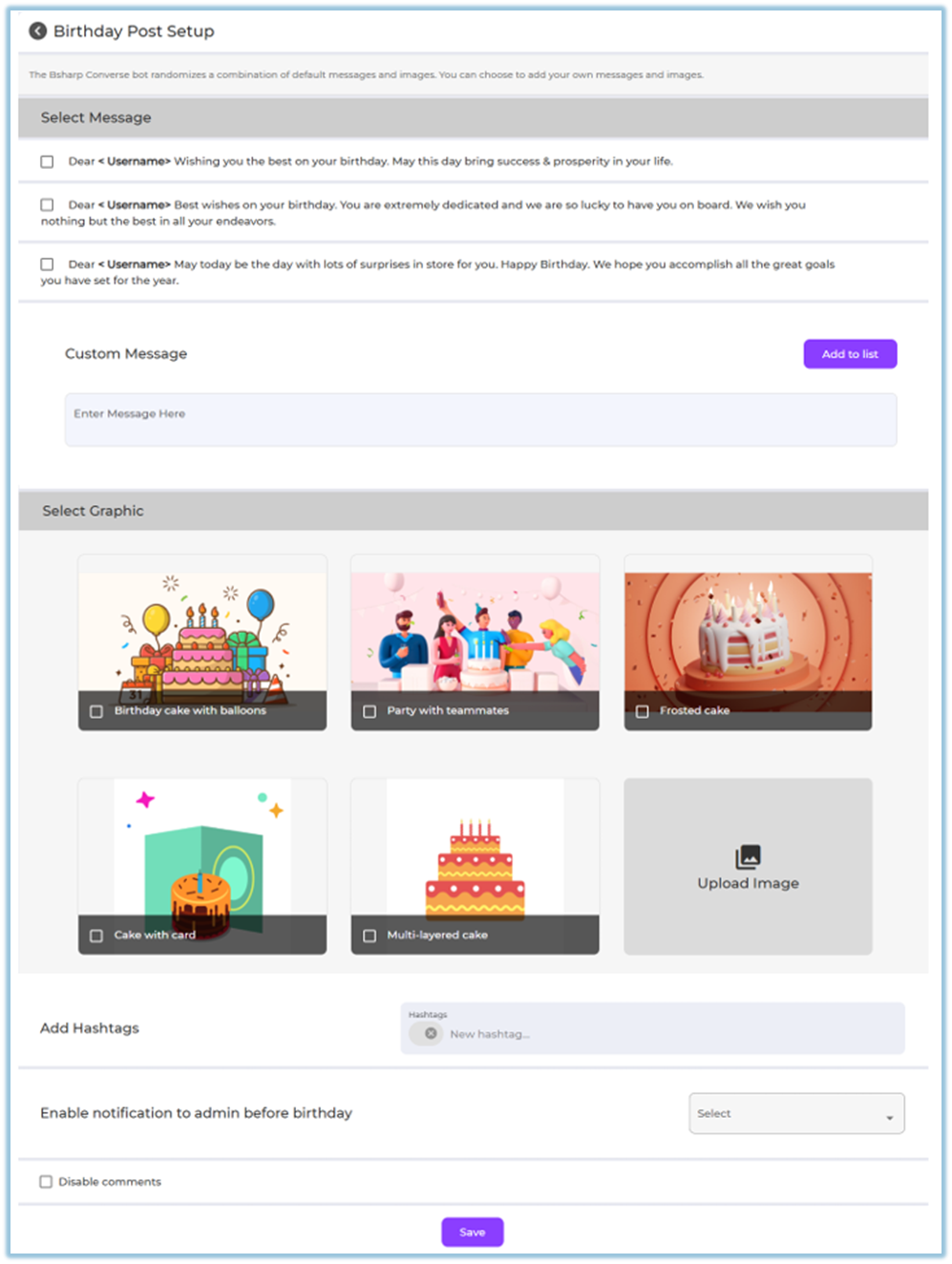
1. Go to **Menu → Settings Centre** [https://converse.bsharpcorp.com/celebrate/settings\_center](https://converse.bsharpcorp.com/celebrate/settings_center)
2. Under **Engagement Setup**, click **Birthdays** [https://converse.bsharpcorp.com/celebrate/birthday\_setup](https://converse.bsharpcorp.com/celebrate/birthday_setup)
3. Select one or more **default birthday messages**
4. (Optional) Add a **custom message**
5. Select a **graphic/image**
- Or upload a custom image
6. (Optional) Add **hashtags**
7. (Optional) Enable **notification to admin before birthday**
8. (Optional) Disable comments
9. Click **Save
**
### **5. User View**
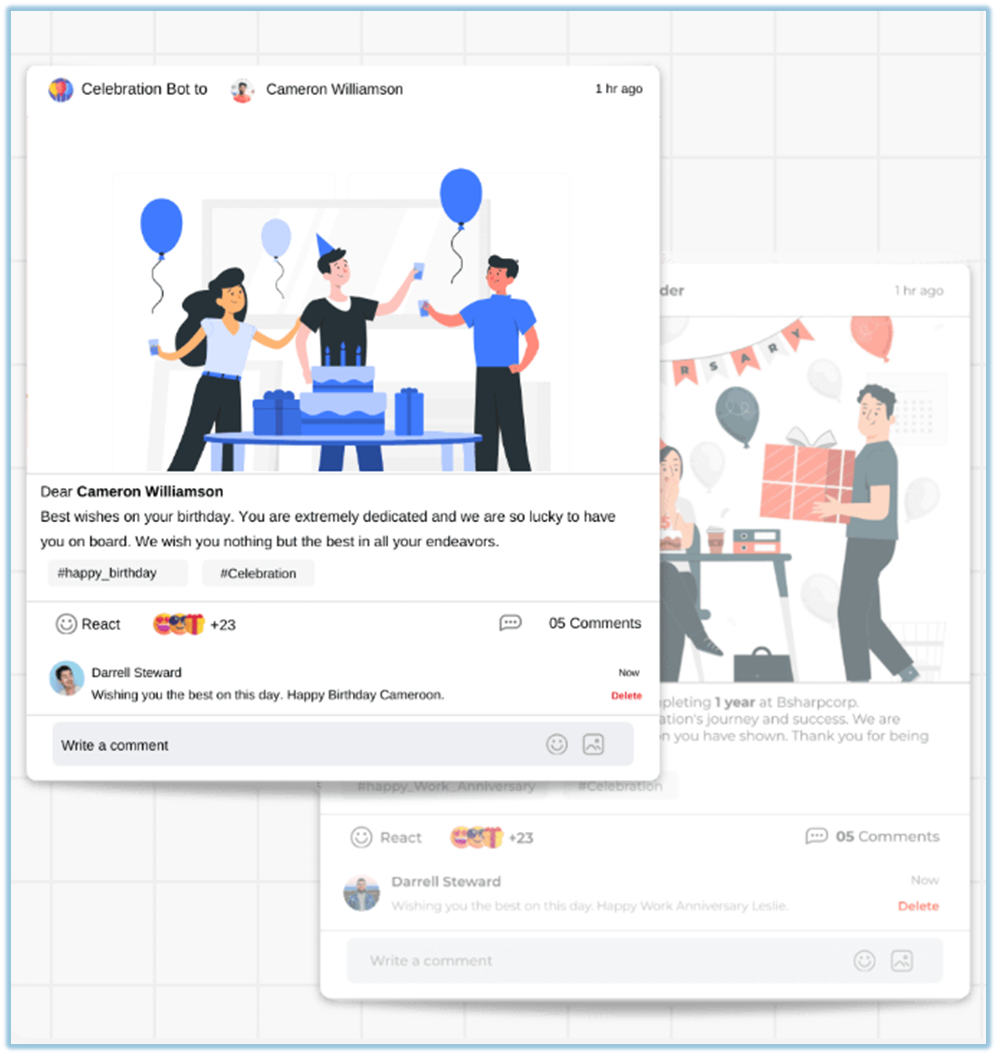
- The birthday post appears automatically in the **Feed**
- Posted by the **Celebration Bot**
- Displays:
- Personalized birthday message
- Selected image or graphic
- Reactions and comments (if enabled)
### **6. Reporting**
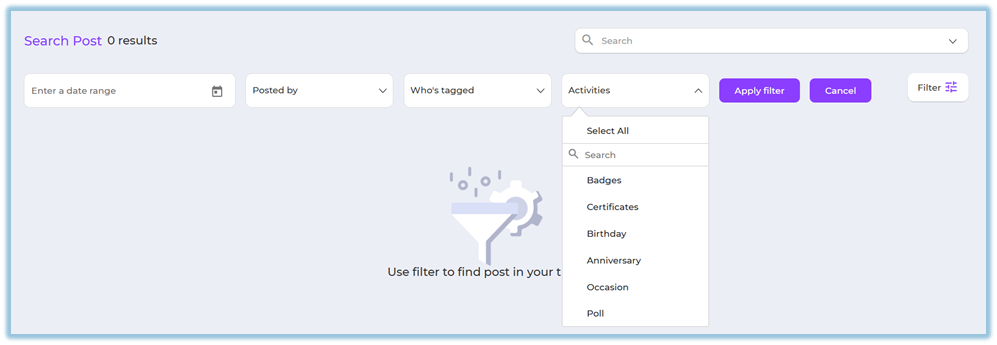
Birthday posts can be tracked using Feed filters:
1. Go to **Feed**
2. Click **Filter**
3. Select **Activities → Birthday**
4. Apply additional filters if needed (date, tagged user, etc.)
### **7. Best Practices**
- Ensure date of birth is captured during user onboarding
- Use friendly and positive birthday messages
- Keep comments enabled to encourage team wishes
- Use admin notifications to stay informed in advance
### **8. Troubleshooting / FAQs**
**Q: Can I edit a birthday post after it is published?**
No. Birthday posts cannot be edited once published.
**Q: Can multiple employees be tagged in a birthday post?**
Yes.
**Q: What happens if the date of birth is missing?**
The birthday post will not be created.
### **9. Related Links**
- [Feed – Posts](https://help.bsharpcorp.com/books/feed/page/post)
- [Settings Centre – Birthdays](https://converse.bsharpcorp.com/celebrate/birthday_setup)
### **10. Version Notes**
Last Updated: 24 Dec 2025
---
# Work Anniversary
### **1. Overview**
The Work Anniversary feature automatically celebrates employee milestones based on their date of joining by posting congratulatory messages on the Feed.
### **2. When to Use This?**
- To recognize employee loyalty and tenure
- To celebrate work milestones automatically
- To strengthen employee motivation and retention
- To reduce manual anniversary announcements
### **3. Concepts**
- **Work Anniversary Post**: An automated Feed post triggered based on the employee’s date of joining.
- **Celebration Bot**: Automatically publishes anniversary posts.
- **Backend Setup**: Anniversary messages and images are configured from Settings Centre.
### **4. Setup Guide (**Admin Setup**)**
##### Step 1: Ensure User Details Are Available
While creating or updating a user:
- Date of Joining must be entered
Without the date of joining, anniversary posts will not be triggered.
##### Step 2: Configure Work Anniversary Posts
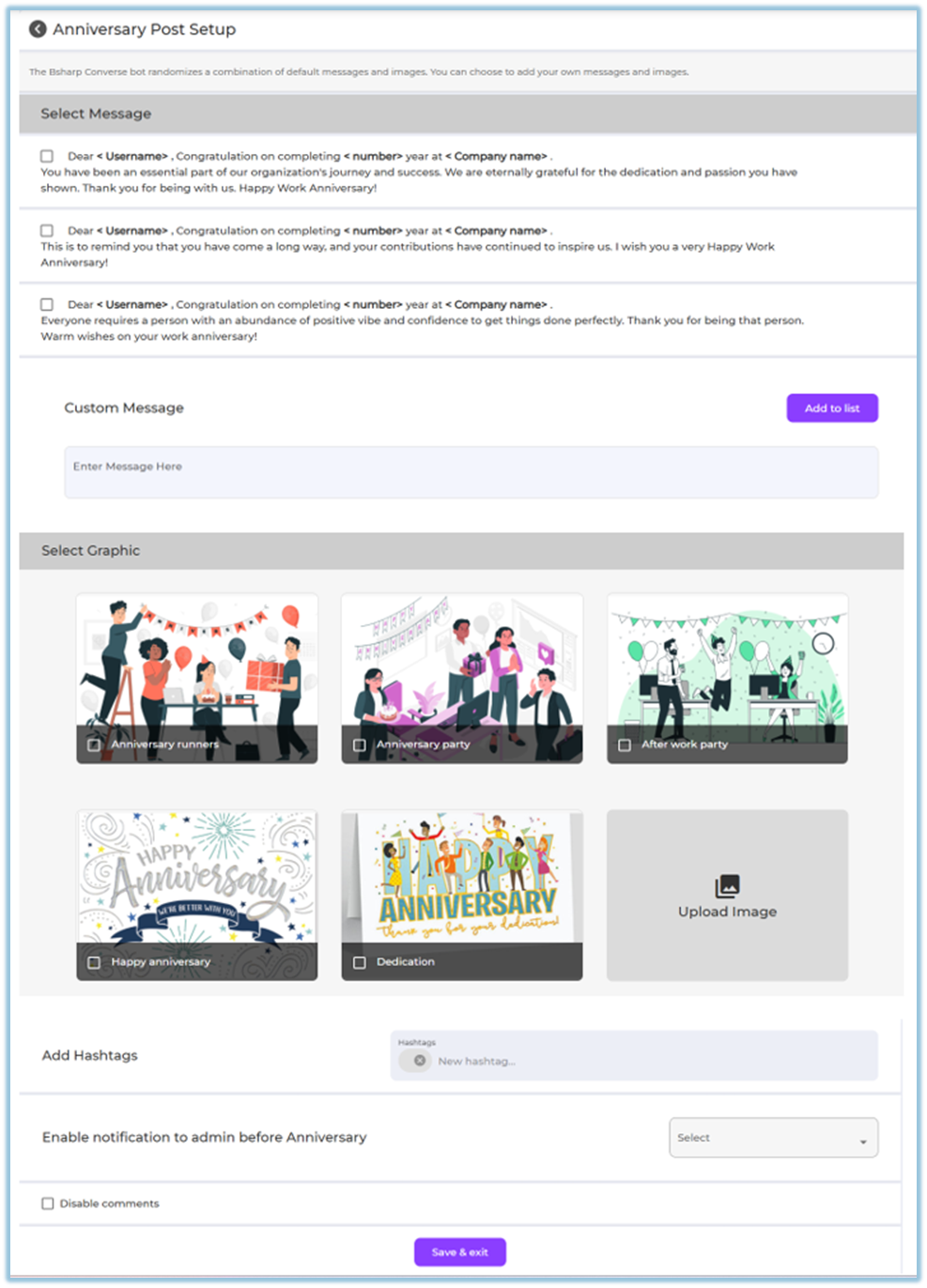
1. Go to **Menu → Settings Centre** [https://converse.bsharpcorp.com/celebrate/settings\_center](https://converse.bsharpcorp.com/celebrate/settings_center)
2. Under **Engagement Setup**, click **Anniversaries** [https://converse.bsharpcorp.com/celebrate/anniversary\_setup](https://converse.bsharpcorp.com/celebrate/anniversary_setup)
3. Select one or more **default anniversary messages**
4. (Optional) Add a **custom message**
5. Select a **graphic/image**
- Or upload a custom image
6. (Optional) Add **hashtags**
7. (Optional) Enable **notification to admin before anniversary**
8. (Optional) Disable comments
9. Click **Save & Exit
**
### **5. User View**
- The anniversary post appears automatically in the **Feed**
- Posted by the **Celebration Bot**
- Displays:
- Personalized anniversary message (years completed)
- Selected image or graphic
- Reactions and comments (if enabled)

### **6. Reporting**
Work Anniversary posts can be tracked using Feed filters:
1. Go to **Feed**
2. Click **Filter**
3. Select **Activities → Anniversary**
4. Apply additional filters if needed
### **7. Best Practices & Tips**
- Ensure date of joining is correctly maintained
- Use appreciation-focused messages
- Enable comments to allow team congratulations
### **8. Troubleshooting / FAQs**
**Q: Can I edit a work anniversary post after publishing?**
No. Work anniversary posts cannot be edited once published.
**Q: Will the system calculate years automatically?**
Yes. The system calculates years based on the date of joining.
**Q: What happens if the date of joining is missing?**
The work anniversary post will not be created.
### **9. Related Links**
- [Feed – Posts](https://help.bsharpcorp.com/books/feed/page/post)
- [Settings Centre – Anniversaries](https://converse.bsharpcorp.com/celebrate/anniversary_setup)
### **10. Version Notes**
Last Updated: 24 Dec 2025
# Occasions
### **1. Overview**
The **Occasions** feature allows admins to configure and manage festival and special-day posts that are automatically published on the Feed. It helps organizations celebrate national events, festivals, and special occasions in a timely and consistent manner without manual posting.
### **2. When to Use**
- To automatically celebrate festivals and special occasions
- To maintain consistent engagement across regions and countries
- To avoid manual posting for recurring or fixed-date events
- To improve employee engagement through timely celebration posts
### **3. Concepts**
- **Occasion**: A festival or special day configured with a date, image, and wish message.
- **Country-based Occasions**: Occasions are enabled based on the selected country.
- **Active / Inactive Status**: Occasions can be enabled or disabled as needed.
- **Automated Post**: An occasion post is automatically published on the configured date.
### **4. Set Up Guide**
##### Access Occasion Setup
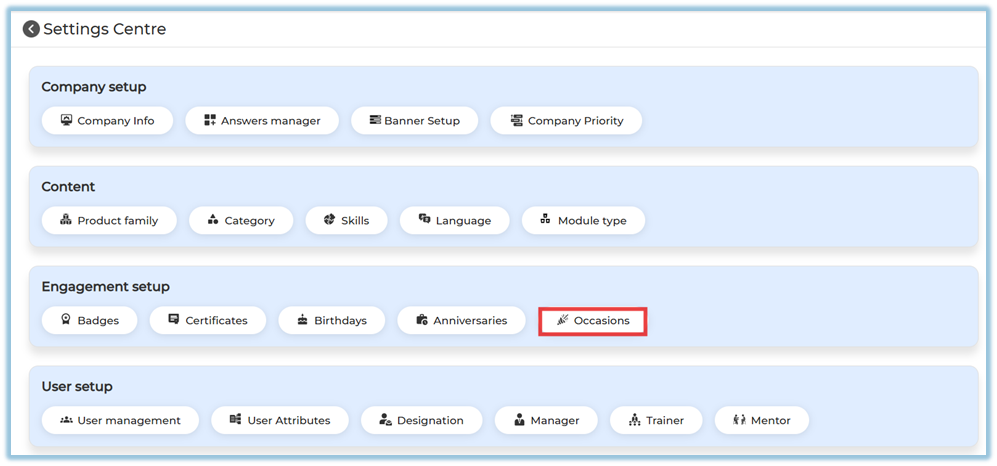
1. Go to **Menu → Settings Centre** [https://converse.bsharpcorp.com/celebrate/settings\_center](https://converse.bsharpcorp.com/celebrate/settings_center)
2. Under **Engagement Setup**, click **Occasions
**
##### Configure Country
- By default, occasions are loaded based on the selected country
- Click **Add** to include a country if required
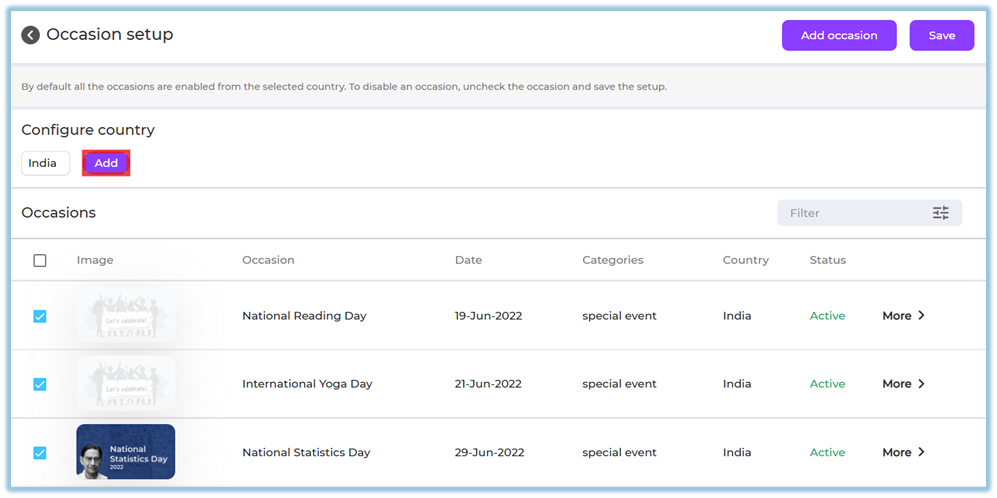
- All occasions for the selected country are enabled by default
##### Enable or Disable Existing Occasions
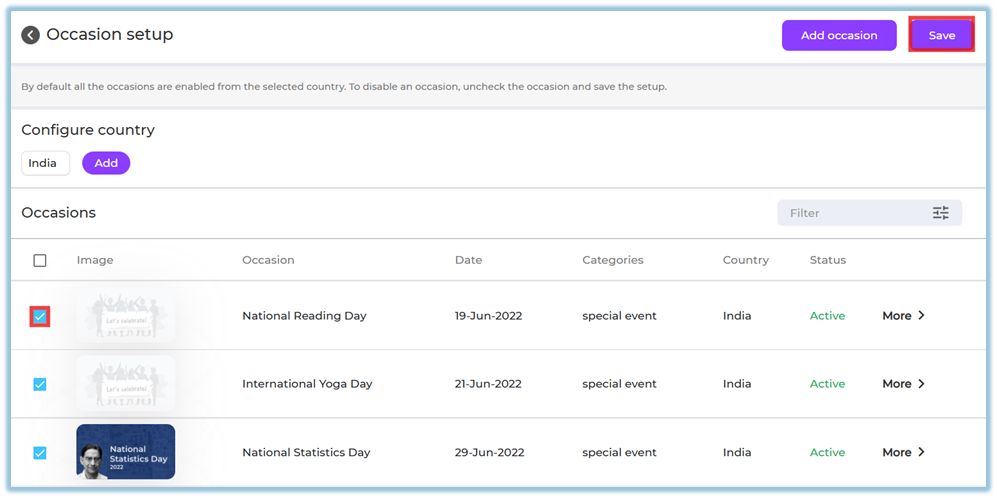
- Use the checkbox to enable or disable an occasion
- Uncheck an occasion if you do not want it to be posted
- Click **Save** to apply changes
##### Add a New Occasion
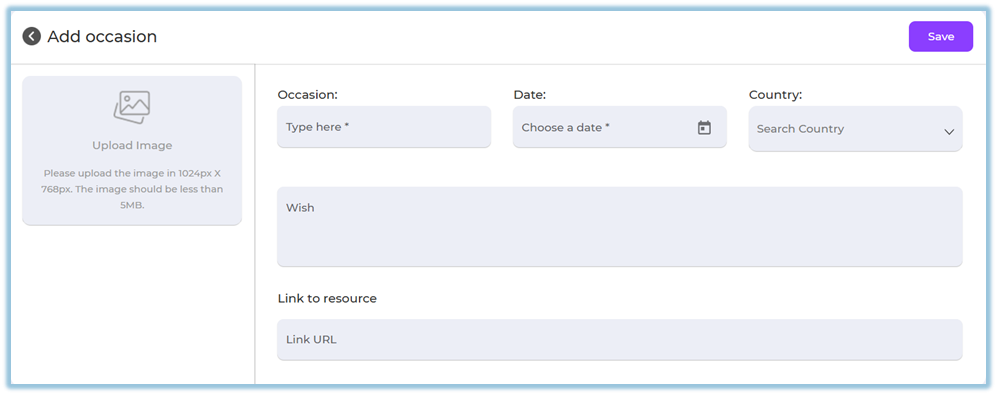
1. Click **Add Occasion**
2. Upload an image
- Recommended size: **1024 × 768 px**
- Maximum size: **5 MB**
3. Enter **Occasion Name**
4. Select the **Date**
5. Choose the **Country**
6. Add a **Wish message**
7. (Optional) Add a **Link to Resource**
8. Click **Save
**
##### Filter Occasions
Use the **Filter** option to search occasions by:

- Year
- Month
- Category
- Country
- Status
### **5. User View**
- Occasion posts appear automatically in the **Feed** on the configured date
- Posts display:
- Occasion image
- Occasion name
- Wish message
- Users can react and engage with the post

### **6. Reporting**
- Occasion posts can be tracked using **Feed filters**
- Filter by:
- Activity type → Occasions
- Date

### **7. Best Practices**
- Review and disable irrelevant occasions for your organization
- Use clear and festive images
- Keep wish messages simple and inclusive
- Configure country-specific occasions carefully
- Save changes after every update
### **8. Related Links / FAQs**
- [Engagement Setup – Overview](https://help.bsharpcorp.com/books/settings-centre/page/engagement-setup)
- [Birthday – Employee Engagement](https://help.bsharpcorp.com/books/feed/page/birthday)
- [Work Anniversary – Employee Engagement](https://help.bsharpcorp.com/books/feed/page/work-anniversary)
### **9. Version Notes**
Last Updated: 29 Dec 2025