# Post
### **1. Overview**
The **Feed** in Bsharp Converse is a central space where users can create and interact with posts. It allows admins and managers to share messages, recognize employees using badges or certificates, conduct polls, and engage users through comments and reactions. The Feed supports day-to-day communication and employee engagement activities such as birthdays, achievements, and work anniversaries.
[https://bsharpcorp.com/converse/engagement/](https://bsharpcorp.com/converse/engagement/)
### **2. When to Use This?**
Use Posts when you want to:
- Share congratulatory, motivational, or informational messages with employees
- Recognize employees using badges or certificates
- Collect opinions or feedback through polls
- Increase engagement and visibility on the Feed
### **3. Concepts**
- **Post** – A written message shared on the Feed
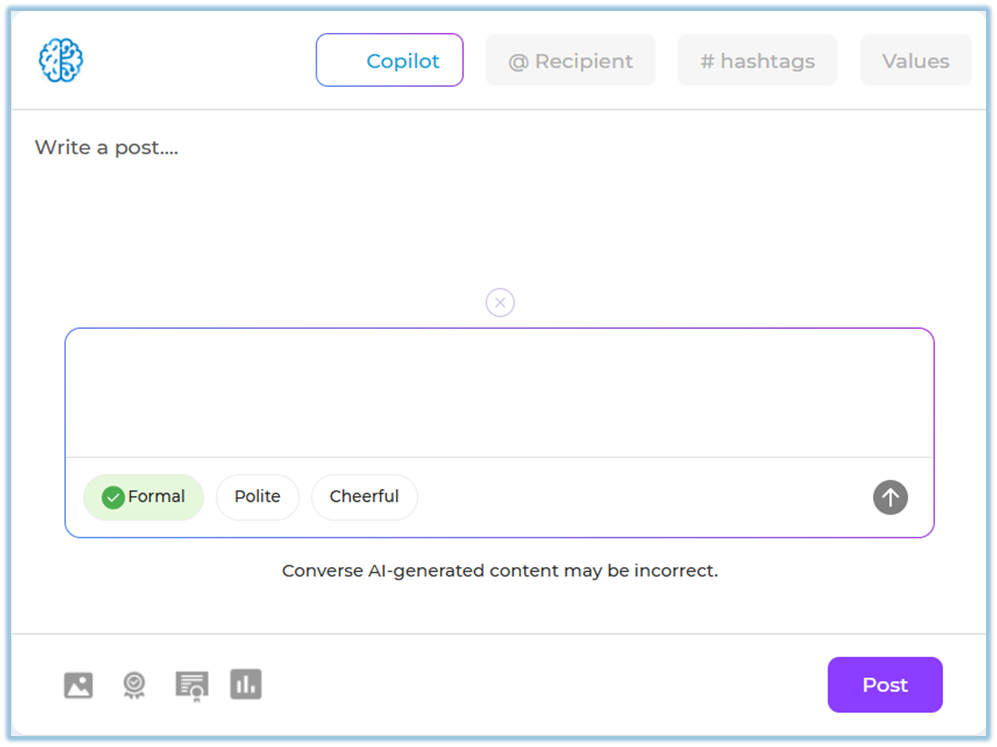
- **Copilot** – Helps reframe messages as Formal, Polite, or Cheerful
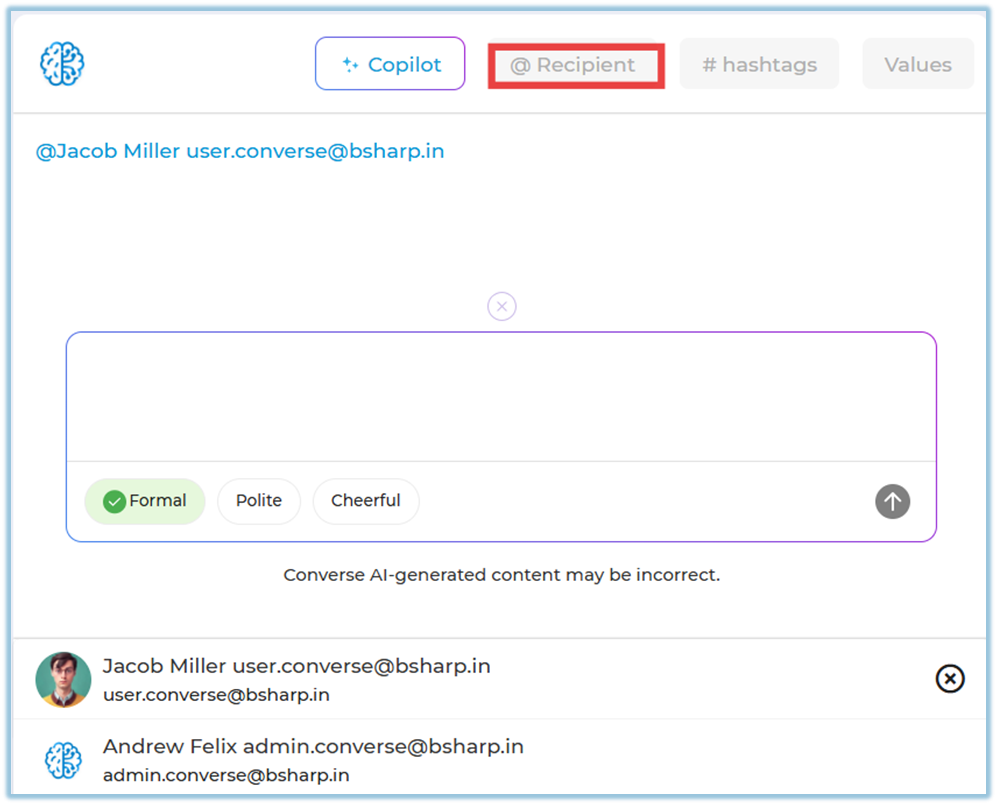
- **Recipient (@mention)** – Tag one or more users in a post
- **Hashtags (#)** – Categorize posts for easy discovery
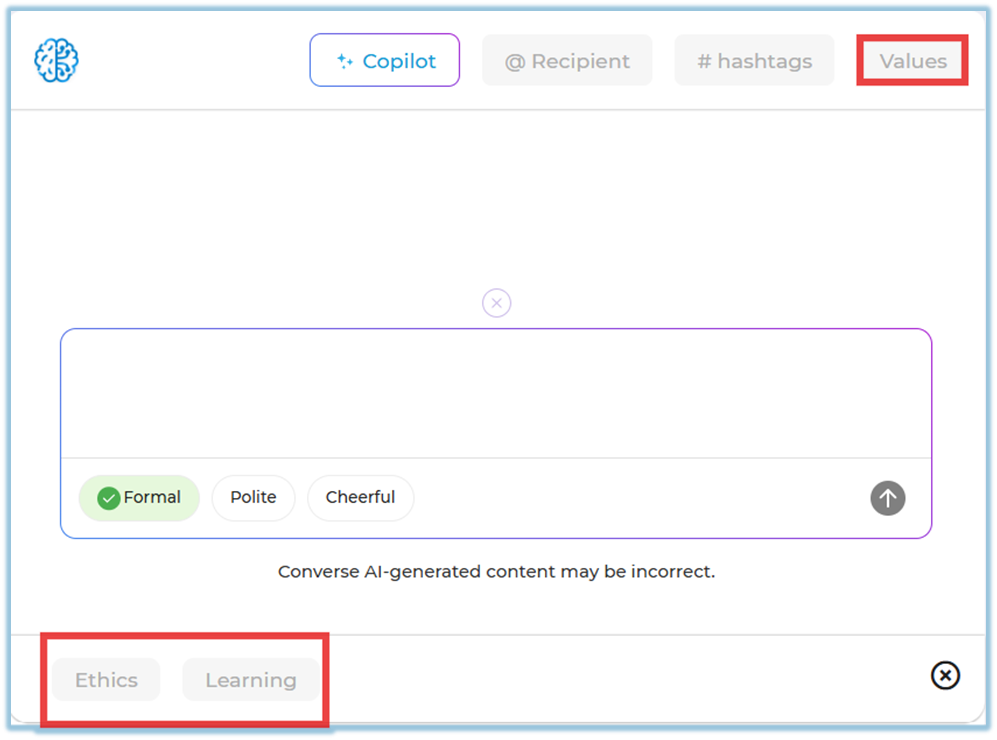
- **Values** – Link the post to company values like Ethics or Learning
- **Badge** – Recognition awarded to an employee
- **Certificate** – Appreciation certificate shared via post
- **Poll** – Question with voting options for employees
- **Feed Filters** – Search and filter posts by date, activity, or tags
### **4. Setup Guide**
##### **Create a Post**
1. Click the **menu bar**.
2. Select **Feed** from the left navigation panel.
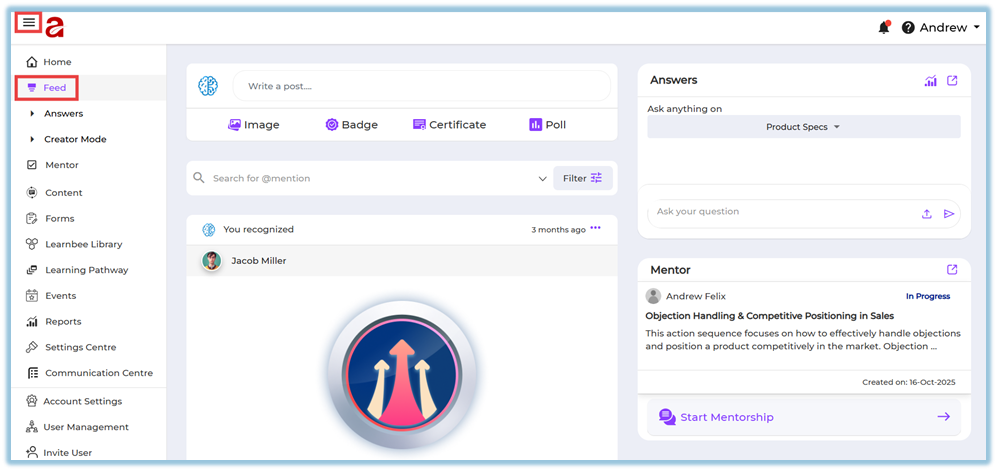
3. Click inside the **Write a post…** text box.
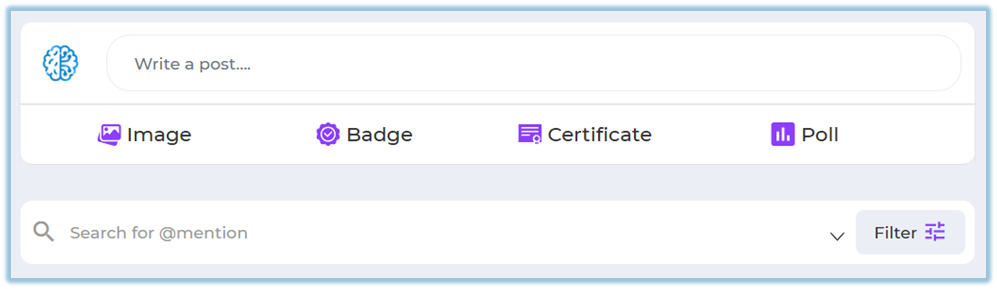
4. Enter your message (for example, a congratulatory or informational message).
**Use Copilot (Optional)**
5. Click **Copilot**.
6. Choose how you want the message reframed:
- Formal
- Polite
- Cheerful
**Add Mentions and Metadata (Optional)**
7. Click **@ Recipient** to mention one or more users.
8. Add **\# hashtags** to categorize the post.
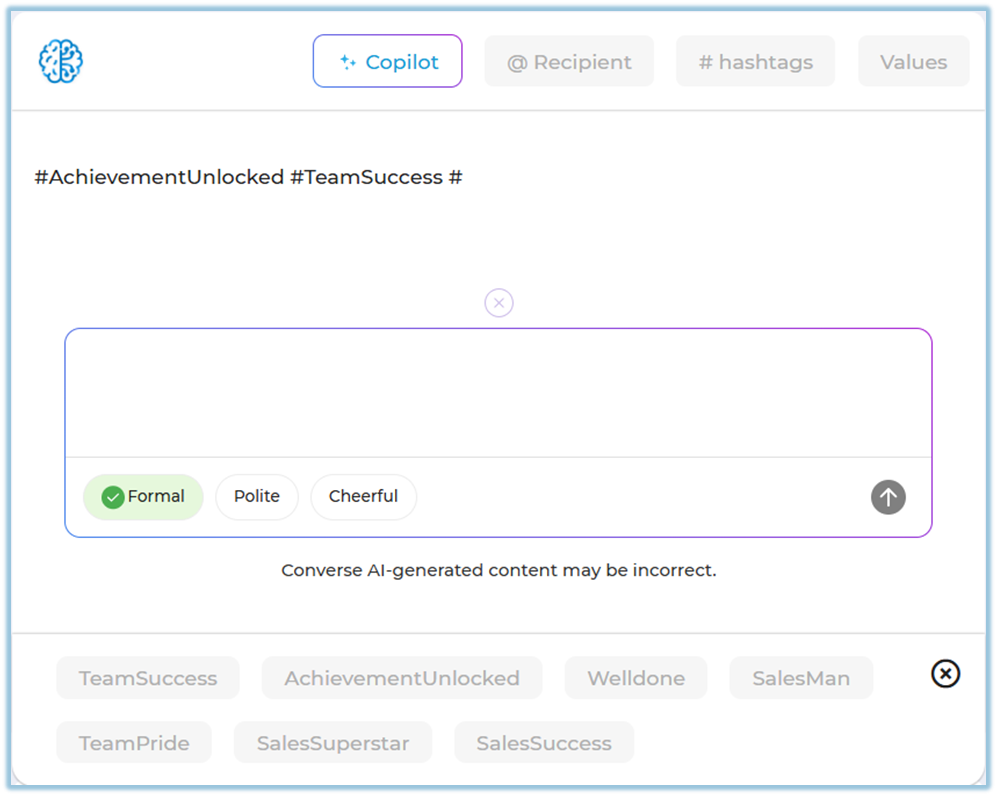
9. Select **Values** (for example, Ethics or Learning).
##### **Give a Badge (Two Ways)**
**Way 1: Using the Badge Button**
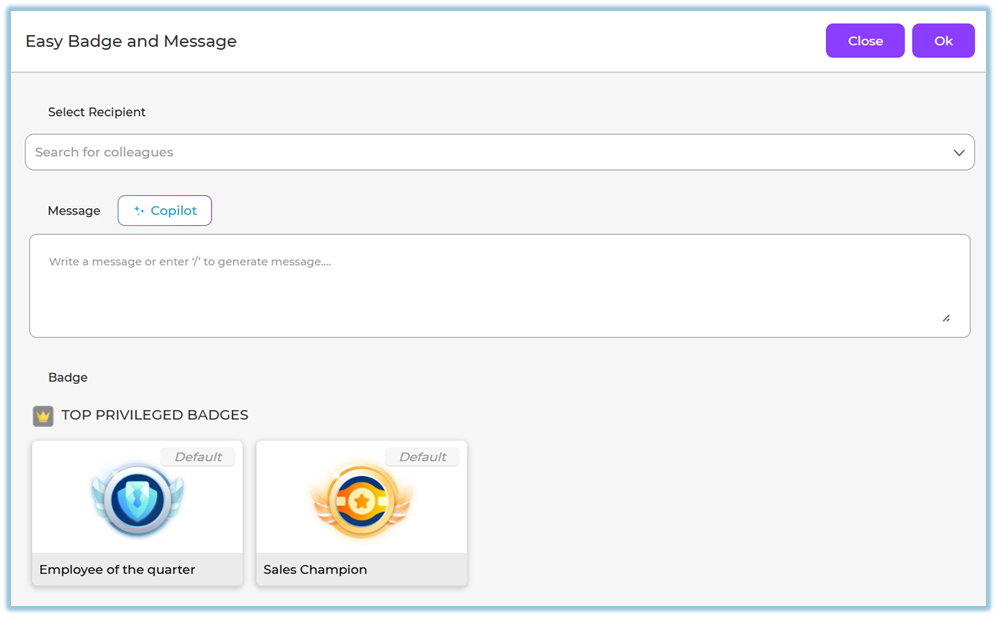
1. Click **Badge** below the post text box.
2. Select the **recipient**.
3. Choose the **badge**.
4. Enter a message (use Copilot if needed).
5. Click **OK**, then click **Post**.
**Way 2: From Write a Post**
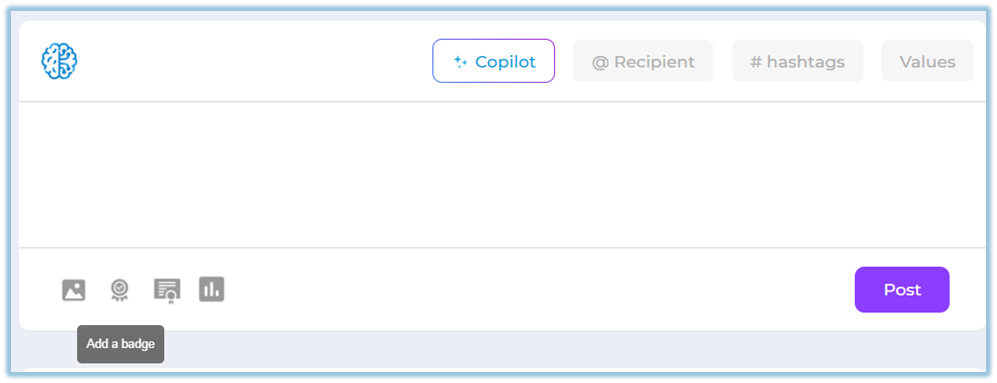
1. Click inside **Write a post…**.
2. Select the **Badge** option.
3. Complete the badge details and post.
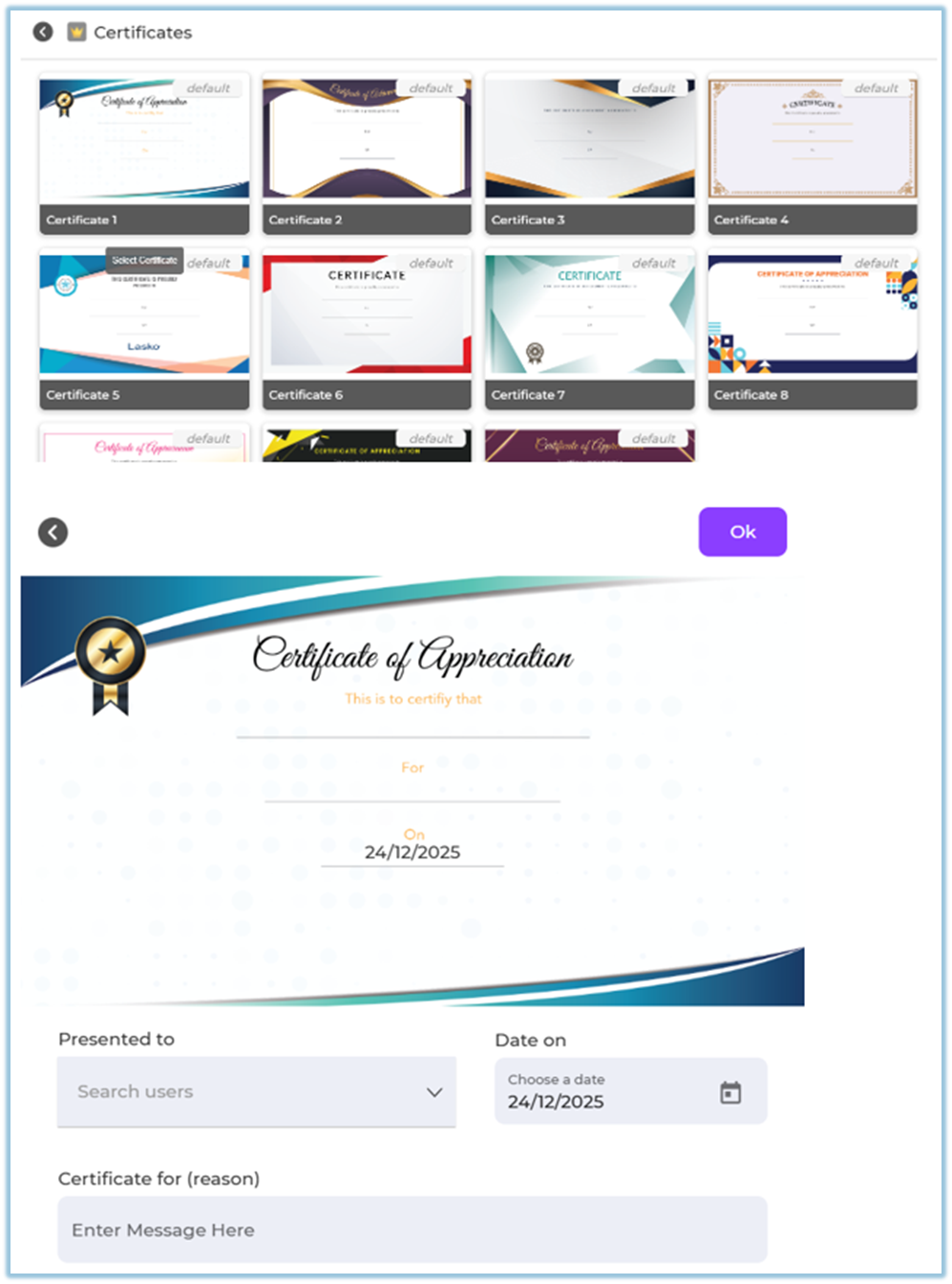
##### **Give a Certificate (Two Ways)**
**Way 1: Using the Certificate Button**
1. Click **Certificate** below the post text box.
2. Select the **recipient**.
3. Choose the **certificate**.
****
4. Enter the reason or message.
5. Click **OK**, then click **Post**.
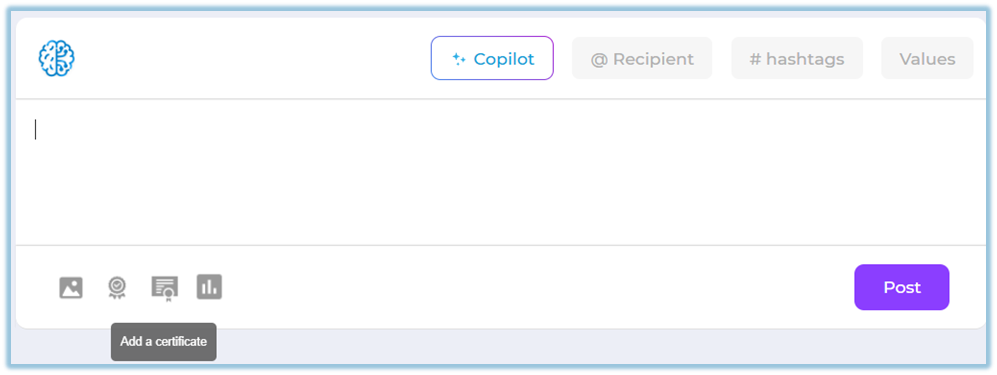
**Way 2: From Write a Post**
1. Click inside **Write a post…**.
2. Select **Certificate**.
3. Fill in certificate details and post.
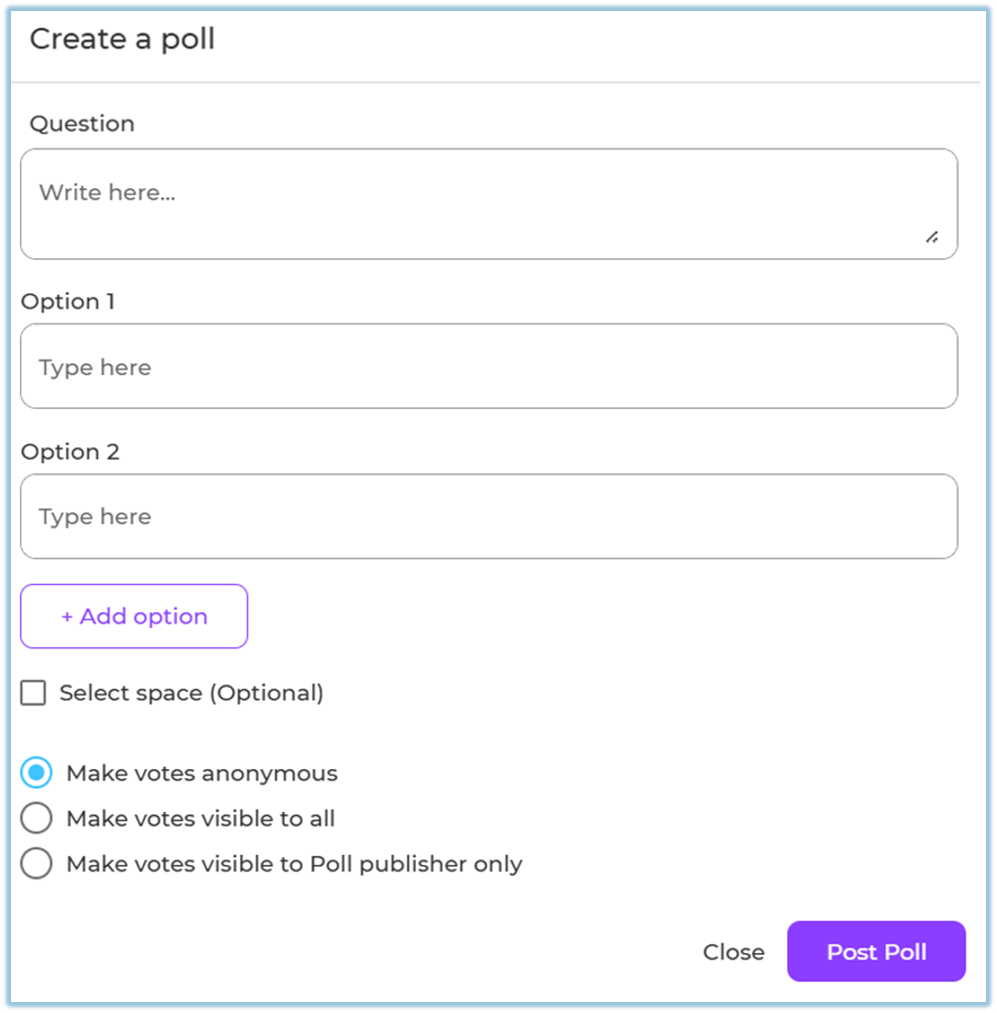
##### **Conduct a Poll (Two Ways)**
**Way 1: Using the Poll Button**
1. Click **Poll** below the post text box.
2. Enter the **poll question**.
3. Add **options** (Option 1, Option 2, etc.).
4. Configure poll settings:
- Allow multiple options (if required)
- Make votes anonymous
- Show votes to everyone or only the publisher
5. Click **Post Poll**.
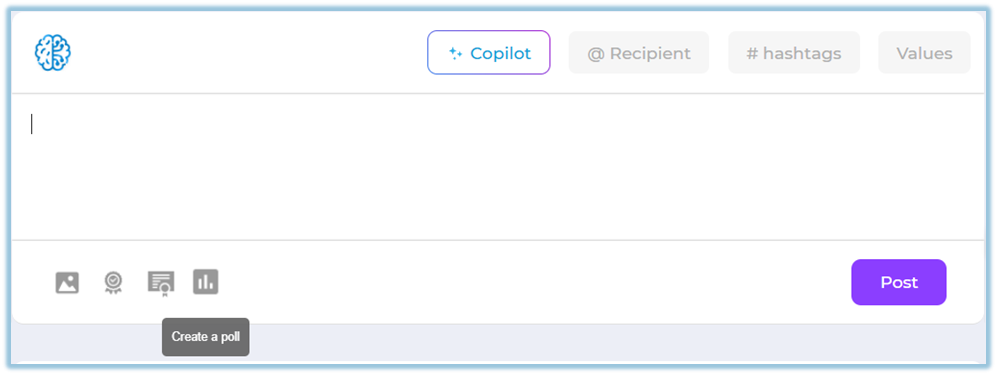
**Way 2: From Write a Post**
1. Click inside **Write a post…**.
2. Select **Poll**.
3. Configure and publish the poll.
##### **Admin Configuration – Badges**
This configuration is mandatory for badge usage in Feed
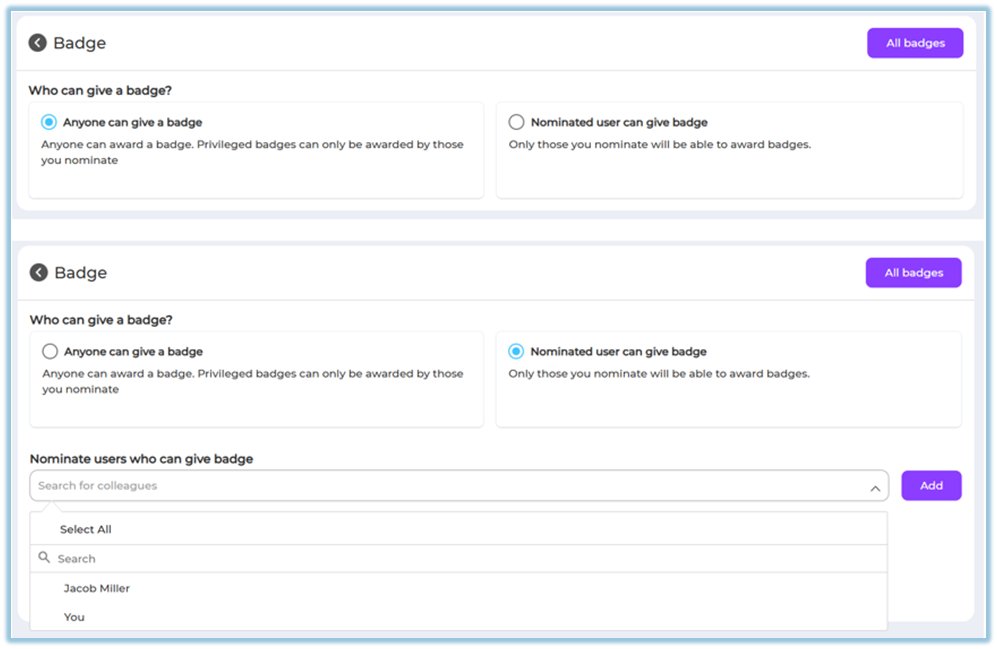
**Configure Who Can Give a Badge**
1. Go to **Settings Centre**.
2. Under **Engagement setup**, click **Badges**.
[https://converse.bsharpcorp.com/celebrate/settings\_center](https://converse.bsharpcorp.com/celebrate/settings_center)
3. Choose one option:
- **Anyone can give a badge**
- **Nominated user can give badge** [https://converse.bsharpcorp.com/celebrate/badges](https://converse.bsharpcorp.com/celebrate/badges)
4. If nominated:
- Search and select users
- Click **Add**
5. Permission update confirmation appears.
**Manage Badges**
1. Click **All badges**.
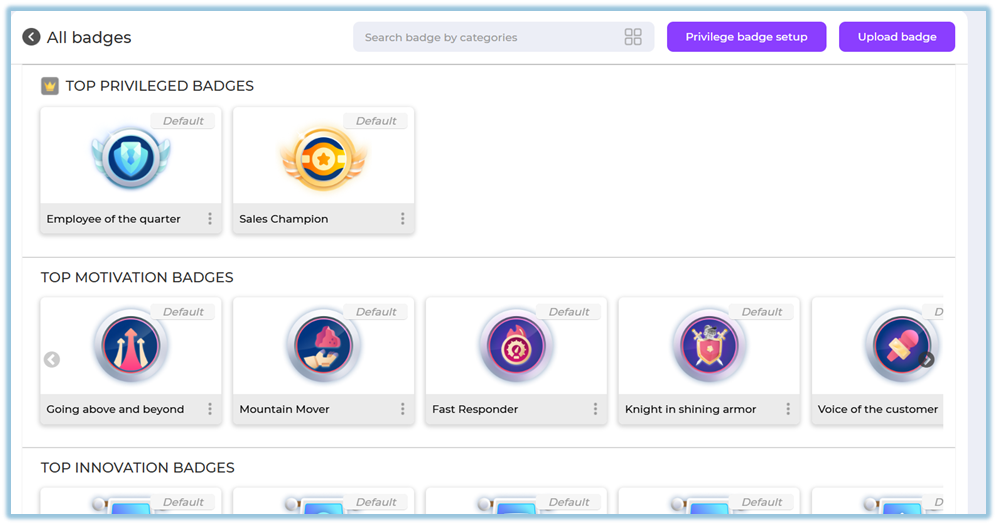
2. View badges by category:
- Privileged
- Motivation
- Innovation
- Appreciation
3. Use **Search badge by categories** if required.
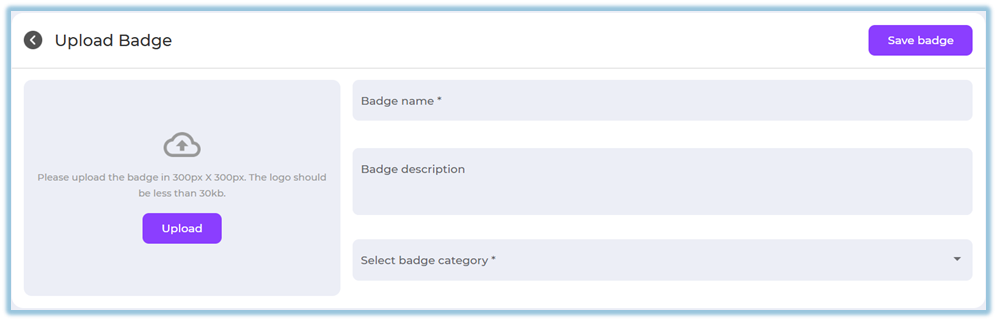
4. Click **Upload badge** to add new badges.
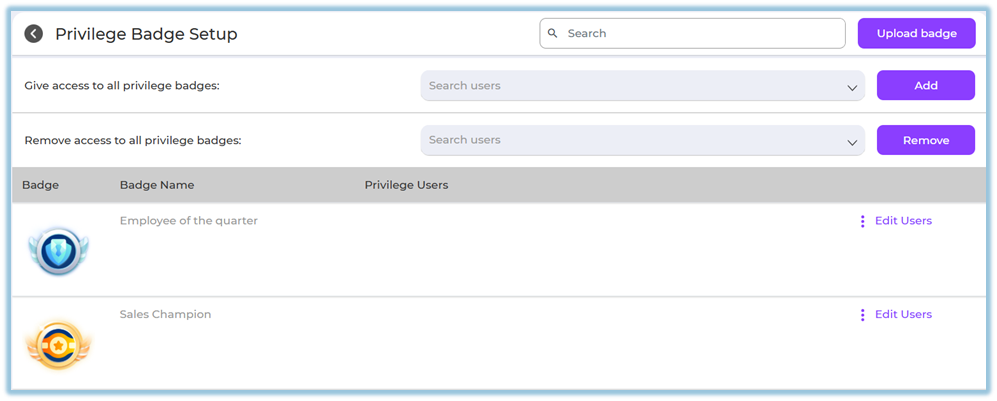
5. Use **Privilege badge setup** to restrict access.
##### **Admin Configuration – Certificates**
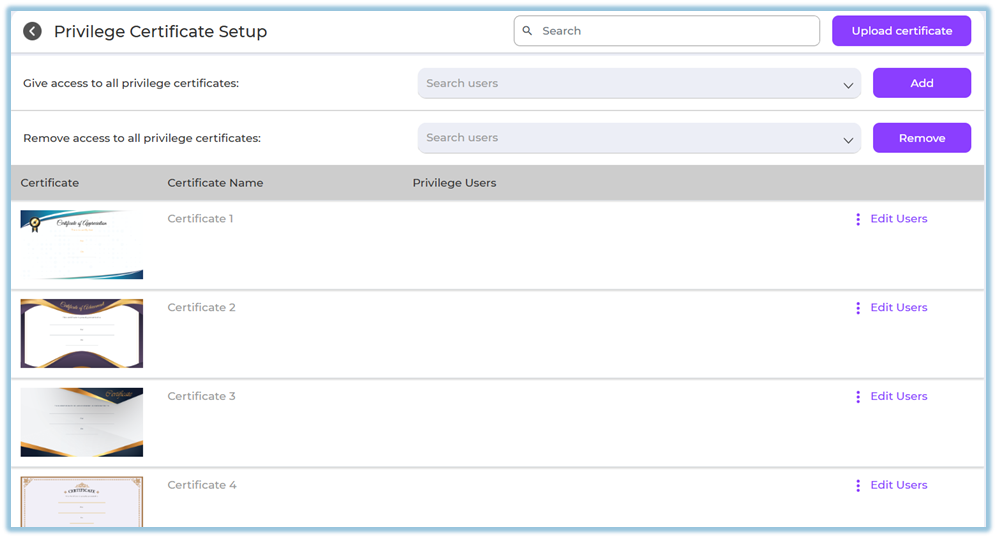
Certificates must be configured before posting **Configure Certificate Access**
1. Go to **Settings Centre**.
2. Under **Engagement setup**, click **Certificates**.
[https://converse.bsharpcorp.com/celebrate/privilege\_certificate\_setup](https://converse.bsharpcorp.com/celebrate/privilege_certificate_setup)
3. Open **Privilege Certificate Setup**.
4. To give access:
- Search users
- Click **Add**
5. To remove access:
- Search users
- Click **Remove
**
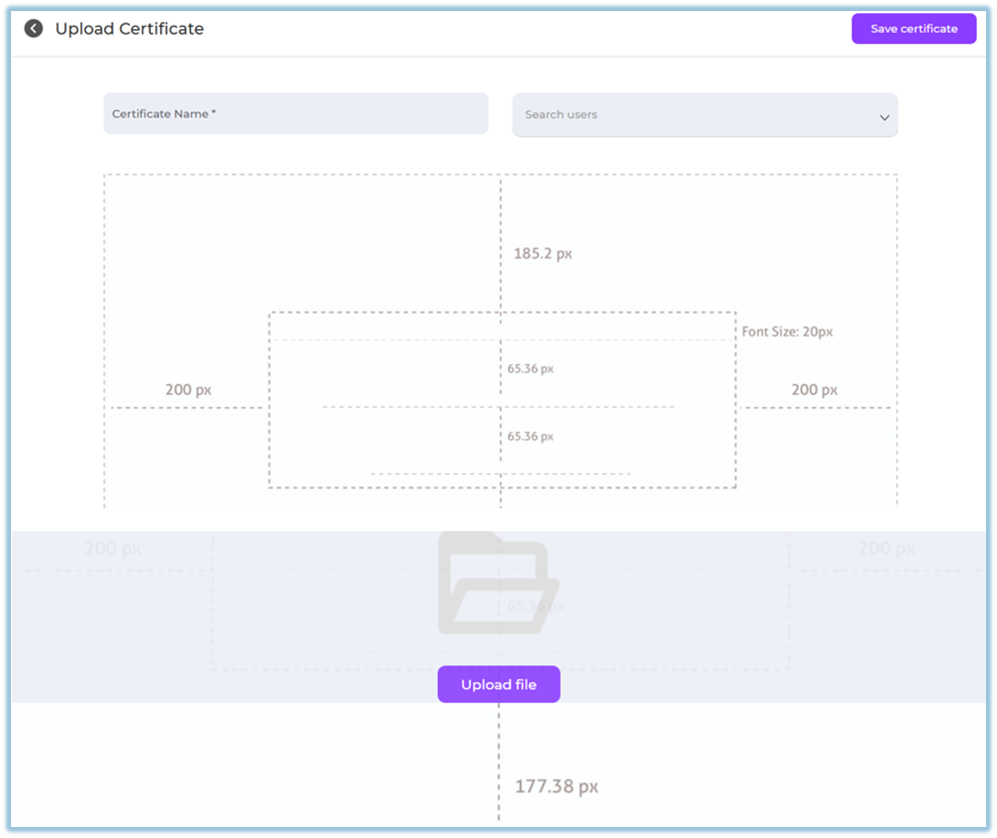
**Upload a Certificate**
1. Click **Upload certificate**.
2. Enter **Certificate Name**.
3. Upload the certificate image.
4. Map text placeholders (name, date, etc.).
5. Assign privilege users (optional).
6. Click **Save certificate**.
### **5. Reporting**
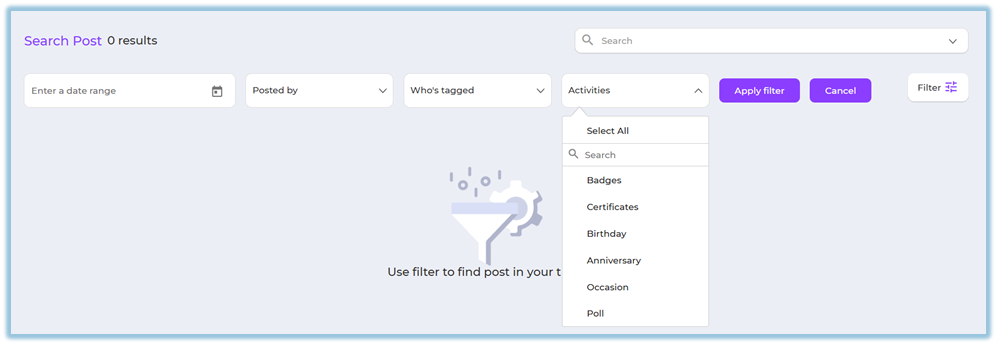
- Use **Search & Filter** to track posts.
- Filters allow admins and users to view posts by:
- **Date range**
- **Posted by** (You / Others)
- **Who’s tagged**
- **Activities**:
- Badge
- Certificate
- Birthday
- Anniversary
- Occasion
- Poll
- **Company values**
- **Hashtags**
- Click **Apply filter** to view matching posts.
### **6. User View**
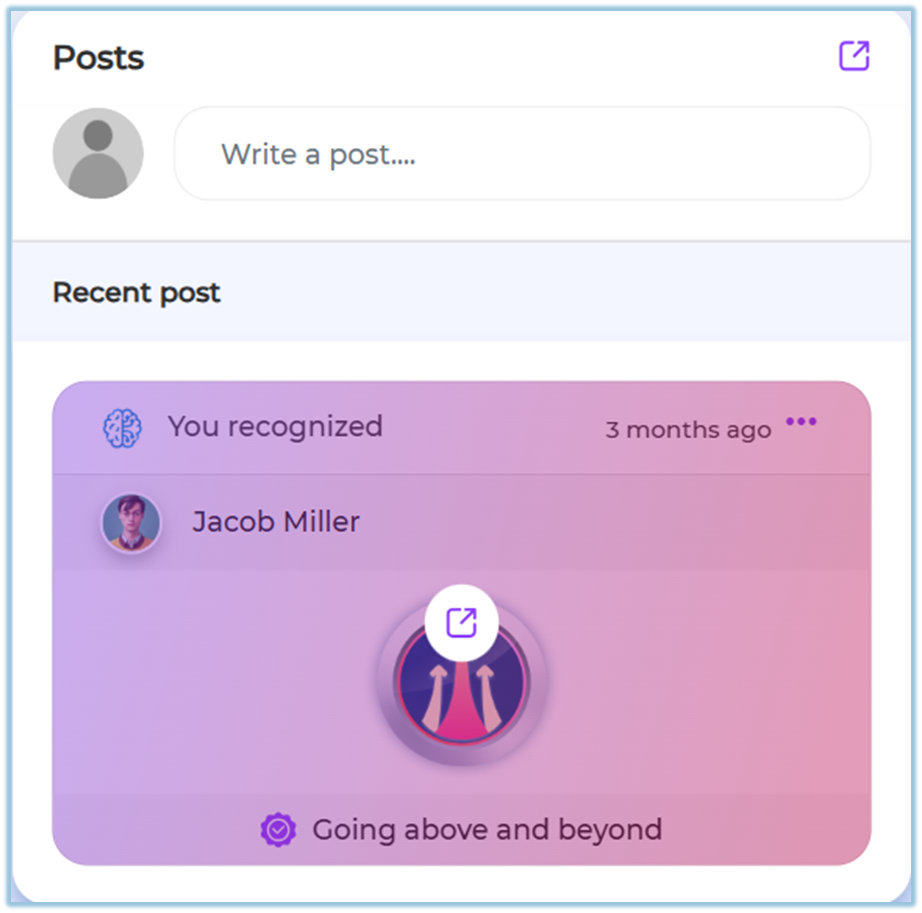
- Posts appear on the **Home page under the Posts section**.
- Users can see:
- Text posts
- Image posts
- Badge recognition posts
- Certificate posts
- Polls with live voting results
- Users can **react**, **comment**, and **vote** on polls.
- Recognitions clearly show the badge or certificate awarded.
### **7. Best Practices**
- Keep post messages short and clear.
- Use **Copilot** to maintain a consistent tone.
- Tag relevant users to improve visibility.
- Use hashtags and values for better organization.
- Use polls sparingly to avoid engagement fatigue.
### **8. Troubleshooting / FAQs**
**Q: Can I edit a post after publishing?**
No.
**Q: Can multiple employees be tagged in one post?**
Yes.
### **9. Related Links**
- [Birthday – Employee Engagement](https://help.bsharpcorp.com/books/feed/page/birthday)
- [Work Anniversary – Employee Engagement](https://help.bsharpcorp.com/books/feed/page/work-anniversary)
### **10. Version Notes**
Last Updated: 23 Dec 2025