# Forms
# How do we create a form from Scratch
### **1. Overview**
Creating a form from scratch in Bsharp Converse allows administrators to design a form entirely from the beginning by defining its basic details, building questions manually using available question types, and configuring how the form behaves and appears. This process includes setting up form structure in the Designer, applying logic and themes, assigning users, and publishing the form so responses can be collected and reported.
### **2. When to Use**
Use this when:
- You want to create a new form without using an existing template.
- You need full control over question types and form structure.
- You want to configure logic, validation, and appearance manually.
- You are preparing a form to assign users and collect responses.
### **3. Concepts**
- **Forms Section** – The area where all created forms are listed and managed.
- **Create Form** – The entry point to start building a new form.
- **Form Metadata** – Basic details such as title, description, and category.
- **Designer** – The workspace where questions are added and configured.
- **Right-side Panel** – The panel used to customize selected questions or form settings.
- **Publish Flow** – The step-based process to build, assign users, and publish a form.
- **Manage Page** – The page used to manage users, reports, responses, and form status.
- **Question Inline Controls** – Controls available directly on a question card to duplicate, mark required, or delete a question.
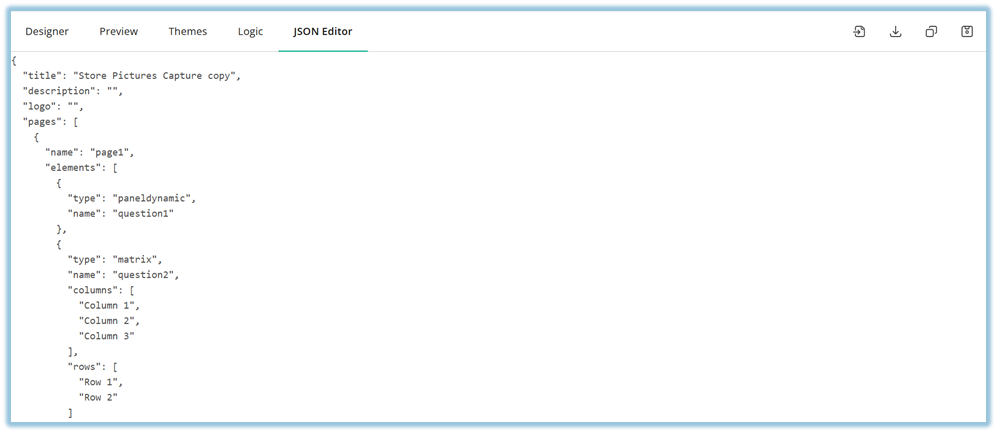
### **4. Set Up Guide**
##### **Step 1: Open the Forms section**
1. Click the **menu bar**.
2. Select **Forms**.
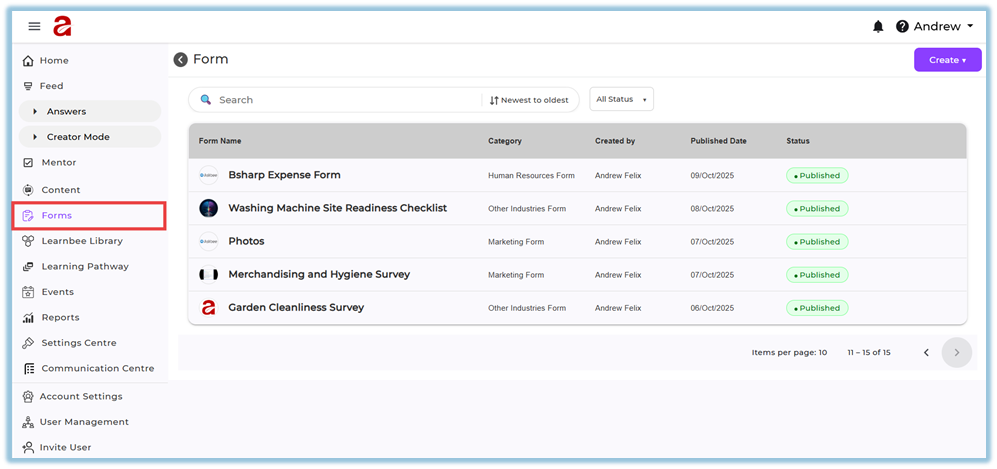
3. The **Form list page** opens displaying all existing forms.
##### **Step 2: Create a form from scratch**
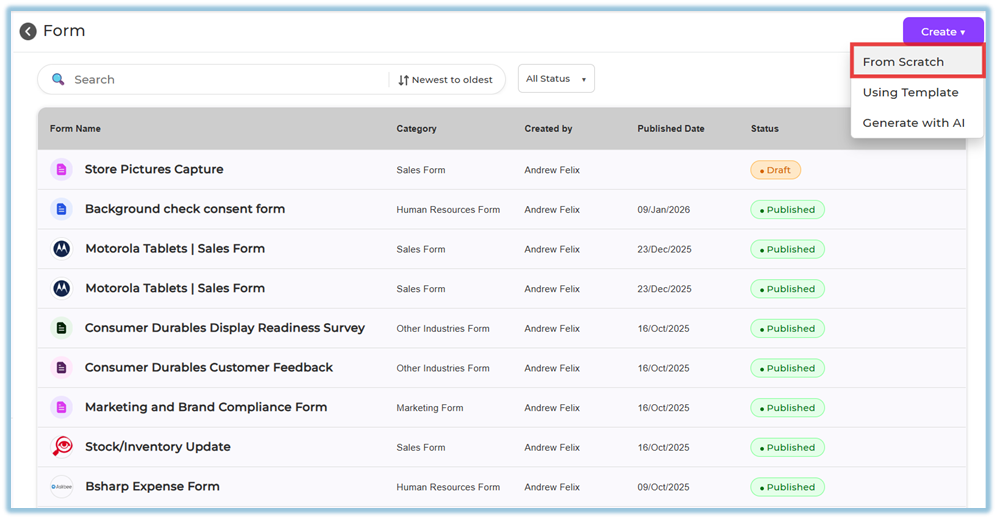
4. Click **Create** in the top-right corner.
5. Select **From Scratch**.
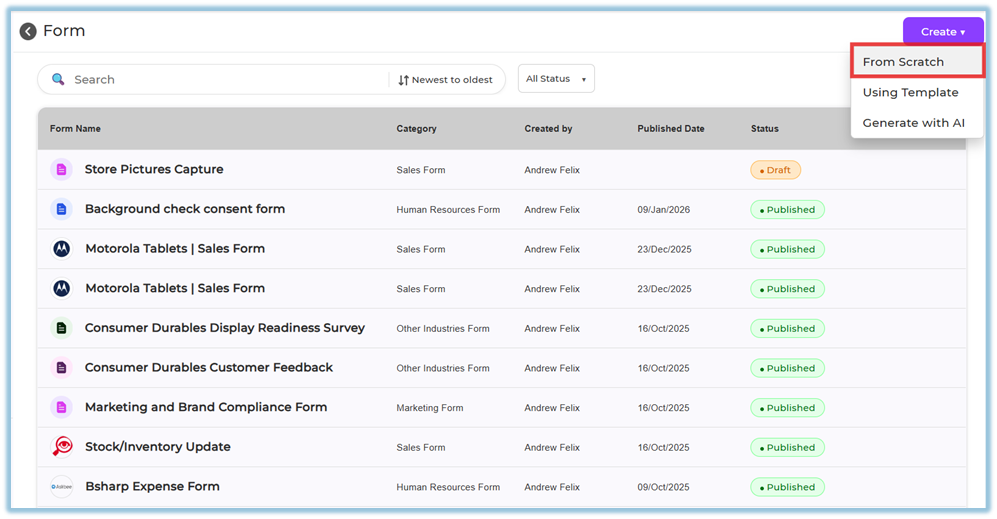
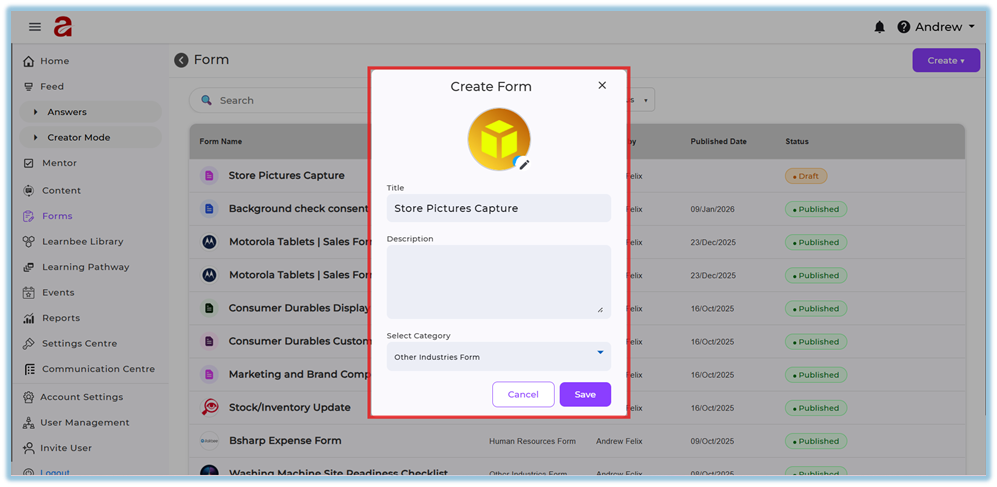
6. In the **Create Form** dialog:
- Enter the **Title**.
- Enter the **Description**.
- Select a **Category** (for example, Sales Form or Marketing Form).
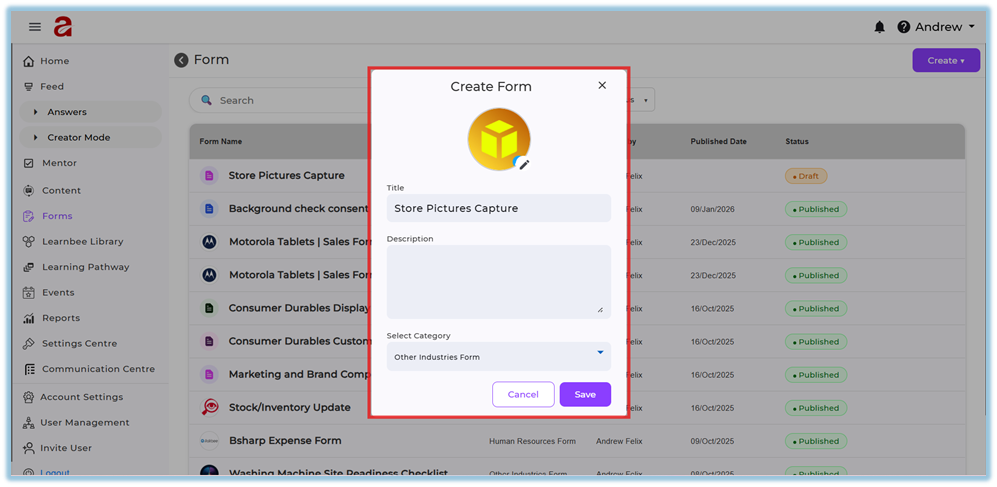
7. Click **Save**.
##### **Step 3: Review the Manage Form page**
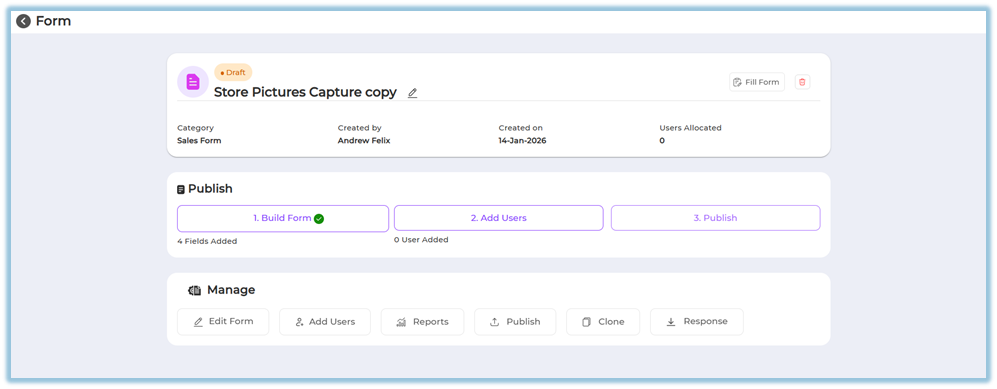
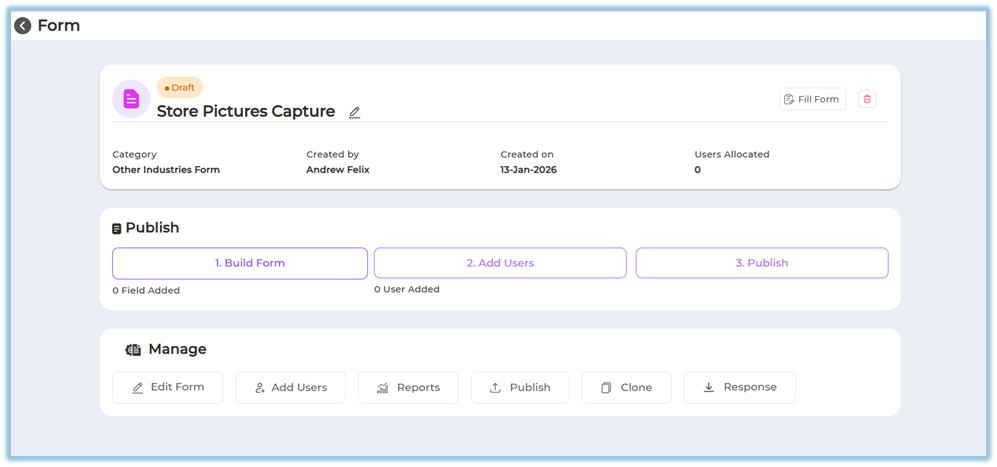
8. After saving, the **Manage Form page** opens.
9. Review the form details such as:
- Form name
- Category
- Created by
- Created on
- Users allocated
10. Use available actions like **Fill Form** or **Delete**, if required.
##### **Step 4: Build the form**
11. In the **Publish** section, click **Build Form**.
12. The form opens with the following tabs:
- **Designer**
- **Preview**
- **Themes**
- **Logic**
- **JSON Editor 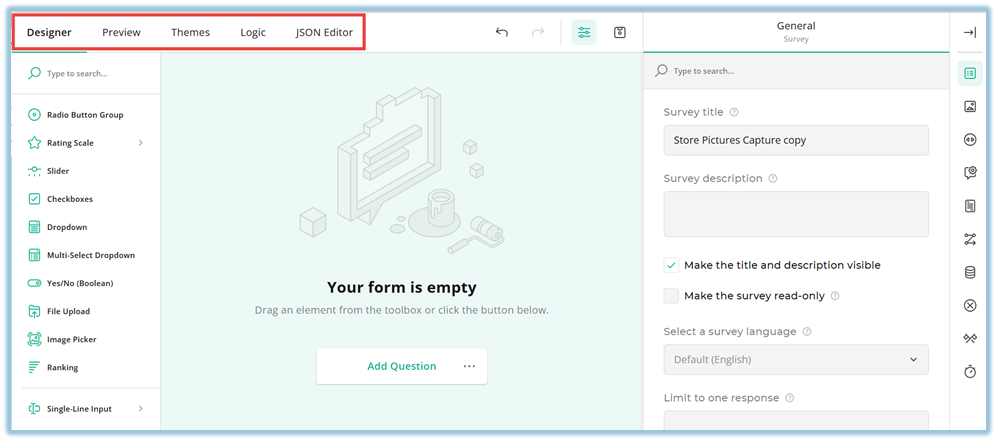**
##### **Step 5: Add questions using question types**
13. In **Designer**, start building the form manually.
14. Select a question type from the left panel and add it to the form.
15. Use the **right-side panel** to configure the selected question; any changes made here are reflected immediately in the form.
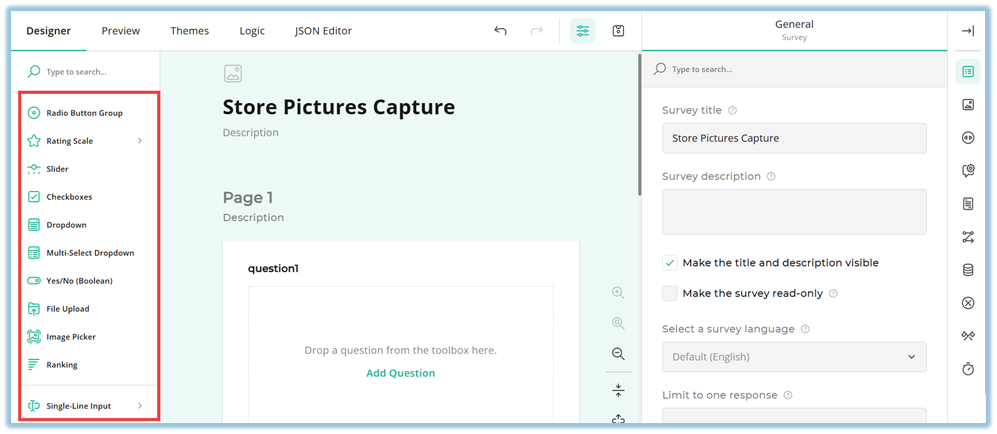
**Available question types and their usage:**
- **Radio Button Group** – Used when users must select one option from a list.
- **Rating Scale** – Used to collect ratings using labels, stars, or smileys.
- **Slider** – Used to capture a value selected along a defined range.
- **Checkboxes** – Used when users can select multiple options.
- **Dropdown** – Used to select a single option from a dropdown list.
- **Multi-select Dropdown** – Used to select multiple options from a dropdown.
- **Yes/No (Boolean)** – Used to capture a binary response.
- **File Upload** – Used to collect files from users.
- **Image Picker** – Used to select options using images.
- **Ranking** – Used to rank options based on preference.
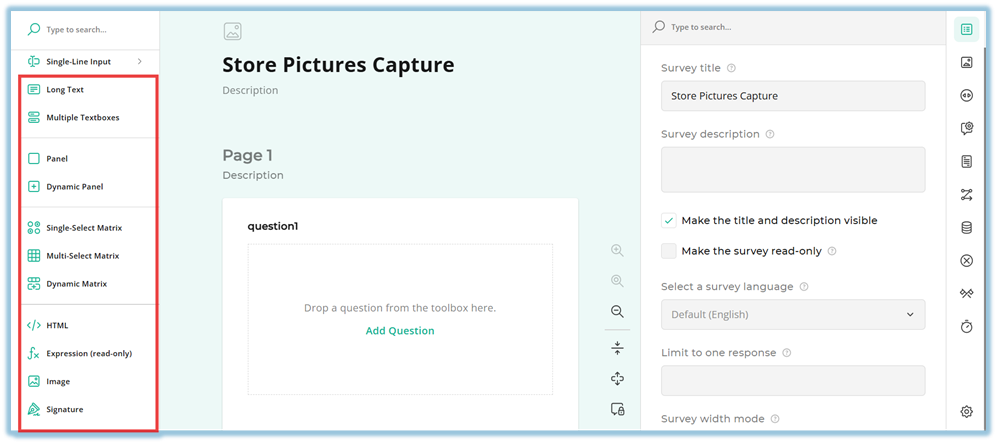
- **Single-Line Input** – Used to collect short inputs such as text, number, email, phone, date, time, URL, month, week, or password.
- **Long Text** – Used to collect detailed text responses.
- **Multiple Textboxes** – Used to capture multiple text values in one question.
- **Panel** – Used to group related questions together.
- **Dynamic Panel** – Used to repeat a group of questions dynamically.
- **Single Select Matrix** – Used when one option per row must be selected in a matrix.
- **Multi-Select Matrix** – Used when multiple options per row can be selected.
- **Dynamic Matrix** – Used to dynamically add rows in a matrix format.
- **HTML** – Used to display static content such as instructions or text.
- **Expression (Read only)** – Used to display calculated values that users cannot edit.
- **Image** – Used to display an image without collecting input.
- **Signature** – Used to collect a digital signature from users.
##### **Configure questions using question-level controls**
> **When a question is selected**, the right-side panel changes to show **question-specific settings**.
- The available configuration sections vary based on the selected **question type**.
- Common sections include **General**, **Layout**, **Conditions**, **Data**, and **Validation**.
- Any change made in the right-side panel is immediately reflected in the form.
##### **Use question inline controls (inside the form canvas)**
Each question card provides inline controls that allow you to:
- **Reorder handle** – Used to drag and rearrange the order of questions within the form.
- **Collapse/Expand** – The minus (–) icon on the right side of the question card is used to collapse or expand the question to reduce visual clutter while designing the form.
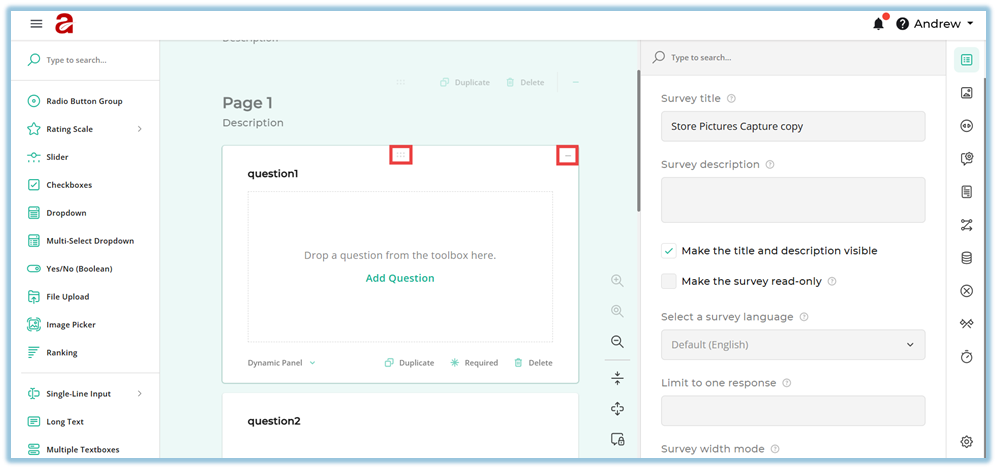
- **Duplicate** the question.
- **Mark the question as Required**.
- **Delete** the question.
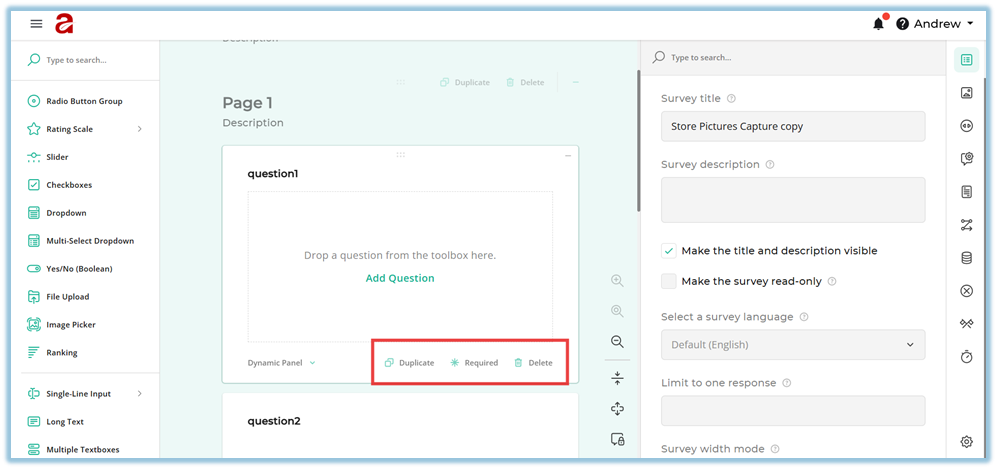
These controls help manage questions quickly without opening the right-side panel.
##### **Step 6: Configure form behavior and appearance**
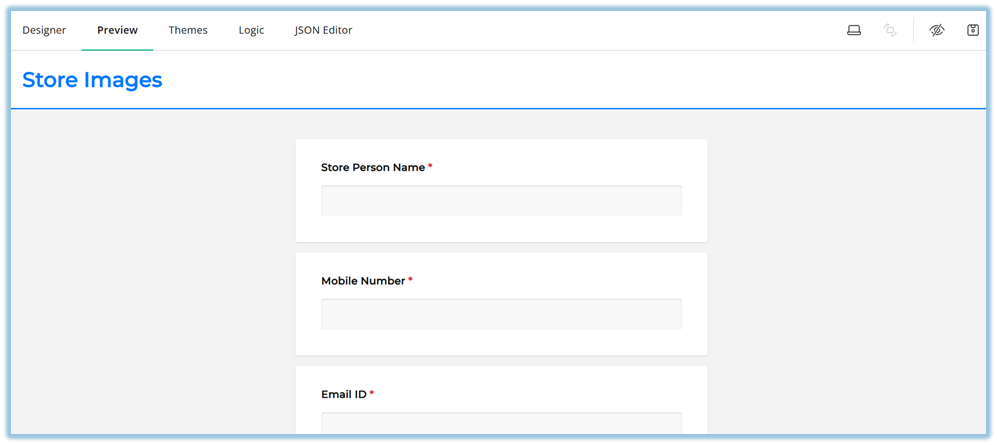
16. Use **Preview** to review the form.
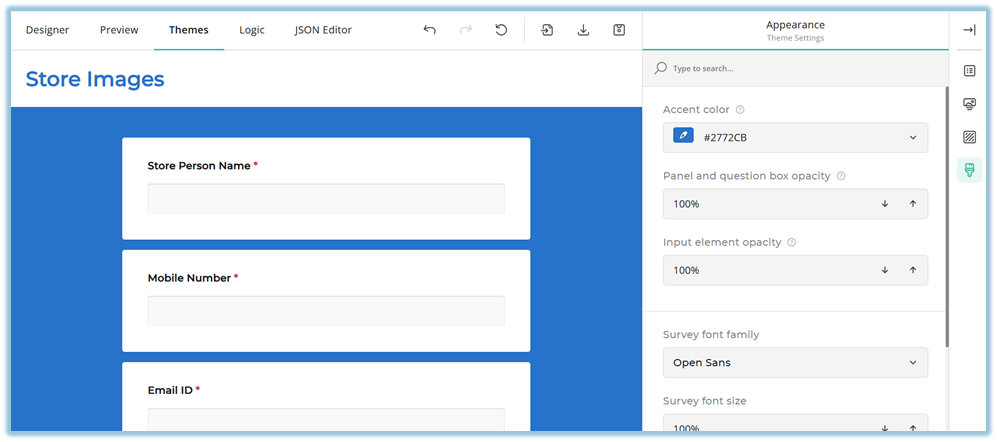
17. Use **Themes** to configure headers, fonts, alignment, background, colors, and appearance.
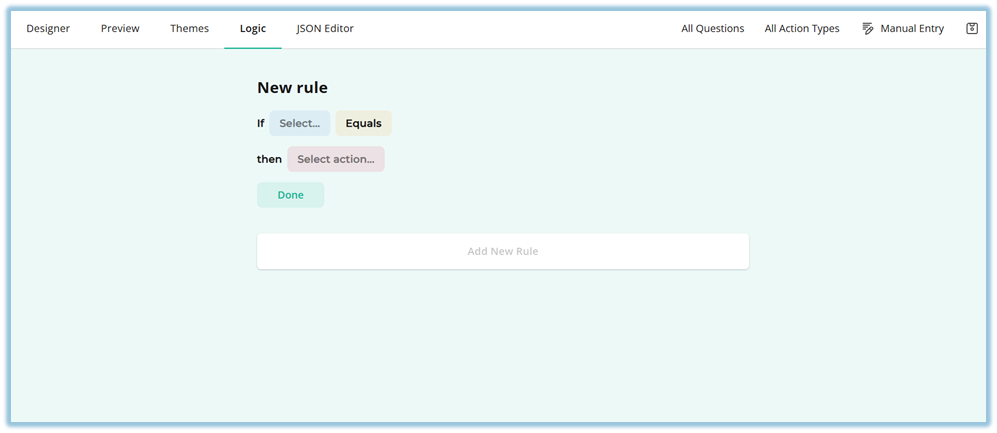
18. Use **Logic** to define conditions and actions such as showing or hiding questions, setting values, skipping questions, or completing the survey.
19. Use **JSON Editor** to view the automatically generated JSON for the form.
##### **Step 7: Assign users and publish**
20. Return to the **Manage Form page**.
21. Click **Add Users**.
22. Assign users individually or by attributes.
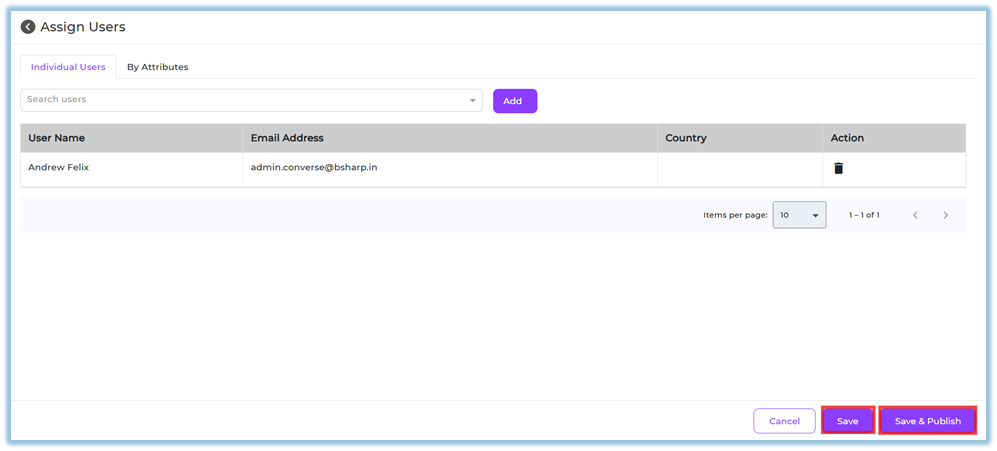
23. Click **Save**, **Save & Publish**, or **Publish** to make the form live.
### **6. User View**
If the form is assigned to users, it appears on the **Home page**.
- Users scroll down on the Home page.
- Forms are visible under the **Forms** section.
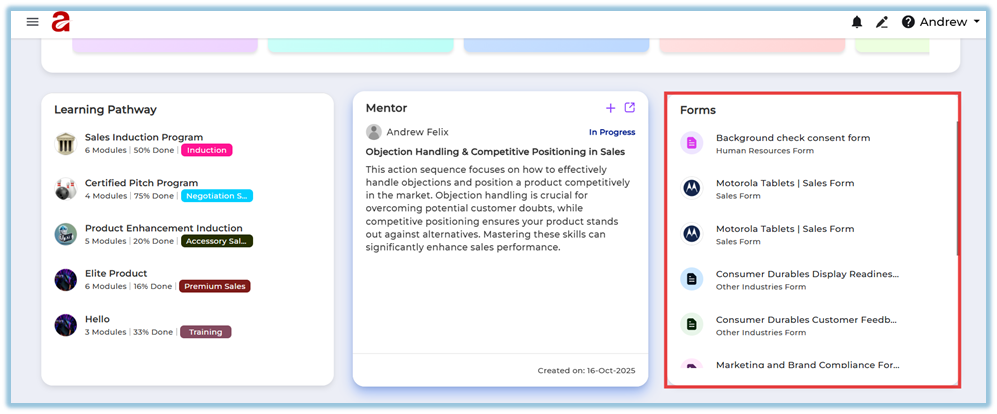
- All assigned forms are listed in this section for easy access.
### **7. Reporting**
- Reports are available only after the form is published.
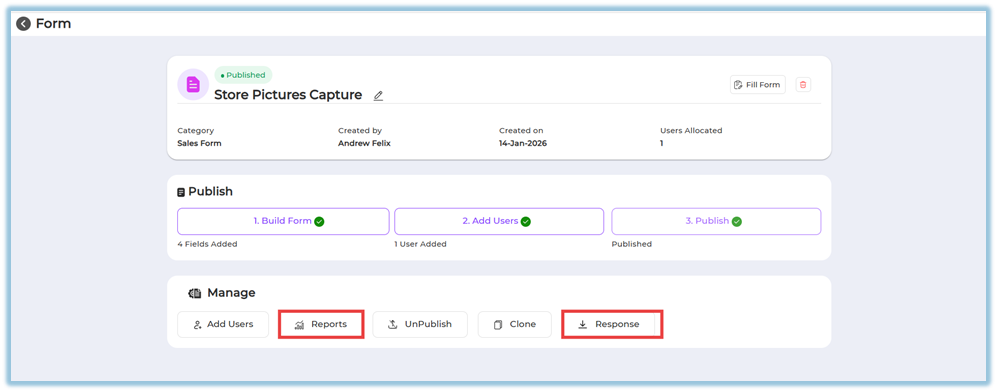
- Reports and responses can be accessed from the **Manage** section.
- Users can:
- Select a date range.
- Filter by user or attributes.
- View data by question.
- **Company tab** is visible to administrators only.
- **Team tab** is visible to users with team-level access.
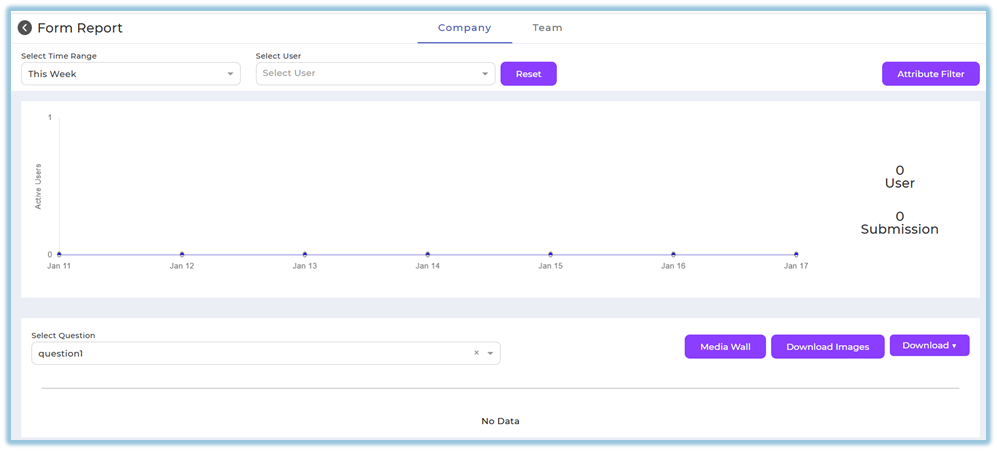
- Responses can be downloaded as images, CSV, or Excel.
- Media Wall is available for image-based questions.
### **8. Best Practices**
- Configure question details from the **right-side panel** for better reporting.
- Use Preview before publishing the form.
- Apply logic carefully to control user flow.
- Assign users before publishing to avoid delays.
- Review JSON Editor for consistency if reusing form structures.
### **9. Version Notes**
Last Updated: 14 Jan 2026
# How do we create a form with Templates
### **1. Overview**
Creating a form using templates allows admins to quickly build forms in Bsharp Converse by using pre-defined structures. Templates help standardize form creation across different use cases while allowing edits before the form is finalized.
### **2. When to Use**
Use this option when:
- You want to create a form using an existing structure
- You need standard forms for sales, HR, education, or marketing use cases
- You want to avoid creating forms manually from scratch
- You want to edit a pre-built form before assigning it to users
### **3. Concepts**
- **Forms** – Data collection items created for users
- **Templates** – Pre-built form structures available by category
- **Form Categories** – Groupings such as Sales, Education, HR, Marketing
- **Form Builder** – Editor used to review and modify the template
- **Save** – Action used to store the created form
### **4. Set Up Guide**
1. Open the menu and go to **Forms**.
[https://converse.bsharpcorp.com/form\_builder](https://converse.bsharpcorp.com/form_builder)

2. Click **Create** on the top-right corner.
3. Select **Using Template**.
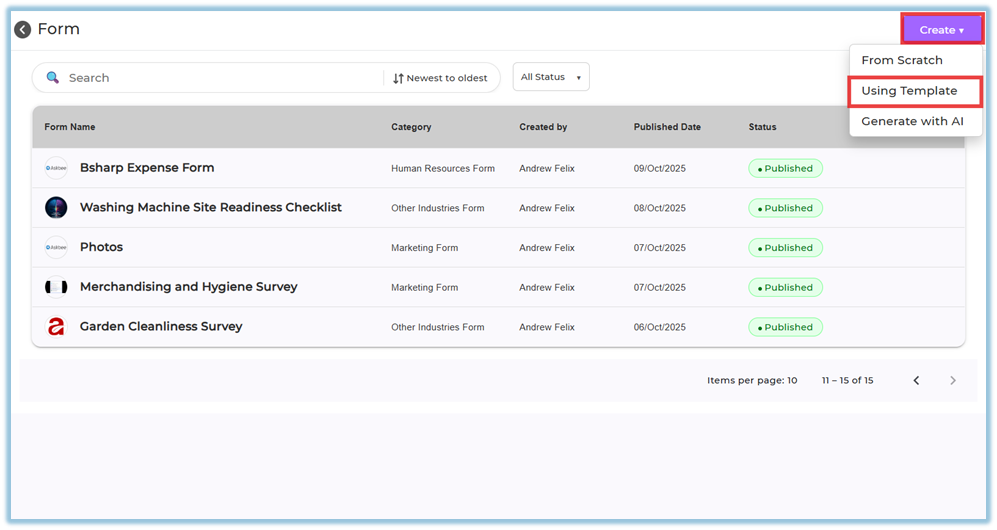
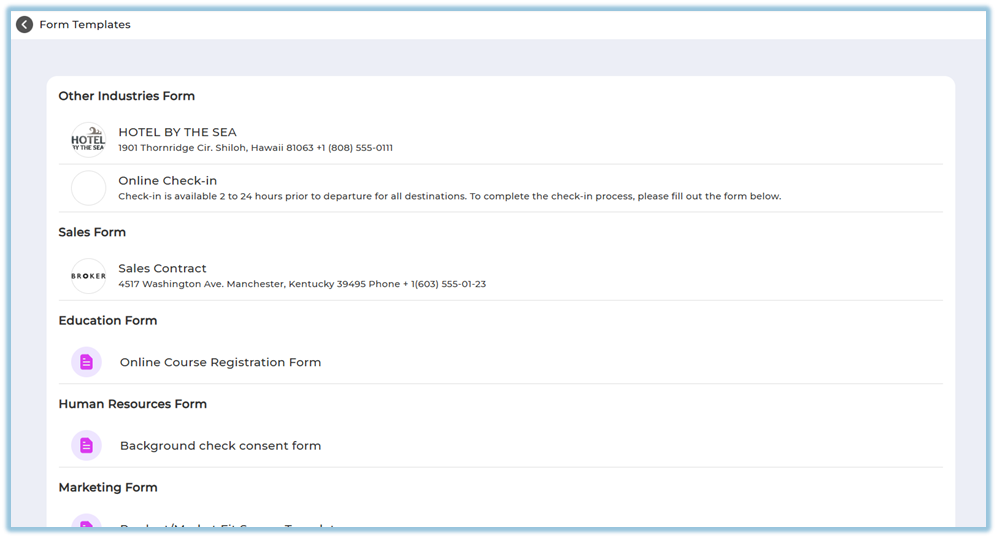
4. View the available template categories such as:
- Other Industries Form
- Sales Form
- Education Form
- Human Resources Form
- Marketing Form
5. Choose a required template and click **Use Template**.
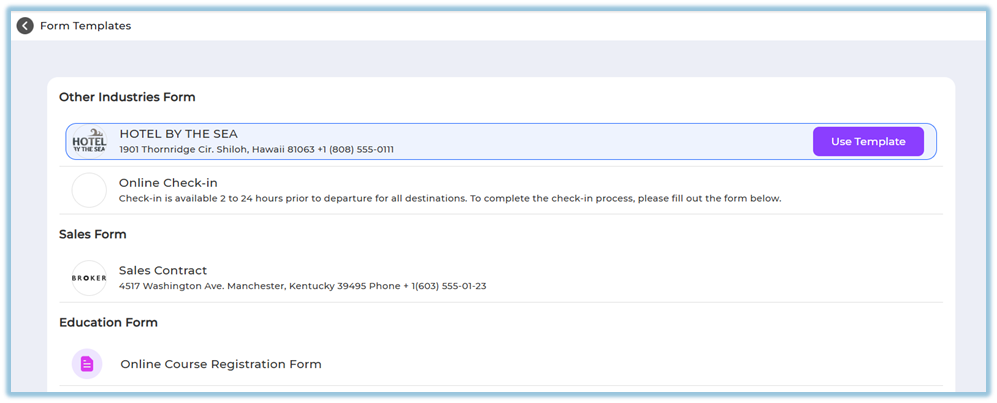
6. Review the form structure created from the template.
7. Edit the form fields if required (add, remove, or modify fields).
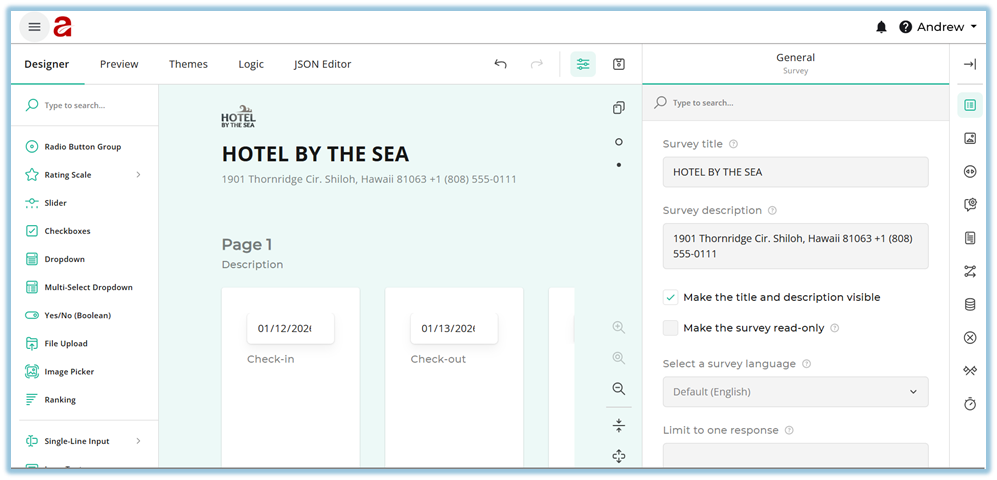
8. Click **Save** to save the form as a draft.
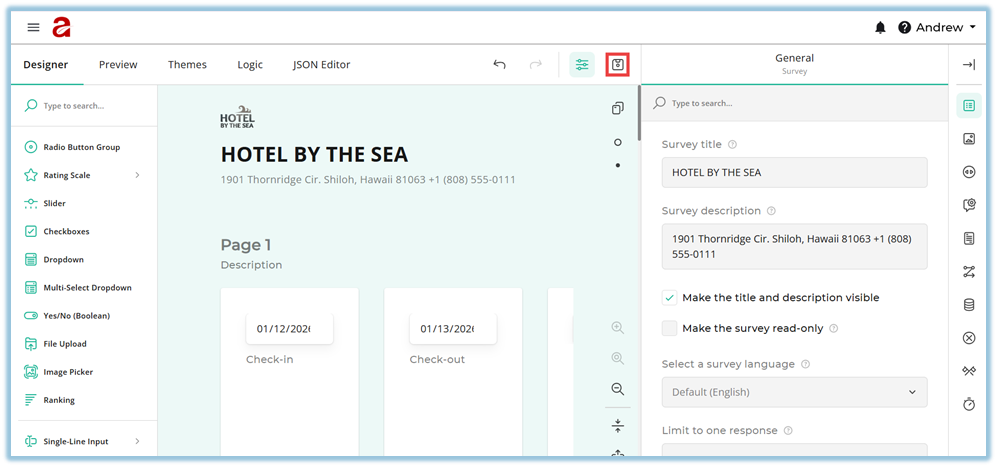
9. After saving, the form appears in the **Forms** list with **Build Form** completed.
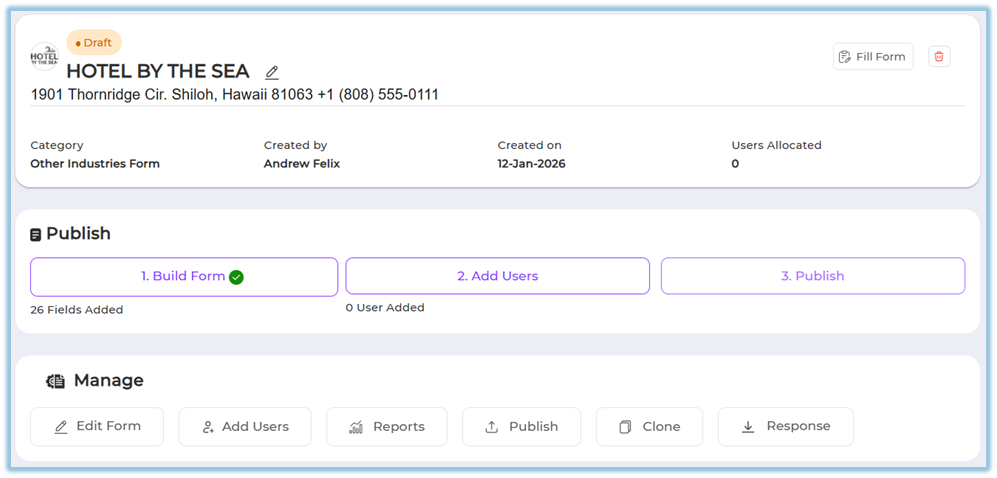
10. Open the saved form and select **Add Users**.
11. Add users using one of the following methods:
- **Individual Users** – select and add specific users
- **By Attributes** – select attribute groups or create new attribute rules
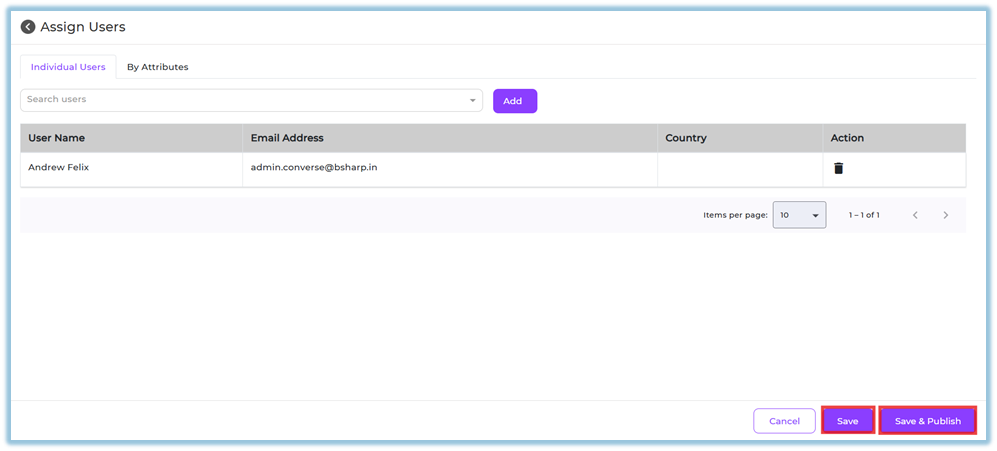
12. Click **Save** to keep the form editable, or **Save & Publish** to publish the form.
**Note:**
- Once a form is published, it **cannot be edited**.
- Saving without publishing allows you to return and edit later.
### **5. User View**
If the form is assigned to users, it appears on the **Home page**.
- Users scroll down on the Home page.
- Forms are visible under the **Forms** section.

- All assigned forms are listed in this section for easy access.
### **6. Reporting**
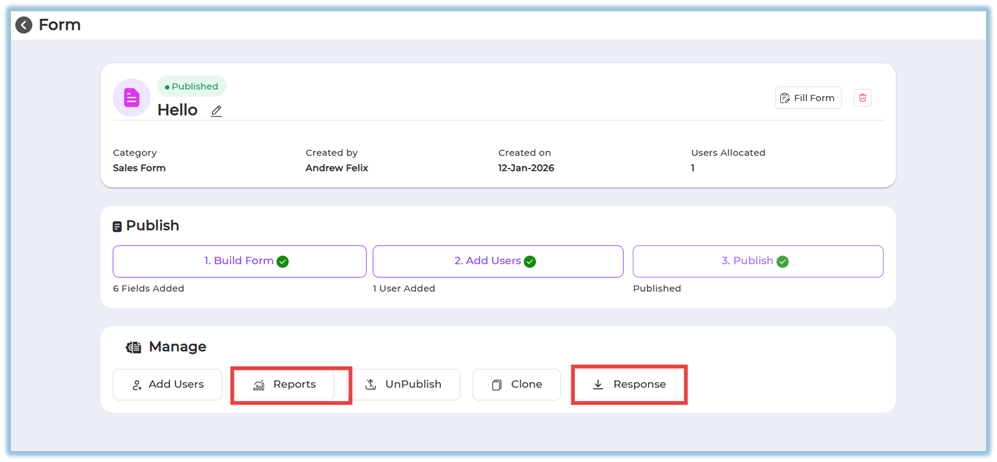
- Form responses can be viewed after the form is published.
- Reports and responses are accessible from the **Manage** section of the form.
- Downloaded responses are available once users start submitting the form.
### **7. Best Practices**
- Review and finalize all form fields before publishing
- Use templates to maintain consistency across teams
- Assign users carefully before publishing to avoid rework
- Save the form as draft if further edits are expected
### **8. Related Links / FAQs**
**Q: Can I edit a form after publishing?**
No. Once published, the form cannot be edited.
**Q: Where can users find assigned forms?**
Users can find assigned forms on the Home page under the Forms section.
**Q: Can I add users after publishing?**
Yes. Users can still be added after publishing.
**Q: What actions are available after publishing?**
You can add users, unpublish, clone the form, view reports, and download responses.
### **9. Version Notes**
Last Updated: 12 Jan 2026
# How do we create a form with AI
### **1. Overview**
This feature allows administrators to create a form by describing the required fields in plain text and letting AI generate the form structure, which can then be reviewed, edited, and saved before assigning it to users.
### **2. When to Use**
- When you know what information needs to be captured but don’t want to build the form manually
- When you want a quick starting structure that can be edited later
- When creating draft forms before assigning them to users
- When experimenting with different form layouts before finalizing
### **3. Concepts**
- **Forms** – The section where all draft and published forms are managed
- **Generate with AI** – An option to create a form using a text description
- **AI Prompt** – The text input where form requirements are described
- **Form Builder** – The screen where generated fields can be edited
- **Draft Form** – A saved form that is not yet assigned or published
- **Add Users** – The step where users are assigned to the form
### **4. Set Up Guide**
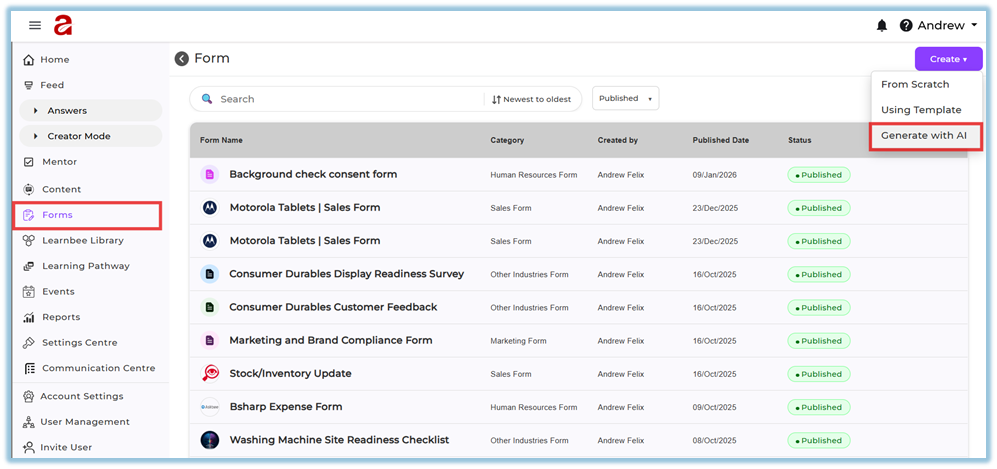
1. Open the **Forms** section from the left menu.
[https://converse.bsharpcorp.com/form\_builder](https://converse.bsharpcorp.com/form_builder)
2. Click **Create** in the top-right corner.
3. Select **Generate with AI**.
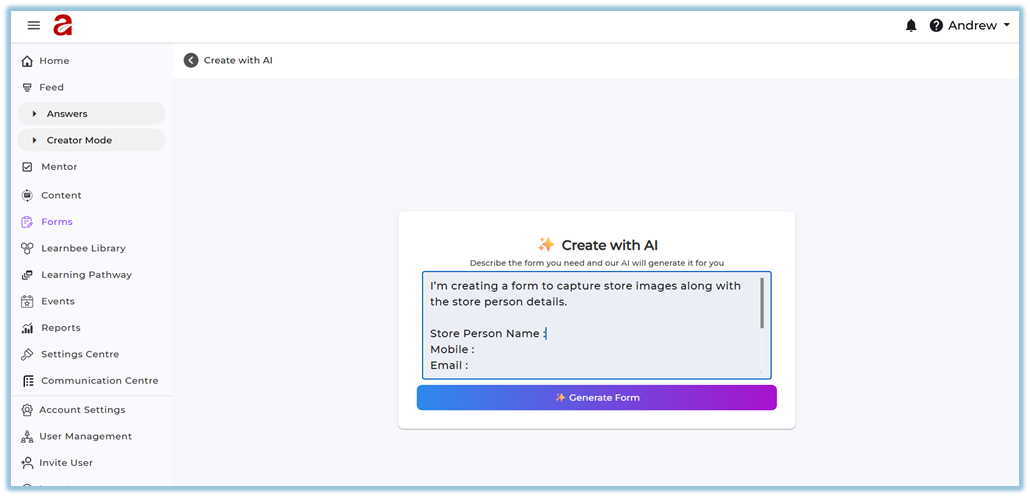
4. Enter the form requirements in the text box, listing the fields needed.
5. Click **Generate Form**.
6. Review the generated form in the Designer view.
7. Edit fields if required.
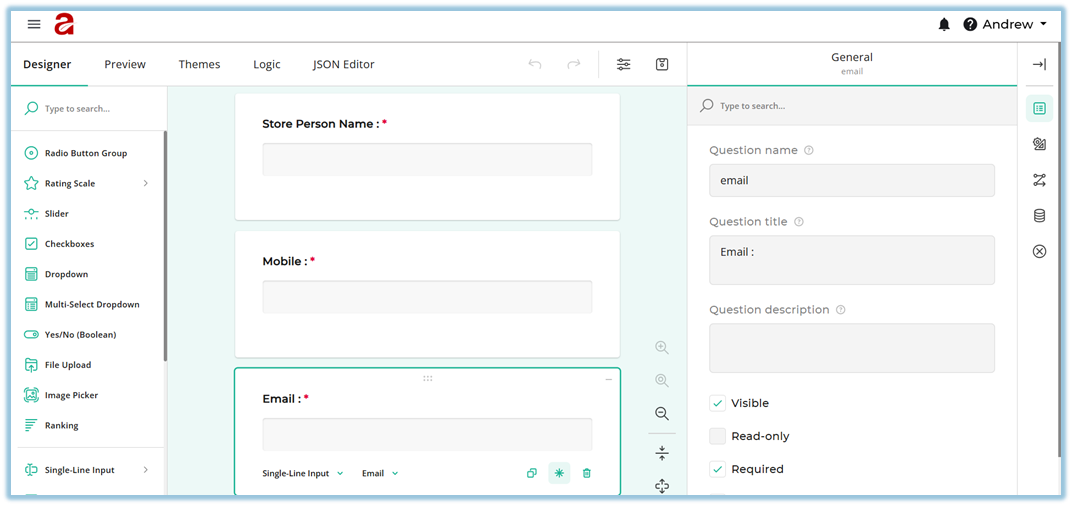
8. Click **Save** after completing edits.
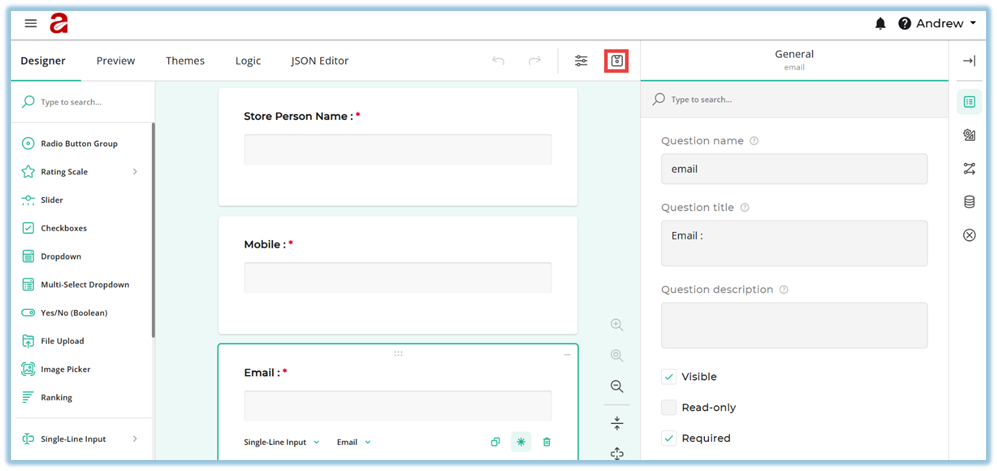
9. Return to the **Form details page**, where **Build Form** is completed and **Add Users** is available.
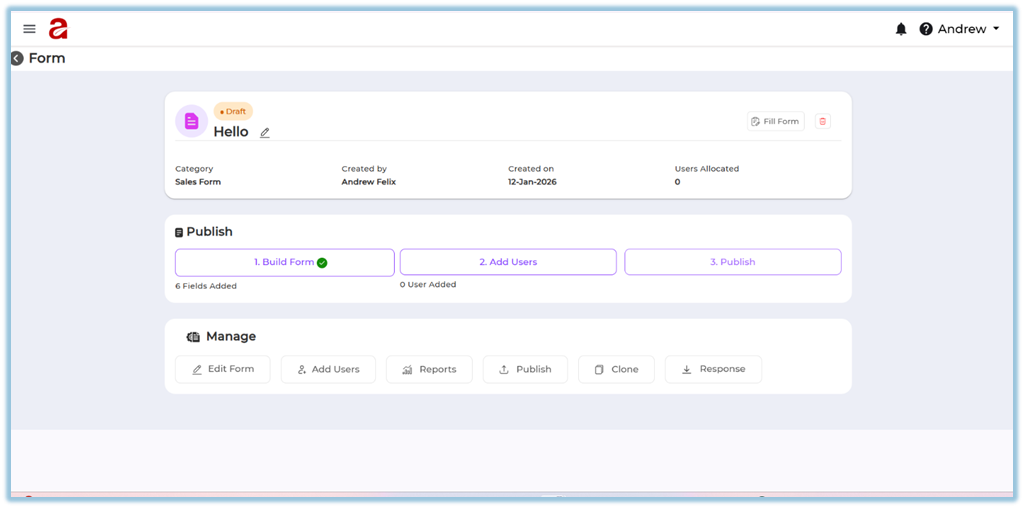
10. Select **Add Users** to assign users individually or by attributes.
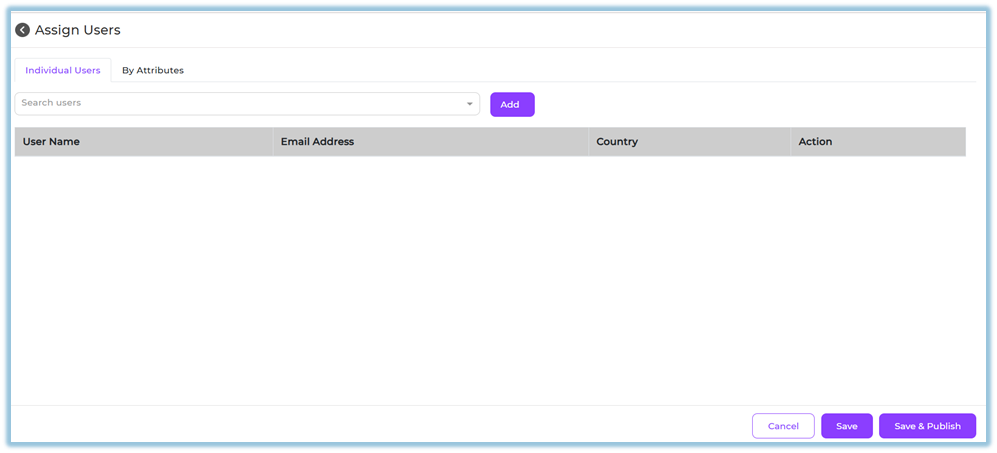
11. Click **Save** to keep the form editable, or **Save & Publish** when ready.
### **5. User View**
If the form is assigned to users, it appears on the **Home page** under the **Forms** section. Users can scroll down the Home page to view and access their assigned forms.
### **6. Reporting**
- **Form Reports** show submission status and responses
- Reports can be accessed from the **Reports** option in the form’s Manage section

### **7. Best Practices & Tips**
- Be specific when describing fields in the AI prompt
- Always review AI-generated fields before saving
- Save the form as draft if changes are expected later
- Assign users only after validating the form structure
### **8. Troubleshooting / FAQs**
**Q: What happens when I click Save after editing the form?**
The system redirects you to the **Form details page**, where you can proceed to **Add Users** or publish later.
**Q: Can I edit the form after publishing?**
No. Once published, the form cannot be edited.
**Q: Can I save without publishing?**
Yes. Saving keeps the form in draft mode and editable.
### **9. Version Notes**
Last Updated: 12 Jan 2026
# Create form with JSON using LLM (ChatGPT)
### **1. Overview**
This feature allows admins to create a form by pasting JSON content instead of manually adding questions. The system reads the JSON and automatically builds the form layout in the form designer, where it can be reviewed and updated before assigning it to users.
### **2. When to Use**
- When you already have a form structure generated in JSON format using ChatGPT
- When you want to build a form faster without manually adding each field
- When you need control over both the form layout and its underlying structure
- When you want to preview and refine a form before assigning it to users
### **3. Concepts**
- **Forms section** – The area where all draft and published forms are listed
- **JSON Editor** – A workspace used to paste or edit JSON code that defines the form
- **Designer** – A visual editor where the generated form structure is displayed
- **Preview** – A view to see how the form appears to end users before publishing
- **Themes** – Styling options for colors, fonts, and overall appearance
- **Logic** – Rules that control question flow and navigation
- **Form status page** – The page used to manage build status, user assignment, and publishing
### **4. Set Up Guide**
1. Go to the **menu bar** and click **Forms**.
[https://converse.bsharpcorp.com/form\_builder](https://converse.bsharpcorp.com/form_builder)
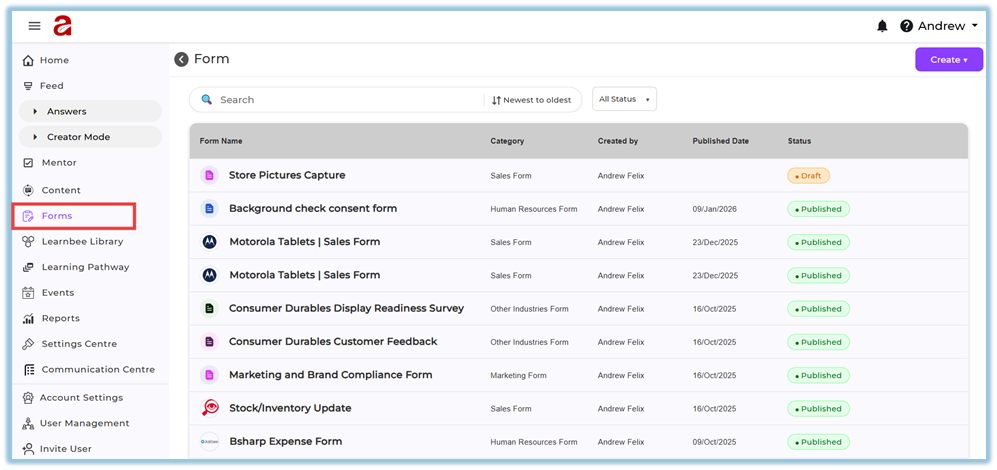
2. In the Forms section, click **Create** in the top-right corner.
3. Select **From Scratch**.
4. Enter the **form name**, **description**, and **category**, then save.
5. You will be redirected to the **form status page**.
6. Click **Build Form**.
7. In the form builder, select the **JSON Editor** tab.
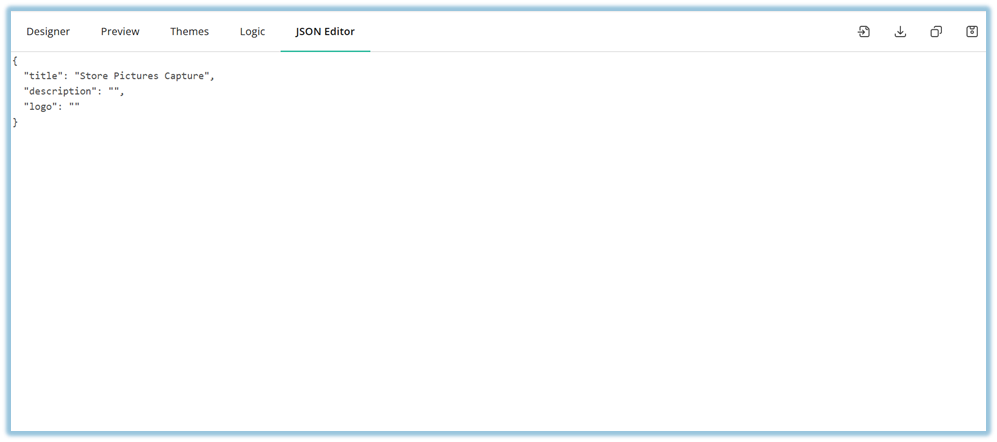
8. Paste the JSON code generated using ChatGPT or another LLM into the editor.
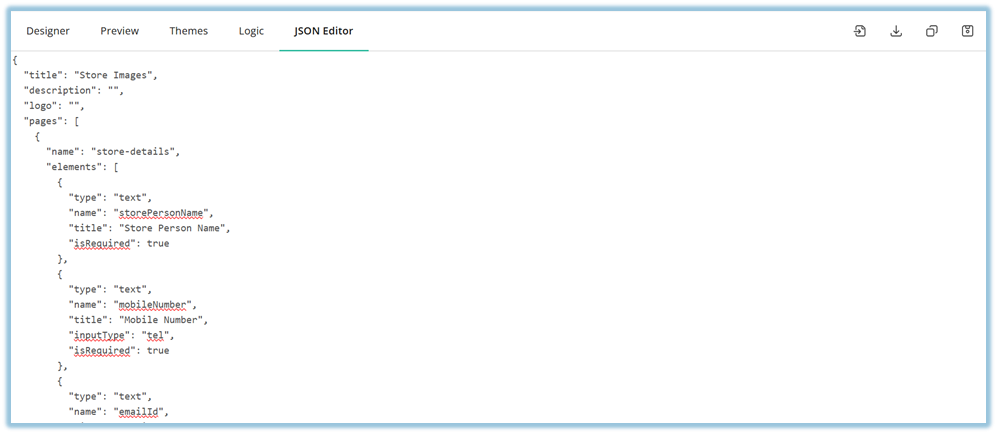
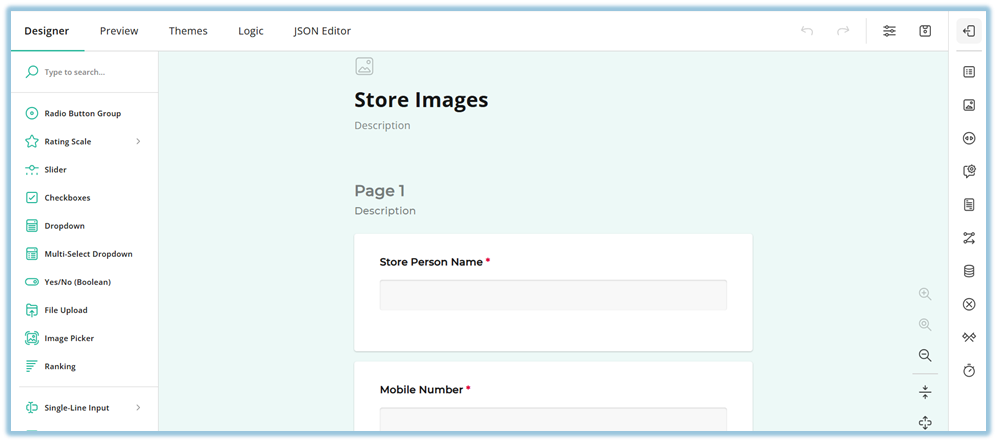
9. View the form automatically generated in the **Designer** section based on the pasted JSON.
10. Make any required changes directly in the **Designer**; the JSON updates automatically.
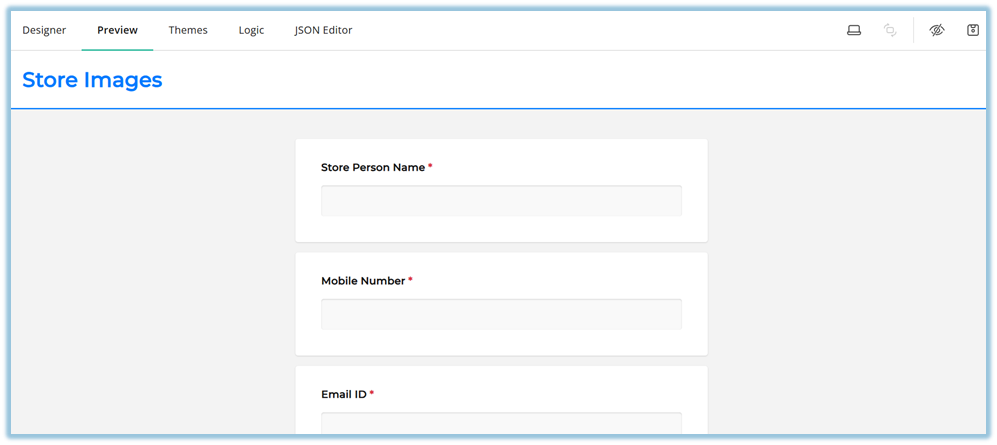
11. Use **Preview** to review how the form appears to users.
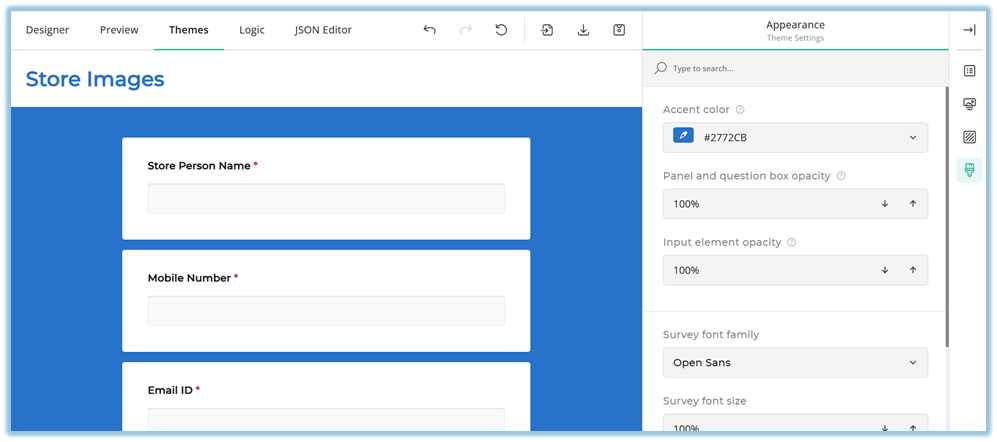
12. Open **Themes** to update colors, fonts, and visual styling if required.
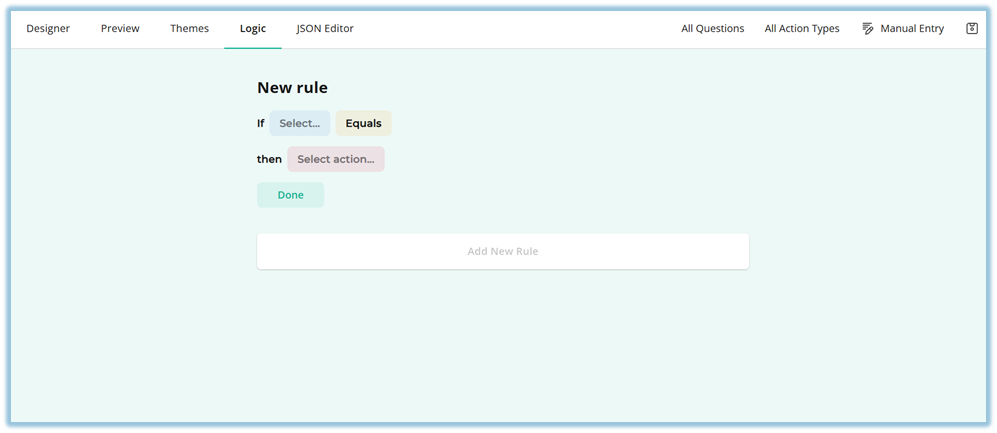
13. Open **Logic** to configure rules that control question behavior or navigation.
14. Click **Save** to store the form changes.
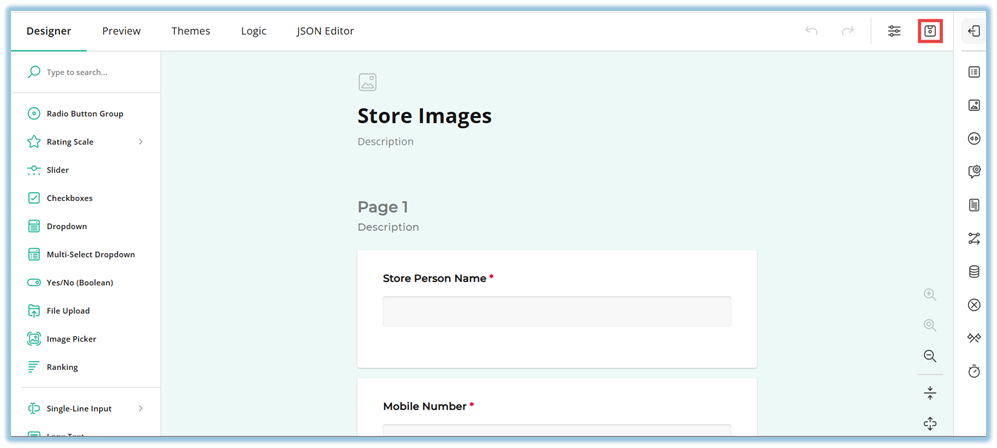
15. After saving, you are redirected to the **form status page** showing **Build Form**, **Add Users**, and **Publish** steps.

16. Click **Add Users** and assign users either individually or by attributes.

17. Click **Save** or **Save & Publish** based on whether the form is ready for publishing.
### **5. User View**
Once the form is published and assigned, users can see it on their **Home page** under the **Forms section**. Users can open the form, view the configured questions, and submit their responses based on the defined structure and logic.

### **6. Reporting**
Once a form is published, reporting and response actions are available from the **Manage** section of the form.

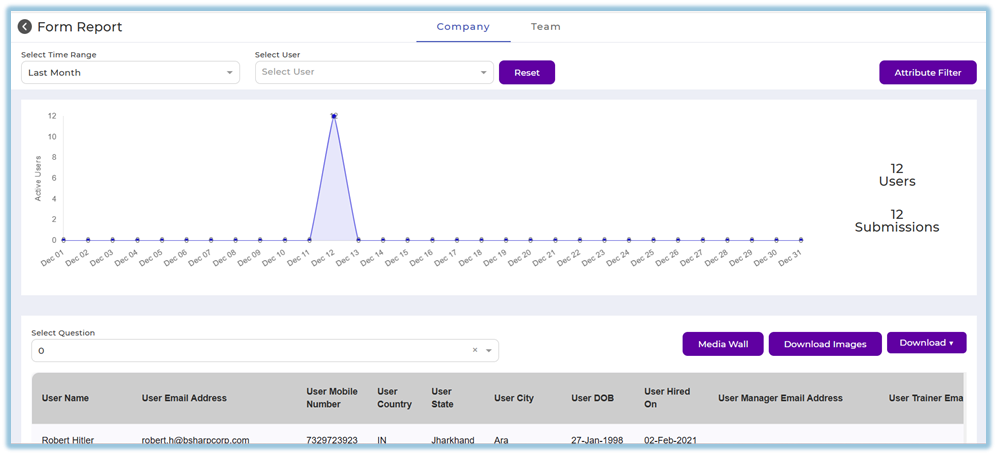
- **Reports** – Opens the Form Report dashboard to view submission trends, active users, and question-level insights.
- **Response** – Allows admins to **download the submitted form responses** for offline review and record keeping.
##### **Report Views**
- **Company tab** – Shows organization-wide form submission data and is visible only to **admins**.
- **Team tab** – Shows team-level form submission data and is accessible only to users with **manager, trainer, or mentor** access.
##### **Report Filters and Actions**
- Filter reports by **time range** and **user**.
- Use **Attribute Filter** to refine data based on user attributes.
- Select a question to view question-specific data.
- Use **Media Wall** to view uploaded images.
- Use **Download Images** to export image responses.
- Use **Download** to export form data.
### **7. Best Practices**
- Validate JSON format before pasting it into the JSON Editor
- Use Designer for visual adjustments instead of editing raw JSON where possible
- Always preview the form before assigning users
- Save the form before navigating away from the editor
### **8. Related Links / FAQs**
**Q: Can I edit the form after pasting JSON?**
Yes. You can edit the form in the Designer, and the JSON updates automatically.
**Q: What happens after I click Save?**
You are redirected to the form status page, where you can add users and publish.
**Q: Can I preview the form before publishing?**
Yes. The Preview tab shows how the form appears to users.
### **9. Version Notes**
Last Updated: 13 Jan 2026
# Form Responses Report
### **Reporting**
- Form responses are available after the form is published.
- Reports and responses can be accessed from the **Manage** section of the form.
- For detailed steps on viewing, filtering, and downloading form responses, refer to [**Form Responses Report**](https://help.bsharpcorp.com/books/reports/page/form-responses-report).
- Once published and users start submitting the form, all response data becomes available for analysis and download through the Reports section.