# How do we create a form with Templates
### **1. Overview**
Creating a form using templates allows admins to quickly build forms in Bsharp Converse by using pre-defined structures. Templates help standardize form creation across different use cases while allowing edits before the form is finalized.
### **2. When to Use**
Use this option when:
- You want to create a form using an existing structure
- You need standard forms for sales, HR, education, or marketing use cases
- You want to avoid creating forms manually from scratch
- You want to edit a pre-built form before assigning it to users
### **3. Concepts**
- **Forms** – Data collection items created for users
- **Templates** – Pre-built form structures available by category
- **Form Categories** – Groupings such as Sales, Education, HR, Marketing
- **Form Builder** – Editor used to review and modify the template
- **Save** – Action used to store the created form
### **4. Set Up Guide**
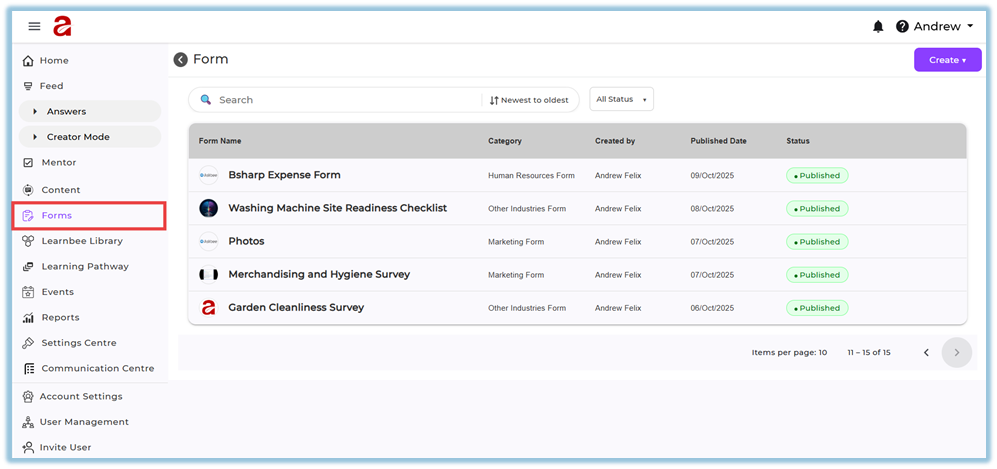
1. Open the menu and go to **Forms**.
[https://converse.bsharpcorp.com/form\_builder](https://converse.bsharpcorp.com/form_builder)
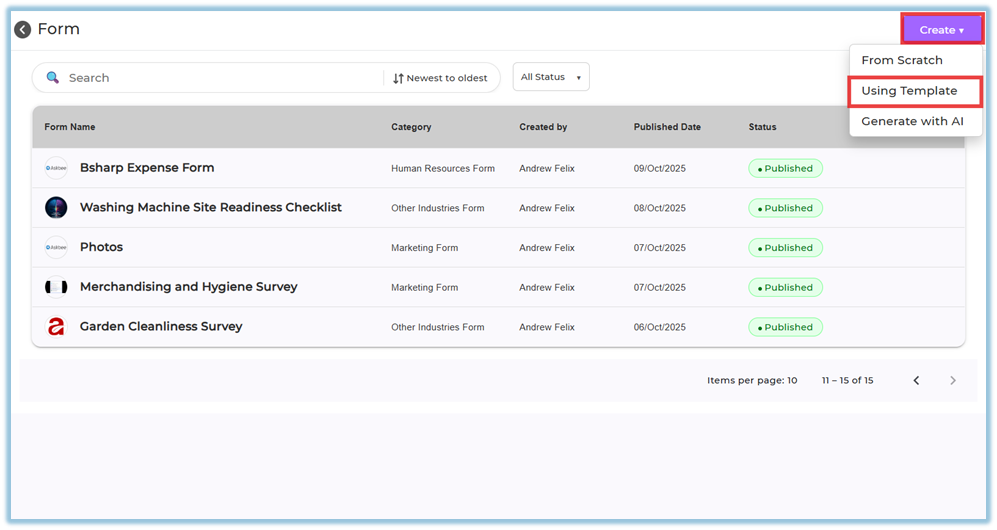
2. Click **Create** on the top-right corner.
3. Select **Using Template**.
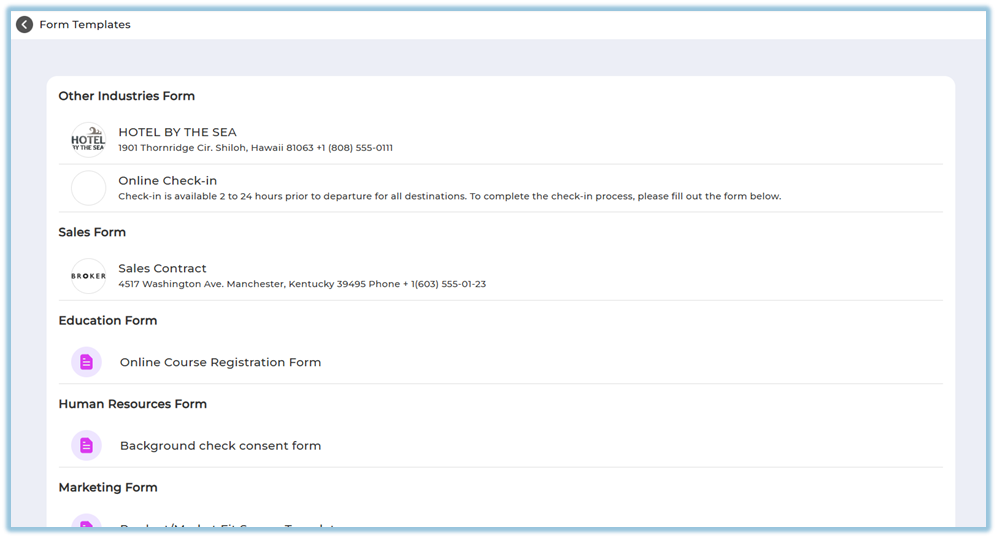
4. View the available template categories such as:
- Other Industries Form
- Sales Form
- Education Form
- Human Resources Form
- Marketing Form
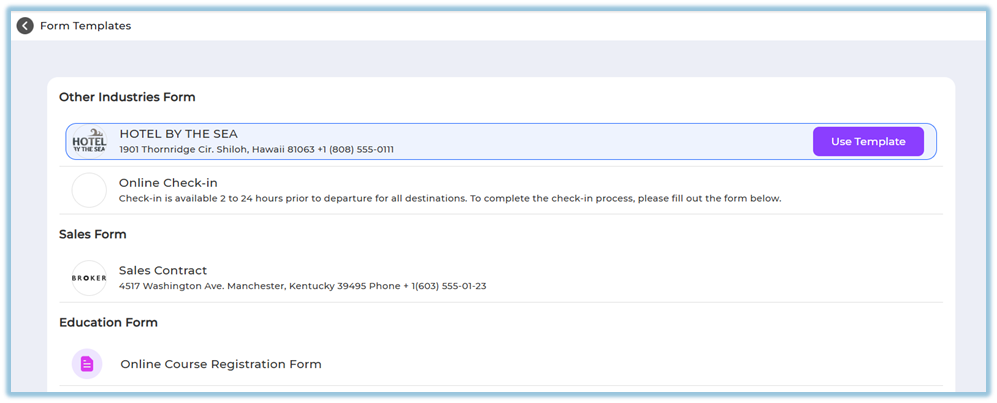
5. Choose a required template and click **Use Template**.
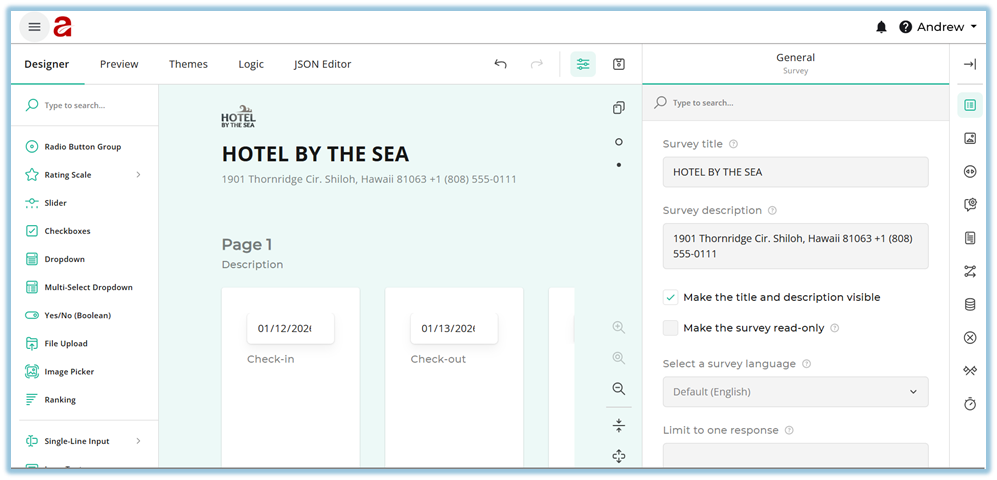
6. Review the form structure created from the template.
7. Edit the form fields if required (add, remove, or modify fields).
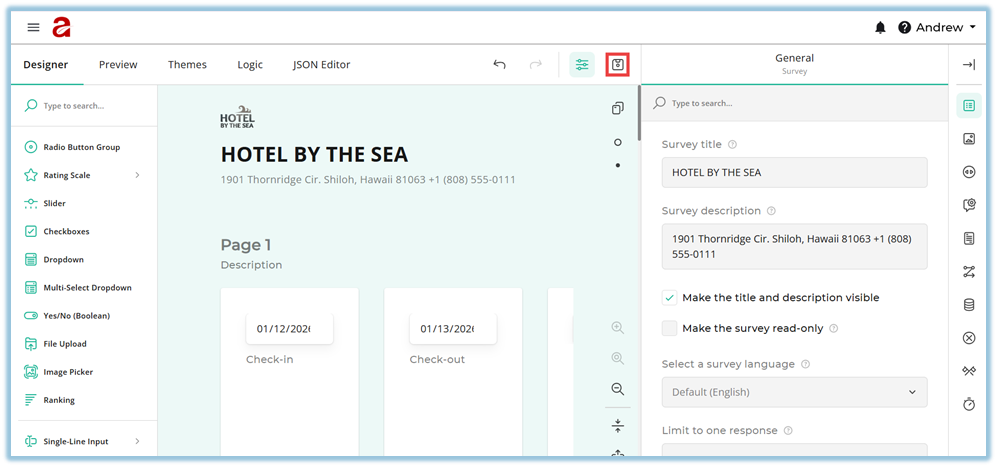
8. Click **Save** to save the form as a draft.
9. After saving, the form appears in the **Forms** list with **Build Form** completed.
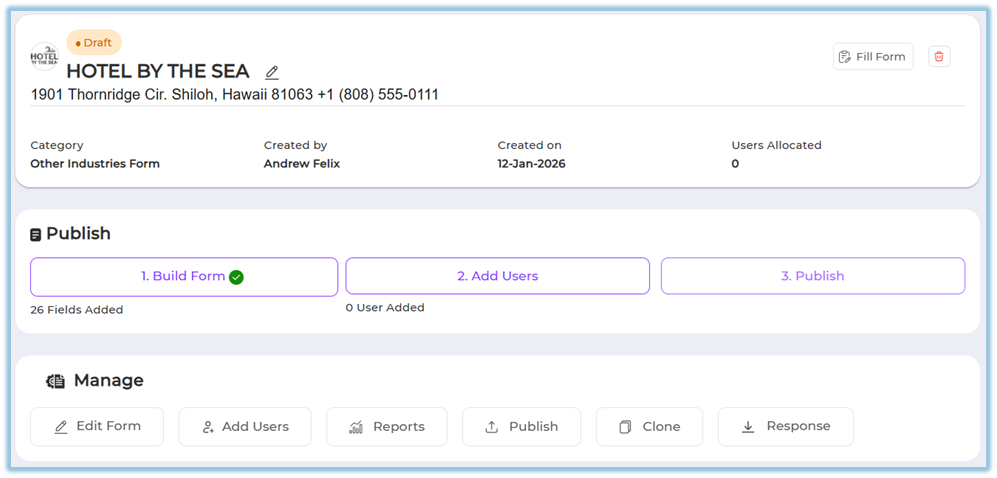
10. Open the saved form and select **Add Users**.
11. Add users using one of the following methods:
- **Individual Users** – select and add specific users
- **By Attributes** – select attribute groups or create new attribute rules
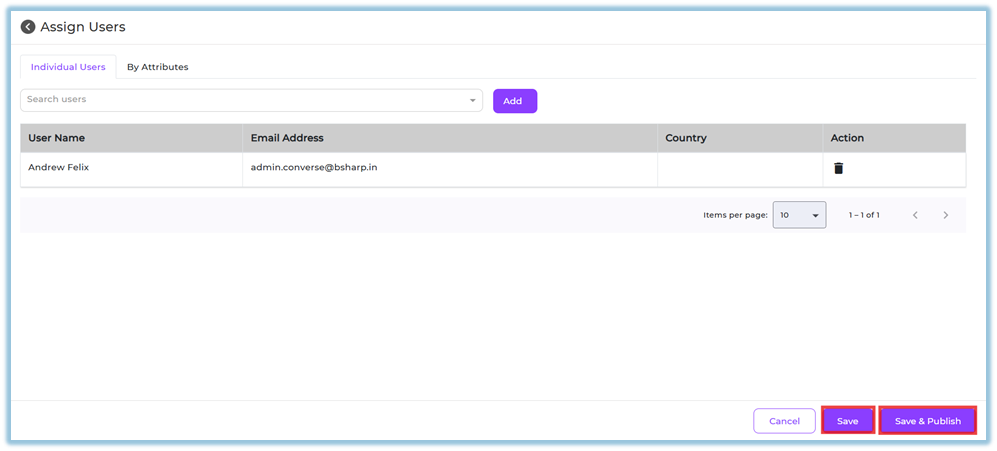
12. Click **Save** to keep the form editable, or **Save & Publish** to publish the form.
**Note:**
- Once a form is published, it **cannot be edited**.
- Saving without publishing allows you to return and edit later.
### **5. User View**
If the form is assigned to users, it appears on the **Home page**.
- Users scroll down on the Home page.
- Forms are visible under the **Forms** section.
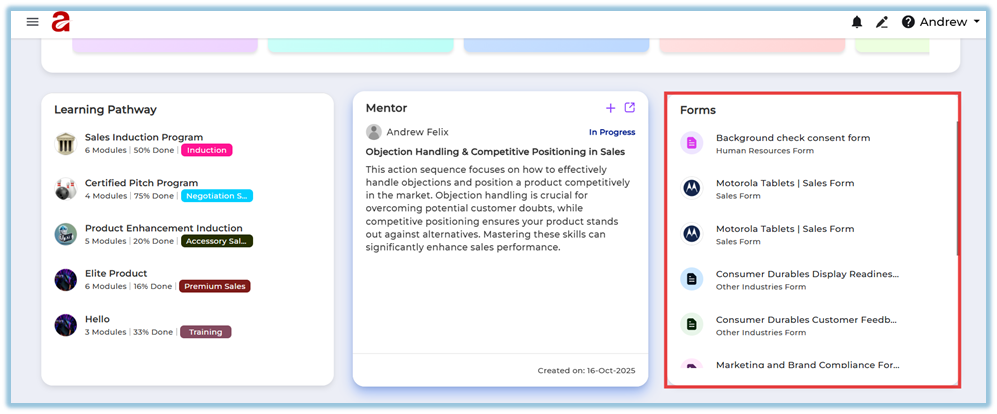
- All assigned forms are listed in this section for easy access.
### **6. Reporting**
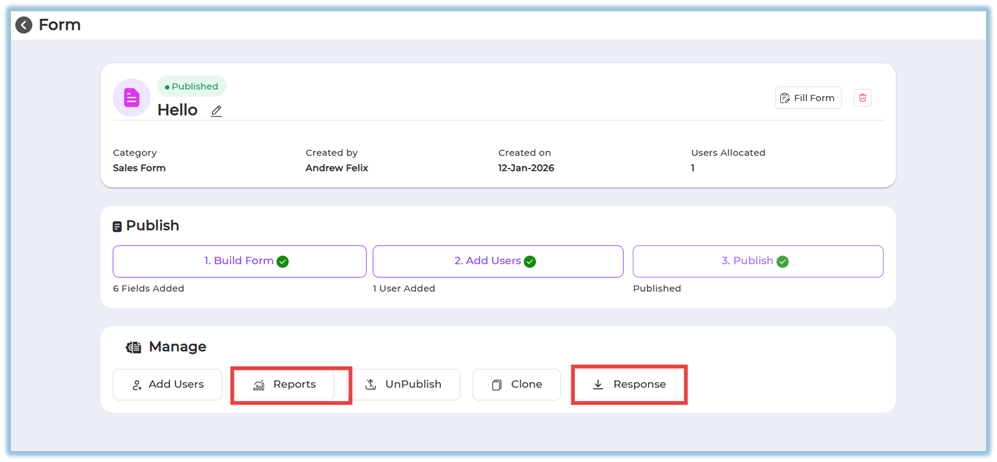
- Form responses can be viewed after the form is published.
- Reports and responses are accessible from the **Manage** section of the form.
- Downloaded responses are available once users start submitting the form.
### **7. Best Practices**
- Review and finalize all form fields before publishing
- Use templates to maintain consistency across teams
- Assign users carefully before publishing to avoid rework
- Save the form as draft if further edits are expected
### **8. Related Links / FAQs**
**Q: Can I edit a form after publishing?**
No. Once published, the form cannot be edited.
**Q: Where can users find assigned forms?**
Users can find assigned forms on the Home page under the Forms section.
**Q: Can I add users after publishing?**
Yes. Users can still be added after publishing.
**Q: What actions are available after publishing?**
You can add users, unpublish, clone the form, view reports, and download responses.
### **9. Version Notes**
Last Updated: 12 Jan 2026