# Instant Answers
# How to Set Up Instant Answers
### **1. Overview**
Instant Answers is an AI-powered feature in **Bsharp Converse** that allows users to ask questions and get **quick answers** from uploaded documents and configured channels. Admins set up answer channels with knowledge content and experts, enabling users to find information instantly without searching through files.
[https://bsharpcorp.com/converse/instant-answers/](https://bsharpcorp.com/converse/instant-answers/)
### **2. When to Use This?**
**When to use:**
- When users frequently ask repetitive or common questions
- When quick access to product, policy, or training information is required
- When knowledge is spread across multiple documents
### **3. Concepts**
- **Instant Answers**: AI chat interface that responds based on uploaded content
- **Channel**: A category under Answers (e.g., Product Specs, Aura)
- **Channel Expert**: Subject matter expert responsible for the channel
- **Knowledge Base**: Documents uploaded to train the Instant Answers
- **Tone**: Style of AI responses (Neutral, Professional, Friendly, etc.)
- **Publish To**: Controls who can access the channel (Admin / All)
---
### **4. Setup Guide**
Follow these steps to set up Instant Answers:
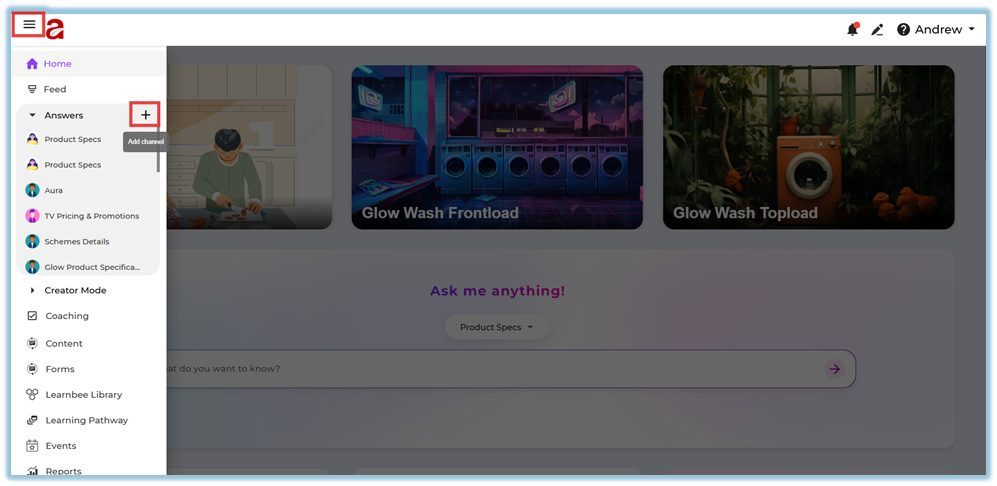
1. Click on the **three-line (hamburger) menu** on the top left.
2. From the left panel, click on **Answers**.
3. Click the **“+” (Add Channel)** icon next to Answers
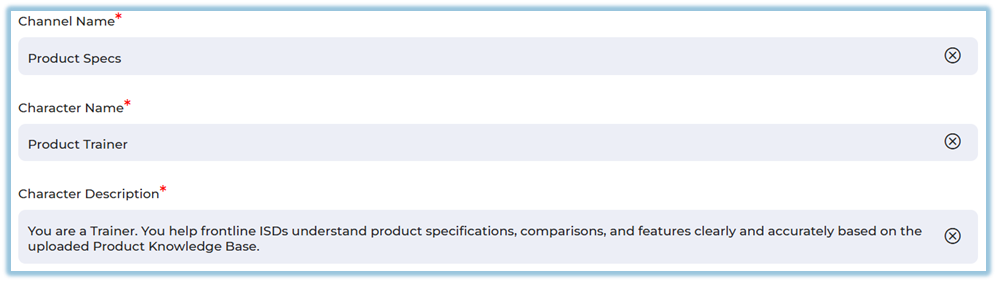
4. Enter the **Channel Name, Character Name, & Character Description.
**
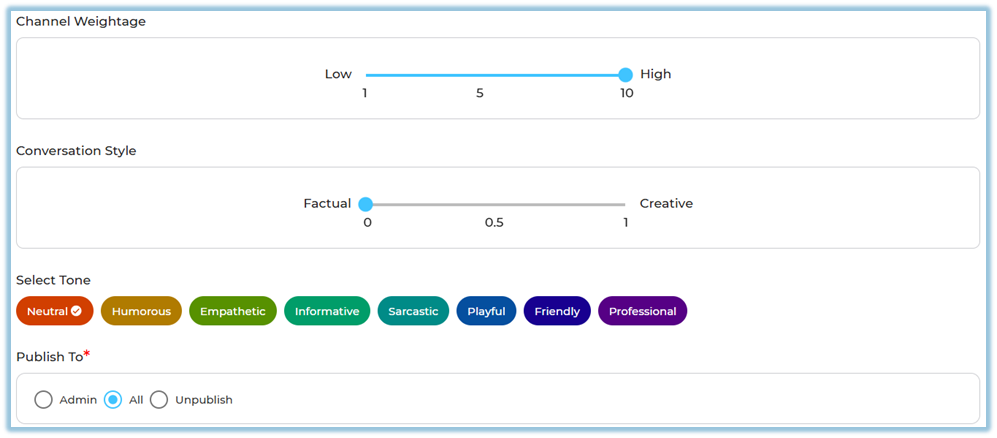
5. Configure the following settings:
- **Channel Weightage** (Low to High)
- **Conversation Style** (Factual ↔ Creative)
- **Select Tone** (Neutral, Professional, Friendly, etc.)
6. Under **Publish To**, select:
- Admin or All
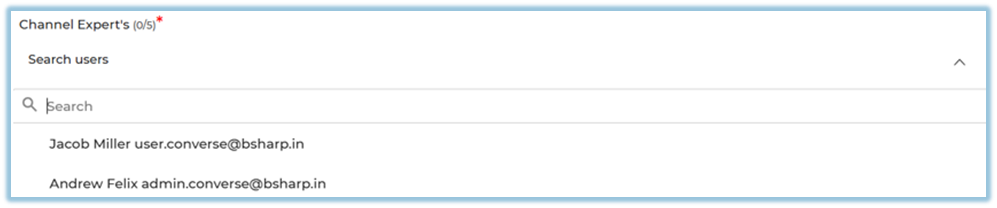
7. Add **Channel Experts** (minimum 1, maximum 5).

8. Upload documents under **Add your knowledge base here**.
9. Click **Save** to activate the channel.
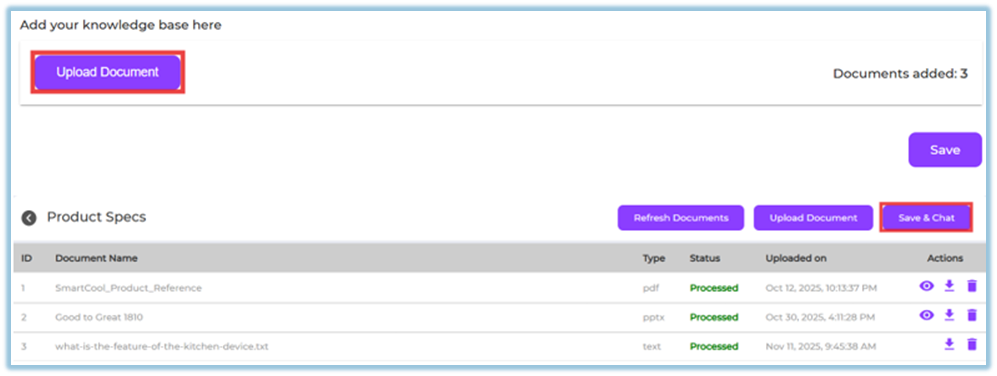
Once saved, the channel becomes available under Instant Answers.
### **5. User View**
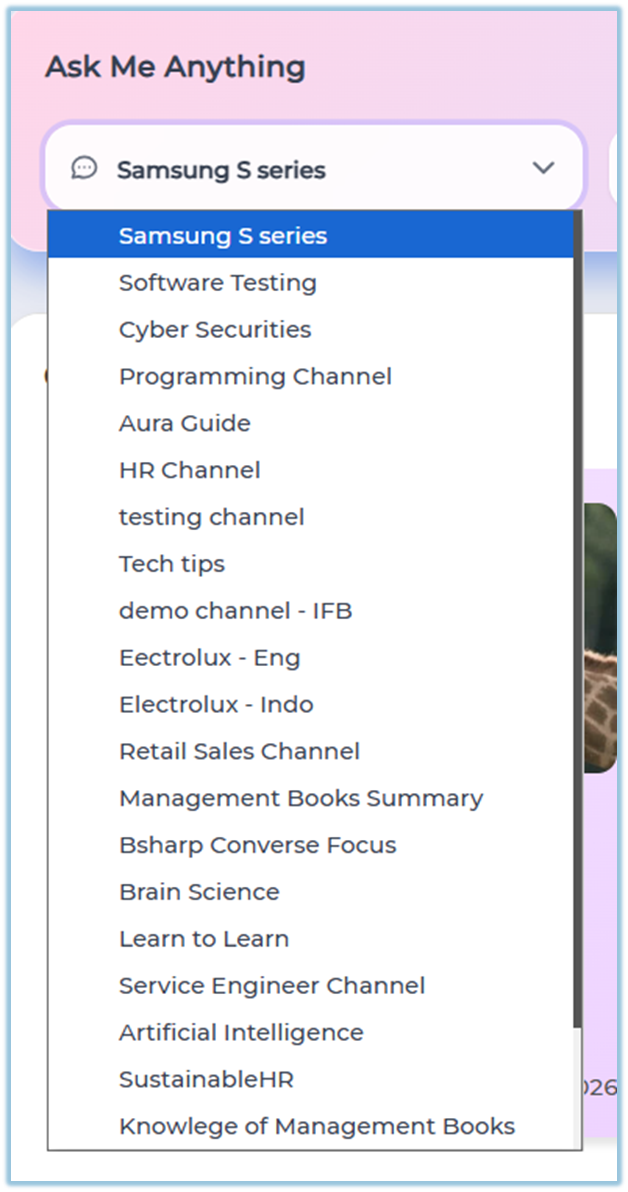
- The **“Ask me anything!”** chat box is displayed

- Users select a **channel** (for example: Product Specs)
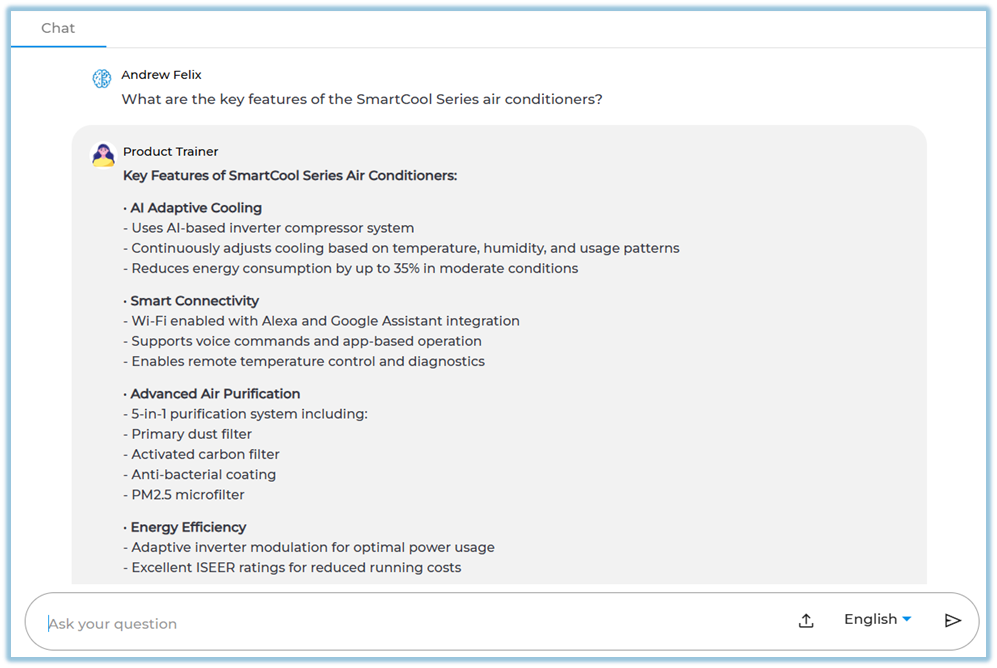
- Users type their question in the input field
- Click the **arrow icon** to submit the question

- Instant Answers are shown based on the selected channel’s knowledge base
### **6. Reporting**
- Go to **Reports** from the left-side menu
- Select **Instant Answers Report**
- View the **number of queries asked** by users
- Track **active users** using Instant Answers
- Filter reports by **channel** and **time period**
- Use the report to understand **usage and engagement** of Instant Answers
### **7. Best Practices**
- Upload clear and updated documents only
- Avoid uploading duplicate or outdated files
- Assign knowledgeable Channel Experts
- Use **Professional or Neutral tone** for official content
- Regularly refresh documents for accuracy
### **8. Troubleshooting / FAQs**
**Q: Instant Answers is not responding correctly**
→ Check if documents are processed successfully.
**Q: Users cannot see the channel**
→ Verify the **Publish To** setting.
**Q: Answers are inaccurate**
→ Review uploaded documents and remove irrelevant files.
**Q: Channel Expert not assigned**
→ At least one expert must be added to save the channel.
### **9. Version Notes**
Last Updated: 21 Apr 2025
# What is the role of Expert in Instant Answers
### **1. Overview**
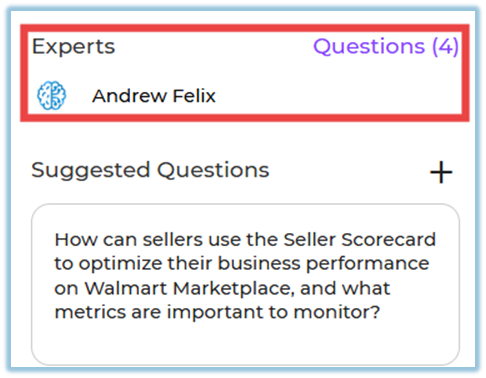
In Instant Answers, an Expert is the assigned channel owner responsible for managing unanswered questions. This role allows a designated person to review questions escalated by users, respond to them, and build the channel’s knowledge base over time.
### **2. When to Use**
- When users ask questions in Instant Answers but do not receive an automatic response
- When a channel requires a responsible owner to manage and resolve incoming questions
- When administrators want answers to be reviewed and controlled before being added to the knowledge base
### **3. Concepts**
**Channel Expert**
The Channel Expert is the user selected while creating an Instant Answers channel. The Expert handles unanswered questions when users do not receive an instant answer.
**Channel Manager**
Once assigned, the Expert works as the channel manager and manages questions from the admin page.
**Unanswered Questions**
These are questions asked by users that do not have an existing answer in the system or knowledge base.
**Question Escalation**
When a user does not get an answer, they are shown an option to submit the question to the expert. Selecting this option sends the question to the channel manager.
**Knowledge Base**
When the channel expert answers a question, that answer is stored in the knowledge base. The system uses this stored answer to respond automatically if the same question is asked again.
### **4. Set Up Guide**
1. Open the channel creation flow in Instant Answers.
[https://help.bsharpcorp.com/books/instant-answers/page/how-to-set-up-instant-answers](https://help.bsharpcorp.com/books/instant-answers/page/how-to-set-up-instant-answers)
2. Assign a user as the channel expert while creating the channel.
3. Save the channel configuration with the selected expert.
### **5. User View**
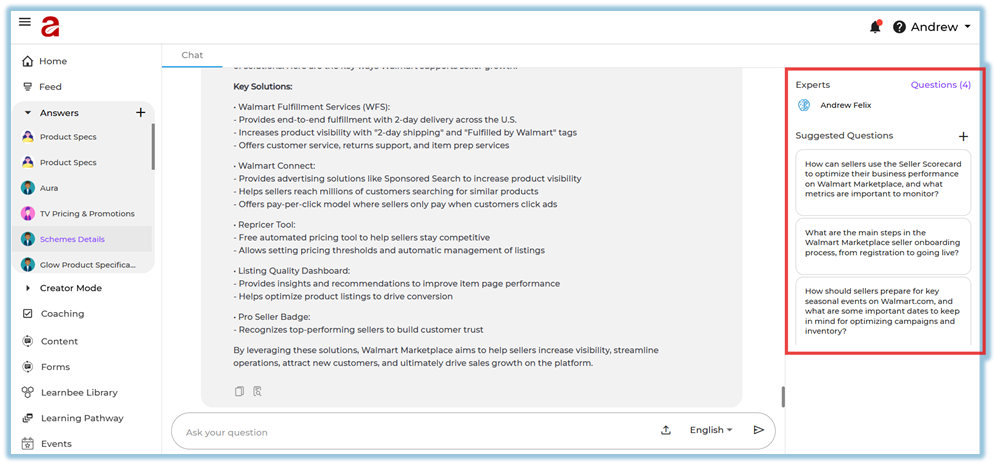
When a user does not receive an answer in Instant Answers, they see an option to submit the question to an expert. After submitting, the user does not need to take any further action and waits for the expert’s response.
### **6. Best Practices**
- Assign a subject-matter expert who can regularly review incoming questions.
- Ensure the expert understands that answered questions are stored in the knowledge base.
### **7. Related Links / FAQs**
**Q: What happens after an expert answers a question?**
A: The answered question is recorded in the knowledge base and reused when the same question is asked again.
### **8. Version Notes**
Last Updated: 16 Dec 2025
# How to generate ‘Suggested Questions’ in Instant Answers
### **1. Overview**
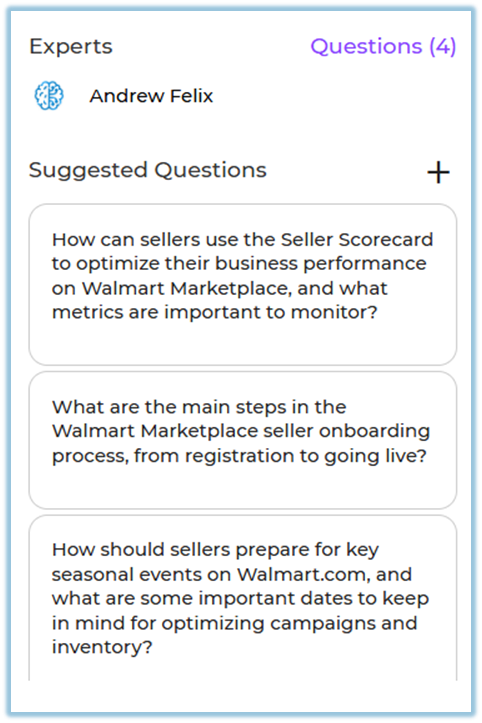
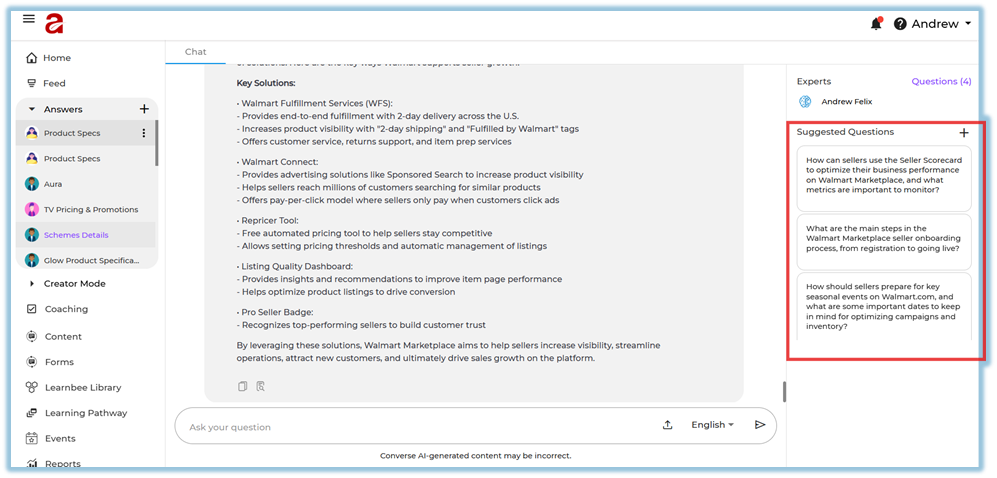
Suggested Questions in Instant Answers help admins add common or important questions in advance. These questions appear in the chat so users know what they can ask in a channel.
### **2. When to Use**
- When users are not sure what questions they can ask
- When common questions should be shown to users directly
- When setting up or improving the question flow in a channel
### **3. Concepts**
**Suggested Questions**
Predefined questions added by an admin that appear in the chat for users to select.
The area on the right side where users interact with Instant Answers.
**Add (+) Action**
The **+** icon used to add a new suggested question.
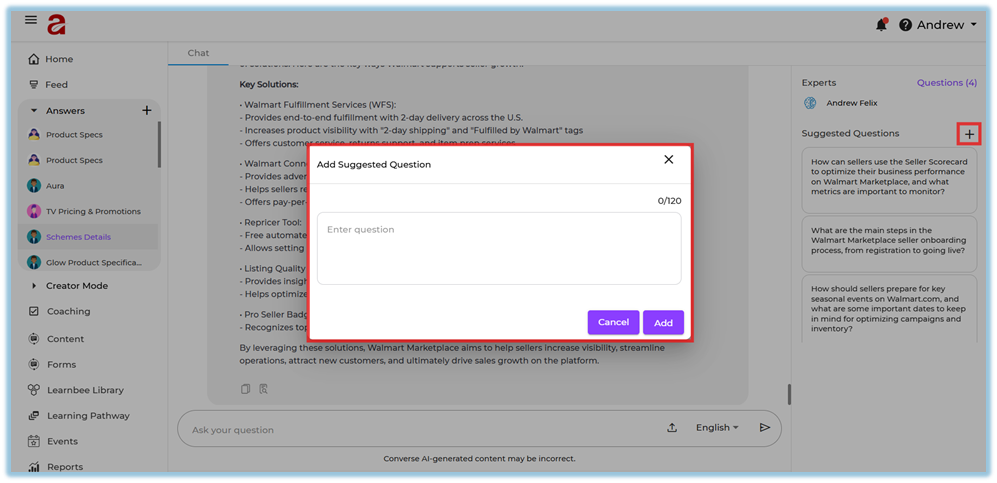
**Question Dialog Box**
The pop-up box where the admin types the question before adding it.
### **4. Set Up Guide**
1. Open the chat section in Instant Answers.
2. Find the Suggested Questions area on the right side.
3. Click the **+** icon.
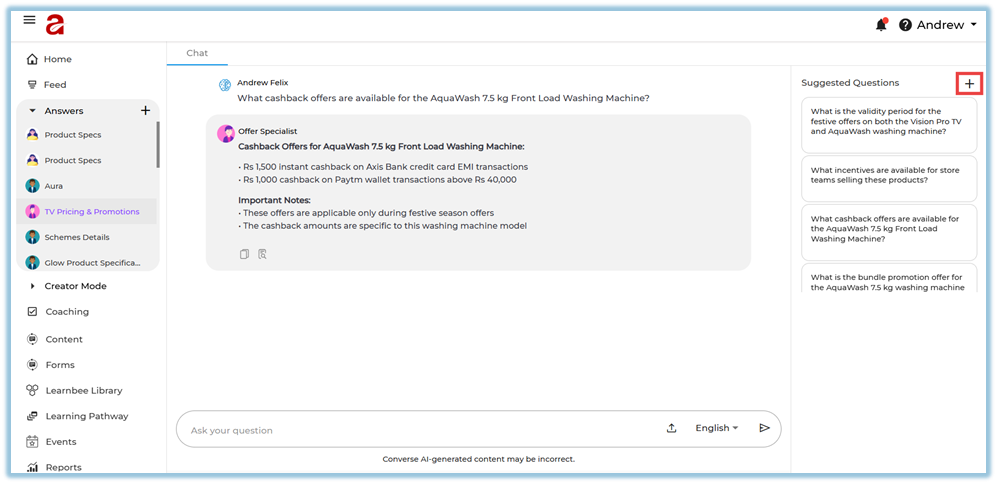
4. Type the question in the dialog box.
5. Click **Add** to save the question.
### **5. User View**
Users see a list of suggested questions in the chat section. They can click on any question to ask it directly, without typing.
### **6. Best Practices**
- Add simple and commonly asked questions.
- Review the suggested questions regularly and update them if needed.
### **7. Related Links / FAQs**
**Q: Can users edit suggested questions?**
A: No. Only admins can add or edit suggested questions.
### **8. Version Notes**
Last Updated: 16 Dec 2025
---
# How users can use Instant Answers
### **1. Overview**
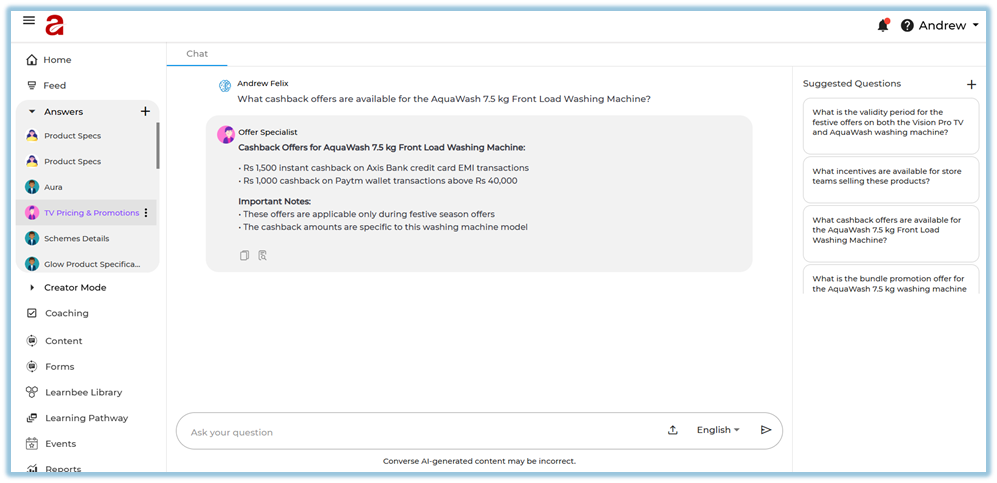
Instant Answers allows users to ask questions and receive answers directly from uploaded documents. Users can ask questions in natural language and receive answers generated only from the content available in the system.
### **2. When to Use**
- When users want answers from their organization’s documents
- When users prefer asking questions instead of searching manually
- When users want responses in their preferred language
### **3. Concepts**
- **Instant Answers** – A feature that provides direct answers to user questions from uploaded documents.
- **Natural Language Questions** – Questions asked in normal, conversational language.
- **Document-Based Answers** – Answers generated only from the documents available in the system.
- **Multilingual Answers** – Answers provided in multiple supported languages.
- **Channels** – Topic-based groups used to organize documents for more accurate answers.
### **4. User View**
Users can ask questions in a conversational way. Answers are shown instantly and are generated only from the documents uploaded to the system. Users can ask questions in different languages and receive answers in the same language.
### **5. Best Practices**
- Ask clear questions related to available documents.
- Use natural language when asking questions.
### **6. Related Links / FAQs**
**Q: Where do the answers come from?**
A: Answers come only from the documents uploaded to the system.
### **7. Version Notes**
Last Updated: 17 Dec 2025
# How do we use the Language function in Instant Answers
### **1. Overview**
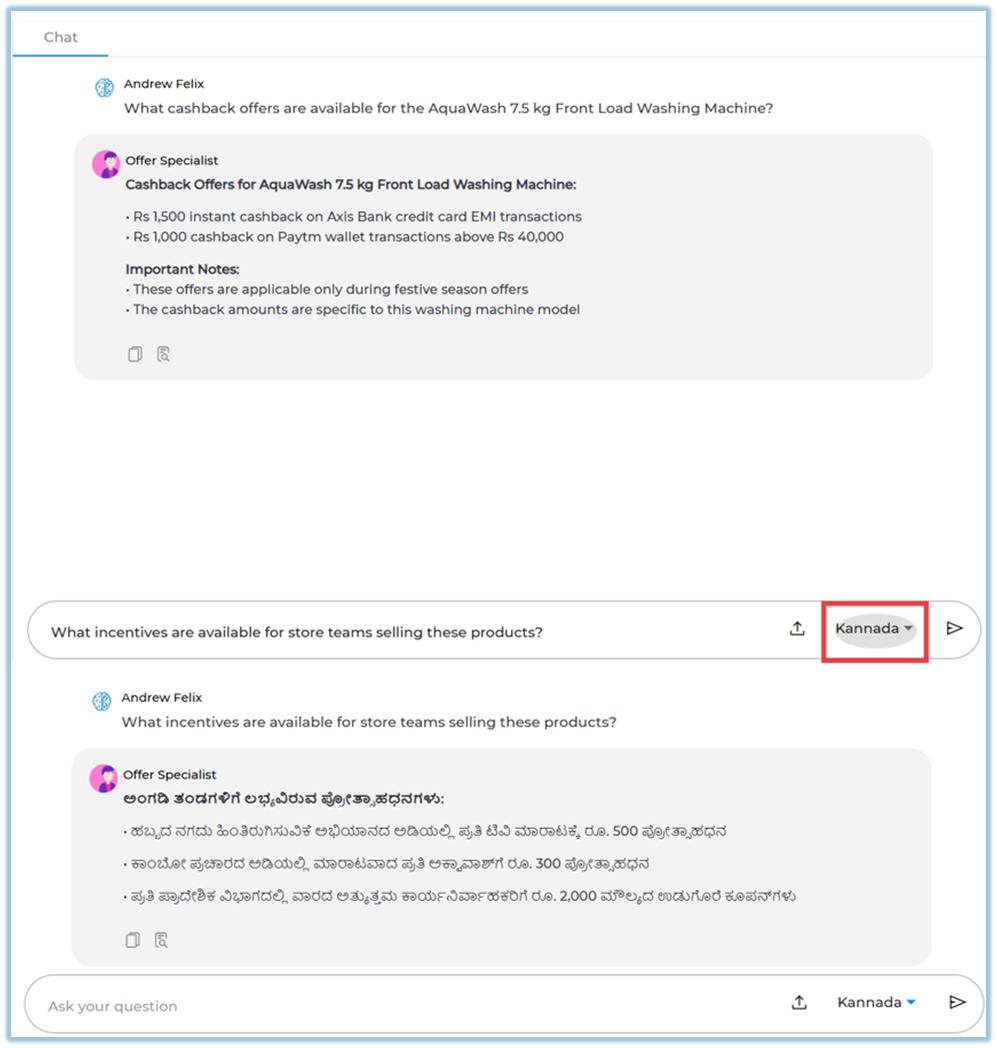
The Language function in Instant Answers allows users to ask questions and receive answers in multiple languages. The system supports multilingual interactions while using the same underlying documents.
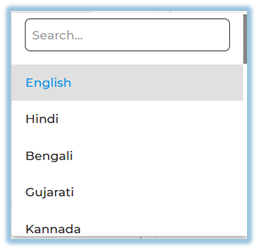
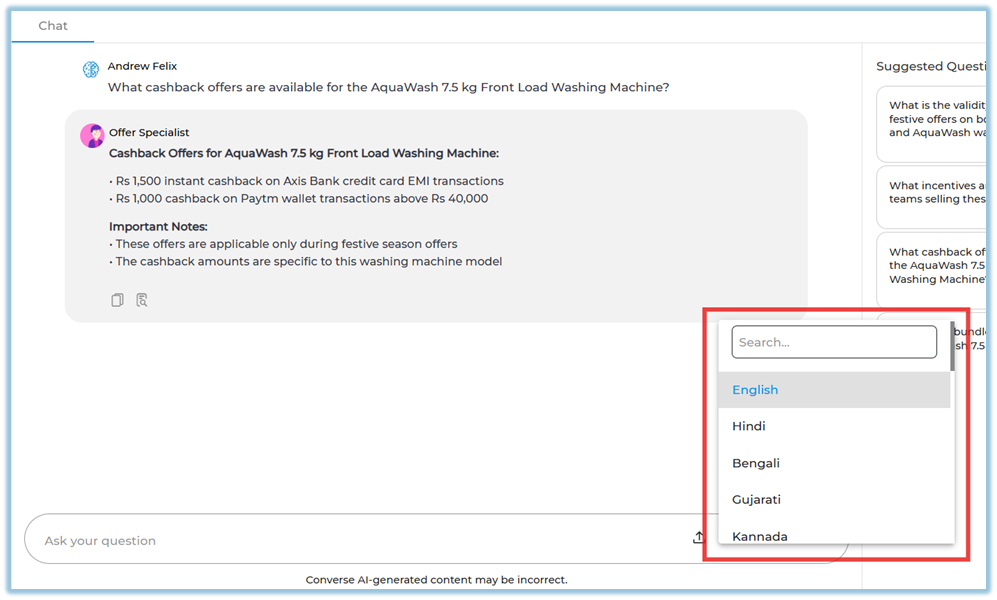
The languages are English, Hindi, Bengali, Gujarati, Kannada, Malayalam, Marathi, Punjabi, Tamil, Telugu, Odia, Assamese, Maithili, Nepali, French, Portuguese, Spanish, Thai, Bahasa Indonesia, Malay, Vietnamese, Filipino, Japanese, Korean, Traditional Chinese, and Simplified Chinese.
### **2. When to Use**
- When users are more comfortable asking questions in their native language
- When teams work across different regions and languages
- When documents are written in one language but users need answers in another
### **3. Concepts**
- **Multilingual Answers** – Allows users to receive answers in multiple supported languages.
- **Language Detection** – Automatically identifies the language used in the user’s question.
- **Language-Based Responses** – Provides answers in the same language in which the question is asked.
- **Document Translation for Answers** – Generates answers in different languages using the original uploaded documents.
### **4. User View**
Users can ask questions in any supported language. The system responds in the same language, even if the original documents are in English.
### **5. Best Practices**
- Ask questions clearly in the preferred language.
- Use consistent terminology for better answer accuracy.
### **6. Related Links / FAQs**
**Q: Do documents need to be uploaded in multiple languages?**
A: No. English documents can generate answers in multiple languages.
### **7. Version Notes**
Last Updated: 17 Dec 2025
# Instant Answers Report
### **Reporting**
- **Instant Answers Report** is available once Instant Answers channels are active and users start asking questions.
- The [**Instant Answers Report**](https://help.bsharpcorp.com/books/reports/page/instant-answers-report) can be accessed from the [**Reports**](https://help.bsharpcorp.com/books/reports) section to view user queries and activity.
- Based on access, the **Company** view is available for admins, while the **Team** view is available for managers, trainers, and mentors.