# How to Set Up Instant Answers
### **1. Overview**
Instant Answers is an AI-powered feature in **Bsharp Converse** that allows users to ask questions and get **quick answers** from uploaded documents and configured channels. Admins set up answer channels with knowledge content and experts, enabling users to find information instantly without searching through files.
[https://bsharpcorp.com/converse/instant-answers/](https://bsharpcorp.com/converse/instant-answers/)
### **2. When to Use This?**
**When to use:**
- When users frequently ask repetitive or common questions
- When quick access to product, policy, or training information is required
- When knowledge is spread across multiple documents
### **3. Concepts**
- **Instant Answers**: AI chat interface that responds based on uploaded content
- **Channel**: A category under Answers (e.g., Product Specs, Aura)
- **Channel Expert**: Subject matter expert responsible for the channel
- **Knowledge Base**: Documents uploaded to train the Instant Answers
- **Tone**: Style of AI responses (Neutral, Professional, Friendly, etc.)
- **Publish To**: Controls who can access the channel (Admin / All)
---
### **4. Setup Guide**
Follow these steps to set up Instant Answers:
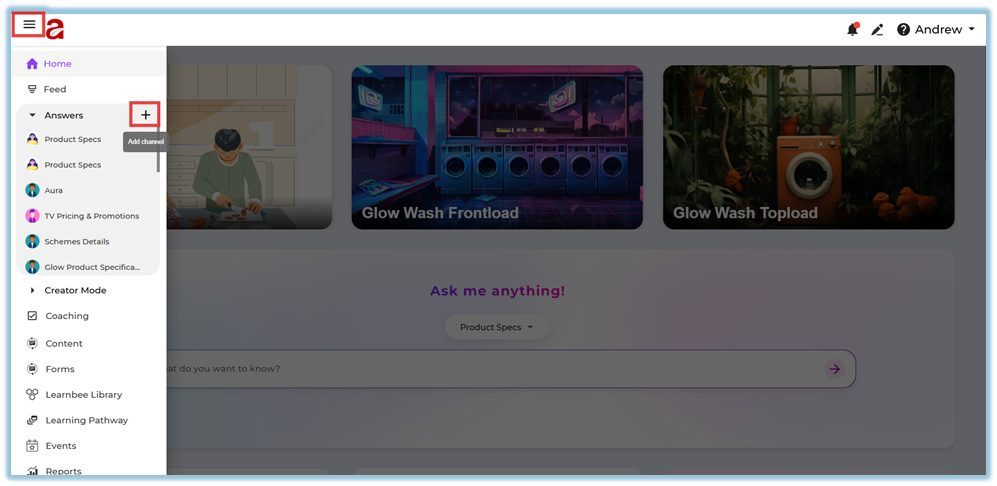
1. Click on the **three-line (hamburger) menu** on the top left.
2. From the left panel, click on **Answers**.
3. Click the **“+” (Add Channel)** icon next to Answers
4. Enter the **Channel Name, Character Name, & Character Description.
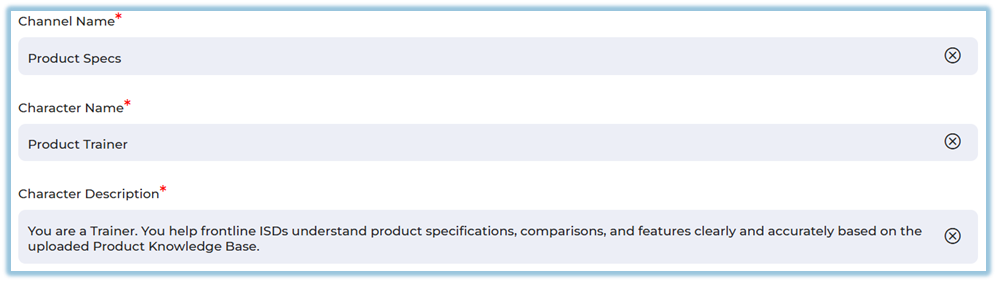**
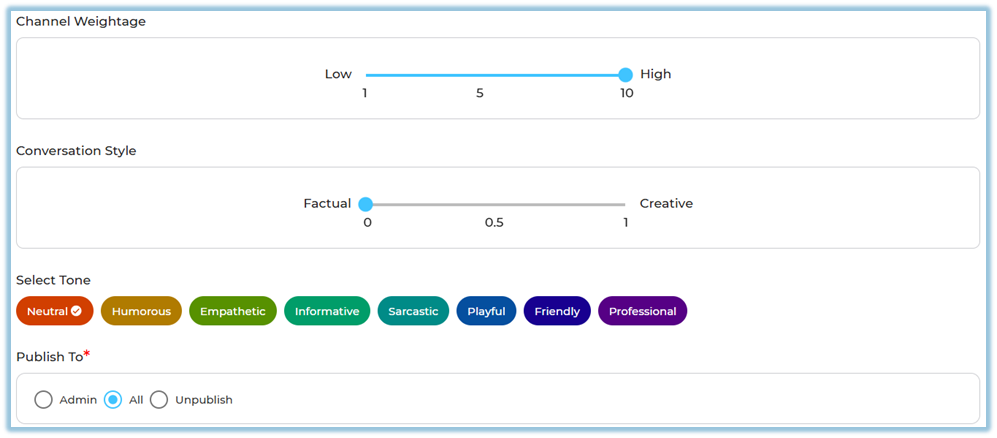
5. Configure the following settings:
- **Channel Weightage** (Low to High)
- **Conversation Style** (Factual ↔ Creative)
- **Select Tone** (Neutral, Professional, Friendly, etc.)
6. Under **Publish To**, select:
- Admin or All
7. Add **Channel Experts** (minimum 1, maximum 5).

8. Upload documents under **Add your knowledge base here**.
9. Click **Save** to activate the channel.
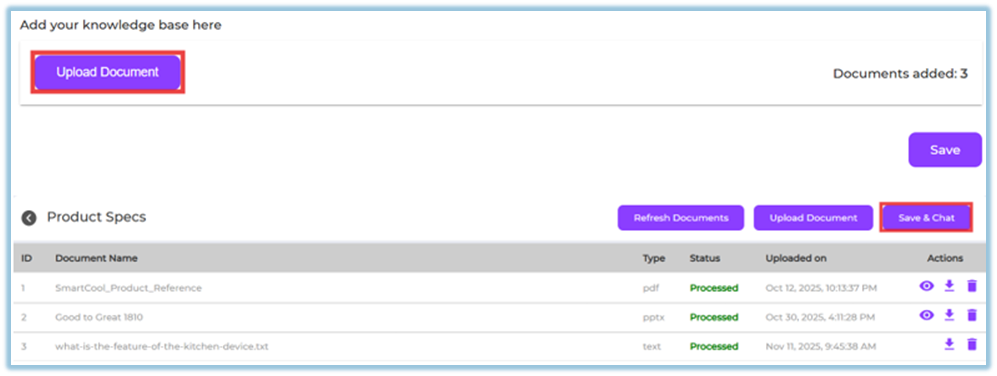
Once saved, the channel becomes available under Instant Answers.
### **5. User View**
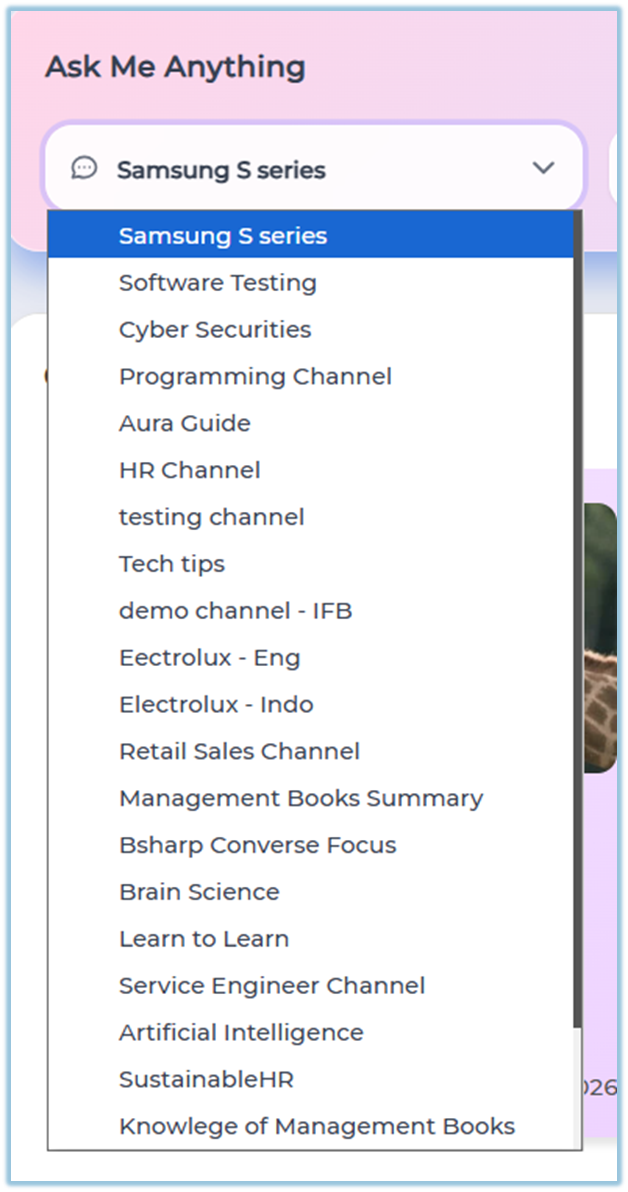
- The **“Ask me anything!”** chat box is displayed

- Users select a **channel** (for example: Product Specs)
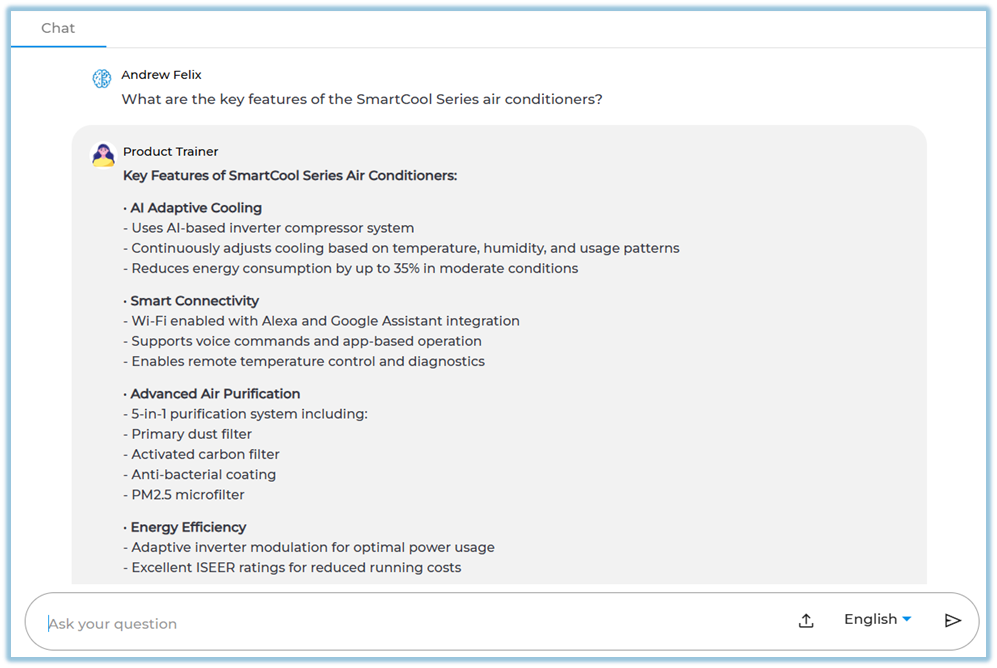
- Users type their question in the input field
- Click the **arrow icon** to submit the question

- Instant Answers are shown based on the selected channel’s knowledge base
### **6. Reporting**
- Go to **Reports** from the left-side menu
- Select **Instant Answers Report**
- View the **number of queries asked** by users
- Track **active users** using Instant Answers
- Filter reports by **channel** and **time period**
- Use the report to understand **usage and engagement** of Instant Answers
### **7. Best Practices**
- Upload clear and updated documents only
- Avoid uploading duplicate or outdated files
- Assign knowledgeable Channel Experts
- Use **Professional or Neutral tone** for official content
- Regularly refresh documents for accuracy
### **8. Troubleshooting / FAQs**
**Q: Instant Answers is not responding correctly**
→ Check if documents are processed successfully.
**Q: Users cannot see the channel**
→ Verify the **Publish To** setting.
**Q: Answers are inaccurate**
→ Review uploaded documents and remove irrelevant files.
**Q: Channel Expert not assigned**
→ At least one expert must be added to save the channel.
### **9. Version Notes**
Last Updated: 21 Apr 2025