# How to Use Converse on WhatsApp
### **1. Overview**
This guide explains how users can receive and access learning modules through the Converse WhatsApp bot, enabling learning delivery and consumption directly via WhatsApp.
### **2. When to Use**
- When users prefer WhatsApp as their primary communication channel
- When learning modules are shared via WhatsApp notifications
- When users want quick access to assigned courses from WhatsApp
- When users want to ask questions and receive instant answers via chat
### **3. Concepts**
- **Converse WhatsApp Bot** – The official Bsharp Converse bot on WhatsApp
- **Learning Notification** – WhatsApp message sent when learning is launched
- **View Courses** – Entry option to access assigned learning
- **Ask a Question** – Option to get instant answers from knowledge channels
- **OTP Login** – Secure login method used when accessing learning content
### **4. Set Up Guide**
#### Complete Your Profile (One-time setup)
1. Log in to [**Bsharp Converse**](https://converse.bsharpcorp.com/celebrate/signin).
2. Go to the **Profile** section (top right).
3. Add your **mobile number** in the Profile section.
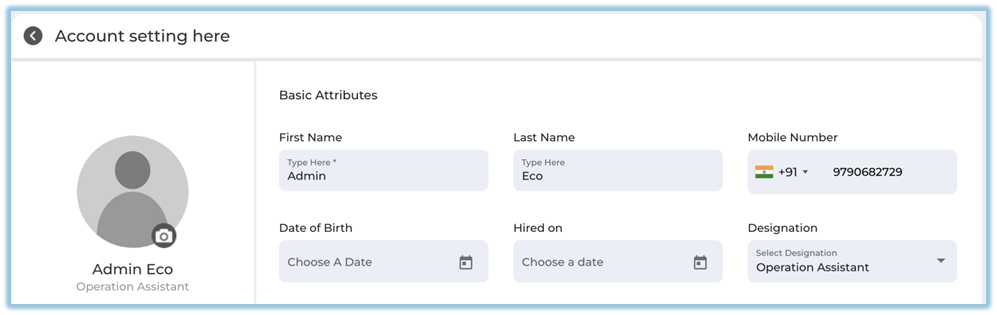
This step is required to receive WhatsApp notifications.
#### Launch Learning Modules via WhatsApp (Admin Action)
1. Ensure the learning module is **assigned** and **published**.
2. Click the **three dots** on the module card.
3. Select **Send Reminder**.
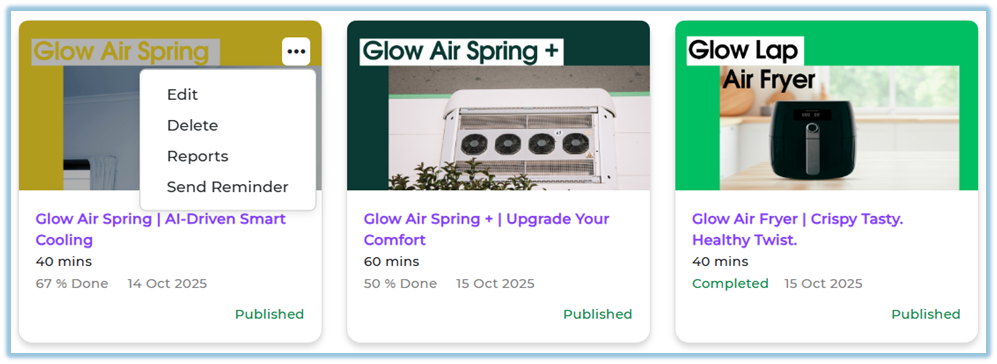
4. You are redirected to the **Training Reminder** page.
5. Choose **WhatsApp** as the notification channel.
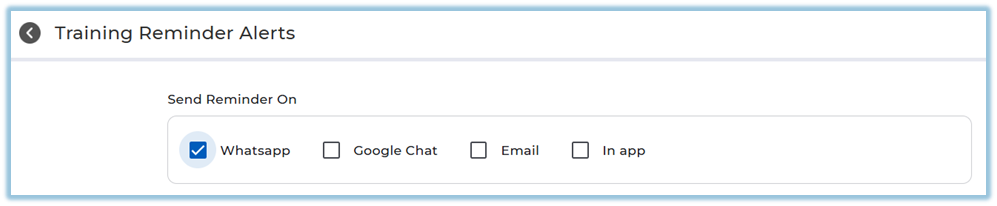
6. Click **Send**.

The learner will receive the learning notification on WhatsApp.
### **5. User View**
- Users receive a **WhatsApp notification** when learning is sent.
- The notification includes a **Learn Now** link.

- Clicking **Learn Now** opens the module with **OTP login**.
- Learning is completed in the Converse web experience after login.
#### Access Converse WhatsApp Bot (Learner Action)
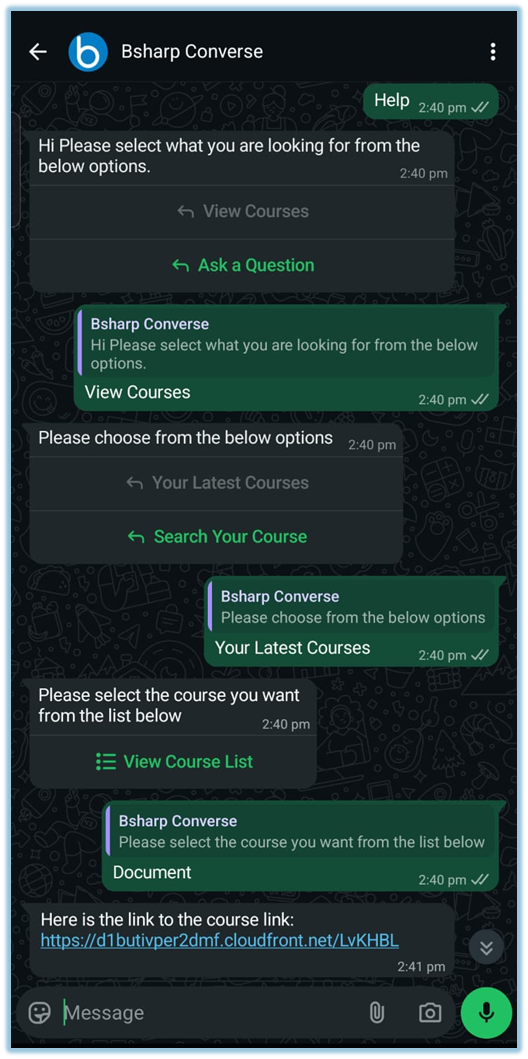
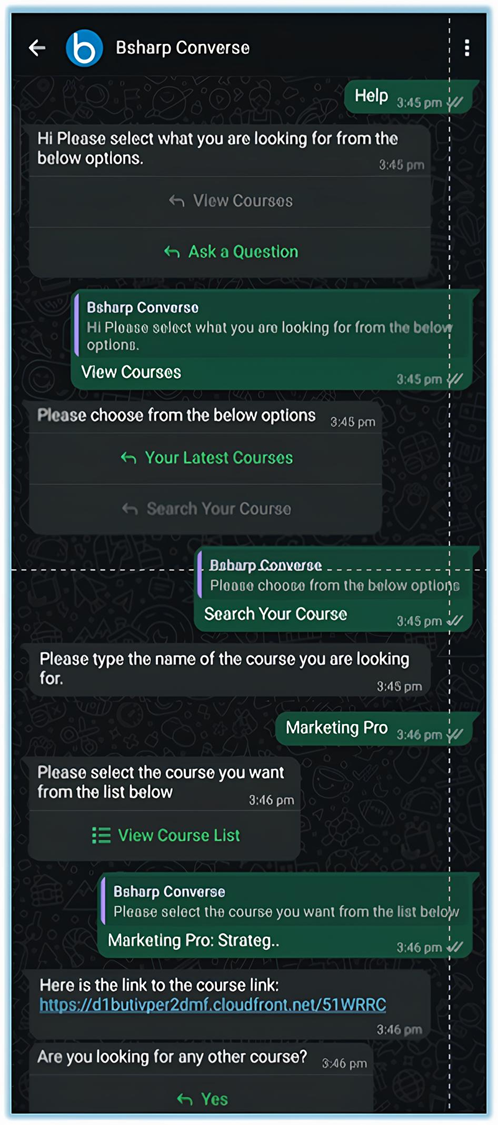
1. Open **WhatsApp** and open the chat with **Bsharp Converse**.
2. Type **Hi** or **Help** in the chat.
3. Select **View Courses** from the options shown.
4. Choose one of the following options:
- **Your Latest Courses** – to view recently assigned learning.
- **Search Your Course** – to search for a course by name.
5. If **Your Latest Courses** is selected, choose a course from the list displayed.
6. If **Search Your Course** is selected, type the course name and then select the course from the list shown.
7. Receive the **course link** directly in the WhatsApp chat.
8. Click the **course link** to open the learning module and complete it.
#### Instant Answers (Ask a Question)
1. Open the **Bsharp Converse** WhatsApp chat.
2. Type **Help**.
3. Select **Ask a Question**.
4. Select a **Channel** (example: Cyber Securities).
5. Type your question.
6. Receive the response directly in WhatsApp.
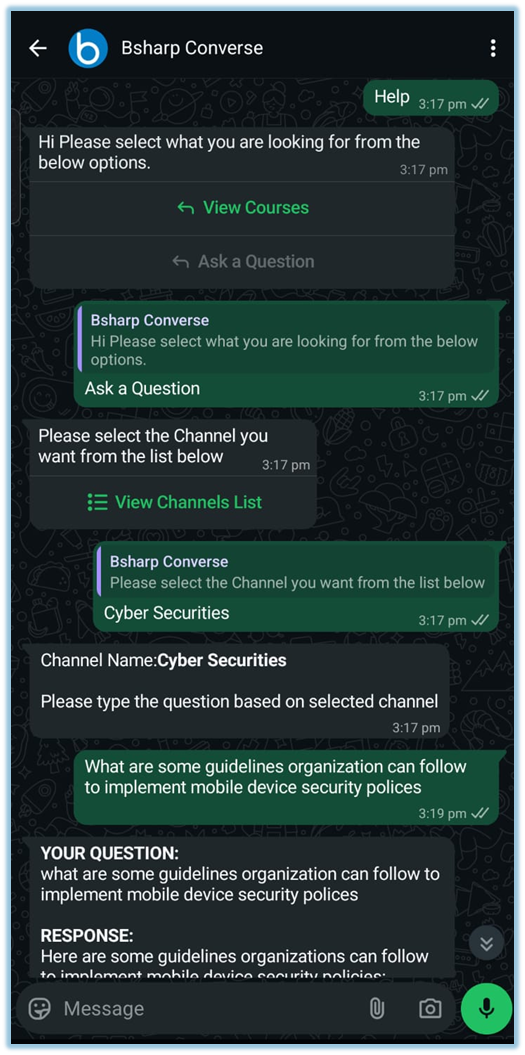
7. Choose **Yes** or **No** if prompted for more questions.
### **6. Reporting**
- Reporting is **not available inside WhatsApp**.
- All learning, engagement, and completion reports are available in:
**Converse Web Application → Reports**.
[https://converse.bsharpcorp.com/celebrate/user-report-page](https://converse.bsharpcorp.com/celebrate/user-report-page)
### **7. Best Practices & Tips**
- Ensure mobile numbers are updated correctly in profiles
- Use WhatsApp reminders for faster learner engagement
- Encourage learners to use **View Courses** regularly
- Use **Ask a Question** for quick knowledge access
### **8. Troubleshooting / FAQs**
**Q: Can learning be completed fully inside WhatsApp?**
No. WhatsApp provides access and notifications. Learning is completed after OTP login.
**Q: Can users edit WhatsApp reminder messages?**
No. WhatsApp reminder messages are not editable.
**Q: What if the user does not receive WhatsApp notifications?**
Verify the mobile number is added correctly in the profile.
### **9. Related Links**
- [Converse Web Application](https://converse.bsharpcorp.com/celebrate/signin?redirectURL=%2Fcelebrate%2Fdashboard)
- [Learning Module](https://help.bsharpcorp.com/books/content)
- [Instant Answers](https://help.bsharpcorp.com/books/instant-answers)
- [Reporting ](https://help.bsharpcorp.com/books/reports)
### **10. Version Notes**
**Last Updated:** 08 Jan 2026
---