# Learnbee
# How to create content for training with Learnbee
### **1. Overview**
Learnbee is the AI authoring tool used inside Bsharp Converse to create training content. It allows administrators to create learning topics with slides, quizzes, and voiceovers, and then link this content back into Content modules for learner consumption.
### **2. When to Use**
- When you need to create structured training content using cards and quizzes
- When training content must be reusable across multiple modules
- When AI-assisted content creation is preferred
- When training content needs voiceovers and translations
### **3. Concepts**
- **Learnbee Library**
The central place where all Learnbee training topics are created, edited, and managed.
- **Topic**
A training unit that contains learning cards, slides, and quizzes.
- **Topic Settings**
The page where basic topic details, layout, and voice-over options are configured.
- **Slides**
Individual screens within a topic that display learning content or assessments.
- **Learning Cards**
Cards used to present training content in a structured and easy-to-consume format.
- **Quiz Slides**
Slides used to assess learners using questions and answers.
- **Voice-over**
Audio narration generated for slide content to support audio learning.
- **Multilingual Content**
Training content that is available in multiple languages for different learners.
### **4. Set Up Guide**
1. Open the main menu.
2. Click **Learnbee Library**.
3. Click **Create Topic**.
4. Select **Create from scratch**.
5. Enter the **Topic Name**.
6. Add a **Topic Image** from the library or by browsing your system.
7. Enter the **Description** if required.
8. Select the **Layout** (Landscape or Portrait).
9. Configure **Voice-over Settings**:
- Select **Voice Type** (Male or Female).
- Select the **Base Language**.
- Add additional languages if required (up to 6 per card).
10. Click **Save** to proceed to slide creation.
11. Click **Add Slide**.
12. Add learning content using available slide types (cards, quizzes, or AI-generated slides).
13. Preview the topic.
14. Click **Publish** to make the topic available for selection in Content.
### **5. User View**
Learners see the Learnbee topic as structured slides with cards and quizzes. Voiceovers play automatically if enabled, and content appears in the selected language.
### **6. Best Practices**
- Keep topics focused on a single training objective
- Add quizzes after learning cards
- Use multilingual settings only when required
### **7. Related Links / FAQs**
**Q: Can a Learnbee topic be reused across modules?**
A: Yes. Published topics can be selected inside Content modules.
### **8. Version Notes**
Last Updated: 19 Dec 2025
# How do we upload PDF and generate multi-lingual voice over narrations
### **1. Overview**
This feature in Learnbee allows admins to upload PDF-based training content and convert it into narrated learning slides with voice-overs in multiple languages. It supports generating voice-over text from the PDF, translating it into selected languages, and producing audio narrations for each language.
### **2. When to Use**
Use this feature when you need to:
- Convert existing PDF training material into audio-supported learning content
- Provide training in multiple regional or global languages
- Support learners who prefer audio narration along with visual content
- Standardize voice-over and translations across training slides
### **3. Concepts**
- **Learnbee Topic**
A training unit where PDF-based slides and voice-over narrations are created.
- **PDF Slide**
A slide created by uploading a PDF file into a Learnbee topic.
- **Extracted Text**
Text automatically pulled from the PDF slide for narration generation.
- **Voice-over Text**
The script used to generate audio narration for a slide.
- **Base Language**
The primary language selected for voice-over generation.
- **Additional Languages**
Extra languages added for translating and generating voice-overs.
- **Generate Voiceover**
The action that creates audio narration from the voice-over text.
- **Translate Text**
The step used to convert voice-over text into selected languages.
### **4. Set Up Guide**
1. Open the **Learnbee Library**.
2. Create or open a **Learnbee Topic**.
3. Click **Add slide**.
4. Select **PDF** under Import.
5. Upload the PDF file (up to 30 slides).
6. Select a PDF slide to configure narration.
7. Click **Generate Voice-over**.
8. Review the **Extracted Text** generated from the slide.
9. Edit the extracted text if required.
10. Click **Use Extracted Text**.
11. Select the **Base Language** for narration.
12. Select the **Voice Type** (Male or Female).
13. Click **Generate Voiceover**.
14. Click **Next** to move to **Translate text**.
15. Add additional languages (up to 6 per card).
16. Click **Translate** for each selected language.
17. Click **Generate Voiceover** for translated text.
18. Click **Save** to apply voice-overs to the slide.
### **5. User View**
Learners see PDF-based slides with audio narration controls. They can play voice-overs in the available languages and switch between languages if multiple narrations are enabled.
### **6. Best Practices**
- Review extracted text before generating voice-over to avoid narration errors
- Use clear and concise text for better audio clarity
- Limit the number of languages per slide to maintain consistency
- Ensure base language narration is correct before translating
### **7. Related Links / FAQs**
**Q: How many languages can be added per slide?**
A: Up to 6 languages per card.
**Q: Can the extracted text be edited before narration?**
A: Yes, the extracted text can be modified before generating voice-over.
### **8. Version Notes**
Last Updated: 22 Dec 2025
# Link to Flash Cards - from Learning of the Day
### **1. Overview**
This feature allows Learnbee flash cards to be linked to **Learning of the Day** so that the same learning content can be delivered to users as daily cards. Once a Learnbee topic is published, it can be selected during Learning of the Day feed setup to control how many cards are released each day and when they appear to learners.
### **2. When to Use**
Use this feature when:
- Learnbee flash cards are already created and published
- Training needs to be delivered in small daily portions
- Learners should receive learning content on a scheduled basis
- Existing learning cards must be reused without duplication
### **3. Concepts**
- **Learnbee Topic**
A published learning topic that contains flash cards created using Learnbee.
- **Flash Cards**
Individual learning cards used to deliver short, focused learning content.
- **Learning of the Day Feed**
A feed that delivers learning cards to users on a daily basis.
- **Feed Setup**
The configuration area where Learning of the Day is enabled and scheduled.
- **Daily Card Scheduling**
The setting that controls how many cards are shown per day and when they appear.
### **4. Set Up Guide**
1. Publish the Learnbee topic that contains flash cards.
2. Open the **Learnbee Library**.
3. Click **Feed Setup**.
4. Enable **Enable Learning of the Day Feed**.
5. Click **Select module for the feed**.
6. Choose the published Learnbee topic.
7. Select **Number of content card per day**.
8. Select the **Days to post learning card**.
9. Select the **Time to post learning card**.
10. Click **Save**.
### **5. User View**
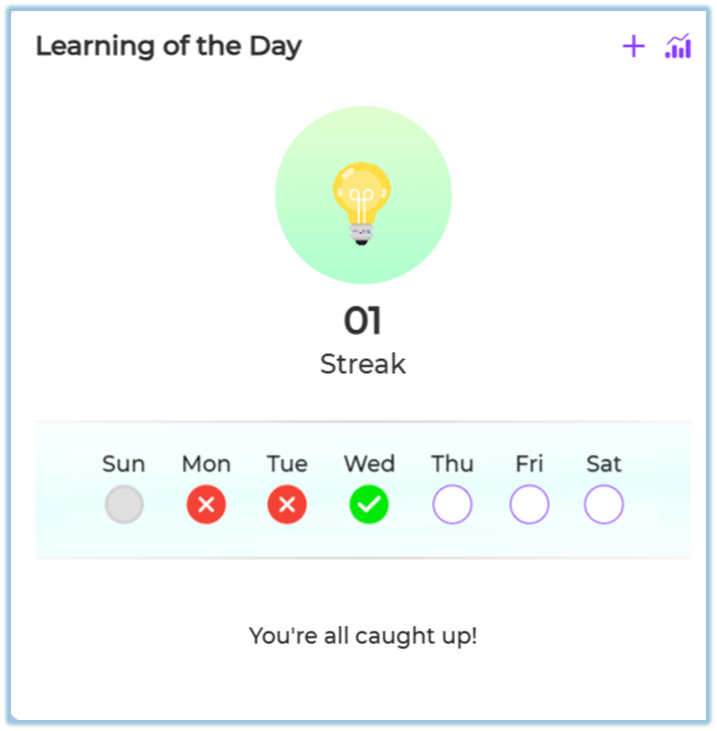
Learners see a **Learning of the Day** section on the home page. Flash cards appear based on the configured schedule, and learners can start new cards or review completed ones.
### **6. Best Practices**
- Ensure the Learnbee topic has enough flash cards before scheduling
- Keep a consistent daily posting time
- Use one topic per Learning of the Day feed for clarity
### **7. Related Links / FAQs**
**Q: Can the same Learnbee topic be used for training and Learning of the Day?**
A: Yes. A published Learnbee topic can be reused.
### **8. Version Notes**
Last Updated: 22 Dec 2025