# Link to Flash Cards - from Learning of the Day
### **1. Overview**
This feature allows Learnbee flash cards to be linked to **Learning of the Day** so that the same learning content can be delivered to users as daily cards. Once a Learnbee topic is published, it can be selected during Learning of the Day feed setup to control how many cards are released each day and when they appear to learners.
### **2. When to Use**
Use this feature when:
- Learnbee flash cards are already created and published
- Training needs to be delivered in small daily portions
- Learners should receive learning content on a scheduled basis
- Existing learning cards must be reused without duplication
### **3. Concepts**
- **Learnbee Topic**
A published learning topic that contains flash cards created using Learnbee.
- **Flash Cards**
Individual learning cards used to deliver short, focused learning content.
- **Learning of the Day Feed**
A feed that delivers learning cards to users on a daily basis.
- **Feed Setup**
The configuration area where Learning of the Day is enabled and scheduled.
- **Daily Card Scheduling**
The setting that controls how many cards are shown per day and when they appear.
### **4. Set Up Guide**
1. Publish the Learnbee topic that contains flash cards.
2. Open the **Learnbee Library**.
3. Click **Feed Setup**.
4. Enable **Enable Learning of the Day Feed**.
5. Click **Select module for the feed**.
6. Choose the published Learnbee topic.
7. Select **Number of content card per day**.
8. Select the **Days to post learning card**.
9. Select the **Time to post learning card**.
10. Click **Save**.
### **5. User View**
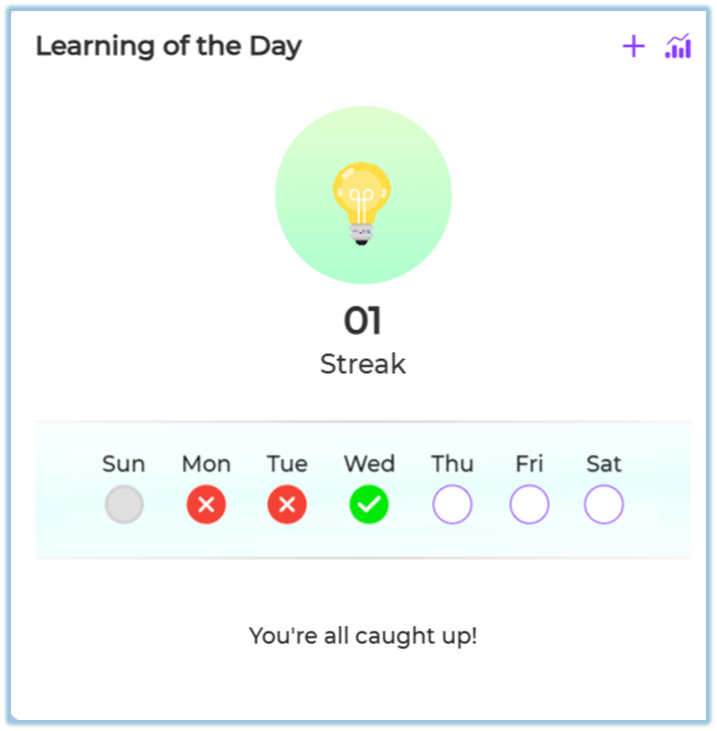
Learners see a **Learning of the Day** section on the home page. Flash cards appear based on the configured schedule, and learners can start new cards or review completed ones.
### **6. Best Practices**
- Ensure the Learnbee topic has enough flash cards before scheduling
- Keep a consistent daily posting time
- Use one topic per Learning of the Day feed for clarity
### **7. Related Links / FAQs**
**Q: Can the same Learnbee topic be used for training and Learning of the Day?**
A: Yes. A published Learnbee topic can be reused.
### **8. Version Notes**
Last Updated: 22 Dec 2025