# How do we make Flash Cards with Quiz from Knowledge Base
### **1. Overview**
This feature allows admins to create **learning flash cards and quizzes** in Learnbee using content from a **Knowledge Base**. The knowledge source can be either **Internet** or **Channels**, where Channels are built from documents already uploaded in **Instant Answers**. The generated flash cards and quizzes can be published as a learning topic and later used for Learning of the Day or other learning flows.
### **2. When to Use**
- When you want to convert existing documents into short, consumable learning cards
- When learning content already exists in **Instant Answers channels**
### **3. Concepts**
- **Knowledge Base** – The source used to generate learning cards (Internet or Channels)
- **Channels** – Instant Answers channels containing uploaded documents
- **Flash Cards (Learning Cards)** – Short learning slides generated from content
- **Quiz Slides** – Assessment slides added after learning cards
- **AI Slides** – AI-powered tool used to generate flash cards
### **4. Set Up Guide**
##### Step 1: Generate Flash Cards from Knowledge Base
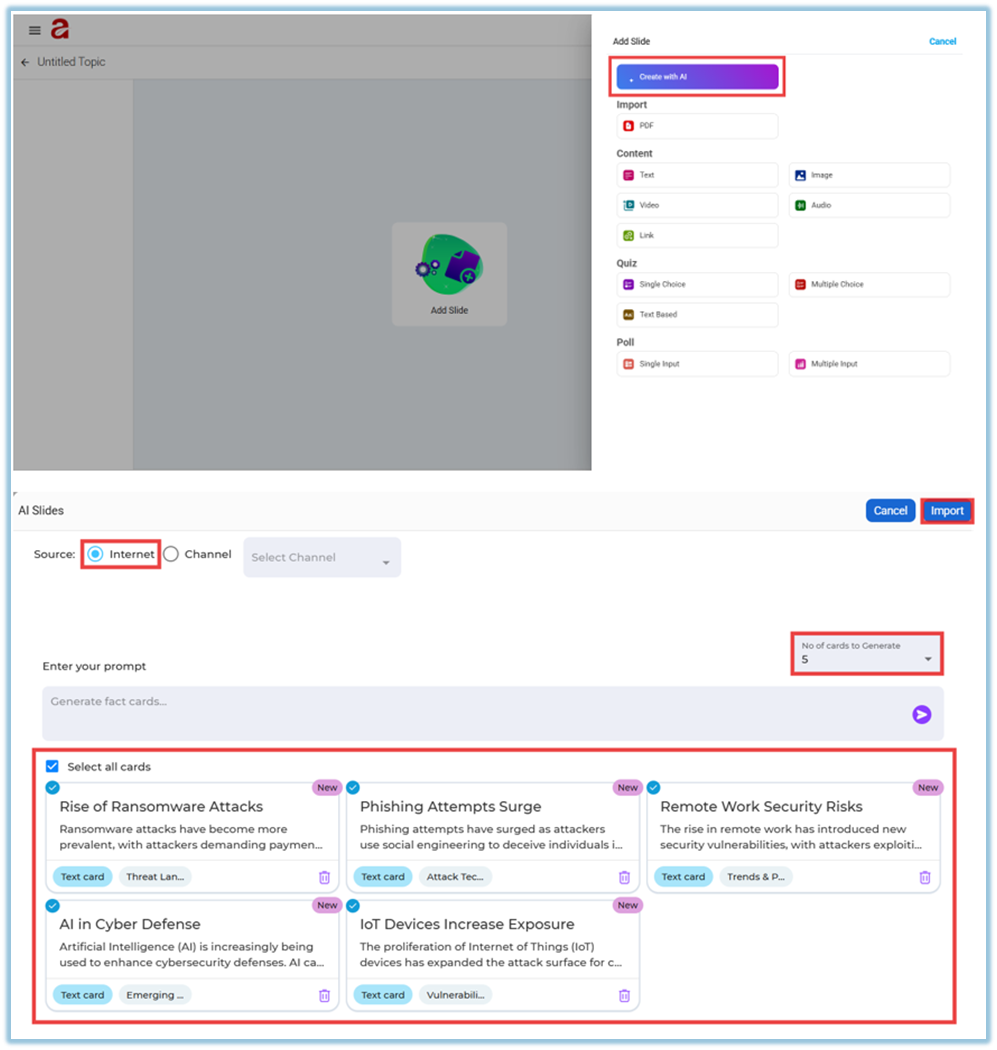
1. Click **Add slide**.
2. Click **Create with AI**.
3. On the **AI Slides** screen, choose the **Source**:
- **Internet**
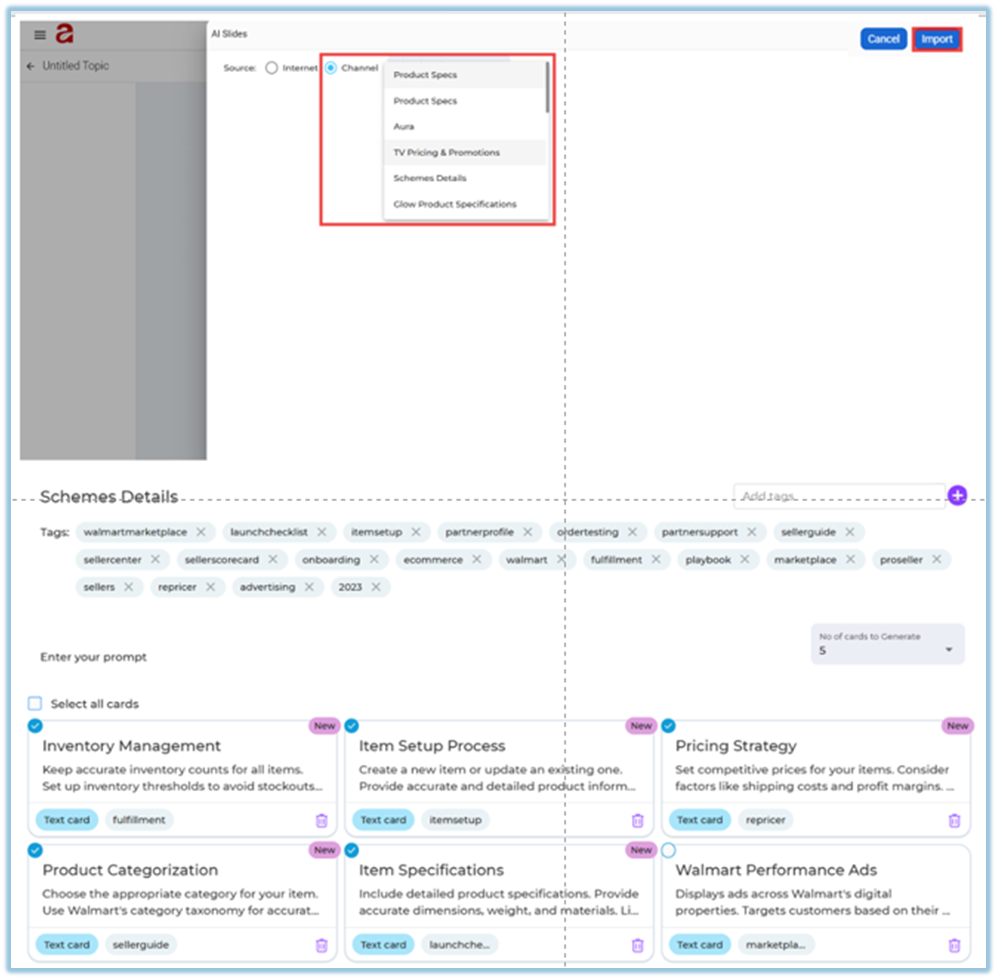
- **Channel**
##### If Source = Internet
4. Enter a **prompt** describing the topic.
5. Select the **number of cards to generate** (up to 5).
6. Click **Generate**.
7. Review the generated cards.
8. Click **Import** to add them to the topic.
##### If Source = Channel
4. Select **Channel**.
5. Choose an existing **Instant Answers channel**.
6. Select **tags** from the uploaded documents.
7. Choose the **number of cards to generate** (up to 5).
8. Click **Generate**.
9. Review and edit the cards if needed.
10. Click **Import**.
##### Step 2: Add Quiz Slides After Flash Cards
1. Click **Add slide → Quiz**.
2. Choose the quiz type:
- **Single Choice**
- **Multiple Choice**
- **Text Based**
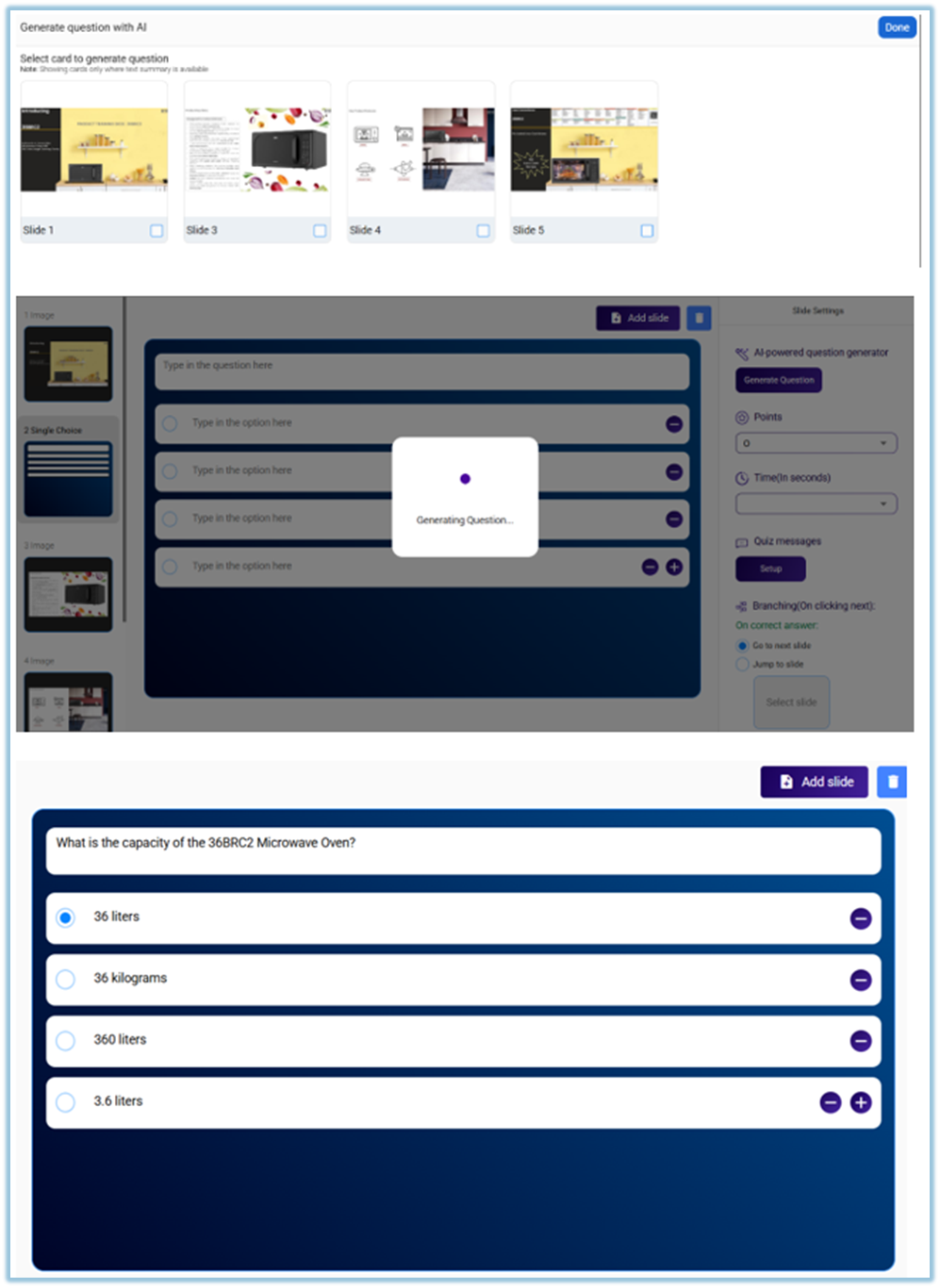
3. Add questions in one of the following ways:
- Type the questions manually, or
- Click **Generate Question** to generate questions using AI
4. When using **Generate Question**:
- Select the slide(s) to generate questions from
- Review the generated questions
##### Step 3: Configure Quiz Settings
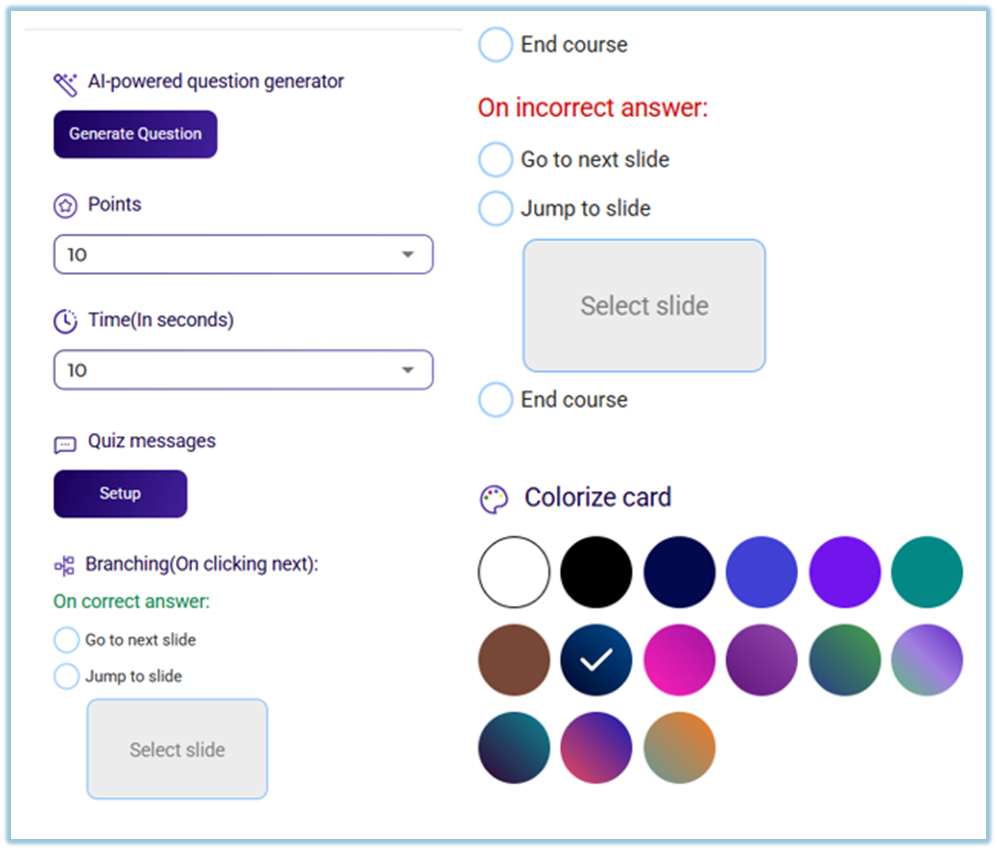
1. Set **Points** for correct answers.
2. Set **Time (in seconds)** for each quiz question.
3. Configure **Quiz Messages**:
- Use default messages, or
- Add custom messages
4. Configure **Branching**:
- On correct answer → Go to next slide / Jump to slide / End course
- On incorrect answer → Go to next slide / Jump to slide / End course
5. Optionally **Colorize the quiz card** for visual clarity.
##### Step 4: Preview and Publish
1. Click **Preview** to review all flash cards and quiz slides.
2. Make edits if required.
3. Click **Publish**.
4. The topic is now available in the **Learnbee Library**.

### **5. User View**
- Learners consume **flash cards one by one** as learning slides.
- Quiz questions appear after the learning cards.
- Learners answer quizzes within the given time.
- Feedback is shown based on quiz configuration.
- Progress moves according to the branching rules set by the admin.
### **6. Best Practices**
- Keep flash cards short and focused on one concept.
- Add quizzes after a set of learning cards for better retention.
- Use Channels when content already exists in Instant Answers.
- Preview content before publishing.
### **7. Related Links / FAQs**
**Q: Can flash cards be created without Channels?**
A: Yes. Flash cards can be generated using the Internet source.
### **8. Version Notes**
**Last updated:** 17 Dec 2025
---