# Learning Pathway
# How do we set up Learning Pathway
### **1. Overview**
A Learning Pathway is a structured learning flow that contains a series of training modules arranged in a specific order. It helps learners follow a clear learning journey and complete training step by step as designed.
Learning Pathways are useful when training needs to be completed in sequence to ensure proper understanding.
### **2. When to Use**
Use Learning Pathways when you want to:
- Combine multiple modules into one structured program
- Guide learners through a defined learning sequence
- Track overall progress across multiple modules
- Assign deadlines and completion timelines
Only **admins** can create, edit, publish, or delete Learning Pathways.
### **3. Concepts**
##### Learning Pathway
A Learning Pathway is a collection of modules arranged in a specific order. Learners complete all modules in the pathway to finish the learning program.
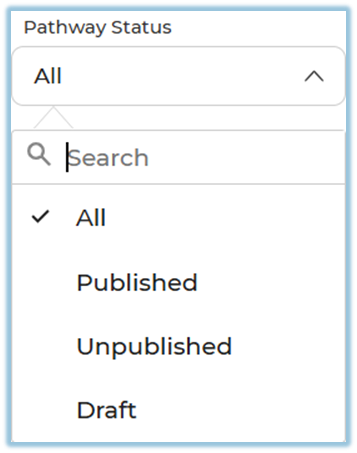
##### Pathway Status
Pathway Status helps you view different Learning Pathways on the list page.
- **All** – Shows all Learning Pathways
- **Published** – Shows only Learning Pathways that are live
- **Unpublished** – Shows Learning Pathways that are not visible to learners
- **Draft** – Shows Learning Pathways that are still being created
##### Search and Arrow (Sort)**Search**
The **Search** option allows users to quickly find a specific Learning Pathway from the list.
- Users can search using the **Learning Pathway name**.
- As text is entered, the list updates to show matching pathways.
**Sort**
The **Sort** is used to reorder Learning Pathways **based on the created date**.
- Learning Pathways can be sorted by when they were created.
- This helps users view the latest or older Learning Pathways easily.

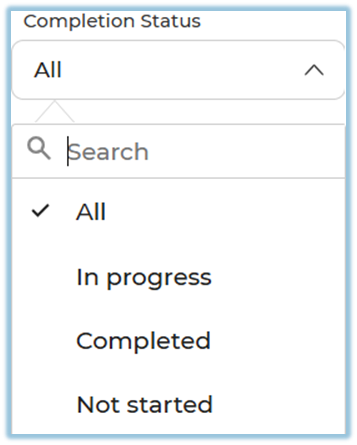
##### Completion Status
Shows learner progress for each Learning Pathway, such as Not Started, In Progress, or Completed.
##### Priority
Priority helps learners understand what the Learning Pathway is about and which pathway they should complete first.
When a priority is selected for a Learning Pathway, it clearly indicates the purpose of the pathway and guides learners to focus on it accordingly.
**Example**:
If a set of modules is selected and the priority is set as **Induction**, learners will understand that this Learning Pathway is part of their induction training and should be completed first.

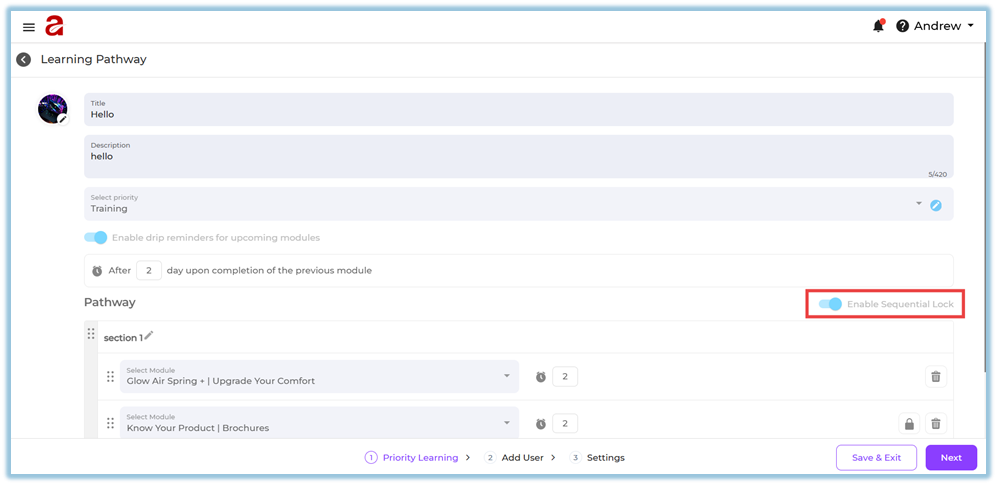
##### Sequential Learning
When enabled, learners must complete modules in the given order. All modules must be completed to finish the Learning Pathway.
##### More Options
Each Learning Pathway has a three-dot menu with management actions:
- **Edit**
- **Unpublish**
- **Report**
- **Delete**
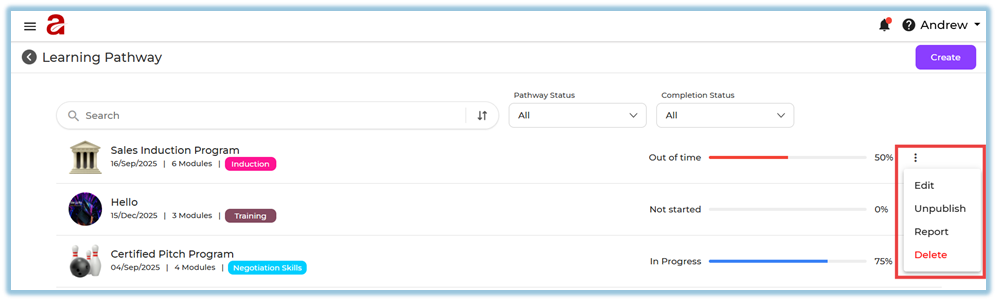
These actions are available only to **admins**.
### **4. Setup Guide**
##### Step 1: Open Learning Pathway
- Go to the left menu
- Click **Learning Pathway**
**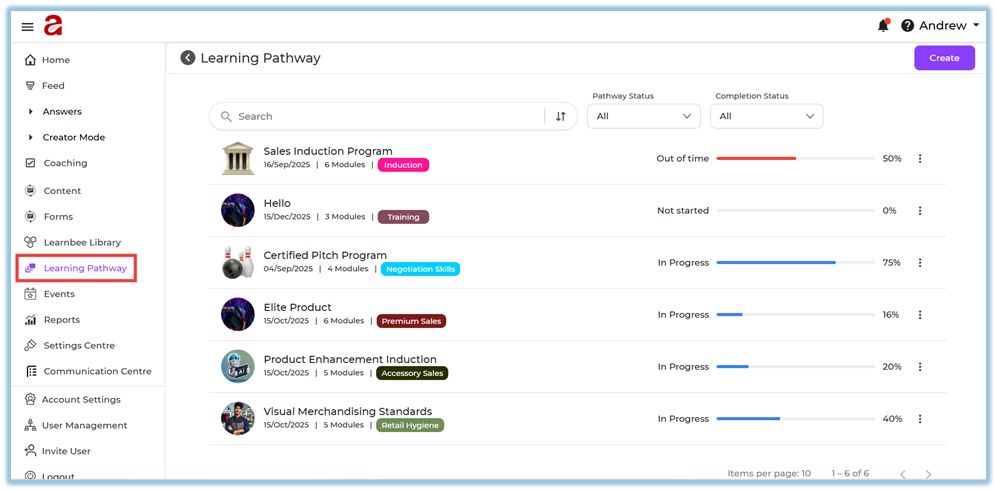**
The Learning Pathway list page opens.
##### Step 2: Create a Learning Pathway
- Click **Create**
**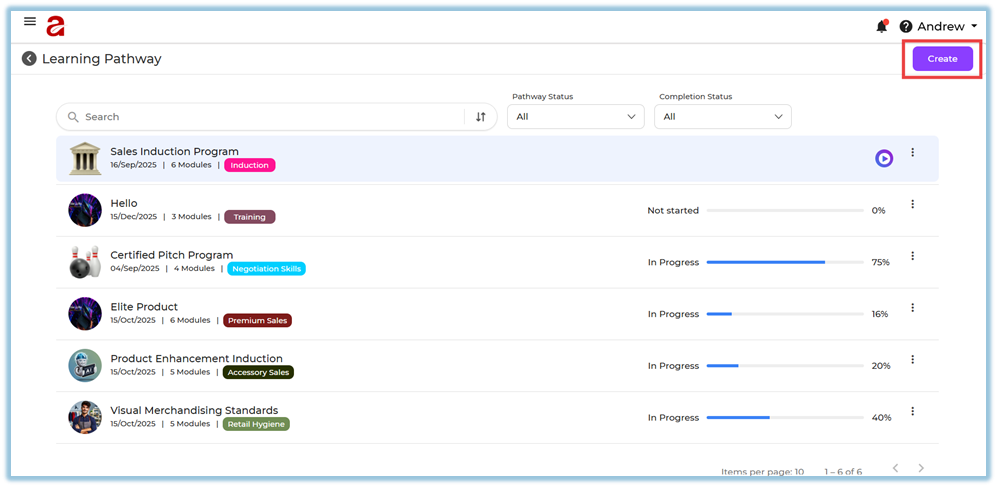**
- Enter pathway name
- Add description (optional)
- Add image

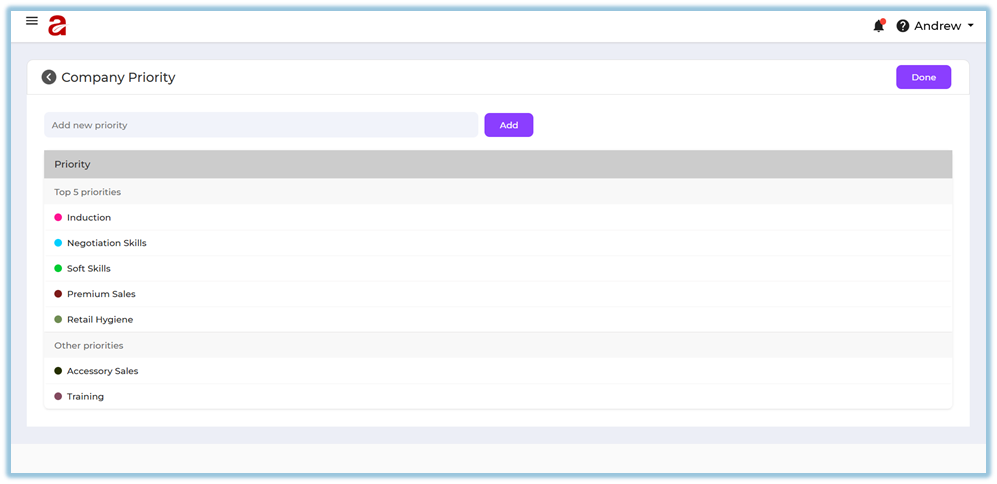
##### Set Priority
- Click on the **pencil icon** next to the Priority section.

- Enter the **priority name** you want to add.
- Click on **Add** to save the priority.
- Click **Done** to finish and apply the changes.
##### Step 3: Add Modules
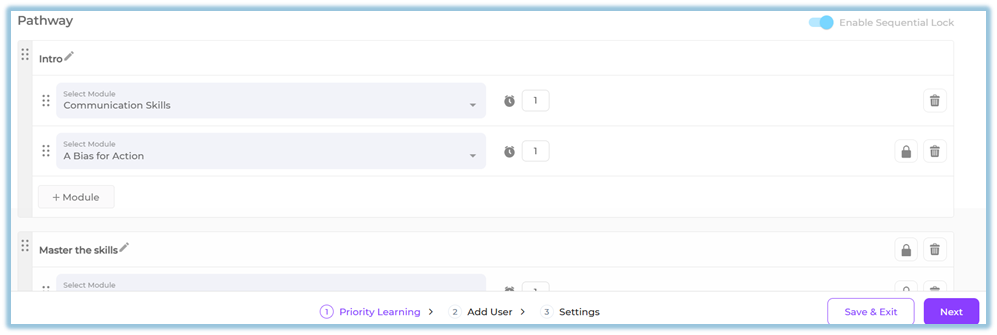
- Select modules from the available list
- Modules already added will not appear again in the selection list
- You can add as many modules as needed
- There is no minimum or maximum limit for modules
- You can reorder both modules and sections as needed.
##### Step 4: Enable Sequential Learning
- Enable if learners must complete modules in order
- Learners cannot skip modules
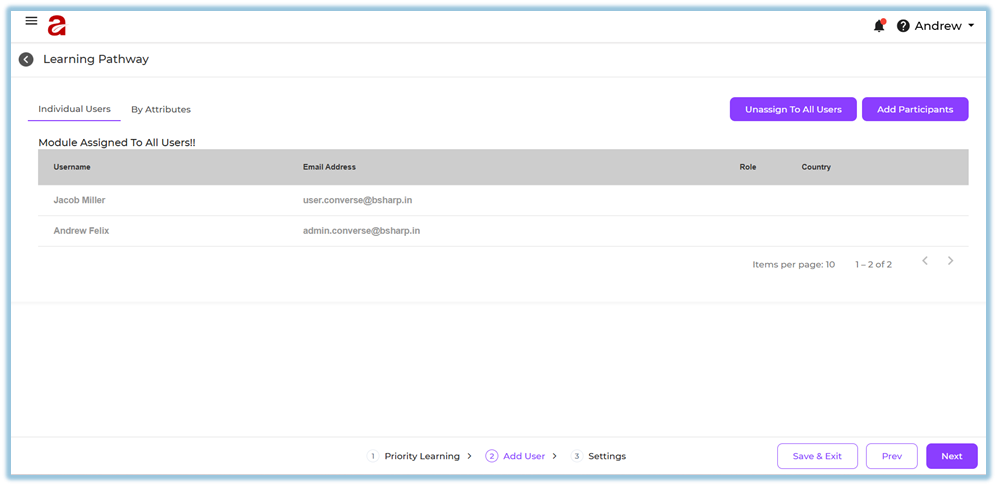
##### Step 5: Assign Learners
- Assign to all users
- Or assign specific users
- Or assign using attributes
##### Step 6: Settings
##### Pathway Deadline
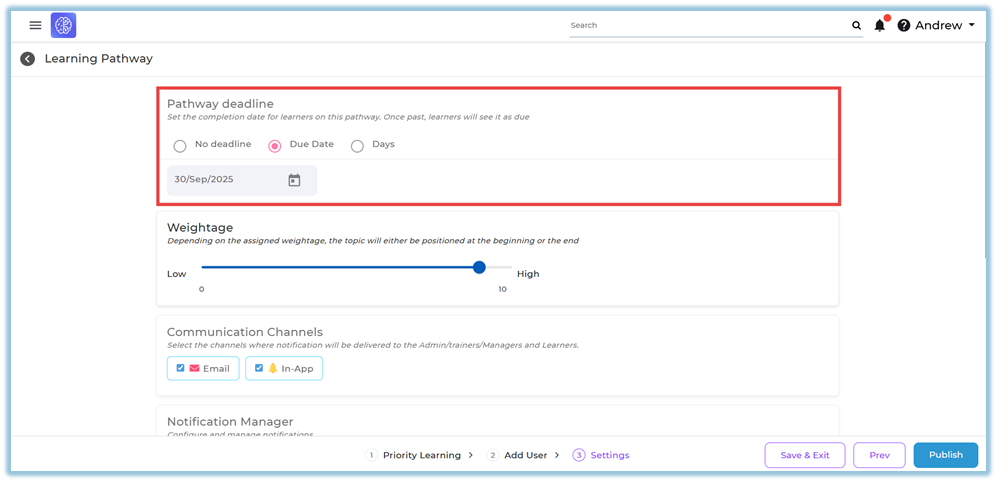
- **No Deadline** – Learners can complete the pathway anytime
- **Due Date** – Set a specific date to complete the pathway
- **Days** – Set the number of days from the learner’s start date
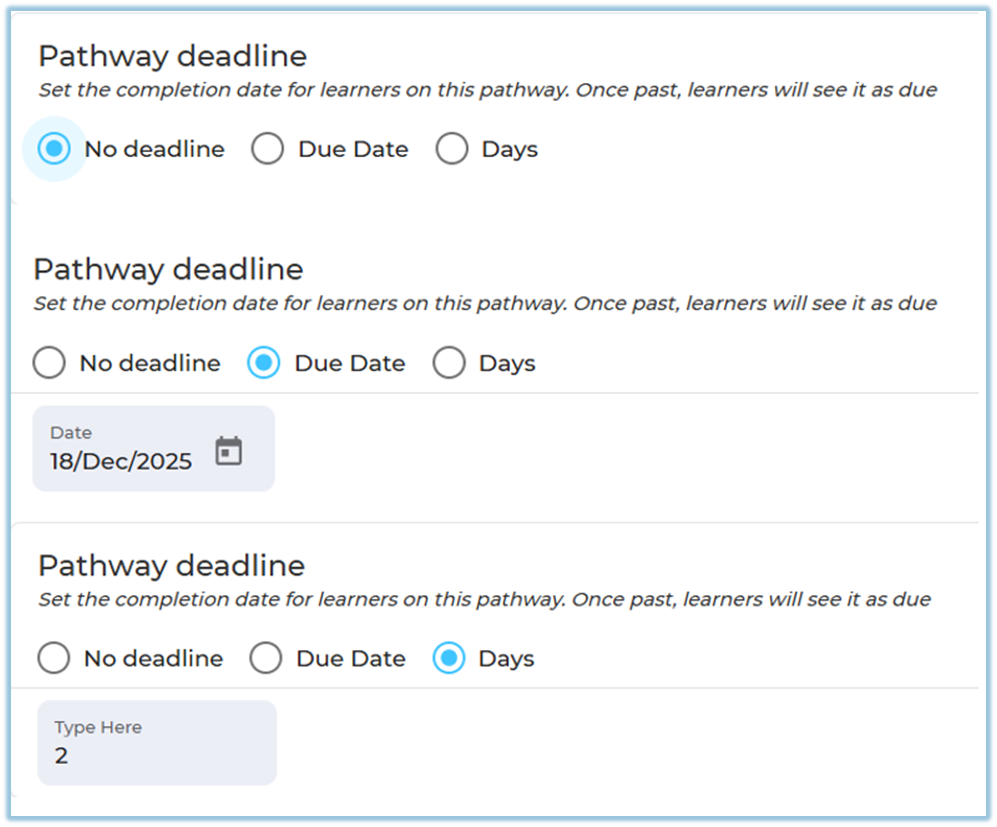
If a learner joins later, the number of days applies from their joining date.
##### Weightage
- Assign weightage to the Learning Pathway
- Based on weightage, the pathway position changes on the list page

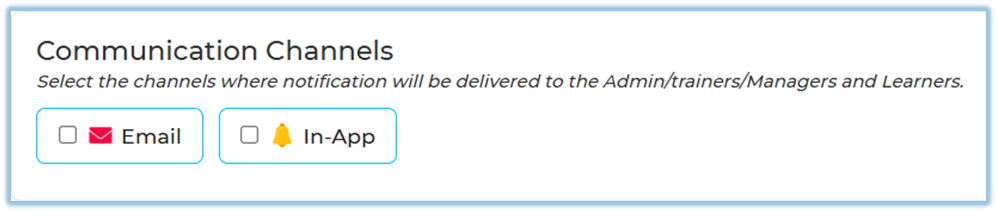
##### Communication Channels
Choose how notifications are sent:
- Email
- In-App Notification
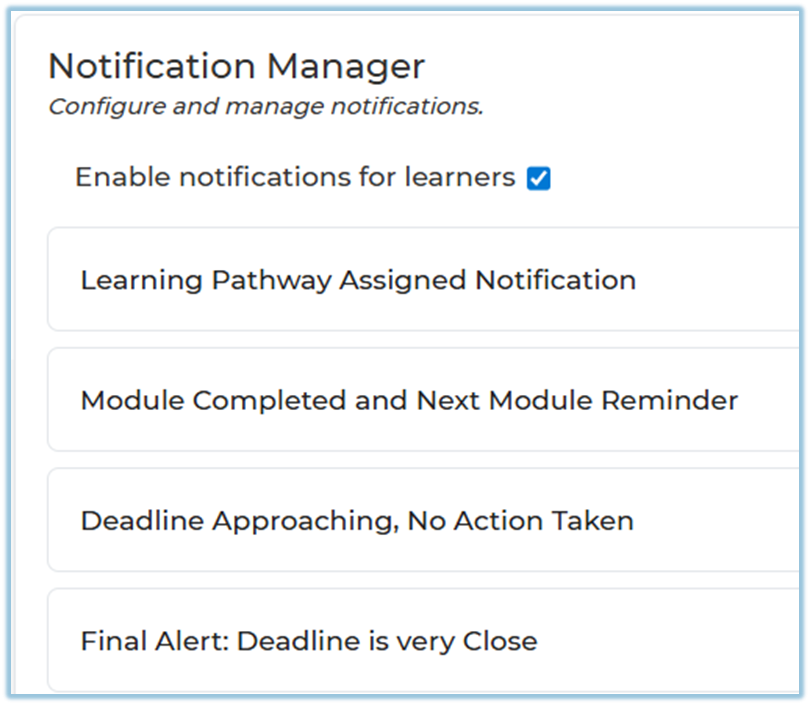
##### Notification Manager
When notifications are enabled, learners receive:
- Learning Pathway assigned notification
- Module completed and next module reminder
- Deadline approaching, no action taken
- Final alert when the deadline is very close
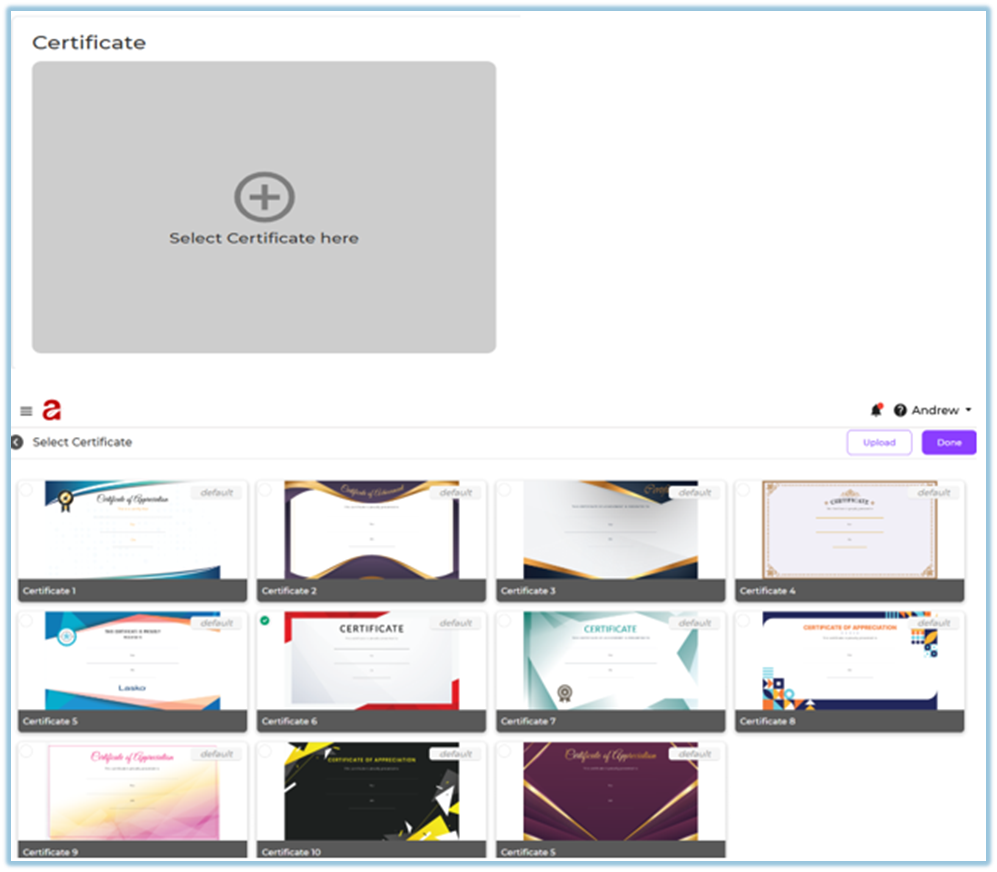
##### Certificate
- You can attach a certificate to the Learning Pathway
- Learners receive the certificate after completing all modules
### **5. User View**
Learners can see Learning Pathways:
- On the **Home page**
- In the **left-side menu** under Learning Pathway
Learners can:
- View pathway details
- See total modules
- Track progress
- Resume from last completed module
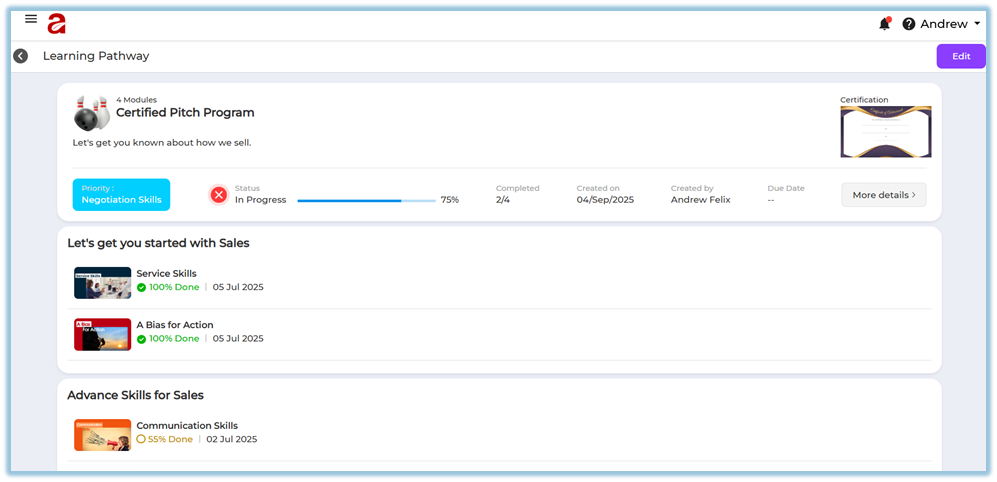
They must complete **all modules** to finish the pathway.
### **6. Reporting**
- Reports show completion status for each Learning Pathway
- Individual pathway reports can be accessed from the list page
- Reports include module-level completion details
### **7. Best Practices**
- Keep modules logically ordered
- Use clear module titles
- Set realistic deadlines
- Enable sequential learning when order matters
- Review the pathway before publishing
### **8. Troubleshooting & FAQs**
**Q: Who can create Learning Pathways?**
Only authorized users can create Learning Pathways.
**Q: Can learners skip modules?**
If sequential learning is enabled, learners must complete all modules to complete the Learning Pathway.
**Q: Is there a limit on the number of modules?**
No, there is no limit.
**Q: What happens if a pathway is unpublished?**
Learners will not be able to see unpublished Learning Pathways.
### **9. Version Notes**
Last Updated: 15 Dec 2025
# Learning Pathway Reports
### **Reporting**
Learning Pathway reports are available once learning pathways are assigned and users start progressing through them.
Reports can be accessed from the [**Reports**](https://converse.bsharpcorp.com/celebrate/user-report-page) section and provide visibility into pathway enrollment, progress, and completion status.
Based on access, the **Company** tab is available for admins, while the **Team** tab is available for managers, trainers, and mentors under [**Learning Pathway Report**.](https://help.bsharpcorp.com/books/reports/page/learning-of-the-day-report)
# How to Set a Learning Pathway as Mandatory
### **1. Overview**
The Mandatory Learning Pathway feature controls user access based on pathway completion. When a pathway is marked as Mandatory and a deadline is configured, users are required to complete it within the given timeline. If not completed, the system restricts access until the pathway is finished.
### **2. When to Use**
- When training must be completed before users continue using the platform
- When strict enforcement is required after a deadline
- When compliance or critical learning cannot be skipped
- When access restriction is needed for incomplete learning
### **3. Concepts**
- Mandatory Learning Pathway
- Pathway Deadline (Due Date / Days)
- Deadline-Based Enforcement
- Mandatory Pop-up
- Platform Access Restriction
- Task Visibility
### **4. Set Up Guide**
1. Go to the home screen
2. Click the **menu button**
3. Click **Learning Pathway**
4. Click **Create** (top right corner)
5. Enter **Title**
6. Enter **Description**
7. Add **Image**
8. Set **Priority**
9. Locate the **Pathway Importance** section
10. By default, it is set to **Normal
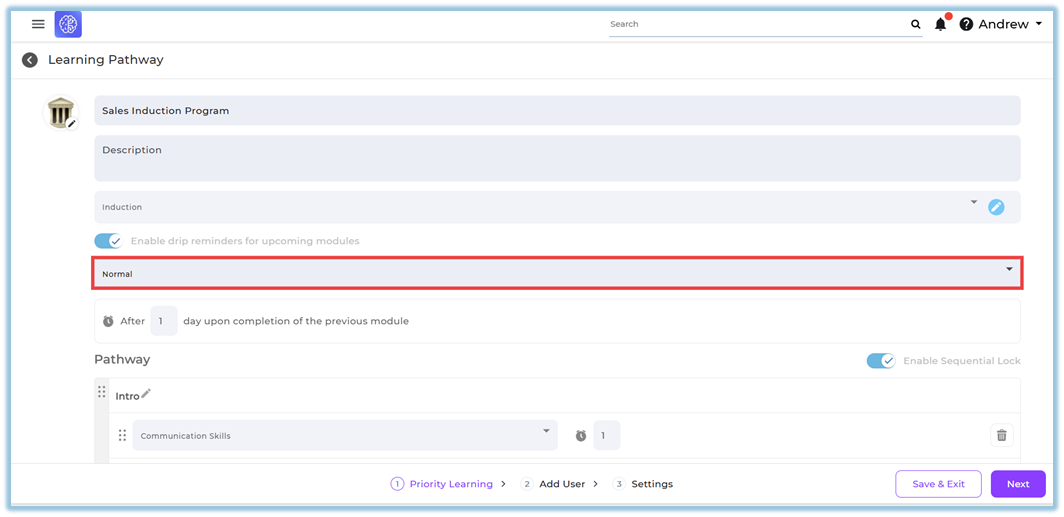**
11. Click the **dropdown (arrow)** next to *Normal*
12. Select **Mandatory
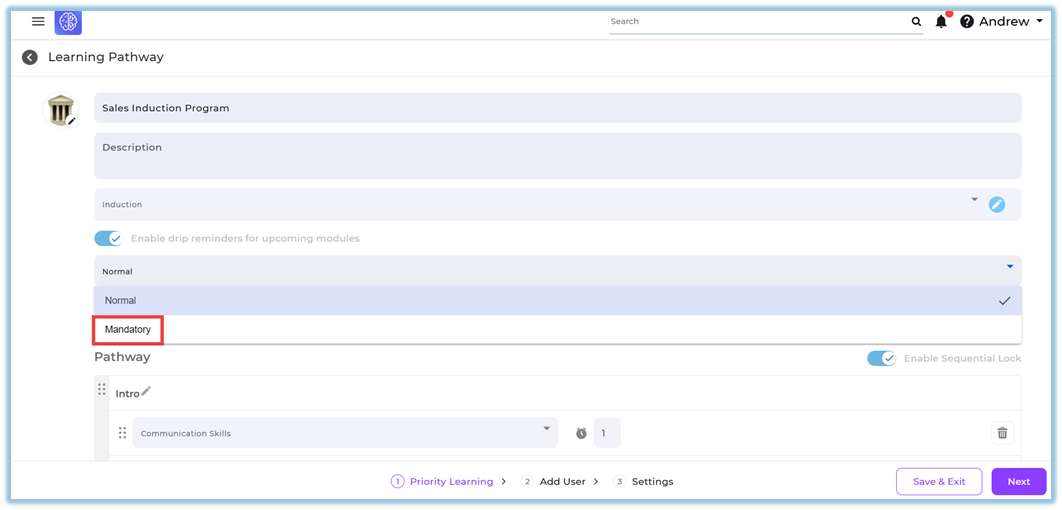**
👉 Once **Mandatory** is selected:
- The pathway becomes a **mandatory learning pathway**
- Mandatory restrictions will be applied to users
13. Add **Section Name**
14. Add **Modules** to the section
15. Enable **Sequential Learning** if required
16. Click **Next**
17. Add users (All users / specific users / attributes)
18. Go to **Settings**
19. Set **Pathway Deadline** *(Mandatory step)*:
- Select **Due Date**
- OR Select **Days
**
👉 Note:
- Setting a deadline is **compulsory when Mandatory is selected**
- Without deadline, mandatory enforcement will not work
20. Configure **Communication Channels**
21. Configure **Notification Manager**
22. Click **Publish**
### **5. User View**
- Before the deadline:
- The pathway appears like a normal learning pathway
- Users can access other features in the platform
- On the due date:
- No restriction is applied
- Users can still access the platform normally
- After the due date (next day onwards):
- A **mandatory pathway pop-up** appears
- The system highlights that the pathway must be completed
- When mandatory access starts:
- Users cannot access any other feature on the platform
- Only the mandatory pathway screen is accessible
- The rest of the platform remains locked
- After completion:
- Full platform access is restored
- Users can continue using other features
### **6. Reporting**
- Mandatory pathways can be tracked using **Pathway Master Report**
- Select **Date Range**
- Use **Pathway Type** filter
- Normal Pathway
- Mandatory Pathway
- When **Mandatory Pathway** is selected:
- Shows only mandatory pathway data
- Includes:
- Last 10 Pathway Completion Status
- Top 5 Priority Completion
- Available for:
- **Admin View**
- **Team View** (Trainers, Coaches, Managers only)
### **7. Best Practices**
- Set clear and realistic deadlines
- Inform users before the due date to avoid sudden restriction
- Use mandatory pathways only for critical learning
- Monitor completion before enforcement starts
### **8. Related Links / FAQs**
**Q: When does the mandatory pop-up appear?**
It appears after the due date, starting from the next day.
**Q: Can users access the platform after the due date without completing the pathway?**
No, access is restricted until the pathway is completed.
**Q: What happens after completing the mandatory pathway?**
Full access to the platform is restored.
### **9. Version Notes**
Last Updated: 24 March 2026