# How to Set a Learning Pathway as Mandatory
### **1. Overview**
The Mandatory Learning Pathway feature controls user access based on pathway completion. When a pathway is marked as Mandatory and a deadline is configured, users are required to complete it within the given timeline. If not completed, the system restricts access until the pathway is finished.
### **2. When to Use**
- When training must be completed before users continue using the platform
- When strict enforcement is required after a deadline
- When compliance or critical learning cannot be skipped
- When access restriction is needed for incomplete learning
### **3. Concepts**
- Mandatory Learning Pathway
- Pathway Deadline (Due Date / Days)
- Deadline-Based Enforcement
- Mandatory Pop-up
- Platform Access Restriction
- Task Visibility
### **4. Set Up Guide**
1. Go to the home screen
2. Click the **menu button**
3. Click **Learning Pathway**
4. Click **Create** (top right corner)
5. Enter **Title**
6. Enter **Description**
7. Add **Image**
8. Set **Priority**
9. Locate the **Pathway Importance** section
10. By default, it is set to **Normal
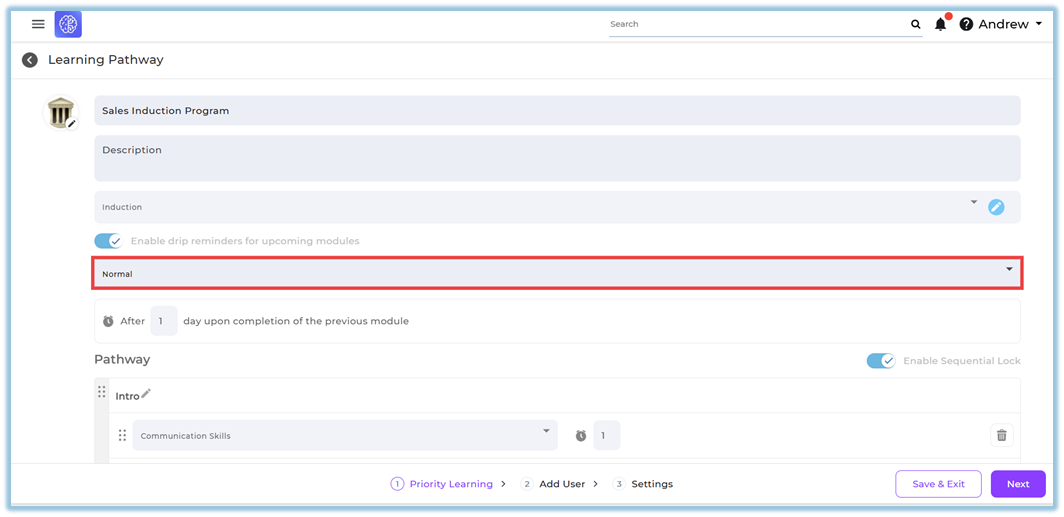**
11. Click the **dropdown (arrow)** next to *Normal*
12. Select **Mandatory
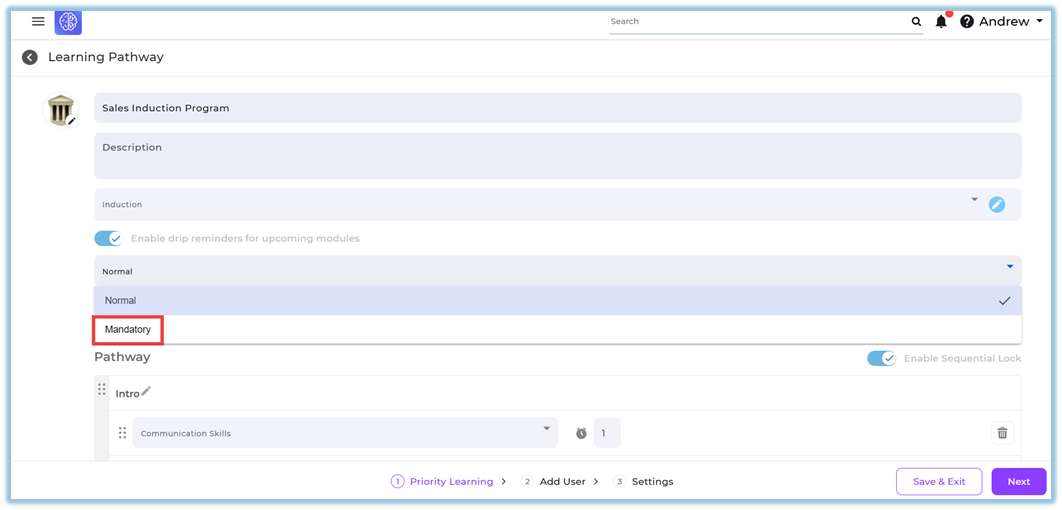**
👉 Once **Mandatory** is selected:
- The pathway becomes a **mandatory learning pathway**
- Mandatory restrictions will be applied to users
13. Add **Section Name**
14. Add **Modules** to the section
15. Enable **Sequential Learning** if required
16. Click **Next**
17. Add users (All users / specific users / attributes)
18. Go to **Settings**
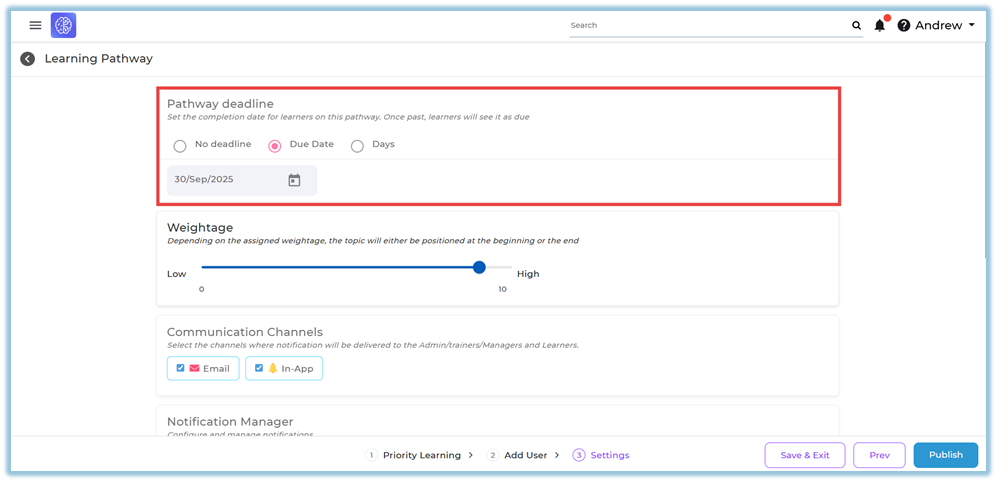
19. Set **Pathway Deadline** *(Mandatory step)*:
- Select **Due Date**
- OR Select **Days
**
👉 Note:
- Setting a deadline is **compulsory when Mandatory is selected**
- Without deadline, mandatory enforcement will not work
20. Configure **Communication Channels**
21. Configure **Notification Manager**
22. Click **Publish**
### **5. User View**
- Before the deadline:
- The pathway appears like a normal learning pathway
- Users can access other features in the platform
- On the due date:
- No restriction is applied
- Users can still access the platform normally
- After the due date (next day onwards):
- A **mandatory pathway pop-up** appears
- The system highlights that the pathway must be completed
- When mandatory access starts:
- Users cannot access any other feature on the platform
- Only the mandatory pathway screen is accessible
- The rest of the platform remains locked
- After completion:
- Full platform access is restored
- Users can continue using other features
### **6. Reporting**
- Mandatory pathways can be tracked using **Pathway Master Report**
- Select **Date Range**
- Use **Pathway Type** filter
- Normal Pathway
- Mandatory Pathway
- When **Mandatory Pathway** is selected:
- Shows only mandatory pathway data
- Includes:
- Last 10 Pathway Completion Status
- Top 5 Priority Completion
- Available for:
- **Admin View**
- **Team View** (Trainers, Coaches, Managers only)
### **7. Best Practices**
- Set clear and realistic deadlines
- Inform users before the due date to avoid sudden restriction
- Use mandatory pathways only for critical learning
- Monitor completion before enforcement starts
### **8. Related Links / FAQs**
**Q: When does the mandatory pop-up appear?**
It appears after the due date, starting from the next day.
**Q: Can users access the platform after the due date without completing the pathway?**
No, access is restricted until the pathway is completed.
**Q: What happens after completing the mandatory pathway?**
Full access to the platform is restored.
### **9. Version Notes**
Last Updated: 24 March 2026