# Mentor
### **1. Overview**
Mentoring in Bsharp Converse allows users to create, assign, and track mentoring tasks to help individuals or teams learn new skills or improve existing ones. Mentors can assign tasks, monitor progress, add feedback, and manage mentoring sessions using categories, skills, sub-skills, due dates, and AI Copilot support.
### **2. When to Use**
- When you want to guide team members in learning a new skill or improving an existing skill.
- When mentors need to assign structured tasks with timelines and tracking.
- When managers or trainers want visibility into mentoring progress and outcomes.
- When mentoring sessions need to be reused using templates.
### **3. Concepts**
- **Mentor** – The user who creates and assigns mentoring tasks.
- **Assignee** – The user who receives and completes the mentoring task.
- **Observer** – A user added to monitor the mentoring task without performing it.
- **Tasks** – Action items created as part of a mentoring session.
- **Sub Tasks** – Smaller steps added under a task.
- **Categories** – High-level classification of the mentoring topic.
- **Skills and Sub-Skills** – Skill mapping used to track learning focus.
- **Session Status** – The current state of a mentoring task (Unread, In Progress, Completed, Dropped, Overdue).
- **Templates** – Saved mentoring sessions that can be reused.
### **4. Set Up Guide**
##### Navigation
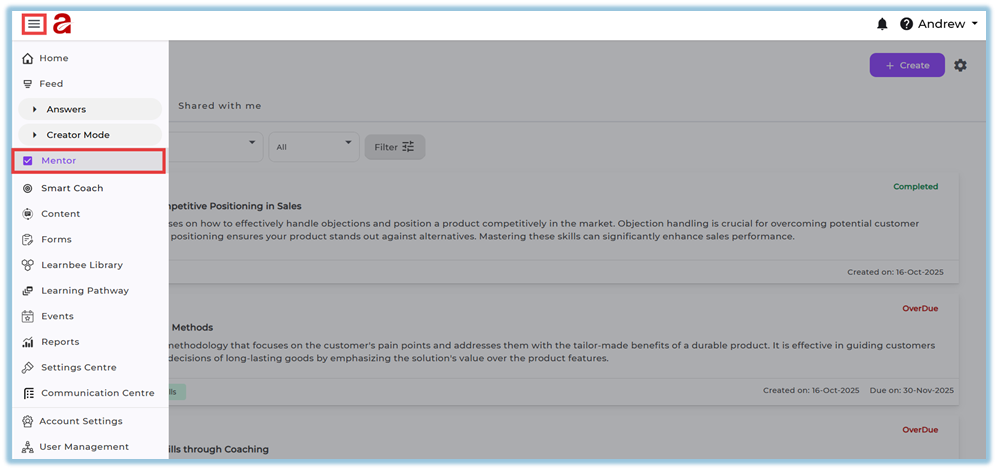
1. Click the **menu bar** on the left side.
2. Select **Mentor** from the menu.
[https://converse.bsharpcorp.com/celebrate/feedbacks/list](https://converse.bsharpcorp.com/celebrate/feedbacks/list)
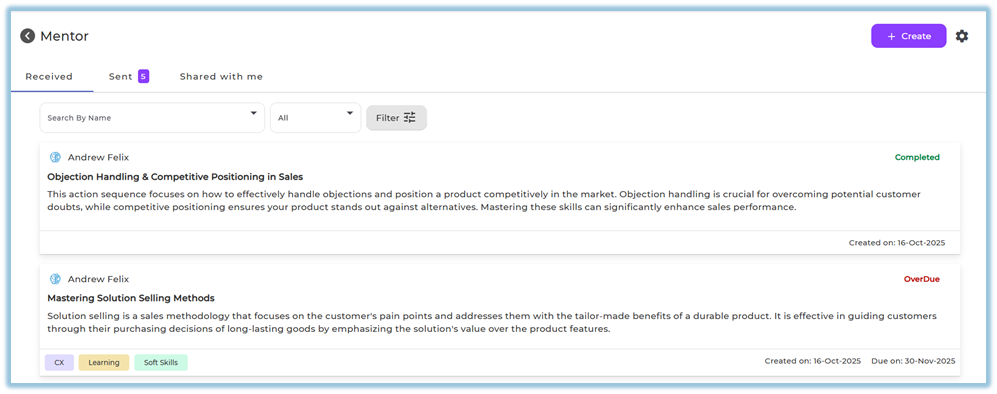
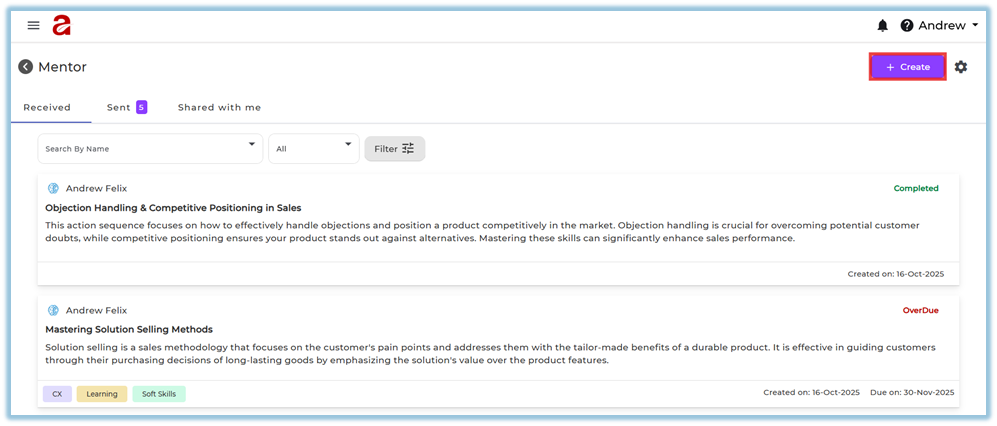
3. The Mentor page opens with three tabs:
- **Received** – Displays mentoring tasks assigned to you for completion.
- **Sent** – Displays mentoring tasks you have assigned to others.
- **Shared with me** – Displays mentoring tasks where you are added as an observer for visibility.
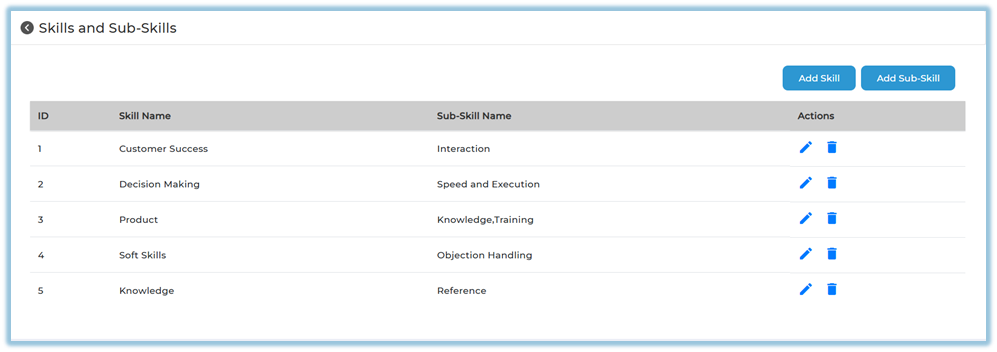
##### Create Categories, Skills, and Sub-Skills (Optional Setup)
4. Click the **settings icon** on the top-right of the Mentor page.
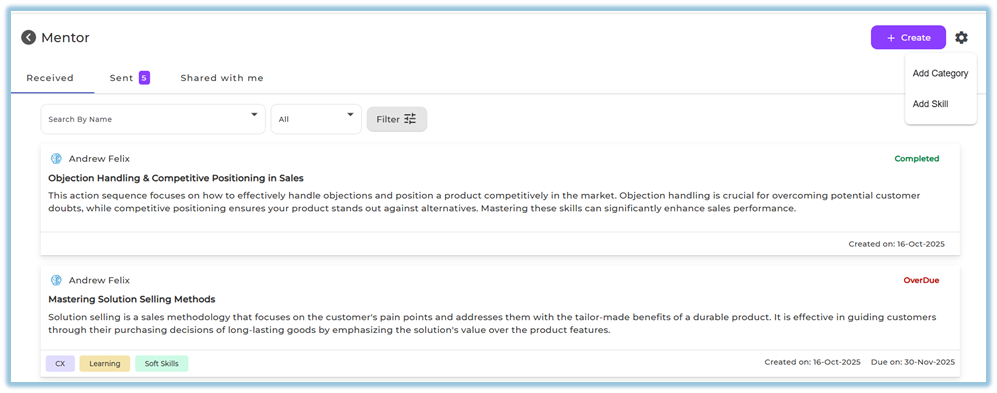
5. Click **Add Category** to create mentoring categories.
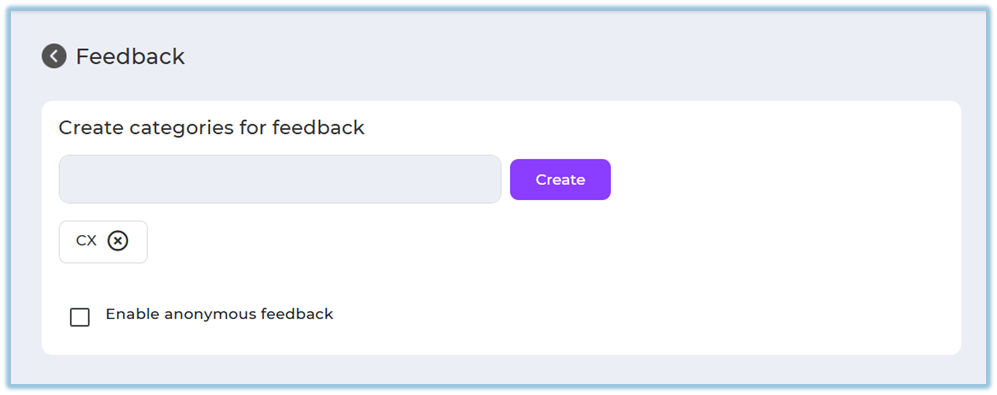
6. Click **Add Skill** to create skills.
7. Add **Sub-Skills** under the selected skill as required.
##### Create a Mentoring Session
8. Click **+ Create** on the Mentor page.
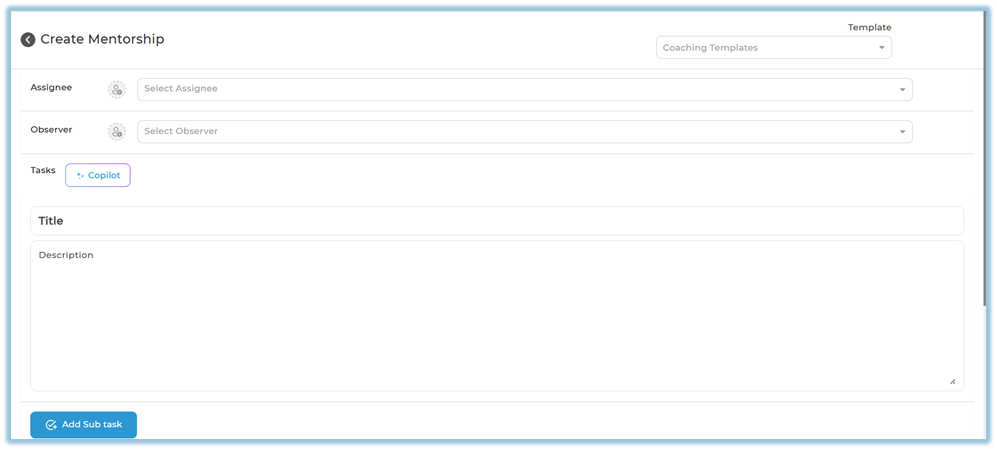
9. The **Create Mentorship** page opens.
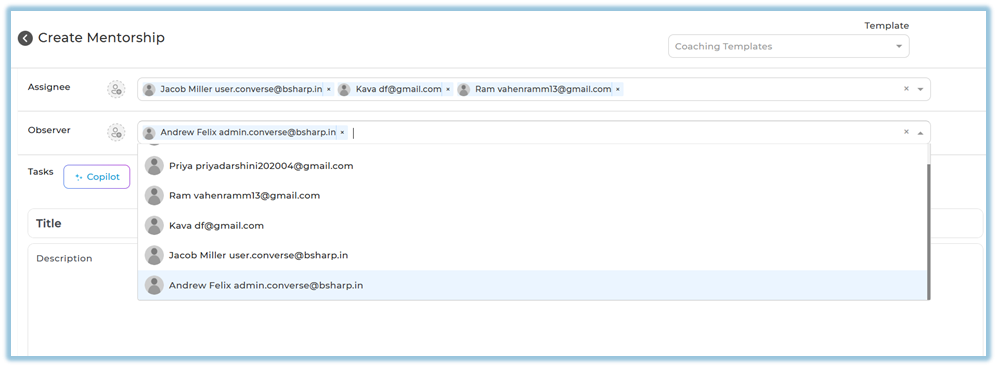
##### Assign Users
10. Select **Assignee** to choose one or more users who will receive the task.
11. Select **Observer** to add users who should monitor the task.
##### Add Tasks
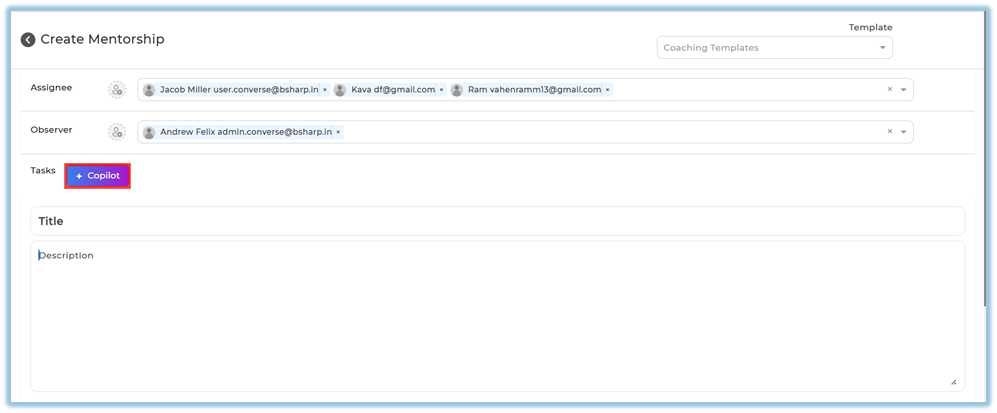
12. Enter the **Title** and **Description** manually
**or**
13. Click **Copilot** under **Tasks**.
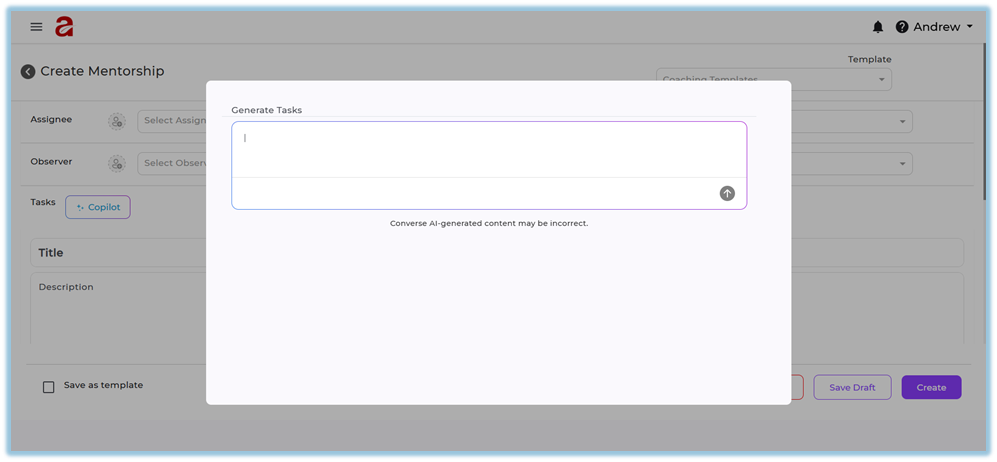
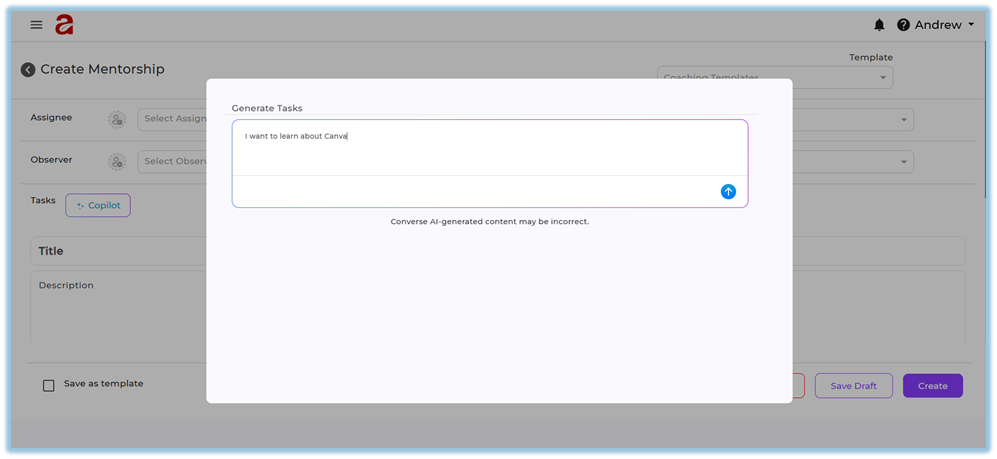
14. Enter a topic (for example: *I want to learn about Canva*).
15. Click the **arrow icon** to generate tasks.
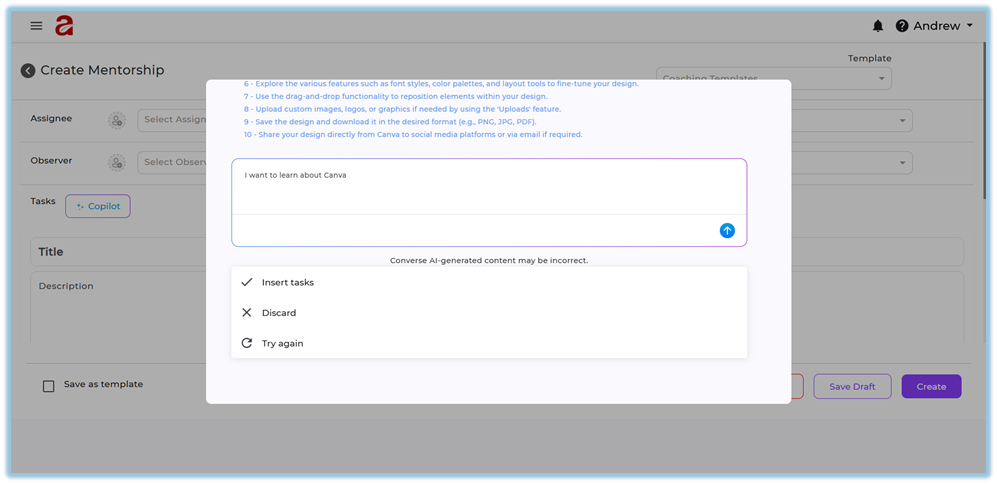
16. After tasks are generated, choose one of the following options:
a. **Insert tasks** – Adds the generated tasks to the mentorship.
b. **Discard** – Removes the generated tasks.
c. **Try again** – Regenerates tasks for the same topic.
##### Manage Tasks
17. Edit generated tasks if required.
18. Add tasks manually if needed.
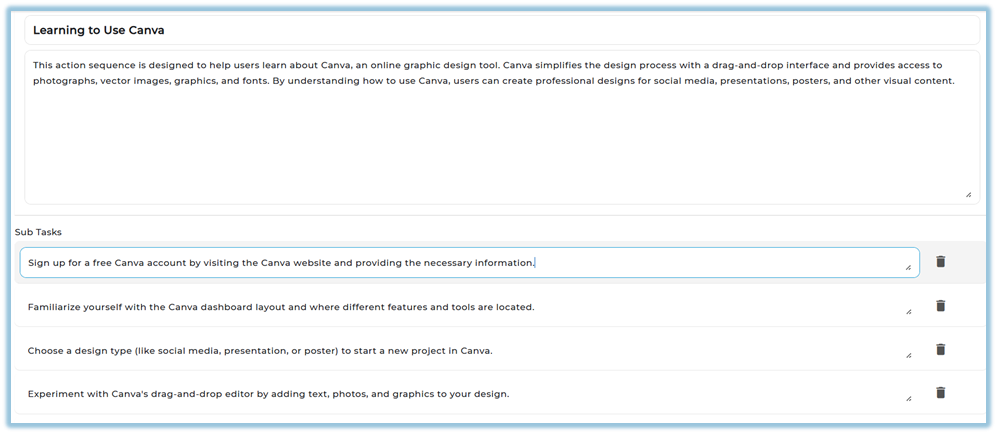
19. Add **Sub Tasks** using **Add Sub task**.
20. Delete tasks or sub-tasks if required.

##### Add Classification and Due Date
21. Select **Category**.
22. Select **Skill** and **Sub Skill**.
23. Select **Company Value**.
24. Set the **Due Date**.

##### Save or Create
25. Choose one of the following options:
- **Cancel** – Discards the session.
- **Save Draft** – Saves the session to complete later.
- **Create** – Creates and assigns the mentoring task.
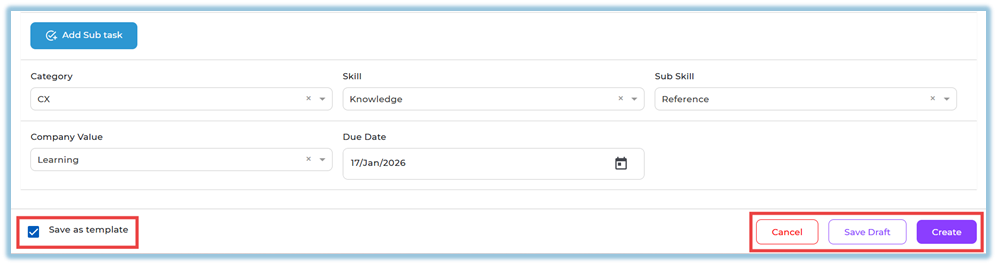
26. Enable **Save as template** if the session should be reused.
### **5. User View**
- Assigned users see the mentoring task under the **Received** tab.
- Mentors see created tasks under the **Sent** tab.
- Observers see tasks under **Shared with me**.
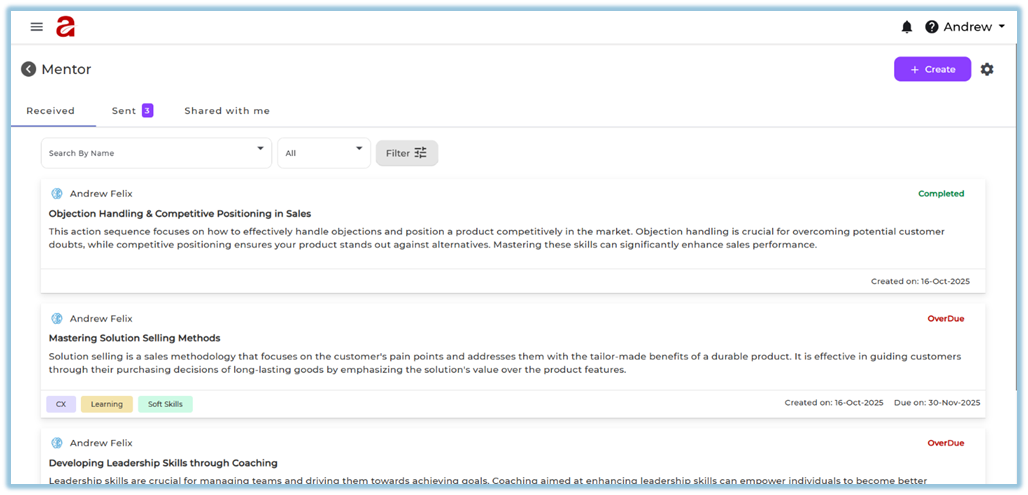
- Task cards display title, description, tags, created date, due date, and status.
### **6. Reporting**
Mentoring progress is visible directly within the Mentor module using session status and filters. Mentors can track task states such as **Unread**, **In Progress**, **Completed**, **Dropped**, and **Overdue** from the Sent tab.
### **7. Best Practices**
- Use clear titles and descriptions for mentoring tasks.
- Assign realistic due dates.
- Use templates for repeated mentoring scenarios.
- Map tasks to skills and sub-skills for better tracking.
- Review overdue and dropped sessions regularly.
### **8. Related Links / FAQs**
**Q: What happens when a task is marked as Skill Acquired?**
A: The mentoring session is considered completed.
**Q: What does Dropped mean?**
A: The mentor has ended the mentoring session.
### **9. Version Notes**
Last Updated: 16 Jan 2026