# Form Responses Report
### **1. Overview**
Form Reports in Bsharp Converse allow administrators and authorized users to view, analyze, and download responses submitted for published forms. Reports provide visibility into user participation, submission trends, question-level responses, and media collected through forms.
### **2. When to Use**
Use this when:
- You want to view responses submitted for a published form.
- You need to analyze form data by date range, user, or attributes.
- You want to download responses or media collected through a form.
- You need to monitor form usage at company or team level.
### **3. Concepts**
- **Form Reports** – The reporting view that displays response data for a selected form.
- **Company Tab** – Shows reports across the organization and is accessible to administrators.
- **Team Tab** – Shows reports for assigned teams and is accessible to users with team-level permissions.
- **Filters** – Options used to narrow report data by time range, user, or attributes.
- **Question-level Data** – Response data displayed for individual questions within a form.
### **4. Set Up Guide**
1. Open the **Forms** section.
2. Select a **published form** from the form list.
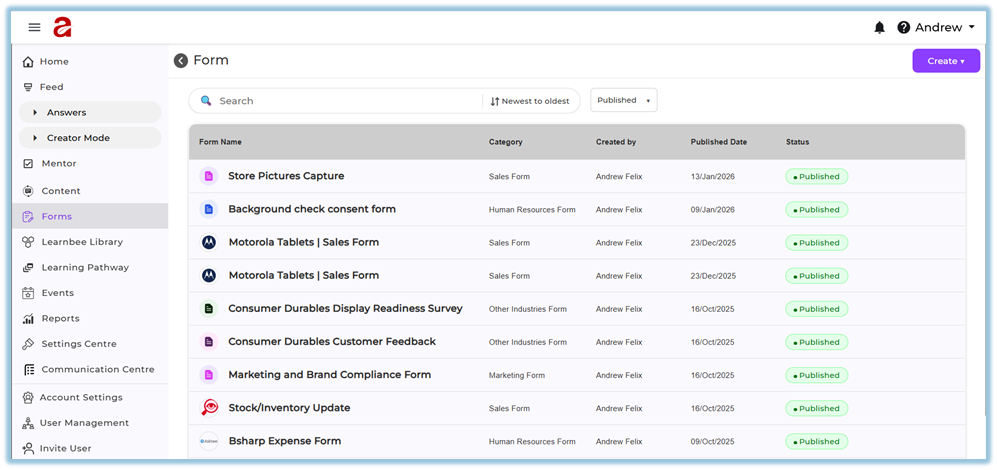
3. Navigate to the **Manage** page of the form.
4. Click **Reports**.

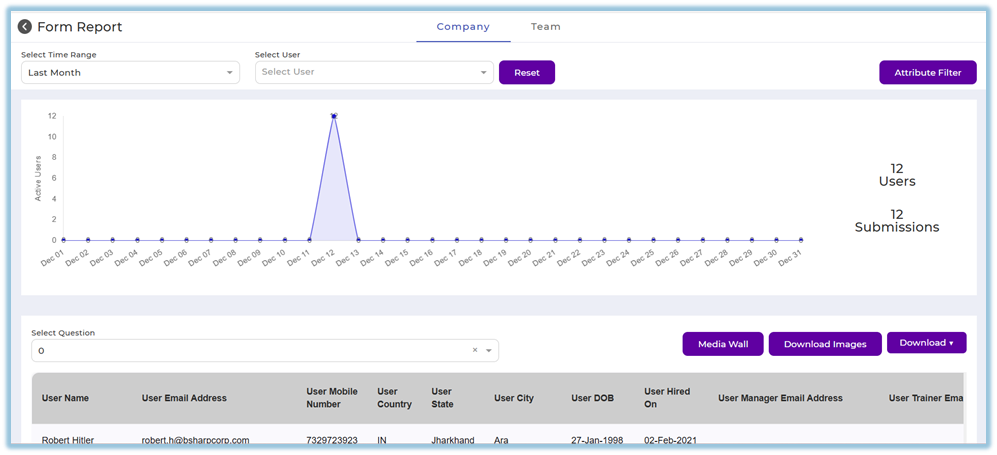
5. The **Form Report** page opens.
##### **Filter report data**
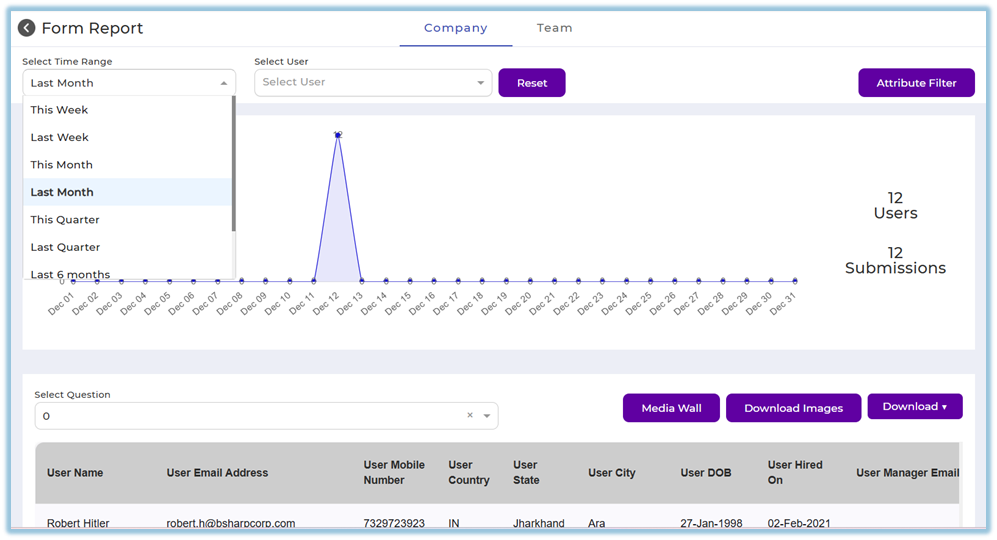
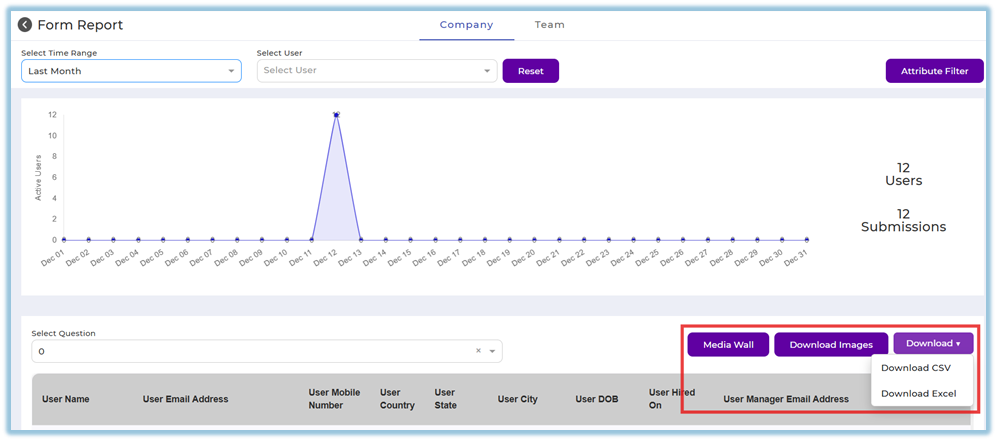
6. Select a **Time Range** to filter responses.
7. Select a **User** to view responses for a specific user.
8. Click **Reset** to clear applied filters.
9. Use **Attribute Filter** to filter responses based on assigned attributes.
##### **View report data**
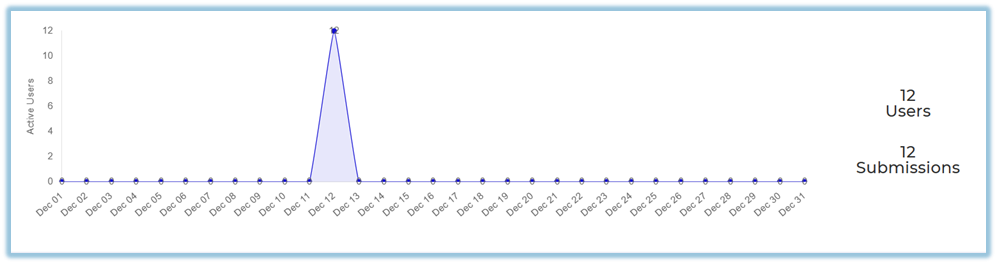
10. View submission trends displayed in the report graph.
11. Review **Active Users** and **Submissions** count.
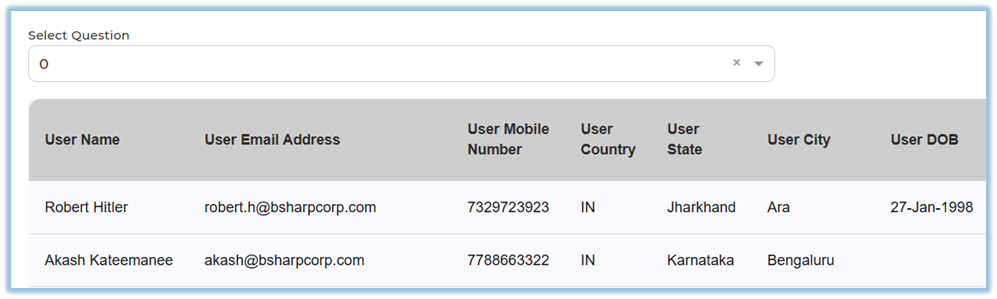
12. Select a **Question** to view question-specific response data.
##### **Download report data**
13. Use **Media Wall** to view image-based responses.
14. Click **Download Images** to download uploaded images.
15. Use **Download** to export responses in available formats such as CSV or Excel.
### **5. User View**
Form Reports are visible only to users with appropriate access. Administrators can view reports across the company, while team-level users can view reports limited to their assigned teams.
### **6. Reporting**
- Reports are available only after a form is published.
- **Company tab** is accessible to administrators.
- **Team tab** is accessible to users with team-level roles such as managers or trainers.
- Reports reflect real-time data as users submit responses.
### **7. Best Practices**
- Apply filters to narrow down large data sets.
- Use question-level filtering to analyze specific responses.
- Download data periodically for offline analysis.
- Use Media Wall for reviewing image-based submissions.
- Ensure users are assigned before expecting report data.
### **8. Version Notes**
Last Updated: 14 Jan 2026