# Learning of the Day Report
### **1. Overview**
The Learning of the Day Report provides visibility into daily learning participation, knowledge gaps, and knowledge mastery for Learning of the Day topics, with insights available at company, team, and user levels based on access.
### **2. When to Use**
- When you want to understand how users are engaging with Learning of the Day topics.
- When you need to identify knowledge gaps and areas of mastery across learners.
- When managers, trainers, or mentors need visibility into their team’s daily learning trends.
- When individual users want to review their own learning gaps and mastery areas.
### **3. Concepts**
- **Time Range Filter:** Controls the period for which Learning of the Day data is displayed.
- **Topic Selection:** Filters the report by a specific Learning of the Day topic.
- **User Selection:** Allows viewing data for a specific user where applicable.
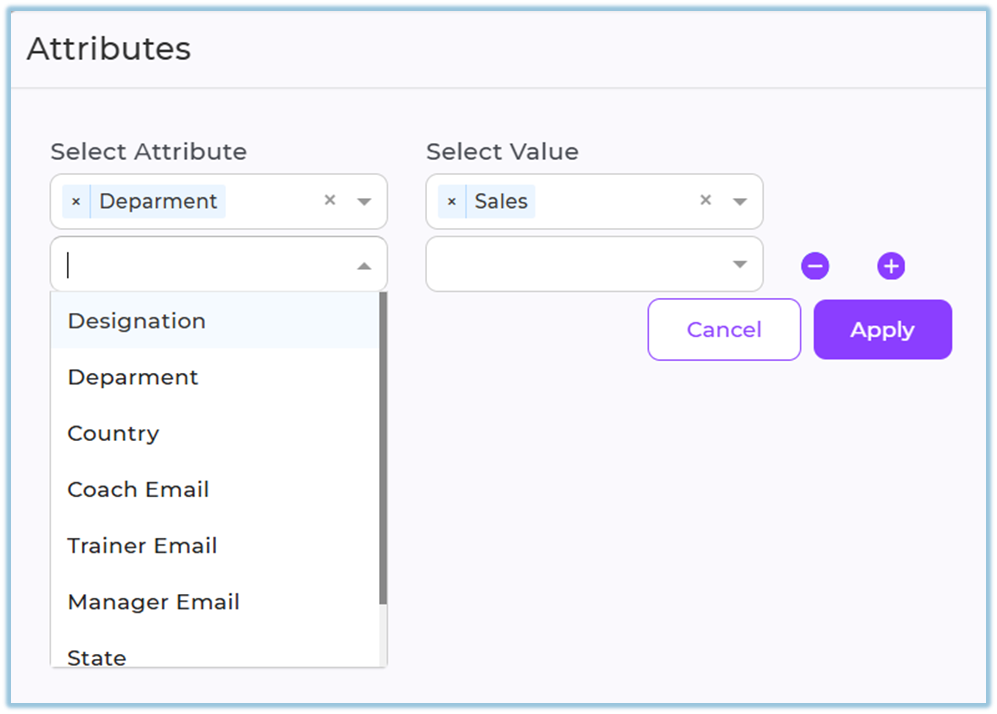
- **Attribute Filter:** Narrows data using attributes such as designation, department, country, coach, trainer, manager, state, or city.
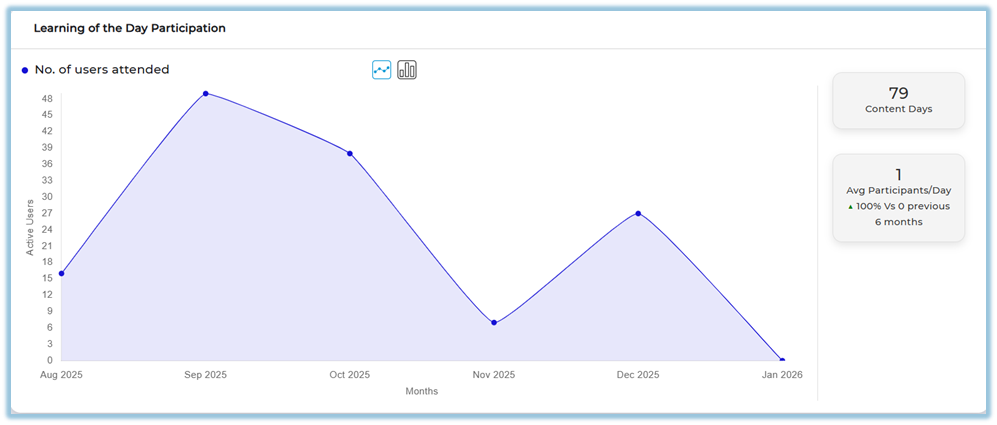
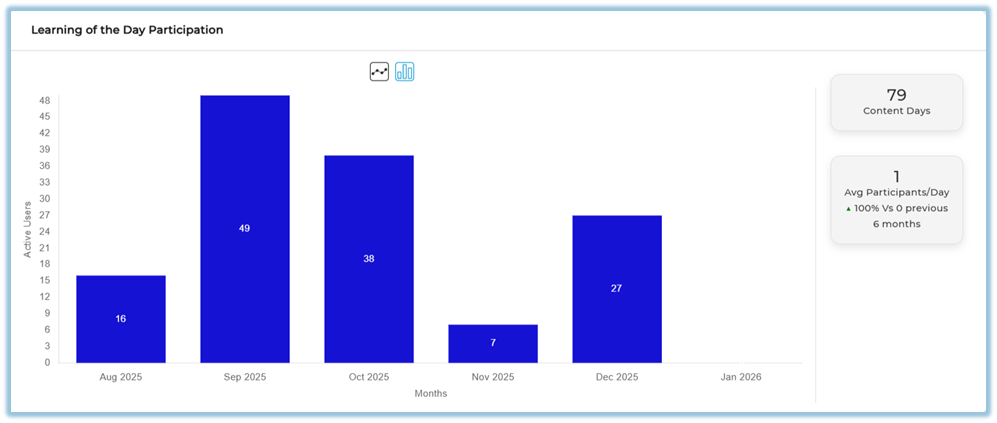
- **Participation Visualization:** Graphical view of Learning of the Day participation trends.
- **Knowledge Gaps:** Identifies topics where learners show low understanding.
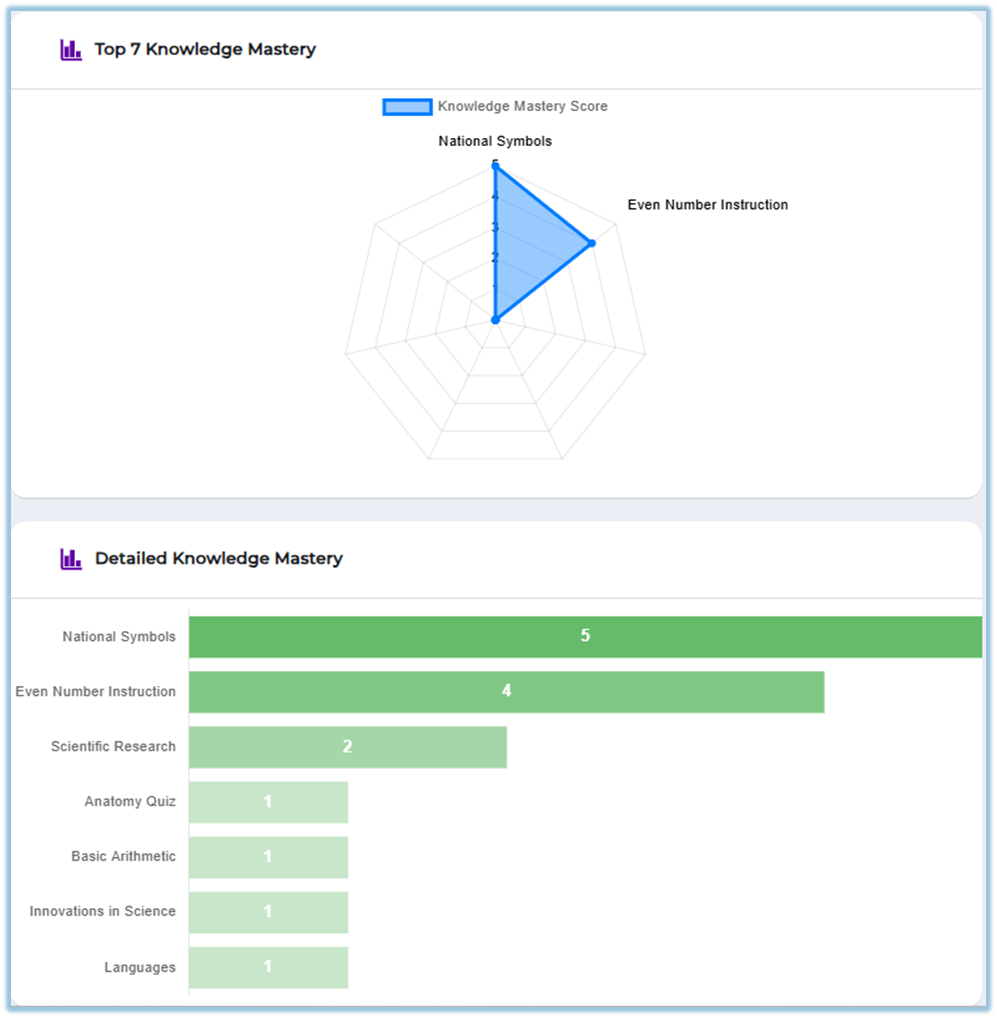
- **Knowledge Mastery:** Identifies topics where learners show strong understanding.
### **4. Set Up Guide**
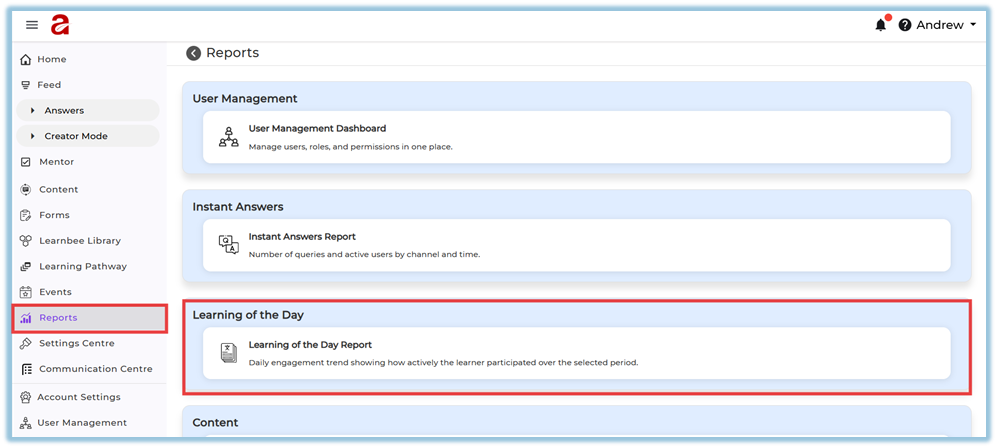
1. Open the main navigation menu.
2. Navigate to the **Reports** section.
[https://converse.bsharpcorp.com/celebrate/user-report-page](https://converse.bsharpcorp.com/celebrate/user-report-page)
3. Select **Learning of the Day** under Reports.
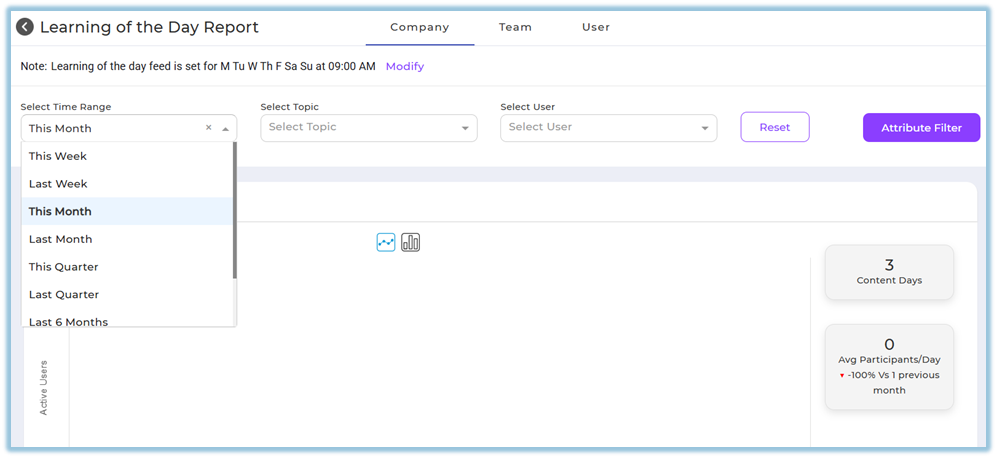
4. Choose the required time range from the date filter options, including predefined ranges or **Custom** dates.
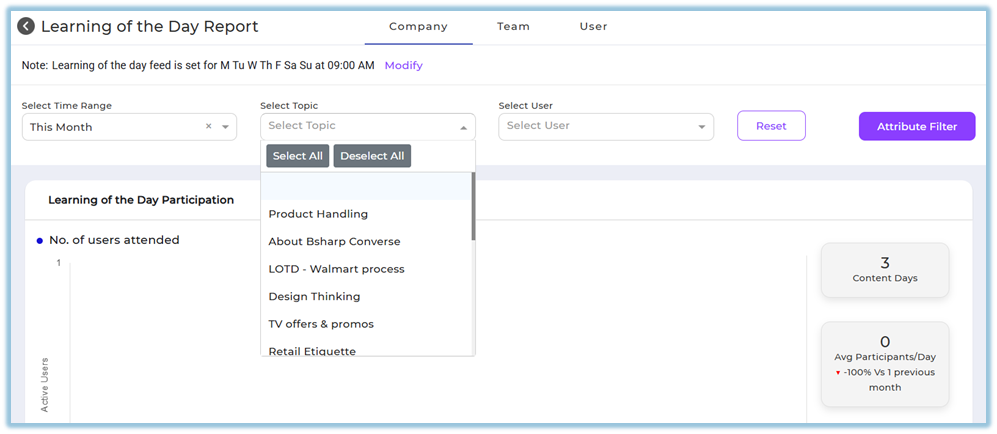
5. Select the required topic to view Learning of the Day data for that topic.
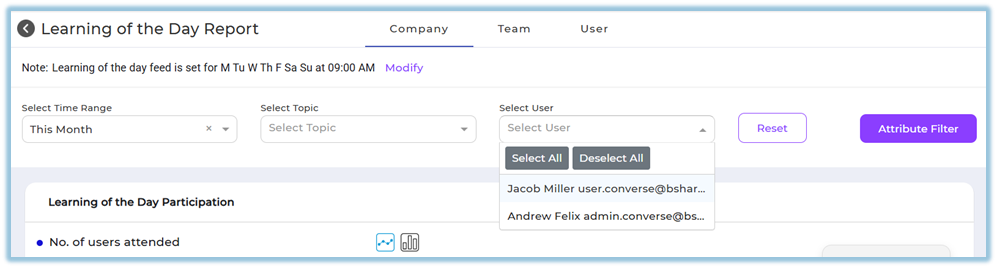
6. Select a specific user if user-level filtering is required.
7. Use **Reset** to clear all selected filters and attributes.

8. Select **Attribute Filter** and add filters such as designation, department, country, coach, trainer, manager, state, or city.
9. Click **Apply** to update the report based on selected filters.
### **5. User View**
Admins can view **Company**, **Team**, and **User** tabs based on access.
Managers, trainers, and mentors can view the **Team** tab with the same report structure scoped to their assigned users.
End users can view only the **User** tab, which displays their own Learning of the Day participation, knowledge gaps, and knowledge mastery.
### **6. Reporting**
- **Learning of the Day Report:** Shows participation trends, top knowledge gaps, top knowledge mastery, and detailed views for each.
**Participation Trends:**
**Top Knowledge Gaps:** 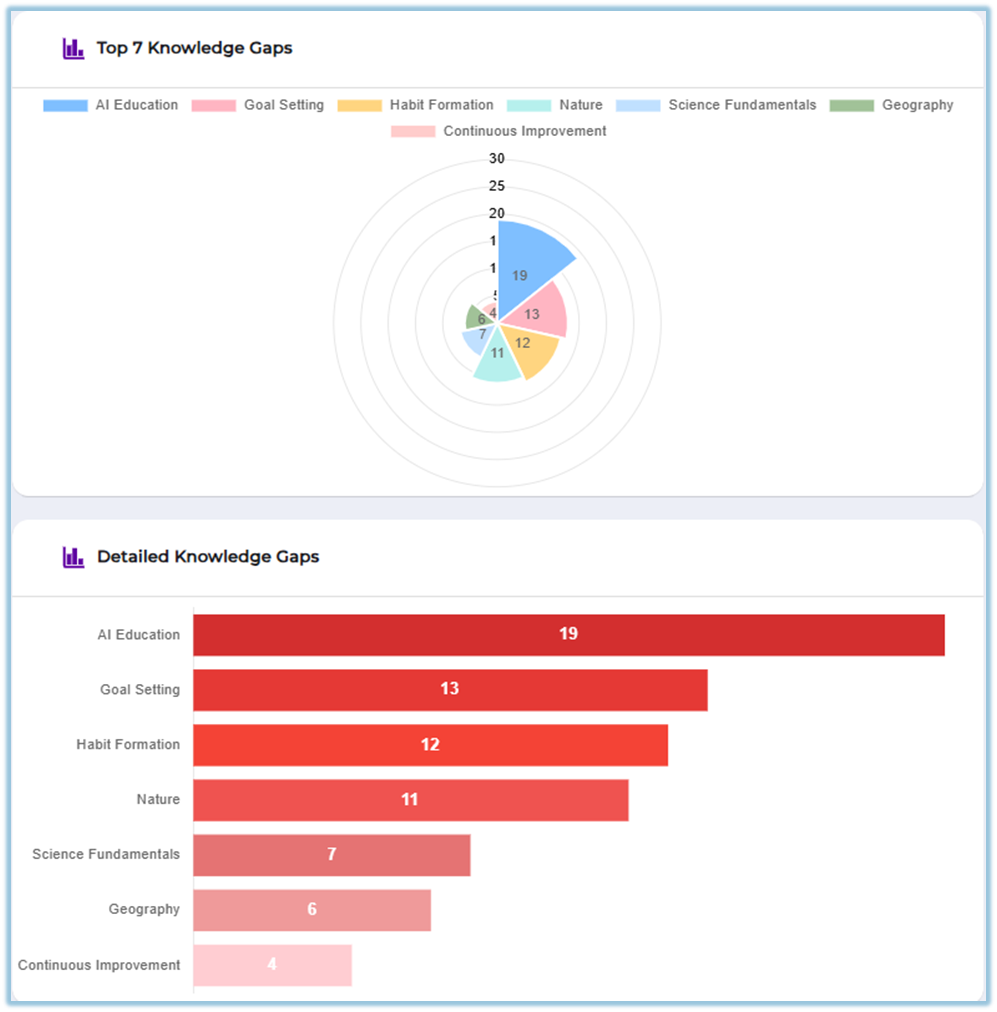
**Top Knowledge Mastery:**
- The report is accessible from **Reports → Learning of the Day**.
[https://converse.bsharpcorp.com/celebrate/lotd-insights](https://converse.bsharpcorp.com/celebrate/lotd-insights)
- The same report structure is available across Company, Team, and User tabs, with access-based visibility.

### **7. Best Practices**
- Use consistent time ranges when comparing participation trends.
- Apply topic filters to focus analysis on specific learning areas.
- Use attribute filters to segment data meaningfully for teams or regions.
- Review both knowledge gaps and mastery sections together for balanced insights.
### **8. Related Links / FAQs**
- **Related:** [User Activity Dashboard](https://help.bsharpcorp.com/books/reports/page/user-activity-dashboard)
- **Related:** [Single Module Completion Report](https://help.bsharpcorp.com/books/reports/page/single-module-completion-report)
**FAQ:**
**Who can see the Team tab?**
Only users assigned as managers, trainers, or mentors can view the Team tab.
### **9. Version Notes**
Last Updated: 31 Dec 2025