# Modules Completion Report Detailed
### **1. Overview**
The Modules Completion Report Detailed provides a module-level and user-level view of completion activity across selected modules, allowing admins and team-level users to analyze module delivery and completion trends over a defined time period.
### **2. When to Use**
- When you need to review detailed completion data for specific modules
- When you want to track user-level completion status for selected modules
- When managers, trainers, or mentors need visibility into their team’s module completion
- When downloading customized completion reports is required
### **3. Concepts**
- **Module selection** – Used to choose one or more modules for which completion data is displayed in the report.
- **Module created date** – Defines the time period during which the selected modules were created.
- **Module consumed date** – Defines the time period during which users consumed the selected modules.
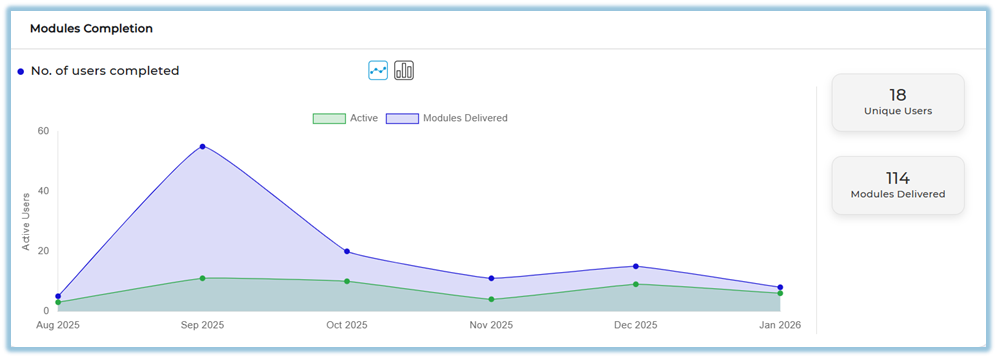
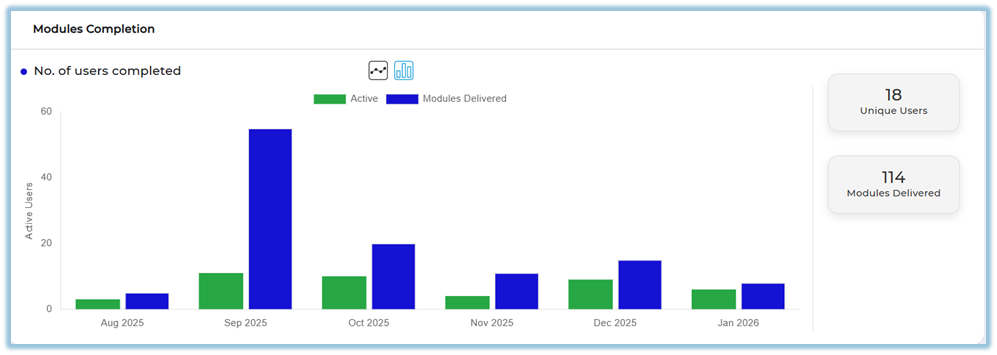
- **Modules completion graph** – Displays module delivery and user activity trends for the selected time range.
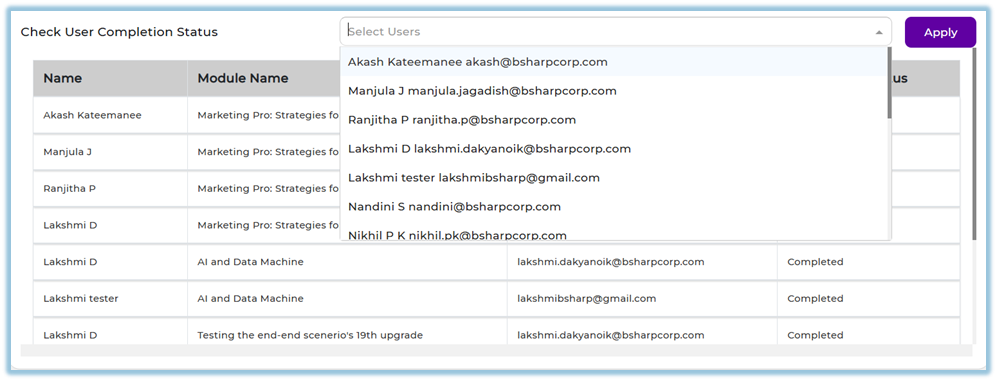
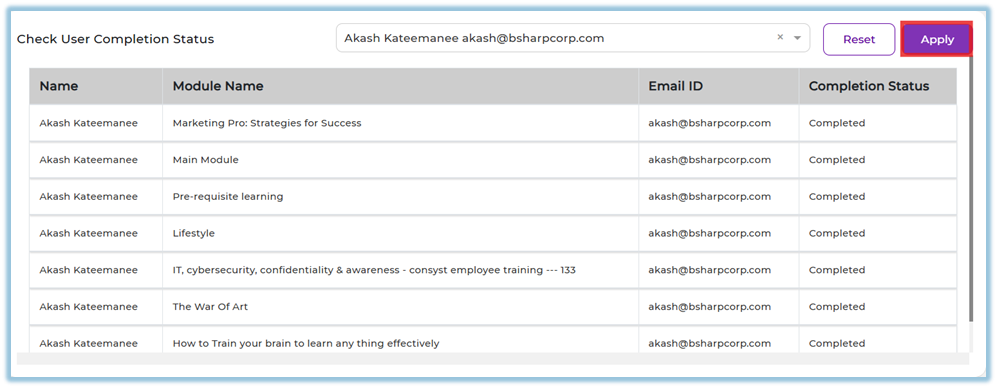
- **User completion status** – Shows individual user-level completion details for the selected modules.
- **Report download and column customization** – Allows selecting required data fields before downloading the report.
- **Company tab and Team tab access** – Controls whether report data is shown at an organization level or limited to mapped teams.
### **4. Set Up Guide**
1. Open the **Menu bar**.
2. Click **Reports**.
[https://converse.bsharpcorp.com/celebrate/user-report-page](https://converse.bsharpcorp.com/celebrate/user-report-page)
3. Under **Content**, click **Modules Completion Report Detailed**.
[https://converse.bsharpcorp.com/celebrate/modules\_completion\_report](https://converse.bsharpcorp.com/celebrate/modules_completion_report)
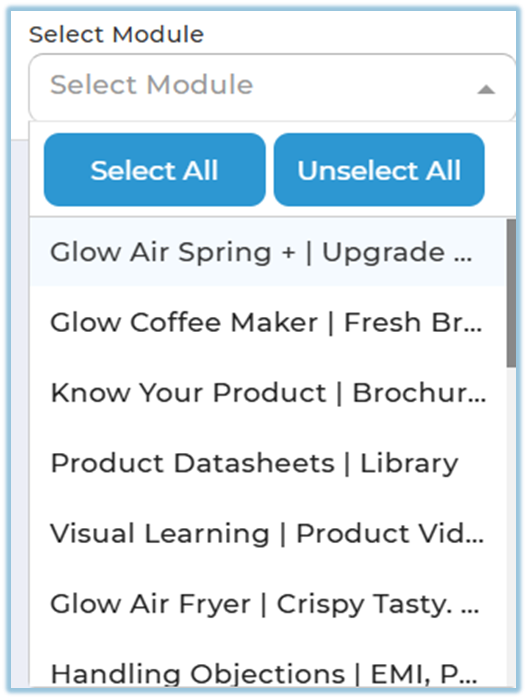
4. Select one or more modules using **Select Module**.
5. Use **Select All** or **Unselect All** if required.
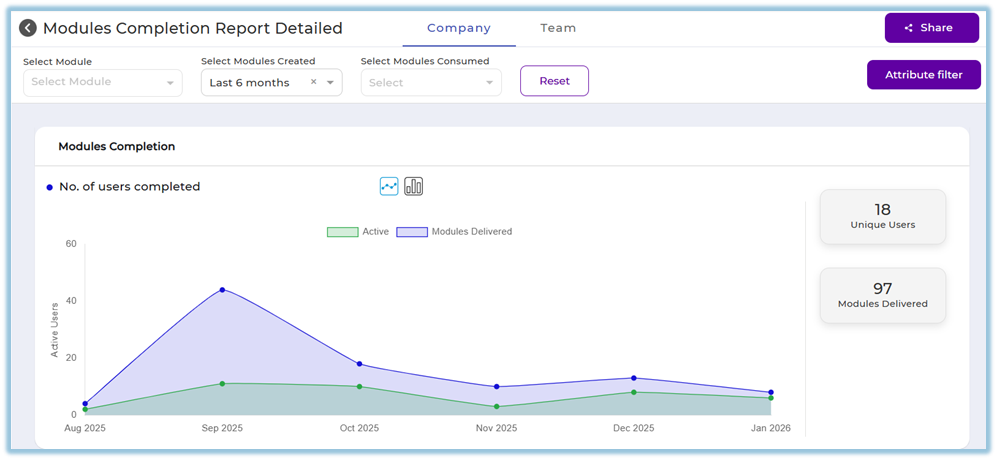
6. Select a value in **Select Modules Created**.
(Shows users who completed modules that were **created within the selected date range**.)
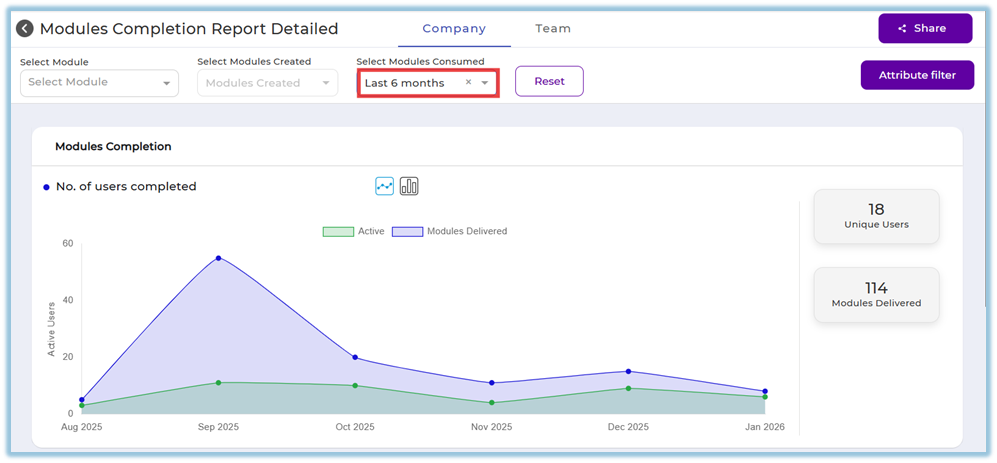
7. Select a date range in **Select Modules Consumed** (This Month, Last Month, This Quarter, Last Quarter, Last 6 months, Last 12 months, or Custom).
(Select Modules Consumed – Shows user completions based on when modules were **consumed** during the **selected period**.)
8. Click **Reset** to clear all selected filters if needed.

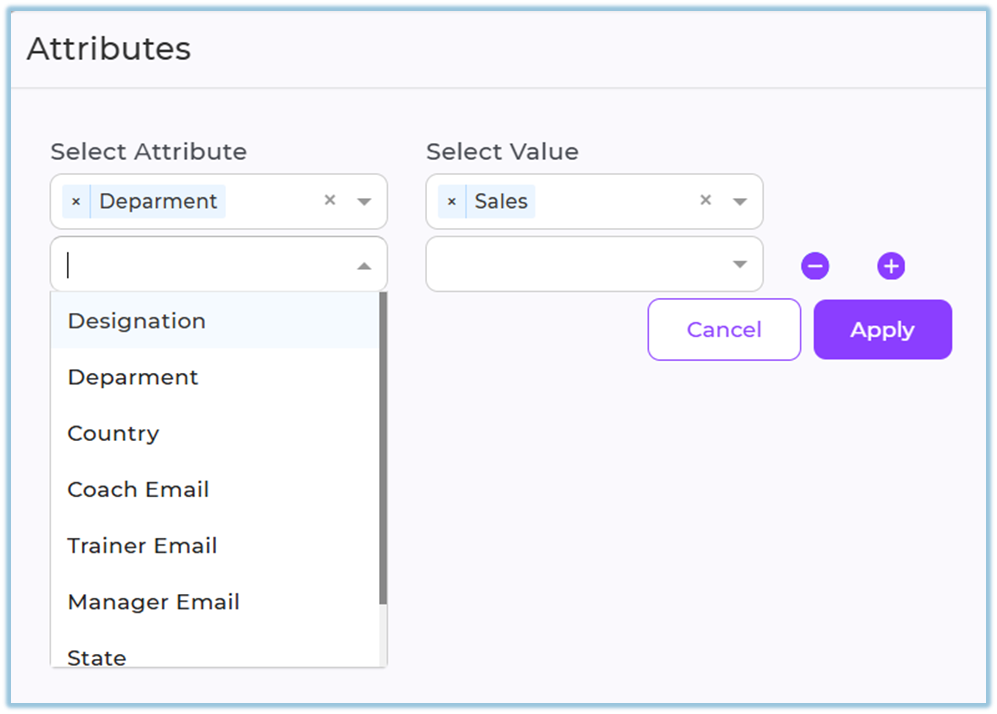
9. (Optional) Click **Attribute filter**, select attributes such as Designation, Department, Country, Coach Email, Trainer Email, Manager Email, State, or City, and click **Apply**.
10. Scroll to view the **Modules Completion** graph showing active users and modules delivered.
11. Scroll to **Check User Completion Status** and select users using **Select Users**.
12. Click **Apply** to view completion status for selected users.
13. Scroll to **Download Reports**.
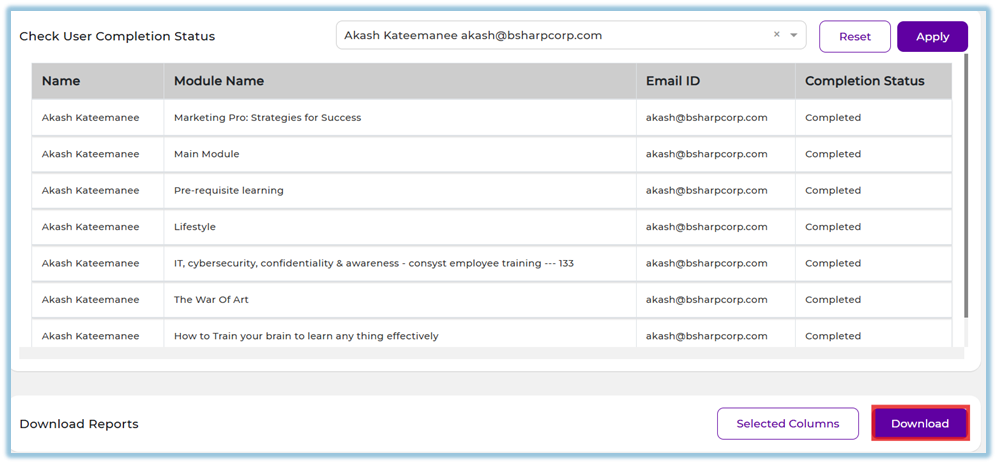
14. Click **Selected Columns** to customize report fields.
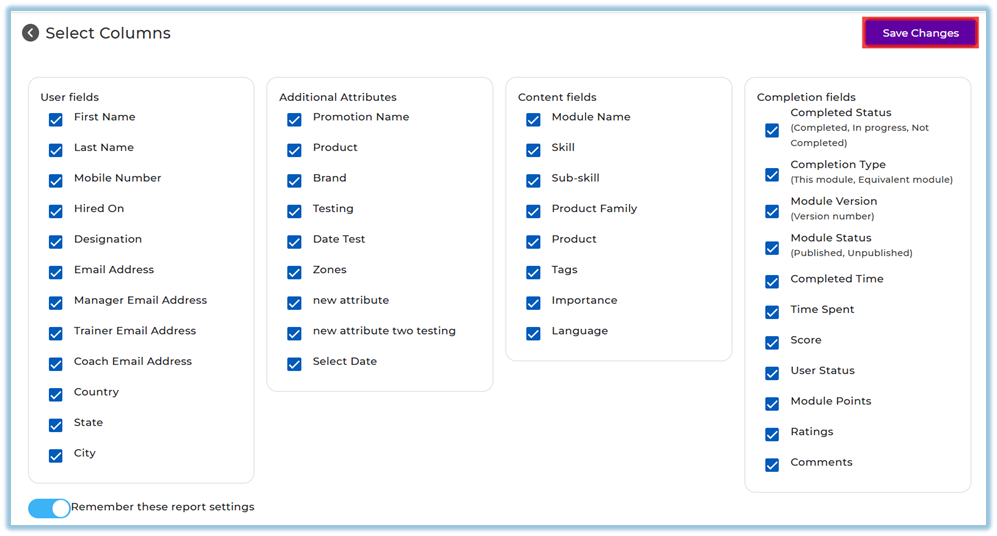
15. Click **Save changes** and then **Download** to export the report.
### **5. User View**
Users can view a graphical representation of modules delivered and user activity, followed by a table showing individual user completion status, including module name, email ID, and completion status. Download options are available at the bottom of the page.
### **6. Reporting**
- **Modules Completion Report Detailed**
- Shows module-wise and user-wise completion data
- Displays active users and modules delivered through graphs
- Provides user-level completion status in tabular format
- This report is accessed from **Reports → Content → Modules Completion Report Detailed** [https://converse.bsharpcorp.com/celebrate/modules\_completion\_report](https://converse.bsharpcorp.com/celebrate/modules_completion_report)
### **7. Best Practices**
- Apply date filters before selecting users to reduce data noise
- Use Selected Columns to download only required report fields
- Use Attribute filters for region- or role-specific analysis
- Reset filters before starting a new analysis
### **8. Related Links / FAQs**
**Q: Who can access the Team tab?**
Only users assigned as Managers, Trainers, or Mentors can access the Team tab.
**Q: Is the Team tab different from the Company tab?**
The data structure is the same, but Team tab shows only users mapped to the logged-in user.
### **9. Version Notes**
Last Updated: 5 Jan 2026