# Reports Central – Overview & Navigation
### **1. Overview**
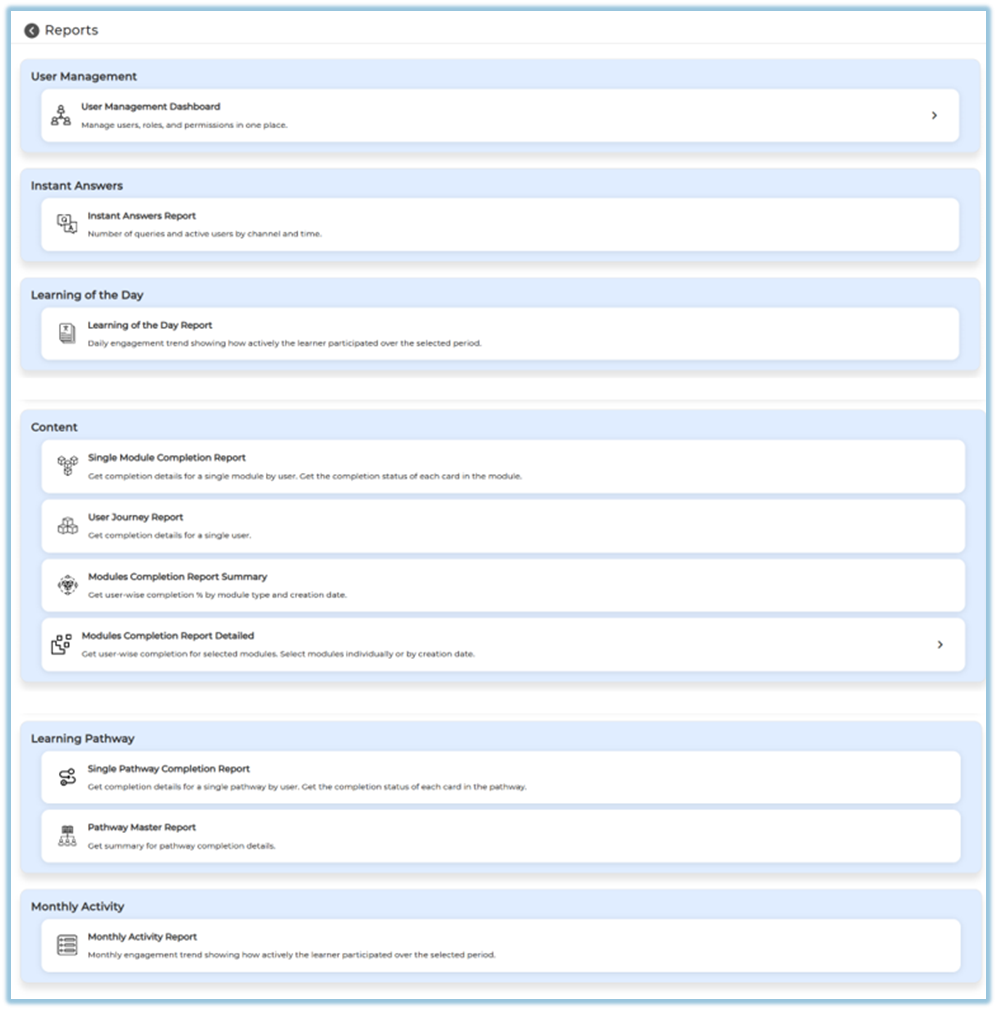
Reports Central is a single page that lists and organizes all available reports in Bsharp Converse, allowing users to quickly navigate to detailed reporting pages based on content, learning pathways, activity, and user engagement.
### **2. When to Use**
- When you want to view learning, content, or engagement reports from one place
- When you need to navigate to a specific report without searching through menus
- When you want to understand which reports are available based on your role
- When you want quick access to summary or detailed report pages
### **3. Concepts**
- **Reports Central Page** – The main landing page that displays all report categories
- **Report Categories** – Logical grouping of reports such as Content, Learning Pathway, and Monthly Activity
- **Report Cards** – Clickable entries that open individual report pages
- **Role-Based Access** – Visibility of reports and tabs based on user permissions
### **4. Set Up Guide**
1. Open the main menu.
2. Click on **Reports**.
3. View the **Reports Central** page.
[https://converse.bsharpcorp.com/celebrate/user-report-page](https://converse.bsharpcorp.com/celebrate/user-report-page)
4. Identify the required report category (for example, Content, Learning Pathway, or Monthly Activity).
5. Select the relevant report card.
6. Open the selected report’s detailed page.
7. View report data based on available filters and dashboards.
8. Use report-specific options such as filters or date ranges if available.
9. Review charts, graphs, and summary cards shown on the report page.
10. View report data based on your access level:
- **Admins** see only the **Company** tab with organization-wide data.
- **Managers, Trainers, and Coaches** see the **Team** tab, which shows the same dashboards but limited to users mapped to them.
### **5. User View**
Users see a categorized list of report cards on the Reports Central page, each showing a short description of the report and opening a detailed reporting view when selected.
### **6. Reporting**
Reports available in **Reports Central** include:
- **User Management Dashboard** – View and manage users, roles, and permissions.
[https://converse.bsharpcorp.com/celebrate/user\_management\_dashboard](https://converse.bsharpcorp.com/celebrate/user_management_dashboard)
- **Instant Answers Report** – Tracks user queries, activity levels, and engagement across Instant Answers channels.
[https://converse.bsharpcorp.com/celebrate/instant\_answers\_report/-1](https://converse.bsharpcorp.com/celebrate/instant_answers_report/-1)
- **Learning of the Day Report** – Tracks daily learner engagement over a selected period.
[https://converse.bsharpcorp.com/celebrate/lotd-insights](https://converse.bsharpcorp.com/celebrate/lotd-insights)
- **User Journey Report** – Shows learning and completion details for a single user.
[https://converse.bsharpcorp.com/celebrate/individual\_user\_reports/21273](https://converse.bsharpcorp.com/celebrate/individual_user_reports/21273)
- **Single Module Completion Report** – Shows completion, scores, ratings, and user activity for a selected module.
[https://converse.bsharpcorp.com/celebrate/learning-module-program-page/learning-module-report/-1](https://converse.bsharpcorp.com/celebrate/learning-module-program-page/learning-module-report/-1)
- **Modules Completion Report Summary** – Displays user-wise module completion percentages by type and creation date.
[https://converse.bsharpcorp.com/celebrate/user\_completion\_report](https://converse.bsharpcorp.com/celebrate/user_completion_report)
- **Modules Completion Report Detailed** – Provides detailed completion data for selected modules.
[https://converse.bsharpcorp.com/celebrate/modules\_completion\_report](https://converse.bsharpcorp.com/celebrate/modules_completion_report)
- **Single Pathway Completion Report** – Shows user completion status for a single learning pathway.
[https://converse.bsharpcorp.com/celebrate/pathway\_individual\_report/0](https://converse.bsharpcorp.com/celebrate/pathway_individual_report/0)
- **Pathway Master Report** – Summarizes completion status across all learning pathways.
[https://converse.bsharpcorp.com/celebrate/pathway\_master\_report](https://converse.bsharpcorp.com/celebrate/pathway_master_report)
- **Monthly Activity Report** – Displays monthly engagement across modules, pathways, instant answers, and LOTD.
[https://converse.bsharpcorp.com/celebrate/monthly\_activity\_report](https://converse.bsharpcorp.com/celebrate/monthly_activity_report)
### **7. Best Practices**
- Use Reports Central as the first step before accessing any detailed report
- Choose the correct report based on whether you need summary or detailed data
- Verify your role-based access to understand whether Company or Team data is shown
### **8. Related Links / FAQs**
- [**User Management Dashboard Report**](https://help.bsharpcorp.com/books/reports/page/user-management-dashboard-report)
- [**Instant Answers Report**](https://help.bsharpcorp.com/books/reports/page/instant-answers-report)
- [**Learning of the Day Report**](https://help.bsharpcorp.com/books/reports/page/learning-of-the-day-report)
- [**Single Module Completion Report**](https://help.bsharpcorp.com/books/reports/page/single-module-completion-report)
- [**User Journey Report**](https://help.bsharpcorp.com/books/reports/page/user-activity-dashboard)
- [**Modules Completion Report Summary**](https://help.bsharpcorp.com/books/reports/page/modules-completion-report-summary)
- [**Modules Completion Report Detailed**](https://help.bsharpcorp.com/books/reports/page/modules-completion-report-detailed)
- [**Single Pathway Completion Report**](https://help.bsharpcorp.com/books/reports/page/single-pathway-completion-report)
- [**Pathway Master Report**](https://help.bsharpcorp.com/books/reports/page/learning-pathway-master-report)
- [**Monthly Activity Report**](https://help.bsharpcorp.com/books/reports/page/monthly-activity-report)
**Q: Can all users see all reports?**
A: No. Report visibility and tabs depend on the user’s role and assigned permissions.
### **9. Version Notes**
Last Updated: 7 Jan 2026