# User Management Dashboard Report
### **1. Overview**
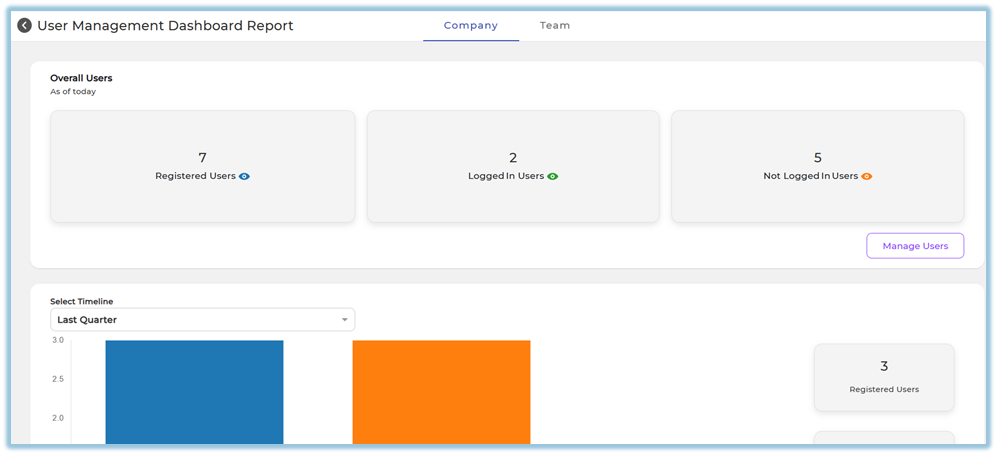
The **User Management Dashboard Report** helps track user onboarding and login progress across the organization. It provides visibility into registered users, login activity, and pending invitations, with separate views for admins and team owners, enabling
effective monitoring and follow-up actions.
### **2. When to Use**
Use the **User Management Dashboard Report** when you want to:
- Monitor overall user adoption of the platform
- Identify users who are invited but have not logged in
- Track login trends over a selected time period
- Review team-wise or role-wise login performance
- Enable managers, trainers, and mentors to monitor their mapped users
- Take follow-up actions for inactive or non-logged-in users
### **3. Concepts**
- **Registered Users**
Users whose accounts are created and are not blocked.
- **Logged In Users**
Users who have logged into the platform at least once.
- **Not Logged In Users**
Users whose accounts are created but have never logged in.
- **Company Tab**
Admin-level view showing organization-wide data.
- **Team Tab**
View available for Managers, Trainers, and Mentors to see only their mapped users.
- **Invitation Status**:
- *Total Invited*: Users created in the system
- *Accepted*: Users who logged in
- *Not Accepted*: Users who have not logged in
### **4. Set Up Guide**
##### Navigation Path
The User Management Dashboard Report is accessed from the **Reports** section of the platform.
From the Reports area:
- Navigate to **User Management**
- Open the **User Management Dashboard Report**
Based on the logged-in user’s role:
- **Admins** see the **Company tab**
- **Managers, Trainers, and Mentors** see the **Team tab**
- If an admin is also assigned as a manager, trainer, or mentor, both tabs are visible
The report does not require additional configuration. Access is controlled automatically based on role assignments done under **User Setup**.
### **5. User View**
The **User Management Dashboard Report** is displayed based on the user’s role and access level.
- **Admins** Admins can **always view the Company tab**.
- The **Company tab** shows overall user data for the entire organization, including:
- Registered users
- Logged-in users
- Not logged-in users
- Timeline-based onboarding trends
- User status breakdown by Manager, Trainer, and Mentor
****
- If an **Admin is also assigned as a Manager, Trainer, or Mentor**, then:
- The **Team tab** will also be visible to that admin.
- This allows the admin to view team-specific data in addition to company-wide data.
- **Managers / Trainers / Mentors**
- Can access only the **Team** tab
- Can see data only for their mapped users
- Can download reports for their teams
### **6. Reporting**
The User Management Dashboard Report supports **time-based and mapping-based analysis**.
##### Timeline Analysis
Data can be reviewed across predefined timelines such as:
- This week / Last week
- This month / Last month
- This quarter / Last quarter
- Last 6 months
- Last 12 months
- Custom date range
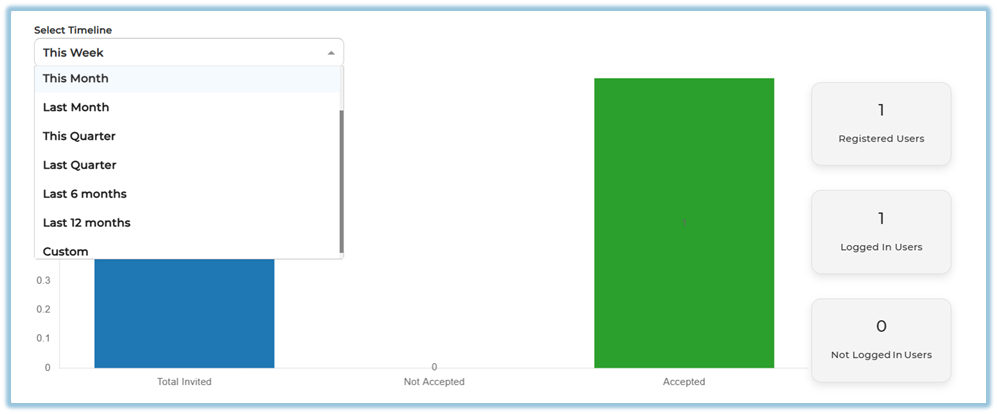
For the selected timeline, the report shows:
- Total Invited users
- Accepted users
- Not Accepted users
- Corresponding user counts on the dashboard
##### Not Logged In Users Analysis
##### Company Tab
- Displays not-logged-in users grouped by:
- Manager
- Trainer
- Mentor
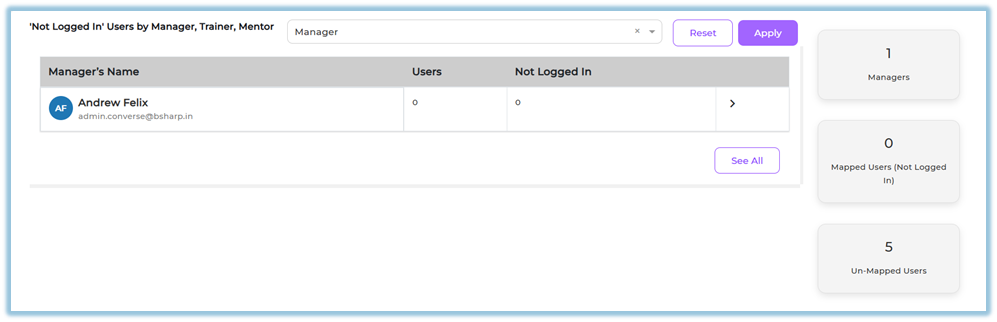
- Shows:
- Total mapped users
- Number of users who have not logged in
- Enables admins to identify ownership gaps and onboarding delays
##### Team Tab
- - Displays **individual user lists
**
- Shows:
- User name
- Invitation date
- Login status
- Helps managers, trainers, and mentors take direct follow-up action
### **7. Best Practices**
- Regularly monitor **Not Logged In Users** to improve adoption
- Ensure users are properly mapped to Managers, Trainers, or Mentors
- Use **Custom timeline** for audit or review periods
- Encourage managers to review the **Team tab** frequently
- Follow up early with users who haven’t accepted invites
### **8. Troubleshooting / FAQs**
**Q. Why can’t I see the Team tab?**
Only users assigned as Manager, Trainer, or Mentor can see it.
**Q. Why does the graph show zero values?**
No users were invited or logged in during the selected timeline.
**Q. Why can’t I see certain users?**
Team users see only users mapped to them.
### **9. Related Links**
- [Instant Answers Report](https://help.bsharpcorp.com/books/reports/page/instant-answers-report)
- [Learning of the Day Report](https://help.bsharpcorp.com/books/reports/page/learning-of-the-day-report)
- [Module Completion Reports](https://help.bsharpcorp.com/books/reports/page/modules-completion-report-detailed)
- [Learning Pathway Reports](https://help.bsharpcorp.com/books/reports/page/learning-pathway-master-report)
- [Monthly Activity Report](https://help.bsharpcorp.com/books/reports/page/monthly-activity-report)
### **10. Version Notes**
Last Updated: 30 Dec 2025