# Company Setup
### **1. Overview**
**Company Setup** in the Settings Centre is where admins configure essential company-level settings that control how Converse behaves across the platform. This includes setting up company information, managing automated engagement posts, configuring Instant Answers channels, controlling homepage banners, and defining learning priorities used in learning pathways. These settings act as the foundation for branding, engagement automation, and learning structure in Converse.
### **2. When to Use**
Use Company Setup when you need to:
- Configure basic company details and branding
- Set default timings for automated Feed posts
- Manage Instant Answers channels
- Add or manage homepage banners
- Define learning priorities for Learning Pathways
### **3. Concepts**
- **Company Info**: Basic organization details and branding settings
- **Automated Posts Timing**: Controls when system-generated posts are published
- **Answers Manager**: Manages Instant Answers channels and knowledge base
- **Banner Setup**: Controls images shown on the home page
- **Company Priority**: Defines priority tags used in Learning Pathways
### **4. Setup Guide**
#### A. Company Info
**Path:** Settings Centre → Company Setup → Company Info
[https://converse.bsharpcorp.com/celebrate/company\_setup](https://converse.bsharpcorp.com/celebrate/company_setup)
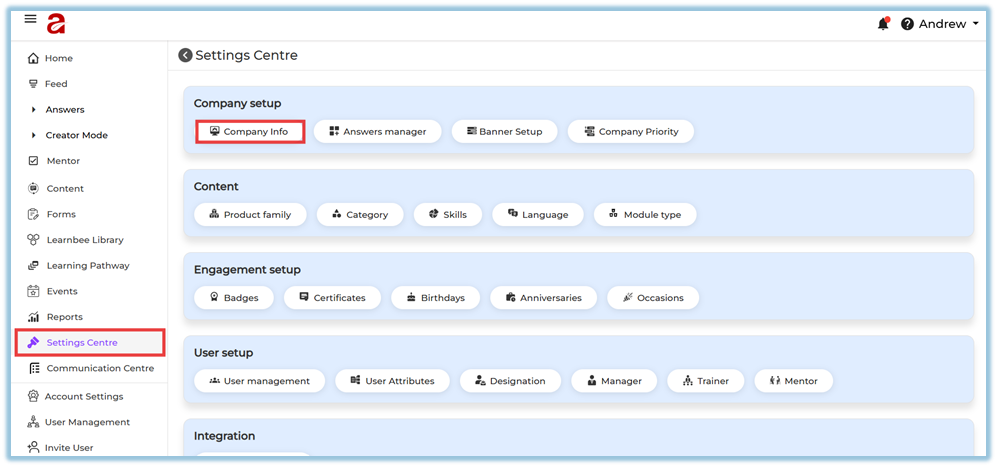
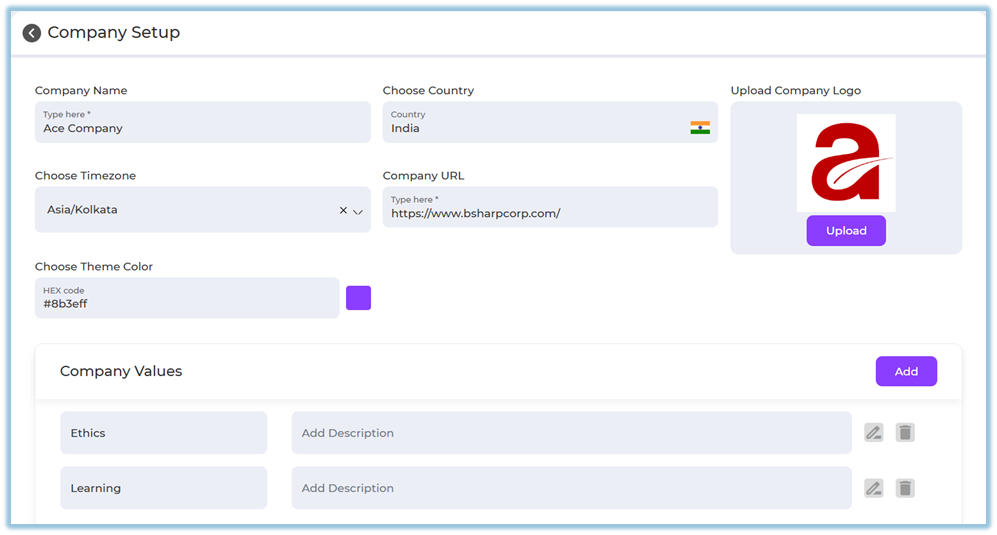
Configure the following details:
- **Company Name**
- **Country**
- **Time Zone**
- **Company URL**
- **Company Logo** (upload from your system)
- **Theme Color** (HEX code)
**Company Values**
- Click **Add** to add a company value
- Enter value name and description
- Use **Edit** or **Delete** icons to manage values
##### Automated Posts Timing
This controls when system-generated posts (birthdays, anniversaries, occasions, daily thoughts) are published.
**Options available:**
- **Single time for all automated posts**
- Set one time (default: 9:00 AM)
- **Individual timing for each post type**
- Birthday Post
- Anniversary Post
- Occasions Post
- Daily Thoughts Post
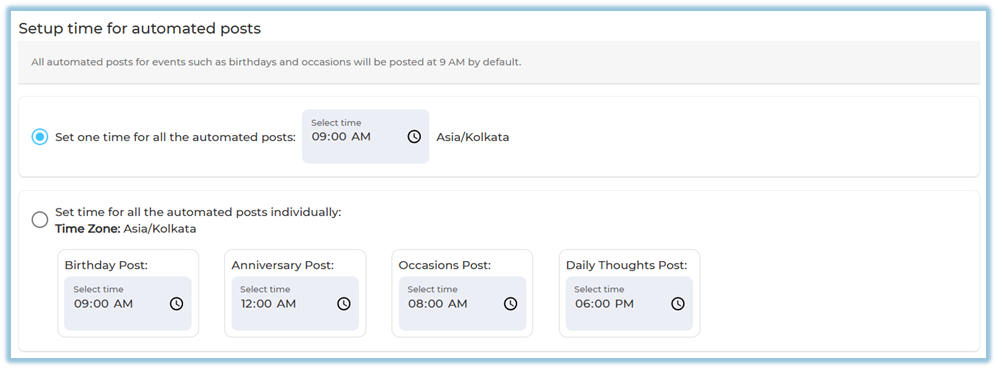
You can update the time anytime by clicking the clock icon.
##### Thought for the Day Setup
- Enable **Thought for the Day**
- Messages are posted automatically **only when no birthdays or anniversaries exist for the day**
- Once enabled, you can view and edit the content

#### B. Answers Manager
**Path:** Settings Centre → Company Setup → Answers Manager
[https://converse.bsharpcorp.com/celebrate/section-list](https://converse.bsharpcorp.com/celebrate/section-list)
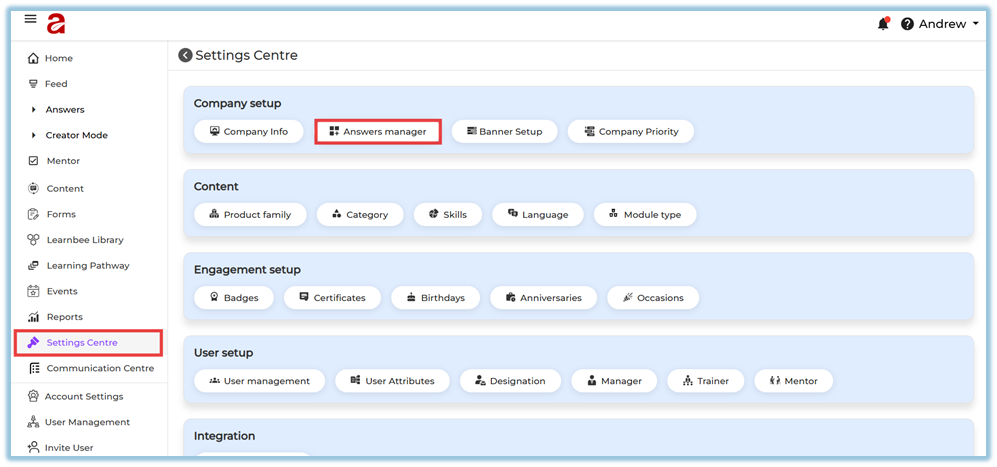
This opens the **Channels** page where you can:
- View all Instant Answer channels
- See channel details such as:
- Channel ID
- Channel name
- Weightage
- Created date
- Number of documents
- Published audience
- **Publish / Unpublish** channels
- **Edit**, **Delete**, or **Add documents**
- **Go to Chat** directly from the channel
- **Create a new channel**
****
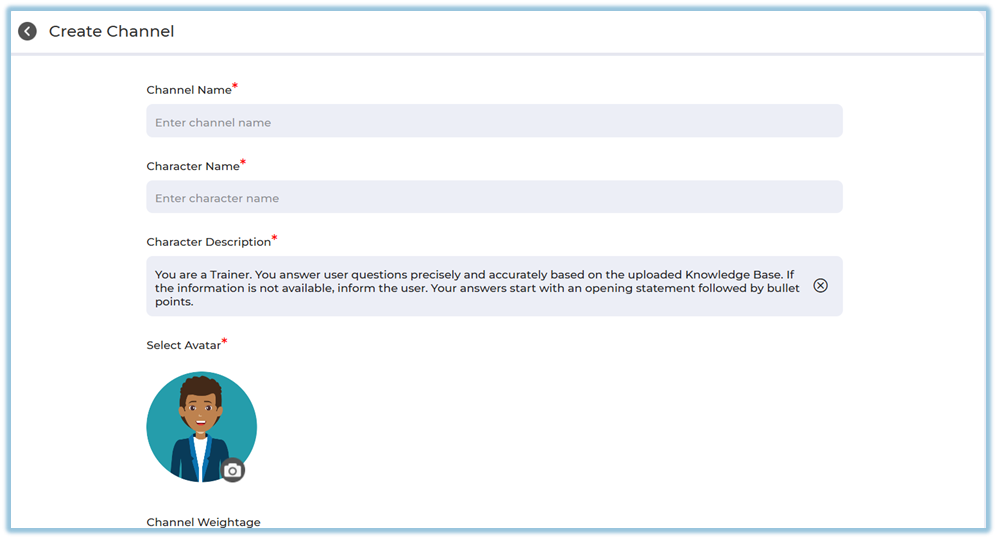
**Create Channel** [https://help.bsharpcorp.com/books/instant-answers/page/how-to-set-up-instant-answers#bkmrk-4.-setup-guide](https://help.bsharpcorp.com/books/instant-answers/page/how-to-set-up-instant-answers#bkmrk-4.-setup-guide)
- Enter channel name
- Add character name and description
- Select avatar
- Set channel weightage
- Save to create the channel
#### C. Banner Setup
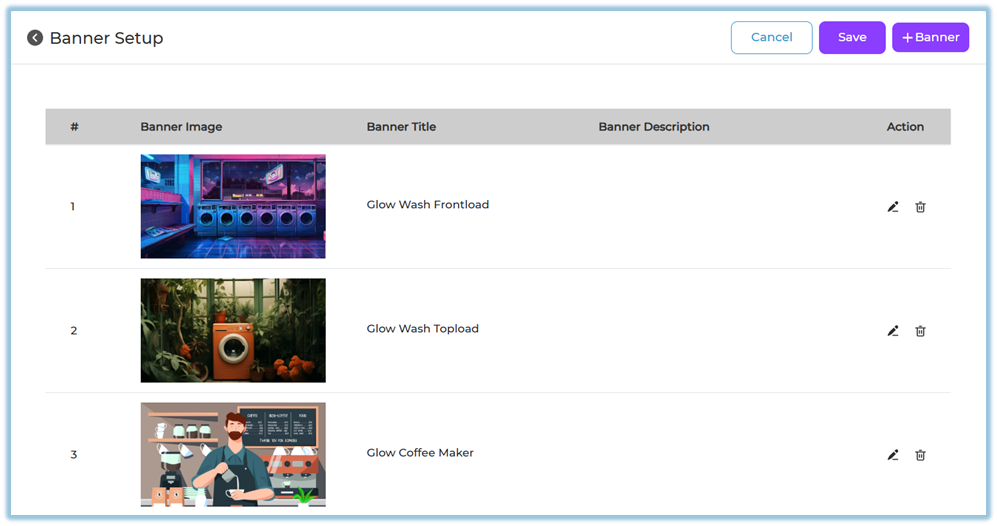
**Path:** Settings Centre → Company Setup → Banner Setup
[https://converse.bsharpcorp.com/celebrate/banner-setup](https://converse.bsharpcorp.com/celebrate/banner-setup)

Used to manage banners shown on the home page.
**You can:**
- View existing banners
- Edit banner details
- Delete banners
- Add new banners
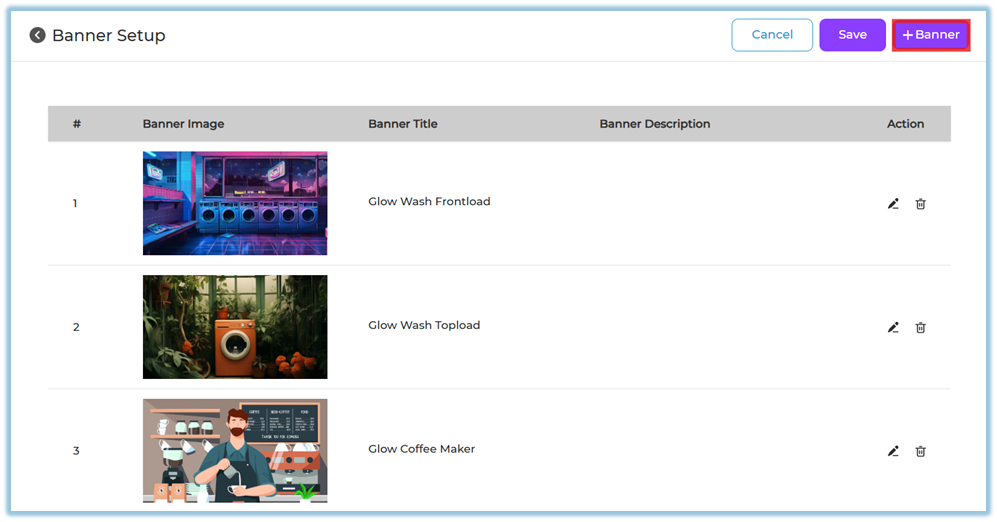
**Add Banner**
- Click **+ Banner**
****
- Upload image (from system, Pixel library, or upload library)
- Add banner title
- Add banner description
- (Optional) Add redirect link
- Click **Done**
**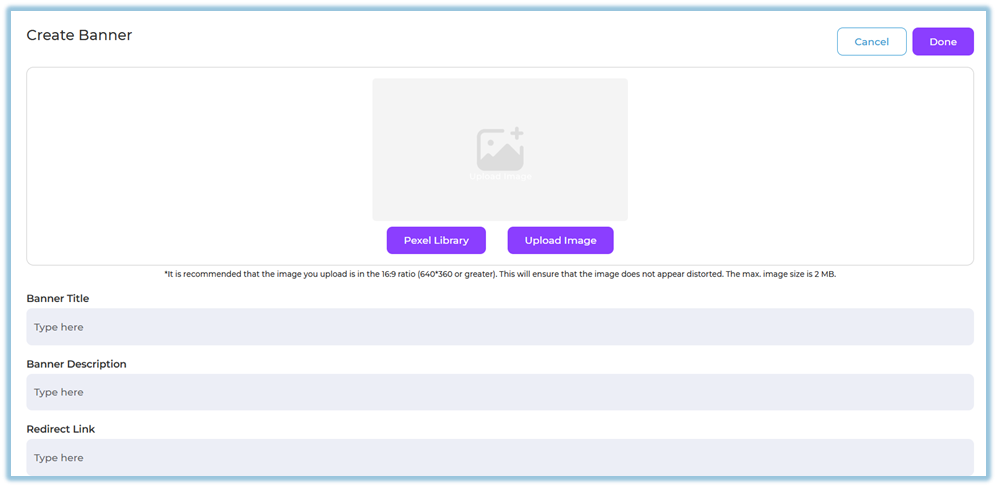**
**Recommended** image ratio: 16:9 for best display (minimum 640×360, max size 2 MB).
#### D. Company Priority
**Path:** Settings Centre → Company Setup → Company Priority
[https://converse.bsharpcorp.com/celebrate/learning-pathway/priority-setup](https://converse.bsharpcorp.com/celebrate/learning-pathway/priority-setup)
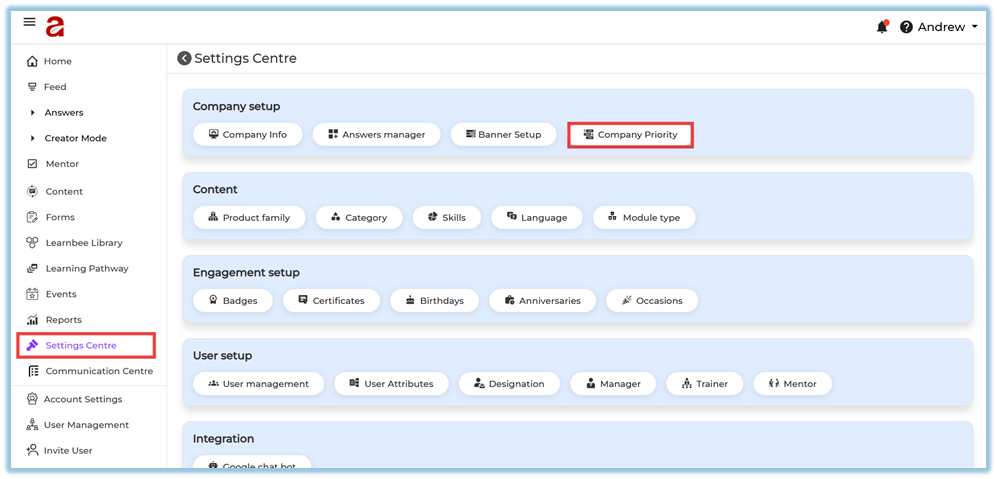
Company priorities are used while creating **Learning Pathways**.
**Actions available:**
- Add new priority
- Organize priorities under:
- Top priorities
- Other priorities
- Reorder priorities
- Delete priorities if needed
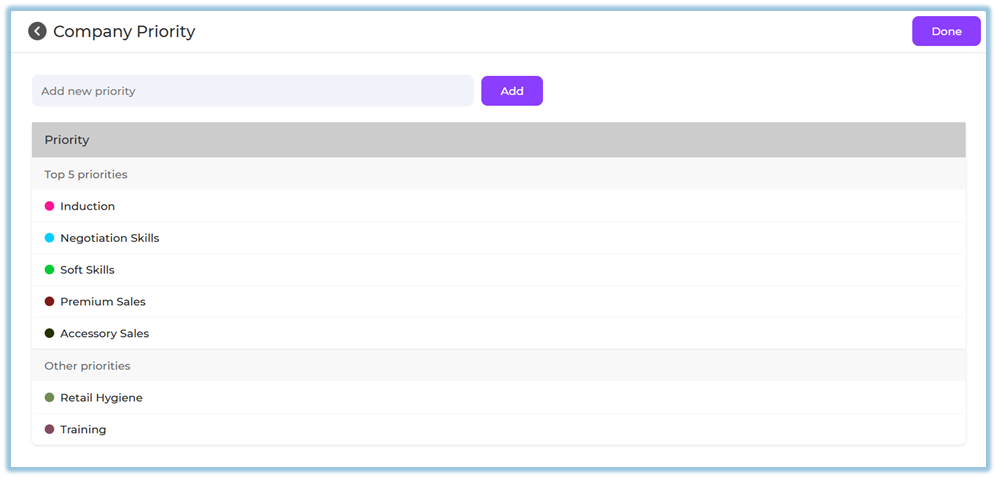
These priorities become selectable options inside Learning Pathway configuration.
### **5. User View**
Company Setup is an **admin-only configuration**.
End users experience the impact indirectly through:
- Branded interface
- Timely automated posts
- Homepage banners
- Structured learning paths
- Accurate Instant Answers
### **6. Reporting**
Company Setup does not have direct reports.
However, its configurations affect reporting in:
- Feed activity (automated posts)
- Learning Pathway usage
- Instant Answers consumption
### **7. Best Practices**
- Complete Company Info before onboarding users
- Verify time zone before enabling automated posts
- Use clear and consistent company values
- Limit homepage banners to avoid clutter
- Maintain meaningful and limited priorities for learning paths
### **8. Related Links / FAQs**
- Settings Centre
[https://converse.bsharpcorp.com/celebrate/settings\_center](https://converse.bsharpcorp.com/celebrate/settings_center)
- Instant Answers
[https://converse.bsharpcorp.com/celebrate/section-list](https://converse.bsharpcorp.com/celebrate/section-list)
- Learning Pathway
[https://converse.bsharpcorp.com/celebrate/learning-pathway/list](https://converse.bsharpcorp.com/celebrate/learning-pathway/list)
- Banner Setup
[https://converse.bsharpcorp.com/celebrate/banner-setup](https://converse.bsharpcorp.com/celebrate/banner-setup)
### **9. Version Notes**
Last Updated: 29 Dec 2025