# Content
### **1. Overview**
The **Content** section in the Settings Centre allows admins to configure all the background options required while creating learning modules. These settings define how content is categorized, organized, and displayed to users. Proper configuration here ensures a smooth and structured content creation experience.
### **2. When to Use**
Use this section when you want to:
- Set up product structures before creating modules
- Define categories for feedback and content grouping
- Create skills and sub-skills for learning alignment
- Add supported languages for content delivery
- Define module types such as video, PDF, or learning modules
**Note:** These configurations appear as selectable fields while creating a module.
### **3. Concepts**
- **Product Family**: A high-level grouping of related products
- **Product**: Individual items under a product family
- **Category**: Used mainly for feedback classification
- **Skill**: A primary competency area
- **Sub-Skill**: A detailed skill under a main skill
- **Language**: Indicates the language of the content
- **Module Type**: Defines the format of the learning content
### **4. Set Up Guide**
##### Access Content Settings
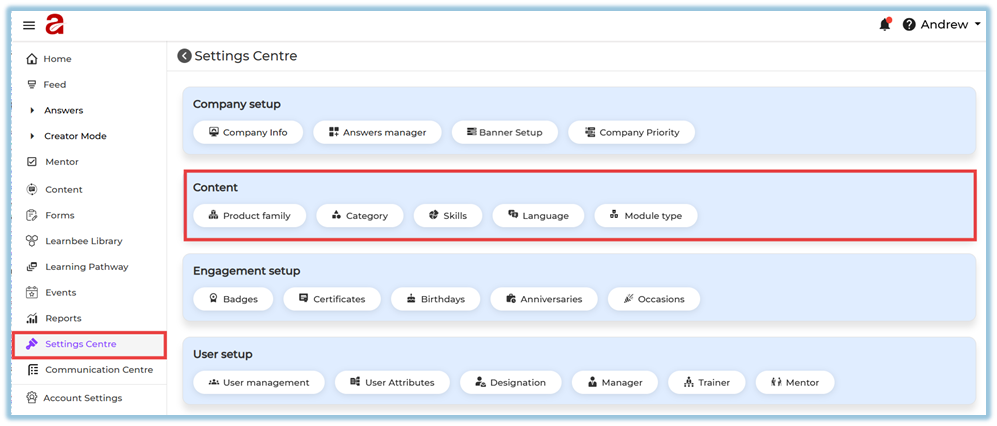
- Go to **Menu → Settings Centre** [https://converse.bsharpcorp.com/celebrate/settings\_center](https://converse.bsharpcorp.com/celebrate/settings_center)
- Under **Content**, you will see:
- Product Family
- Category
- Skills
- Language
- Module Type
#### A. Product Family
**Path:**
Settings Centre → Content → Product Family
[https://converse.bsharpcorp.com/celebrate/product-configuration](https://converse.bsharpcorp.com/celebrate/product-configuration)

**Purpose:**
Used to group related products under a single family for better content organization.
**Steps:**
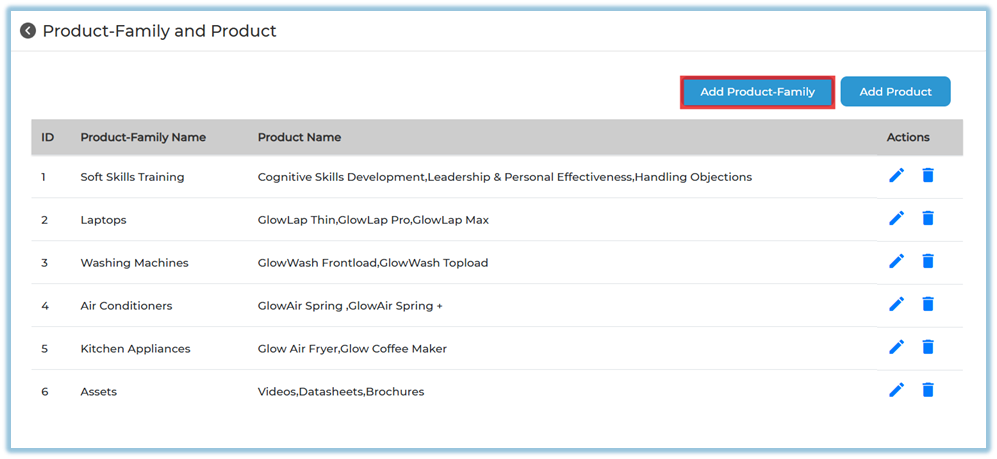
1. Click **Product Family**
2. View all existing product families and products
3. Click **Add Product-Family
**
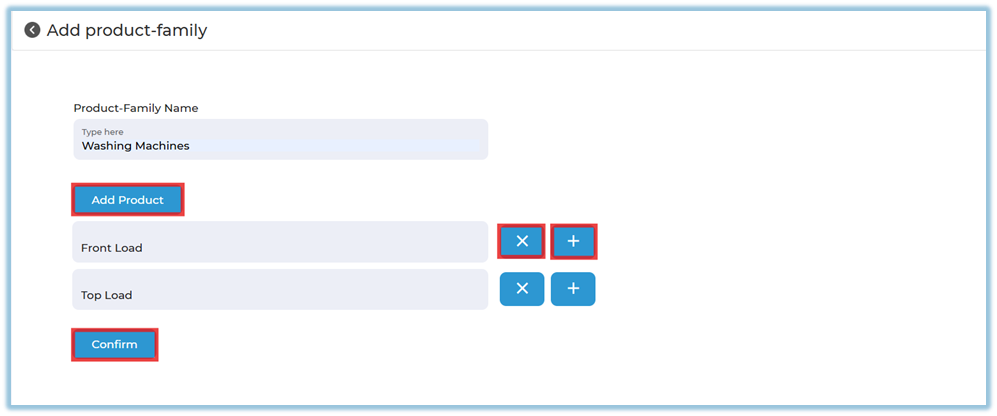
4. Enter the **Product Family Name**
5. Click **Add Product**
6. Add one or more products using the **+ icon**
7. Click **Confirm
**
#### Product
**Path:**
Settings Centre → Content → Product Family → Add Product
**Purpose:**
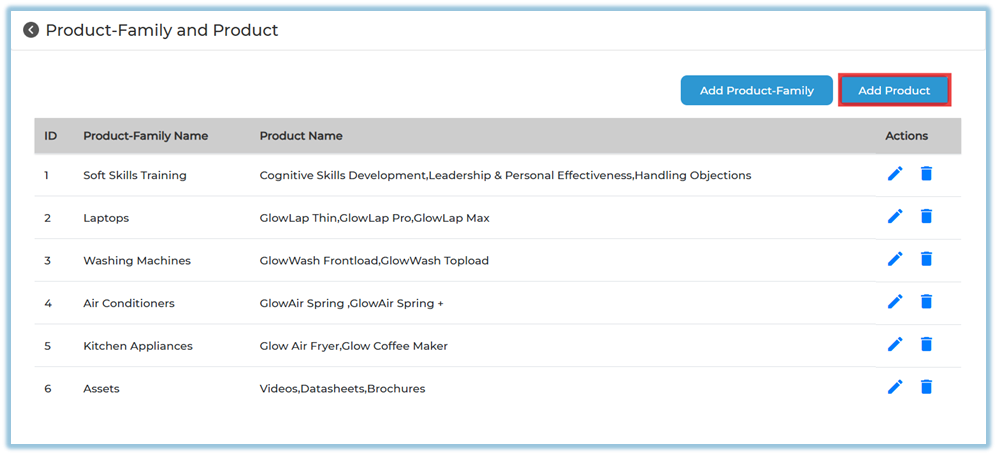
Used to add products under an already created product family.
**Steps:**
1. Click **Add Product**
2. Select an existing **Product Family 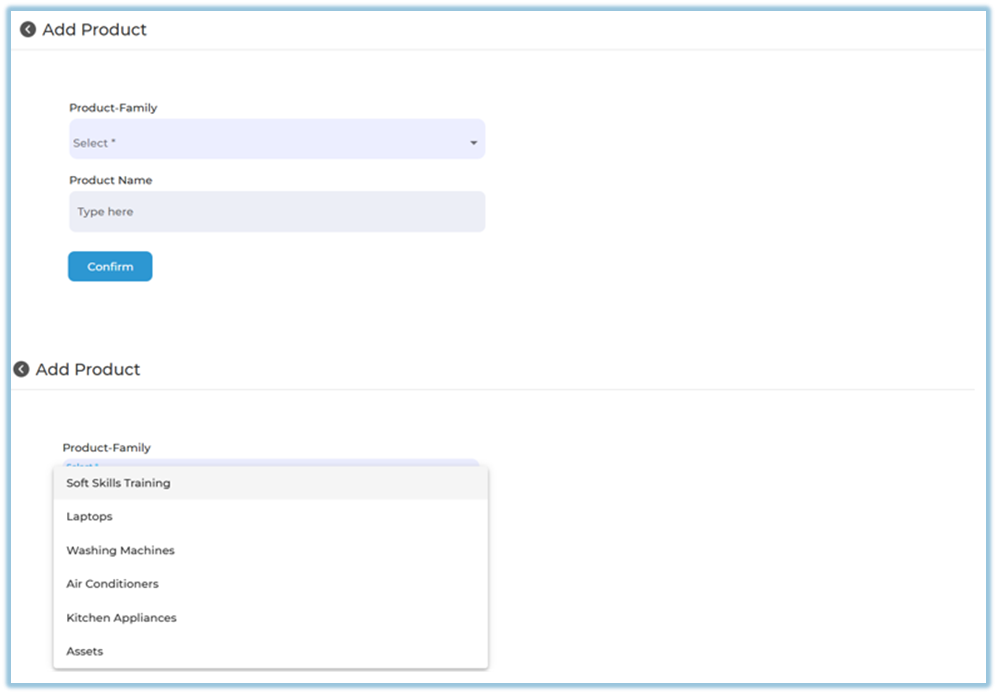**
3. Enter the **Product Name**
4. Click **Confirm
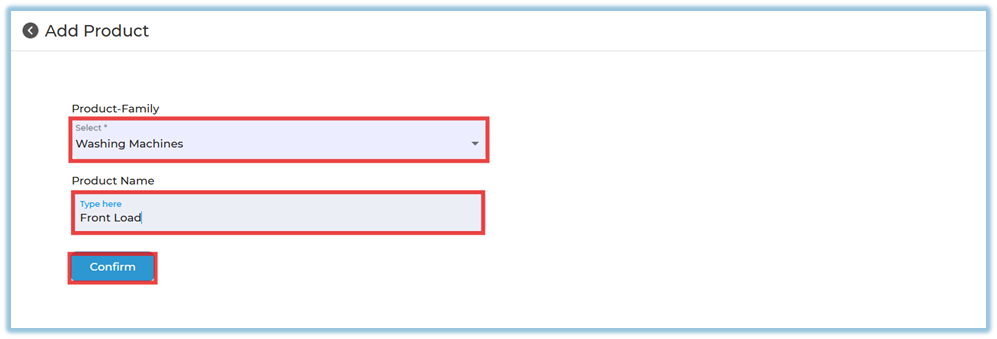**
#### B. Category
**Path:**
Settings Centre → Content → Category
[https://converse.bsharpcorp.com/celebrate/feedback\_setup](https://converse.bsharpcorp.com/celebrate/feedback_setup)
**Purpose:**
Used to create feedback categories for better classification.
**Steps:**
1. Enter the category name
2. Click **Create**
3. To remove a category, click the **× icon**
4. (Optional) Enable **Anonymous Feedback
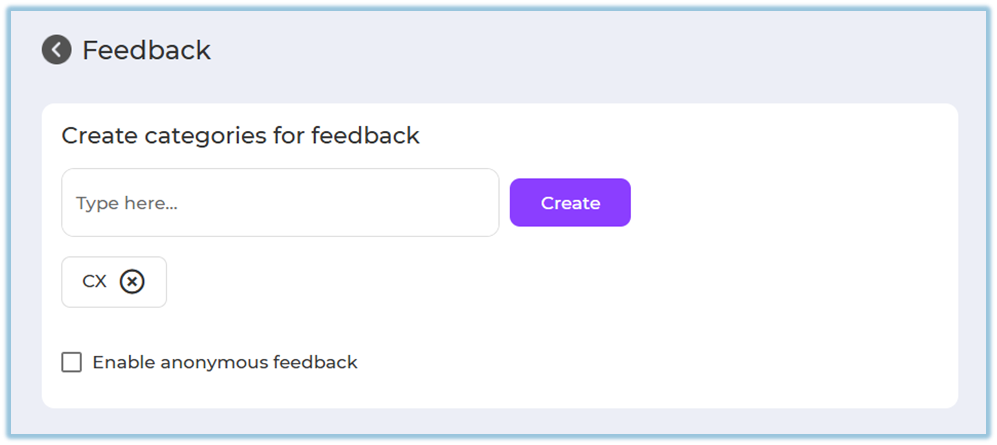**
#### C. Skills
**Path:**
Settings Centre → Content → Skills
[https://converse.bsharpcorp.com/celebrate/skill-configuration/0](https://converse.bsharpcorp.com/celebrate/skill-configuration/0)
**Purpose:**
Used to define skill areas and map sub-skills for learning modules.
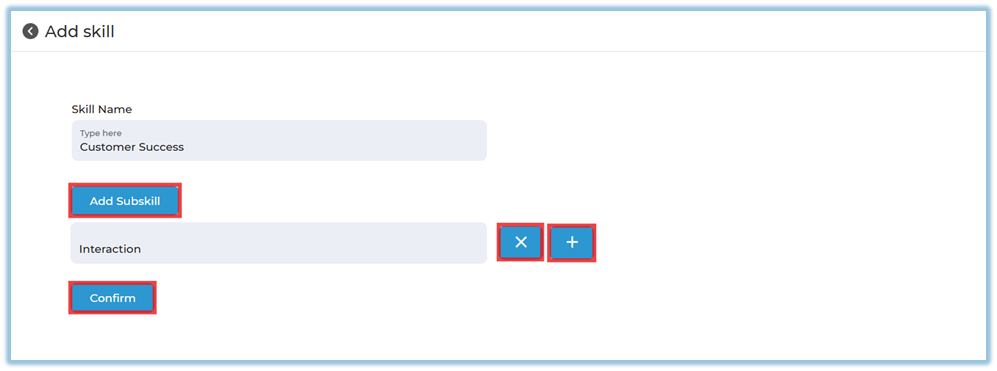
**Add Skill:**
1. Click **Add Skill
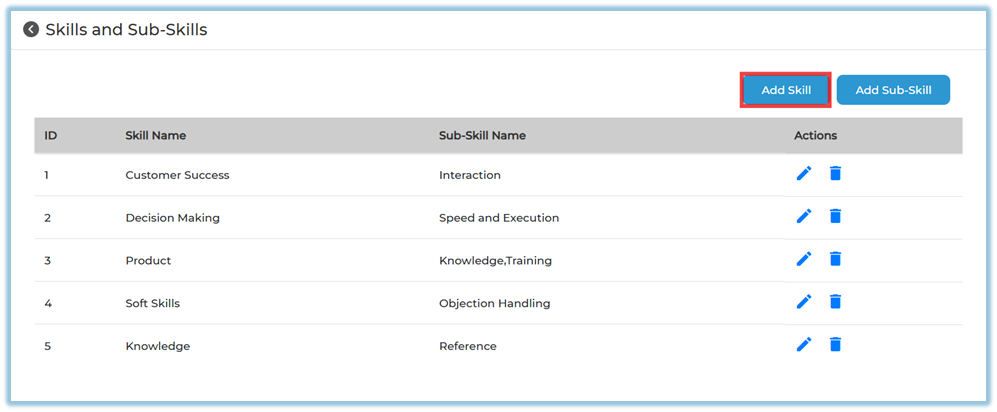**
2. Enter the **Skill Name**
3. Click **Add Subskill**
4. Add sub-skills using the **+ icon**
5. Click **Confirm
**
**Add Sub-Skill:**
1. Click **Add Sub-Skill**
2. Select an existing skill
3. Enter the sub-skill name
4. Click **Confirm
**
#### D. Language
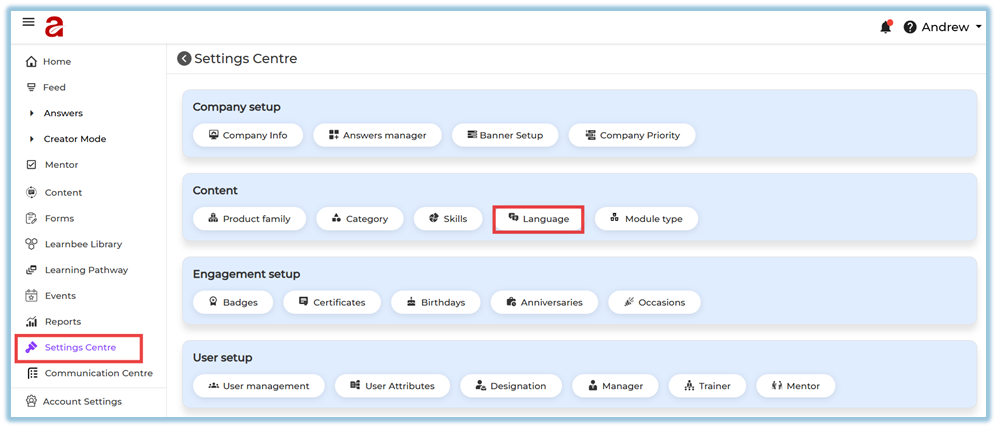
**Path:**
Settings Centre → Content → Language
[https://converse.bsharpcorp.com/celebrate/language](https://converse.bsharpcorp.com/celebrate/language)
**Purpose:**
Defines the language in which learning content is created and delivered.
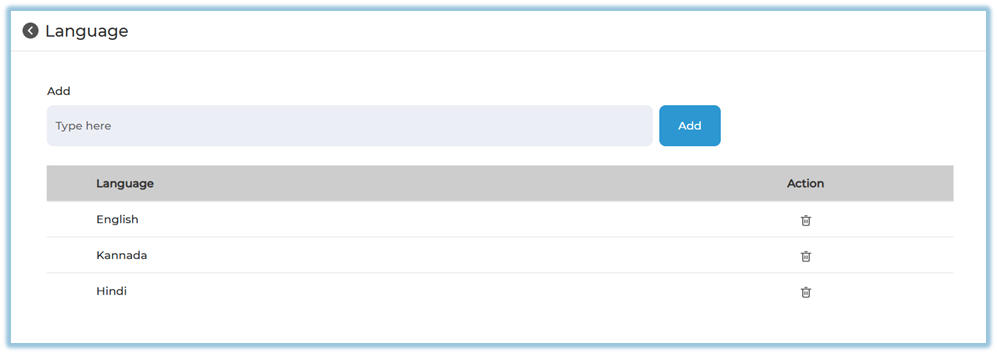
**Steps:**
1. Enter the language name
2. Click **Add**
3. Use the delete icon to remove a language
4. Use reorder option if required
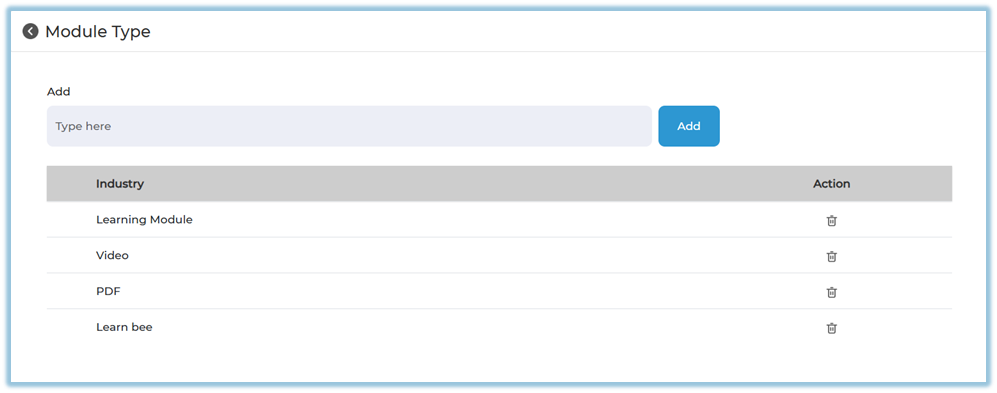
#### E. Module Type
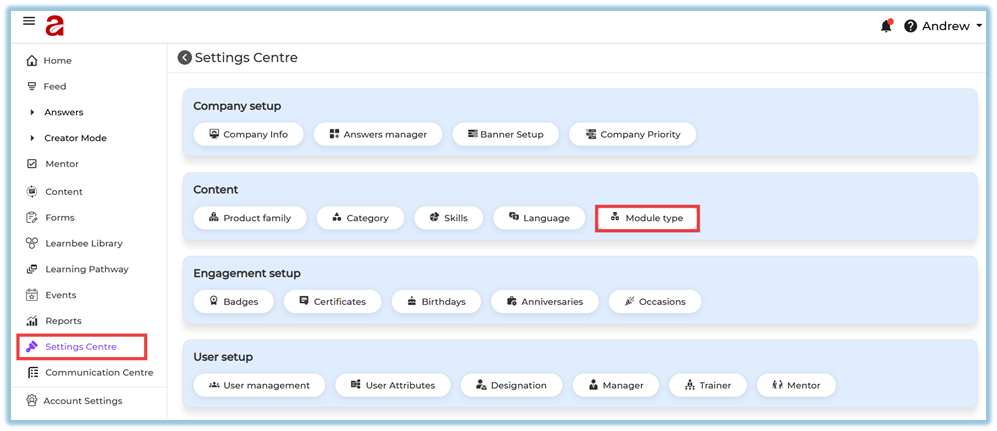
**Path:**
Settings Centre → Content → Module Type
[https://converse.bsharpcorp.com/celebrate/module-type](https://converse.bsharpcorp.com/celebrate/module-type)
**Purpose:**
Defines the format of the learning content.
**Steps:**
1. Enter the module type (example: Video, PDF, Learnbee)
2. Click **Add**
3. Use delete or reorder options as required
### **5. User View**
These settings are not visible directly to users.
They appear as selectable dropdown options while:
- Creating a module
- Viewing module details
### **6. Reporting**
There are no direct reports for Content settings.
However, they are reflected in:
- Module metadata
- Skill-based and product-based reporting
### **7. Best Practices**
- Complete all content setup before creating modules
- Use consistent naming conventions
- Avoid deleting values already linked to live content
- Use reorder options to keep dropdowns user-friendly
### **8. Related Links / FAQs**
- [Settings Centre – Company Setup](https://help.bsharpcorp.com/books/settings-centre/page/company-setup)
- [How to Create a Module](https://help.bsharpcorp.com/books/content/page/how-do-we-set-up-content)
### **9. Version Notes**
Last Updated: 29 Dec 2025