# How to Create and Use Flex and Attribute Groups
### **1. Overview**
Flex and Attribute Groups help admins assign users efficiently across features like Content, Learning Pathway, Smart Coach, etc.
Users can be assigned individually, by attributes, or using saved groups.
Attribute Groups automatically include users based on selected attributes like role, region, or department.
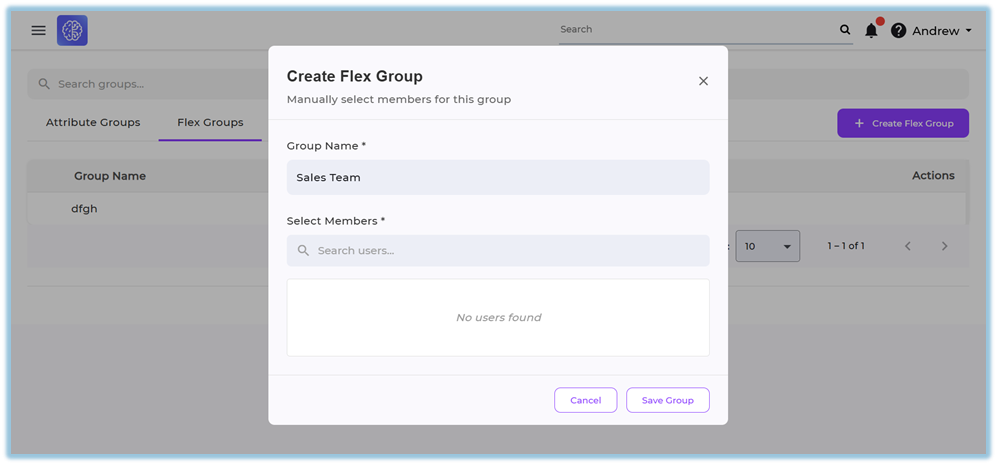
Flex Groups allow admins to manually select and group specific users for assignment.
### **2. When to Use**
- When assigning users based on attributes like department, role, or region
- When creating reusable user groups across multiple features
- When manually grouping specific users for targeted assignments
- When managing large sets of users efficiently
### **3. Concepts**
- Attribute Group
- Flex Group
- User Attributes
- Group Name
- Group Members
- User Management Storage
### **4. Set Up Guide**
#### **Access Manage Groups**
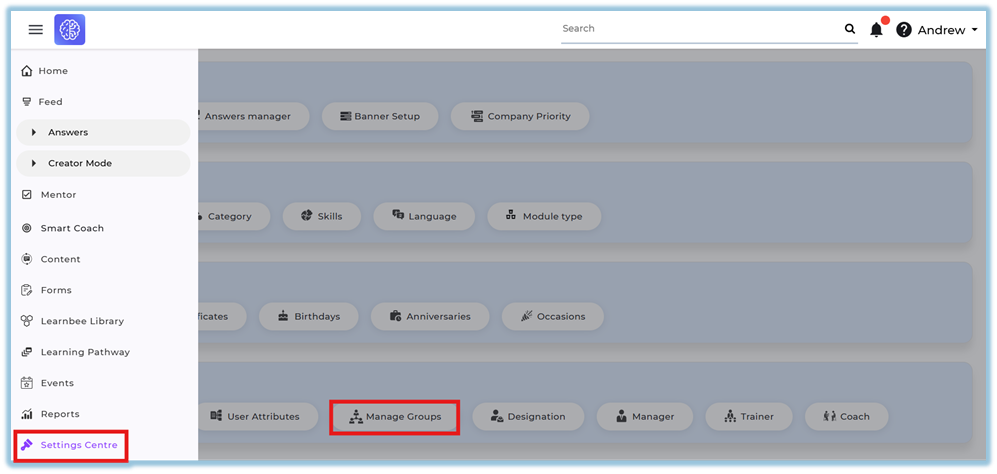
1. Click the **menu**
2. Click **Settings Centre**
3. Go to **User setup**
4. Click **Manage Groups
**
#### **Create Attribute Group**
5. Select **Attribute Groups** tab
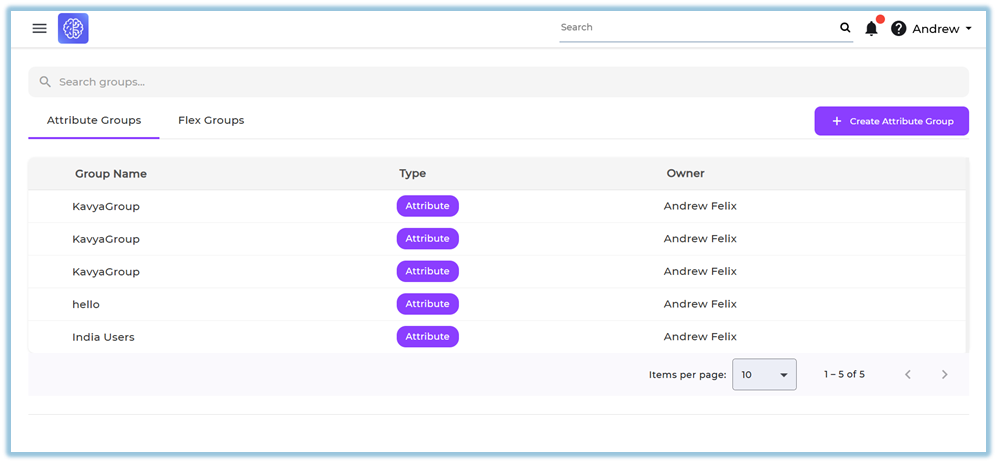
6. Click **Create Attribute Group**
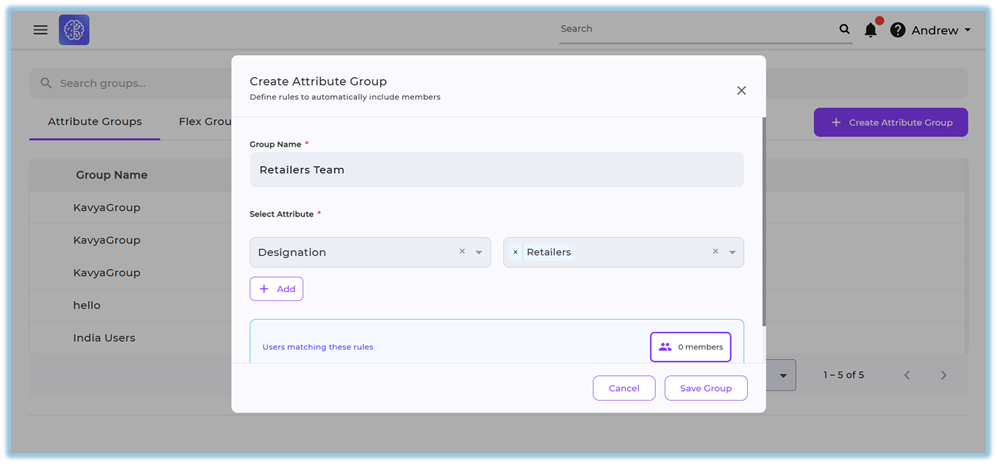
7. Enter **Group Name**
8. Select **Attribute**
9. Enter **Value**
10. Click **Add** (to include multiple attributes if required)
11. View users matching the rules
12. Click **Save Group
**
#### **Create Flex Group**
13. Select **Flex Groups** tab
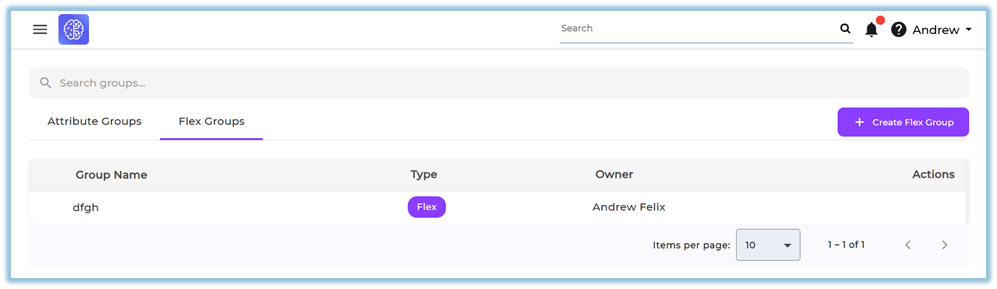
14. Click **Create Flex Group**
15. Enter **Group Name**
16. Search and select users in **Select Members**
17. Click **Save Group
**
### **5. User View**
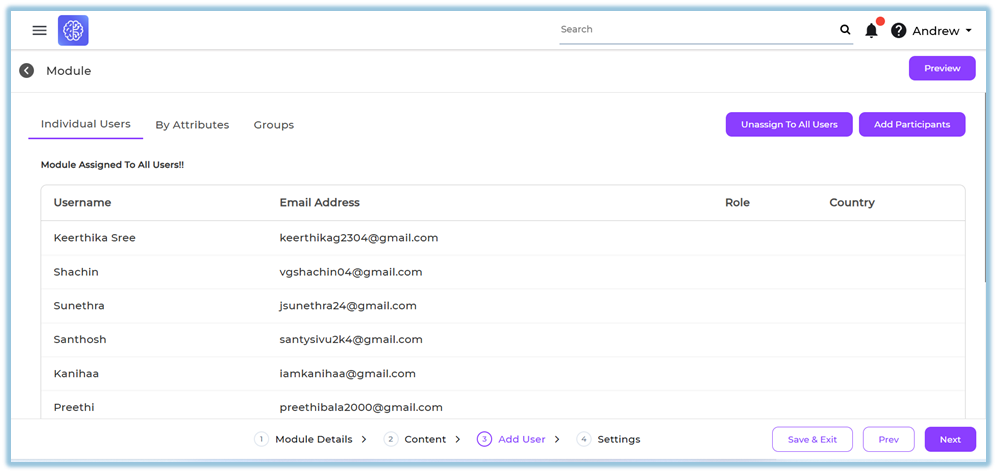
- While assigning users in features like Content, Learning Pathway, Smart Coach, etc., the **Add Users** section is shown
- The following tabs are available:
- **Individual Users** → Select users manually
- **By Attributes** → Select users based on attributes
- **Groups** → Select from saved Attribute Groups and Flex Groups
- Admin can:
- Search users
- Assign to all users
- Add selected users using **Add Participants
**
### **6. Best Practices**
- Use Attribute Groups for rule-based user selection
- Use Flex Groups for manual user grouping
- Keep group names clear and meaningful
- Reuse existing groups instead of creating duplicates
- Validate users before saving the group
### **7. Related Links / FAQs**
**Q: Who can create groups?**
Only admins can create groups.
**Q: Where are groups stored?**
User groups are stored in User Management.
**Q: Can groups be reused across features?**
Yes, groups can be reused across features like Content, Learning Pathway, Smart Coach, etc.
### **8. Version Notes**
Last Updated: 02 Mar 2026