# How do I configure a calendar widget?
### **Overview**
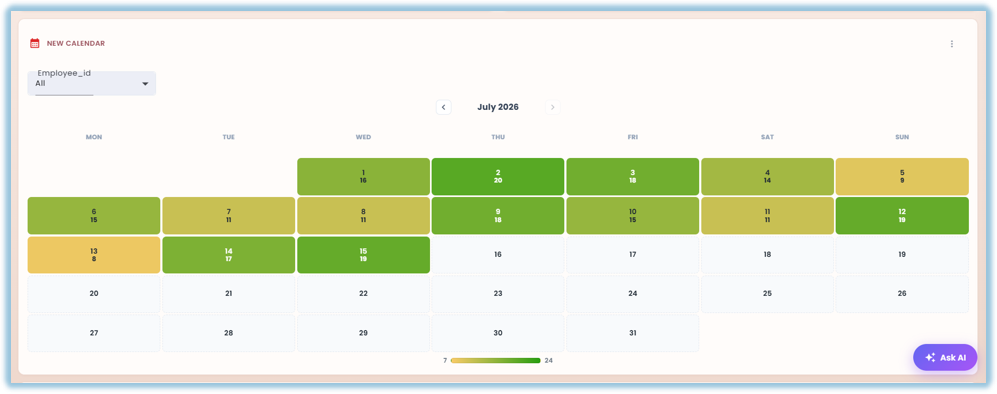
A calendar widget lays your data out on a calendar grid, so you can see how records are distributed across dates at a glance.
### **When to Use**
Use this feature when:
- You want to see how records are spread across dates — submissions, visits, or any dated activity
- You want a day-by-day or month-by-month view instead of a table or chart
### **Concepts**
- Calendar Widget – A month-grid widget built from one Date column; each day shows either a heatmap-shaded metric or a status, depending on whether an Entity is pinned to a single value
- Date Column – Required: the date field the calendar grid is built from
- Entity Column – Optional: a user or store-type field (such as Employee Name); when a filter pins this to a single value, the calendar switches to State mode and shows each day's Status instead of a heatmap metric
- Status Column – Optional: a present/leave-type field (such as Completion Status) used in State mode, once each value is mapped under Status Colors
- Heatmap Mode – The calendar's default view when no single Entity is pinned: each day shades by the metric set under Day Value, and is clickable for drill-down
- State Mode – The calendar's view once a filter pins the Entity to one value: each day shows its Status color instead of a heatmap shade
- Day Value (Heatmap Mode) – "Each day shows" sets the aggregation shaded on each day in Heatmap mode, such as Count of records
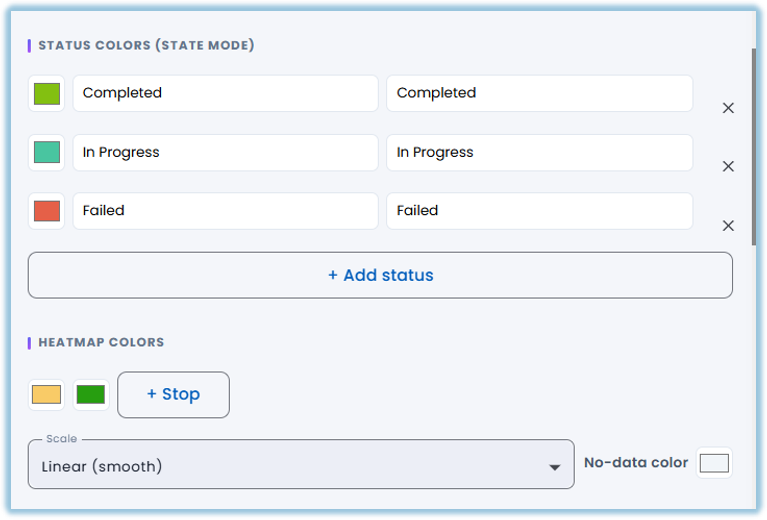
- Status Colors (State Mode) – The color you assign to each Status value, added one at a time with + Add status
- Heatmap Colors – The color gradient used to shade days in Heatmap mode — its stops, a Scale (such as Linear (smooth)), and a No-data color for days with nothing to show
- Summary Strip – An optional row of summary cards shown alongside the calendar, turned on or off under Summary Cards
### **Set Up Guide**
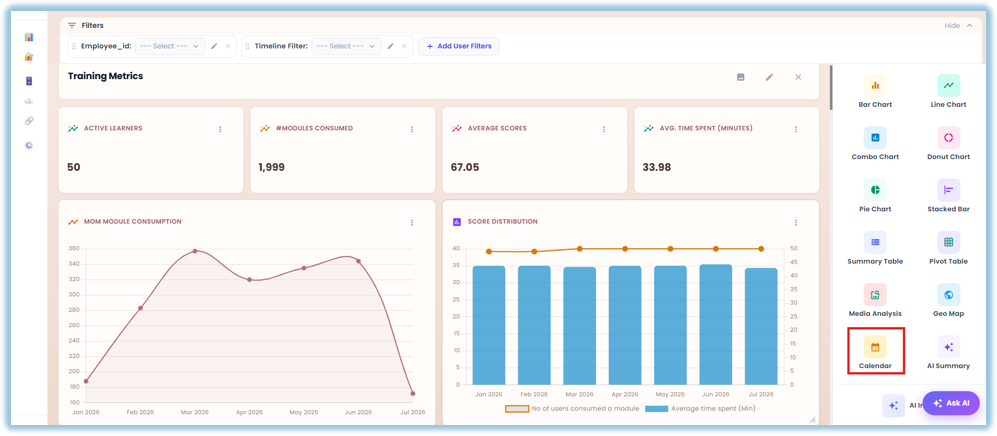
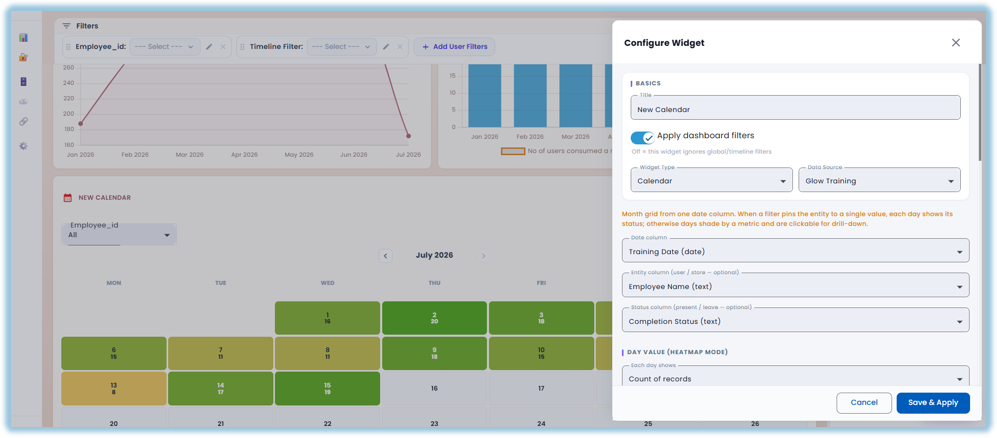
1. Go to a dashboard and click Add Widget, then set the Title, Apply Dashboard Filters, Widget Type (Calendar), and Data Source as usual
2. Choose the Date column — the field the calendar grid is built from
3. Optionally choose an Entity column (a user or store field) and a Status column — together these drive State mode, where pinning a filter to one entity shows each day's status instead of a heatmap
4. Under Day Value (Heatmap Mode), set "Each day shows" — the aggregation shaded on each day when no single entity is pinned, such as Count of records
5. Under Status Colors (State Mode), click + Add status for each Status value and assign it a color
6. Under Heatmap Colors, set the gradient stops, the Scale, and a No-data color for days with nothing to show
7. Under Summary Cards, turn on Show summary strip if you want a row of summary cards alongside the calendar
8. Under Display, set Week Starts On, and turn Show value/status in cells and Show legend on or off
9. Add any Filters you want the calendar to respect, and set up User Filters — with Default Values — if you want viewers to adjust them
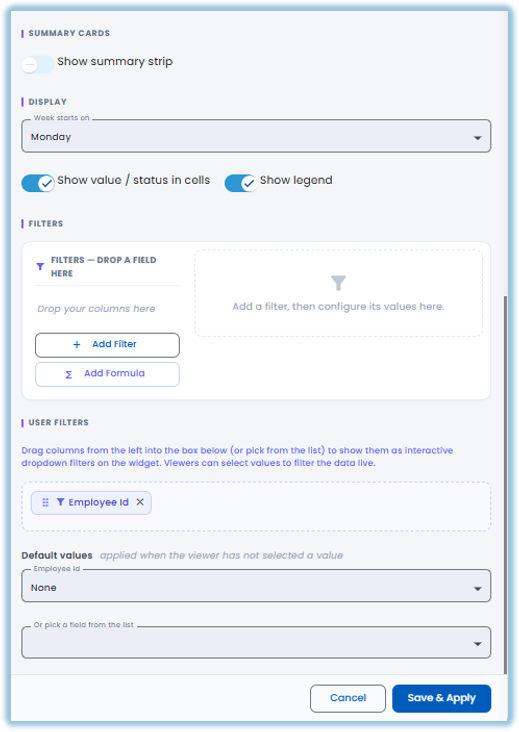
10. Click Save & Apply
### **Best Practices**
- Set both an Entity column and a Status column together — State mode only kicks in once a filter pins the Entity to one value and every status has a color under Status Colors, so setting only one keeps the calendar in Heatmap mode
- Give every Status a distinct color under Status Colors — an unmapped or duplicate-colored status is hard to tell apart on the grid
- Set a deliberate No-data color under Heatmap Colors — it's how you tell "zero" apart from "no data at all" on days with nothing recorded
- Double-check the Date, Entity, and Status columns after reopening a saved calendar widget — these have reset on reopen in the past, so confirm they're still set the way you want before saving again
### **Related Links/FAQs**
Related pages in this book:
- What widget types are available in Vantage?
- How do I configure a summary table or pivot table widget?
- How do I configure a geo map widget?
**FAQs**
**What's the difference between Heatmap mode and State mode?**
Heatmap mode (the default) shades each day by the metric you choose under Day Value. State mode replaces that with a color per status, and only turns on once a filter pins the Entity column to a single value.
**Do I need to set an Entity and Status column?**
No — both are optional. Without them, the calendar stays in Heatmap mode, shading each day by the Day Value metric.
**Can viewers filter the calendar themselves?**
Yes — add columns under User Filters to expose them as dropdown filters, with an optional Default Value for before the viewer picks one.
### **Version Notes**
Last Updated: Oct 2026