# How do I configure a media analysis widget?
### **Overview**
A media analysis widget shows AI-read results from your photos or text submissions, checked against a Check you configure — for example, counting items in a shelf photo or confirming a display is present.
### **When to Use**
Use this feature when:
- You want an automatic read on photos or text submitted through a form — counting items, extracting a value, or scoring against a Check
- You don't need true computer-vision accuracy (facing recognition, object detection, SKU matching) — this feature reads images with a language model, not a vision model built for that
### **Concepts**
- Media Analysis Widget – Shows the results of an AI read of your media (photos or text submissions) against a Check you configure
- Check – What the AI is asked to do on each piece of media; choose one of five types. A Check that's already set up shows as "(configured)" in the dropdown
- Uniform check – A yes/no check against a single condition in the photo, such as whether something matches an expected standard
- Display / POSM present – A yes/no check for whether a point-of-sale display or material (POSM) is visible in the photo
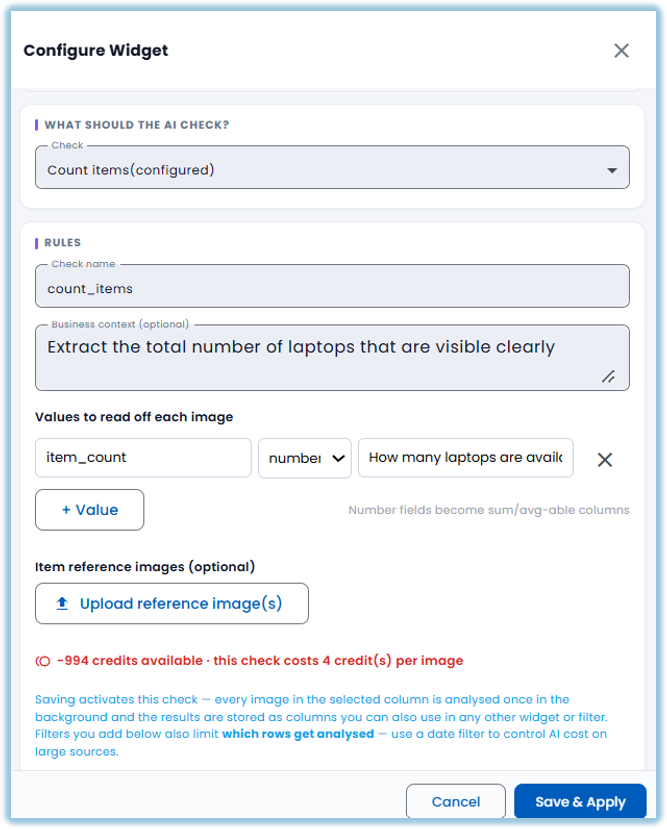
- Count items – Counts how many of something appear in the photo — for example, how many units of a product are on a shelf; configured using one or more Values
- Read a value – Extracts a specific value from the photo or text, such as a price or a label reading; configured using one or more Values
- Quality score – Scores the photo or submission against quality criteria you describe, instead of a yes/no result or a count
- Value – A specific thing the AI should extract or count under a Count items or Read a value Check, given a name, a type (such as Number), and a description telling the AI what to look for; Number-type Values become ordinary columns you can sum or average elsewhere in Vantage (a KPI card, chart, or summary/pivot table)
- Item Reference Images – Optional reference photos you can upload so the AI knows what a correct item looks like
- Credits – Each media analysis job that completes successfully uses a credit; credit use is capped and tracked by your admin
- Media Analysis Job – The background task that reads one piece of media against a Check; jobs run asynchronously, and the dashboard refreshes automatically every 15 seconds while jobs are in progress
### **Set Up Guide**
1. Go to a dashboard and click Add Widget, then set the Title, Apply Dashboard Filters, Widget Type (Media Analysis), and Data Source as usual
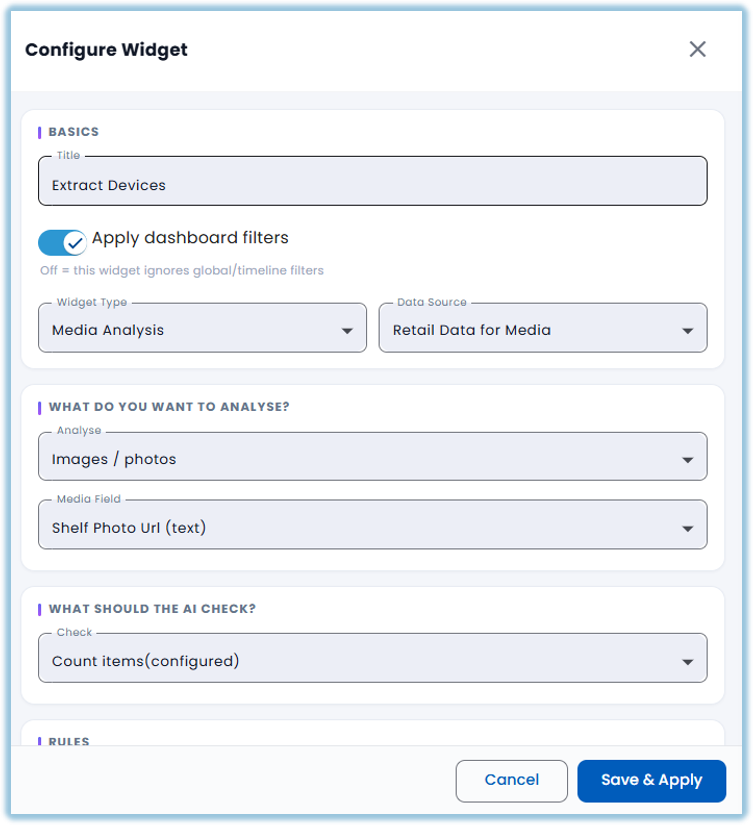
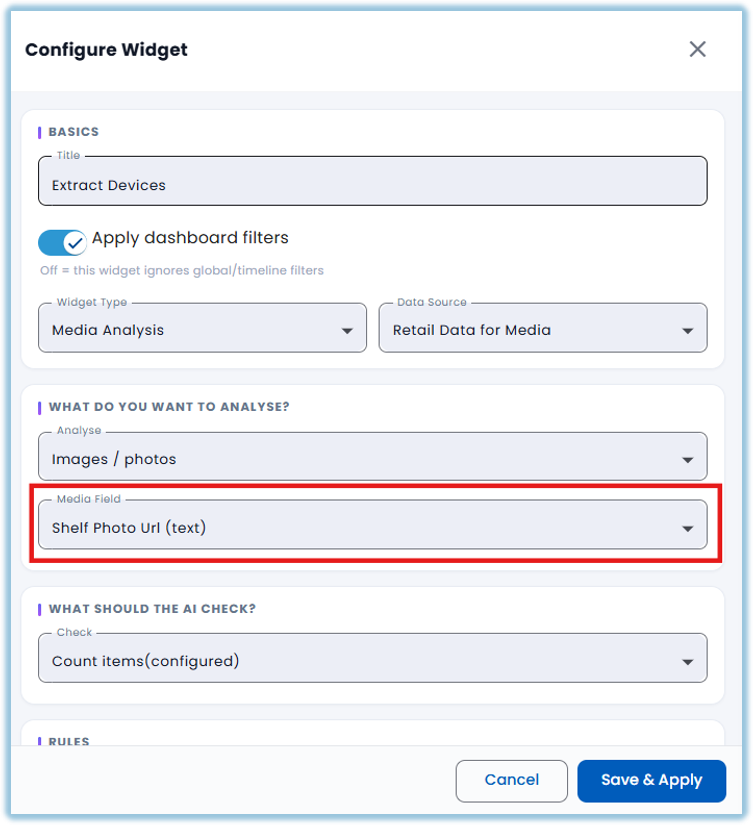
2. Choose the media field to analyze — a photo or text column from your Data Source, such as Shelf Photo Url
3. Under "What should the AI check?", choose a Check — Uniform check, Display / POSM present, Count items, Read a value, or Quality score
4. For Count items or Read a value, click + Value to add one or more values — give each a name, a type (such as Number), and a description telling the AI what to look for
5. Optionally, upload Item reference images so the AI knows what a correct item looks like
6. Click Save & Apply
### **Best Practices**
- Stick to photo or text submissions — video and audio analysis exist as legacy options, but they don't produce reliable results today: video analysis only sends the model the file's URL (which it can't actually watch), and audio analysis returns a placeholder instead of a real transcript
- Treat results as LLM-grade, not CV-grade — there's no true object detection or facing recognition behind this; the model is reading the photo and estimating, so spot-check anything used for a compliance or scoring decision
- Give each Value a clear, specific description — it's literally the instruction the AI reads to decide what to extract or count, so a vague description gives vague results
- Avoid saving the same Check multiple times in quick succession — each save can queue new analysis jobs, and resaving repeatedly can create duplicate jobs that use up extra credits
### **Related Links/FAQs**
Related pages in this book:
- What widget types are available in Vantage?
- How do I configure a calendar widget?
- How do I configure an AI summary widget?
##### FAQs
**Is media analysis real computer vision, like object detection?**
No — it's a language model reading the photo (or text) against the rubric you set up. There's no true object detection, facing recognition, or SKU matching behind it, so treat results as LLM-grade, not CV-grade.
**Can I use it to analyze videos or audio recordings?**
Video and audio options exist but aren't reliable today — video analysis only sends the model the file's URL, which it can't open, and audio analysis returns a placeholder instead of a real transcript. Stick to photos and text submissions.
**Does every analysis use up credits?**
Yes — each job that completes successfully uses a credit, and credit use is capped and tracked by your admin.
### **Version Notes**
Last Updated: Oct 2026