# How do I configure an AI summary widget?
### **Overview**
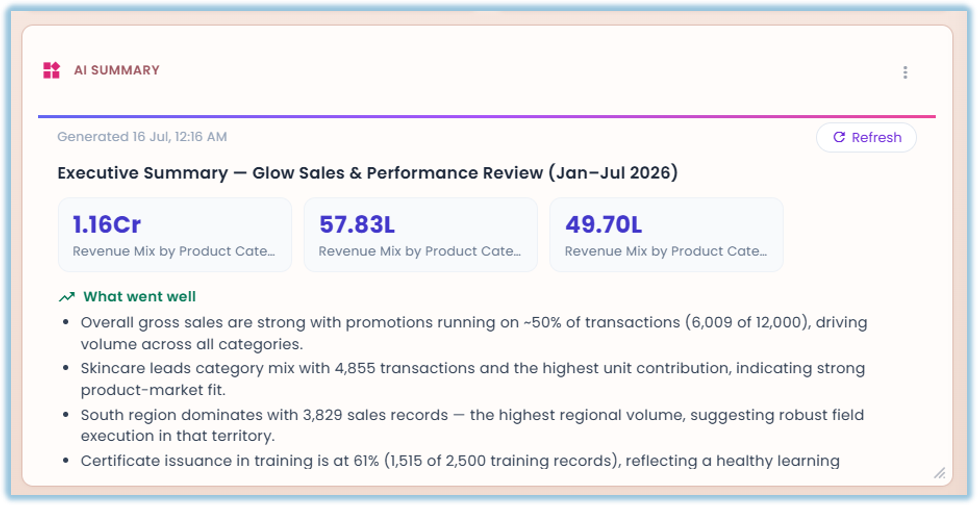
An AI summary widget turns your dashboard data into a written summary, which you can optionally point at something specific with your own Focus prompt.
### **When to Use**
Use this feature when:
- You want a narrative summary of what's happening in your data, not another chart or table
- You want to point that summary at something specific — a metric, a time period, a comparison — using your own instructions
### **Concepts**
- AI Summary Widget – A widget that generates a written summary of your dashboard data
- Focus – An optional prompt where you tell the AI what the summary should cover, such as "Attendance and uniform compliance for the weekly regional review"; leave it blank for a general summary
- Filters – Conditions you can drop columns into on this widget, configured the same way as other widgets' filters
### **Set Up Guide**
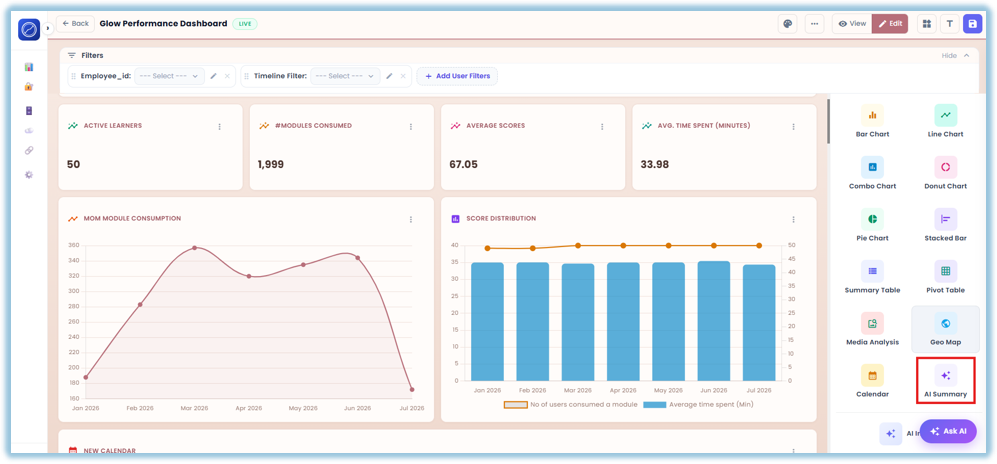
1. Go to a dashboard and click Add Widget, then set the Title and turn on Apply Dashboard Filters as usual
2. Choose the Widget Type — AI Summary
3. Under "What should the summary cover?", optionally enter a Focus — tell the AI what to summarize, such as "Attendance and uniform compliance for the weekly regional review"; leave it blank for a general summary
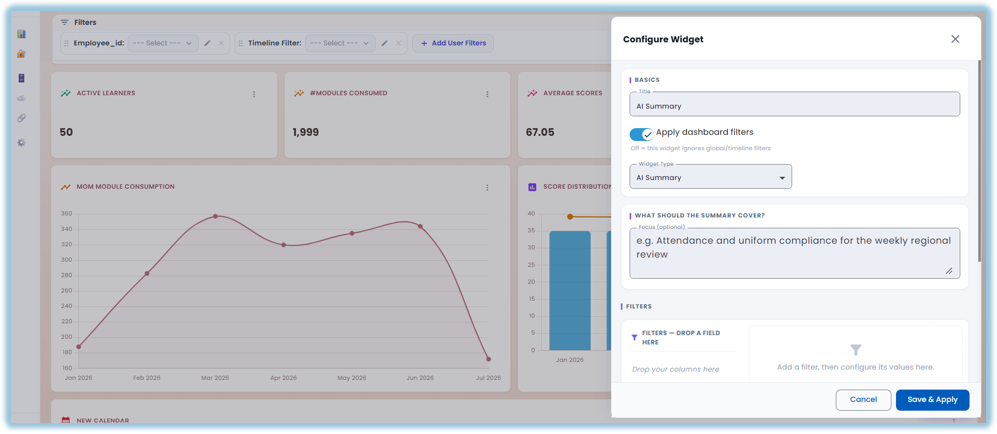
4. Under Filters, drop in any columns you want to filter by and configure their values
5. Click Save & Apply
### **Best Practices**
- Write a specific Focus instead of leaving it blank — a vague or empty Focus gives a vague, general summary; a specific one (a metric, a time period, a comparison) gives a sharper one
- Treat the summary as a starting point, not a cited fact — it doesn't link back to the underlying records, so verify anything important by drilling into the data yourself
- If you want the summary to respect the dashboard's filters, keep Apply Dashboard Filters turned on — turning it off means the widget only sees its own Filters section
### **Related Links/FAQs**
Related pages in this book:
- What widget types are available in Vantage?
- How do I configure a media analysis widget?
##### FAQs
**What's the difference between an AI Summary widget and the Ask AI chat?**
Ask AI is a separate chat-style tool for asking one-off questions. An AI Summary widget is configured once, with an optional Focus prompt and its own Filters, and then sits on the dashboard like any other widget.
**Does an AI summary widget link back to the records it's based on?**
No — there's no citation or source link back to the underlying rows. If you need to verify an answer, drill into the data yourself.
### **Version Notes**
Last Updated: Oct 2026