
Classroom Administration
1. Overview
The Classroom module enables administrators to create, manage, and organize instructor-led training programs. Admins can configure course details, upload learning materials, assign trainers, and publish courses for learners.
2. When to Use
Use Classroom Administration when you want to:
- Create instructor-led training courses
- Upload learning materials
- Assign trainers to courses
- Configure course information
- Publish or archive courses
- Manage classroom training
3. Concepts
- Classroom – A module used to manage instructor-led training programs.
- Course – A training program that contains learning materials, trainers, and sessions.
- Course Information – Basic details such as course name, description, skills, and product information.
- Documents – Learning materials uploaded to a course, including PDFs, videos, Learnbee, quizzes, and polls.
- Trainer Assignment – Process of assigning trainers to conduct classroom sessions.
- Course Status – Indicates whether a course is Draft, Active, or Archived.
4. Set Up Guide
Access Classroom
- Open the Main Menu.
- Click Classroom.
- Select Admin View.
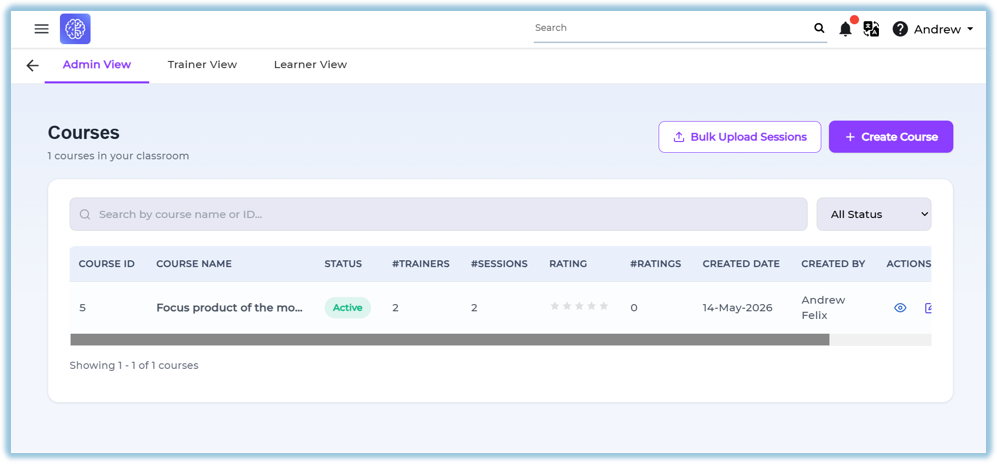
Create a Course
- Click + Create Course.
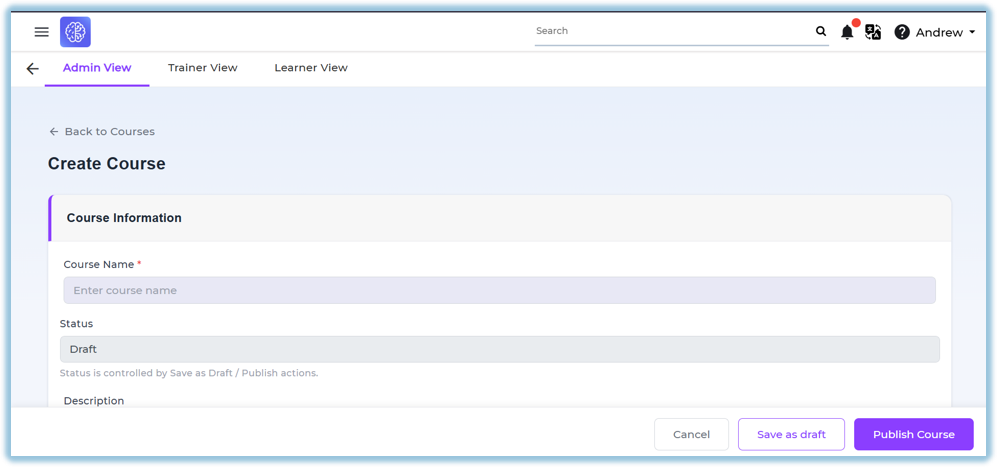
- Enter the Course Name.
- Review the system-generated Course ID.
- Enter the Course Description.
Configure Course Information
Enter the required course details:
- Skill
- Sub-skill
- Product Family
- Product
- Course Status
Upload Learning Materials
Click + Upload Document.
Supported document types include:
- Video
- Learnbee
- Quiz
- Poll
Review uploaded documents before publishing the course.
Configure Trainer Access
Choose one of the following options:
- Invite All Trainers
- Invite Specific Trainers
Review the selected trainers before saving the course.
Save or Publish
Choose one of the following:
- Save as Draft
- Publish Course
Published courses become available for trainer session creation.
Archive or Restore Course
Admins can archive completed or inactive courses.
Archived courses can be restored whenever required.
5. User View
The Admin Dashboard displays:
- Courses
- Course Status
- Assigned Trainers
- Documents
- Session Count
- Ratings
Admins can:
- Edit courses
- Publish courses
- Archive courses
- Manage documents
- Manage trainer assignments
6. Reporting
Admins can monitor:
- Total Courses
- Published Courses
- Draft Courses
- Assigned Trainers
- Course Ratings
- Session Count
Detailed reporting is available through the Classroom Reports section.
7. Best Practices
- Complete all course details before publishing.
- Upload all required learning materials.
- Assign trainers before scheduling sessions.
- Review course information regularly.
- Use Draft status while configuring incomplete courses.
- Archive inactive courses instead of deleting them.
8. Troubleshooting & FAQs
Q. Where can I access Classroom?
Q. Which document types are supported?
A.
- Video
- Learnbee
- Quiz
- Poll
Q. Can multiple trainers be assigned to a course?
A. Yes. Admins can invite all trainers or select specific trainers.
Q. Can trainers upload documents?
A. Yes. Admins can enable trainer document uploads for the course.
Q. Can a course be saved without publishing?
A. Yes. Use Save as Draft to save the course before publishing.
Q. Can archived courses be restored?
A. Yes. Archived courses can be unarchived whenever required.
9. Version Notes
Last Updated: 06 Aug 2026