
Classroom Sessions
1. Overview
Session Management enables trainers and administrators to schedule, conduct, and manage classroom sessions. It includes session scheduling, learner invitations, attendance management, document sharing, live session controls, and participant tracking.
2. When to Use
Use Session Management when you want to:
- Schedule classroom sessions
- Invite learners to a session
- Configure online, offline, or hybrid sessions
- Manage attendance during live sessions
- Share learning materials with participants
- Track learner participation
- Complete classroom sessions
3. Concepts
- Session – A scheduled classroom training conducted under a course.
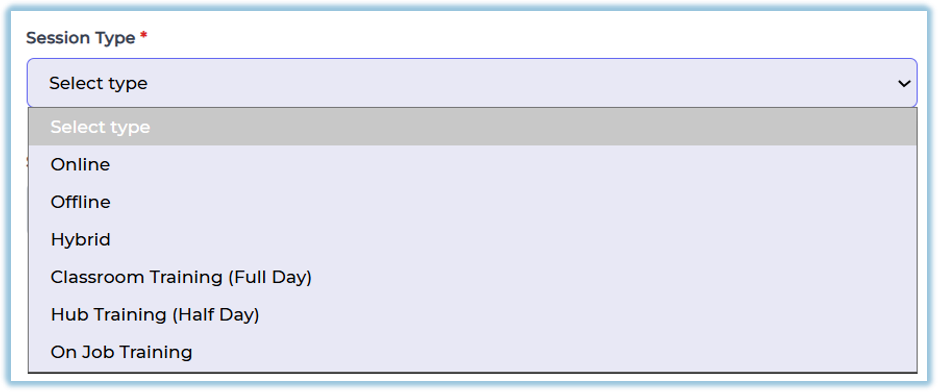
- Session Type – Defines whether the session is Online, Offline, or Hybrid.
- Attendance Code – A unique code used by learners to mark attendance.
- Participants – Learners invited to attend a classroom session.
- Session Documents – Learning materials available during the session.
- Session Status – Indicates whether a session is Scheduled, Live, Completed, or Missed.
4. Set Up Guide
Access Trainer View
- Open Classroom.
- Select Trainer View.
- Open My Courses.
- Select the required course.
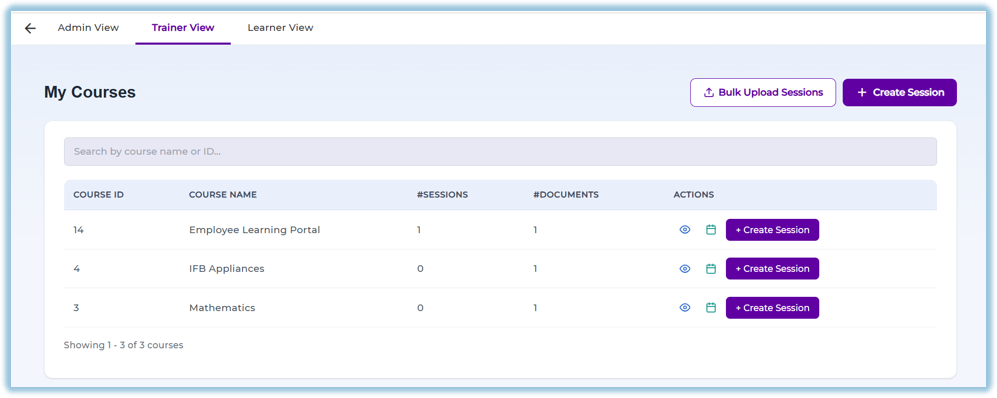
Create a Session
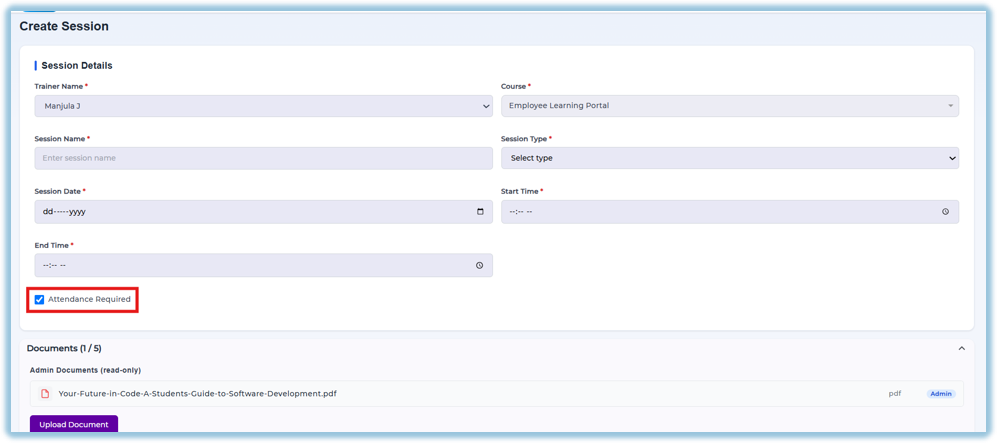
- Click Create Session.
- Enter the Session Name.
- Verify the Trainer Name.
- Select the Session Type.
- Choose the Session Date.
- Enter the Start Time and End Time.
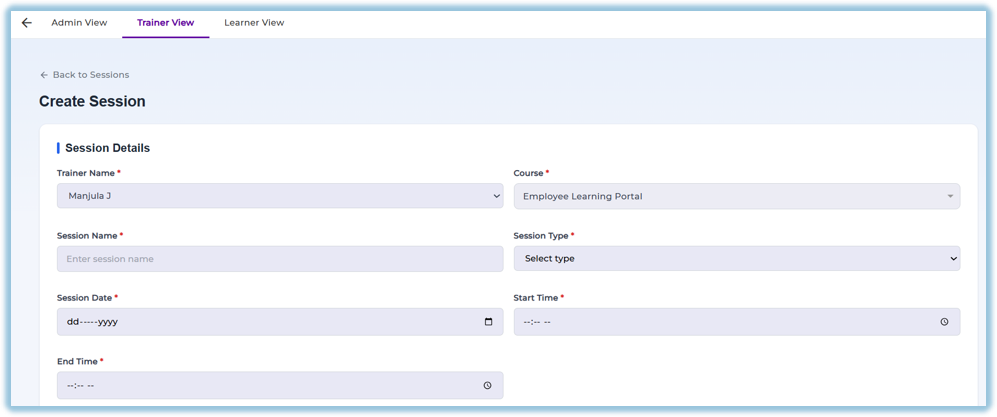
Configure Session Details
Based on the session type:
- Online – Enter the meeting link.
- Offline – Enter the venue details.
- Hybrid – Configure both meeting link and venue.
Upload Session Documents
Session documents can include:
- Video
- Learnbee
- Quiz
- Poll

Admin documents are available to every session, and trainers can upload session-specific documents when enabled.
Invite Learners
Choose one of the following options:
Invite All Active Users
Invite all active users in the organization.
Invite by Attribute
Invite learners based on attributes such as:
- Designation
- Product
- Product Family
- Country
- State
- City
- Manager
- Trainer
Invite Specific Users
Search and select individual learners.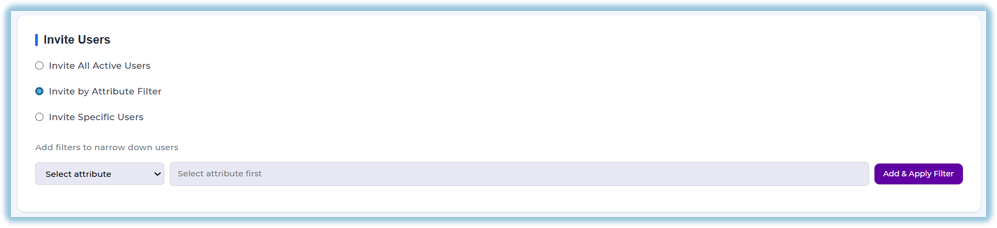
Attendance Management
- Enable Attendance Required if attendance is mandatory.
- Start the session.
- Share the generated Attendance Code with learners.
- Learners enter the code to mark attendance.
Start the Session
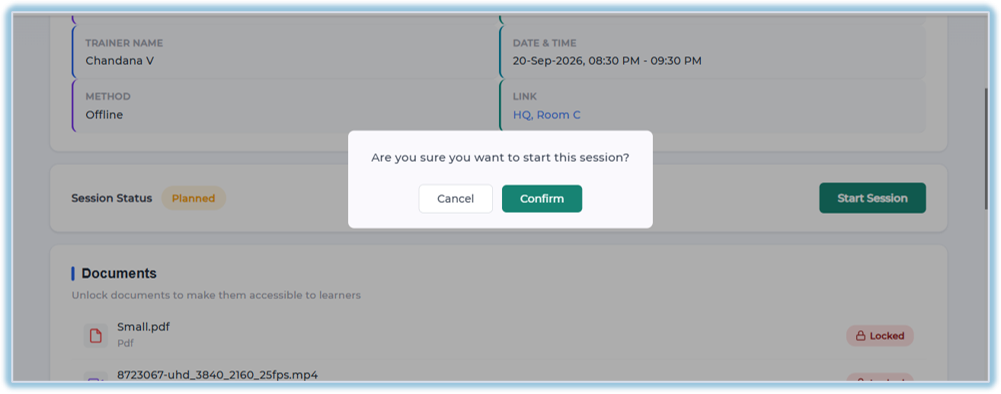
- Open the scheduled session.
- Click Start Session.
- Confirm the action.
- Session status changes to Live.
Unlock Learning Materials
During the live session:
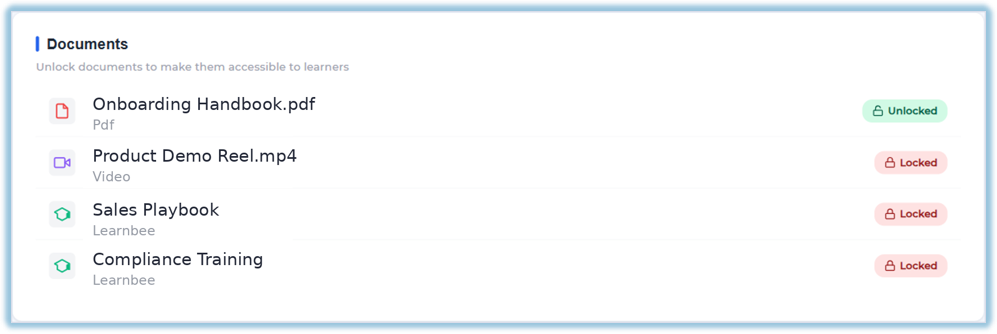
- Unlock documents individually.
- Learners can access only the unlocked materials.
Track Participants
Monitor participant status during the session:
- Pending
- Accepted
- Declined
- Attended
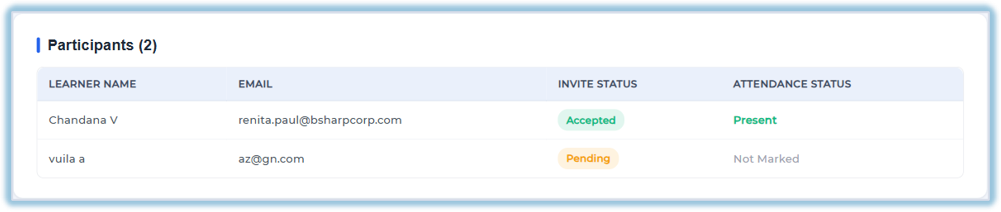
Attendance and invitation status are updated in real time.
End the Session
After the training:
- Review attendance.
- Confirm participant status.
- End the session.
The session moves to Completed after it ends.
5. User View
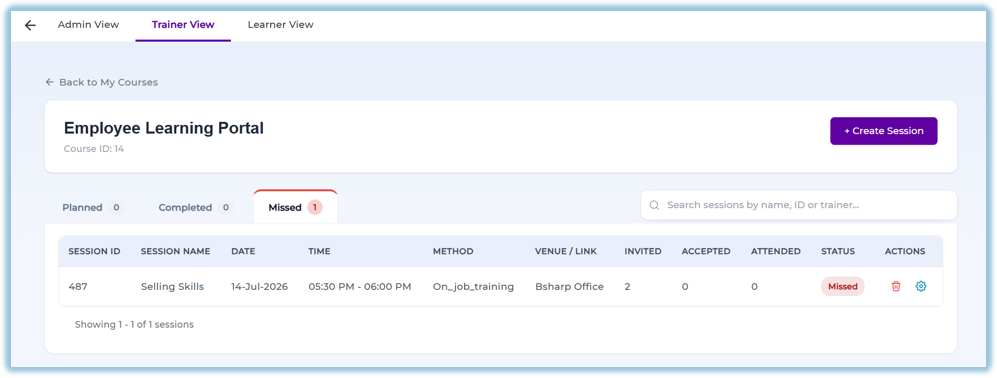
The Trainer Dashboard displays:
- My Courses
- Planned Sessions
- Live Sessions
- Completed Sessions
- Missed Sessions
For each session, trainers can:
- View session details
- Edit session
- Start session
- Unlock documents
- View participant status
- View attendance
- End session
6. Reporting
Session reports include:
- Session Details
- Attendance Status
- Participant Status
- Document Completion
- Quiz Completion
- Poll Completion
- Session Ratings
Reports can be filtered by:
- Course
- Trainer
- Session Status
- Date Range
Detailed reports can be downloaded for analysis.
7. Best Practices
- Schedule sessions before inviting learners.
- Verify meeting links and venue details before publishing.
- Enable attendance only when required.
- Unlock learning materials during the live session.
- Monitor participant status throughout the session.
- End sessions after completion to maintain accurate records.
8. Troubleshooting & FAQs
Q. Which session types are available?
A. Online, Offline, and Hybrid.
Q. Can I invite learners using attributes?
A. Yes. Learners can be invited using attribute-based filters or by selecting individual users.
Q. When is the attendance code available?
A. The attendance code is generated after the session is started.
Q. Can learners access documents before the session starts?
A. No. Documents remain locked until the trainer unlocks them during the live session.
Q. What happens if attendance is required?
A. Learners must enter the attendance code before they can access the meeting link and learning materials.
Q. Can trainers upload session-specific documents?
A. Yes. Trainers can upload session-specific documents if the course allows trainer document uploads.
9. Version Notes
Last Updated: 06 Aug 2026