
Learner Experience & Reports
1. Overview
The Learner View enables users to access assigned classroom sessions, mark attendance, participate in live training, complete learning activities, and review their classroom learning history. Administrators and trainers can also monitor session outcomes through classroom reports.
2. When to Use
Use this feature when you want to:
- View assigned classroom sessions
- Join a live classroom session
- Mark attendance
- Access session documents
- Complete quizzes and polls
- Submit session ratings and feedback
- Review classroom learning history
- Monitor classroom reports and learner participation
3. Concepts
- Learner View – Displays all classroom sessions assigned to the learner.
- Attendance Code – A unique code used to mark attendance for a live session.
- Session Documents – Learning materials available during the classroom session.
- Quiz & Poll – Interactive assessments available within a session.
- My Reports – Displays the learner's classroom session history and results.
- Session Report – Provides attendance, participation, and performance details for classroom sessions.
4. Set Up Guide
Access Learner View
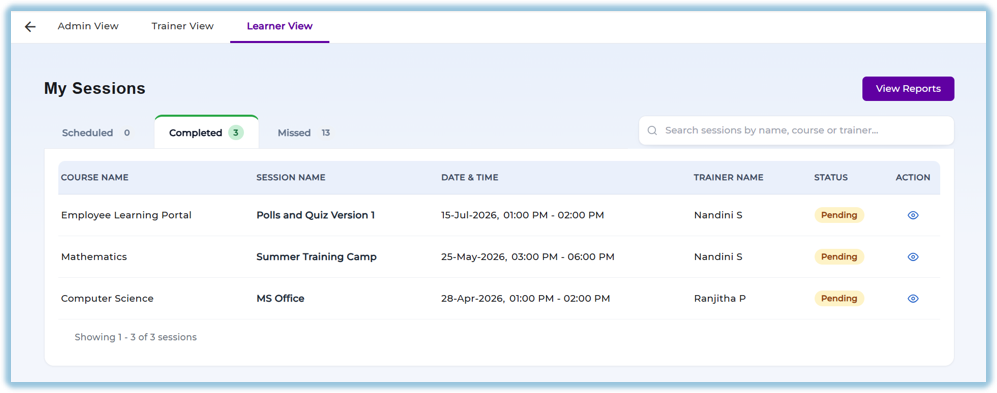
View Assigned Sessions
Sessions are grouped into:
- Scheduled
- Completed
- Missed
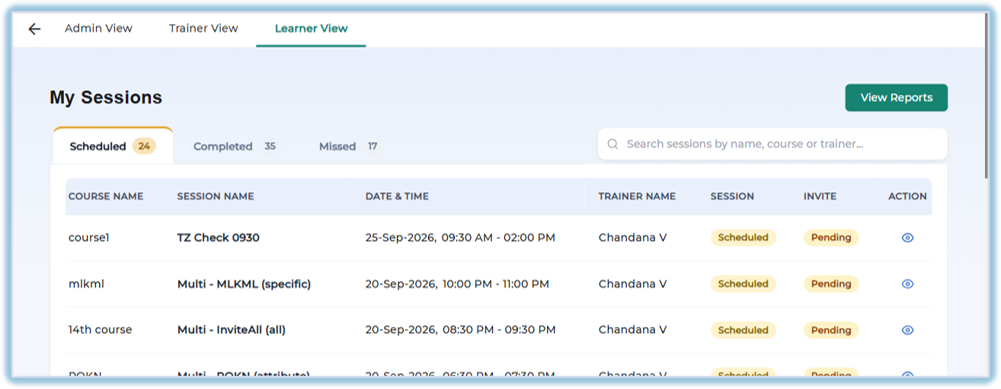
Select a session to view its details.
Join a Session
- Open the scheduled session.
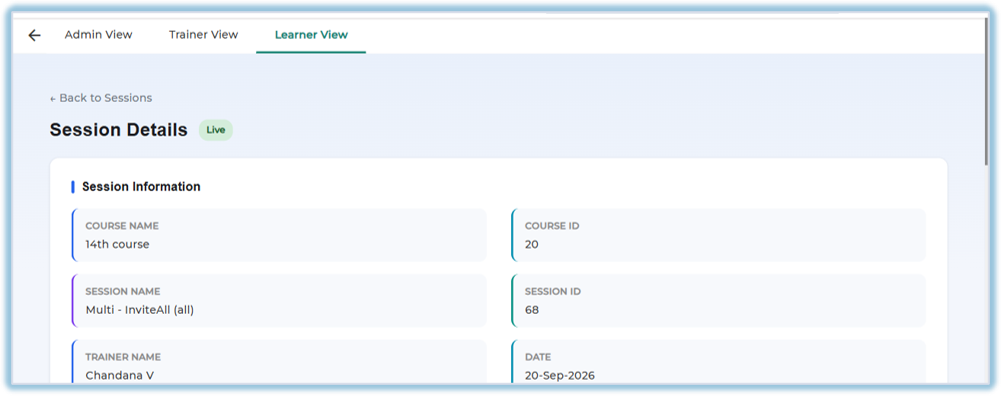
- Accept the session invitation.
- If required, enter the Attendance Code shared by the trainer.
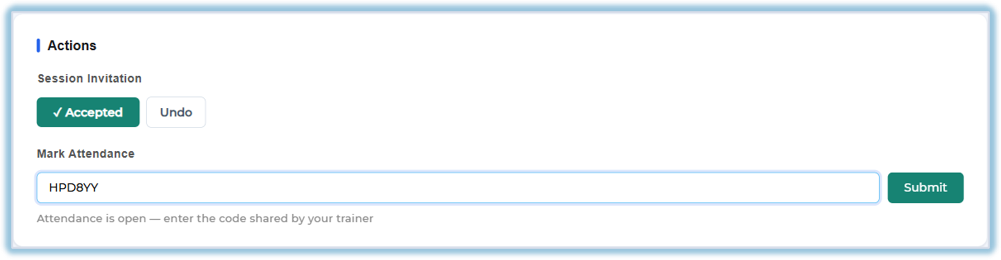
- After successful attendance, access the meeting link and learning materials.
Access Learning Materials
Depending on the session, learners can access:
- PDF Documents
- Videos
- Learnbee Content
- Quiz
- Poll
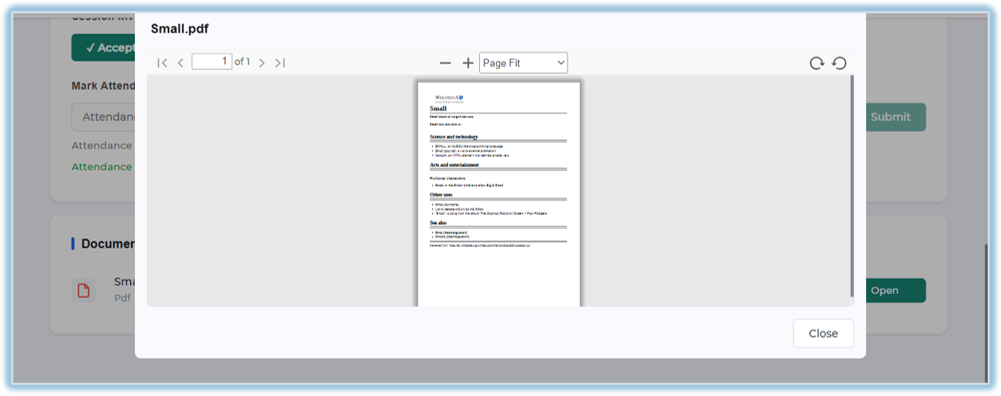
Complete the assigned learning activities during the session.
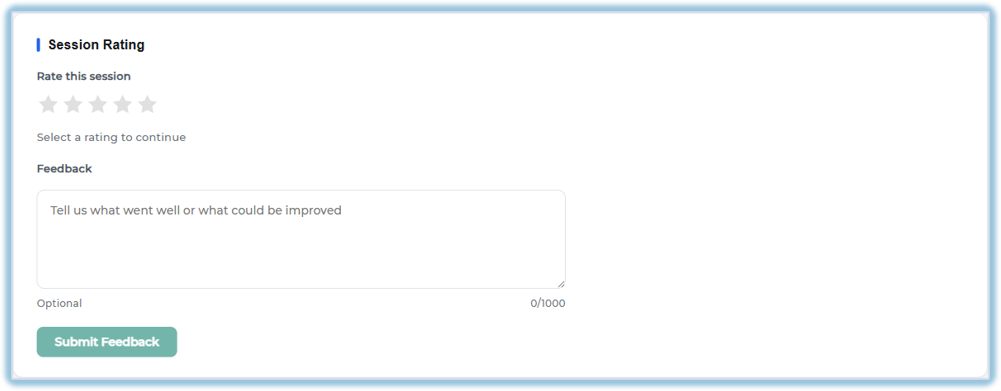
Submit Session Rating
After completing the session:
- Rate the session using the star rating.
- Provide feedback (optional).
- Submit the rating.
5. User View
Learner Dashboard
Displays:
- Scheduled Sessions
- Completed Sessions
- Missed Sessions
Each session includes:
- Course Name
- Session Name
- Trainer
- Date & Time
- Session Status
- Invitation Status
Live Session
During a live session, learners can:
- Mark attendance
- Access the meeting link
- View unlocked documents
- Complete quizzes or polls
- Participate in learning activities
My Reports
Learners can review:
- Session History
- Attendance Status
- Quiz Scores
- Learnbee Completion
- Session Ratings
- Average Performance
6. Reporting
The Classroom Reports provide insights into classroom training and learner participation.
Session Reports
Displays:
- Session Status
- Attendance Summary
- Participant Count
- Quiz Completion
- Poll Completion
- Learnbee Completion
- Session Ratings
Trainer Reports
Displays:
- Sessions conducted
- Learner attendance
- Average ratings
- Training performance
Course Reports
Displays:
- Course Status
- Total Sessions
- Assigned Trainers
- Overall Ratings
Poll Reports
Displays:
- Response Summary
- Question-wise Responses
- Individual Responses
- Language-wise Responses
Reports can be filtered by:
- Time Range
- Course
- Trainer
- Session Status
- Learning Attributes
Reports can be downloaded for further analysis.
7. Best Practices
- Accept session invitations before the scheduled time.
- Mark attendance promptly using the trainer's attendance code.
- Complete all assigned learning materials during the session.
- Submit ratings and feedback after each session.
- Review My Reports regularly to monitor learning progress.
8. Related Links / FAQs
Q. Where can learners view assigned classroom sessions?
A. Classroom → Learner View.
Q. What session categories are available?
A.
- Scheduled
- Completed
- Missed
Q. When can learners access the meeting link?
A. After attendance is marked (if attendance is required).
Q. Can learners attempt quizzes and polls during the session?
A. Yes. Learners can complete quizzes and polls that are assigned to the session.
Q. Where can learners view their classroom history?
A. My Reports.
Q. Can classroom reports be downloaded?
A. Yes. Available reports can be downloaded for analysis.
9. Version Notes
Last Updated: 07 Aug 2026