
Privacy
1. Overview
The CommunicationPrivacy Centre(Email followsNotifications) strictpage privacyallows controlsusers to ensuredecide thatwhich communicationsemail (notifications they want to receive from Converse. Users must opt in to receive emails sent by the admin for activities such as badges, certificates, birthdays, learning updates, and notifications) are sent only to intended users. It respects user data security and ensures that personal information is used only for official communication purposes.more.
2. WhatWhen Datato Is UsedUse
-
TheToCommunicationcontrolCentrepersonalusesemail notification preferences -
To opt in or opt out of admin-triggered email notifications
-
To receive only
therelevantfollowingsystemuserandinformation:engagement updates -
To stop unwanted email communication
3. Concepts
-
Email
IDNotifications:–Emails sent by the system or admin forsendingspecificemail communicationsactivities. -
User NameOpt-in:–Usersformustidentificationenableinsidenotificationsthetoplatformreceive emails. -
allUserToggleMappingAll:– module, form,Enables orattribute-baseddisablesassociationsemail
Nooptions additionalat personal or sensitive data is accessed or exposed.
3. How User Privacy Is Maintained
Messages are sentonly to selected usersAdmins cannot view or access users’ personal inboxesNotifications are visibleonly to the recipientUser lists are shown only toauthorized adminsDraft communications are not visible to usersonce.
4. Set Up Guide (User Selection & Privacy ControlAction)
AdminsUsers can chooseaccess recipientsthe usingEmail controlledNotifications methods:(Privacy) page in two ways:
-
Module-based: Only users assigned to that module receiveClick themessage☰ Menu bar. -
Select
Form-basedAccount Settings: Only users linked to that form receive the message.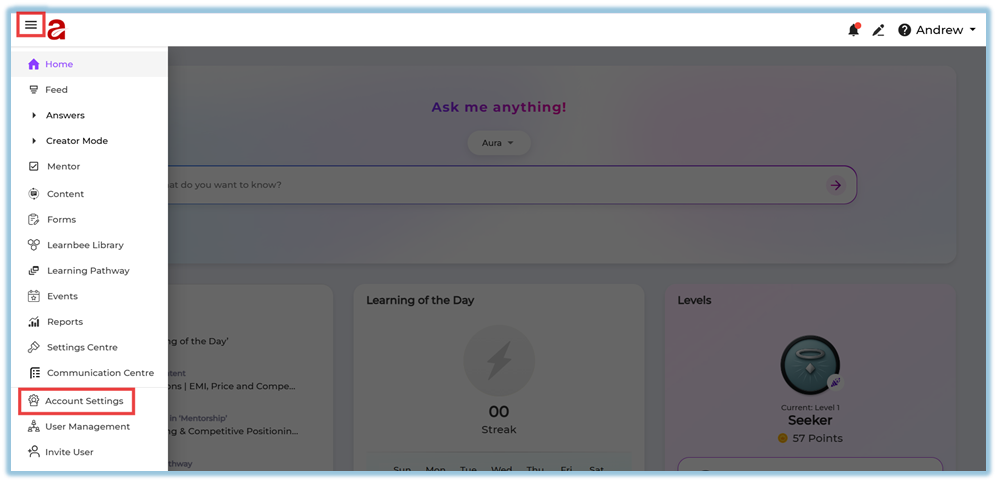
-
Click
ManualEmailselectionNotification: Admin explicitly selects users.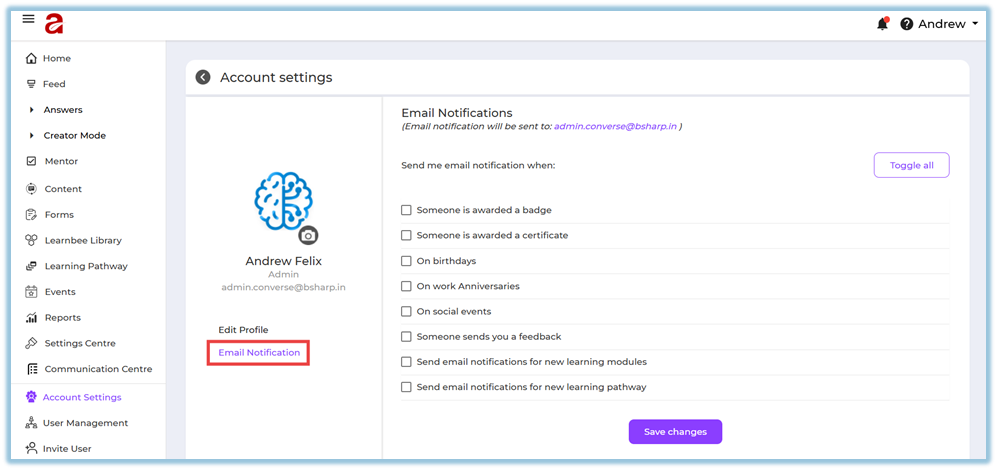
-
AssignChoose the notifications you want toAll Users: Sends only within the same organization workspace
Option 1: Via Menu Bar
This ensures messages are never sent to unintended audiences.
5. Email vs Notification Privacy
Email
Sent to the user’s registered email addressreceive.-
Email(Optional)contentClickisTogglenot visibleall tootherenableusersall notifications.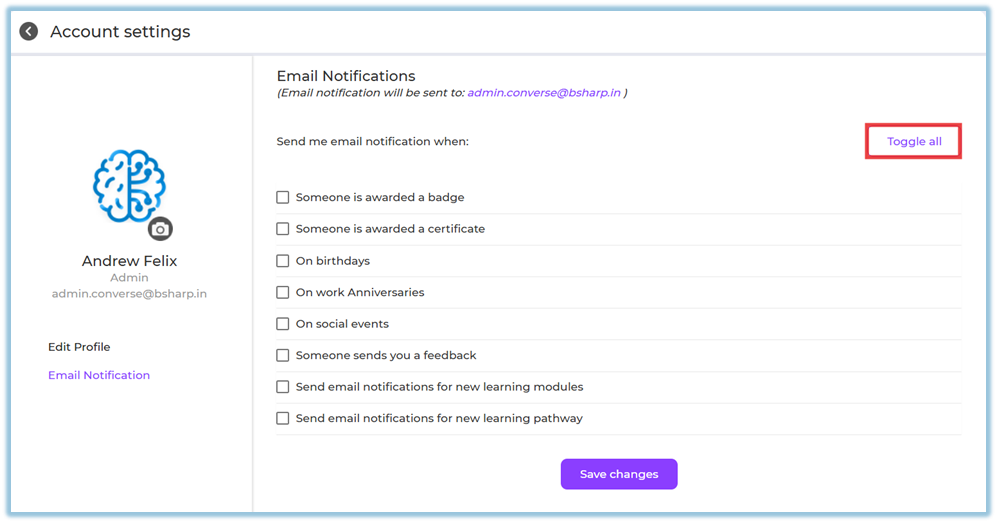
-
SubjectClickandSavebody are private to the recipientchanges.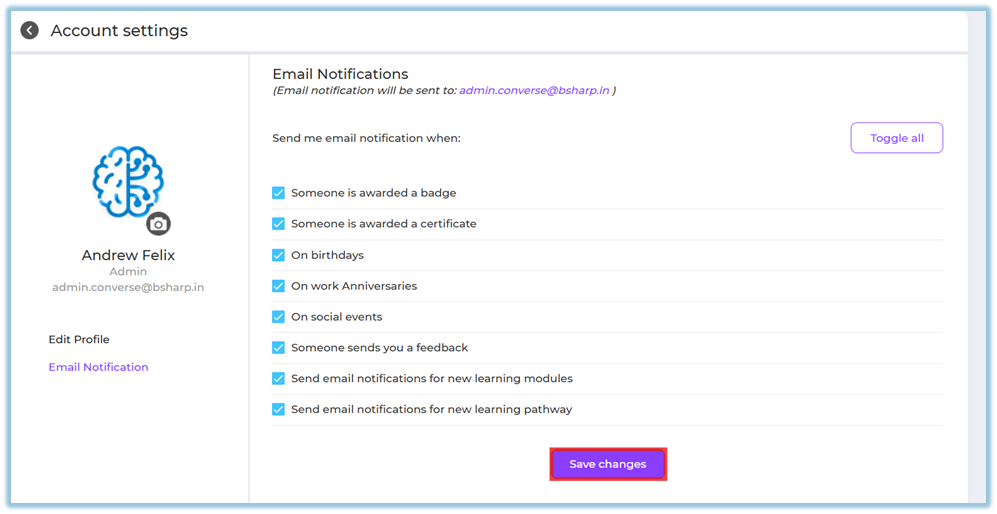
NotificationOption 2: Via Profile Icon
-
Visible only insideClick theappProfile icon on the top-right corner. -
ShownSelectonly to the selected usersProfile.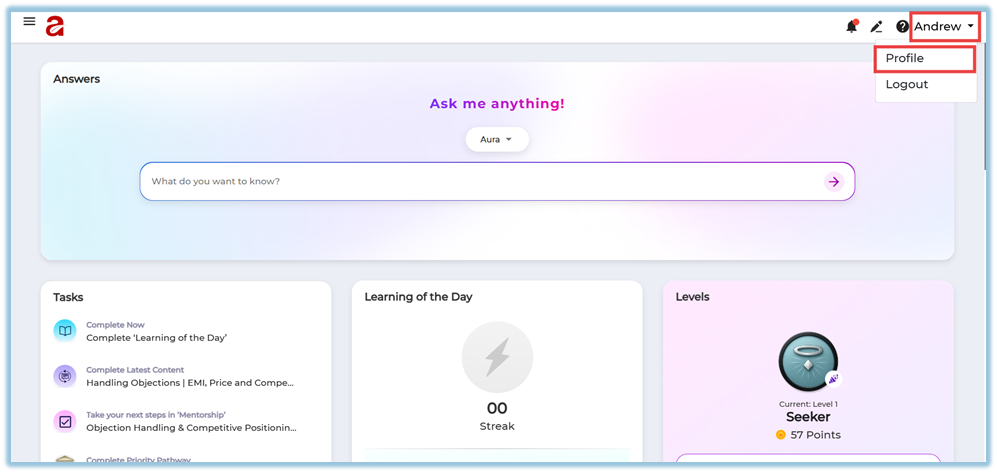
-
NotYouvisiblewillonbepublic Feed orredirected tootherAccount Settings. -
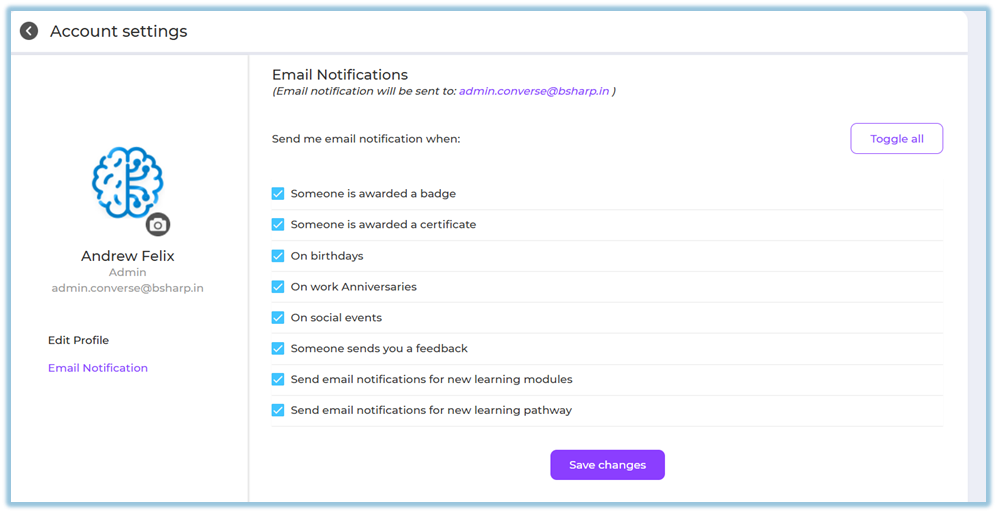
Click Email Notification.
-
Select the notifications you want to receive.
-
Click Save changes.

-
Users see a list of available email notification options.
-
Selected options appear with checkmarks.
-
A Toggle all option is available for quick selection.
-
Changes are applied only after clicking Save changes.
-
VerifyThisuserfeatureselectiondoesbeforenotsendinghave a reporting section. -
AvoidEmailsharingdeliveryconfidentialdependsoronsensitiveuserinformationopt-in preferences. -
Review notification preferences regularly.
-
Enable only required notifications to avoid email overload.
-
Use
clearToggleandallprofessionalcarefullylanguageif you want all updates. -
SendAlwayscommunicationsclickonlySavewhenchangesrequiredafter updating settings. -
Last Updated: 26 Dec 2025
⚠️ Important:
Users will receive emails only if they are opted in. Admin-sent notifications will not reach users who have not enabled email notifications.
5. User View
6. Admin ResponsibilitiesReporting
Admins should:
7. Best Practices
Admins are responsible for ensuring that communication content complies with company policies.
7.8. Related Links / FAQs
Q: CanWill otherI usersreceive seeemails myif emailI ordon’t notification?opt in?
No. CommunicationsEmail notifications are private and visiblesent only to recipients.users who have opted in.
Q: What does Toggle all do?
It enables all available email notification options at once.
Q: Can admins trackforce whoemail opened the message?No personal reading or open tracking is exposed.
Q: Are draft messages visible to users?notifications?
No. DraftsEmails are visibledelivered only toif theusers admin.
Q:enabled Is user data shared outside the platform?No. All communications remain within the platform’s secure environment.notifications.