
Creating a Content Module — Set Basic Details
1. Overview
The Set Basic Details section is the first step in creating a new content module. Here, you add the main information that describes the module. These details help learners understand what the module is about and make it easy to search, filter, and access the training.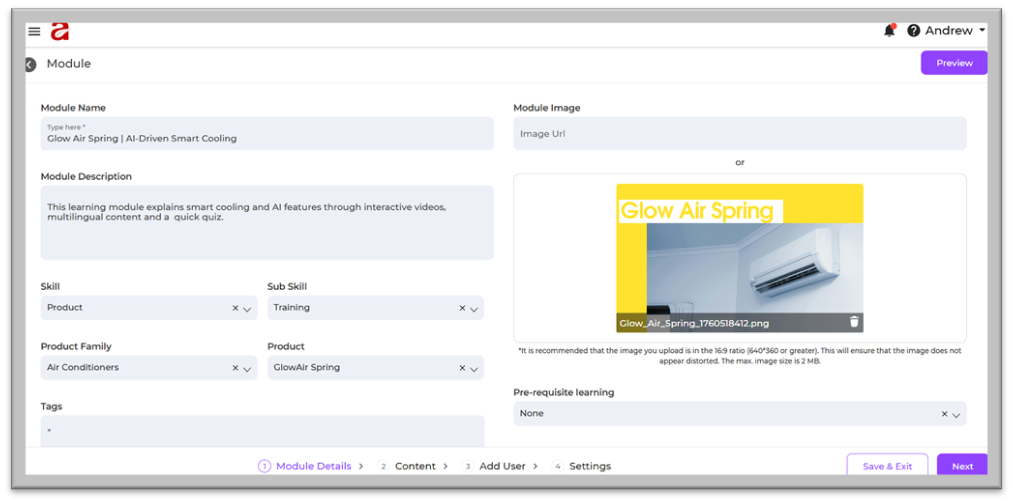
2. When to Use
Use this section when you are:
-
Creating a new module
-
Updating the basic details of an existing module
-
Adding skill or product mapping
-
Setting up content for structured learning
-
Making the module easy for learners to discover
3. Concepts
These terms appear on the Module Details page.
1. Module Name
The title of the module.
Should be simple and clearly explain the topic.
2. Module Description
A short summary describing the learning content and purpose.
3. Module Image
The cover image for the module.
Recommended size: 16:9 ratio (640 × 360 or higher).
4. Skill
The main skill that the learner gains from this module.
Examples:
-
Product Knowledge
-
Sales
-
Customer Service
5. Sub Skill
A specific skill under the main skill.
Examples:
If Skill = Sales
-
Pitching
-
Objection Handling
-
Upselling
If Skill = Product Knowledge
-
Features
-
Installation Basics
6. Product Family
The main product category.
Examples:
-
Washing Machines
-
Air Conditioners
-
Kitchen Appliances
7. Product
The specific product inside the product family.
Examples:
Under Washing Machines: Front Load, Top Load
Under Air Conditioners: Split AC, Window AC
8. Tags
Keywords that help learners search for the module.
9. Module Type
The format or category of the module.
Examples: Video, PDF, Quiz, Link, File Upload, Learnbee Content
10. Module Importance
Shows the priority level of the module.
Examples: High, Medium, Low
11. Language
The language in which the module is available.
Examples: English, Hindi, Kannada, Tamil, Telugu
12. Estimated Time (in minutes)
Time required to complete the module.
Examples: 10 minutes, 30 minutes, 45 minutes
13. Pre-requisite Learning
A pre-requisite module is a module the learner must complete first before starting the current module.
This ensures the learner follows the correct learning order.
Example:
If there are two modules:
-
Module – Part 1
-
Module – Part 2
When a learner opens Part 2, the system will ask them to finish Part 1 first.
This is because Part 1 contains the foundation needed for Part 2.
14. Equivalence Course
An equivalence course is another module that teaches the same learning content.
If two modules are equivalent, completing either one will count as completing both.
Example:
If you have:
- Module A – Glow Air Fryer Overview (PDF)
- Module B – Glow Air Fryer Overview (Video)
You can set Module B as the equivalent of Module A.
This means:
- If the learner completes the video, the PDF version also shows as completed.
- And if they complete the PDF, the video version will also be marked completed.
15. Save & Exit / Next
- Save & Exit: Saves the module and closes the page.
- Next: Moves to the Content setup page.
4. Setup Guide
Step 1: Open Module Details
- Go to Content from the left menu.
- Click +Module to create a new module.
- You will land on the Module Details page.
(Insert screenshot placeholder)
Step 2: Fill the Basic Details
a. Module Name
- Enter a clear and simple name for the module.
- This helps learners understand the topic quickly.
(Insert screenshot placeholder)
b. Module Description
- Add a short description of the topic.
- Explain what the learner will learn in this module.
(Insert screenshot placeholder)
c. Module Image
You can add the module image in two ways:
-
Paste an image URL
-
Use Pexels library
-
Upload an image from your system
Recommended: Use an image in 16:9 ratio (640 × 360 or higher).
(Insert screenshot here)
d. Skill / Sub Skill
• Choose the main Skill related to the module.
• Select one or more Sub Skills.
• This helps track learning outcomes and analytics.
e. Product Family / Product
• Select the Product Family (main category).
• Select the Product (subcategory).
• This helps learners filter modules based on products.
g. Module Type
Choose the correct type of the module, such as:
- Video
- Link
- Quiz
- File Upload
h. Module Importance
- Select the level of importance (Low / Medium / High).
- This tells learners which modules to priorities.
i. Language
• Select the language of the module content.
j. Estimated Time (In Minutes)
- Add the time needed to complete the module.
- This helps learners plan their learning.
i. Set Pre-requisite Learning (If Required)
- Choose the module that must be completed first.
j. Add Equivalence Course (If Required)
- Select an equivalent module with the same learning content.
Step 3: Save and Continue
- Click Next to move to the Content page.
- Or click Save & Exit to save and come back later.
5. User View
Learners will see:
-
Module name
-
Description
-
Image
-
Time
-
Language
-
Skills
These details help them understand the module before starting.
6. Reporting
Admins can track:
-
Skill-based learning
-
Product-based learning
-
Module completion rate
-
Time spent
-
Learning flow with pre-requisites
7. Best Practices
-
Use short and clear module names
-
Keep descriptions simple
-
Add skills and product mapping correctly
-
Add estimated time accurately
-
Use pre-requisites only when needed
-
Use equivalence for similar modules
8. Troubleshooting & FAQs
Q1: Module not visible to learners?
Check if it is published.
Q2: Product not showing?
Check Product Family setup.
Q3: Skills not appearing?
Check Skills and Sub-skills setup.
9. Related Links
-
Skills and Sub-skills Setup
-
Product Family Setup
-
Module Content Guide
10. Version Notes
-
Updated: 08 Dec 2025