
Make content for Training in Learnbee
1. Overview
Learnbee allows admins to create structured training content using slides, documents, quizzes, and AI-generated learning cards. Training content created in Learnbee can be multilingual and is later used inside Content modules for learner assignment, tracking, and completion.
2. When to Use
Use Learnbee training content when:
-
You want to create structured training instead of sharing raw files
-
You need multilingual learning for regional or global users
-
You want to include cards, flashcards, voice-overs, and quizzes
-
You plan to reuse the same content inside Content modules
3. Concepts
-
Learnbee Library – Central place to create and manage training topics
-
Topic – A complete Learnbee training unit
-
Slide – Individual learning card inside a topic
-
Voice-over – Audio narration for slide content
-
Multilingual Content – Same slide available in multiple languages
-
Quiz Slide – Knowledge check added between or after content
-
Publish – Makes the topic available for selection in Content
4. Set Up Guide
Step 1: Open Learnbee Library
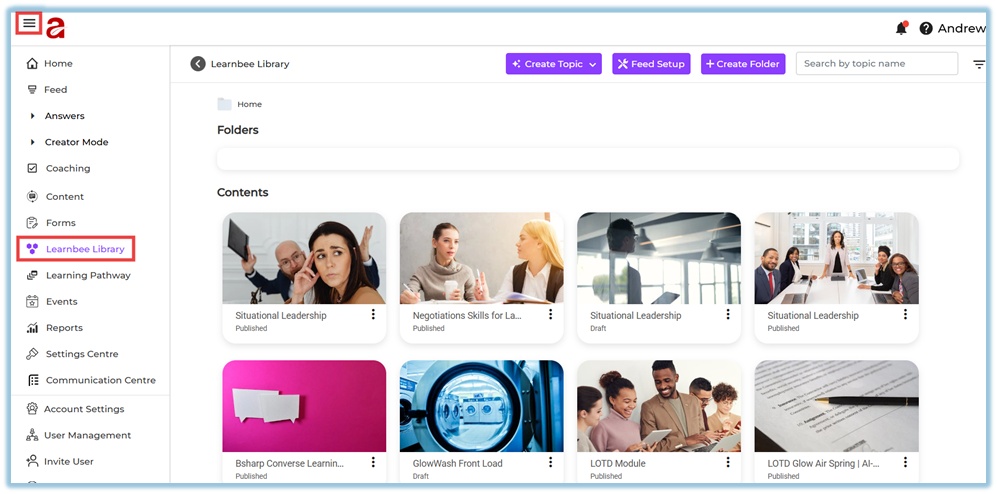
Step 2: Create a New Topic
-
Click Create Topic.
-
Choose one option:
-
Create from scratch
-
Load from template (used only if a template exists in another account)
-
Step 3: Configure Topic Settings
-
Enter the Topic name.
-
Add a Topic image:
-
From library, or
-
Upload from system.
-
-
Add a description (optional).
-
Select the layout:
-
Landscape or Portrait.
-
-
Configure Voice-over settings:
-
Select voice type (Male / Female).
-
Choose base language.
-
Add additional languages (up to 6 per card).
-
-
Click Save.
Step 4: Add Learning Content (Slides)
-
Click Add slide.
-
Choose how to add content:
-
Create with AI
-
PDF import (up to 30 slides)
-
Text
-
Image
-
Video
-
Audio
-
Link
-
Step 5: Add Multilingual Voice-over Content
-
Open a slide.
-
Click Generate Voice-over.
-
Step 1 – Generate voice-over text:
-
Use extracted text or summarize using AI.
-
-
Step 2 – Translate text:
-
Translate into selected languages.
-
Edit translated text if required.
-
-
Click Generate Voiceover for each language.
-
Preview audio and click Save.
Step 6: Add Quiz Slides
-
Click Add slide → Quiz.
-
Choose quiz type:
-
Single Choice
-
Multiple Choice
-
Text Based
-
-
Add questions:
-
Manually, or
-
Click Generate Question (AI-based).
-
-
Configure quiz settings:
-
Points
-
Timer
-
Feedback
-
Shuffle options
-
-
Save the quiz slide.
Step 7: Preview and Publish the Topic
-
Click Preview to review content.
-
Verify slides, languages, voice-overs, and quizzes.
-
Click Publish.
Once published, the topic becomes available inside Content → Learnbee content selection.
5. User View
-
Learners see the training in their assigned language.
-
Slides play voice-over automatically.
-
Quizzes appear within the learning flow.
-
Content follows the order defined by the admin.
6. Best Practices
-
Keep one topic focused on one learning objective
-
Add quizzes after key learning sections
-
Use multilingual voice-over for field and regional teams
-
Preview every language before publishing
7. Related Links / FAQs
Q: Can one slide support multiple languages?
A: Yes. A single slide can support up to six languages.
Q: Can Learnbee content be reused?
A: Yes. Published topics can be reused inside Content modules.
8. Version Notes
Last Updated: 18 Dec 2025