
Product Filters
Product Filters
1. Overview
Product Filter for learners…
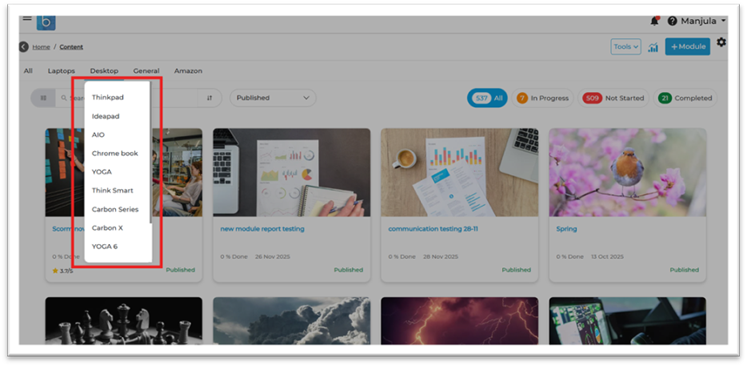
Product Filters help admins organize training modules by Product → Sub-Product.
Example:
- Product: Washing Machine
- Sub-Products: Front Load, Top Load
Product Filters helps in search and filtering to the right content.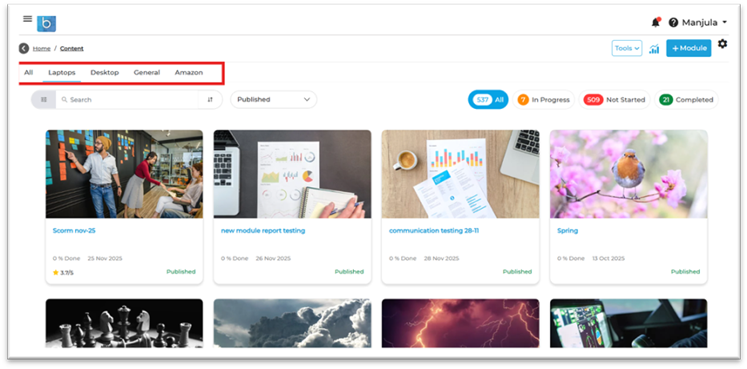
2. When to Use
Use this feature when you want to:
- Group modules according to product categories
- Assign learning specific to certain product lines
- Provide product-based learning for sales/service teams
- Enable better filtering in Content and Reports
3. Concepts
- Product: Main product category
- Sub-Product: Detailed category under a product
- Module Tagging: Mapping modules to the right Product & Sub-Product
- Filter: Used by learners to find product-specific content
4. Product Setup Guide
STEP 1 — Where to Go
1. Login to Bsharp Converse
2. Go to Settings Centre
3. Under Content → Product Family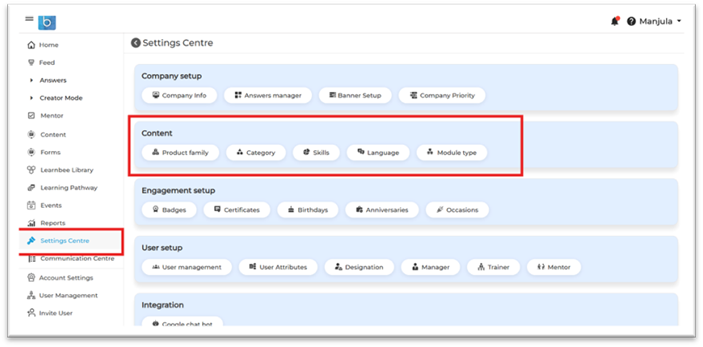
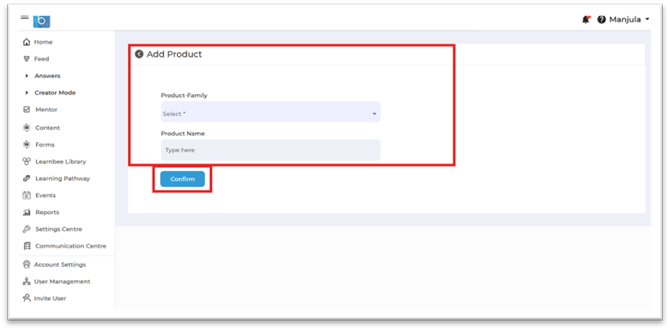
STEP 2 — Set Up Product Family (Product + Sub-Product)
1. Click Add Product Family
2. Enter main product name (e.g., Washing Machine)
3. Add sub-products (e.g., Front Load, Top Load)
4. Click Confirm to save
4. Content Setup Guide
— Apply in Content
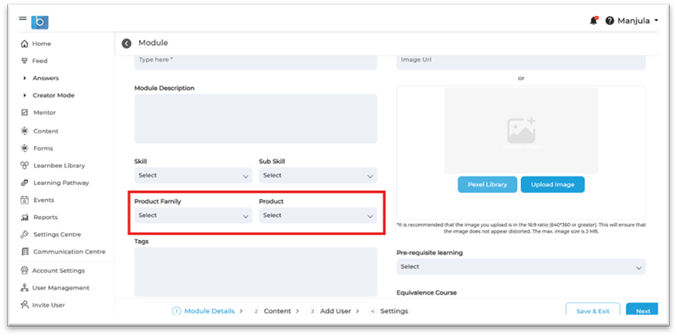
1. Go to Content → Select Module
2. Open Basic Info
3. Select Product and Sub-Product
4. Save and publish
5. User View
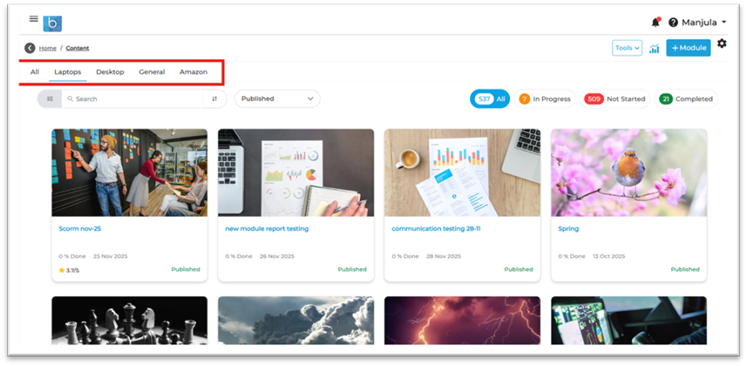
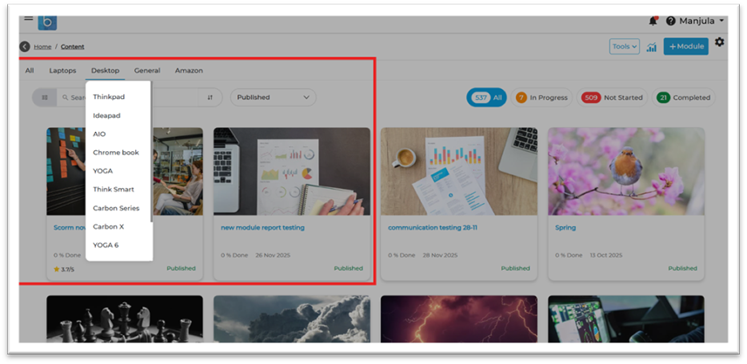
Learners will see content grouped under the mapped product and sub-product.
This makes it easy to find product-specific training.
6. Reporting
Product Filters appear in reporting filters. Admins can track:
- Completion by product
- Performance by sub-product
- Time spent on product groups
7. Best Practices
- Use clear product names
- Keep sub-products simple and standard
- Avoid duplicates
- Review monthly
- Ensure all modules are correctly tagged
8. Troubleshooting & FAQs
Q1. Product not showing in module?
Create it first in Settings Centre → Product Family.
Q2. Can I edit product names?
Yes, via Edit → Save.
Q3. Can I add multiple sub-products?
Yes.
Q4. Can one module map to multiple products?
Yes.
9. Related Links
- Skills & Subskills
- Category Setup
- Module Upload Guide
- Reporting Guide
10. Version Notes
Last Updated: 01 Dec 2025