
Quiz Maker
1. Overview
Quiz Maker allows admins to create and manage quizzes that are linked to learning modules within the platform.
It provides a complete workflow to create quizzes using AI or manual input, translate them into multiple languages, configure settings, and deploy them for learners.
2. When to Use
- When you want to create quizzes for a learning module
- When you want to generate questions using AI from documents
- When you need quizzes in multiple languages
- When you want to configure quiz rules like attempts, timing, and scoring
- When you want to review and deploy quizzes to learners
3. Concepts
- Quiz Workflow – 5-step process: Quiz Details → Edit Questions → Translate → Settings → Review
- Generation Mode – Create quiz using
AIAI, manually, Excel upload, ormanuallyby pulling from Quiz Banks - Document Upload – Upload files used for AI-based question generation
- Quiz Banks – Pull random questions from existing question banks
- Quiz Uploader – Upload questions in bulk via an Excel (.xlsx) file
- Translation – Convert quiz into multiple languages
- Settings – Configure quiz behavior (attempts, timing, etc.)
- Tags – Automatically generated to categorize questions
- Deployment – Makes the quiz available inside the module
4. Set Up Guide
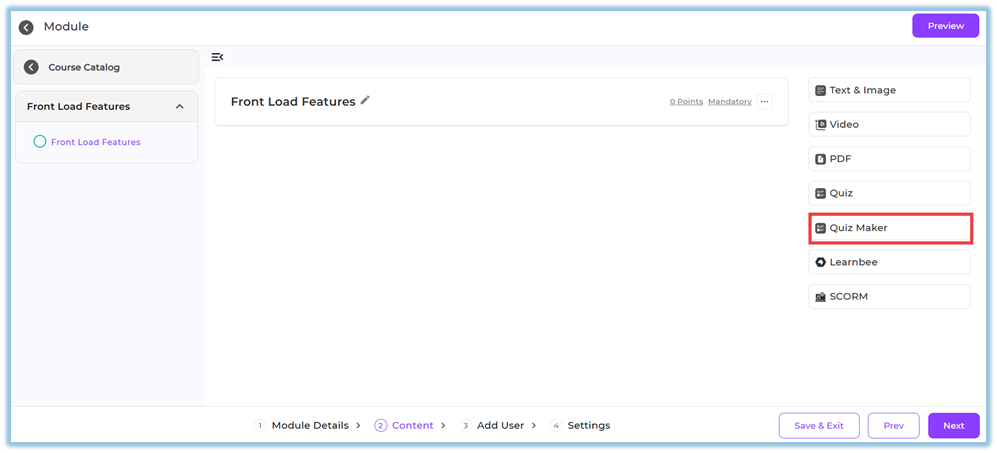
Step 1: Navigate to Quiz Maker
- Go to Content
- Open the required Module
- In the content section, click on Quiz Maker
Step 2: Quiz Details
- Enter:
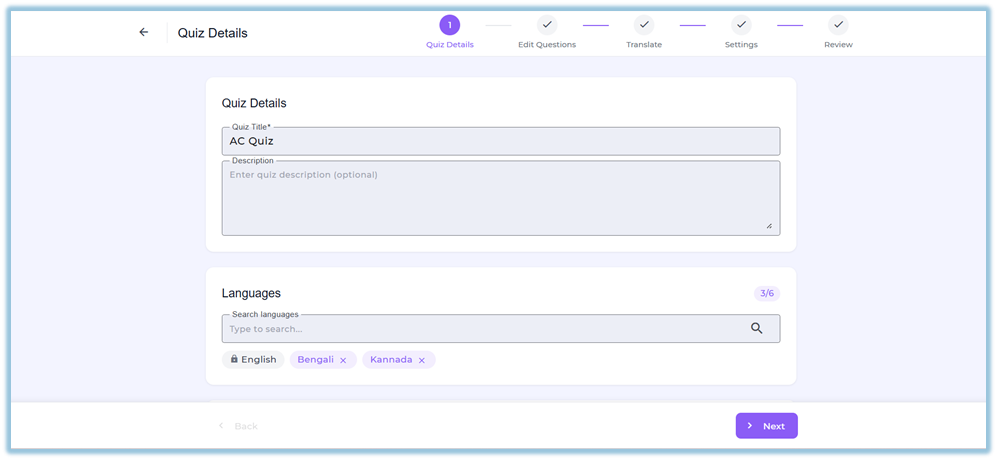
- Quiz Title
- Description (optional)
- Select Languages (up to
6)12)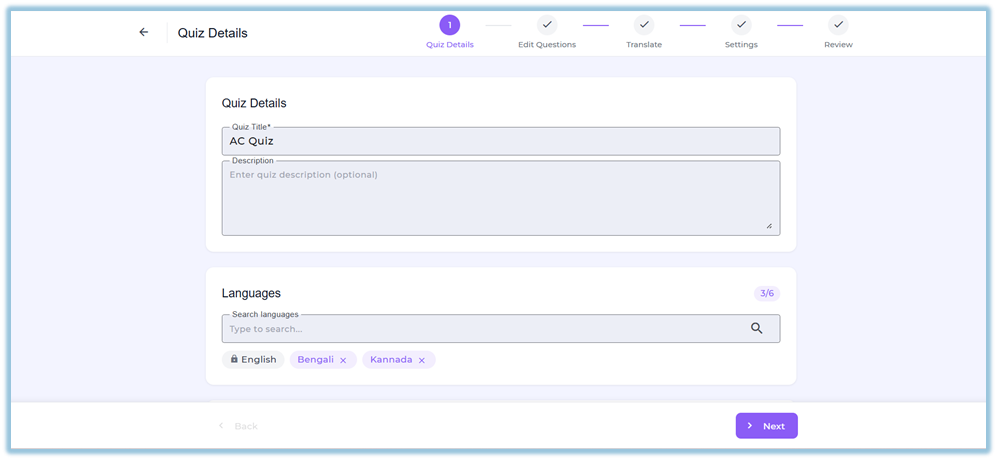
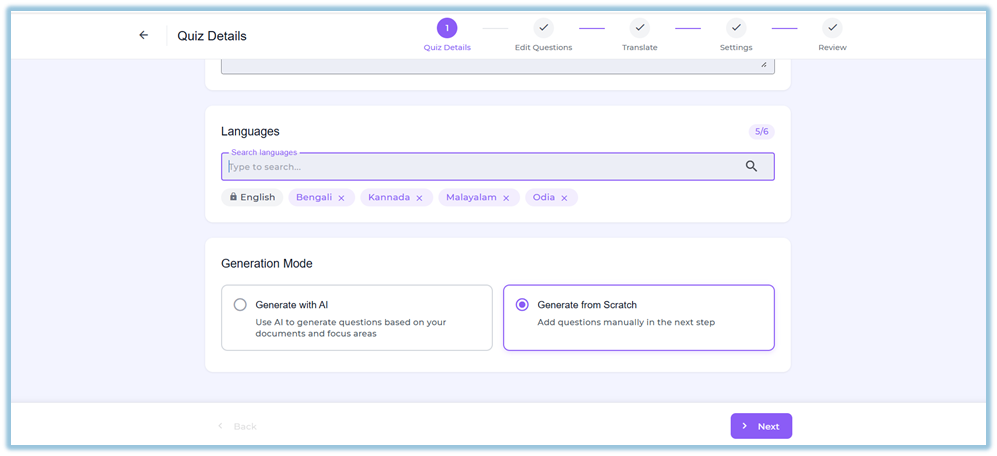
Step 3: Select Generation Mode
ChooseUnderone:How
6.
● Generate with AI – AI creates questions from your documents automatically.
● From Scratch – Add and configure questions manually.
● Quiz Uploader – Upload questions via Excel file.
● Create from Quiz Bank – Pull random questions from existing banks.
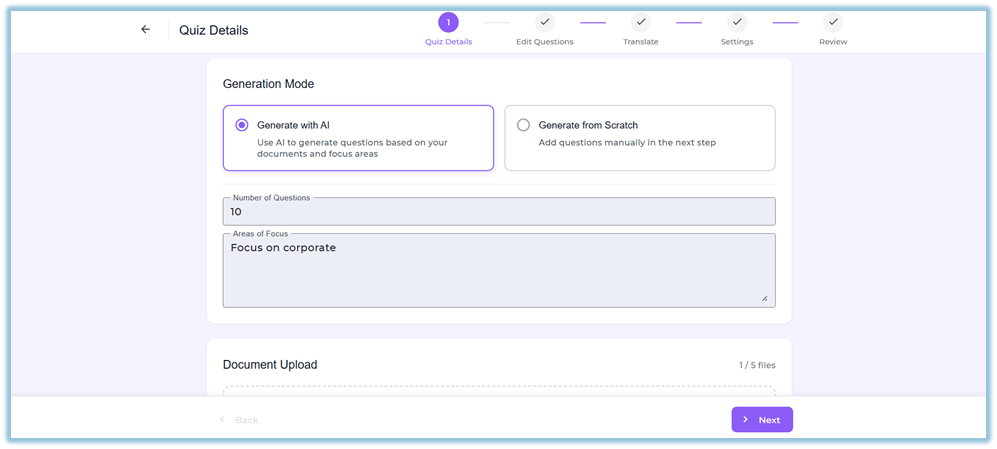
Generate with AI
- Enter Number of Questions
- Enter Areas of Focus
- Upload documents (Max 5 files)
- Click Next to generate questions
Generate from Scratch
- Click Generate from Scratch
- Click Next to manually create questions
Quiz Uploader
- Click Quiz Uploader
- In the Quiz Uploader dialog, drop your Excel file or click to browse
- Accepted format: .xlsx only
- Maximum file size: 10 MB
- (Optional) Click Download sample file to get the template
- Click Upload
- Click Next to proceed to Edit Questions
Create from Quiz Bank
- Click Create from Quiz Bank
- Click Choose banks to continue
- On the Select Quiz Banks screen, use the search bar or Created Date filter to find banks
- (Optional) Click Preview to view questions in a bank
- Select the required quiz banks and set how many questions to randomly draw from each
- Click Next to proceed to Edit Questions
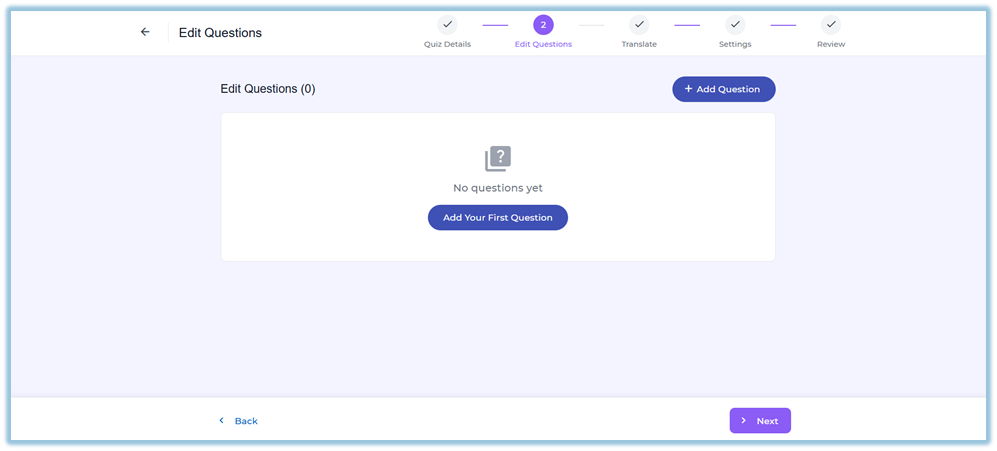
Step 4: Edit Questions
-
Review or create questions
-
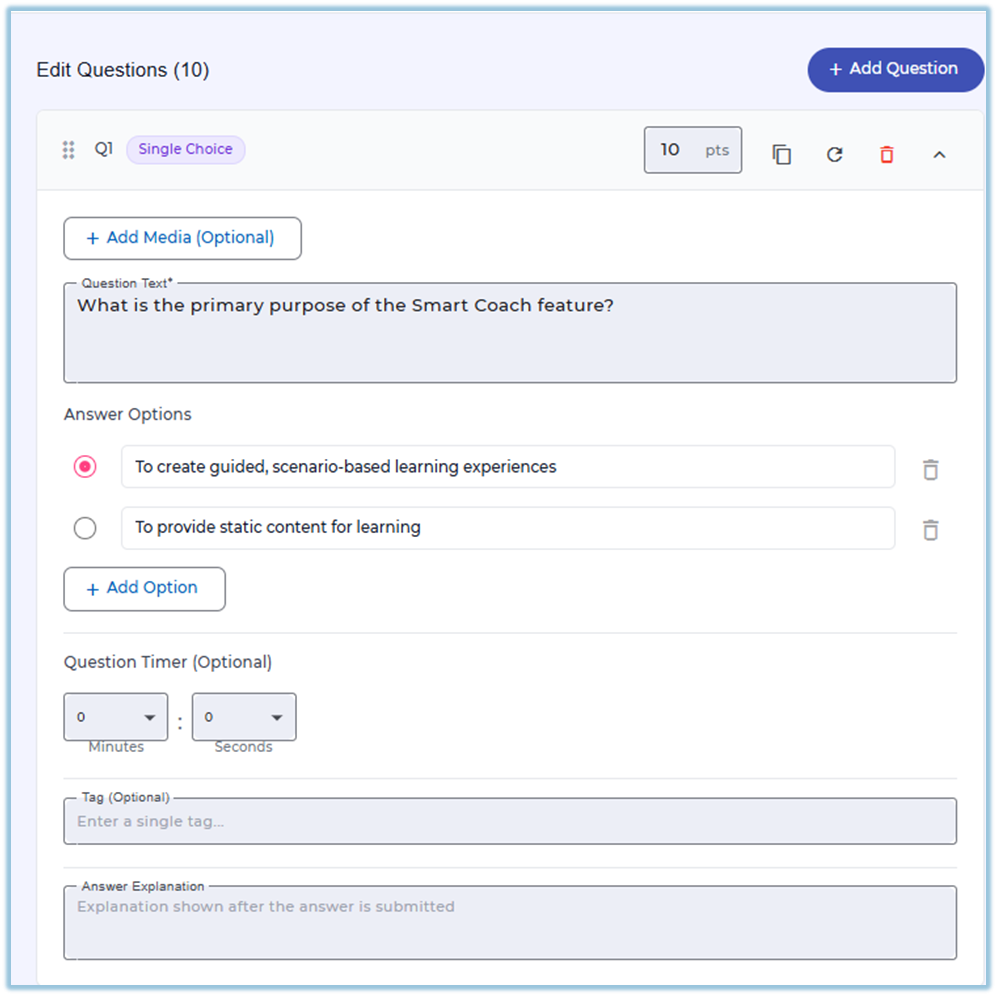
You can:
- Add questions
- Edit question text and options
- Select correct answers
- Assign points
- Add media (optional)
- Add tags and explanations
-
Click Next
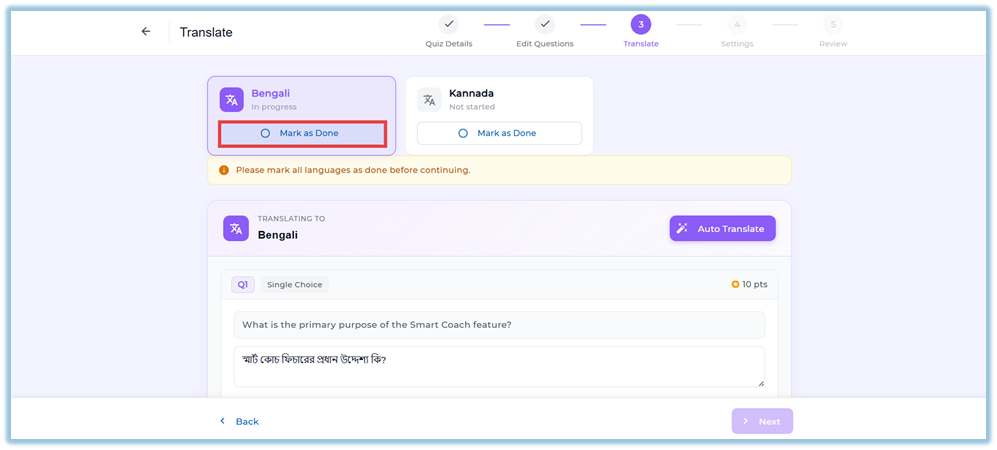
Step 5: Translate
- Select each language
- Click Auto Translate
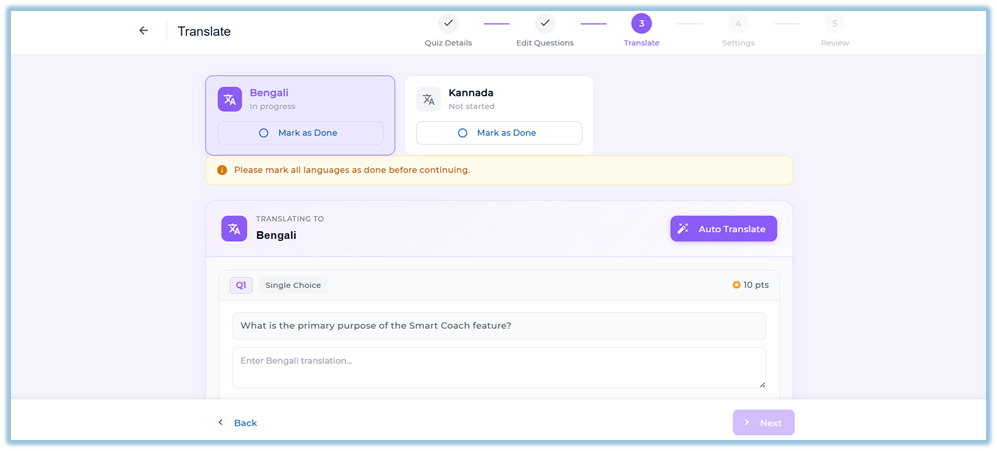
- Review translations
- Click Mark as Done for each language
- Ensure all languages are marked done
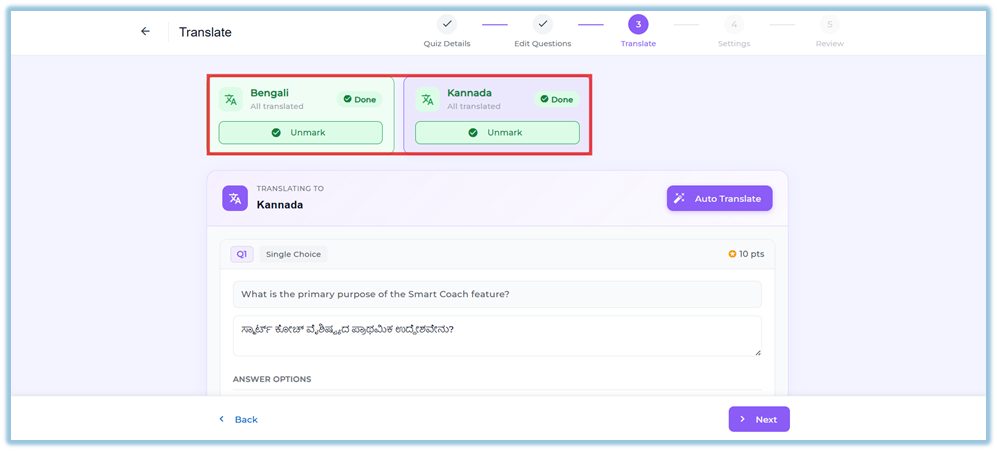
- Click Next
Step 6: Settings
- Configure:
- Pass Percentage
- Number of Attempts
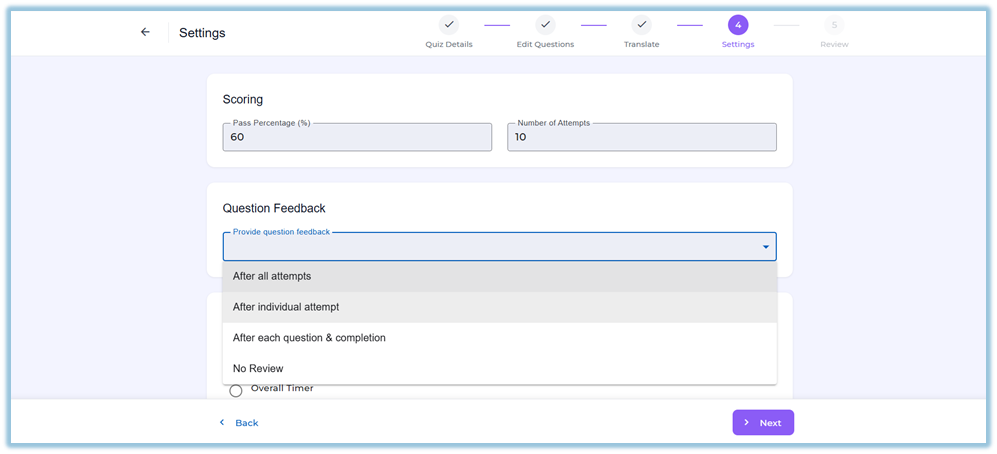
- Select Question Feedback option
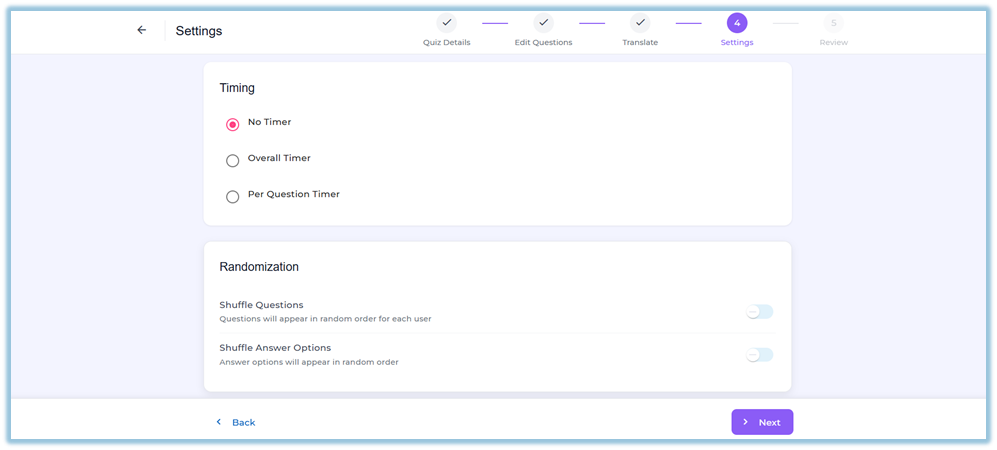
- Configure Timing:
- No Timer
- Overall Timer
- Per Question Timer
- Configure:
- Shuffle Questions
- Shuffle Answer Options
- Enable Exam Mode if required
(Results hidden until completion)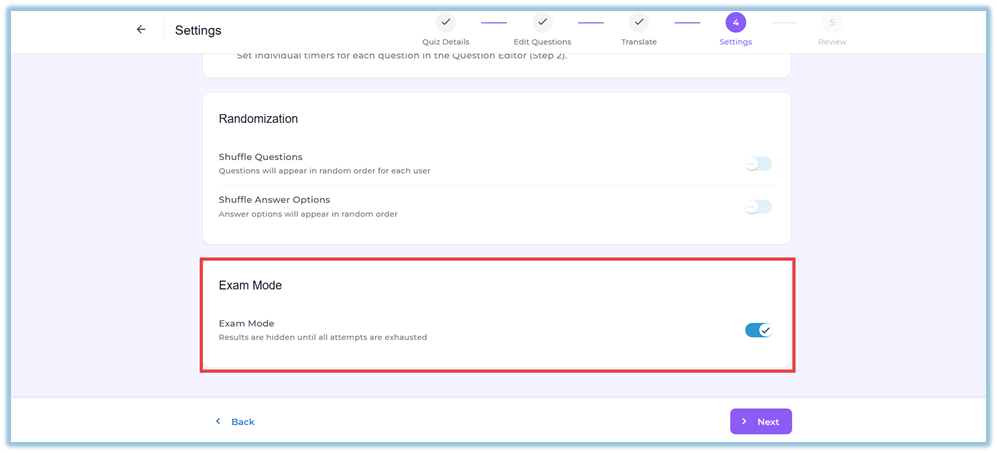
- Click Next
Step 7: Review & Deploy
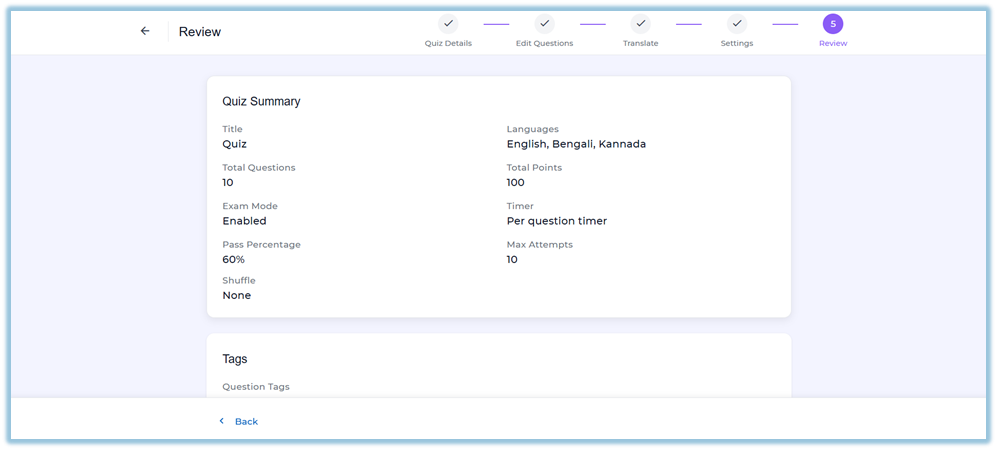
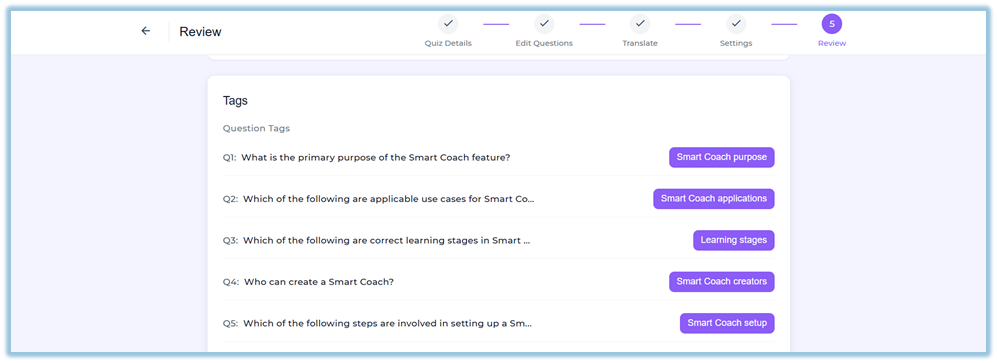
- Review:
- Quiz summary
- Settings
- Questions
- Tags
- Click Deploy Quiz
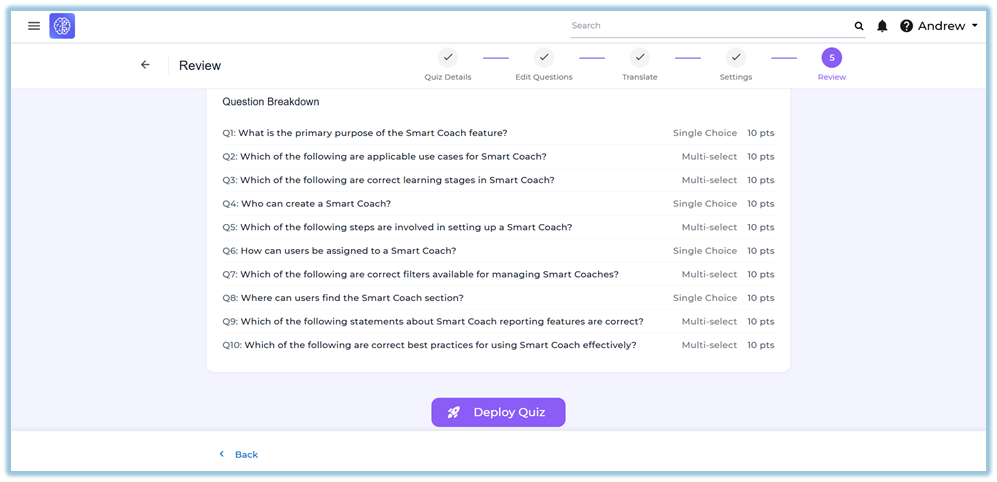
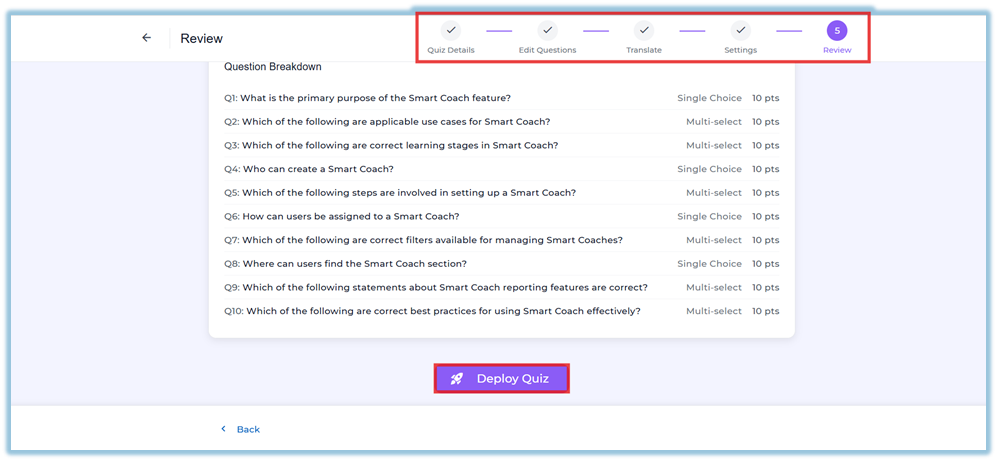
- Add users and deploy the module
5. User View
- Trainers and admins can create and manage quizzes
- Learners can access quizzes inside modules
For learners:
- Quiz behavior depends on configured settings
- Questions may be shuffled
- Attempts and scoring rules are applied
- In Exam Mode, answers are hidden until completion
6. Reporting
- Quiz performance is tracked as part of module activity
- Shows completion, scores, and attempts
- Helps evaluate learner performance
7. Best Practices
- Provide clear focus areas for better AI-generated questions
- Review AI-generated questions before publishing
- Use translations carefully and verify content
- Set proper pass percentage and attempts
- Use Exam Mode only for assessments
8. Related Links / FAQs
Q: How many documents can be uploaded?
A: Up to 5 documents.
Q: How many languages are supported?
A: Up to 6 languages per quiz.
Q: Can I edit AI-generated questions?
A: Yes, all questions can be edited.
Q: Is English translated automatically?
A: No, English is the source language.
Q: Can I publish a quiz without questions?
A: No, at least one question is required.
9. Version Notes
Last Updated: 13 Apr 2026