
What are the functions of Quiz
1. Overview
Quiz is a content item in Bsharp Converse used to assess learner understanding within a training module. It allows administrators to create structured assessments with different question types, scoring rules, timers, and evaluation settings, and to control how learners attempt and complete assessments.
2. When to Use
Use Quiz when:
-
You need to assess learner knowledge after training content
-
You want to validate understanding before allowing learners to proceed
-
You need scored assessments for compliance or certification
-
You want to control attempts, pass percentage, or exam behavior
3. Concepts
-
Quiz – An assessment added inside a module page
-
Question Types – Supported formats for quiz questions
-
Scoring & Points – Marks assigned to questions and options
-
Partial Scoring – Split scores for partially correct answers
-
Question Timer – Time limit at question level
-
Quiz Pool – Randomized question selection from a set
-
Quiz Bank – Central repository of reusable questions
-
Quiz Settings – Rules controlling attempts, feedback, and behavior
4. Set Up Guide
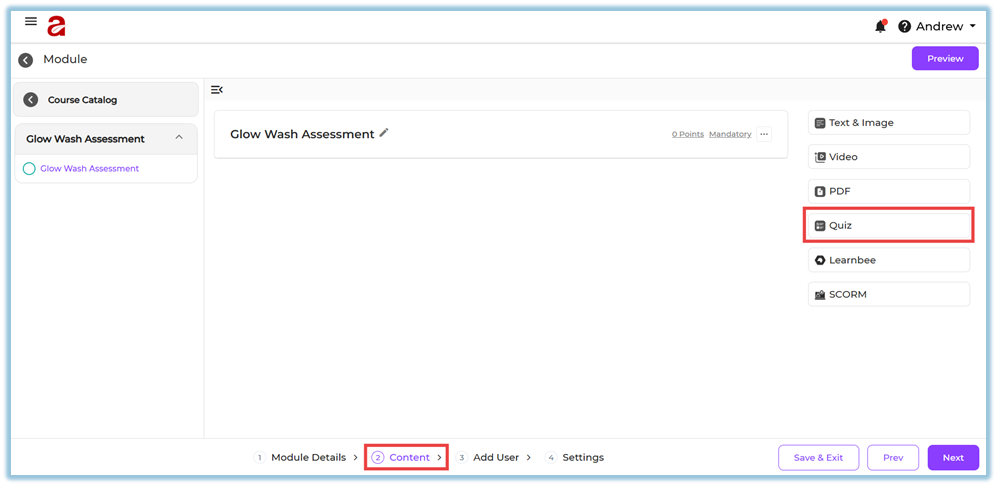
Step 1: Add Quiz Content
-
Go to the Content step while creating or editing a module.
-
Open a Section and select a Page.
-
Click Add Content.
-
Select Quiz.
Step 2: Create a Quiz
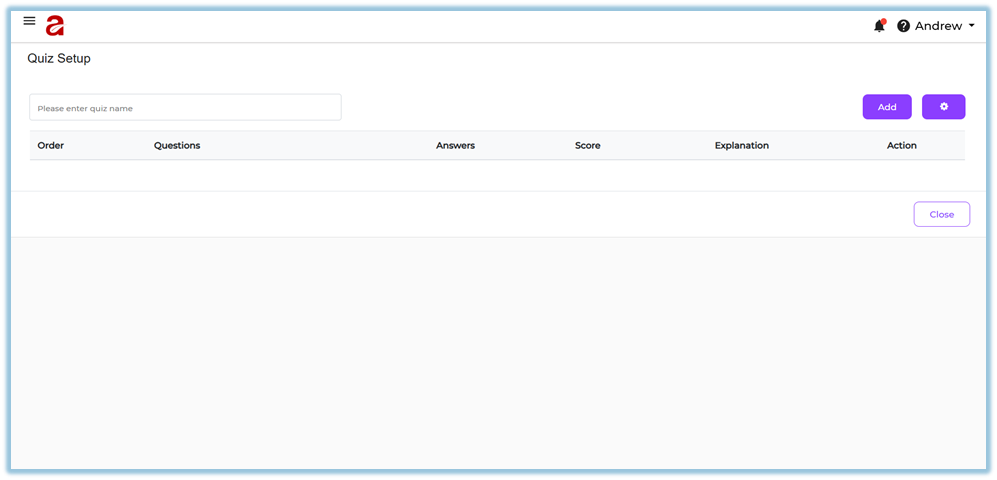
-
Enter the Quiz Name.
-
Use Add Section to start adding questions.
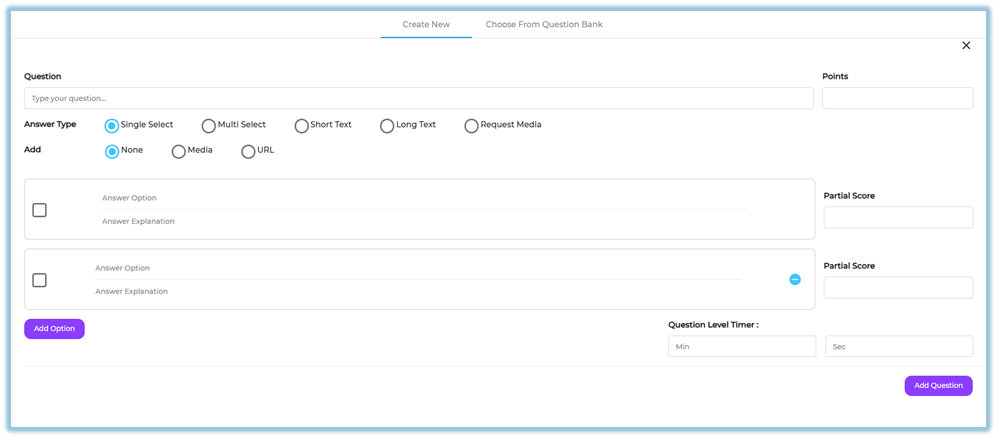
Step 3: Add Questions Manually
-
Click Add Question.
-
Enter the question text.
-
Select the Answer Type:
-
Single Select
-
Multi Select
-
Short Text
-
Long Text
-
-
Add Options where applicable.
-
Select the correct answer(s).
-
Add Answer Explanation if required.
-
Assign Points for the question.
-
Configure Partial Scoring if needed.
-
Set the Question-level Timer (seconds or minutes).
-
Click Add Question to save the question.
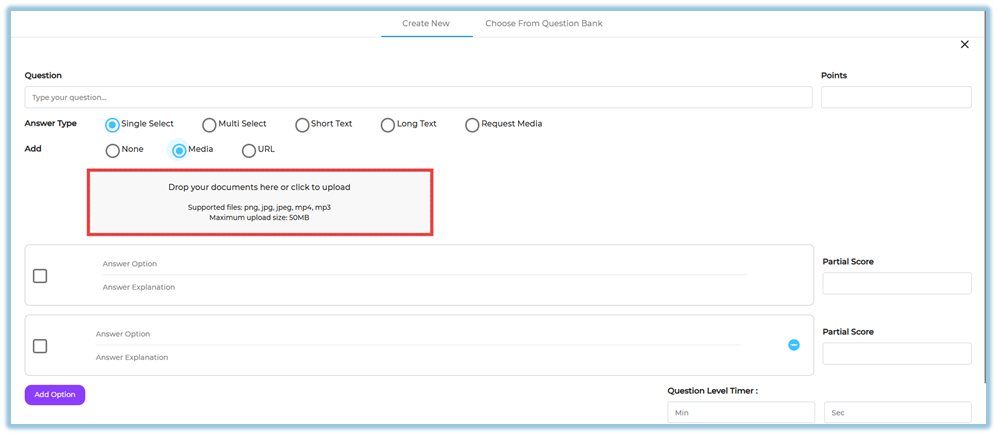
Step 4: Add Media to Questions (Optional)
-
In Request Media, choose:
-
Image
-
Video
-
Document / PDF
-
-
Upload or attach the required media.
3. Click Choose from Question Bank.
-
View all quiz assessments that were previously created across different modules.
-
Use Search to find a required assessment if needed.
-
Select the assessment by checking the checkbox.
-
Review the list of available questions.
-
Click Done.
-
The selected questions are added to the current quiz.
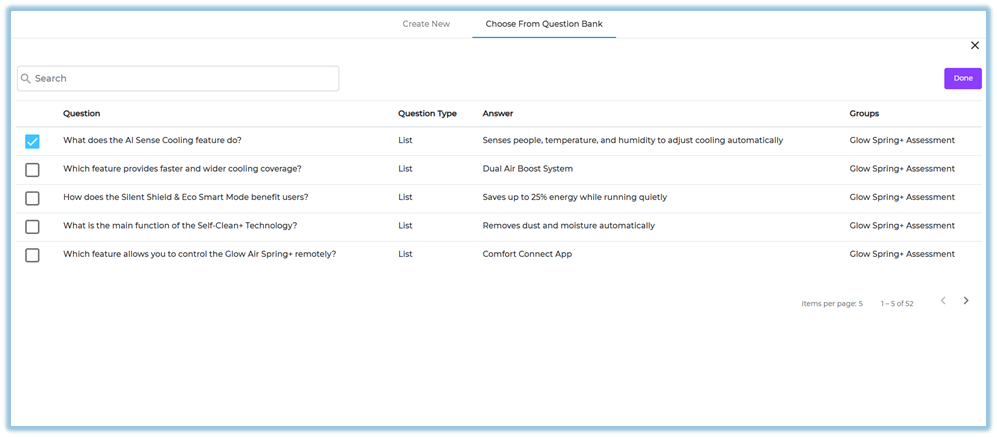
This allows you to reuse existing quiz questions without creating them again.
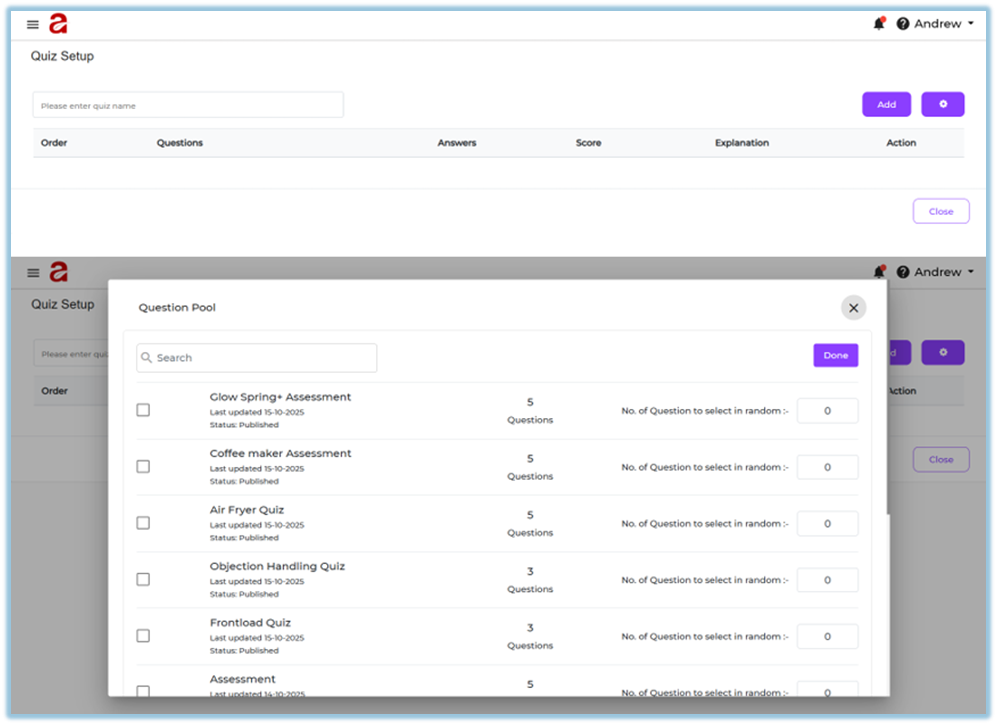
Step 5: Use Quiz Pool (Random Questions)
-
Click Quiz Pool.
-
Search and select an existing quiz from the Question Pool.
-
View the total number of available questions.
-
Enter how many questions should be selected randomly.
-
Click Done.
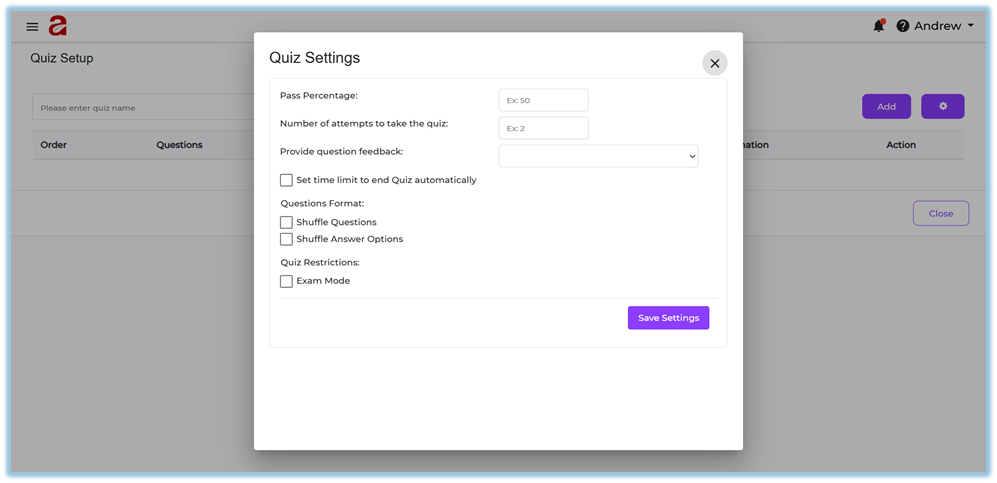
Step 6: Configure Quiz Settings
-
Open Quiz Settings.
-
Set Pass Percentage.
-
Set Number of Attempts.
-
Configure Question Feedback:
-
After each question
-
After completion
-
No review
-
-
Enable Time Limit for the quiz (optional).
-
Configure:
-
Shuffle questions
-
Shuffle answer options
-
Exam mode
-
-
Click Save Settings.
Step 7: Save and Continue
-
Close the quiz setup.
-
Click Next to proceed with Add Users or Settings & Publish.
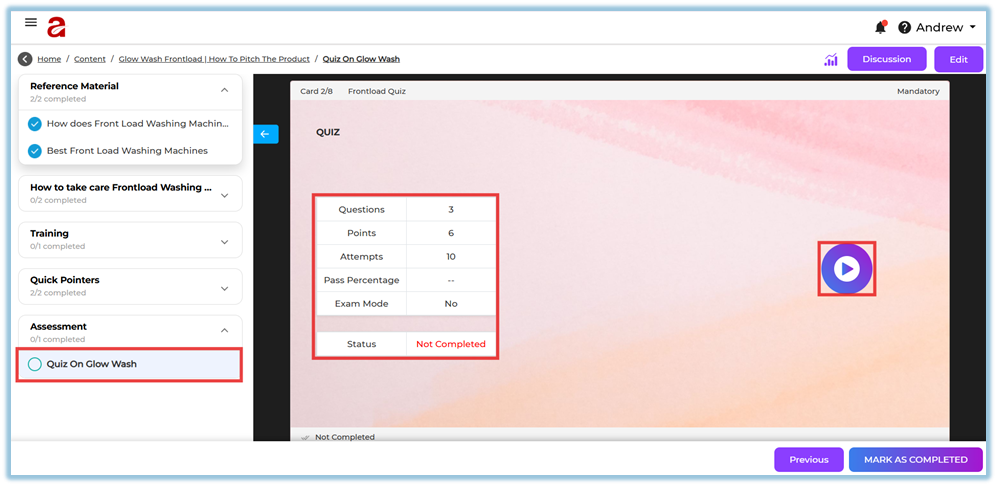
5. User View
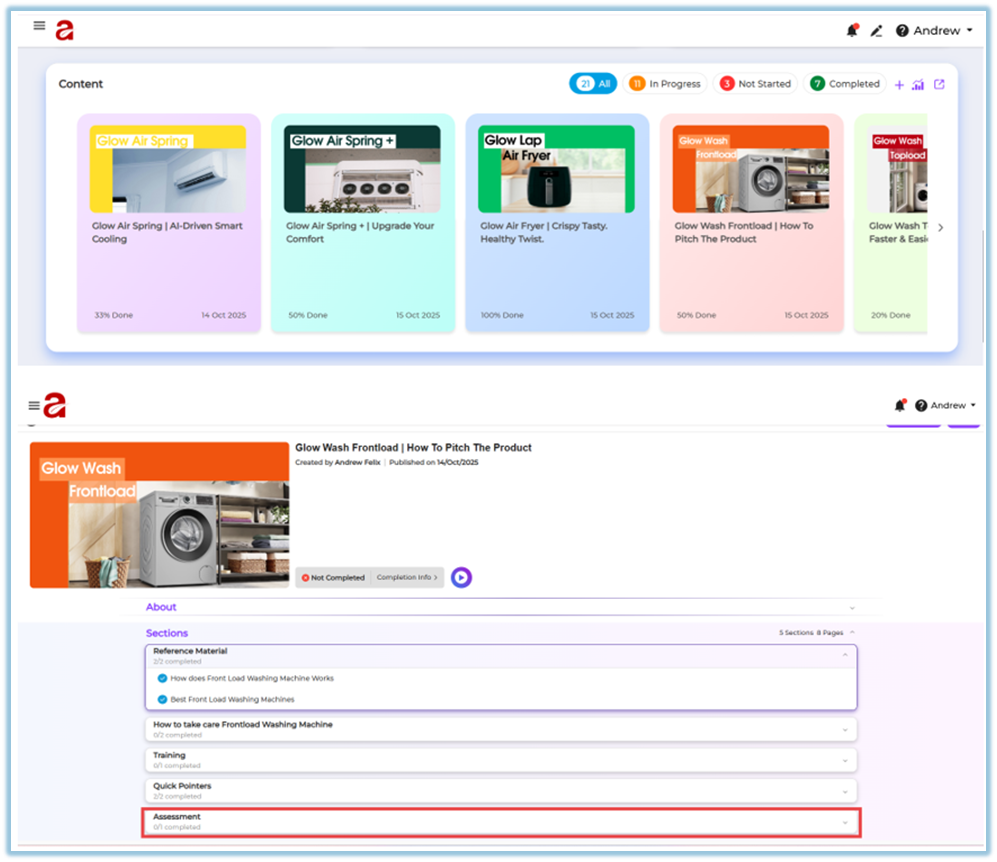
-
Learners see quiz questions one by one during module consumption.
-
Question timers are shown if enabled.
-
Learners select or enter answers based on the question type.
-
Feedback is shown based on quiz settings.
-
Quiz completion status contributes to module completion.
6. Reporting
-
Quiz completion status
-
Scores achieved by learners
-
Question-level responses
-
Pass or fail status based on pass percentage
Reports are available in the Reports section with module and user filters.
7. Best Practices
-
Place quizzes after key learning content
-
Use partial scoring only when appropriate
-
Keep question timers reasonable
-
Use quiz pools for large assessments to avoid repetition
-
Clearly define pass percentage for compliance modules
8. Related Links / FAQs
Q: Can learners retry a quiz?
A: Yes, based on the number of attempts configured in quiz settings.
Q: Can quizzes be randomized?
A: Yes, using Quiz Pool and shuffle options.
9. Version Notes
Last Updated: 18 Dec 2025