
Post
1. Overview
The PostFeed feature in Bsharp Converse is a central space where users can create and interact with posts. It allows admins, L&D teams,admins and managers to share shortmessages, messages withrecognize employees throughusing the Feed. Posts can be used to communicate congratulatory notes, announcements, motivational messages, recognitions,badges or generalcertificates, updates,conduct with support for media, tagging, values,polls, and AI-assistedengage textusers refinement.through comments and reactions. The Feed supports day-to-day communication and employee engagement activities such as birthdays, achievements, and work anniversaries.
https://bsharpcorp.com/converse/engagement/
2. When to Use This?
Use Posts when you want to:
3. Concepts
-
FeedPost –TheAcentralwrittentimelinemessagewheresharedall posts are published and visible to users. Post Composer– The text input area whereon thepost content is written.Feed-
Copilot –
AI assistant used toHelps reframethemessagespostascontent (Formal, Polite,Cheerful).or Cheerful -
Recipient (@mention) –
UsedTagtoonetagorspecificmore users in apost.post -
Hashtags (#) –
KeywordsCategorizeaddedpoststoforcategorizeeasyand discover posts.discovery -
Values –
OrganizationalLink the post to company values(e.g.,likeEthics,EthicsLearning)orassociated with a post.Learning -
Media AttachmentsBadge –Image,RecognitionBadge, Certificate, or Poll addedawarded toaanpost.employee -
Search & FilterCertificate –ToolsAppreciationtocertificatefindshared via post -
Poll – Question with voting options for employees
-
Feed Filters – Search and filter posts by date,
author, tagged users,activity, oractivity type.tags
4. Setup Guide
StepCreate 1:a Open the FeedPost
-
Click the
Menumenu(☰)bar. -
Select Feed
.from the left navigation panel.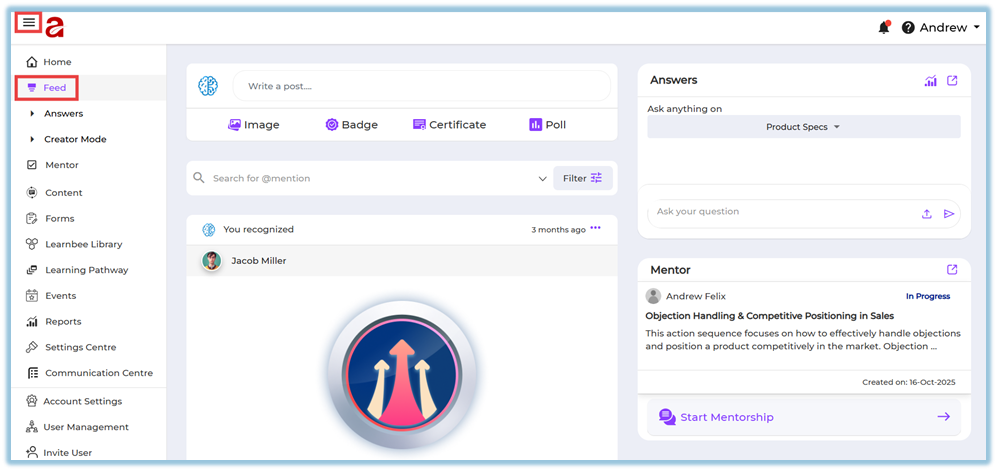
Step 2: Write a Post
-
Click inside the Write a post… text box.
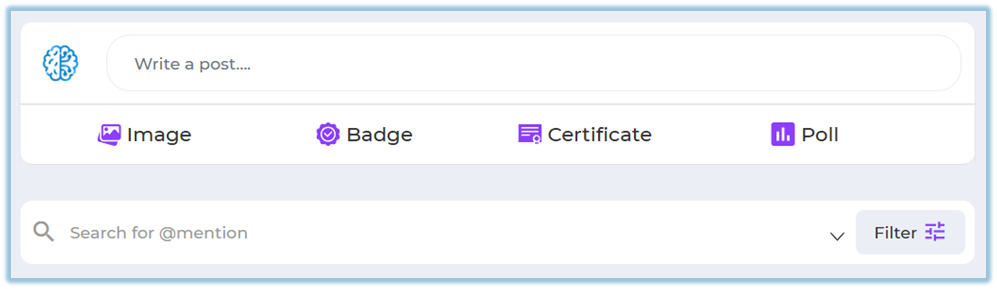
-
Enter your message (
congratulatory,formotivational,example,informative,a congratulatory orannouncement)informational message).
Step 3: Refine the Message UsingUse Copilot (Optional)
-
Click Copilot.
-
Choose how you want the
tone:message reframed:-
Formal
-
Polite
-
Cheerful
-
Review the rephrased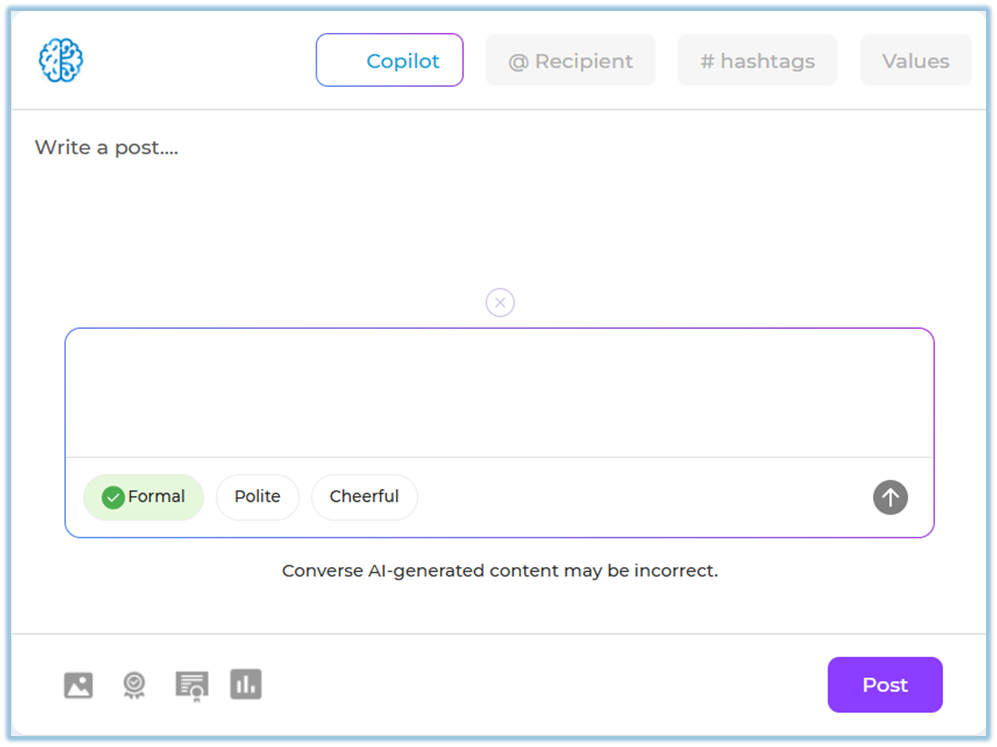
Add Mentions and applyMetadata it to the post.(Optional)
Step 4: Add Mentions, Hashtags, and Values
-
Click @ Recipient to
tagmention one or moreusersusers.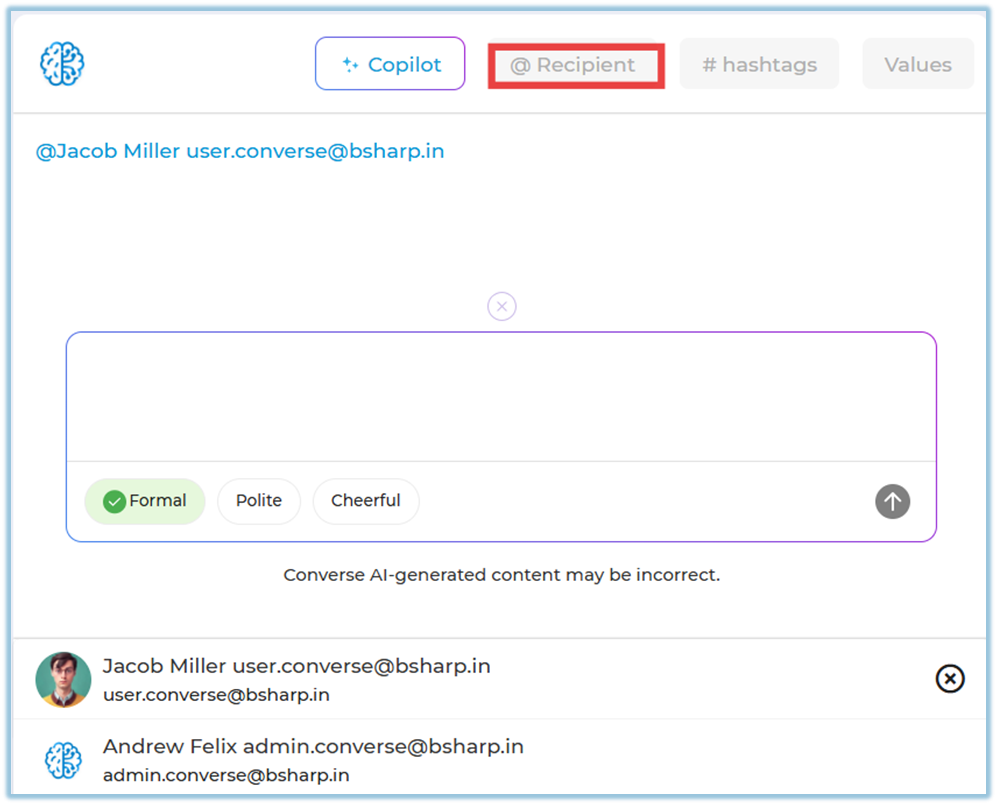
-
Add # hashtags to categorize the post.
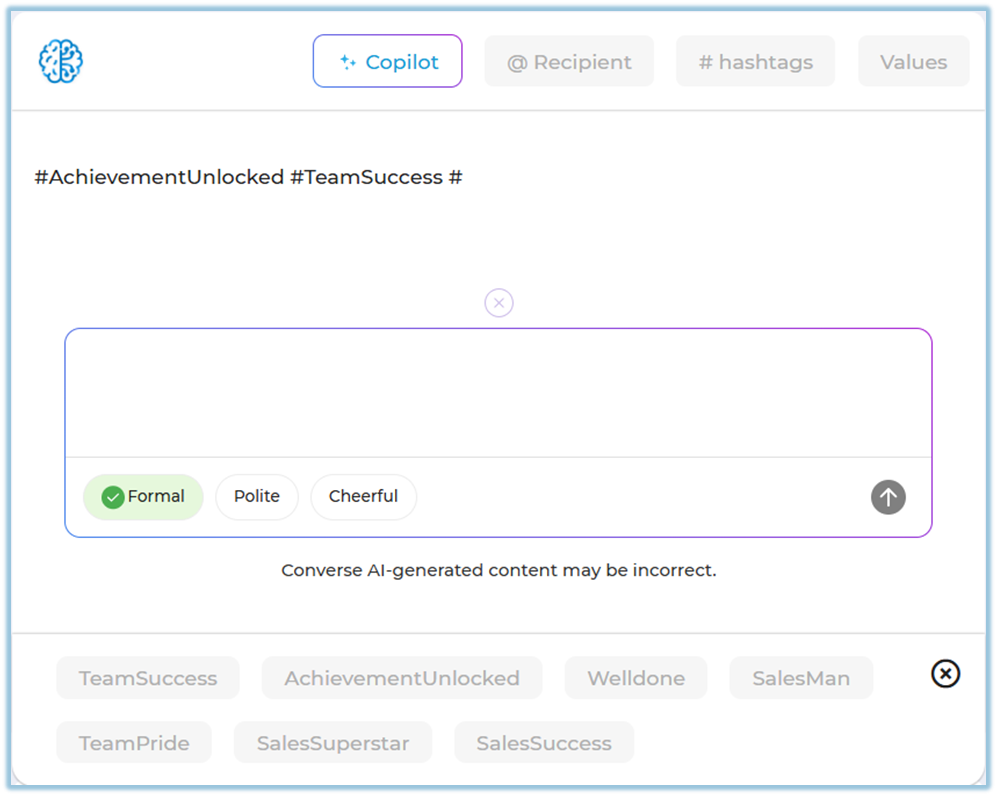
-
Select Values (for example,
mentioningEthicsanoremployeeLearning).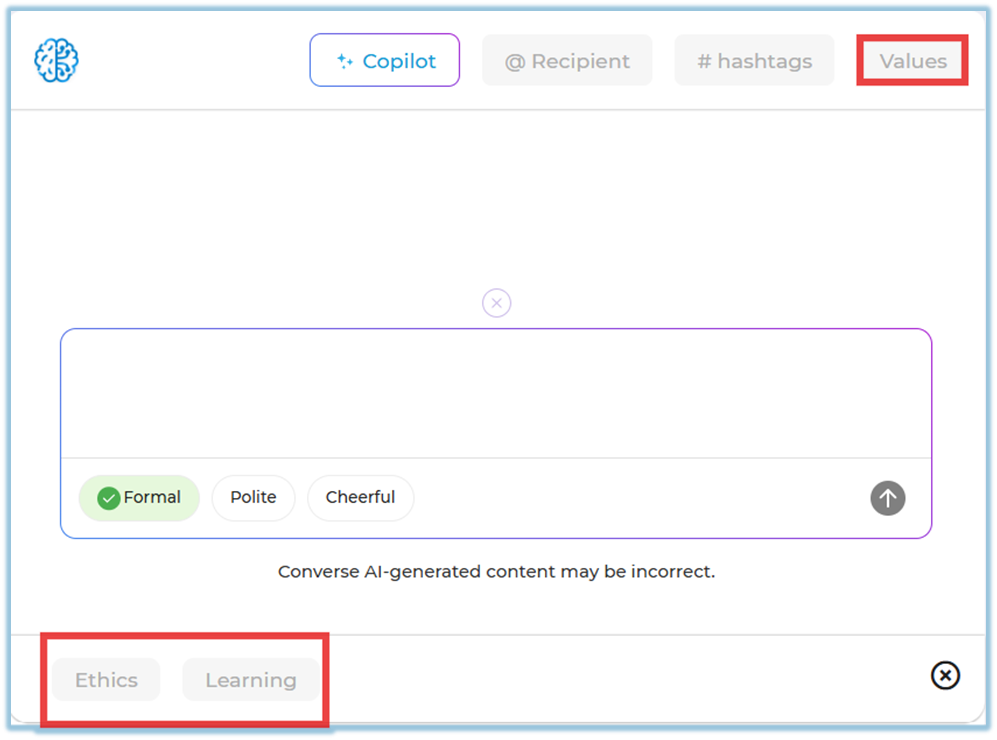
being
Give a Badge (Two Ways)
Way 1: Using the Badge Button
-
Click Badge below the post text box.
-
Select the recipient.
-
Choose the badge.
-
Enter a message (use Copilot if needed).
-
Click
#OK,hashtagsthen click Post.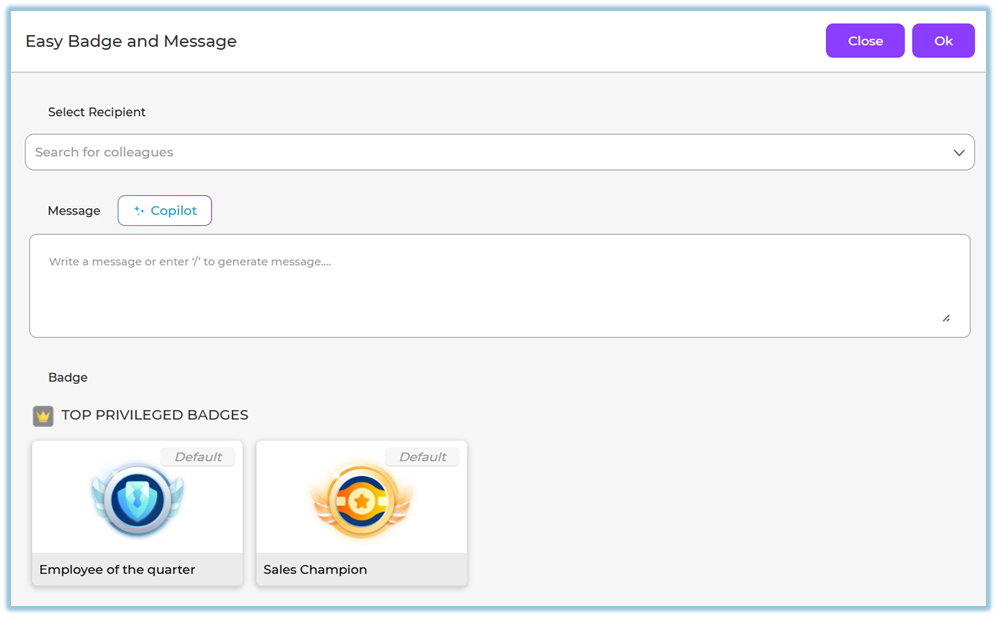
Way 2: From Write a Post
-
Click inside Write a post….
-
Select the Badge
tooption.add -
forComplete
easierthediscovery.badge details and post.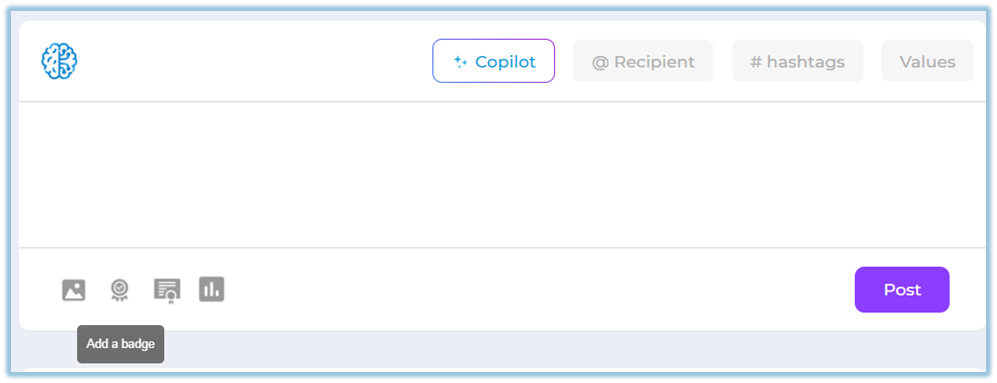
Give a Certificate (Two Ways)
Way 1: Using the Certificate Button
-
Click Certificate below the post text box.
-
Select the recipient.
-
Choose the certificate.
-
Enter the reason or message.
-
Click
ValuesOK, then click Post.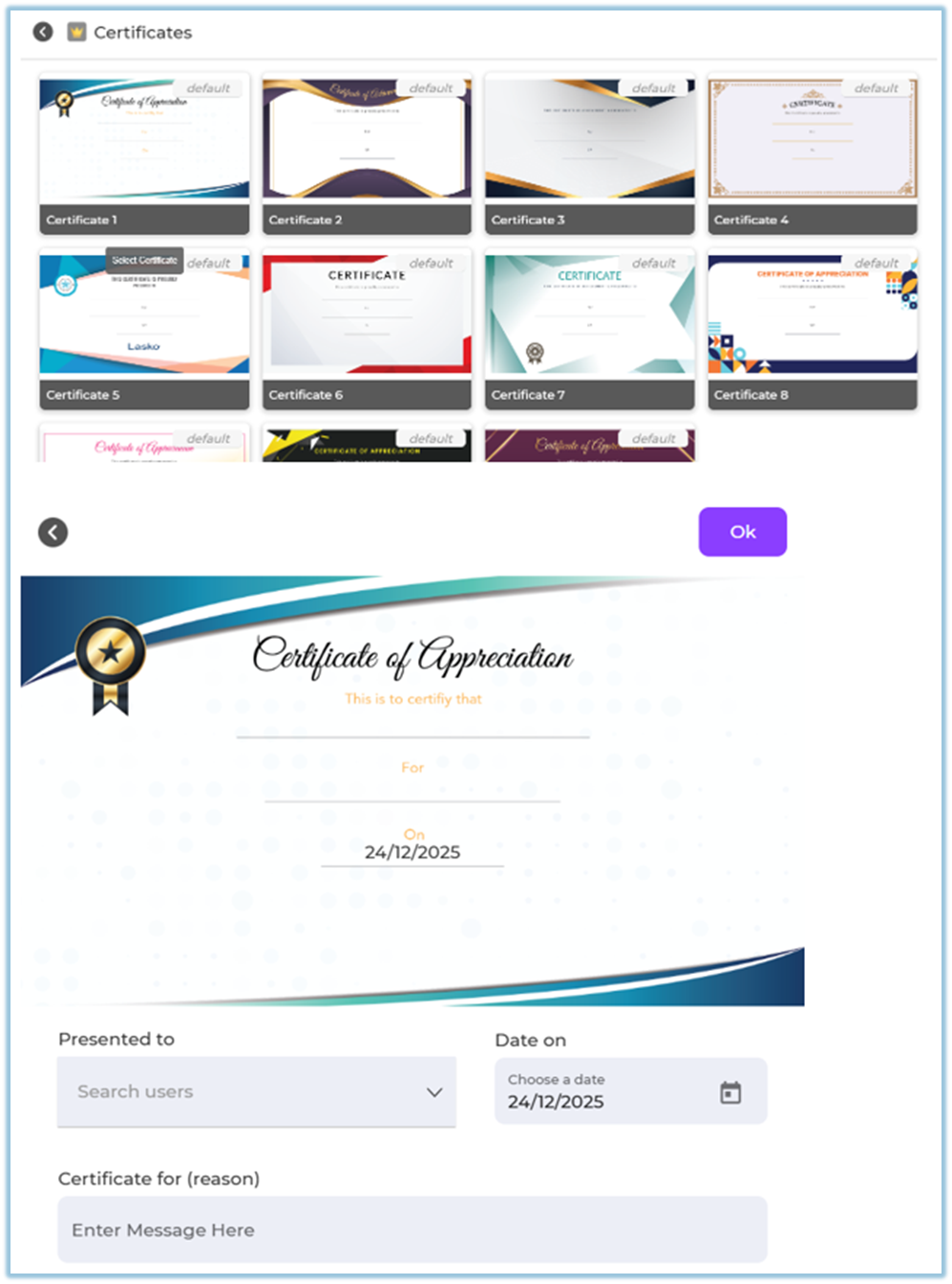
Way 2: From Write a Post
-
Click inside Write a post….
-
Select Certificate.
-
Fill in certificate details and
select the relevant value (such asEthicsorLearning) the post represents.post.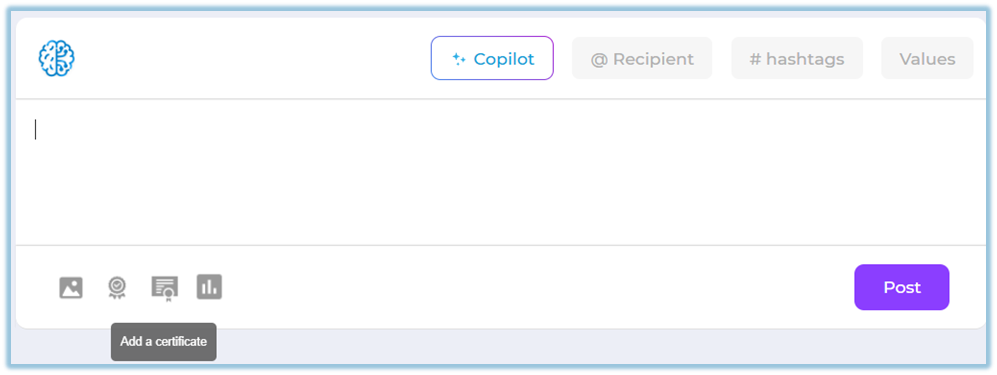
StepConduct 5:a Add AttachmentsPoll (Optional)Two Ways)
FromWay 1: Using the attachmentPoll optionsButton
-
Click Poll below the post
editor,textyoubox.can -
Enter the poll question.
-
Add options (Option 1, Option 2, etc.).
-
Configure poll settings:
-
ImageAllow–multipleUploadoptionsor(ifattach an image to the post.required) -
BadgeMake–votesRecognize employees with a badge.anonymous -
CertificateShow– Attach a certificate for recognition. Poll– Create a pollvotes tocollect employee opinionseveryone orfeedback.only the publisher
Step 6: Publish the PostReview the content and attachments.-
Click Post Poll
to publish it to the Feed..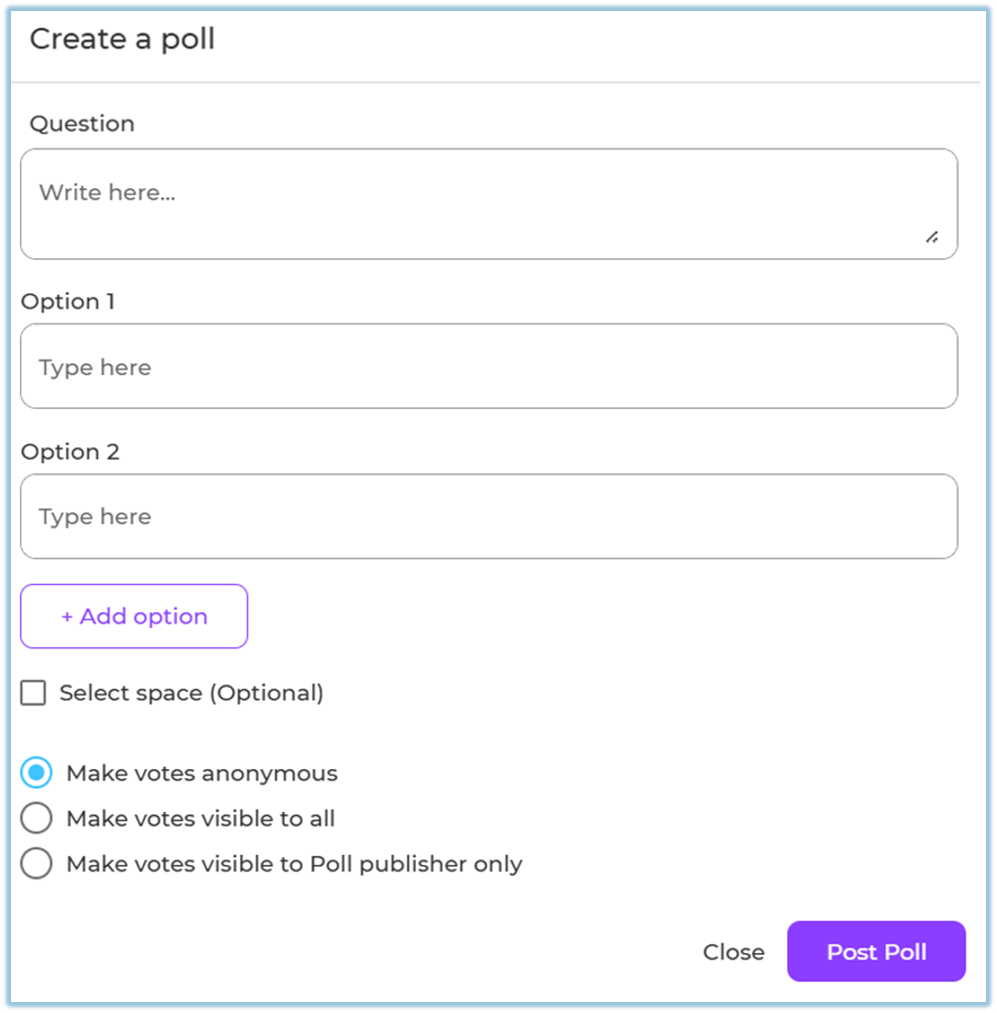
Way
2: From Write a Post
-
Click inside
StepWrite7:aSearchpost…. -
Select Poll.
-
Configure and
FilterpublishPoststhe(Optional)poll.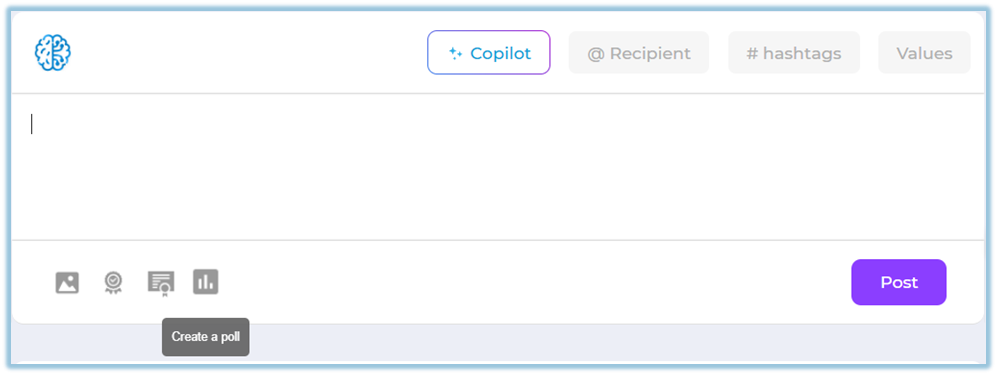
5. Reporting
-
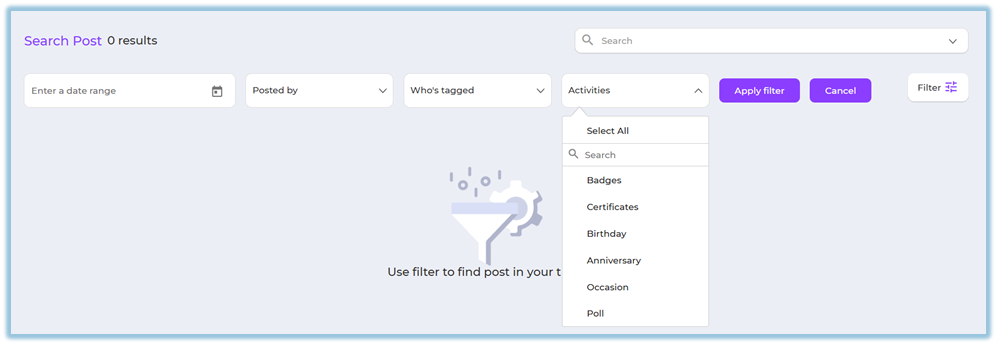
Use Search
for&@mentionFilter tofindtrackposts related to a specific user.posts. -
ClickFiltersFilterallow admins and users torefineviewresultsposts by:-
Date range
-
Posted by (You / Others)
-
Who’s tagged
-
Activities:
-
Badge
-
Certificate
-
Birthday
-
Anniversary
-
Occasion
-
Poll
-
-
Company values
-
Hashtags
-
-
Click Apply filter to view matching posts.
5.6. User View-
OnPosts appear on the Home page,users see aPostssection. Atunder thetop,Poststhey may see aWrite a post…sectionbox to create a post (if they have permission).-
BelowUsersthis,canrecentsee:-
Text posts
are displayed in a card format. -
EachImagepost shows:The message or recognition textposts-
TheBadgenamerecognitionof the person mentioned (if any)posts -
WhenCertificatethepostspost -
sharedPolls with live voting results
was -
IfUsersthe post includes ancanimage, badge, certificate, or pollreact,itcomment,appearsandinsidevotetheonpost card.polls. -
AnyRecognitionsselectedclearlyValues(for example,Going above and beyond) are shown atshow thebottombadgeoforthecertificatepost. Users can scroll to view older posts and updates.awarded.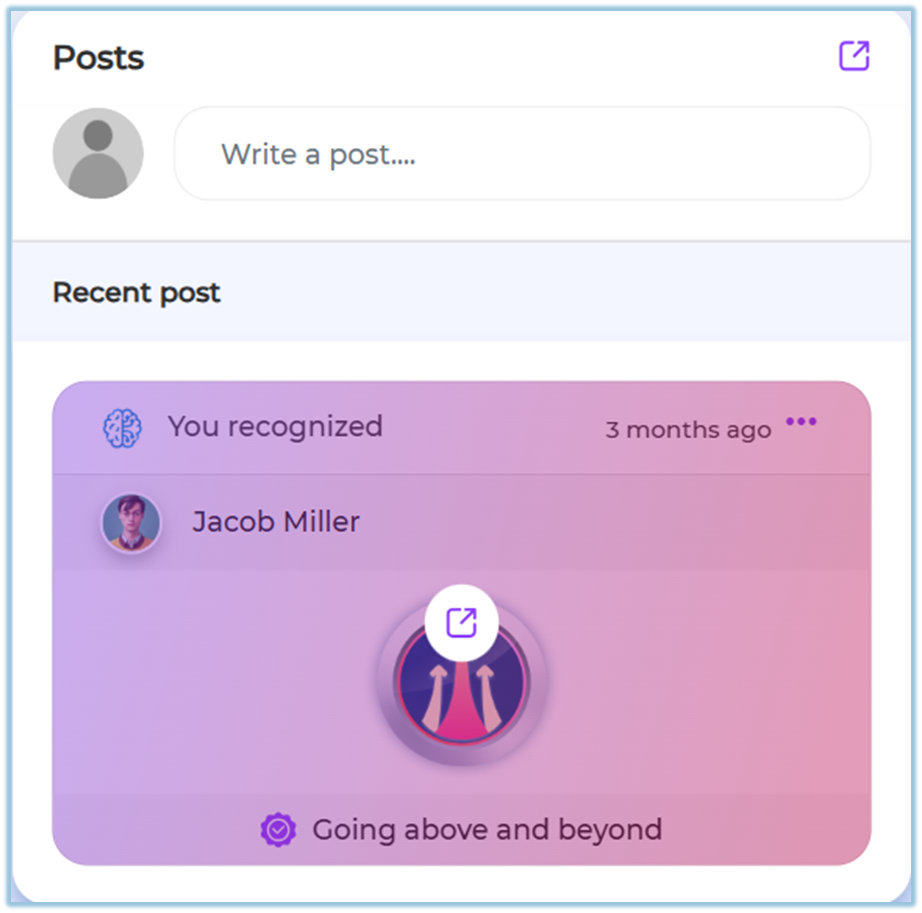
6.7. Best Practices& Tips-
Keep
postspost messages short andclear for better engagement.clear. -
Use Copilot to maintain a consistent
tone across communications.tone. -
Tag relevant users
directlytowhenimproverecognizing individuals or teams.visibility. -
Use
Valueshashtagstoandalignvaluespostsforwithbetterorganizational culture.organization. -
AddUse polls sparingly toencourageavoidinteractionengagementwithout overwhelming users.fatigue.
7.8. Troubleshooting / FAQsPostQ:notCanvisibleIineditFeed→ Ensure thea postwasaftersuccessfully published and not left in draft.publishing?
No.UnableQ:toCantagmultipleaemployeesuser→beVerify the user existstagged intheonesystem and spelling is correct.Search shows no resultspost?→ Adjust filters or clear filters and retry the search.Yes.
8.9. Related Links- Birthday
& Work Anniversary – Employee Engagement
– Badges Employee Engagement – CertificatesEmployee Engagement – Polls
9.10. Version NotesLast Updated: 23 Dec 2025
-
-