
How do we create a form with AI
1. Overview
This feature allows administrators to create a form by describing the required fields in plain text and letting AI generate the form structure, which can then be reviewed, edited, and saved before assigning it to users.
2. When to Use
-
When you know what information needs to be captured but don’t want to build the form manually
-
When you want a quick starting structure that can be edited later
-
When creating draft forms before assigning them to users
-
When experimenting with different form layouts before finalizing
3. Concepts
-
Forms – The section where all draft and published forms are managed
-
Generate with AI – An option to create a form using a text description
-
AI Prompt – The text input where form requirements are described
-
Form Builder – The screen where generated fields can be edited
-
Draft Form – A saved form that is not yet assigned or published
-
Add Users – The step where users are assigned to the form
4. Set Up Guide
-
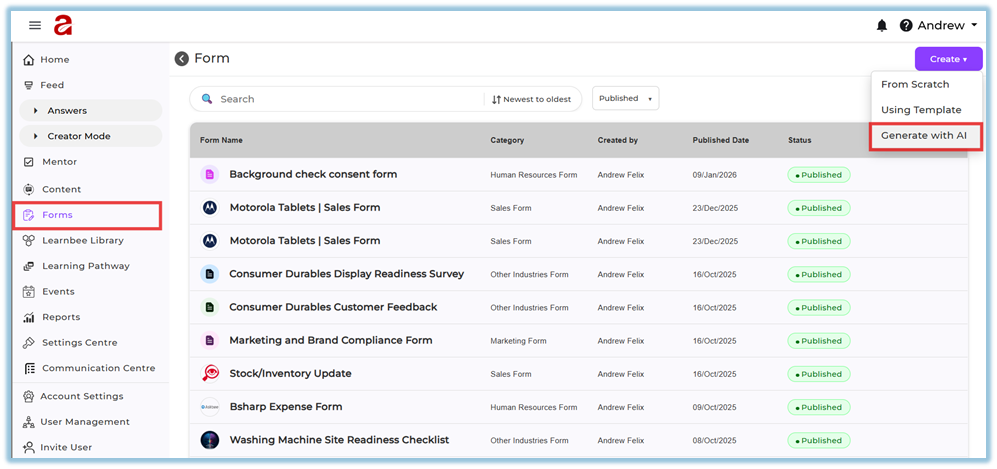
Open the Forms section from the left menu.
-
Click Create in the top-right corner.
-
Select Generate with AI.
-
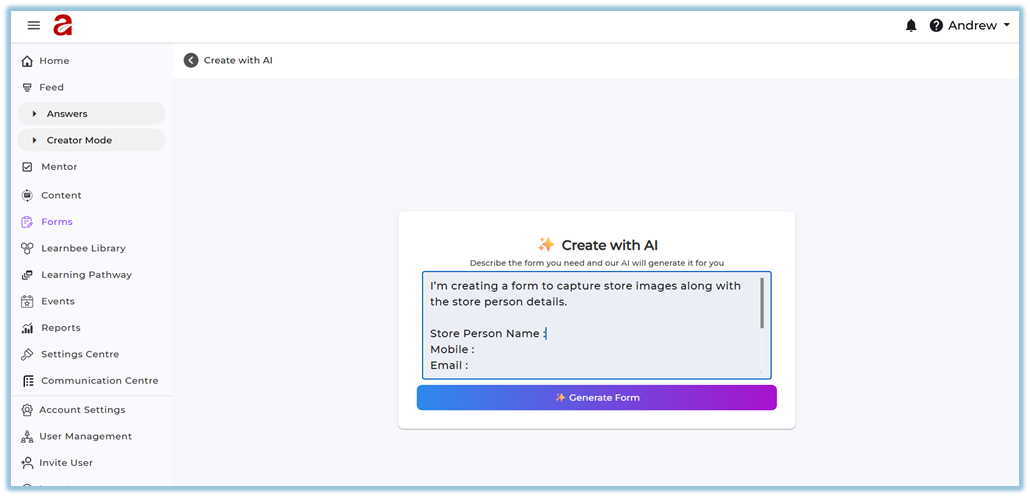
Enter the form requirements in the text box, listing the fields needed.
-
Click Generate Form.
-
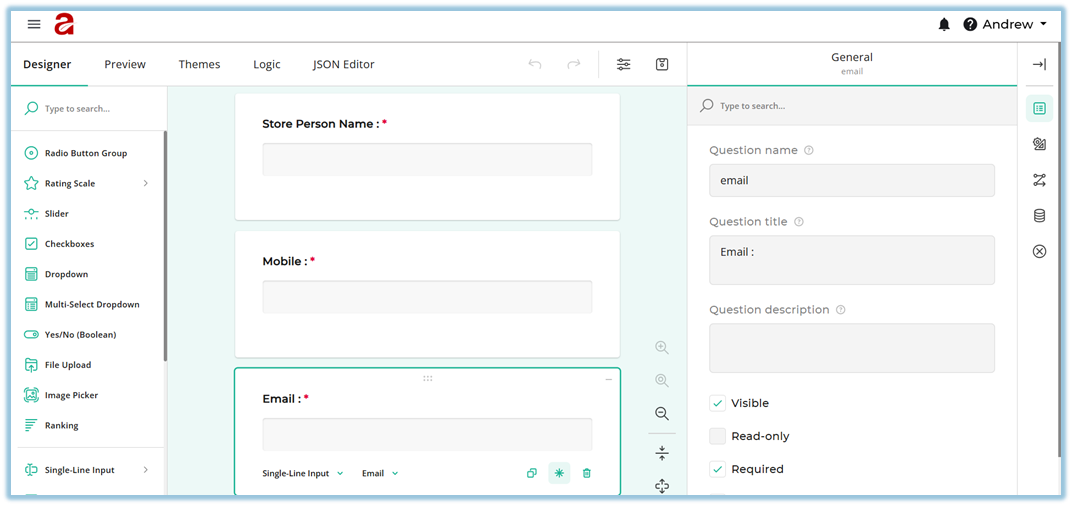
Review the generated form in the Designer view.
-
Edit fields if required.
-
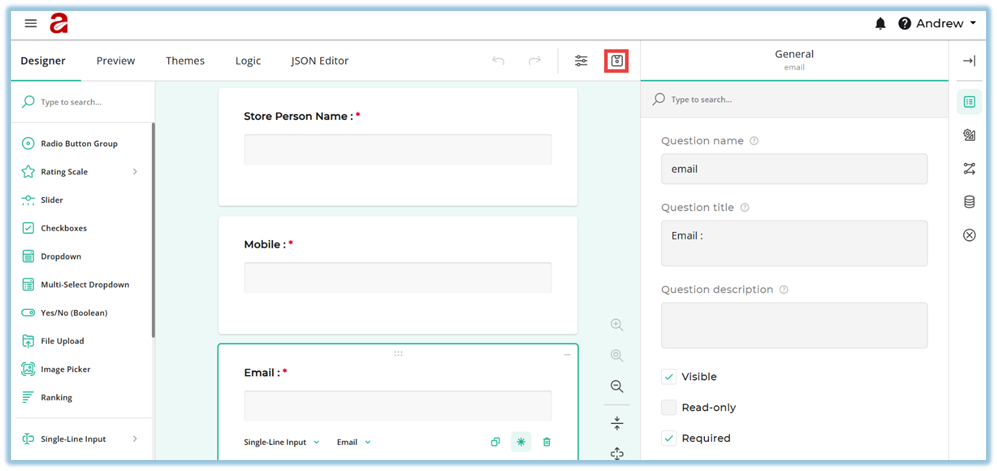
Click Save after completing edits.
-
Return to the Form details page, where Build Form is completed and Add Users is available.
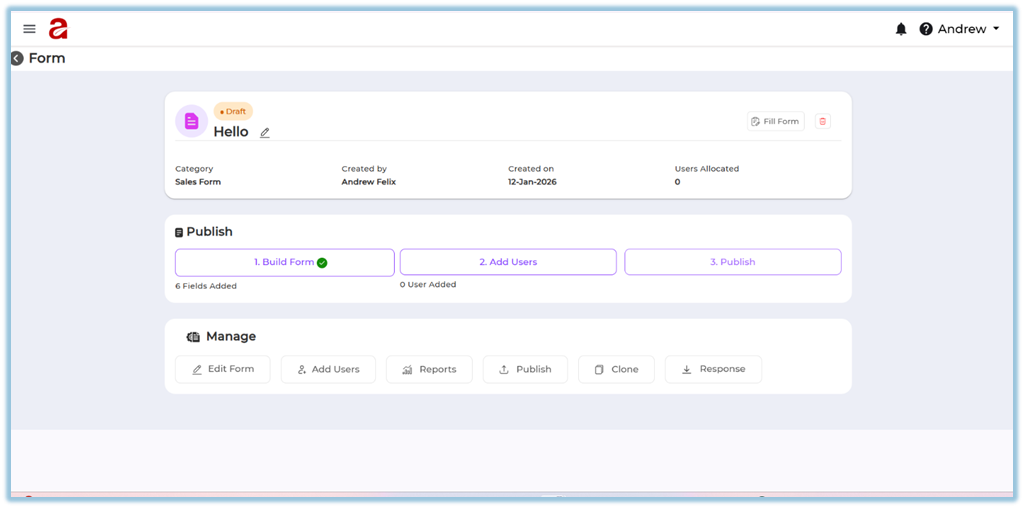
-
Select Add Users to assign users individually or by attributes.
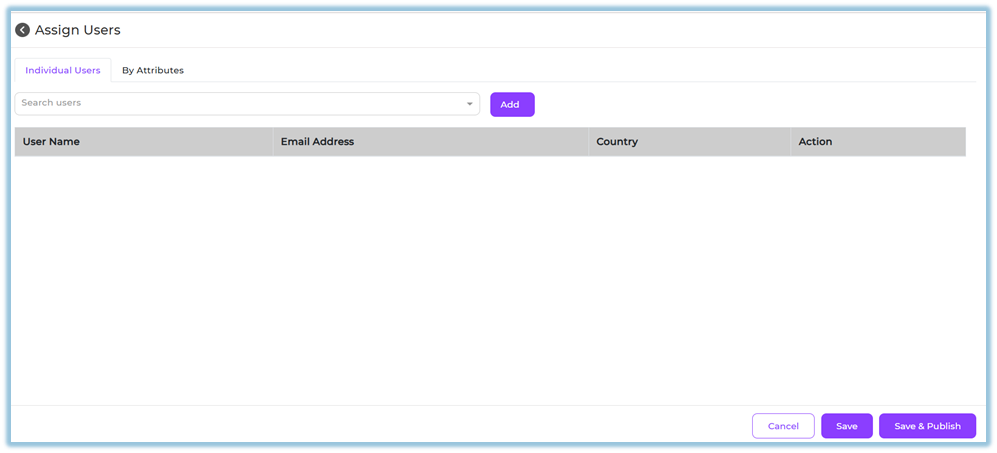
-
Click Save to keep the form editable, or Save & Publish when ready.
5. User View
If the form is assigned to users, it appears on the Home page under the Forms section. Users can scroll down the Home page to view and access their assigned forms.
6. Reporting
-
Form Reports show submission status and responses
-
Reports can be accessed from the Reports option in the form’s Manage section

7. Best Practices & Tips
-
Be specific when describing fields in the AI prompt
-
Always review AI-generated fields before saving
-
Save the form as draft if changes are expected later
-
Assign users only after validating the form structure
8. Troubleshooting / FAQs
Q: What happens when I click Save after editing the form?
The system redirects you to the Form details page, where you can proceed to Add Users or publish later.
Q: Can I edit the form after publishing?
No. Once published, the form cannot be edited.
Q: Can I save without publishing?
Yes. Saving keeps the form in draft mode and editable.
9. Version Notes
Last Updated: 12 Jan 2026