
How to Use Converse with Google Chat
1. Overview
Converse works inside Google Chat, allowing users to access learning content, view assigned tasks, ask questions, participate in polls, receive notifications, and engage with team activities without leaving their chat workspace.
2. When to Use This?
-
When teams use Google Chat as their primary collaboration tool
-
When users want quick access to learning and tasks without leaving chat
-
When managers want to engage teams using badges, polls, and reminders
-
When onboarding new users into Converse via Google Chat
3. Concepts
-
Converse Bot – The assistant added to Google Chat
-
Slash Commands – Commands used to trigger Converse actions
-
Chat Cards – Structured responses shown in chat
-
Notifications – Automated alerts sent by Converse
-
Direct Message (DM) – One-to-one chat with Converse
-
Space – Group chat where Converse is added
4. Set Up Guide
Add Converse to Google Chat
-
Open the Google Chat application.
-
Go to Apps and click Find an App.
-
Search for Bsharp Converse.
-
Click Add.
-
Choose Add to DM (single chat) or Add to Space (group chat).
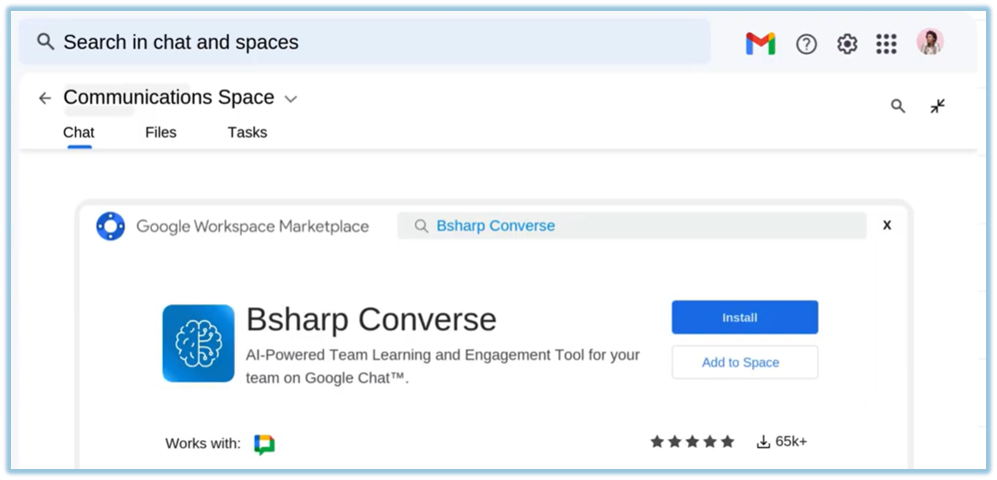
Converse is now available in the selected chat or space.
5. User View
Users interact with Converse by typing slash commands in Google Chat.
Converse responds with messages or cards inside the chat.
For learning-related actions, users are redirected to the Converse web application to complete the content.
6. Reporting
Reporting is not available within Google Chat.
All reports related to learning, engagement, and usage are available in the Converse web application → Reports section.
Feature Commands
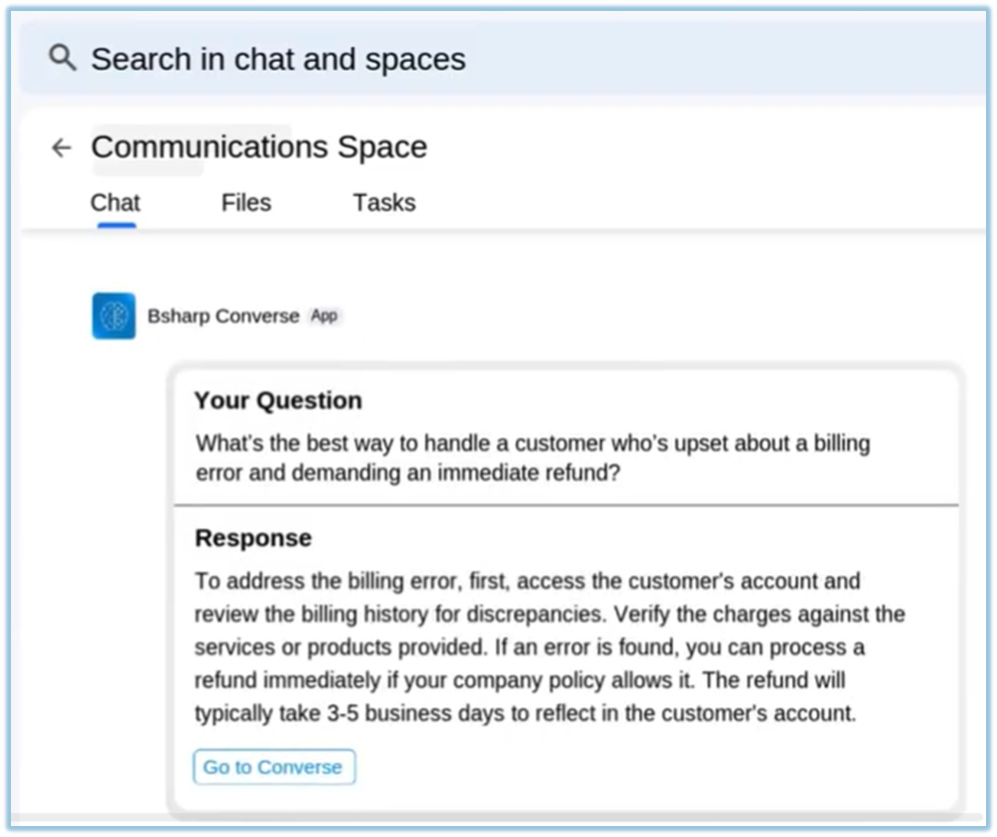
/AnswersAnswers
Description: Ask questions and get instant answers from the organization’s knowledge base.
How it works: Type /Answers followed by a question to receive responses in chat.
/Give_badge
Description: Award badges to recognize a colleague’s contribution.
How it works: Trigger the command and select the colleague to send a badge.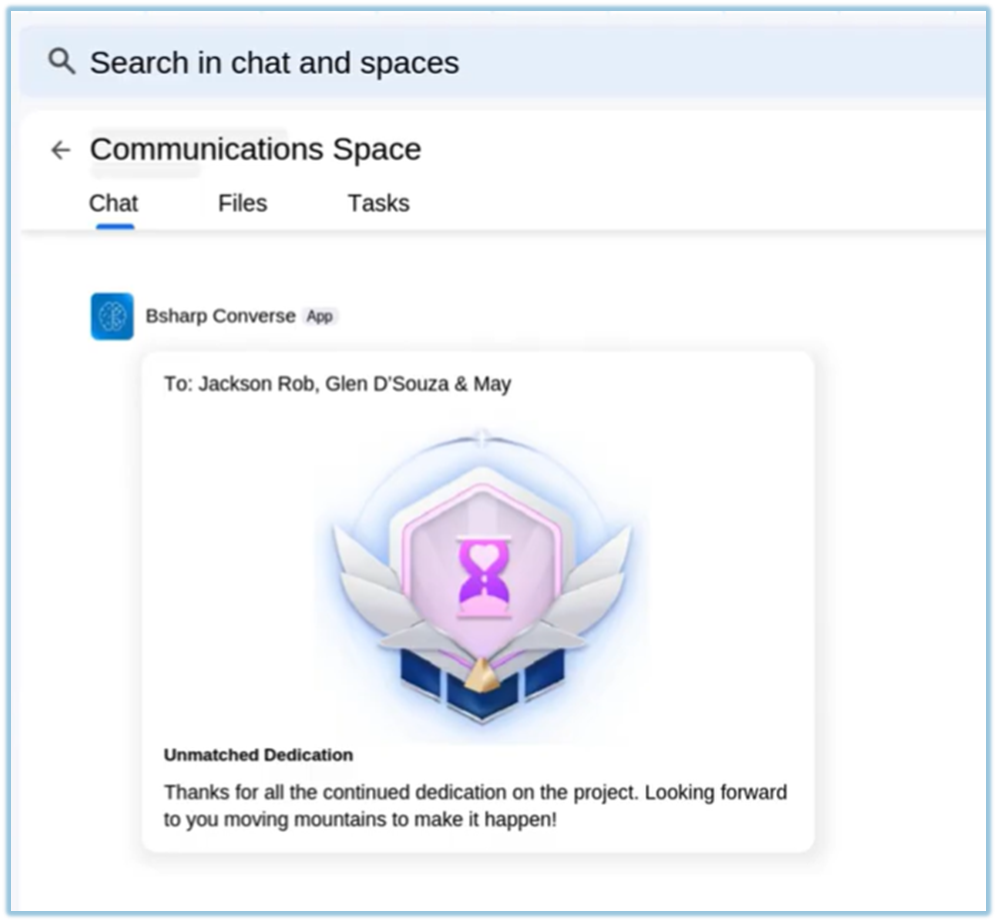
/Create_poll
Description: Create quick polls to collect team feedback.
How it works: Launch a poll and gather responses directly in chat.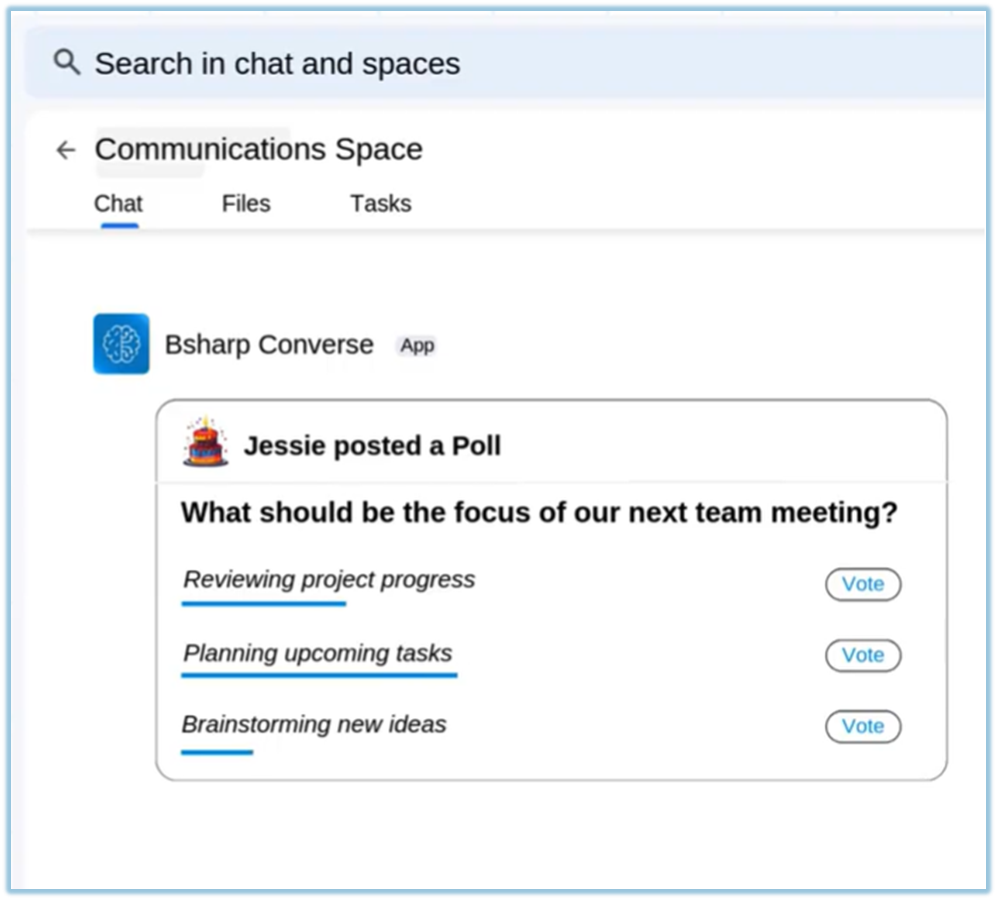
/Tasks
Description: View tasks assigned to you.
How it works: Displays the latest tasks mapped to the user.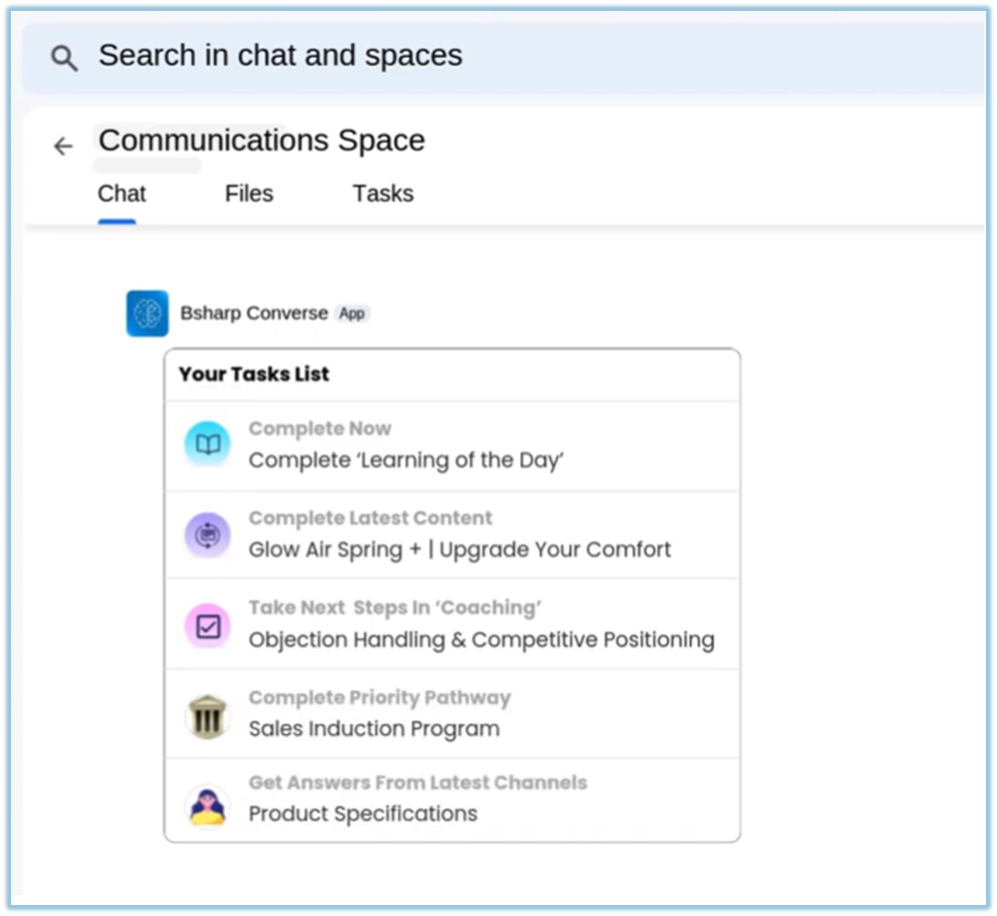
/Learning
Description: Access assigned learning content.
How it works:
-
Search content – Search learning by keyword
-
Your latest content – View recently assigned learning
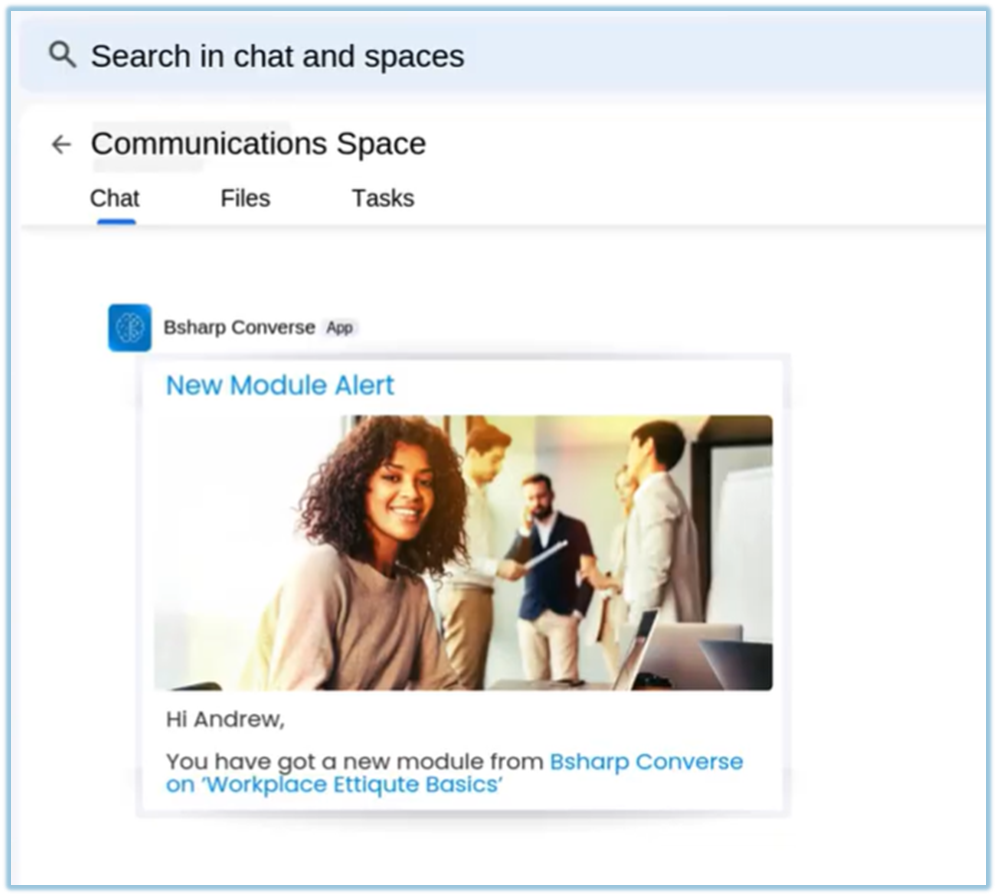
Selected content redirects the user to Converse for completion.
Help Command
/Converse_help
Description: Get guidance on using Converse commands.
How it works: Displays help information and available commands inside chat.
Reminders and Notifications
Converse sendsautomatically automatedkeeps notificationsusers ininformed through Google Chat to keep users informed.notifications.
-
NotificationsLearning reminders: Alerts for newly assigned learning content -
AlertsNotificationswhenfor:learning-
areContent published
-
NotificationsLearningforpathwaystasks, badges, and postspublished -
SpecialTasksoccasionassignedalerts -
asBadges
workawarded -
Birthday and Work anniversaries
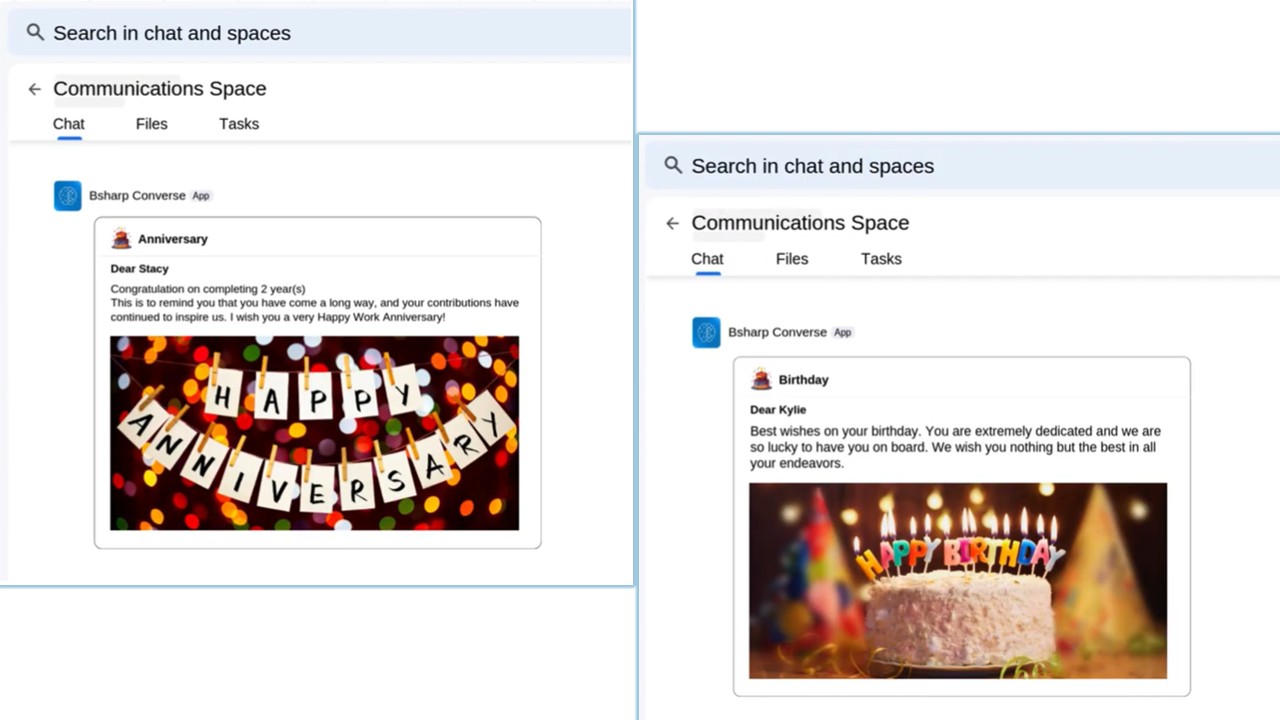
pathwayssuch -
These notifications appear directly in Google Chat.
Onboarding Your Team
-
After admin signup, a Join Now card is sent in Google Chat or space.
-
Team members click Join Now to access Converse.
-
Admins can also share a direct invite link with users outside the space.
Once joined, users can access all Converse features directly from Google Chat.
To allow teammates to automatically join without needing your approval, ensure that the 'Allow users of the same domain to join automatically' setting is enabled.
7. Best Practices & Tips
-
Add Converse to active team spaces
-
Encourage consistent use of slash commands
-
Use badges and polls to improve engagement
-
Keep notifications enabled for timely updates
8. Troubleshooting / FAQs
Q: Can learning be completed inside Google Chat?
No. Learning is accessed from chat but completed in the Converse web app.
Q: Can Converse be added to multiple spaces?
Yes, Converse can be added to multiple Google Chat spaces.
Q: Where can I get support?
Email converse.support@bsharpcorp.com
9. Version Notes
Last Updated: 08 Jan 2026