
How do we set up Learning of the Day
1. Overview
Learning of the Day allows admins to deliver learning content to users in small, daily portions. Instead of assigning a full module at once, content is published as learning cards on a scheduled basis. Learners receive a fixed number of cards each day at a predefined time, helping them consume learning regularly without overload.
https://bsharpcorp.com/learning-cards-engage-learn-retain-old/
2. When to Use
-
When learning should be delivered daily instead of all at once
-
When users need short, consistent learning
-
When engagement through streaks and regular usage is required
- When content should be scheduled for specific days and time
3. Concepts
-
Learning of the Day – Daily learning experience delivered to users
-
Learnbee Library – Area where topics are created and managed
-
Learning Card – A single piece of learning content
-
Feed Setup – Configuration screen for Learning of the Day
-
Streak – A count of consecutive days the learner completes learning
-
Review – Option to revisit already completed cards
4. Set Up Guide
Step 1: Create and Prepare the Topic
-
Click the menu (three-line icon).
-
Go to Learnbee Library.
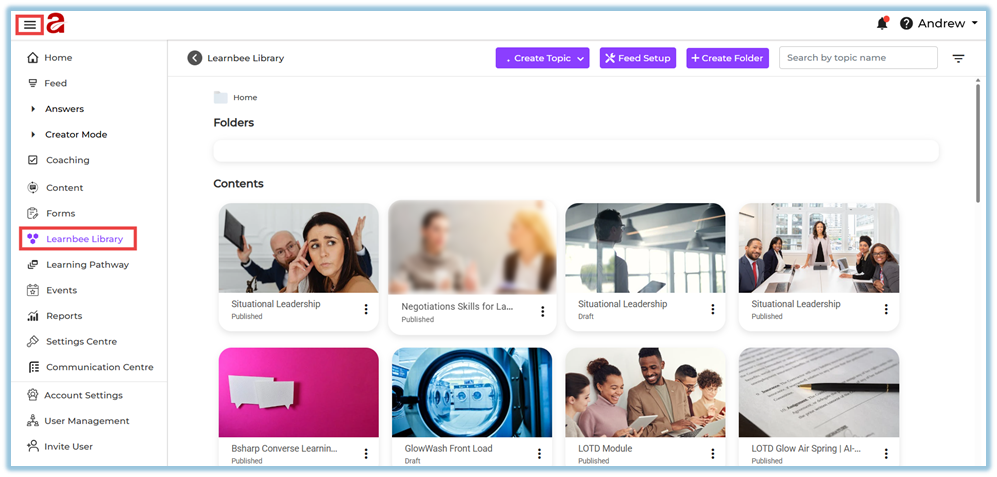
This page displays all topics that are created, published, and managed in Learnbee. -
Click Create Topic.
You will see two options:-
Create from scratch
-
Load from template
-
-
Choose one of the following based on your requirement:
-
Create from scratch
Use this option to create a completely new topic from the beginning.
This is the most commonly used option for Learning of the Day. -
Load from template
Use this option if a reusable topic template already exists in another account.
The template can be loaded and reused instead of creating content again.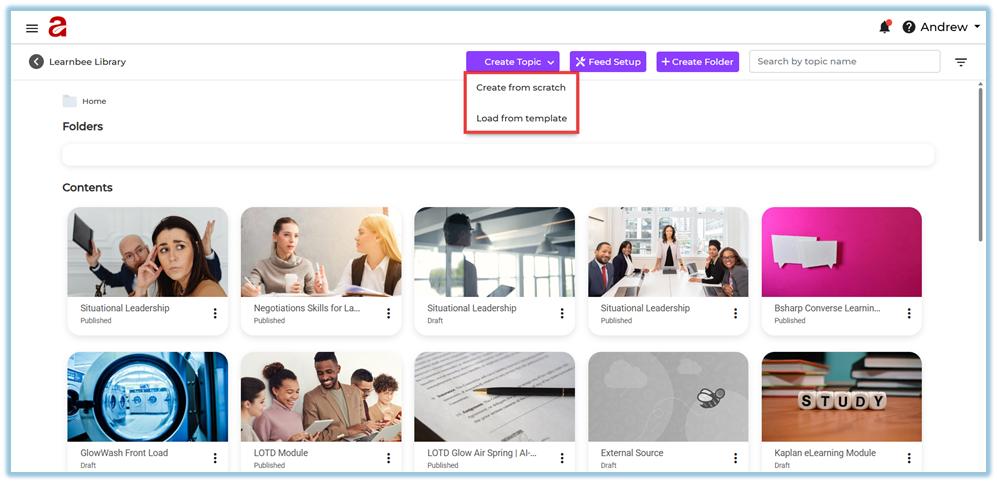
-
- Create from scratch – Topic Settings
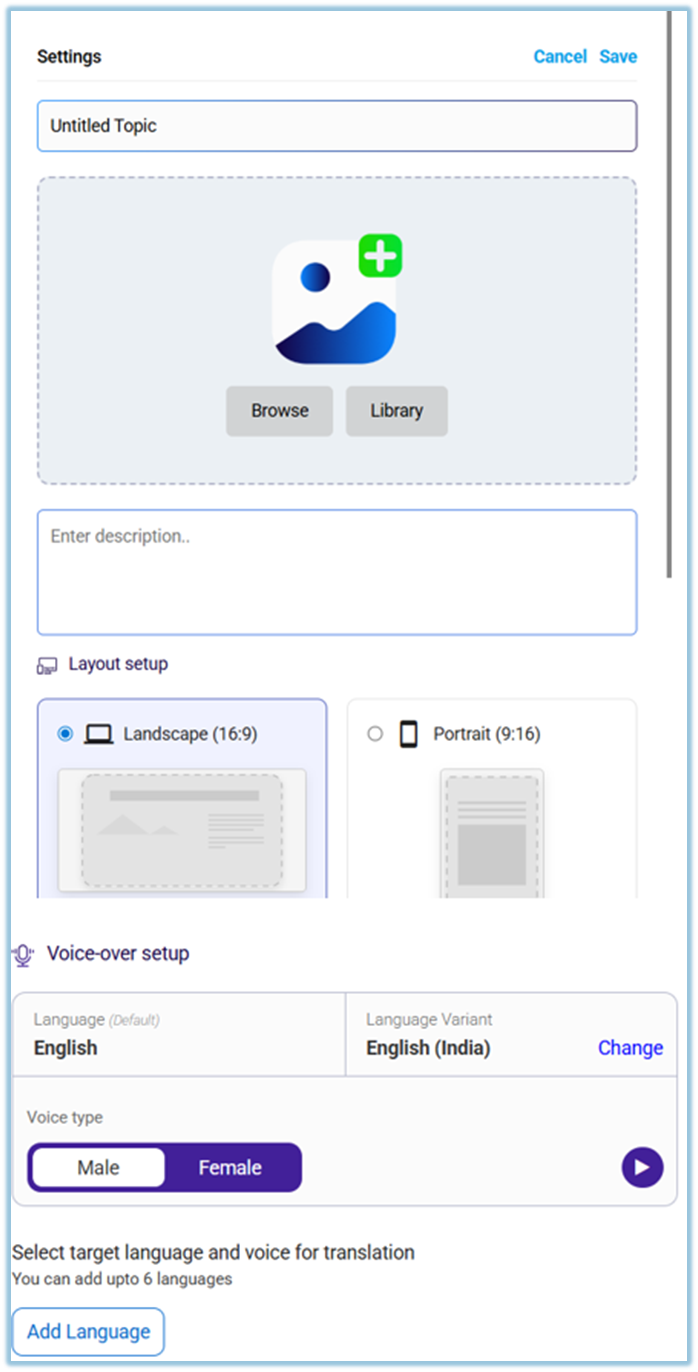
After selecting Create from scratch, the Topic Settings page opens. This page is used to define the basic details of the topic before adding learning cards or quizzes. -
On the settings page:
-
Enter the topic name
-
Add a topic image (from library or browse)
-
Add a description if required
-
Select the layout (Landscape or Portrait)
-
-
Configure Voice-over settings:
-
Select voice type (Male or Female)
-
Choose the base language
-
Add additional languages if required (up to 6 per card)
-
-
Click Save to proceed.
Step 2: Add Learning Content (Cards, Flashcards, Quiz)
-
Click Add slide
From the topic editor screen, click Add slide to view all available content options.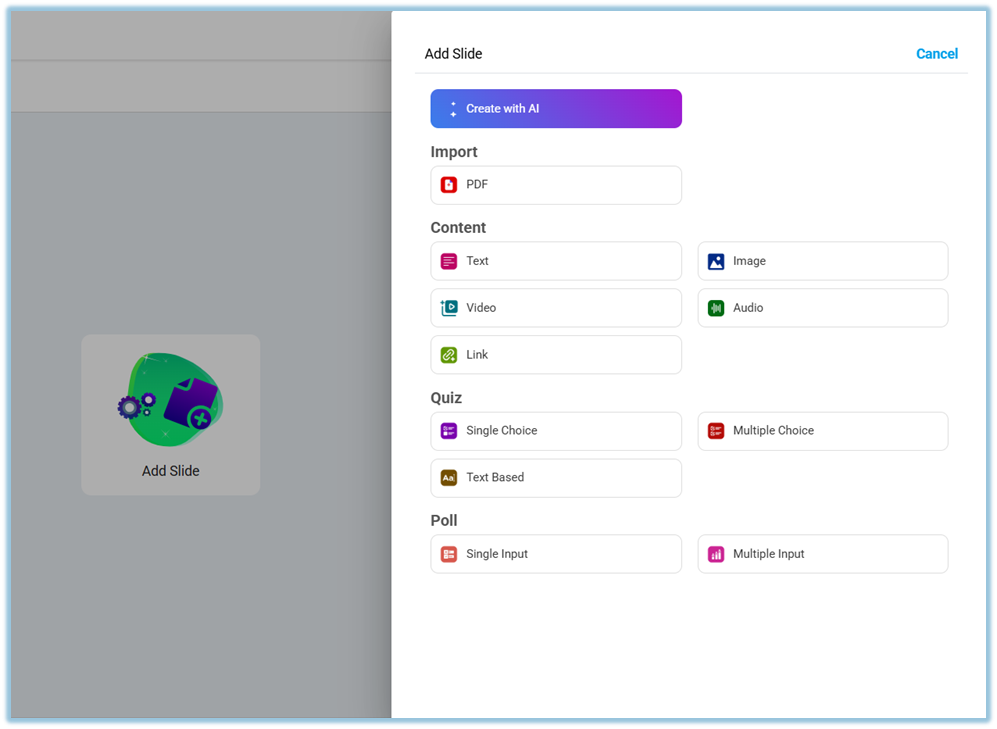
-
Add content using any of the following options:
-
Create with AI
-
PDF import (up to 30 slides)
-
Text
-
Image
-
Video
-
Audio
-
Link
-
-
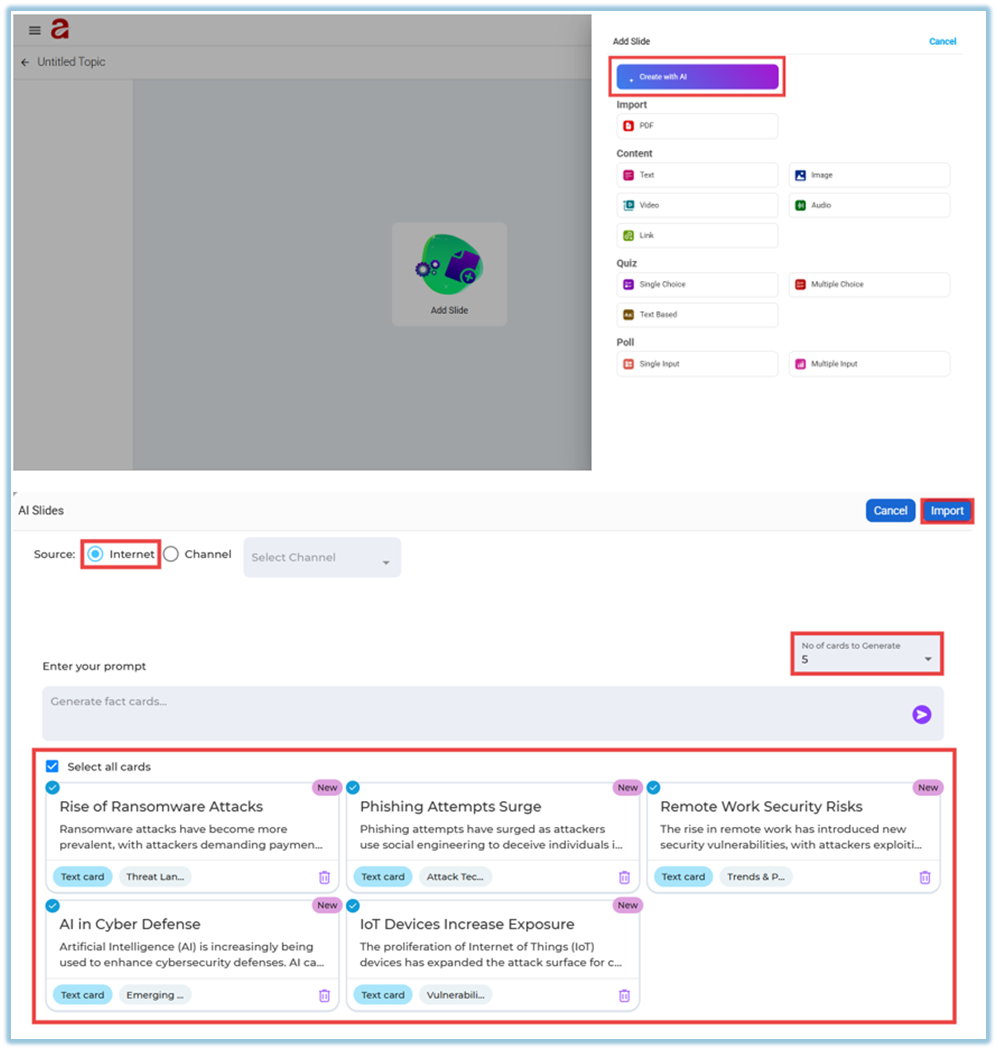
To generate learning cards using AI:
-
Click Create with AI
-
Choose Internet or Channel as the source
-
Enter a prompt describing the topic
-
Select the number of cards to generate (up to 5)
-
Click Generate, review the cards, and then click Import
-
-
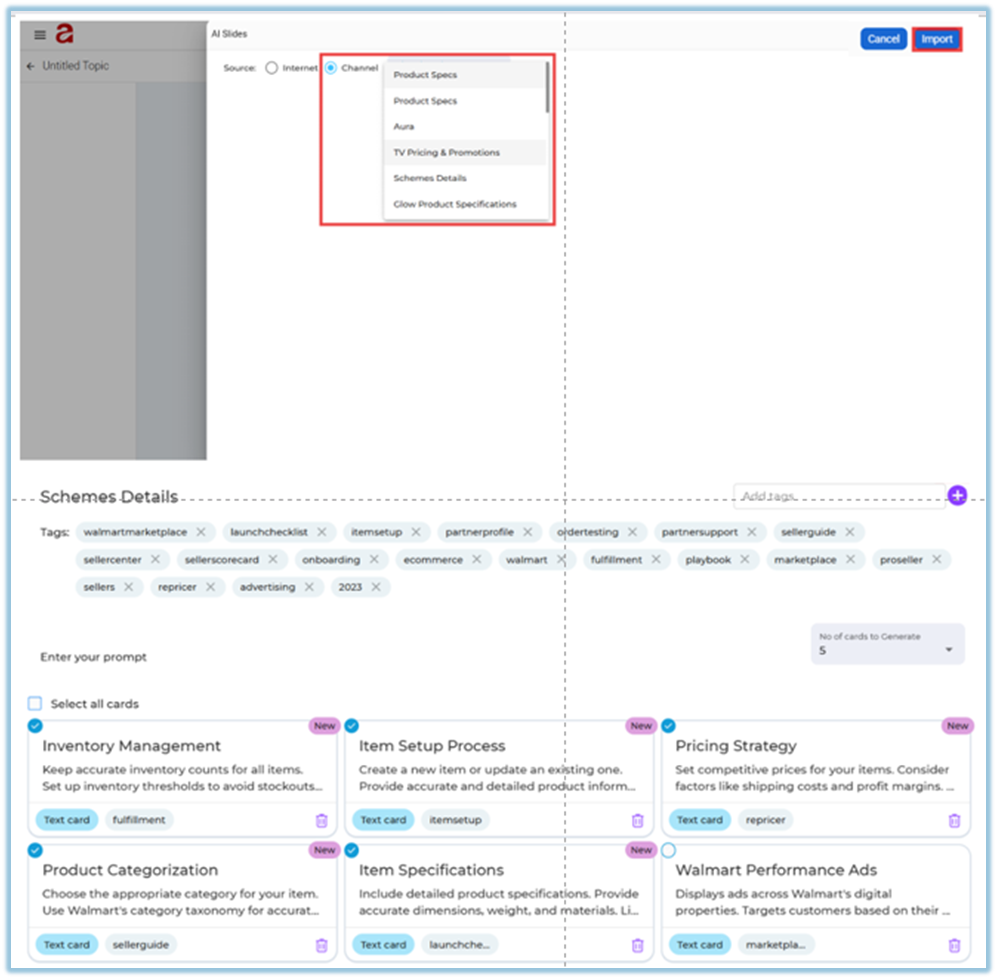
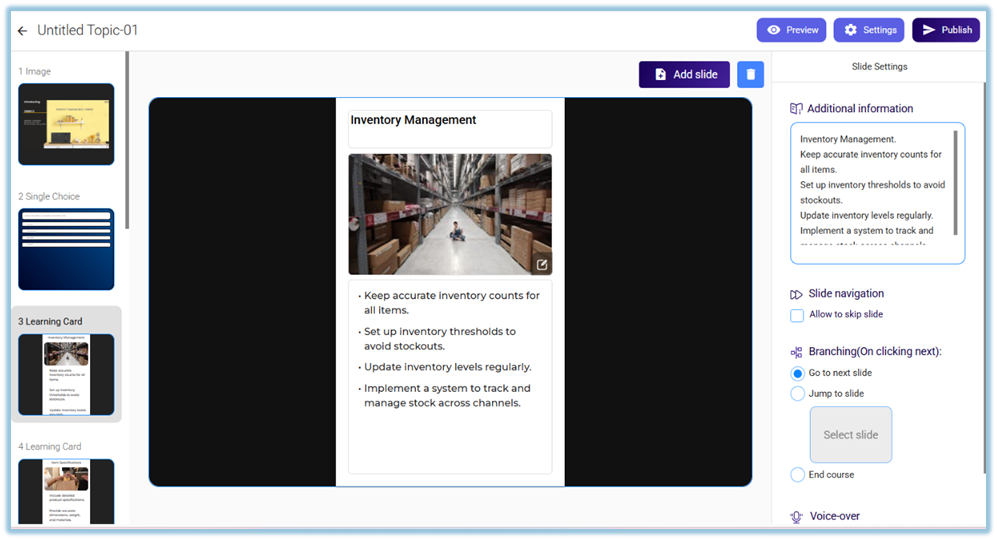
To generate learning cards from Channels:
-
Select Channel as the source
-
Choose an existing Instant Answers channel
- the system automatically gives the tags based on the selected document
-
Select relevant tags from the document
-
Choose the number of cards to generate
-
Click Generate and then Import
-
-
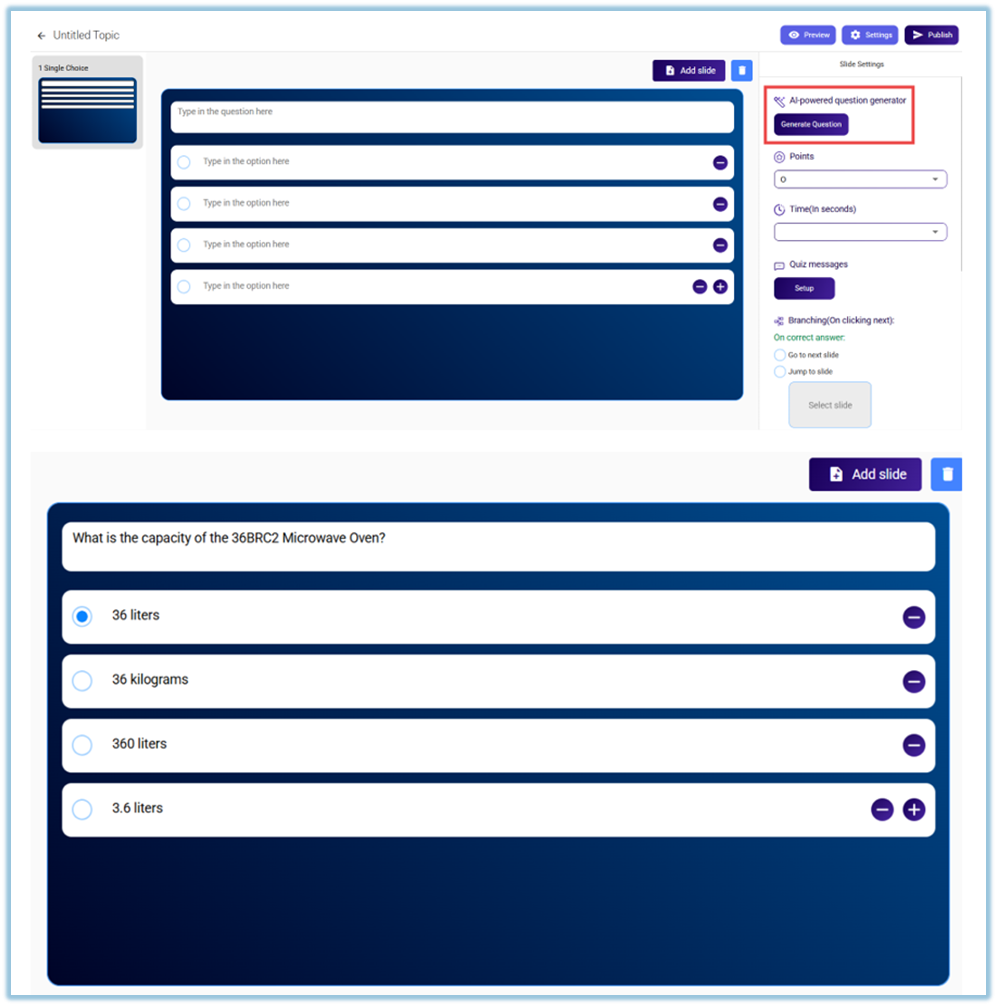
Add Quiz slides after learning cards:
-
Click Add slide → Quiz
-
Choose the quiz type:
-
Single Choice
-
Multiple Choice
-
Text Based
-
-
Add questions manually, or
-
Click Generate Question to create questions using AI
-
-
Add Poll slides to collect learner input:
-
Click Add slide → Poll
-
Choose the poll type:
-
Single Input – Learners can submit one response
-
Multiple Input – Learners can submit more than one response
-
-
-
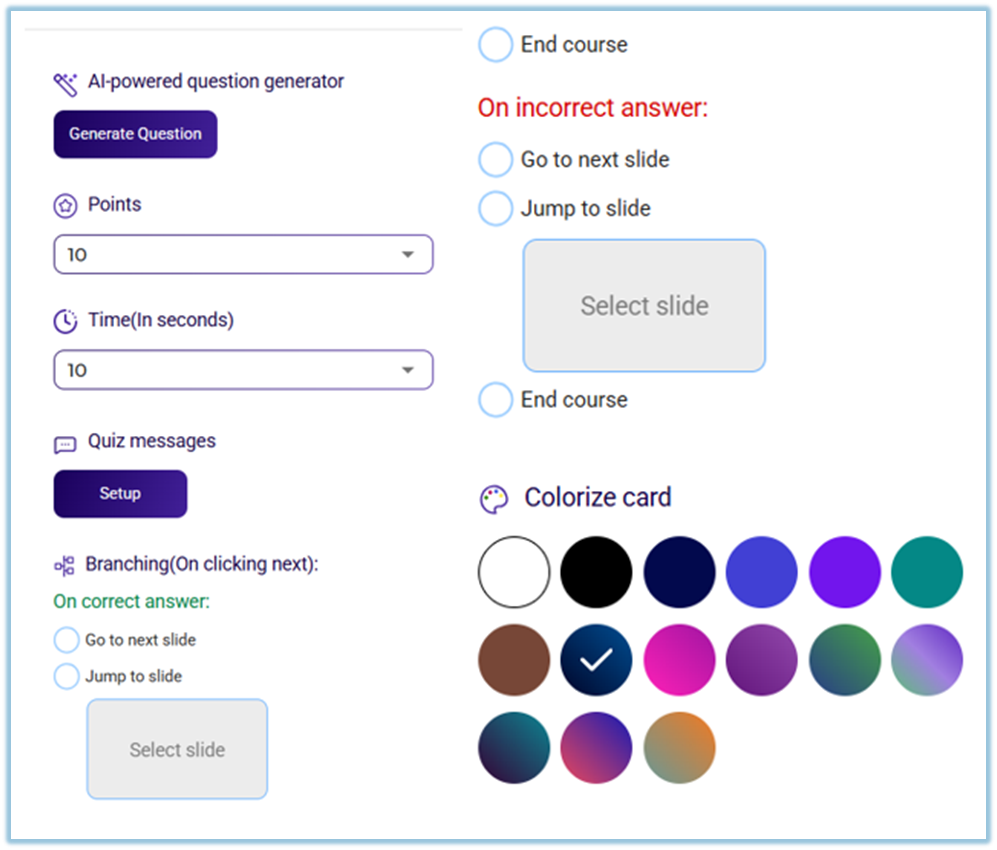
Configure quiz settings:
-
Set Points for correct answers
-
Set Time (in seconds) for each question
-
Configure Quiz Messages (default or custom)
-
Set Branching rules:
-
On correct answer → Go to next slide / Jump to slide / End course
-
On incorrect answer → Go to next slide / Jump to slide / End course
-
-
Optional: Colorize the card for better visual distinction
-
-
Review and publish:
-
Click Preview to check the learning flow
-
Make any required edits
-
Click Publish to make the topic available in the Learnbee Library

-
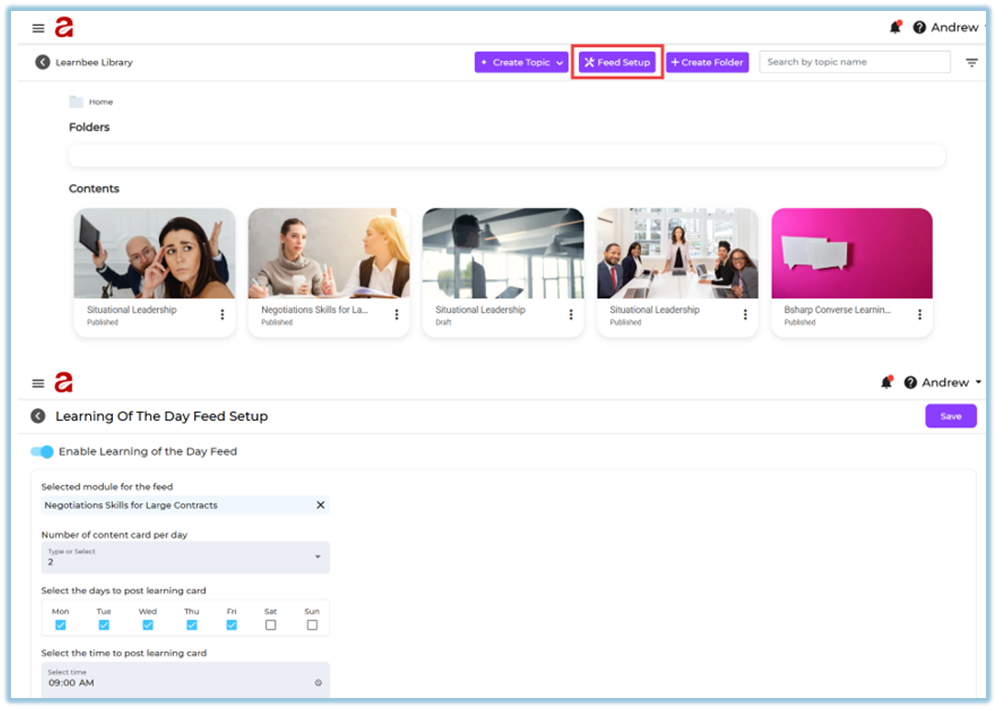
Step 3: Set Up Learning of the Day Feed
-
Go to Learnbee Library.
-
Click Feed Setup.
-
Enable Enable Learning of the Day Feed.
-
Select the module (topic) you created.
-
Select Number of content card per day.
-
Select the days to post learning cards.
-
Select the time to post learning cards.
-
Click Save.
5. User View
Learners see a Learning of the Day card on the Home page.
Streak count shows consecutive days of completion.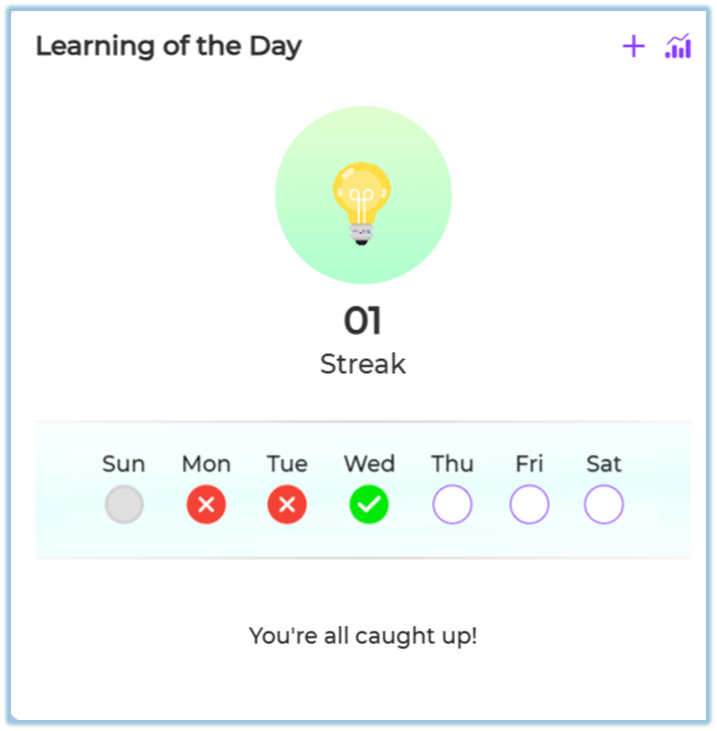
Day-wise tracker indicators:
-
Grey – No learning card is published for that day
-
❌ Red cross – Learning was scheduled but not completed (missed)
-
✔ Green check – Learning completed successfully
-
Purple circle – Learning scheduled for upcoming days
6. Best Practices
-
Use 2–3 cards per day for better completion.
-
Ensure the topic has enough learning cards.
-
Schedule learning during regular working hours.
7. Related Links
-
Learning Cards overview:
https://bsharpcorp.com/learning-cards-engage-learn-retain-old/
8. Version Notes
Last Updated: 17 Dec 2025