
How do we set up Learning of the Day?
1. Overview
A Learning Pathway is a structured learning flow that contains a series of training modules arranged in a specific order. It helps learners follow a clear learning journey and complete training step by step as designed.
Learning Pathways are useful when training needs to be completed in sequence to ensure proper understanding.
2. When to Use
Use Learning Pathways when you want to:
-
Combine multiple modules into one structured program
-
Guide learners through a defined learning sequence
-
Track overall progress across multiple modules
-
Assign deadlines and completion timelines
Only admins can create, edit, publish, or delete Learning Pathways.
3. Concepts
Learning Pathway
A Learning Pathway is a collection of modules arranged in a specific order. Learners complete all modules in the pathway to finish the learning program.
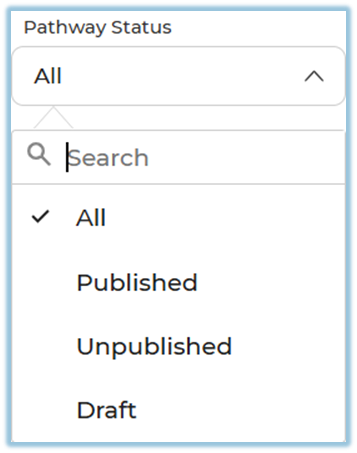
Pathway Status
Pathway Status helps you view different Learning Pathways on the list page.
-
All – Shows all Learning Pathways
-
Published – Shows only Learning Pathways that are live
-
Unpublished – Shows Learning Pathways that are not visible to learners
-
Draft – Shows Learning Pathways that are still being created
Search and Arrow (Sort)
Search
The Search option allows users to quickly find a specific Learning Pathway from the list.
-
Users can search using the Learning Pathway name.
-
As text is entered, the list updates to show matching pathways.
Sort
The Sort is used to reorder Learning Pathways based on the created date.
-
Learning Pathways can be sorted by when they were created.
-
This helps users view the latest or older Learning Pathways easily.

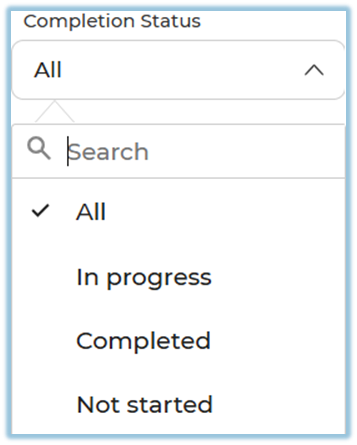
Completion Status
Shows learner progress for each Learning Pathway, such as Not Started, In Progress, or Completed.
Priority
Priority helps learners understand what the Learning Pathway is about and which pathway they should complete first.
When a priority is selected for a Learning Pathway, it clearly indicates the purpose of the pathway and guides learners to focus on it accordingly.
Example:
If a set of modules is selected and the priority is set as Induction, learners will understand that this Learning Pathway is part of their induction training and should be completed first.

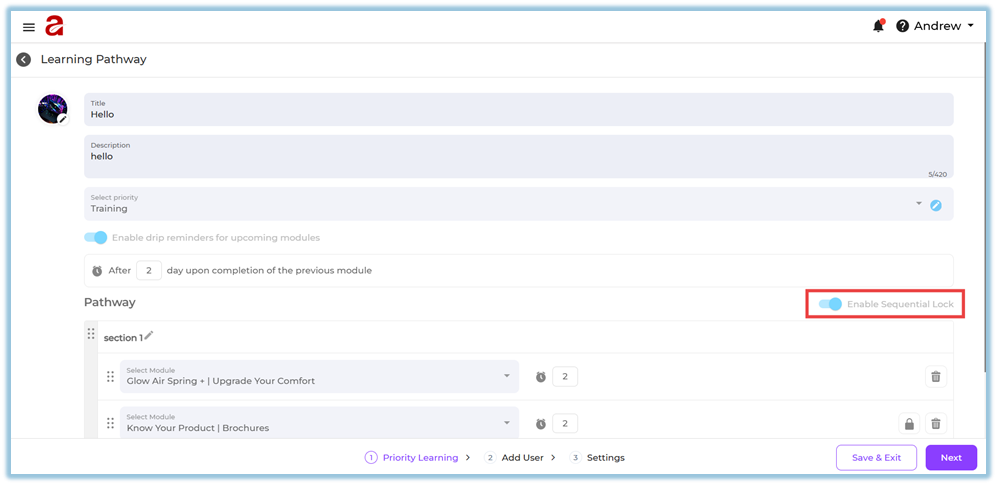
Sequential Learning
When enabled, learners must complete modules in the given order. All modules must be completed to finish the Learning Pathway.
More Options
Each Learning Pathway has a three-dot menu with management actions:
-
Edit
-
Unpublish
-
Report
-
Delete
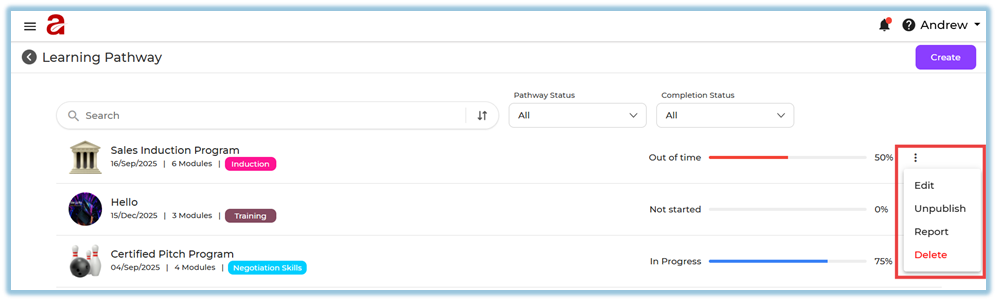
These actions are available only to admins.
4. Setup Guide
Step 1: Open Learning Pathway
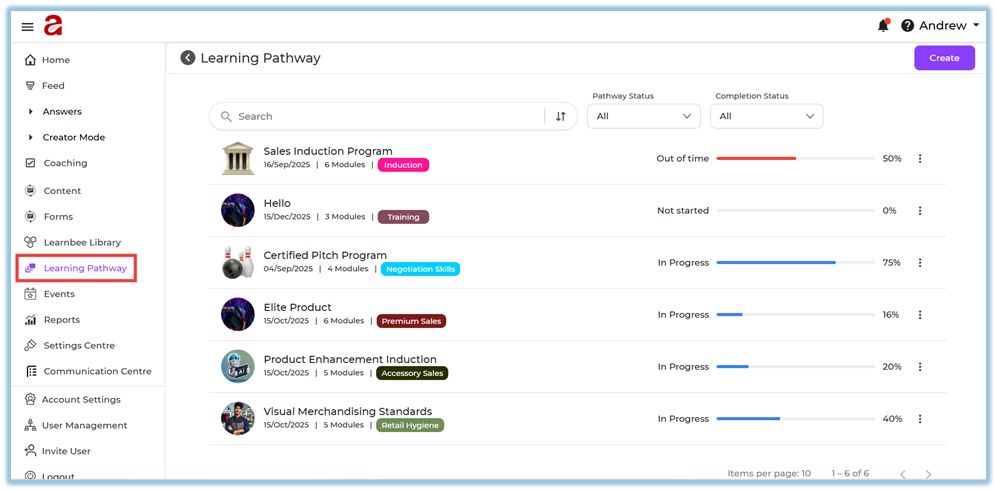
The Learning Pathway list page opens.
Step 2: Create a Learning Pathway
-
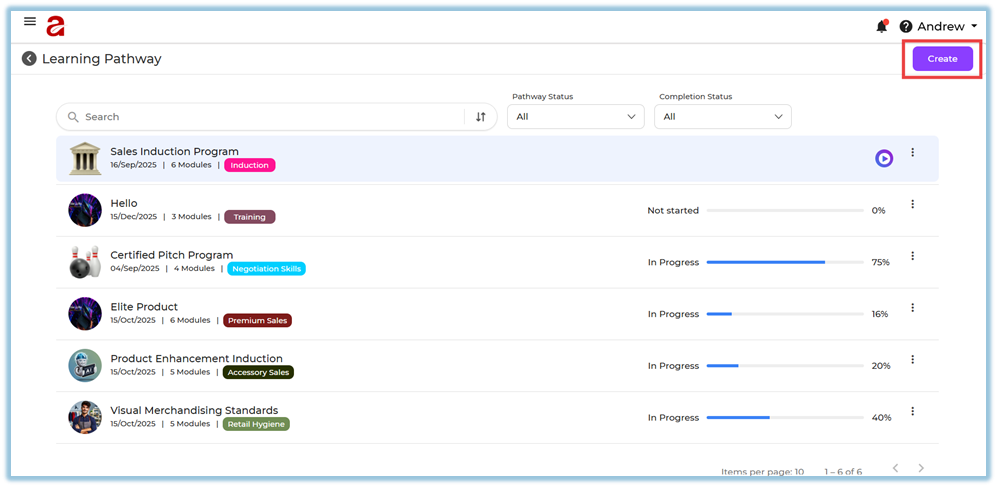
Click Create
-
Enter pathway name
-
Add description (optional)
-
Add image

Set Priority
-
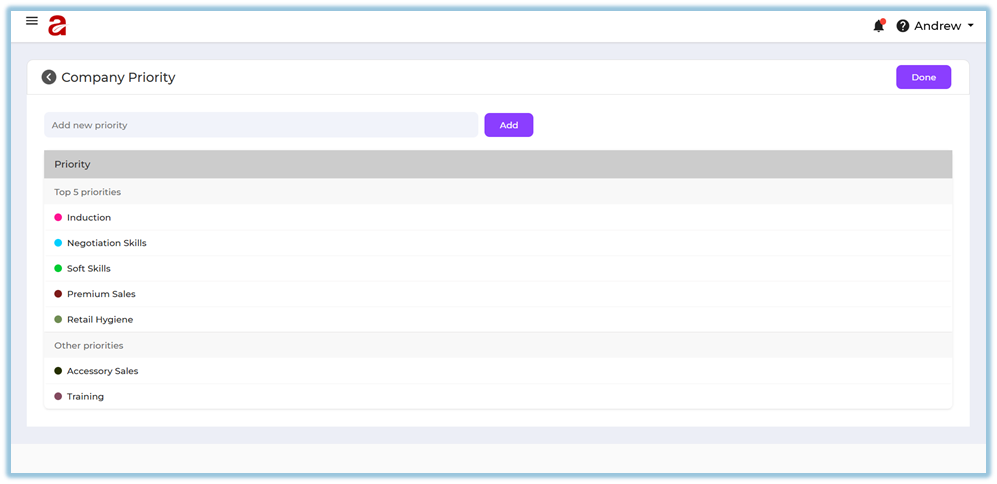
Click on the pencil icon next to the Priority section.

-
Enter the priority name you want to add.
-
Click on Add to save the priority.
-
Click Done to finish and apply the changes.
Step 3: Add Modules
-
Select modules from the available list
-
Modules already added will not appear again in the selection list
-
You can add as many modules as needed
-
There is no minimum or maximum limit for modules
-
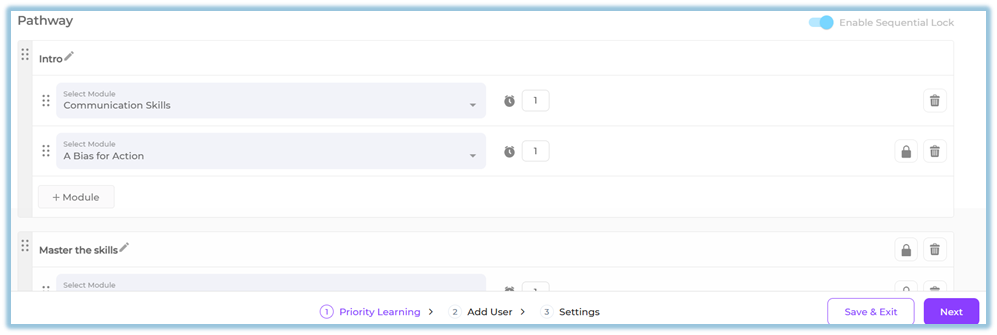
You can reorder both modules and sections as needed.
Step 4: Enable Sequential Learning
-
Enable if learners must complete modules in order
-
Learners cannot skip modules
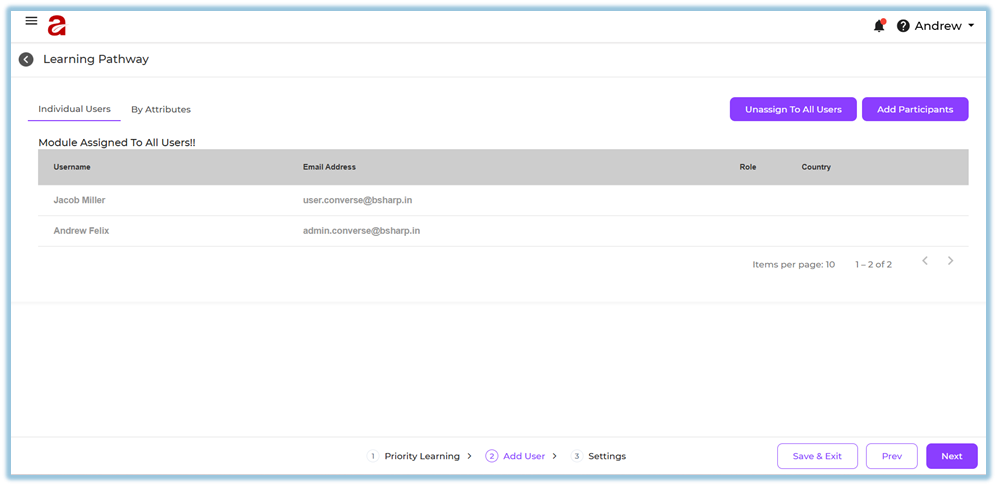
Step 5: Assign Learners
-
Assign to all users
-
Or assign specific users
-
Or assign using attributes
Step 6: Settings
Pathway Deadline
-
No Deadline – Learners can complete the pathway anytime
-
Due Date – Set a specific date to complete the pathway
-
Days – Set the number of days from the learner’s start date
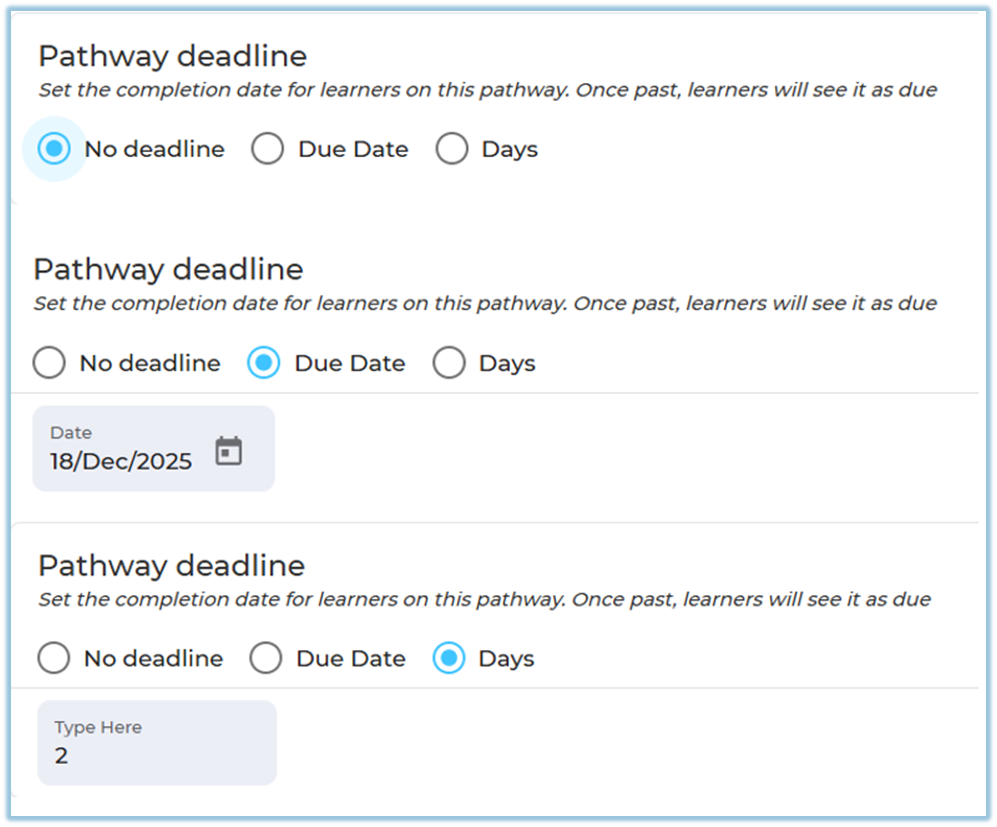
If a learner joins later, the number of days applies from their joining date.
Weightage
-
Assign weightage to the Learning Pathway
-
Based on weightage, the pathway position changes on the list page

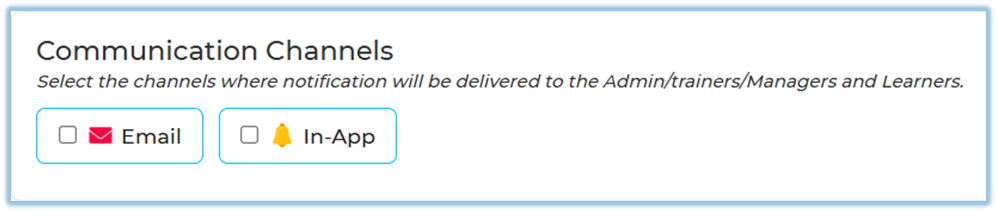
Communication Channels
Choose how notifications are sent:
-
Email
-
In-App Notification
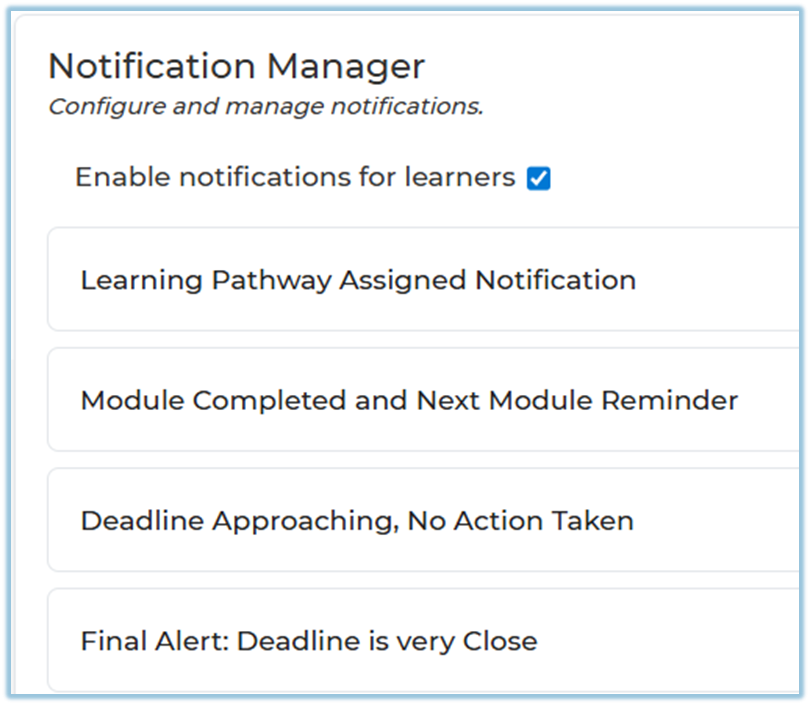
Notification Manager
When notifications are enabled, learners receive:
-
Learning Pathway assigned notification
-
Module completed and next module reminder
-
Deadline approaching, no action taken
-
Final alert when the deadline is very close
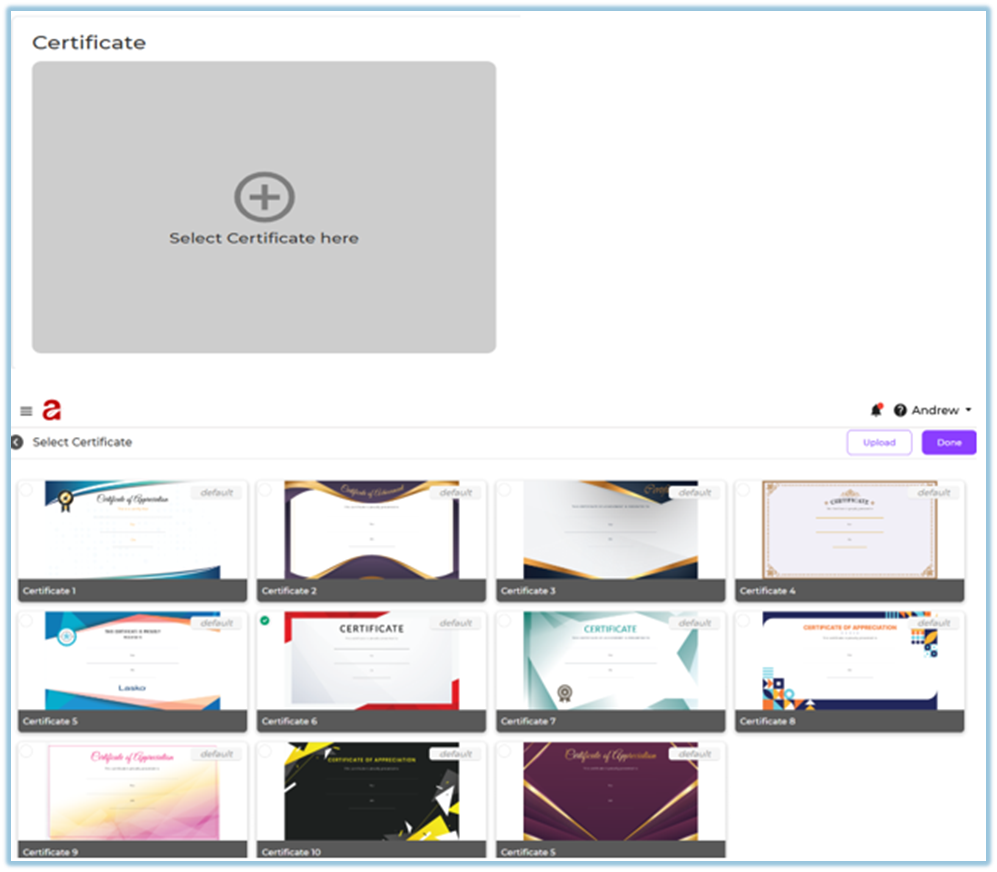
Certificate
-
You can attach a certificate to the Learning Pathway
-
Learners receive the certificate after completing all modules
5. User View
Learners can see Learning Pathways:
-
On the Home page
-
In the left-side menu under Learning Pathway
Learners can:
-
View pathway details
-
See total modules
-
Track progress
-
Resume from last completed module
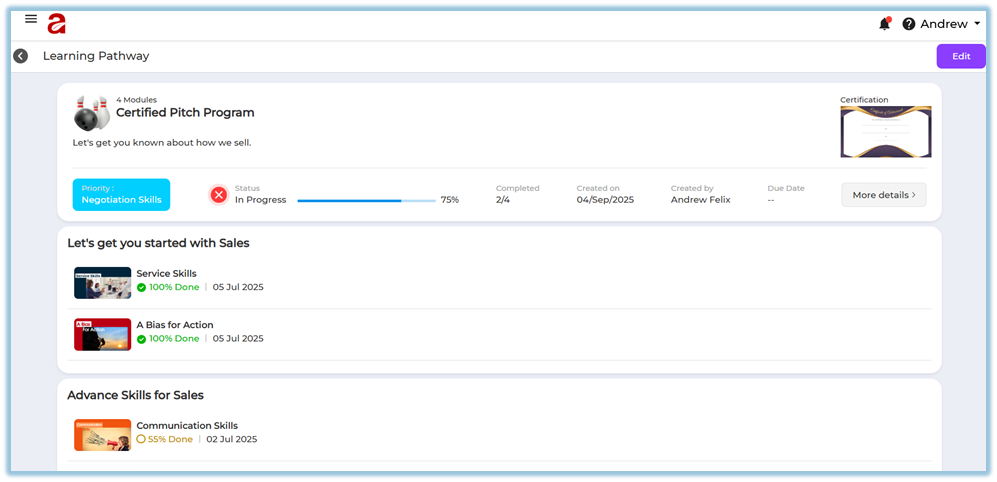
They must complete all modules to finish the pathway.
6. Reporting
-
Reports show completion status for each Learning Pathway
-
Individual pathway reports can be accessed from the list page
-
Reports include module-level completion details
7. Best Practices
-
Keep modules logically ordered
-
Use clear module titles
-
Set realistic deadlines
-
Enable sequential learning when order matters
-
Review the pathway before publishing
8. Troubleshooting & FAQs
Q: Who can create Learning Pathways?
Only authorized users can create Learning Pathways.
Q: Can learners skip modules?
If sequential learning is enabled, learners must complete all modules to complete the Learning Pathway.
Q: Is there a limit on the number of modules?
No, there is no limit.
Q: What happens if a pathway is unpublished?
Learners will not be able to see unpublished Learning Pathways.
9. Version Notes
Last Updated: 15 Dec 2025