
Levels
1. Overview
Levels represent a learner’s progress on the platform. As learners earn points by completing learning activities, they automatically move from one level to the next (for example, Level 1 to Level 2). Levels help learners understand how far they have progressed in their learning journey.
2. When to Use
Levels are useful when you want to:
-
Visually show learner progress on the platform
-
Motivate learners to complete more modules and pathways
-
Track learning progress in a simple, easy-to-understand way
Levels work automatically in the background once they are configured.
3. Concepts
Levels
Levels indicate the learner’s current stage based on points earned. Each level represents a milestone in the learning journey.
Points-Based Progression
Learners earn points when they complete modules and Learning of the Day (LOTD).
All earned points are combined to calculate the learner’s total points.
Levels are determined by the total points earned.
When the learner reaches the required number of points, the system automatically moves the learner to the next level.
No manual action is required from the learner.
Automatic Level Upgrade
Once the required points are reached, the system automatically upgrades the learner to the next level. No manual action is required.
Customizable Levels
Although new levels cannot be added, the existing level structure and point criteria can be customized by the admin.
4. Setup Guide: Manage Levels
Follow these steps to view and manage Levels on the platform:
-
Open the Levels page from Home
On the Home page, locate the Levels section and click on it to navigate to the main Levels page.
https://converse.bsharpcorp.com/celebrate/user_levels -
Access Edit Levels
On the Levels page, click Edit Levels (visible at the top corner of the page).
https://converse.bsharpcorp.com/celebrate/edit_levels -
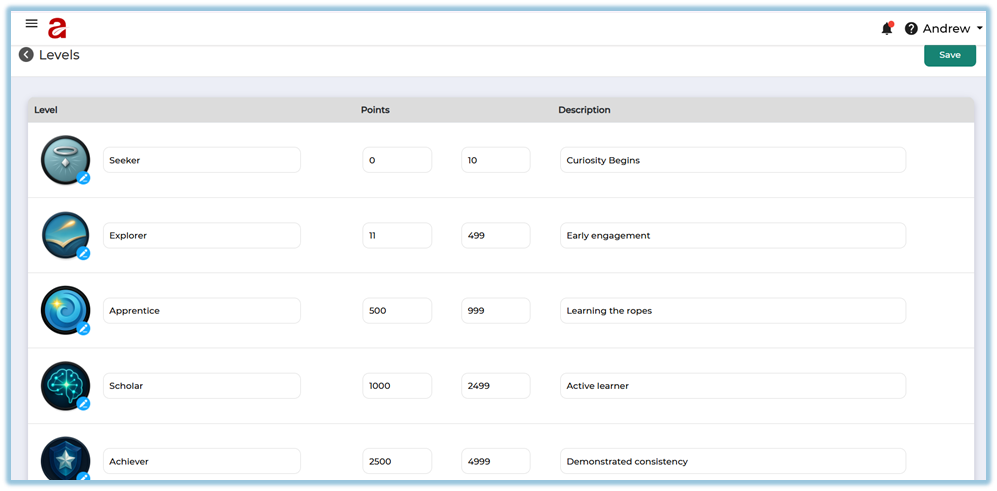
Customize Levels
In the Edit Levels screen, you can:-
Update the level name
-
Modify the minimum and maximum point range
-
Edit the level description
-
-
Save the changes
After making the required updates, click Save. -
Apply to learners
Once saved, the updated level rules are automatically applied to all learners based on their total points.
5. User View
-
Learners can see their current level on the Home page.
-
As learners earn more points, their level updates automatically.
-
Learners do not need to take any action to move between levels.
6. Reporting
-
Level information is used only for progress visibility.
-
Levels do not impact reports, certifications, or access permissions.
-
Admins can view learner levels as part of overall learner progress.
7. Best Practices
-
Set clear and achievable point ranges for each level.
-
Ensure points are awarded consistently across modules.
-
Use levels as a motivational indicator rather than an access control.
8. Troubleshooting & FAQs
Q: Why is a learner’s level not updating?
Ensure the learner has earned the required points and completed the content successfully.
Q: Can learners manually change their level?
No. Levels are updated automatically by the system.
Q: Can admins add new levels?
No. Levels cannot be added, but existing levels can be customized.
9. Version Notes
Last Updated: 15 Dec 2025