
Classroom Courses Report
1. Overview
The Courses Report provides an overview of all classroom courses created in the platform. It helps administrators monitor the course lifecycle, publishing status, trainer assignments, session count, and overall course performance. The report also allows administrators to access session-level details for individual courses and download course data for analysis.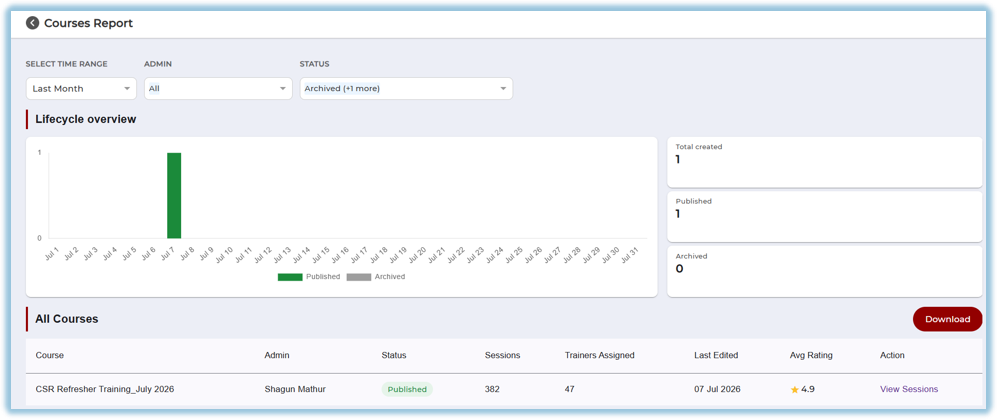
2. When to Use
Use the Courses Report to:
- View all classroom courses in one place.
- Monitor course creation and publishing status.
- Track the number of sessions conducted for each course.
- Review trainer assignments.
- Check course ratings.
- Open session-level reports for a specific course.
- Download course report data.
3. Concepts
- Courses Report – Provides an overview of all classroom courses and their performance.
- Lifecycle Overview – Displays the number of courses created over the selected time period based on their status.
- Course Status – Indicates whether a course is Published, Draft, or Archived.
- Sessions – Represents the total number of classroom sessions created for a course.
- Trainers Assigned – Shows the number of trainers associated with a course.
- Average Rating – Displays the average learner rating received for the course.
4. Setup Guide
Accessing the Courses Report
- Click the Main Menu.
- Select Reports.
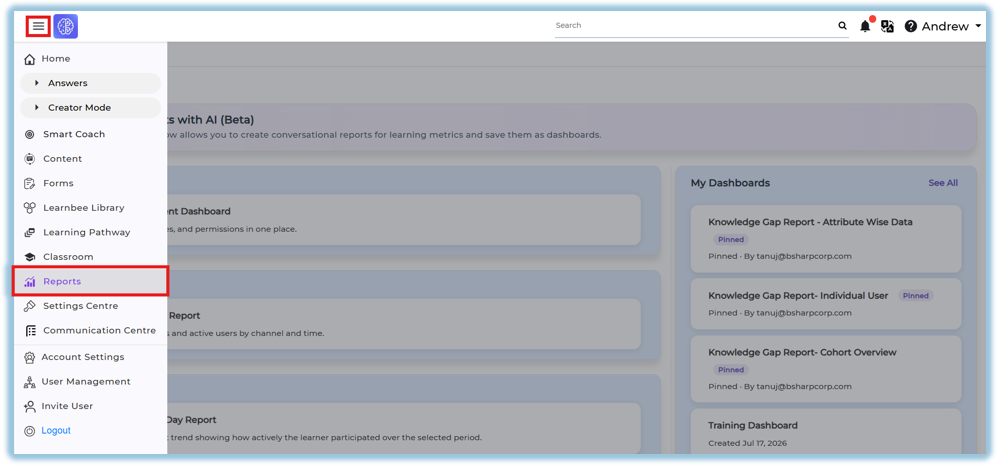
- Under Classroom, click Courses Report.
- The Courses Report dashboard opens.
Apply Filters
Use the filters at the top of the page to refine the report:
- Select Time Range – View course data for a specific period.
- Admin – Filter courses created by a selected administrator.
- Status – View courses based on their current status (Published, Draft, or Archived).
The report updates automatically based on the selected filters.
5. User View
The Courses Report page consists of the following sections:
Lifecycle Overview
Displays a graphical summary of courses created during the selected time period.
The chart categorizes courses by:
- Published
- Draft
- Archived
This provides a quick view of course activity over time.
Summary Cards
The right side of the dashboard displays summary statistics, including:
- Total Created – Total number of classroom courses created.
- Published – Number of published courses.
- Draft – Number of courses saved as drafts.
- Archived – Number of archived courses.
These cards update automatically when filters are applied.
All Courses
The All Courses table provides detailed information for each classroom course.
The table includes:
- Course Name
- Admin
- Status
- Sessions
- Trainers Assigned
- Last Edited
- Average Rating
- Action
View Sessions
Click View Sessions for a course to open the Sessions Report, where you can view detailed session analytics for that course.
Download Report
Click Download to export the Courses Report for offline review and analysis.
6. Reporting
The Courses Report helps administrators:
- Track classroom course creation.
- Monitor publishing progress.
- Review trainer allocation.
- Analyze course ratings.
- Navigate to detailed session reports.
- Export course information for reporting purposes.
7. Best Practices
- Apply filters before reviewing or downloading reports.
- Regularly monitor draft courses and publish completed courses.
- Review course ratings to identify improvement opportunities.
- Use View Sessions to analyze learner participation and session performance.
- Download reports periodically for record keeping and audit purposes.
8. Troubleshooting & FAQs
Why are no courses displayed?
Verify that:
- The selected filters contain matching data.
- Courses exist for the selected time range.
- You have permission to access Classroom Reports.
Why are some courses shown as Draft?
Draft courses have been created but have not yet been published.
Why can't I see session details?
Click View Sessions in the Action column for the required course to access its Sessions Report.
Why does the report show no data?
Try selecting a different time range or removing filters to view available data.
9. Related Links
- Sessions Report
- Classroom
- User Management
- Reports
10. Version Notes
Last Updated: 10 Aug 2026