
Form Responses Report
1. Overview
Form Reports in Bsharp Converse allow administrators and authorized users to view, analyze, and download responses submitted for published forms. Reports provide visibility into user participation, submission trends, question-level responses, and media collected through forms.
2. When to Use
Use this when:
-
You want to view responses submitted for a published form.
-
You need to analyze form data by date range, user, or attributes.
-
You want to download responses or media collected through a form.
-
You need to monitor form usage at company or team level.
3. Concepts
-
Form Reports – The reporting view that displays response data for a selected form.
-
Company Tab – Shows reports across the organization and is accessible to administrators.
-
Team Tab – Shows reports for assigned teams and is accessible to users with team-level permissions.
-
Filters – Options used to narrow report data by time range, user, or attributes.
-
Question-level Data – Response data displayed for individual questions within a form.
4. Set Up Guide
-
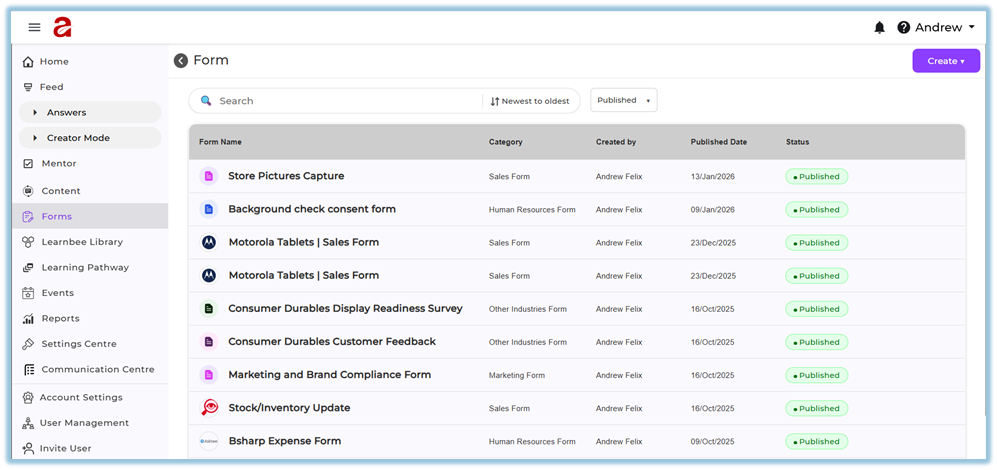
Open the Forms section.
-
Select a published form from the form list.
-
Navigate to the Manage page of the form.
-
Click Reports.

-
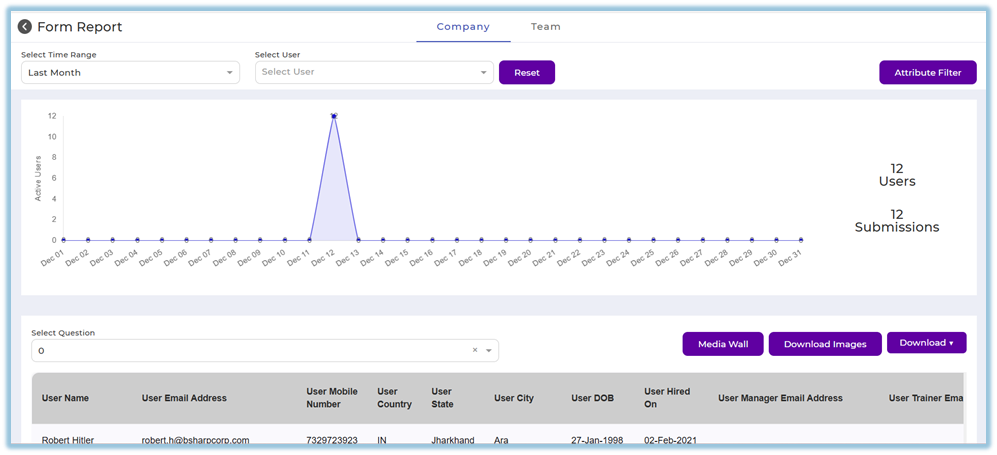
The Form Report page opens.
Filter report data
-
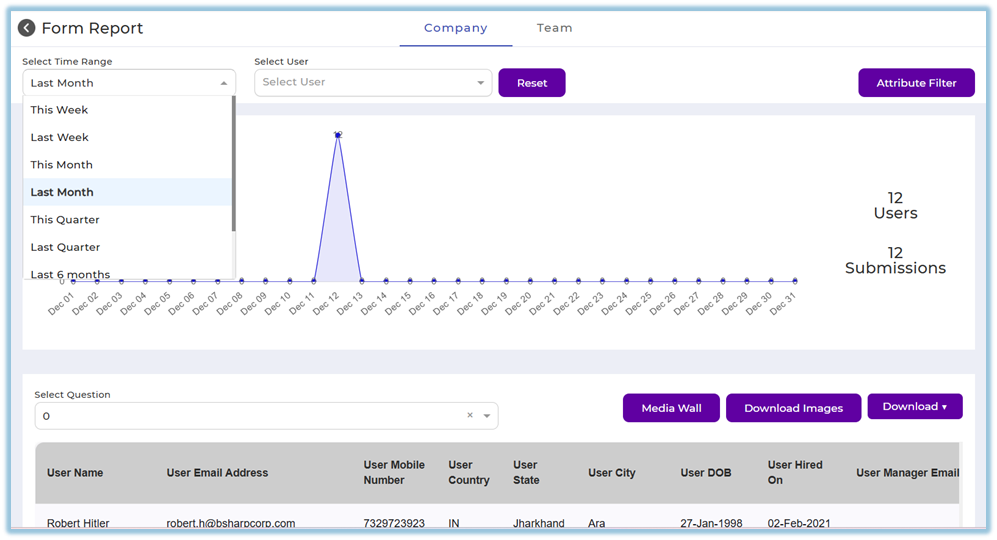
Select a Time Range to filter responses.
-
Select a User to view responses for a specific user.
-
Click Reset to clear applied filters.
-
Use Attribute Filter to filter responses based on assigned attributes.
View report data
-
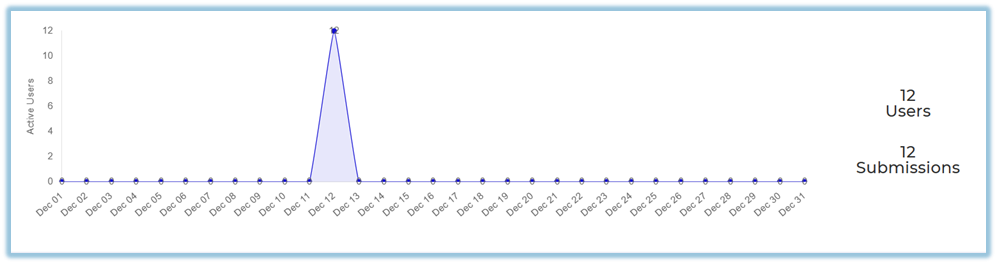
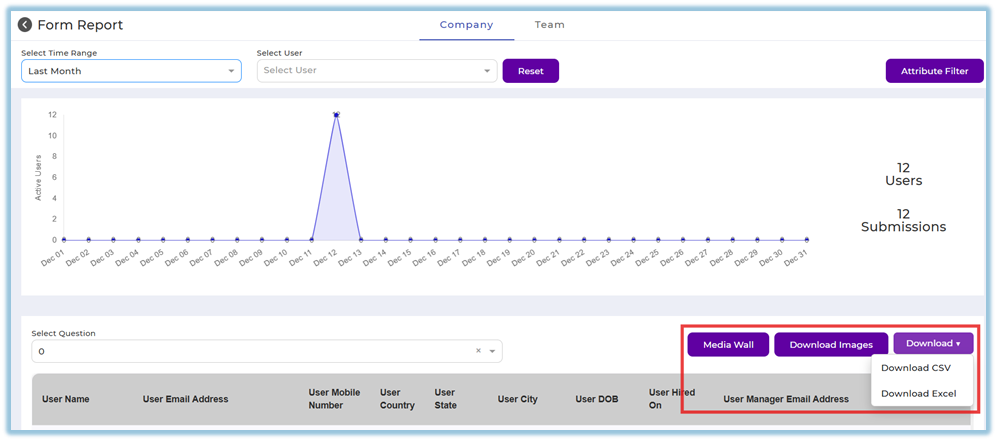
View submission trends displayed in the report graph.
-
Review Active Users and Submissions count.
-
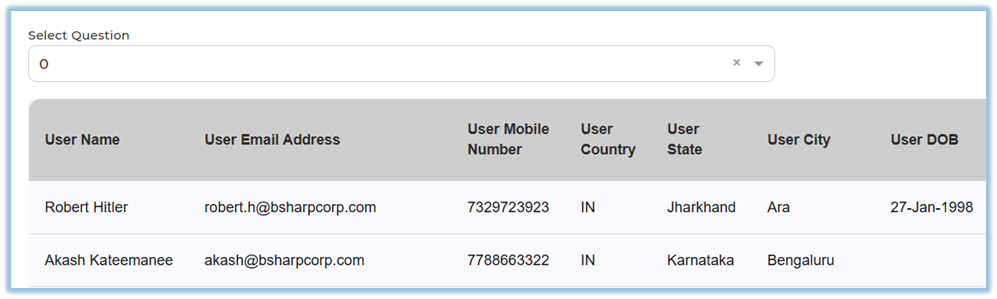
Select a Question to view question-specific response data.
Download report data
-
Use Media Wall to view image-based responses.
-
Click Download Images to download uploaded images.
-
Use Download to export responses in available formats such as CSV or Excel.
5. User View
Form Reports are visible only to users with appropriate access. Administrators can view reports across the company, while team-level users can view reports limited to their assigned teams.
6. Reporting
-
Reports are available only after a form is published.
-
Company tab is accessible to administrators.
-
Team tab is accessible to users with team-level roles such as managers or trainers.
-
Reports reflect real-time data as users submit responses.
7. Best Practices
-
Apply filters to narrow down large data sets.
-
Use question-level filtering to analyze specific responses.
-
Download data periodically for offline analysis.
-
Use Media Wall for reviewing image-based submissions.
-
Ensure users are assigned before expecting report data.
8. Version Notes
Last Updated: 14 Jan 2026